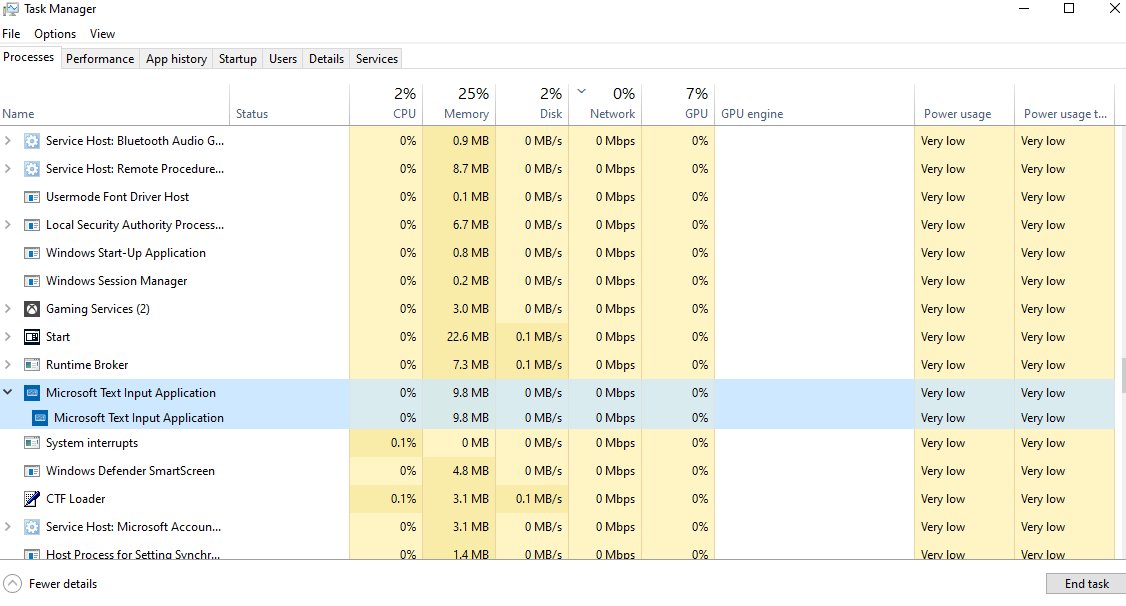
Microsoft Text Input Application is the Task Manager name for TextInputHost.exe, a built-in Windows component that Microsoft's own update notes call the Input app.
This guide explains what it does, how to confirm the copy on your PC is genuine, what you can safely stop or close, and how to fix it when it uses too much memory or stops working.
What is the Microsoft Text Input Application?
It is part of Windows 11 and Windows 10, not a third-party program. Microsoft services it through Windows Update: release notes describe fixes for "the Input (TextInputHost.exe) app" stopping working and for a memory leak in TextInputHost.exe.
Leave it running. It is a genuine Windows process tied to text input, not something you need to remove. Microsoft names it the Input app and patches it alongside other typing components such as ctfmon.exe, so ending or removing it gains nothing and can break typing features.
Windows text input tools linked to the Input app
The process wakes up around the modern text input tools in Windows. These are the ones most people use, with the shortcut that opens each.
| Tool | How to open it | What it does |
|---|---|---|
| Emoji panel | Windows key + period (.) or semicolon (;) | Inserts emojis, GIFs, kaomoji and symbols while you type |
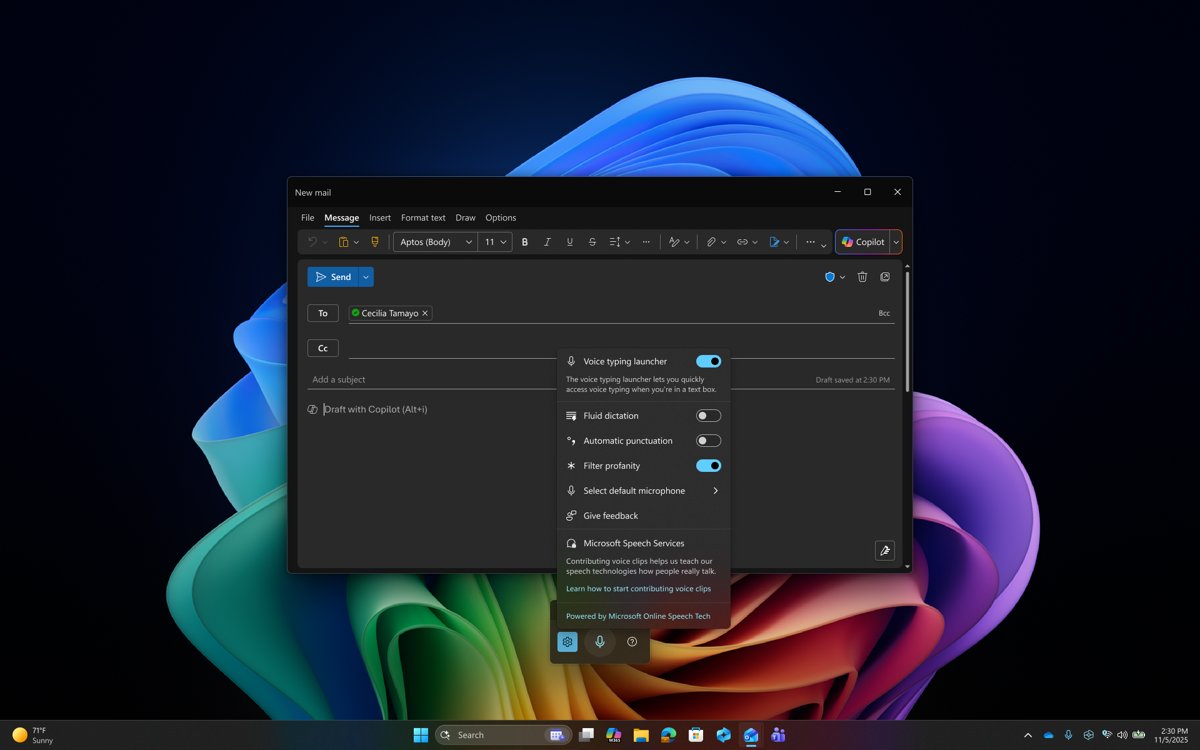
| Voice typing | Windows key + H | Types what you say into a text box; needs internet and a microphone |
| Clipboard history | Windows key + V | Shows items you copied earlier |
| Touch keyboard | Touch keyboard icon in the taskbar's system tray | On-screen keyboard for tablets with no keyboard attached |
| Input languages and layouts | Windows key + Spacebar | Switches between installed keyboard layouts and IMEs |
Is the Microsoft Text Input Application safe?
The genuine process is safe. Malware sometimes borrows system process names, so check the file's location if something about it looks wrong, such as a duplicate copy or heavy activity while you are not typing.
- Press Ctrl + Shift + Esc to open Task Manager.
- Select Details in the left pane (the Details tab on Windows 10).
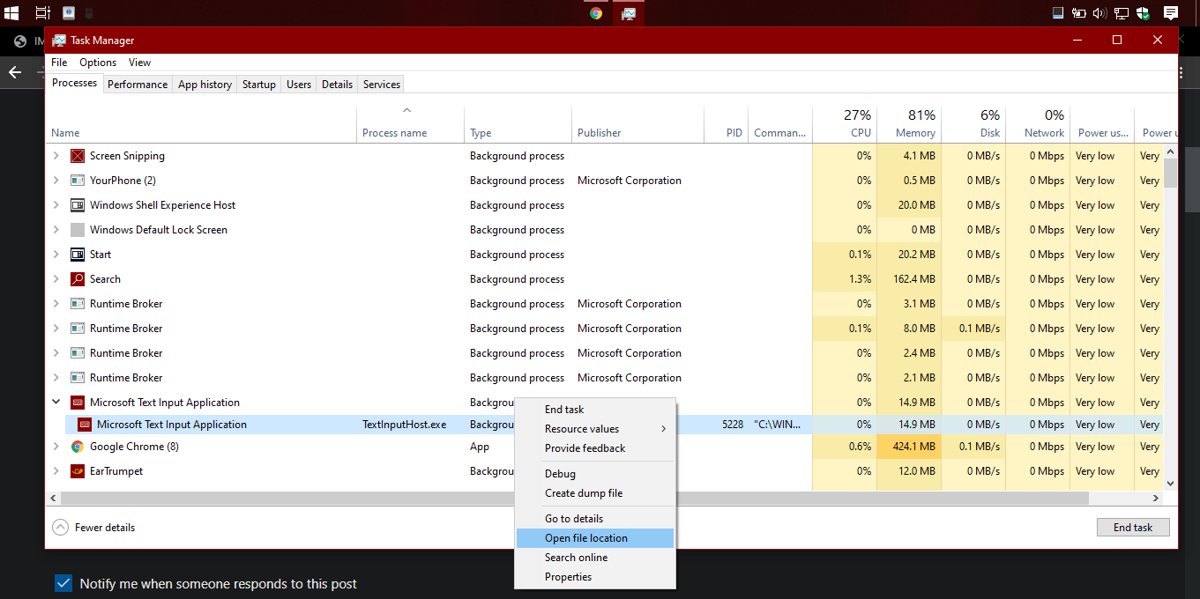
- Find TextInputHost.exe, right-click it and select Open file location.
- Confirm the file sits inside the Windows folder on your system drive, not in Downloads, AppData or Temp.
- If it is anywhere else, run a Microsoft Defender full scan before doing anything else.
There is no separate download for this component. Any site offering a "Microsoft Text Input Application download" is not a Microsoft source, so do not install it.
How to disable the Microsoft Text Input Application process
Windows has no switch that turns the Input app off, and deleting or renaming its files is a bad idea: protected system files are restored by the System File Checker and by updates, and typing tools can fail in the meantime. What you can do is close it for now and stop the touch keyboard from calling it.
- To close it now, open Task Manager with Ctrl + Shift + Esc.
- On the Processes page, right-click Microsoft Text Input Application and select End task. Expect it to reappear the next time you use a typing tool.
- To stop the touch keyboard appearing, right-click the taskbar and select Taskbar settings.
- Under System tray icons, choose Never in the drop-down next to Touch keyboard.
- On Windows 11, also open Settings > Time & language > Typing > Touch keyboard and set the tap-to-open option to Never.
The Never option in Taskbar settings removes the icon and stops the touch keyboard from appearing even when no keyboard is attached. If you need an on-screen keyboard later, the separate On-Screen Keyboard still works.
Turn the touch keyboard back on in Windows
- Right-click the taskbar and select Taskbar settings.
- Under System tray icons, choose Always or When no keyboard attached next to Touch keyboard.
- Select the touch keyboard icon in the system tray to open it.
- On Windows 11, set Settings > Time & language > Typing > Touch keyboard back to Always or When no keyboard attached.
Improve your PC’s performance when the Text Input Application misbehaves
Microsoft Text Input Application using a lot of memory
Microsoft has fixed memory leaks in TextInputHost.exe through cumulative updates.
- Save your work and restart the PC to clear the leaked memory.
- Select Start > Settings > Windows Update > Check for updates.
- Install all offered updates, including optional preview updates if the problem keeps returning.
- Restart again and watch the process in Task Manager for a day of normal use.
Typing tools stop working or TextInputHost.exe keeps crashing
Microsoft has shipped several fixes for the Input app stopping working, so an outdated build or damaged system file is the likely cause.
- Install the latest cumulative update from Settings > Windows Update.
- Open Command Prompt as administrator.
- Run the System File Checker command below and let it finish.
- Restart the PC and test the emoji panel with Windows key + period (.).
How to stop Microsoft Text Input Application popping up the touch keyboard
The touch keyboard is set to open when you tap a text box, even with a keyboard attached.
- Open Settings > Time & language > Typing > Touch keyboard.
- Choose Never or When no keyboard attached in the drop-down.
- If the keyboard still appears in one app, report it through the Feedback Hub app.
Repair the Input app with System File Checker
sfc /scannowScans every protected Windows system file and replaces incorrect versions with correct copies. Run it from a Command Prompt or Terminal opened as administrator; it fails for standard accounts.
You should see: The scan completes and reports either no problems or the files it repaired. Restart the PC afterwards.
Microsoft text input application FAQ
What is Microsoft Text Input Application?
It is TextInputHost.exe, a built-in Windows component that Microsoft's update notes call the Input app. It supports Windows text input tools such as the emoji panel and touch keyboard, and Microsoft updates it through Windows Update.
How do I stop Microsoft Text Input Application?
Open Task Manager with Ctrl + Shift + Esc, right-click Microsoft Text Input Application and select End task. This stops it only for now. To keep the touch keyboard from calling it, set Touch keyboard to Never in Taskbar settings.
How do I close Microsoft Text Input Application?
Close it from Task Manager: on the Processes page, right-click it and select End task. Closing it is harmless, but Windows uses it again when you open a typing tool, so it will return later.
Can I disable Microsoft Text Input Application permanently?
No supported setting removes it. Deleting or renaming its files breaks typing tools, and System File Checker and updates restore protected system files. Turning off the touch keyboard is the safe way to cut its activity.
Is Microsoft Text Input Application a virus?
No, the genuine TextInputHost.exe is part of Windows. Check that its file sits inside the Windows folder using Open file location in Task Manager's Details view, and run a Microsoft Defender scan if it is anywhere else.
Can I download Microsoft Text Input Application?
No. It ships with Windows and is updated only through Windows Update. A standalone download offered on any website is not from Microsoft and should not be installed.
Does Windows 10 have Microsoft Text Input Application?
Yes. Windows 10 runs TextInputHost.exe too, and Microsoft has released Windows 10 updates that fix a memory leak in it. Keep Windows 10 updated through Windows Update.
How do I enable Microsoft Text Input Application again?
Restart the PC; Windows starts the process again when a typing tool needs it. If you turned off the touch keyboard, set Touch keyboard back to Always or When no keyboard attached in Taskbar settings.