Runtime Broker (RuntimeBroker.exe) is a genuine Windows process that runs whenever Microsoft Store apps are open: it manages their app permissions and pauses, resumes or closes them to save memory and battery.
This guide covers what it does, what usage is normal, how to cut high CPU or memory use with the settings Microsoft documents, and how to prove the file is genuine and scan it with Microsoft Defender.
The fastest way to calm a busy Runtime Broker
Runtime Broker only works as hard as the apps it serves. Find the app behind the load and deal with that app first.
- Press Ctrl + Shift + Esc to open Task Manager and stay on the Processes tab.
- Select the CPU column header, then the Memory header, and note where Runtime Broker sits.
- Look for Microsoft Store apps near it, such as Photos, Mail, Weather or a game, and close the ones you are not using.
- If Runtime Broker stays high, right-click it and select End task. Windows starts it again when an app needs it.
- Select Start > Power > Restart if the load returns within a few minutes.
- If it is still high after the restart, work through the background app and notification settings further down.
What Runtime Broker Does in Windows
Microsoft Store apps, also called UWP apps, run in a sealed app container rather than with full access to your PC. Runtime Broker sits between those apps and Windows. Microsoft's developer documentation names RuntimeBroker.exe as a broker process for Store apps and describes the Runtime Broker service suspending, resuming and terminating them.
| Job | What it means for you |
|---|---|
| Checks app permissions | Store apps must declare capabilities such as camera, microphone, location or your Pictures library. Runtime Broker enforces the choices you make under Settings > Privacy & security. |
| Suspends apps you are not looking at | When a Store app leaves the foreground, its threads are paused so it stops using CPU, then woken when you return to it. |
| Closes apps under memory pressure | An app that uses too much memory or takes too long to start can be terminated to protect the rest of the system. |
| Keeps closed apps ready | Since Windows 8.1, closing a Store app suspends it by default instead of ending it, so it reopens faster. |
| Leaves desktop programs alone | Classic desktop programs that have access to all system resources are not listed on the Privacy page and are not governed this way. |
In short, Runtime Broker is how Windows applies the app permissions you set and keeps Store apps from draining power in the background.
Why Runtime Broker Runs in the Background
Many Store apps work without a window open. Live tiles, widgets, notifications and background tasks all count, so Runtime Broker appears in Task Manager even when you have not opened an app yourself.
| Background trigger | Example | Where you control it |
|---|---|---|
| An open or suspended Store app | Photos, Calculator or Clipboard-style apps left open | Close the app, or end it in Task Manager |
| An app's background task | A mail or calendar app checking for new items | Installed apps > the app > Advanced options > Background app permissions |
| A permission request | An app asking for location, camera or microphone | Settings > Privacy & security > the permission |
| Notifications from apps | News, weather or chat apps sending alerts | Settings > System > Notifications |
| Windows tips and suggestions | Suggestions and welcome screens after updates | Settings > System > Notifications > Additional settings |
Task Manager often shows several Runtime Broker entries at once. That is common when several Store apps or their background tasks are active, and it is not a sign of infection on its own.
Normal vs. High CPU and Memory Usage
Microsoft publishes no fixed figure for Runtime Broker. Judge it by pattern: short bursts that fade are normal, while load that stays high with no apps open needs a look.
| What you see in Task Manager | Normal or not | What to do |
|---|---|---|
| Low CPU, modest memory, rising briefly when you open a Store app | Normal | Nothing |
| A short CPU spike when an app asks for a permission or sends a notification | Normal | Nothing |
| Several Runtime Broker entries while Store apps are open | Normal | Nothing, unless one stays high |
| High CPU that stays high for many minutes with no Store apps open | Not normal | Follow the reduction steps below |
| Memory that keeps climbing until you restart | Not normal | Find the app responsible, update or reset it |
| A RuntimeBroker.exe outside the Windows System32 folder, or an invalid signature | Not normal | Scan with Microsoft Defender |
If the whole PC feels slow and Runtime Broker is not near the top of the list, take a system-wide look at CPU usage instead.
Common Reasons Runtime Broker Uses Too Many Resources
Runtime Broker rarely misbehaves on its own. Heavy use nearly always traces back to one app or one setting.
| Cause | Typical sign | Fix |
|---|---|---|
| One Store app misbehaving | Load drops when you close a particular app | Update, repair or reset that app |
| Apps allowed to run in the background | Load while no app window is open | Set Let this app run in the background to Never for apps you do not need |
| Frequent notifications | Spikes each time an alert arrives | Turn off notifications for chatty apps |
| Windows tips and suggestions | Activity after updates or at sign-in | Clear Get tips and suggestions when using Windows |
| An app holding many permissions or files | Memory grows while an app browses large folders | Close the app and review its permissions |
| Out-of-date Windows or drivers | Problem started after an update or persists everywhere | Install Windows updates and optional driver updates |
| Malware using the same name | File outside System32 or an invalid signature | Scan with Microsoft Defender |
How to Check Whether Runtime Broker Is Legitimate
Malware sometimes borrows the names of well-known Windows processes. Two built-in PowerShell cmdlets settle it: Get-Process shows the file behind each running copy, and Get-AuthenticodeSignature checks its digital signature.
- Type
powershellin the Start menu search box, right-click Windows PowerShell and select Run as administrator. Microsoft requires elevation to read processes you do not own. - Run
Get-Process -Name RuntimeBroker -FileVersionInfoto list the file behind every Runtime Broker process. - Read the FileName column. Windows' own copy is
C:\Windows\System32\RuntimeBroker.exe. - Run
Get-AuthenticodeSignature -FilePath "C:\Windows\System32\RuntimeBroker.exe", replacing the path with any different one the previous step showed. - Read the Status column. Valid means the file carries an intact digital signature.
- Treat any other location, or any status other than Valid, as a reason to run the scans in the malware section.
Safe Ways to Reduce Runtime Broker Activity
These are the settings Microsoft documents for cutting background activity and notifications. Change one, then watch Task Manager for a few minutes before moving on.
- Close or reset apps that are actively triggering it: select Start > Settings > Apps > Installed apps, select More options (…) next to the app, then Advanced options, and use Repair or Reset if the app misbehaves.
- Limit background app permissions: on the same Advanced options page, under Background app permissions, set Let this app run in the background to Never for apps you do not need running.
- Review app permissions: select Start > Settings > Privacy & security, pick a permission such as Location, and turn off apps that do not need it.
- Reduce notification activity: select Start > Settings > System > Notifications and turn off notifications for apps under Notifications from apps and other senders.
- On the same page, open Additional settings and clear Get tips and suggestions when using Windows and Show the Windows welcome experience after updates and when signed in to show what's new and suggested.
- Install updates: select Start > Settings > Windows Update > Check for updates, then Advanced options > Optional updates.
- Restart the PC and check Task Manager again.
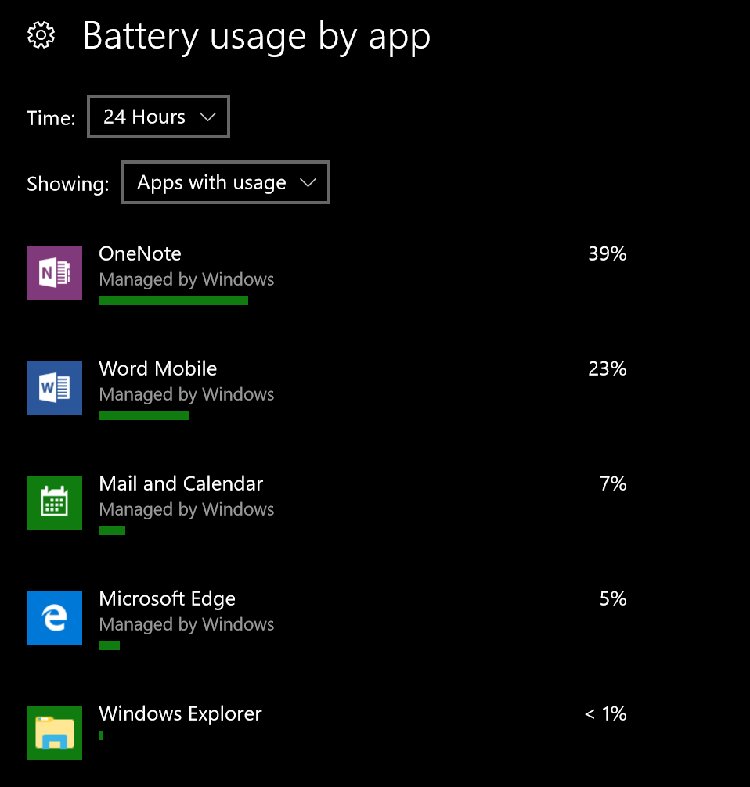
On Windows 10, Microsoft also places per-app background controls under Battery usage by app in the Battery section of Settings.
When to Scan for Malware or Investigate Further
Signs that deserve extra attention: a RuntimeBroker.exe outside System32, a signature that is not Valid, heavy load with no Store apps installed or open, or Windows Security alerts naming the file. Microsoft notes that malware itself consumes CPU and disk.
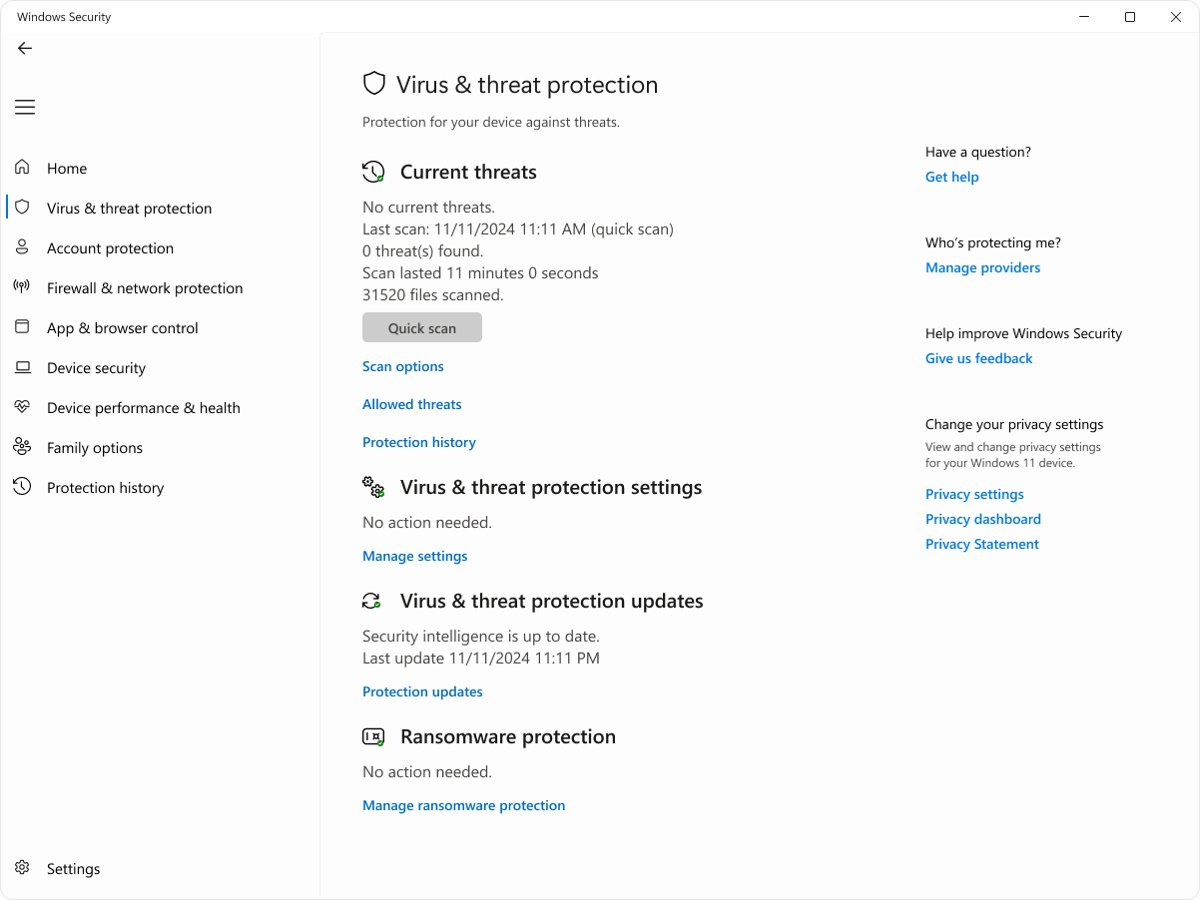
- Select Start > Settings > Privacy & security > Windows Security > Virus & threat protection.
- Select Quick scan and let it finish.
- If the quick scan finds nothing but the signs remain, select Scan options, choose Full scan and select Scan now.
- For persistent infections, choose Microsoft Defender Antivirus (offline scan) under Scan options. Save your work first, because the PC restarts and scans before Windows loads.
- After the restart, open Windows Security and select Protection history to see the results.
- Remove anything Defender flags, then repeat the signature check above.
A full scan keeps Microsoft Defender busy for a while. If its own process then dominates Task Manager, fix Antimalware Service Executable’s high usage.
How to check Runtime Broker has settled down
A quiet reading straight after a restart proves little. Check it while you use the PC normally.
- Use your usual apps for 15 to 20 minutes, including any Store apps you kept.
- Press Ctrl + Shift + Esc and sort the Processes tab by CPU.
- Confirm Runtime Broker only rises briefly when you open an app or a notification arrives, then falls back.
- Close every Store app and check that its CPU use drops to near zero within a minute or two.
- Sort by Memory and confirm the figure stays level rather than climbing over time.
Fix Runtime Broker problems that keep coming back
Runtime Broker is running multiple times
Several Store apps or background tasks are active, or one copy is not genuine.
- Run
Get-Process -Name RuntimeBroker -FileVersionInfoin an elevated PowerShell window. - Confirm every FileName is
C:\Windows\System32\RuntimeBroker.exe. - Close Store apps you are not using and check whether the count falls.
- Scan with Microsoft Defender if any entry points somewhere else.
High CPU returns shortly after ending the task
An app with background permission keeps restarting its work.
- Open Settings > Apps > Installed apps and review recently installed or updated Store apps.
- Set Let this app run in the background to Never for each app you do not need running.
- Turn off that app's notifications in Settings > System > Notifications.
- Restart and watch Task Manager again.
Runtime Broker stopped working or shows an error
Damaged system files or an out-of-date Windows installation.
- Install all available Windows updates and optional updates.
- Type
cmdin the Start menu search box, right-click Command Prompt and select Run as administrator. - Run
DISM.exe /Online /Cleanup-image /Restorehealthand wait for it to finish. - Run
sfc /scannow. Windows Resource Protection did not find any integrity violations means system files are fine. - Restart the PC.
Windows Security flags a file named RuntimeBroker.exe
A malicious file is using the Windows name, often from another folder.
- Let Microsoft Defender quarantine or remove it.
- Run a Microsoft Defender Antivirus (offline scan) from Scan options.
- Check Protection history after the restart.
- Repeat the signature check on
C:\Windows\System32\RuntimeBroker.exeto confirm it still returns Valid.
Should you end, disable or remove Runtime Broker?
Ending the task is safe for a quick fix. Deleting or blocking the file is not, because it is part of Windows.
End Runtime Broker in Task Manager only as a temporary fix, and reduce its work through background app permissions and notification settings instead of trying to disable or delete it. Windows relies on Runtime Broker to apply app permissions and manage Store apps, including built-in ones, so removing it breaks those apps. Turning off background permission for apps you do not need removes most of its work without touching Windows files.
Bottom Line
Leave Runtime Broker running, confirm it is the signed file in System32, and fix sustained high usage by finding the Store app behind it and limiting that app's background activity and notifications. Runtime Broker is a normal Windows component whose load reflects the apps it serves. The file location and signature check separate the genuine process from malware, and a Microsoft Defender scan covers the rest.
Frequently Asked Questions
What is Runtime Broker?
Runtime Broker is a Windows process, RuntimeBroker.exe, that manages Microsoft Store apps. It applies the app permissions you set under Privacy & security and pauses, resumes or closes Store apps to save memory and battery. It appears in Task Manager as Runtime Broker.
Why is Runtime Broker running?
It runs because a Microsoft Store app is open, suspended, sending notifications or running a background task. Built-in apps count too, so it appears even if you have not opened an app yourself. It uses little CPU when those apps are idle.
Why do I have multiple Runtime Broker processes running?
Several entries are common when several Store apps or background tasks are active. Confirm each one is genuine by running Get-Process -Name RuntimeBroker -FileVersionInfo in an elevated PowerShell window; every file should be C:\Windows\System32\RuntimeBroker.exe.
Is Runtime Broker a virus?
No. The genuine RuntimeBroker.exe is part of Windows and carries a valid digital signature. A file with that name elsewhere, or one whose Get-AuthenticodeSignature status is not Valid, is suspicious and should be scanned with Microsoft Defender.
Do I need Runtime Broker?
Yes, if you use any Microsoft Store apps, including the ones built into Windows. Runtime Broker applies their permissions and manages their memory. You can end it temporarily in Task Manager, and Windows starts it again when an app needs it.
Is Runtime Broker important?
Yes. It is how Windows enforces privacy settings such as camera, microphone and location access for Store apps, and how it suspends apps you are not using. Without it those apps cannot run properly.
Should I remove Runtime Broker?
No. It is a Windows system file, and deleting or blocking it breaks Store apps. Reduce its activity by setting Let this app run in the background to Never for apps you do not need and turning off unneeded notifications.
What is RuntimeBroker.exe?
RuntimeBroker.exe is the program file behind the Runtime Broker entry in Task Manager. Windows' own copy sits in C:\Windows\System32. It brokers permissions and lifecycle for Microsoft Store apps and has no user interface of its own.
What does Runtime Broker mean?
A broker is a go-between. Runtime Broker stands between Store apps and Windows while they run, granting only the capabilities you allow and pausing apps that leave the foreground.
How do I stop Runtime Broker from using high CPU?
Close the Store apps you are not using, end the task in Task Manager, and restart. If it returns, set background permission to Never for unneeded apps, turn off chatty notifications and Get tips and suggestions when using Windows, and install Windows updates.