A WerFault.exe error means another program crashed and Windows Error Reporting is reporting it, so the fix is to repair that program or the system files under it: update the app, run DISM and sfc /scannow, and test with a clean boot.
This guide shows how to find the real culprit, the repair commands in order, how to rule out malware and bad memory, and how to stop the pop-ups if you only want them gone.
How to Fix WerFault.exe Error in Windows 11
Work through these in order and stop when the error goes away. Most cases end at step 3.
- Read the error dialog and note the app it names; WerFault.exe is the reporter, not the program that failed.
- Update that app, or uninstall and reinstall it from its publisher.
- Select Start, Settings, Windows Update, then Check for updates, and install everything offered, including optional updates.
- Open Command Prompt as administrator and run
DISM.exe /Online /Cleanup-image /Restorehealth, thensfc /scannow. - Restart the PC and repeat what triggered the error.
- If it still appears, do a clean boot to find a conflicting service or startup app.
Understanding WerFault.exe
WerFault.exe is part of Windows Error Reporting (WER), the built-in feature that records app crashes, hangs and kernel faults, reports them to Microsoft and offers any available solution. For a deeper look at the process itself, see what WerFault.exe is and why it runs.
| Question | Answer |
|---|---|
| What does it do? | Collects information when an app crashes or stops responding and sends a report |
| Is it part of Windows? | Yes, it is the Windows Error Reporting component |
| Why does it show an error? | Usually because the app it is reporting on crashed, or because system files it relies on are damaged |
| Can it be turned off? | Yes, through Group Policy or the registry, but crashes then go unreported and unsolved |
| Who controls it at work? | Administrators can override user settings with Group Policy |
Causes of WerFault.exe Error
| What you see | Likely cause | Fix to try first |
|---|---|---|
| Error names one app every time | That app is crashing | Update or reinstall the app |
| Error appears for many apps or at startup | Damaged Windows system files | Run DISM, then sfc /scannow |
| Error started after installing new software | A service or startup app conflicts | Clean boot, then re-enable items in halves |
| Random crashes, freezes or blue screens as well | Faulty RAM | Run Windows Memory Diagnostic |
| WerFault.exe uses high CPU or disk for a long time | A crashing app repeating, or malware | Windows Security quick scan, then fix the crashing app |
| Error appeared after a Windows update | A pending fix or driver mismatch | Install all updates and optional driver updates |
Repair system files with DISM and SFC
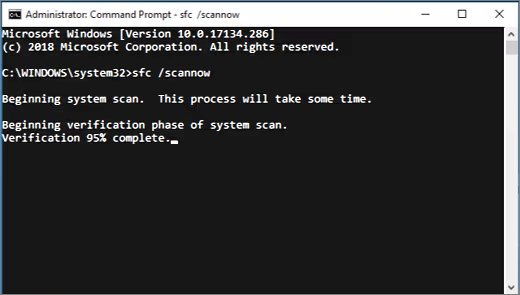
Run DISM first: it fetches clean files from Windows Update, and SFC then uses them to replace damaged system files. Open Command Prompt by typing cmd in Search, right-clicking it and selecting Run as administrator.
DISM.exe /Online /Cleanup-image /Restorehealth
sfc /scannow
DISM repairs the Windows component store using Windows Update as its source; sfc /scannow then checks every protected system file and replaces corrupted ones with a cached copy. Leave the window open until verification reaches 100%.
You should see: DISM reports "The operation completed successfully", and SFC reports "Windows Resource Protection did not find any integrity violations" or that it repaired the files it found.
If SFC says Windows Resource Protection could not perform the requested operation, run it again in Safe Mode.
Find a conflicting app with a clean boot
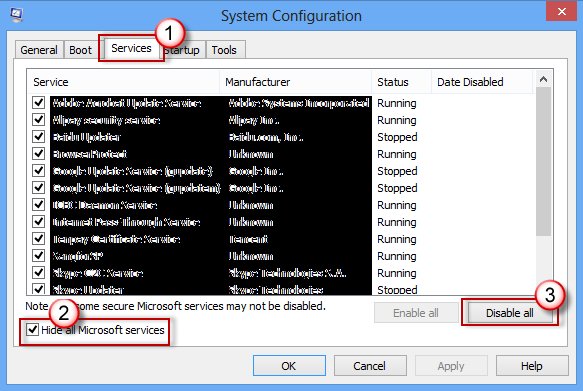
- Sign in as an administrator, select Search, type
msconfigand open System Configuration. - On the Services tab, select Hide all Microsoft services, then Disable all, then Apply.
- On the Startup tab, select Open Task Manager.
- On Startup apps, select each Enabled item and select Disable, noting what you turned off.
- Close Task Manager, select OK in System Configuration and restart.
- If the error is gone, re-enable items a few at a time until it returns; the last batch holds the culprit.
Undo the clean boot when finished by re-enabling the services and startup apps you turned off, then restart.
Scan for malware and test memory
Malware sometimes hides under system names, and failing RAM makes many apps crash at once. Rule out both.
- Select Start > Settings > Privacy & security > Windows Security > Virus & threat protection.
- Select Quick scan and remove anything it finds.
- Select Start, type
mdsched.exeand press Enter. - Choose to restart now and check for problems.
- Let Windows Memory Diagnostic run its standard test; press F1 first if you want the Extended test mix, then F10 to continue.
- If it reports memory errors, have the RAM checked or replaced.
How to stop WerFault.exe pop-ups or disable error reporting
Do this only after the steps above. Turning WER off hides the symptom; the app underneath still crashes, and you lose the reports and solutions Windows would offer. Back up the registry before editing it.
- On Windows 11 Pro, press Windows + R, type
gpedit.mscand press Enter. - Go to Computer Configuration > Administrative Templates > Windows Components > Windows Error Reporting.
- Open Disable Windows Error Reporting, select Enabled, then Apply and OK.
- On Windows 11 Home, open
regeditand go toHKEY_LOCAL_MACHINE\Software\Microsoft\Windows\Windows Error Reporting. - To hide only the pop-up, create a DWORD named
DontShowUIand set it to1. - To turn WER off completely, create or edit the DWORD
Disabledand set it to1, then restart.
To undo, set the policy back to Not Configured, or set DontShowUI and Disabled to 0.
How to check the error is fixed
- Restart the PC normally (not in clean boot).
- Open the app that triggered the error and do the same task again.
- Leave the PC running for a normal work session and watch for the WerFault.exe dialog.
- Open Task Manager and confirm WerFault.exe is not sitting at high CPU or disk use.
Fix common WerFault.exe symptoms
"WerFault.exe application error" on startup
A startup app or service crashes as Windows loads.
- Perform a clean boot.
- Re-enable startup items in small groups until the error returns.
- Update or uninstall the item that triggers it.
WerFault.exe high CPU, disk or memory usage
An app is crashing repeatedly, so WER keeps collecting reports, or malware is posing as the process.
- Run a Quick scan in Windows Security.
- Note which app keeps crashing and update or reinstall it.
- Run DISM and
sfc /scannowif many apps are affected.
WerFault.exe itself crashes
Damaged system files or memory faults.
- Run DISM, then
sfc /scannow. - Run Windows Memory Diagnostic.
- Install every Windows update and optional driver update.
Frequently asked questions
What is WerFault.exe?
WerFault.exe is the Windows Error Reporting process. When an app crashes or stops responding, it collects details, can send a report to Microsoft, and shows any solution Windows has. It is a normal part of Windows 11 and Windows 10.
What is a WerFault.exe application error?
It is a dialog shown when an app fails and Windows Error Reporting steps in. The named app is usually the real problem, so update or reinstall it. If many apps fail, repair system files with DISM and sfc /scannow.
Is WerFault.exe a virus?
The genuine WerFault.exe is part of Windows. Malware can borrow system names, though, so if it uses heavy CPU for long periods, run a Quick scan in Windows Security under Virus & threat protection.
Why does WerFault.exe crash?
WerFault.exe usually fails because Windows system files are damaged or memory is faulty. Run DISM followed by sfc /scannow, then Windows Memory Diagnostic, and install all Windows updates.
How do I disable WerFault.exe?
On Windows 11 Pro, enable the Disable Windows Error Reporting policy under Windows Components, Windows Error Reporting in gpedit.msc. On Home, set the DWORD Disabled to 1 under HKEY_LOCAL_MACHINE\Software\Microsoft\Windows\Windows Error Reporting. Crashes still happen; they just go unreported.
How do I fix the WerFault.exe error in Windows 10?
The same steps work on Windows 10: update the failing app, install Windows updates, run DISM and sfc /scannow as administrator, and do a clean boot. The Windows Update path on Windows 10 is Settings, Update & Security, Windows Update.
Is it safe to end WerFault.exe in Task Manager?
Yes. Ending it only stops the current report. It starts again the next time an app crashes, so fix the crashing app to stop it returning.