WmiPrvSE.exe is WMI Provider Host, the Windows process that answers management queries for the Windows Management Instrumentation service.
It is running because an app, a script, a monitoring agent or a remote management tool asked Windows for system data, and the sections below cover its normal behaviour, high CPU, repair and how to spot an impostor.
The fastest way to check WmiPrvSE.exe on your PC
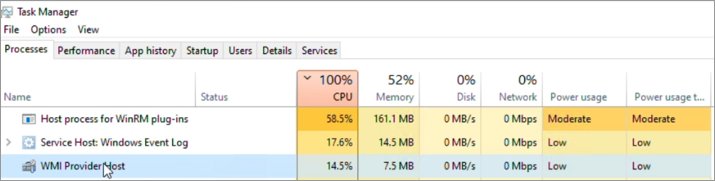
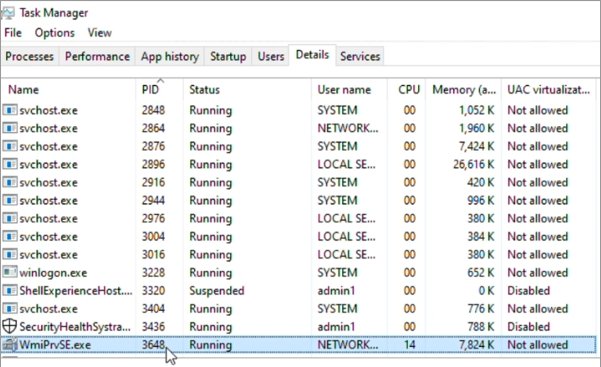
Task Manager lists the process under its friendly name, WMI Provider Host, and under the file name WmiPrvSE.exe on the Details tab.
- Open Task Manager and select the Details tab.
- Sort by Name and find every WmiPrvSE.exe entry. Several instances at once is normal.
- Add the PID column if it is not shown, then note the PID of any instance using CPU.
- Add the User name column. A genuine host runs as SYSTEM, LOCAL SERVICE or NETWORK SERVICE.
- Close Task Manager if every instance sits near zero CPU. That is the process doing its job between queries.
Windows starts and stops these hosts on its own. Nothing here needs switching off.
Which action fits your situation
| What you see | Do this | Why |
|---|---|---|
| Every instance near 0% CPU | Nothing | The host idles between queries and the WMI service manages its lifetime |
| One instance holds high CPU for minutes | Identify the provider loaded in that PID | The provider points to the application sending the query |
| Event ID 5612 in the Application log | Find the client behind the query | WMI stopped the host for passing a resource quota |
| Scripts report missing classes or other WMI errors | Run winmgmt /verifyrepository |
Repository corruption can surface as classes that are not found |
| The entry runs under your own user account | Run a Microsoft Defender scan | Genuine hosts run as SYSTEM, LOCAL SERVICE or NETWORK SERVICE |
| A monitoring agent polls constantly | Stop or reconfigure that agent | The host only works when a client asks it to |
Understanding WmiPrvSE.exe
Windows Management Instrumentation is the infrastructure for management data and operations on Windows. WmiPrvSE.exe is where the code that supplies that data actually runs.
| Detail | What Microsoft documents |
|---|---|
| Name in Task Manager | WMI Provider Host |
| What it hosts | WMI providers, loaded and unloaded under the control of the WMI service |
| Why it is a separate process | So a failing provider cannot stop all the services sharing the service host |
| Parent service | Windows Management Instrumentation, service name Winmgmt, inside svchost.exe under LocalSystem |
| Accounts it runs under | LocalSystem, NetworkService or LocalService, set by the provider's hosting model |
| Number of copies | More than one process with this name can run, each under a different account |
| Provider types | Coupled providers run inside WmiPrvSE.exe; decoupled providers run in their own executable |
Windows carries several background processes of this shape. Browser_Broker.exe is another one that appears in Task Manager with no window attached.
Key Functions of WmiPrvSE.exe
| Function | What happens inside the host | Example |
|---|---|---|
| Data retrieval | Runs an incoming query against a provider and returns the instances | select * from Win32_Product in the root\cimv2 namespace |
| System monitoring | Serves repeated class queries from monitoring agents | Win32_NTLogEvent, served by the MS_NT_EVENTLOG_PROVIDER provider |
| Automation and scripting | Answers PowerShell and script calls into WMI namespaces | Get-CimInstance, and the older Get-WmiObject |
| Remote management | Supplies data to remote tools and management suites | Windows Remote Management, System Center Operations Manager |
| Isolation | Keeps provider code out of the shared service host | A provider failure ends one WmiPrvSE.exe, not the whole svchost |
Why is WmiPrvSE.exe Running?
The WMI service runs automatically at system start under LocalSystem, and starts on demand when the first application or script connects to a WMI namespace. A provider host appears the moment that work needs a provider.
| Trigger | What Windows does next |
|---|---|
| A background service or desktop app queries WMI | The WMI service loads the matching provider into a WmiPrvSE.exe process |
| A monitoring or inventory agent polls on a schedule | A host starts on each poll and stays up while work continues |
| A script or PowerShell command reads WMI | Get-CimInstance opens a namespace, starting the service if it is not already running |
| A remote administration tool connects | The same providers answer over the network instead of locally |
| Security or management software reads hardware and event data | Non-Microsoft binaries can appear in the host's threads |
Several Windows services depend on WMI in turn. To see what is running alongside it, use this list of services running on your computer.
Performance Implications of WmiPrvSE.exe
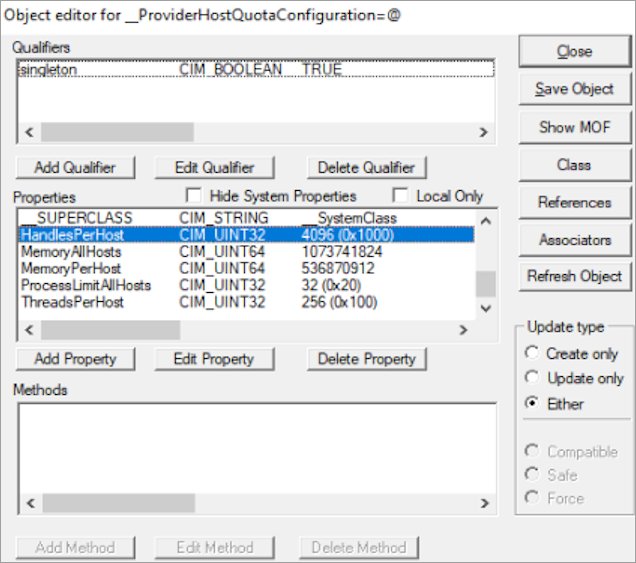
Each provider host carries a resource quota, stored as instances of the WMI class __ProviderHostQuotaConfiguration.
| Quota property | What it limits |
|---|---|
MemoryPerHost |
Memory a single WmiPrvSE.exe process may use |
MemoryAllHosts |
Memory every provider host may use together |
HandlesPerHost |
Handles a single host may hold |
ThreadsPerHost |
Threads a single host may run |
ProcessLimitAllHosts |
How many provider host processes may run at once |
When a host reaches one of these values, the WMI service stops it by design and writes Event ID 5612 to the Application log. The query being handled fails, and the application that sent it reports an error.
Sustained CPU load traces back to the query, not to the host. An inefficient or constantly repeated query keeps one provider busy, and the host is only the place where that work runs.
How to Handle WmiPrvSE.exe in Task Manager
- Open Task Manager and select the Details tab.
- Sort by Name, find each WmiPrvSE.exe instance and note the PID of the one consuming CPU.
- Add the Handles, Threads and User name columns to record what else that instance is holding.
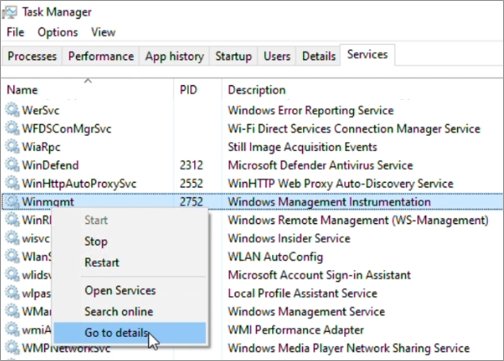
- Select the Services tab, sort by Name and find Winmgmt. Right-click it and select Go to details to see the svchost.exe process hosting the WMI service.
- Leave End task alone on a busy host. The WMI service starts a fresh host as soon as the next query arrives, so the load returns with it.
- Identify the provider inside that PID instead, using the query in the next section.
Ending a single host also kills every other provider loaded in it, and each of those queries fails too.
Find the WMI provider behind a busy WmiPrvSE.exe
Get-CimInstance -Namespace "root\cimv2" -Query "select HostProcessIdentifier, Provider, Namespace, User from MSFT_Providers"Run this in an elevated PowerShell window. HostProcessIdentifier is the PID of the WmiPrvSE.exe process, Provider is the provider loaded inside it, and Namespace is where that provider answers.
You should see: A list pairing provider names and namespaces with host PIDs. Match the PID you noted in Task Manager to name the provider.
Microsoft publishes a fuller script that lists every running WMI provider, including each host's handles, threads, memory and the full DLL path and version of every provider loaded.
Once a provider DLL is known, tasklist /m ntevt.dll returns the current host PID for it, which is useful when the busy instance keeps being replaced.
Restart the WMI service from an elevated Command Prompt
net stop winmgmt
net start winmgmt
Run both lines from an elevated Command Prompt. Services that depend on WMI, such as Windows Firewall, stop with it and do not restart automatically, so restart them or reboot the machine.
You should see: Both commands report that the Windows Management Instrumentation service stopped and started, and a new WmiPrvSE.exe appears the next time an application queries WMI.
Use an account in the Administrators group running with elevated rights. Starting the service needs those rights.
How to check it worked
- Open Task Manager > Details and confirm every WmiPrvSE.exe instance has dropped back to near-idle CPU.
- Open Event Viewer and go to Applications and Services Logs > Microsoft > Windows > WMI-Activity > Operational.
- Look for Event ID 5857. It names the provider that started, along with
HostProcess,ProcessIDandProviderPath, so the running host can be matched to a known Windows provider. - Filter the Application log for Event ID 5612 and confirm no new quota warnings have appeared since the change.
- Run
winmgmt /verifyrepositoryfrom an elevated Command Prompt and confirm it does not returnERROR_INTERNAL_DB_CORRUPTION.
Security Concerns Surrounding WmiPrvSE.exe
Malware sometimes borrows the name of a system process, so check the copy on the machine rather than trusting the name in Task Manager.
- Open Task Manager > Details, add the User name column and check each WmiPrvSE.exe row. Genuine hosts run as SYSTEM, LOCAL SERVICE or NETWORK SERVICE, never as your own account.
- Run Microsoft's provider list script in an elevated PowerShell window. It prints the full DLL path, hosting model and file version of every provider loaded in every host.
- Treat a provider DLL loading from a user folder such as Downloads as suspect, and check which application installed it.
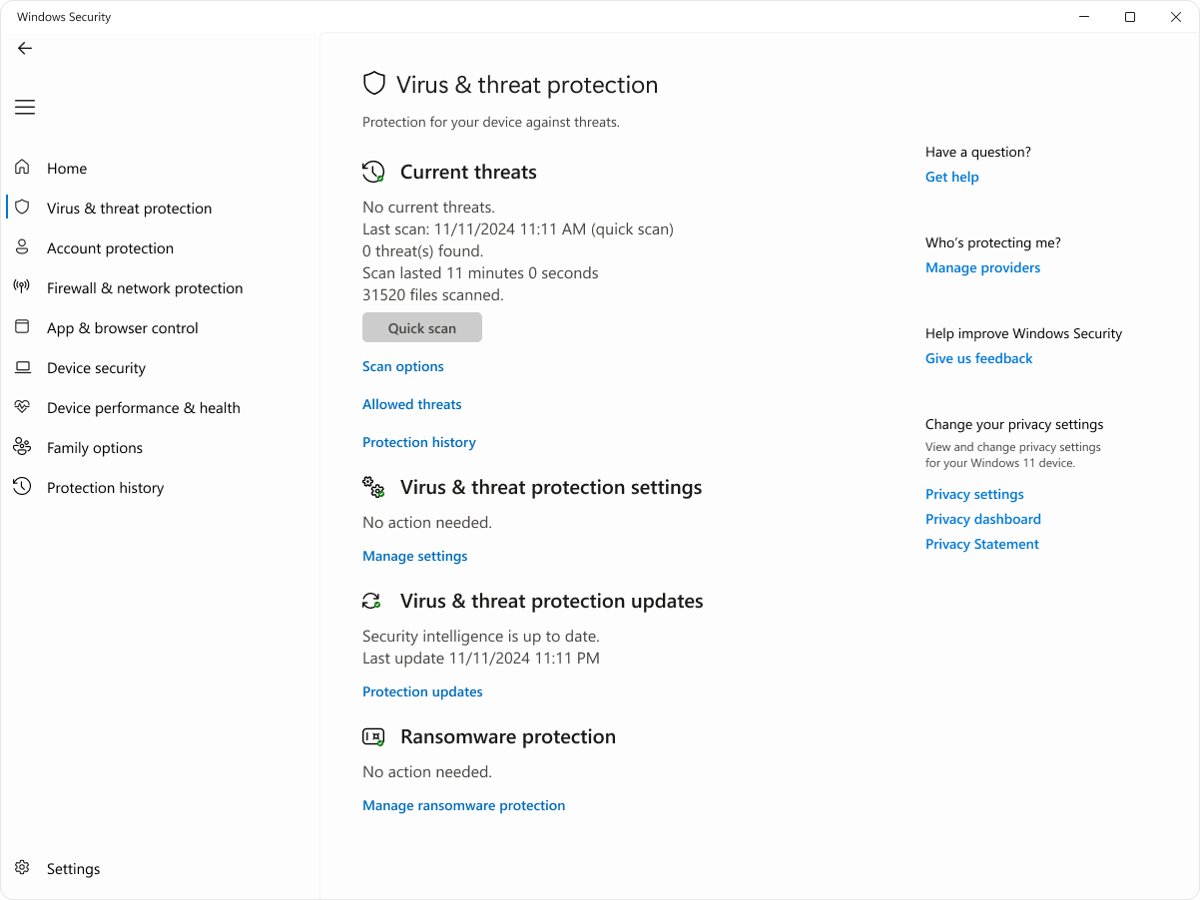
- Open Windows Security, select Virus & threat protection, then select Quick scan.
- For a deeper check, select Scan options, choose Microsoft Defender Antivirus (offline scan) and start it. The PC restarts and scans before Windows loads.
- Review what was found under Protection history once the PC is back.
WMI itself is a documented, fully supported part of Windows. The question is never the process name, it is which provider is loaded and which client is calling it.
Troubleshooting WmiPrvSE.exe Issues
WmiPrvSE.exe is using high CPU
A client keeps sending queries to one provider, and the host burns CPU answering them.
- Open Task Manager > Details and note the PID of the busy WmiPrvSE.exe.
- Open an elevated Command Prompt and enter
perfmon. Select Performance Monitor, then select the plus sign to open Add Counters. - Expand Process, select ID Process, add every WmiPrvse# instance, and find the one whose value matches your PID.
- Add Process > %Processor Time for that instance to watch the load live, and delete the rest.
- Run the
MSFT_Providersquery above to see which provider that PID is hosting. - Open Event Viewer > Applications and Services Logs > Microsoft > Windows > WMI-Activity, select View > Show Analytic and Debug Logs, then right-click Trace and select Enable Log.
- Read the Event ID 11 entries for the query text and the
ClientProcessId, then find that PID in Task Manager to name the application. - Turn Show Analytic and Debug Logs off again once you have the answer, because it logs for almost every event source.
Stopping WmiPrvSE.exe does not keep it closed
The WMI service starts a provider host whenever an application or script connects to a WMI namespace.
- Identify the client process from the WMI-Activity trace instead of ending the host.
- Stop, reconfigure or uninstall the monitoring agent, inventory tool or script that sends the query.
- Raise it with the application's vendor if the query is needed but wasteful.
- Leave the Windows Management Instrumentation service on its default startup. Other services depend on it and halt when it stops.
Event ID 5612: a quota reached a warning value
The host passed one of the limits in __ProviderHostQuotaConfiguration, so WMI stopped it on purpose.
- Filter the Application log for Event ID 5612 and note which quota is named, such as
PrivatePageCountorHandleCount. - Read the provider DLLs listed in the event. A provider that appears in every occurrence is the one to chase.
- Trace the incoming queries for that provider and fix or remove the client sending them.
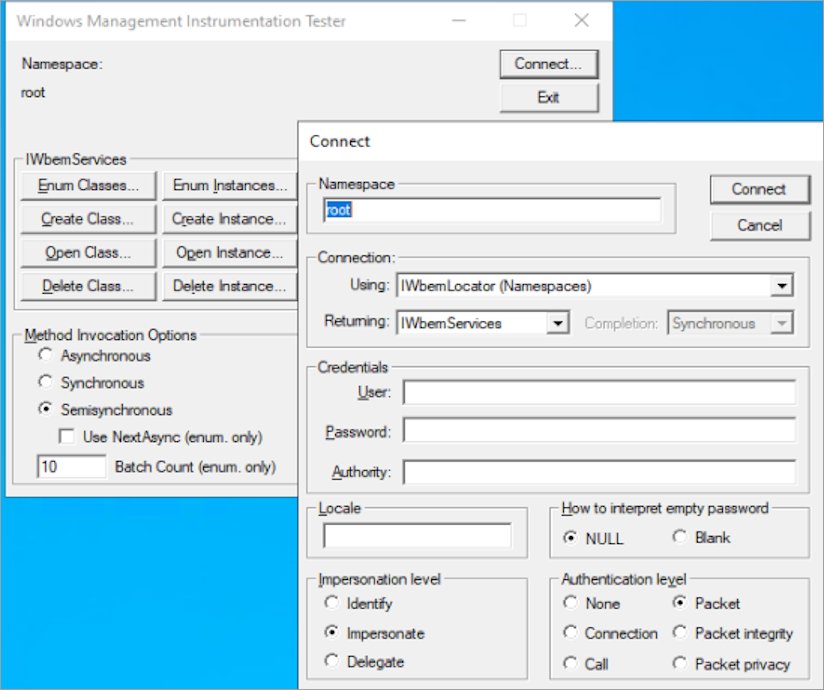
- Raise the quota only after ruling out a leak: open WBEMTEST as an administrator, select Connect and connect to the
rootnamespace. - Select Enum Instances, enter
__ProviderHostQuotaConfiguration, open the first result, edit the values, then select Save Object. - Restart the Winmgmt service so the new values take effect. The change applies to every provider host on the machine.
WMI returns class not found or other repository errors
Repository corruption often surfaces as classes or instances that cannot be found.
- Open an elevated Command Prompt.
- Run
winmgmt /verifyrepository. Error 1358,ERROR_INTERNAL_DB_CORRUPTION, means the repository is not consistent. - Take a copy first with
winmgmt /backupfollowed by the full path to a backup file. - Run
winmgmt /salvagerepositoryto rebuild it. Readable content from the inconsistent repository is merged into the rebuilt one. - Never delete the repository folder as a first action, because that can damage Windows or installed applications.
svchost.exe hosting the WMI service is the one using CPU
The load is in the WMI service itself rather than in a provider host.
- Run
tasklist /svc /fi "Services eq Winmgmt"to confirm which svchost.exe process carries the service. - Run
sc config Winmgmt type= ownfrom an elevated Command Prompt to move the service into its own svchost.exe process. - Restart the WMI service, then run
tasklist /svcagain to confirm it is on its own. - Measure the CPU of that process on its own, then trace the incoming queries as above.
- Run
sc config Winmgmt type= shareand restart the service once the investigation is over.
What to know before you stop WmiPrvSE.exe
Do not disable the Windows Management Instrumentation service to silence WmiPrvSE.exe. Other services depend on it and stop with it, dependent services do not restart automatically, and the service starts again on the first WMI connection. Fixing the query that causes the load is the only change that holds.
Best Practices for Managing WmiPrvSE.exe
| Practice | Why it pays off |
|---|---|
| Leave the process running | Windows loads and unloads provider hosts on its own schedule |
| Watch the Application log for Event ID 5612 | It names the quota and the providers involved before anyone reports an error |
| Monitor CPU per instance in Performance Monitor | The ID Process counter ties a WmiPrvse# instance to a real PID |
| Chase the client, not the host | The WMI-Activity trace names the calling process and the exact query |
| Keep the repository intact | Verify, then salvage. Deleting it can damage Windows or installed applications |
| Check the user account before assuming malware | Genuine hosts run as SYSTEM, LOCAL SERVICE or NETWORK SERVICE |
Frequently Asked Questions
What is WmiPrvSE.exe (WMI Provider Host)?
WmiPrvSE.exe is the provider host process for Windows Management Instrumentation. It loads WMI providers and runs them on behalf of the WMI service, so a faulty provider cannot bring down every service sharing the Windows service host.
Is WmiPrvSE.exe WMI Provider Host a virus?
No. It is a documented, fully supported Windows component. Check the User name column in Task Manager: a genuine host runs as SYSTEM, LOCAL SERVICE or NETWORK SERVICE. If anything looks wrong, run a Microsoft Defender scan from Windows Security.
How do you stop WmiPrvSE.exe?
You stop the cause, not the process. The WMI service starts a host whenever an app or script connects to a WMI namespace, so trace the query in the WMI-Activity log and stop or reconfigure the client sending it.
How do you close WmiPrvSE.exe in Task Manager?
Selecting End task on the Details tab closes that host, but it also fails every query the host was serving, and a new one starts with the next request. Identify the provider and the client instead.
What service is WmiPrvSE.exe?
It belongs to Windows Management Instrumentation, service name Winmgmt, which runs inside svchost.exe under the LocalSystem account. The provider host is a separate process that the service loads and unloads as queries arrive.
Where does WmiPrvSE.exe live?
Windows keeps WMI's own files in the %Windir%\System32\wbem folder, including the winmgmt tool and the provider DLLs the host loads. Microsoft's provider list script prints the exact path of everything loaded in each host.
Why does WmiPrvSE.exe use high CPU?
Because a client keeps asking for something expensive. A broad query such as select * from Win32_Product, or a monitoring agent polling every few seconds, keeps one provider busy and the host burns CPU answering.
Why are there several WmiPrvSE.exe processes at once?
More than one process with this name can run, and each can run under a different account with different security. Providers are grouped by hosting model, so LocalSystem, NetworkService and LocalService providers get separate hosts.
Does ending WmiPrvSE.exe break anything permanently?
No permanent damage, but the queries in flight fail and the applications behind them report errors. The WMI service starts a replacement host on the next request, so nothing is gained by ending it.
How do you repair WMI if WmiPrvSE.exe keeps failing?
Run winmgmt /verifyrepository from an elevated Command Prompt, then winmgmt /salvagerepository if it reports corruption. Deleting the repository folder is never the first step, because it can damage Windows or installed applications.
Is WmiPrvSE.exe the same as other background .exe processes in Task Manager?
It behaves like other hidden Windows service processes, such as DbxSvc.exe, in that it has no window and starts on demand. Unlike a third-party helper, it is part of Windows itself.