To use about:config, type about:config in the Firefox address bar, press Enter, select Accept the Risk and Continue, then search for a preference and toggle, edit or reset it.
This guide covers the warning page, search tricks, changing each value type, adding and deleting preferences, resetting changes, and making settings permanent with a user.js file.
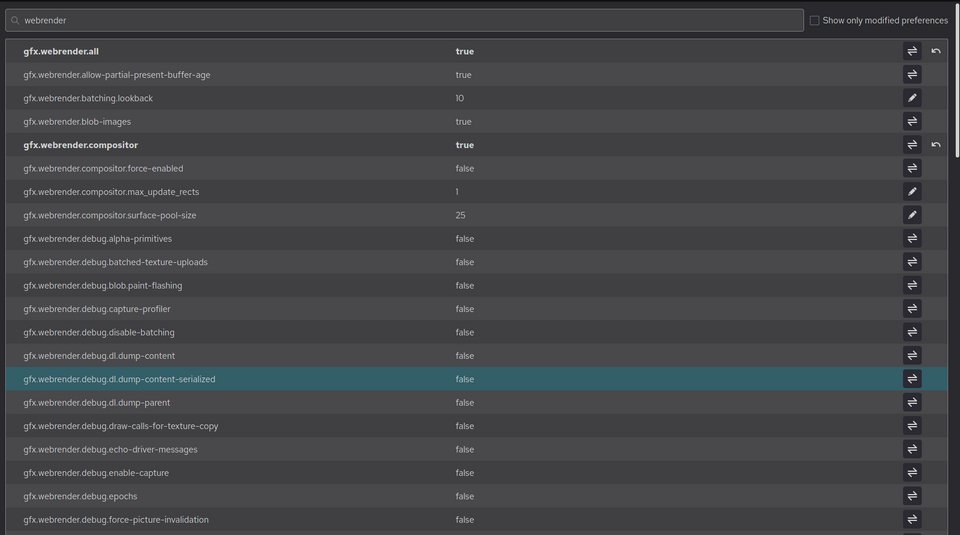
The fastest way to change a setting in about:config
These steps work in Firefox for Windows, macOS and Linux. The page Firefox opens is titled Advanced Preferences.
- Click the Firefox address bar, type
about:configand press Enter. - On the Proceed with Caution page, select Accept the Risk and Continue.
- Type part of the preference name in the Search preference name box.
- For a true/false preference, select the Toggle button on its row.
- For a number or text preference, select Edit, type the new value and select Save.
- Restart Firefox if the change does not apply straight away.
What Firefox’s about:config Is and When to Use It
about:config is Firefox's built-in editor for preferences, the key-value store Mozilla calls libpref. Every setting in the normal Settings page is stored there, along with thousands of internal switches that have no menu option. Some newer features can be switched on there too, such as the preference that lets you enable Smart Window in Firefox.
Each preference has a default value, a user value, or both. When you change something in about:config, Firefox stores your user value, and it takes precedence over the default.
| Your goal | Use about:config? | Why |
|---|---|---|
| Change a setting that exists in Settings | No, use Settings | Settings writes the same preference, with a clear label and no typo risk |
| Turn on an experimental web feature | Yes | Mozilla's MDN docs tell developers to enable these by flipping a preference in about:config |
| Restore a behaviour Firefox removed from the UI | Yes | Firefox 87 release notes, for example, point to browser.backspace_action to bring back the Backspace shortcut |
| See every setting you have ever changed | Yes | Show only modified preferences lists all non-default values |
| Apply the same settings to a new profile or PC | Use a user.js file | Firefox reads user.js from the profile folder at every startup |
| Fix a problem you do not understand | No | Guessing at preference names can make Firefox slower or less secure |
The HTML version of the editor arrived in Firefox 71, when about:config got a new page design.
How to Open about:config and Accept the Warning
Firefox shows a warning page before the editor. It exists because changing advanced configuration preferences can impact Firefox performance or security.
- Open a new Firefox tab so your current page stays open.
- Type
about:configin the address bar and press Enter. - Read the Proceed with Caution warning.
- Clear the Warn me when I attempt to access these preferences checkbox if you do not want to see the warning again.
- Select Accept the Risk and Continue to open the Advanced Preferences list.
The warning is controlled by the Boolean preference browser.aboutConfig.showWarning. Set it back to true to bring the warning page back.
How to Search for Preferences
The search box filters the list as you type. Press Enter to filter immediately, and press Esc to clear the search.
| What you type or select | What Firefox shows | Example |
|---|---|---|
| Part of a name | Every preference whose name contains that text; case does not matter | backspace finds browser.backspace_action |
A name with * in it |
* stands for any run of characters between the parts you type |
browser*trim finds browser.urlbar.trimHttps |
| The full exact name | That one preference, or an Add row if it does not exist yet | browser.aboutConfig.showWarning |
| Show only modified preferences checkbox | Only preferences with a non-default value | Use it to audit past tweaks |
| Show All button (empty search box) | The full list of preferences | Scroll or search from there |
The modified-only filter was added in Firefox 87, which began showing only modified preferences.
How to Change Boolean, Number, and String Values
Preferences come in three basic types: Boolean (true or false), Number (a whole number), and String (text). The type decides which button appears on the row.
Firefox saves each change to prefs.js in your profile about half a second after you make it, so there is no separate save step for the page.
| Preference type | How to change it | Mozilla-documented example |
|---|---|---|
| Boolean | Select Toggle, or double-click the row, to switch between true and false |
security.insecure_connection_text.enabled set to true adds a Not secure label for HTTP pages |
| Number | Select Edit, type a whole number, then select Save | browser.backspace_action set to 0 makes Backspace go back a page again |
| String | Select Edit (or double-click the row), type the text, then select Save | Strings hold URLs, lists and IDs; values over 1 MiB are rejected |
Press Esc while editing to cancel without saving. If a row's buttons are disabled, the preference is locked; see the troubleshooting section below.
How to add a new preference
Some preferences have no default and do not appear in the list until you create them. Use the exact name from Mozilla's documentation, because a mistyped name is accepted but does nothing.
- Type the full preference name in the Search preference name box.
- Check that no existing row matches; Firefox then shows a new row for that name.
- Choose Boolean, Number or String for the type.
- Select the Add button on that row.
- Enter or toggle the value, then select Save if an edit box is open.
- Restart Firefox if the feature still does not respond.
How to Reset or Remove Modified Preferences
Firefox offers Reset for a preference that has a default value and Delete for one you created yourself. Both remove your user value; neither affects other preferences.
- Open
about:configand select Accept the Risk and Continue if asked. - Tick Show only modified preferences to list everything you changed.
- Find the preference you want to undo.
- Select Reset to return a built-in preference to its default value.
- Select Delete to remove a custom preference that has no default.
- Restart Firefox so every part of the browser picks up the default again.
Setting a value by hand to match the default has the same effect as Reset: Firefox drops the user value. To undo dozens of changes at once, reset all preferences in about:config.
How to make a preference permanent with user.js
prefs.js is managed by Firefox and rewritten regularly, so do not edit it. user.js is a file you create yourself in the profile folder; Firefox only reads it, once, at startup.
Despite the .js extension, neither file is JavaScript. user.js accepts only user_pref lines.
- Type
about:supportin the address bar and press Enter. - In the Application Basics table, find Profile Folder and select Open Folder (Show in Finder on macOS, Open Directory on Linux).
- Quit Firefox completely.
- In the profile folder, create a plain-text file named
user.js. - Add one line per preference, for example
user_pref("browser.backspace_action", 0); - Save the file and start Firefox.
- Open
about:configand search for the name to confirm the value.
Because user.js is read at every start, a value set there returns each time Firefox launches, even if you reset it in about:config. Delete the line from user.js first, then select Reset in about:config.
How to check your change took effect
- Search for the preference name and confirm the value column shows your new value.
- Tick Show only modified preferences; the preference should now be listed there.
- Open
about:supportand check the Important Modified Preferences table, which lists changed preferences from an approved set of prefixes. - Restart Firefox and search again to confirm the value survived the restart.
- Test the behaviour itself, for example press Backspace on a page after changing
browser.backspace_action.
Not every changed preference appears in Important Modified Preferences; Mozilla limits that table to avoid exposing privacy-sensitive values.
Where about:config values are stored
| File | Who writes it | What it holds |
|---|---|---|
| prefs.js (profile folder) | Firefox, automatically | Every preference you changed from its default; rewritten after changes |
| user.js (profile folder, optional) | You | user_pref lines Firefox applies at every startup |
| Built-in default files | Mozilla, inside the Firefox install | Default values; you never edit these |
| Enterprise policies | An administrator | Locked values that about:config cannot change |
To keep a record of your own list, export your settings to a CSV file before a big round of changes.
Fix about:config changes that do not work
The Edit or Toggle button is greyed out
The preference is locked, usually by an enterprise policy, and locked preferences cannot take a user value.
- Type
about:policiesin the address bar to see whether an organisation policy is active. - Ask the administrator who manages the device to change the policy.
- After the policy changes, restart Firefox and check that the row's buttons are active.
The value changed but Firefox behaves the same
The name is mistyped, the type is wrong, or the preference is only read at startup.
- Compare the name letter by letter with Mozilla's documentation.
- Confirm the type matches: a Boolean created as a String has no effect.
- Delete the wrong entry and add it again with the right type.
- Restart Firefox.
A change reverts every time Firefox restarts
A user.js file in the profile folder sets the preference again at every startup.
- Open
about:supportand select Open Folder next to Profile Folder. - Open user.js in a text editor and remove the line for that preference.
- Restart Firefox and change the value in about:config again.
Firefox is unstable or slow after tweaking
A preference was set to a value Mozilla never tested; most preference combinations are untested.
- Open
about:configand tick Show only modified preferences. - Select Reset on the preferences you changed most recently.
- Restart Firefox and check whether the problem is gone.
- Reset all changes if the problem remains.
Safety Tips Before Tweaking Firefox Settings
Mozilla's own developer documentation warns that some preferences can be set to bogus values that have serious effects. These habits keep a tweak reversible.
| Precaution | Why it matters |
|---|---|
| Change one preference at a time | You know exactly which change caused a problem |
| Write down the old value before you edit | Reset only restores the default, not a value you set earlier |
| Take names only from Mozilla's documentation | Copied tweaks from forums can be outdated, mistyped or unsafe |
| Leave security and certificate preferences alone | Mozilla's warning says changes can impact security |
| Keep the warning page on for shared PCs | It stops other users editing preferences by accident |
| Use Settings whenever an option exists there | The same preference is changed with no risk of a typo |
Frequently Asked Questions
Can changing about:config settings break Firefox?
Yes. Some preferences can be set to values Mozilla never tested, which can cause crashes, slowdowns or weaker security. The damage is reversible: open about:config, tick Show only modified preferences, and select Reset on anything you changed.
How do I know which about:config preferences I have changed?
Tick Show only modified preferences at the top of about:config. Firefox then lists every preference with a non-default value, including some that Firefox sets itself to store app data. The about:support page also shows a shorter Important Modified Preferences table.
What is the difference between Boolean, Number, and String preferences?
A Boolean holds true or false and changes with the Toggle button. A Number holds a whole number and a String holds text such as a URL or a list. Number and String values change with Edit, then Save.
How do I undo a change I made in about:config?
Search for the preference and select Reset to return it to the default value. For a preference you created yourself, select Delete instead. If the change keeps coming back after a restart, remove its line from user.js in your profile folder.
Is it safe to copy about:config tweaks from websites or forums?
Only when Mozilla documents the preference. Copied tweaks are often outdated, mistyped or meant for another Firefox version, and a mistyped name does nothing. Check the name on MDN or in Mozilla release notes, and change one preference at a time.
How do I turn off the about:config warning?
Clear the Warn me when I attempt to access these preferences checkbox on the warning page, then select Accept the Risk and Continue. This sets browser.aboutConfig.showWarning to false. Set it back to true to restore the warning.
Where does Firefox save about:config changes?
Firefox writes every changed preference to prefs.js in your profile folder. Find the folder through about:support under Profile Folder. Do not edit prefs.js by hand, because Firefox rewrites it; put permanent settings in a user.js file instead.
Bottom Line
Use about:config for preferences Mozilla documents but does not expose in Settings, change one at a time, and keep Show only modified preferences as your undo list. Every change is a user value that Reset removes, so a careful, documented tweak is fully reversible, while a guessed name either does nothing or causes problems that are hard to trace.







Mozilla allows to disable tab detaching in Firefox 74 - Techdows
[…] found it troublesome when in reordering tabs or other situations, Mozilla now finally offers a hidden pref to disable it in Firefox […]