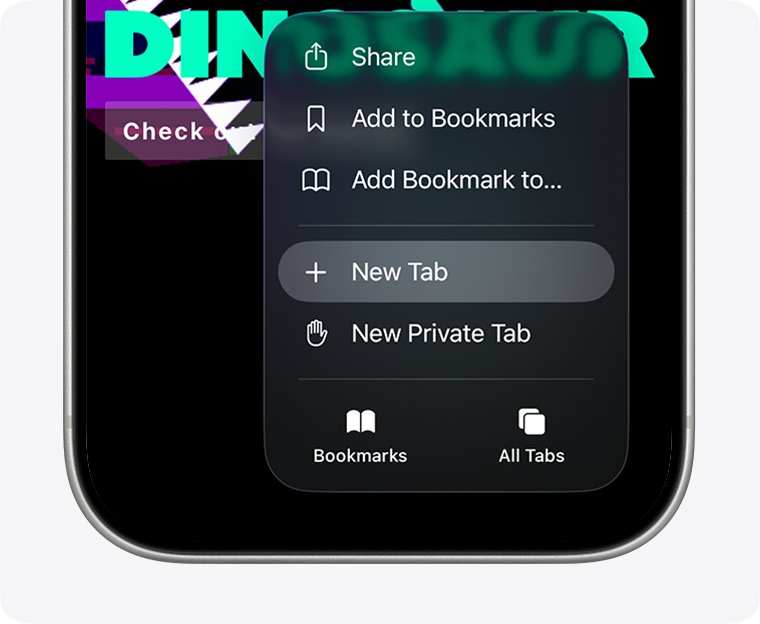
To turn off Private Browsing on iPhone, open Safari, tap the More button and choose New Tab; in iOS 17 and earlier, tap the Tabs button and swipe to the [number] Tabs tab group.
This guide covers how to tell which mode you are in, the steps for each iOS version and iPad, what happens to your private tabs, and how to switch off InPrivate in Microsoft Edge.
How to Turn Off Private Browsing on iPhone
Private Browsing is not a setting you switch off in the Settings app. You leave it by moving back to a normal tab in Safari.
- Open Safari on your iPhone.
- Tap the More button.
- Choose New Tab.
- Check that the address bar is now white or gray instead of black or dark.
Steps for your iOS version and device
| Your device | To turn Private Browsing off | Notes |
|---|---|---|
| iPhone, current iOS | Tap the More button, then New Tab | Apple's current steps |
| iPhone with iOS 26 tab layout set to Bottom or Top | Tap the Tabs button, then swipe left from Private to a tab group | The private tabs stay open and lock |
| iPhone with iOS 17 or earlier | Tap the Tabs button, swipe to the [number] Tabs tab group button, then tap a tab | Same tab-group switch, older layout |
| iPad | Tap the Tabs button, then tap [number] Tabs or Start Page | The address bar turns white or gray again |
| Microsoft Edge on Windows | Close every InPrivate window | Edge clears that session's data when the last InPrivate window closes |
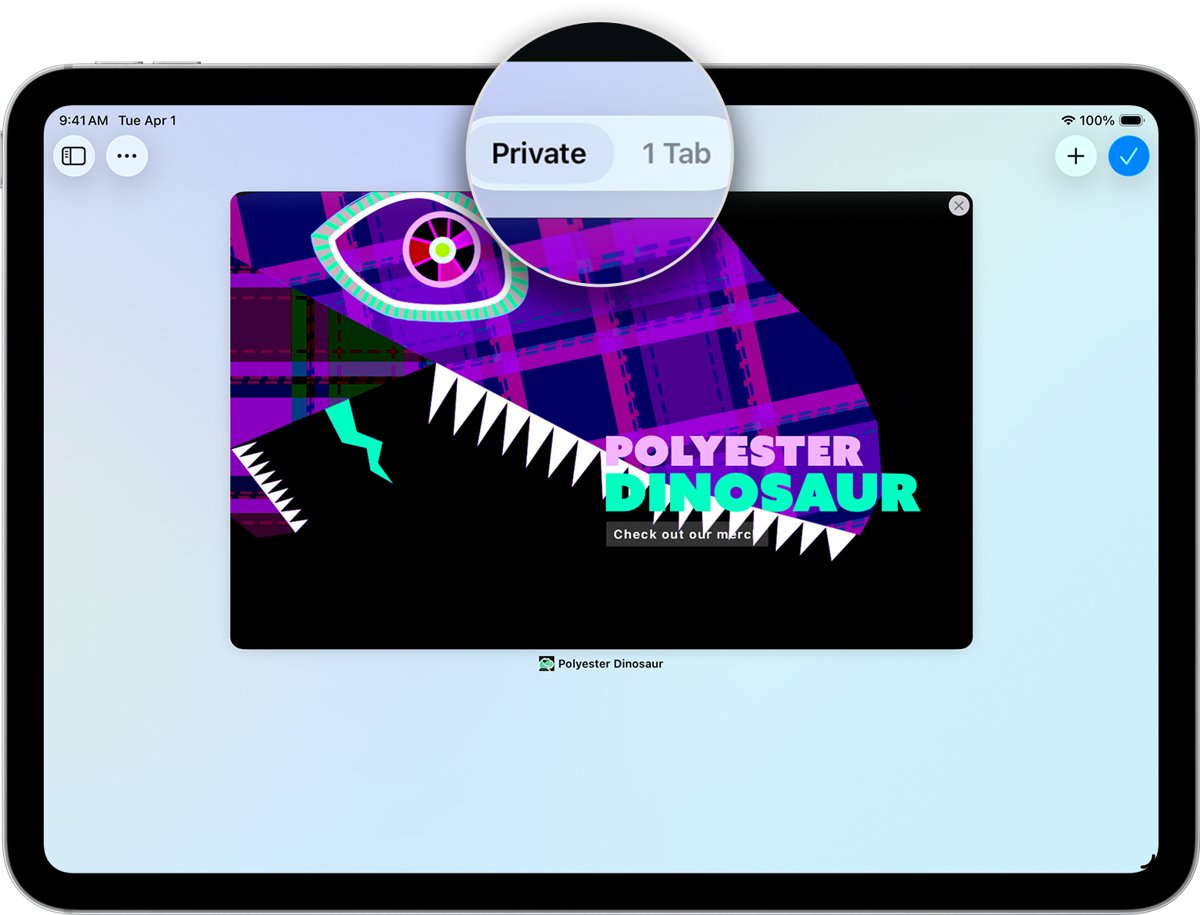
Turn off Private Browsing in iOS 17 and earlier
- Open Safari on your iPhone.
- Tap the Tabs button.
- Swipe to the [number] Tabs tab group button.
- Tap the tab you want to open.
This works on models such as the iPhone 13 and iPhone 14 if they still run iOS 17. On newer iOS versions, use the More button route above; the iPhone model makes no difference.
Turn off Private Browsing on iPad
- Open Safari on your iPad.
- Tap the Tabs button.
- Tap [number] Tabs or tap Start Page.
To turn it back on later, touch and hold the Tabs button and tap New Private Tab.
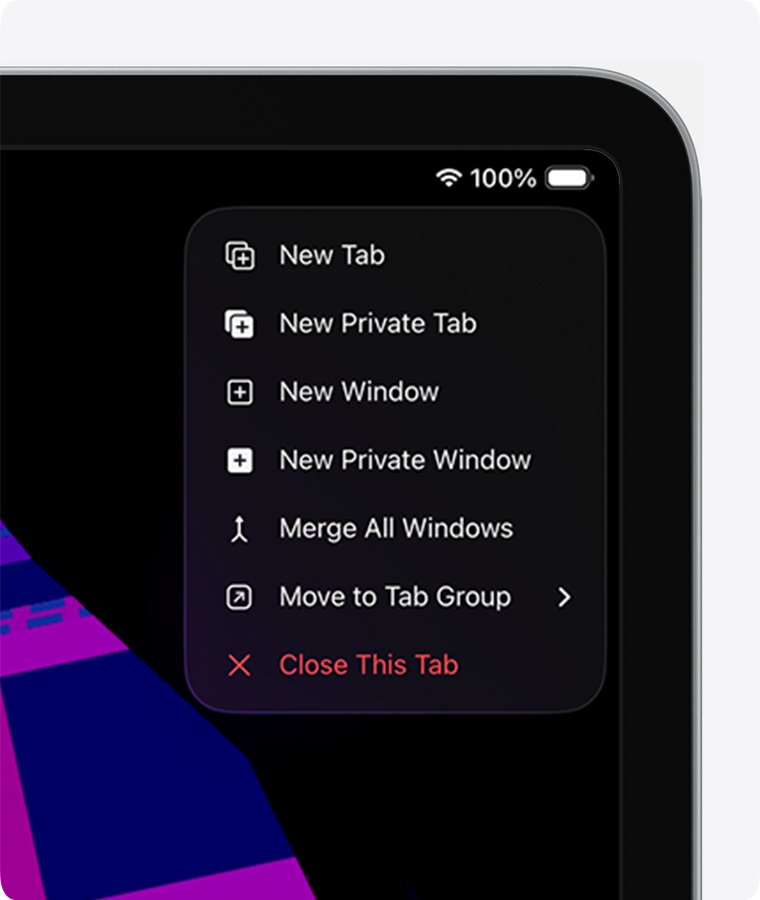
How to Check if Private Browsing is Enabled on Your iPhone
- Open Safari and look at the address bar.
- A black or dark address bar means Private Browsing is on.
- A white or gray address bar means you are back in normal browsing.
- Visit a page, then open your history; pages visited in normal browsing appear there, private ones do not.
Understanding Private Browsing on iPhone
| What Private Browsing does | Detail |
|---|---|
| Keeps pages out of History | Safari does not remember the pages you visit or your search history |
| Skips AutoFill | Safari does not save AutoFill information from private tabs |
| Keeps tabs on this iPhone | Private tabs are not shared with your other Apple devices, even on the same Apple Account |
| Blocks trackers | Known trackers are blocked, tracking parameters are removed from URLs, and advanced fingerprinting is limited |
| Turns off some extensions | Safari extensions with access to browsing data are off in Private Browsing unless you allow them |
| Locks when idle | With a passcode set, private tabs lock when not in use, from iOS 17 onward |
Differentiating Between Private and Normal Browsing Modes
| Private Browsing | Normal browsing | |
|---|---|---|
| Address bar colour | Black or dark | White or gray |
| History | Not saved | Saved |
| AutoFill information | Not remembered | Remembered |
| Tabs on your other Apple devices | Not shared | Shown in the tab list on other devices |
| Locking | Can require Face ID, Touch ID or passcode to unlock | No lock |
| Extensions with browsing-data access | Off unless you turn them on | On |
Best Practices for Managing Browsing Privacy on iPhone
| What to change | Where |
|---|---|
| Lock private tabs with Face ID, Touch ID or passcode | Settings > Apps > Safari > Require Face ID to Unlock Private Browsing (or Touch ID, or Passcode) |
| Use a different search engine in private tabs | Settings > Apps > Safari, turn off Also Use in Private Browsing, then tap Private Search Engine |
| Limit cross-site tracking in all tabs | Settings > Apps > Safari > Prevent Cross-Site Tracking |
| Hide your IP address from trackers | Settings > Apps > Safari > Hide IP address |
| Get warnings about phishing sites | Settings > Apps > Safari > Fraudulent Website Warning |
| See which trackers Safari blocked | In Safari, tap the page menu, then Privacy & Security > Privacy Report |
Additional Tips and Troubleshooting
Private tabs are still there after switching back
Leaving Private Browsing does not close the private tabs; they stay open and lock.
- Switch back to the Private tab group.
- Close each private tab you no longer need.
- Switch to your normal tab group again.
Safari asks for Face ID or a passcode to see private tabs
Locked Private Browsing is turned on.
- Open Settings and tap Apps, then Safari.
- Scroll to Privacy & Security.
- Turn off Require Face ID to Unlock Private Browsing (or the Touch ID or Passcode version) if you do not want private tabs to lock.
No lock option for private tabs in Settings
Locked Private Browsing needs iOS 17 or later.
- Update the iPhone to the latest iOS version.
- Return to Settings > Apps > Safari and look for the option again.
Can't turn off InPrivate browsing in Microsoft Edge
InPrivate runs in its own window rather than as a setting.
- Close every open InPrivate window.
- Open Edge normally from the taskbar or Start menu.
- To start InPrivate again later, select Settings and more > New InPrivate window.
Frequently asked questions
How do I turn off private browsing on iPhone?
Open Safari, tap the More button and choose New Tab. In iOS 17 and earlier, tap the Tabs button, swipe to the [number] Tabs tab group button and tap a tab. The address bar turns white or gray when you are back in normal browsing.
How do I turn off private browsing in Safari?
Switch from the Private tab group to a normal tab group. On a current iPhone, tap the More button and choose New Tab; on iPad, tap the Tabs button and tap [number] Tabs or Start Page.
How do I turn off private browsing on iPad?
Open Safari, tap the Tabs button, then tap [number] Tabs or Start Page. The address bar changes from black or dark back to white or gray when Private Browsing is off.
How do I turn off private browsing on iPhone 13, 14 or 16?
The steps depend on the iOS version, not the model. On current iOS, tap the More button in Safari and choose New Tab. On iOS 17 and earlier, use the Tabs button and swipe to the [number] Tabs group.
How do I get off private browsing mode?
Leave the Private tab group by opening a normal tab. Your private tabs stay open and lock, so close them in the Private tab group if you want them gone.
Can I turn off private browsing completely on iPhone?
Safari's settings offer no switch that removes Private Browsing; you leave it by switching to a normal tab. To limit what a child can browse, Apple's Screen Time parental controls include Limit Adult Websites and Ask to Browse under Apps & Websites.
How do I turn off private browsing on Edge or Windows?
Close every InPrivate window in Microsoft Edge. Edge deletes that session's browsing history, cookies, site data, passwords and form data when the last InPrivate window closes, and normal windows are not affected.
Can I turn off InPrivate browsing in Edge?
Yes, by closing all InPrivate windows. InPrivate is a separate window type, so ordinary Edge windows keep running in normal mode the whole time.
Bottom line
Tap the More button and choose New Tab to leave Private Browsing on a current iPhone, and close the private tabs too if you do not want them to linger. Switching tab groups returns Safari to normal browsing instantly, but the private tabs stay open and locked until you close them yourself.


![How to turn on/off ad blocker in Microsoft Edge? [step-by-step]](https://techdows.com/wp-content/uploads/2026/10/How-to-turn-onoff-ad-blocker-in-Microsoft-Edge-step-by-step-1-600x338.jpg)