To make Google your homepage, open your browser's settings, find the homepage or Home button option, and enter www.google.com as the custom address.
This guide gives the exact path for Chrome, Edge, Firefox and Safari, shows how to open Google at startup, and fixes a homepage that keeps changing back.
The fastest way to make Google your homepage
Find your browser in the left column and follow the path. Type www.google.com wherever the table says to enter an address.
| Browser | Where the homepage setting lives | What to choose |
|---|---|---|
| Google Chrome (computer) | More (three dots) > Settings > Appearance | Turn on Show Home button, then enter www.google.com as the custom address |
| Microsoft Edge (computer) | Settings and more (…) > Settings > Start, home, and new tab page | Turn on Show home button on the toolbar, select Enter URL, type www.google.com |
| Mozilla Firefox (computer) | Menu (three lines) > Settings > Home | Set Homepage and new windows to Custom URLs, type www.google.com |
| Safari (Mac) | Safari > Settings > General | Type www.google.com in Homepage, set New windows open with to Homepage |
| Chrome (Android) | More > Settings > Homepage | Choose a custom page and enter www.google.com |
| Edge (Android, iPhone, iPad) | Menu > Settings > General > Home page | Choose a specific page and enter www.google.com |
A homepage only loads when you select Home. If you also want Google on screen the moment the browser opens, set it as the startup page too; each browser section below covers both.
Homepage vs. Startup Page vs. New Tab Page
Browsers treat these as three separate pages, and Google's own Chrome help notes that the homepage and startup page are not the same unless you set them to be. Setting only one is the usual reason Google seems not to stick. To open a different site at launch, change the start page in Chrome under On startup rather than the homepage setting.
| Page | When it appears | Can you point it at Google? |
|---|---|---|
| Homepage | When you select the Home button | Yes, in Chrome, Edge, Firefox and Safari |
| Startup page | When you first launch the browser | Yes, in Chrome (On startup), Edge (When Edge starts) and Safari (New windows open with) |
| New tab page | When you press Ctrl + T or select + | Safari: yes (New tabs open with). Chrome and Edge: no built-in custom-URL option on home PCs |
Edge's new tab page can only be sent to a custom address by an IT policy on a managed PC. The workarounds are covered in getting new Edge tabs to open with a page of your choice.
How to Make Google Your Homepage in Google Chrome
Steps 1 to 5 set the Home button. Steps 6 and 7 make Google open every time Chrome starts.
- Open Chrome on your computer.
- At the top right, select More (three dots) > Settings.
- Under Appearance, turn on Show Home button.
- Under Show Home button, choose Enter custom web address.
- Type
www.google.comin the box. The Home icon now appears to the left of the address bar. - Select On startup on the left, then choose Open a specific page or set of pages.
- Select Add a new page, type
www.google.com, and select Add.
If you prefer your old tabs back at launch, choose Continue where you left off instead of step 6 and rely on the Home button for Google.
On a work or school Chromebook you cannot change the startup page or homepage. The network administrator controls both.
How to make Google your homepage in Chrome on Android and iPhone
Google documents a homepage setting for Chrome on computers and Android only. Chrome on iPhone and iPad has no homepage option, so bookmark Google or set it as the search engine instead.
- Open Chrome on your Android phone or tablet.
- At the top right, tap More (three dots) > Settings.
- Under Advanced, tap Homepage.
- Choose the custom page option and enter
www.google.com. - Tap the Home icon in the toolbar to confirm Google loads.
How to Make Google Your Homepage in Microsoft Edge
Edge keeps the Home button and the startup pages on one settings page. Set both so Google appears at launch and on every Home click.
- Open Microsoft Edge and select Settings and more (…) > Settings.
- Select Start, home, and new tab page.
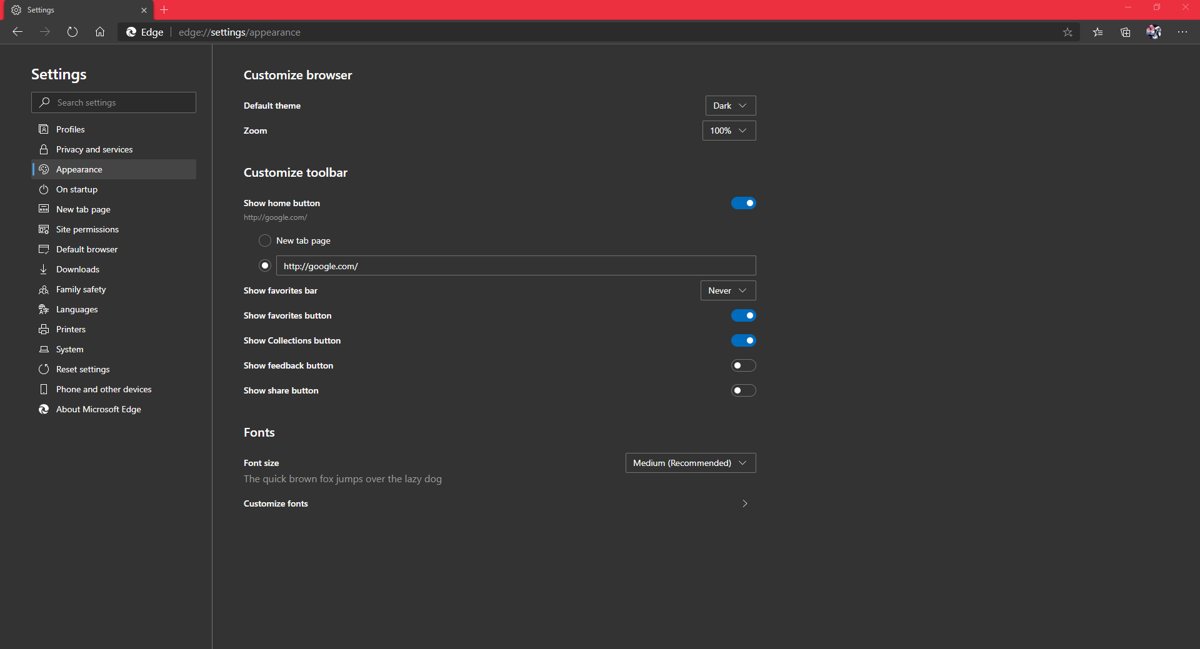
- Turn on Show home button on the toolbar.
- Select Enter URL, type
www.google.com, and save it. - Under When Edge starts, choose Open these pages.
- Select Add a new page, enter
www.google.com, and add it. - Remove any other page listed under Open these pages, such as MSN, so only Google opens.
The Home button can also be switched on from Settings > Appearance > Customize toolbar. An older walkthrough with the original Edge screens covers setting Google as Microsoft Edge's homepage.
How to make Google your homepage in Edge on Android, iPhone and iPad
Edge for mobile has its own Home page setting on both Android and iOS. The path is the same on phones and tablets.
- Open Edge on your phone or tablet.
- Tap the menu (…), then tap Settings.
- Tap General > Home page.
- Choose A specific page (the custom URL option on iOS).
- Enter
www.google.comas the page address.
How to Make Google Your Homepage in Mozilla Firefox
Firefox has two routes. The settings route below is the reliable one; Google's help page also describes dragging a Google tab onto the Home button.
- Open Firefox and select the menu button (three horizontal lines) at the top right.
- Select Settings (labelled Options in older Firefox versions).
- Select Home in the left panel.
- Under New Windows and Tabs, open the drop-down next to Homepage and new windows.
- Choose Custom URLs.
- Type
www.google.comin the address box that appears.
Drag-and-drop route: go to www.google.com, drag the tab onto the Home button in the toolbar, release it, and select Yes to confirm.
Firefox shows this page in every new window, so Google also appears whenever you open a fresh window.
How to Make Google Your Homepage in Safari
Apple's homepage setting is on the Mac. Older macOS versions label the menu item Preferences instead of Settings.
- Open Safari on your Mac.
- Choose Safari > Settings from the menu bar, then click General.
- Type
www.google.comin the Homepage field. If Google is already open, click Set to Current Page instead. - Click the New windows open with pop-up menu and choose Homepage.
- Click the New tabs open with pop-up menu and choose Homepage if you want Google in every new tab.
- Choose History > Home to jump to Google at any time.
Safari on iPhone and iPad has no homepage field. Set Google as the search engine instead, as shown in the next section.
How to Set Google as the Default Search Engine
The homepage and the search engine are separate settings. Changing the homepage does not change what the address bar searches with, so set both if you want Google everywhere. If Yahoo has taken over the address bar, remove Yahoo search and any extension you did not install, then set Google.
| Browser | Path to the search engine setting | Note |
|---|---|---|
| Chrome (computer) | More > Settings > Search engine > Change next to Search engine, then select Google | Google is Chrome's usual default |
| Chrome (Android) | More > Settings > under Basics, tap Search engine > Google | Same menu as the homepage setting |
| Edge (computer) | Settings and more > Settings > Privacy, search, and services > Search and connected services > Address bar and search > Search engine used in the address bar > Google | Bing is the default; run one Google search in the address bar first if Google is missing from the list |
| Edge (Android) | Menu > Settings > General > Default search engine > Google | Bing is the default |
| Edge (iPhone, iPad) | Menu > Settings > Advanced settings > Search engine > Others > Google | Different path from Android |
| Safari (Mac) | Safari > Settings > Search > Search engine > Google | Set it on the Mac itself; iPhone and iPad have their own Safari settings |
How to check Google is now your homepage
- Close every browser window, then open the browser again. Google should load first if you also set it as the startup page.
- Select the Home button (the house icon left of the address bar). The Google search page should load.
- In Safari, choose History > Home and confirm Google opens.
- Type a search word in the address bar and press Enter. A Google results page confirms the search engine change too.
- Restart the PC and open the browser once more. If another page appears, go to the troubleshooting section below.
Troubleshooting When Google Won’t Stay as Your Homepage
Each fix below is grouped by what you see. Start with the symptom that matches your screen.
Google keeps changing back to another homepage or search engine
Google's Chrome help lists a homepage or search engine that changes without permission as a sign of unwanted software or an extension.
- In Chrome, select More > Extensions > Manage extensions and remove any extension you did not install.
- On Windows, open Start > Settings > Apps > Installed apps, select any unfamiliar program, and click Uninstall.
- On a Mac, open Finder > Applications, right-click the suspicious app, and choose Move to Trash.
- In Chrome, select More > Settings > Reset settings > Restore settings to their original defaults > Reset settings.
- Set Google as the homepage again using the Chrome section above.
Why can't I make Google my homepage? The setting is greyed out or locked
An employer or school manages the browser, so policy sets the homepage and startup pages.
- Check whether the PC or Chromebook is a work or school device.
- In Edge, managed PCs can have the HomepageLocation policy set, which stops you changing the homepage address.
- On a work or school Chromebook, the administrator controls both the startup page and homepage.
- Ask the IT administrator to set Google, or use your own personal device and profile.
Google opens with the Home button but not when the browser starts
Only the homepage was set; the startup page is a separate setting.
- In Chrome, go to Settings > On startup > Open a specific page or set of pages and add
www.google.com. - In Edge, go to Start, home, and new tab page > When Edge starts > Open these pages and add
www.google.com. - In Safari, set New windows open with to Homepage.
- Close and reopen the browser to test.
There is no Home button in the toolbar
The Home button is hidden by default in Chrome and Edge.
- In Chrome, go to Settings > Appearance and turn on Show Home button.
- In Edge, go to Settings > Appearance > Customize toolbar and turn on the Home button.
- Check that the button's address is
www.google.com, not the New Tab page.
Chrome on iPhone or iPad has no homepage option
Google supports the homepage setting only on computers and Android.
- Open
www.google.comin Chrome and add it as a bookmark. - Or install Edge, which has a Home page setting on iOS under Settings > General.
How to switch back to the browser's default homepage
- Open the same settings page you used to set Google.
- In Chrome, choose New Tab page under Show Home button, and Open the New Tab page under On startup.
- In Edge, choose New tab page under Show home button on the toolbar, and Open the new tab page under When Edge starts.
- In Firefox, set Homepage and new windows back to Firefox Home (Default).
- In Safari, clear the Homepage field or change New windows open with to another option.
To put MSN back instead of the browser default, follow the steps for restoring MSN as your homepage in any browser.
Frequently Asked Questions
How do I make Google my homepage?
Open your browser's settings, turn on the Home button or find the homepage field, and enter www.google.com as a custom address. In Chrome that is Settings > Appearance > Show Home button; in Edge it is Settings > Start, home, and new tab page.
How do I make Google my homepage in Edge on a PC?
Select Settings and more > Settings > Start, home, and new tab page. Turn on Show home button on the toolbar, choose Enter URL and type www.google.com. Then add Google under When Edge starts > Open these pages so it loads at launch.
How do I make Google my homepage on Chrome?
Select More > Settings, and under Appearance turn on Show Home button. Choose Enter custom web address and type www.google.com. To open Google at launch, go to On startup > Open a specific page or set of pages and add the same address.
How do I make Google my homepage on a laptop?
The steps depend on the browser, not the laptop. On a Windows laptop, most people use Edge or Chrome; set the Home button address to www.google.com in the browser's settings and add Google as a startup page.
How do I make Google my homepage on an HP laptop?
An HP laptop follows the same browser steps as any Windows PC. Open Edge or Chrome, go to Settings, turn on the Home button, enter www.google.com, and add Google as the startup page. HP-specific settings play no part.
How do I make Google my homepage on Windows?
Windows itself has no homepage setting; each browser keeps its own. Set it in Edge under Start, home, and new tab page, in Chrome under Appearance and On startup, or in Firefox under Settings > Home.
Why can't I make Google my homepage?
The usual causes are a work or school policy that locks the setting, an extension or unwanted program that changes it back, or setting only the Home button when you expected Google at startup. Remove unknown extensions and set both pages.
Does making Google my homepage also make it my search engine?
No. The homepage and the address-bar search engine are separate settings. In Edge, change the search engine under Privacy, search, and services > Search and connected services > Address bar and search; in Chrome, use Settings > Search engine.
Can I make Google my homepage on iPhone?
Not in Chrome, because Google offers the homepage setting only on computers and Android. Edge for iOS does have one under Settings > General > Home page, where you can enter www.google.com as a specific page.
Bottom Line
Set Google in two places: the Home button address and the startup page, and change the search engine too if you want Google results from the address bar. Every major browser keeps these as separate settings, so setting one alone is why Google appears to vanish at the next launch. If it still changes back on its own, remove unknown extensions and reset the browser before setting it again.



How to change the start page in Chrome and any web browser - Techdows
[…] you only want a site such as Google behind the Home button, set the homepage instead. To make Google your homepage in every browser, set both […]