To fix a javascript:void(0) link that does nothing, allow JavaScript for the site, hard reload the page with Ctrl + Shift + R, then test it in an Incognito or InPrivate window to rule out extensions and stale site data.
This guide explains what javascript:void(0) is, gives the browser-side fixes for Chrome, Edge and Safari, and separates what a visitor can fix from what only the site owner can.
The fastest way to fix a javascript:void(0) link
These steps use Chrome, and the same order works in Edge. Stop as soon as the link starts working.
- Press Ctrl + Shift + R (Cmd + Shift + R on a Mac) to hard reload the page and bypass the cache.
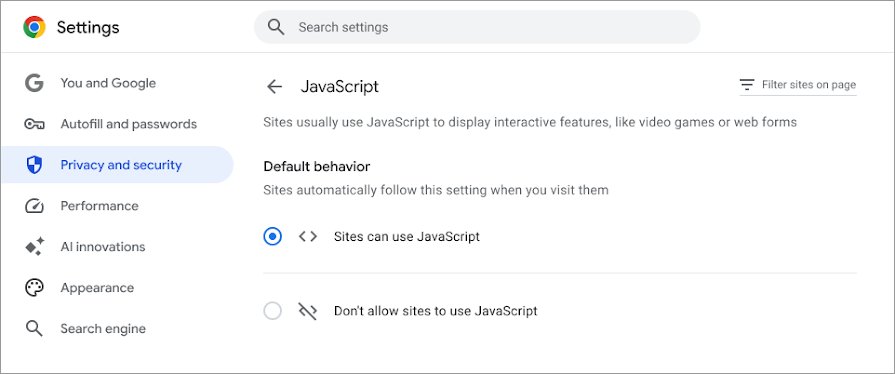
- Open More > Settings > Privacy and security > Site settings > JavaScript and select Sites can use JavaScript.
- Reload the page and click the link again.
- If it still fails, press Ctrl + Shift + N to open an Incognito window, sign in to the site there and try the link.
- If the link works in Incognito, clear that site's cookies and data or turn off extensions one at a time in your normal window.
- If the link fails in every browser and window, the problem is on the website, so report it to the site owner.
What Does javascript:void(0) Mean?
javascript:void(0) is not an error code. It is a placeholder link address that a web page uses when a click is supposed to run a script instead of opening a new page.
When you hover over such a link, the browser shows that address in the corner of the window. You only notice it when the script behind the link fails to run.
| Part | What it does | Source |
|---|---|---|
javascript: |
A URL scheme that runs code when the browser tries to navigate, instead of loading a page | MDN, javascript: URLs |
void |
A JavaScript operator that evaluates an expression and returns undefined |
MDN, void operator |
(0) |
The expression being discarded; void(0) is the same as void 0 |
MDN, void operator |
| Whole link | Runs nothing and stays on the page, because a result of undefined tells the browser not to replace the page |
MDN, void operator |
| Real action | Lives in a separate click handler script; if that script never loads or is blocked, the click appears dead | MDN, javascript: URLs |
MDN discourages javascript: URLs on the web because they deviate from normal link behaviour and can reduce accessibility, which is why the fix for site owners is to replace them.
Common Reasons You See the javascript:void(0) Message
| Cause | Typical sign | Who can fix it |
|---|---|---|
| JavaScript is blocked for the site or for all sites | Many buttons, menus and forms on the site do nothing | You |
| Stale cached files or corrupt cookies for the site | The link worked before and stopped after a site update | You |
| An ad blocker, script blocker or privacy extension stops the script | The link works in Incognito or InPrivate but not in your normal window | You |
| An outdated browser that lacks features the site's script needs | The site shows other errors or looks broken | You |
| A bug or missing script file on the website | The link fails in every browser, on every device | Site owner |
| The site's Content Security Policy blocks javascript: navigation | The browser console shows a Content Security Policy message | Site owner |
Which fix should you try first?
| Your situation | Try this | Why |
|---|---|---|
| Only one link on one site fails | Refresh the page, then test another browser | One broken link usually points to a site bug |
| Nothing interactive works on any site | Enable JavaScript in your browser | A blocked JavaScript setting affects every script |
| The link worked yesterday | Clear the site's cookies, cache and data | An old cached file can clash with the site's new code |
| The link works in Incognito or InPrivate | Turn off extensions one by one | Extensions usually stay off in private windows |
| Your browser has not restarted in weeks | Update the browser | Pending updates only apply after a relaunch |
| You run the website | Replace javascript:void(0) with a real button or link | Removes the failure point for every visitor |
Refresh the Page and Check the Link or Website
A normal reload can reuse cached files. A hard reload fetches fresh copies, which clears most one-off script failures.
- Press Ctrl + Shift + R on Windows or Cmd + Shift + R on a Mac to hard reload the page.
- Wait until the page finishes loading before you click the link again, since the script behind it may load last.
- Hover over the link and read the address in the corner of the window; if it shows javascript:void(0), the link depends on a script.
- Open the same page in a second browser, such as Edge if you normally use Chrome.
- If the link fails in both browsers, check whether other buttons on that page work; if they do, only that link is broken.
- Report a link that fails everywhere to the site owner, including the page address and what you clicked.
Enable JavaScript in Your Browser
JavaScript is on by default in current browsers. Google notes that browser upgrades, security software or patches can change the setting, and Microsoft notes an administrator can turn it off in Edge.
| Browser | Where the setting lives | What to select |
|---|---|---|
| Chrome on a computer | More > Settings > Privacy and security > Site settings > JavaScript | Sites can use JavaScript as the default behaviour, and remove the site from any not-allowed list |
| Chrome on Android | More > Settings > Site settings > JavaScript | Turn JavaScript on |
| Microsoft Edge | Settings and more (…) > Settings > Privacy, search, and services > Site permissions > All permissions > JavaScript | Make sure Allowed (recommended) is turned on |
| Safari on a Mac | Safari > Settings > Security | Check Enable JavaScript, close the window and reload the page |
| Chrome on iPhone or iPad | No setting to change | Google states JavaScript is turned on by default on iPhone and iPad |
Chrome also lets you allow JavaScript for one site only: click View site information to the left of the web address, select Site settings, and change the JavaScript permission so the site is allowed. Changes save automatically.
Clear Browser Cache, Cookies, and Site Data
Clearing cookies signs you out of most sites. Pick a short time range first, such as Last hour, if the link broke recently.
| Browser | Steps | Select |
|---|---|---|
| Chrome | More > Delete browsing data, choose a time range such as All time | Cookies and other site data and cached images and files, then Delete data |
| Edge | Press Ctrl + Shift + Delete, or Settings > Privacy, search, and services > Clear browsing data > Choose what to clear | Cookies and other site data and Cached images and files, then Clear now |
| Edge, one site only | Settings > Privacy, search, and services > Cookies > See all cookies and site data | Search for the site, select the down arrow, then Delete |
| Safari on a Mac | Safari > Settings > Privacy > Manage Website Data | Select the site, then Remove, or Remove All |
Close and reopen the browser after clearing data, then sign in to the site again before you retest the link.
Disable Extensions or Try Incognito Mode
Private windows are the quickest test. Edge runs only the extensions you have allowed in InPrivate, and Chrome extensions need Allow in incognito turned on to run there.
- In Chrome, press Ctrl + Shift + N, or select More > New Incognito window. In Edge, select Settings and more > New InPrivate window.
- Sign in to the site in the private window and click the link.
- If the link works there, go back to a normal window and open More > Extensions > Manage extensions in Chrome, or Extensions > Manage extensions in Edge.
- Turn off every extension with its toggle, then reload the page and test the link.
- Turn the extensions back on one at a time, reloading and testing after each one.
- When the link breaks again, leave that extension off for the site or remove it; in Chrome you can also limit its site access under Details.
Download managers are a common culprit because they intercept clicks. If you use one, fix IDM's obsolete Chrome integration error after you re-enable it.
Update or Reset Your Browser Settings
Update first, because it keeps your settings. Reset only if extensions or unwanted software changed your settings without your knowledge.
| Task | Steps | What to expect |
|---|---|---|
| Update Chrome | More > Help > About Google Chrome, then Relaunch | No Relaunch button means you already have the latest version |
| Update Edge | Settings and more > Help and feedback > About Microsoft Edge | Edge checks for updates and asks you to restart if one is ready |
| Reset Chrome | More > Settings > Reset settings > Restore settings to their original defaults > Reset settings | Bookmarks and passwords stay; content settings, cookies and site data reset and extensions are turned off |
After a Chrome reset, turn extensions back on only if you trust them. If the link works in another browser but never in your current one, you can change your default web browser in Windows 11/10 while you sort it out.
How site owners should replace javascript:void(0) links
Visitors cannot repair a script that fails on the server side. If you run the site, remove the placeholder instead of asking every visitor to change settings.
- Open the page in Chrome and press Ctrl + Shift + J (Cmd + Option + J on a Mac) to open the Console panel.
- Click the broken link and read the red error, such as a missing file, an undefined function or a Content Security Policy block.
- Fix the reported script error or restore the missing script file first.
- Replace each
<a href="javascript:void(0)">that performs an action with a<button type="button">and attach the action with a click event listener, as MDN recommends. - Give each link that goes somewhere a real
hrefaddress, so it still works if the script fails. - If your Content Security Policy uses
script-src, check that it is not blocking the javascript: navigation, or remove the javascript: URL entirely. - Retest in a private window with extensions off to match what a first-time visitor sees.
How to check the link now works
- Hard reload the page with Ctrl + Shift + R.
- Click the link and confirm that the menu, pop-up or next page it controls appears.
- Press Ctrl + Shift + J in Chrome to open the Console and check that no new red error appears when you click.
- Repeat the test in a normal window with your extensions back on, since that is how you browse day to day.
Fix JavaScript errors that remain after these steps
JavaScript is disabled or not working again after you turned it on
An administrator policy, security software or a browser update changed the JavaScript setting.
- Recheck the JavaScript setting in your browser using the table above.
- In Chrome, open the site, click View site information > Site settings and make sure JavaScript is not blocked for that site.
- On a work or school computer, ask your IT department, because Microsoft notes an administrative setting can turn JavaScript off in Edge.
javascript:void(0) happens on one website but not others
The site's own script is broken, or one extension conflicts only with that site.
- Open the site in a private window with extensions off.
- Open the same page in a second browser.
- If it fails in both, contact the site owner, because the fault is on their page.
You keep getting JavaScript errors on many sites in Windows 11 or Windows 10
Unwanted software or a rogue extension is changing browser settings or injecting scripts.
- In Chrome, open More > Extensions > Manage extensions and remove any extension you did not install.
- Remove unwanted programs from Windows, then reset Chrome with Settings > Reset settings > Restore settings to their original defaults.
- Update the browser and relaunch it, then retest a site that failed.
Clearing cache and enabling JavaScript did not fix it
The failing script is blocked by the site itself or by a setting a private window does not reset.
- Update your browser and relaunch it.
- Test in a different browser on the same PC.
- If the link fails in every browser, report the page address to the site owner and stop changing your own settings.
Bottom Line
Hard reload the page, confirm JavaScript is allowed, then test in a private window before you clear data or reset anything. Those three checks separate a browser setting, an extension conflict and a broken website in under two minutes, and only the first two are yours to fix.
Frequently Asked Questions
Questions come from Bing autocomplete for this topic, plus the reader questions on the ranking page.
How do I fix javascript:void(0)?
Hard reload the page with Ctrl + Shift + R, make sure JavaScript is allowed in your browser's site settings, and test the link in an Incognito or InPrivate window. If it still fails in every browser, the website's script is broken and only the site owner can fix it.
Is javascript:void(0) a virus or malware warning?
No. javascript:void(0) is a placeholder link address that returns undefined and keeps you on the same page. It is not a warning. Repeated redirects, pop-ups or settings that change by themselves are different signs, and those do point to unwanted software.
How do I fix JavaScript disabled or not working?
In Chrome, go to Settings > Privacy and security > Site settings > JavaScript and select Sites can use JavaScript. In Edge, go to Settings > Privacy, search, and services > Site permissions > All permissions > JavaScript and turn on Allowed. Reload the page afterwards.
How do I stop javascript:void(0) from appearing when I click links?
As a visitor, you cannot remove it, because the site owner wrote it into the link. You can make the link work by allowing JavaScript and ruling out extensions. The site owner can remove it by replacing the link with a real button or address.
Can disabling extensions fix the javascript:void(0) error?
Yes, when an ad blocker or script blocker stops the site's script from loading. Test the link in a private window first. If it works there, turn your extensions off and back on one at a time to find the one responsible.
Why do I keep getting JavaScript errors?
Frequent JavaScript errors across many sites usually come from an outdated browser, a conflicting extension or unwanted software. Update and relaunch the browser, remove extensions you do not recognise, and reset browser settings if something keeps changing them.
How do I fix a JavaScript error in Windows 11 or Windows 10?
Browser JavaScript errors are fixed in the browser, not in Windows settings. Allow JavaScript for the site, clear its cookies and cached files, test in a private window, and update the browser. The steps are the same on Windows 11 and Windows 10.
How do I troubleshoot JavaScript on a web page?
Open the page in Chrome, press Ctrl + Shift + J to open the Console panel, and click the failing element. The red error message names the missing file, undefined function or blocked script, which tells you whether the fault is your browser or the website.
How do I get rid of a JavaScript error for good?
Keep your browser updated, allow JavaScript for sites you trust, and keep only extensions you need. If one website keeps failing while others work, the permanent fix is on the site's side, so report the page to its owner.