AVG Secure Browser is a free web browser from AVG with built-in security and privacy tools, such as ad and tracker blocking, a malicious-site filter and a data breach checker.
This guide covers every feature AVG documents, how private and safe the browser is, what the paid PRO version adds, which devices it runs on, and how to install, configure, fix and remove it.
What is AVG Secure Browser?
AVG describes Secure Browser as a web browser whose security tools sit in one console, the Security & Privacy Center. You browse the web as usual, and the protection runs in the background with most features on by default.
The quick facts below answer the questions most people have before they install it.
| Question | Short answer | Detail |
|---|---|---|
| Who makes it? | AVG, part of Gen Digital | AVG's support site carries the Gen Digital Inc. copyright line |
| Is it free? | Yes | A paid PRO subscription adds a built-in VPN and stricter ad blocking |
| Which systems? | Windows, macOS and Android | Windows 10 or later for new installs; there is no iPhone version listed |
| Main tools | Privacy Guard, Web Shield, Extension Guard, Hack Check | All are managed from the Security & Privacy Center |
| Does it replace antivirus? | No | AVG AntiVirus is a separate app; the browser only links to it |
| Can it run beside Chrome or Edge? | Yes | AVG says it works alongside other browsers and imports their data |
What does AVG Secure Browser include?
Open the Security & Privacy Center with the blue icon to the right of the address bar. Each feature appears as a tile with an on/off slider.
The table lists every feature AVG documents for the browser and whether it is on by default or needs action from you.
| Feature | What it does | Default or availability |
|---|---|---|
| Security Check | Counts blocked malicious downloads, phishing attempts and harmful sites, and suggests actions | Always shown |
| Privacy Guard | Blocks ads and tracking scripts using filter lists (called AdBlock in version 100 and earlier) | On, Balanced Blocking |
| Web Shield | Blocks malicious websites, phishing attempts and potentially malicious downloads | On |
| Extension Guard | Prevents untrusted extensions from being installed | On |
| Password Managers | Lets you pick which password manager the browser uses | On |
| Private Mode | Opens a window that stores no history and deletes tracking cookies and caches | Launch from its tile |
| Screen Sharing mode | Hides bookmarks, search history and extensions while you share your screen | Choose under browser modes |
| Privacy Cleaner | Deletes browsing history, cached images and cookies | Run when needed |
| Hack Check | Checks whether your email address appears in a known data breach | Run when needed |
| HTTPS Encryption | Uses an HTTPS connection on each site where one is supported | Built in |
| Cookie Consent Manager | Answers cookie banners automatically, aiming for Deny All or Accept Only Required | Built in |
| URL Cleaner | Strips UTM parameters, ad IDs and other tracking elements from links you copy | Right-click the address bar |
| Secure Browser VPN | Encrypts browser traffic through more than 30 locations | PRO only |
| Side Panel | Quick access to web search, Smart Chat, news, notes, games, utilities and image generation | Built in |
| Memory Saver and Energy Saver | Suspend inactive tabs and cut background work on battery | Settings > Performance |
| User profiles | Separate bookmarks, extensions and history per person | Account icon |
| Video Downloader and Coupons | Optional extensions; Coupons works only in the United States | Install separately |
Is AVG Secure Browser really private?
AVG Secure Browser blocks more tracking than a default browser setup, but its privacy depends on the Privacy Guard level you pick. Only the top free level blocks browser fingerprinting.
Private Mode works on your own device only. It stops history being stored and clears tracking cookies, but AVG does not describe it as hiding traffic from your network or internet provider.
| Privacy Guard level | What it blocks | Trade-off |
|---|---|---|
| Basic Blocking | Ads that break the industry standard for user-friendly ads, such as pop-ups and autoplay video, plus all known trackers | Some non-intrusive ads still appear |
| Balanced Blocking (recommended) | Everything in Basic plus social media ads | AVG search partner content is still allowed |
| Strict Blocking | All known ads, push notifications, known and unknown trackers, and browser fingerprinting | Some sites may not load; bank "remember my device" options stop working |
| Strict Blocking PRO | All search engine advertising, and search results are no longer personalized | Needs a PRO subscription |
Cookie Consent Manager collects only the type of banner action and aggregate counts, according to AVG. It does not guarantee that every tracking cookie is refused, and AVG says some banners may still accept cookies.
Preload pages under Settings > Performance may use cookies and may route preloaded pages through AVG servers. Turn it off if you do not want that.
Is AVG Secure Browser safe to use?
Yes. AVG Secure Browser is a legitimate product published by AVG, not a virus, and its security layer blocks dangerous sites and files before they reach your PC.
When it stops a download, the reason appears in the download bar. These are the protections and what each one stops.
| Protection | What it stops | What you see |
|---|---|---|
| Web Shield | Malicious and phishing websites, and potentially malicious downloads | A blocked page or a blocked download |
| Download checks | Files flagged as Malicious, Unwanted, Uncommon or Insecure | File blocked, or File not verified with Keep and Discard buttons |
| Extension Guard | Untrusted extensions, add-ons and plug-ins | The extension does not install |
| HTTPS Encryption | Unencrypted connections where the site supports HTTPS | The connection icon left of the web address shows its status |
| Hack Check | Nothing directly; it reports email addresses found in data breaches | A result after you enter your email and click Check |
Web Shield is not a full antivirus. AVG lists AVG AntiVirus as a separate tile that installs or opens its own app for real-time protection.
Is AVG Secure Browser free?
Yes, AVG Secure Browser is free to download and use with no time limit. AVG Secure Browser PRO is the paid version, and upgrading replaces the free version on that device.
The 30-day PRO trial needs payment details and an email address. If you do not cancel, you are charged on the last day of the trial.
| Feature | Free | PRO |
|---|---|---|
| Privacy Guard, Web Shield, Extension Guard | Yes | Yes |
| Private Mode, Privacy Cleaner, Hack Check | Yes | Yes |
| Strict Blocking PRO (blocks search ads) | No | Yes |
| Secure Browser VPN with more than 30 locations | No | Yes, unlimited |
| VPN Kill Switch and auto-connect options | No | Yes |
| Devices covered | Any supported device | Up to 5 devices across Windows and Android |
| After you cancel | Not applicable | PRO features stop at the end of the period; the free version keeps working |
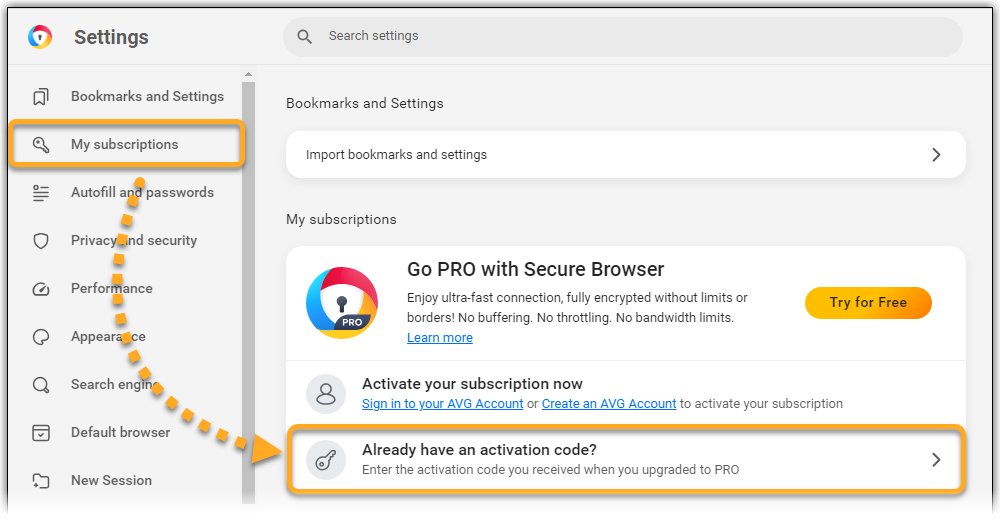
Manage or cancel PRO by signing in to your AVG Account, clicking Manage subscriptions on the My subscriptions tile, then Manage subscription under AVG Secure Browser PRO. Uninstalling the browser does not cancel the subscription.
What is the difference between AVG Secure Browser PRO and AVG Secure VPN?
The VPN in AVG Secure Browser PRO protects only browser traffic. AVG Secure VPN is a separate app that protects all traffic from the device.
Each product needs its own subscription. If you have both, AVG says one VPN enabled at a time is enough.
| Capability | AVG Secure Browser PRO VPN | AVG Secure VPN |
|---|---|---|
| Traffic covered | Browser only | Full device traffic |
| Locations | 30 (described elsewhere by AVG as over 30) | Additional locations beyond the browser's list |
| Kill Switch | Yes | Yes |
| Auto-Connect | Yes, on launch, in Private Mode or on untrusted networks | Yes |
| Multiple secure protocols | Not listed | Yes |
| Local device access and private network exclusion | Not listed | Yes |
| Subscription | AVG Secure Browser PRO | Separate AVG Secure VPN subscription |
Which devices support AVG Secure Browser?
AVG Secure Browser runs on Windows, macOS and Android. AVG's support pages list no iPhone or iPad version.
Since March 2026 the browser can no longer be installed on Windows 7, Windows 8 or Windows 8.1. Existing copies keep working but stay on version 109 with no further updates.
| Platform | Minimum system | Hardware and notes |
|---|---|---|
| Windows | Windows 11 or Windows 10, 32 or 64-bit (not Mixed Reality, IoT or Mobile editions) | Intel Pentium 4 or AMD Athlon 64 with SSE3; ARM-based PCs not supported; 1 GB RAM; 2 GB free disk space |
| macOS | macOS 11 Big Sur or later | 64-bit Intel Mac or Apple silicon; 512 MB RAM (1 GB preferred); 2 GB free disk space |
| Android | Android 10.0 or higher | Internet connection for download, activation and updates |
| iPhone and iPad | Not listed | No AVG Secure Browser requirements are published for iOS |
A PC still on Windows 7 or 8.1 needs Windows 10 or later for current builds. You can compare Windows 10 and Windows 11 features before you upgrade.
How do you install AVG Secure Browser on Windows?
Download the installer only from avg.com. The setup file is named avg_secure_browser_setup.exe.
- Open the AVG Secure Browser page on avg.com and click Download AVG Secure Browser for Windows.
- Save the setup file to your Downloads folder.
- Right-click avg_secure_browser_setup.exe and select Run as administrator.
- Click Yes if the User Account Control dialog asks for permission.
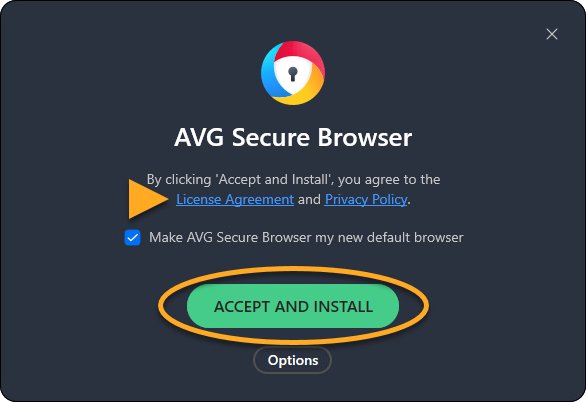
- Review the License Agreement and Privacy Policy, then click Accept and install.
- Wait for setup to finish; a new AVG Secure Browser window opens automatically.
If installation fails, check the system requirements above, install pending Windows updates, restart the PC and run the same steps again. A PRO subscription bought inside the browser activates automatically on that device.
How should you configure AVG Secure Browser after installation?
Most protection is already on, so setup is mainly about importing your data and choosing how strict blocking should be.
Work through these steps once after the first launch.
- Import bookmarks, history, saved passwords and cookies from Brave, Chrome, Edge, Internet Explorer, Opera or Firefox when the browser offers it.
- Click the Privacy Guard icon right of the address bar, click Change settings and keep Balanced Blocking unless you need stricter blocking.
- Click the blue Security & Privacy Center icon and confirm Web Shield, Extension Guard and Password Managers show blue (ON) sliders.
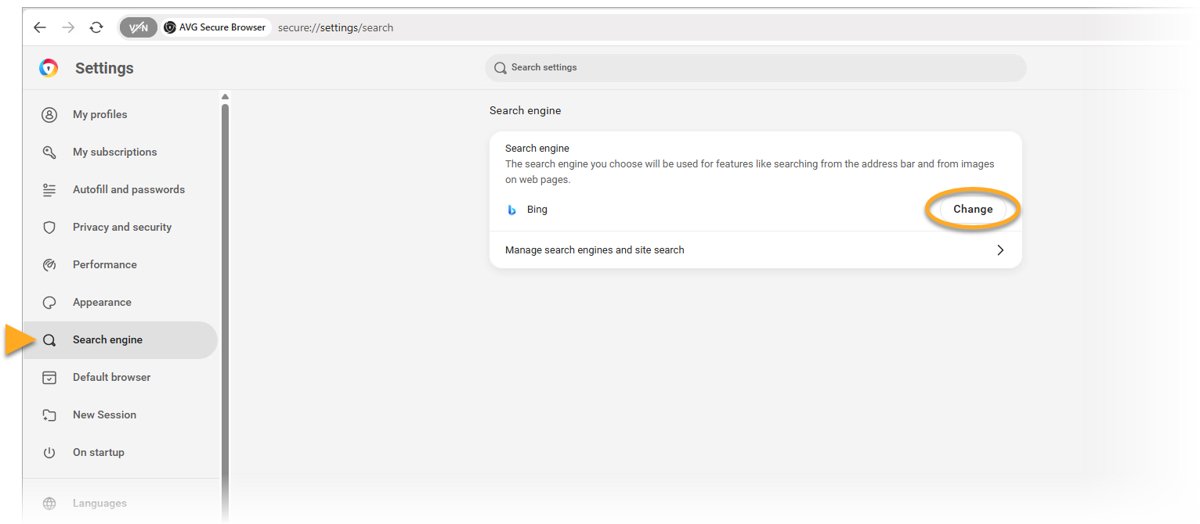
- Go to Menu (three dots) > Settings > Search engine, click Change, pick a provider and click Set as default.
- Go to Menu > Settings > Default browser and click Set as default if you want links to open in AVG Secure Browser.
- Go to Menu > Settings > On startup and turn the slider off if you do not want the browser to launch automatically.
- With PRO, click the VPN icon left of the address bar and switch the slider to blue (ON); set Kill Switch under Settings > Privacy and security > VPN Settings.
How to check AVG Secure Browser protection is working
- Click the blue Security & Privacy Center icon in the top-right corner of the browser.
- Check that the Privacy Guard and Web Shield tiles show blue (ON) sliders.
- Select the Security Check tab and click View Threat Reports to see blocked downloads, phishing attempts and harmful sites.
- Open any site and click the Privacy Guard icon; Ads & trackers blocked should be on for that site.
- Click the icon left of the web address to confirm the site connection is secure.
How does AVG Secure Browser compare with Chrome, Edge, Firefox, and Brave?
AVG Secure Browser is built to sit beside the browser you already use, and it imports data from all four. The difference is the AVG security layer and the PRO VPN.
This table shows what you carry over from each browser and what AVG Secure Browser adds on top.
| Coming from | Data AVG Secure Browser imports on Windows | What AVG adds on top |
|---|---|---|
| Google Chrome | History, bookmarks, saved passwords, cookies | Privacy Guard levels, Web Shield, Extension Guard, Hack Check |
| Microsoft Edge | History, bookmarks, saved passwords, cookies | The same AVG tools, plus Screen Sharing mode and URL Cleaner |
| Mozilla Firefox | History, bookmarks, saved passwords, cookies | The same AVG tools, plus the optional PRO browser VPN |
| Brave | History, bookmarks, saved passwords, cookies | Web Shield download checks and Hack Check breach lookups |
If you stay on Edge, its own privacy and security settings cover tracking prevention without a second browser.
On a Mac, AVG lists Brave, Chrome, Firefox, Opera and Safari as import sources.
Who should use AVG Secure Browser?
| Your situation | Good fit? | Why |
|---|---|---|
| You want ad blocking and phishing protection without picking extensions | Yes | Privacy Guard and Web Shield are on by default |
| You already use AVG AntiVirus | Yes | The browser links to AVG AntiVirus from the Security & Privacy Center |
| You share your screen in meetings | Yes | Screen Sharing mode hides bookmarks, history and extensions |
| You want a VPN for browsing only | Yes, with PRO | The browser VPN covers browser traffic on up to 5 devices |
| You need a VPN for every app on the PC | No | Use AVG Secure VPN or another device-wide VPN |
| You use an iPhone or iPad | No | AVG lists no iOS version |
| Your PC runs Windows 7 or 8.1 | No | New installs are blocked and updates stopped at version 109 |
How do you fix common AVG Secure Browser problems?
A website breaks after enabling Privacy Guard
Strict Blocking can stop sites from loading, and blocked cookies or scripts can break logins.
- Click the Privacy Guard icon and click Change settings.
- Switch from Strict Blocking to Balanced Blocking.
- If one site still breaks, open it, click the Privacy Guard icon and turn off Ads & trackers blocked for that site.
- For a site that needs cookies, go to Settings > Privacy and security > Site settings > Cookies and site data and add it under Sites that can always use cookies.
An extension does not work or will not install
Extension Guard blocks extensions it does not trust, and some third-party apps are blocked from injecting code.
- Install the extension only from its official store page, not from a file or a third-party site.
- If Extension Guard still blocks it, treat the block as a warning and look for a trusted alternative.
- If the scroll bar stops working on a page, disable the I don't care about cookies extension and allow cookies for that page.
- Report a persistent extension problem to AVG Support, or to the AVG Forum if you have no paid subscription.
The browser will not install or update
An unsupported Windows version, missing updates or a damaged installation.
- Confirm the PC runs Windows 10 or Windows 11 on an x86 or x64 processor.
- Install pending Windows updates and restart the PC.
- Run avg_secure_browser_setup.exe again with Run as administrator.
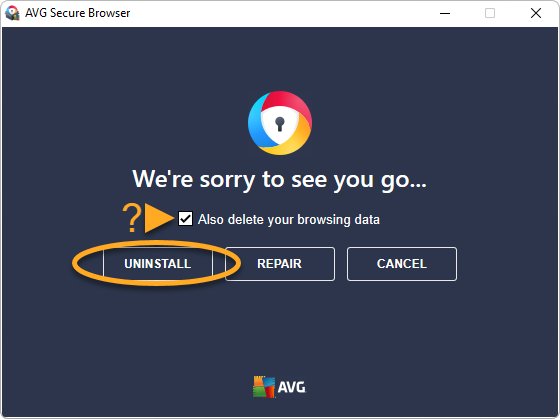
- If an update fails, right-click Start, select Apps and Features, click AVG Secure Browser, click Uninstall twice, untick Also delete your browsing data and click Repair.
Secure Browser crashes or won't open
A damaged installation or a stuck browser process.
- Restart Windows and open the browser again.
- Run the Repair option from the uninstall window, leaving Also delete your browsing data unticked.
- If it still fails, uninstall and reinstall AVG Secure Browser.
A download is blocked or shows File not verified
Web Shield flagged the file as Malicious, Unwanted, Uncommon or Insecure, or could not verify it.
- Download the file again from the publisher's official site.
- For File not verified, select Keep only if you trust the source, or Discard to remove it.
- Install the latest AVG AntiVirus version if verification keeps failing.
- Leave File blocked downloads blocked; AVG detected a dangerous file.
The PRO VPN will not connect
Connection loss, a system proxy, an unavailable location or the Kill Switch.
- Choose another VPN location, ideally closer to you.
- Turn the VPN off and on again.
- Close the browser, wait 10 seconds and reopen it.
- If you see System proxy detected, go to Settings > Accessibility > Open your computer's proxy settings and check the proxy.
- If pages stop loading after a disconnect, turn off Activate Kill Switch under Settings > Privacy and security > VPN Settings.
AVG Secure Browser installed itself and you do not want it
The browser is a normal app on the PC and can be removed like any other.
- Open AVG Secure Browser once and export anything you want to keep.
- Follow the uninstall steps in the next section.
- Set your preferred browser as default in Windows Settings afterwards.
How do you uninstall AVG Secure Browser?
Uninstalling removes the browser but does not cancel a PRO subscription. Cancel that in your AVG Account first if you no longer want it.
- Right-click the Start icon and select Apps and Features.
- Select AVG Secure Browser and click Uninstall twice.
- Click Yes if the User Account Control dialog appears.
- Optionally tick Also delete your browsing data to remove bookmarks and history, then click Uninstall.
- Wait for the uninstaller to finish, then click OK, Sure for the survey or close the window with X.
If the normal uninstall fails, AVG recommends the AVG Uninstall Tool to delete all remaining browser files.
AVG Secure Browser frequently asked questions
Is AVG Secure Browser a virus?
No. AVG Secure Browser is a legitimate browser published by AVG, part of Gen Digital. It installs from avg.com, appears in Apps and Features, and uninstalls like any other Windows app if you do not want it.
Is AVG Secure Browser legit?
Yes. It is an official AVG product with its own support articles, system requirements and a paid PRO tier. Download it only from avg.com so you get the genuine installer, avg_secure_browser_setup.exe.
Is AVG Secure Browser safe?
Yes. Web Shield blocks malicious and phishing sites and dangerous downloads, and Extension Guard blocks untrusted extensions. It is not a replacement for antivirus, so keep AVG AntiVirus or another security app installed.
How secure is AVG Secure Browser?
It adds Web Shield, download checks, Extension Guard, HTTPS Encryption and Hack Check on top of normal browsing. Privacy depends on the Privacy Guard level; Strict Blocking also blocks browser fingerprinting but can break some sites.
Is AVG Secure Browser free?
Yes, the standard browser is free with no time limit. AVG Secure Browser PRO is a paid subscription that adds the browser VPN and Strict Blocking PRO. Its 30-day trial needs payment details and renews unless you cancel.
Do I need AVG Secure Browser?
No. It is optional and runs beside Chrome, Edge or Firefox. It suits people who want built-in ad blocking, phishing protection and a browser-only VPN without assembling extensions themselves.
Should I use AVG Secure Browser?
Use it if you want security tools switched on by default or already pay for AVG products. Skip it if you need an iPhone version, a VPN for every app, or support for Windows 7 or 8.1.
Is AVG Secure Browser any good?
It offers more built-in protection than a default browser install: tracker blocking, Web Shield, Hack Check, URL Cleaner and Screen Sharing mode. Whether it is good for you depends on whether you want those tools bundled.
What is AVG Secure Browser setup?
AVG Secure Browser setup is the installer file avg_secure_browser_setup.exe from avg.com. Run it as administrator, click Accept and install, and the browser opens automatically when setup finishes.
Does AVG Secure Browser replace AVG AntiVirus?
No. AVG AntiVirus is a separate app that gives real-time protection for the whole PC. The browser only shows an AVG AntiVirus tile that installs or opens it.
Does Private Mode hide activity from my internet provider?
No. AVG describes Private Mode as not storing history and deleting tracking cookies and caches on your device. To encrypt browser traffic, use Secure Browser VPN, which needs PRO.
Does the AVG Secure Browser VPN protect my whole device?
No. The Secure Browser PRO VPN protects only traffic from the browser. AVG Secure VPN is the separate AVG app that covers all traffic on the device.
Is AVG Secure Browser available on iPhone?
AVG's support pages list AVG Secure Browser for Windows, macOS and Android only. No iPhone or iPad version or iOS requirements are published.
The bottom line on AVG Secure Browser
Install the free AVG Secure Browser if you want ad and tracker blocking, phishing protection and breach checks working from the first launch on Windows 10 or 11, macOS or Android; pay for PRO only if you want a browser-only VPN. The free version already includes Privacy Guard, Web Shield, Extension Guard and Hack Check, while PRO mainly adds the VPN and search-ad blocking. It does not replace antivirus or a device-wide VPN, and it is unavailable on iPhone and new Windows 7 or 8.1 installs.


![How to remove Yahoo from your Chrome, Firefox, or Edge browser? [Easy steps]](https://techdows.com/wp-content/uploads/2026/10/How-to-remove-Yahoo-from-your-Chrome-Firefox-or-Edge-browser-Easy-steps-600x338.jpg)