Fix a Kernel-Power 41 error by updating Windows, turning off fast startup, reseating your RAM and cables, testing the power supply, and repairing the disk and system files with CHKDSK and SFC.
This guide also shows how to read the event data first, because the BugcheckCode value tells you which of the five steps matters most on your PC.
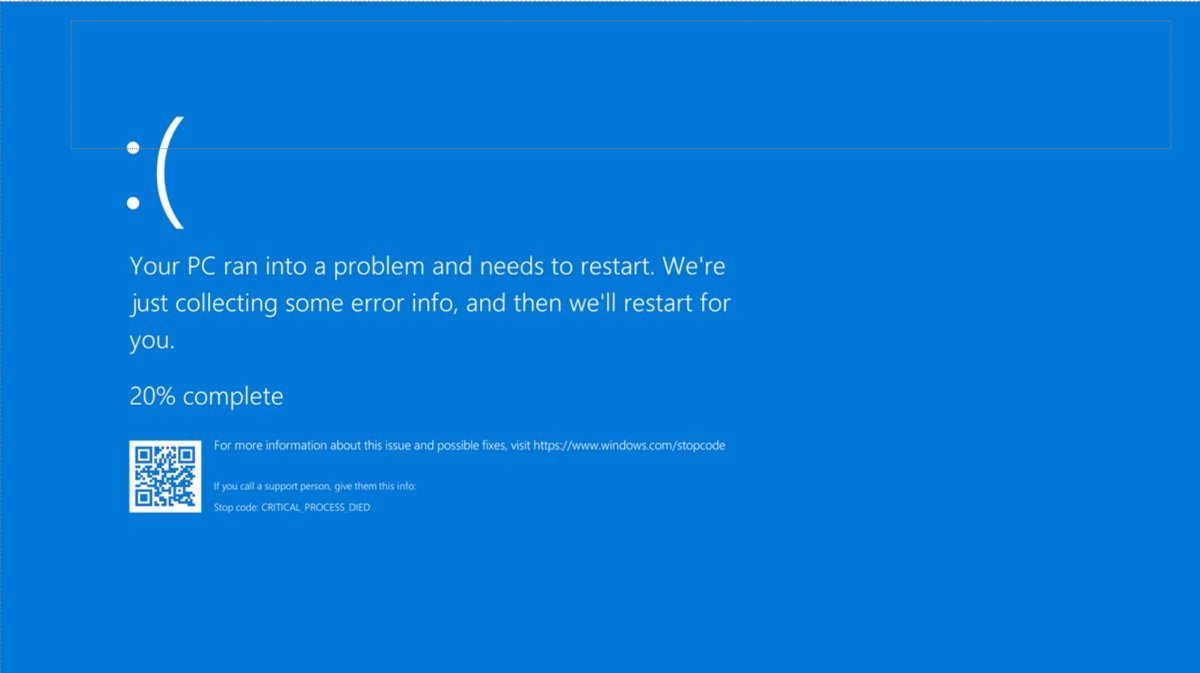
1. Update Windows
Updates replace buggy drivers and system files that can crash the PC. Start here because it changes nothing on your hardware and takes a few minutes.
- Select Start > Settings > Windows Update.
- Select Check for Windows updates.
- Select Download & install if updates are listed.
- Restart the PC when Windows asks you to.
- Repeat the check until no more updates appear.
Also install BIOS and firmware updates from your PC or motherboard maker's support site. Microsoft lists out-of-date BIOS and firmware among the first things to rule out for unexpected crashes.
What is a Kernel-Power critical error?
Kernel-Power event ID 41 means Windows restarted without shutting down cleanly first. Windows logs it at the next startup, after a crash, a hang or a sudden loss of power.
The event itself is not the cause. It is a record that something stopped Windows before it could close files and services normally.
| Field | Value or meaning |
|---|---|
| Log name | System |
| Source | Microsoft-Windows-Kernel-Power |
| Event ID | 41 |
| Level | Critical |
| Message | The system has rebooted without cleanly shutting down first. This error could be caused if the system stopped responding, crashed, or lost power unexpectedly. |
| BugcheckCode | The stop error code in decimal, or 0 if Windows could not record one |
| PowerButtonTimestamp | Nonzero when you pressed and held the power button to force the restart |
| Related events | 6008 records an unexpected shutdown; 6006 a clean one; 1074 a shutdown started by an app or user |
Kernel-Power 41 causes, ranked by likelihood
Microsoft's analysis of stop errors puts third-party drivers far ahead of every other cause: 70% of those crashes come from driver code, 10% from hardware and 5% from Microsoft code. When event 41 records no stop code at all, power and hardware move to the top of the list.
| Rank | Cause | What event 41 shows | Fix to try first |
|---|---|---|---|
| 1 | A third-party driver crashes Windows with a stop error | BugcheckCode is nonzero | Step 1, then update or roll back the driver in Device Manager |
| 2 | Power is cut, a laptop battery drains, or the power supply is underpowered or failing | BugcheckCode 0 and PowerButtonTimestamp 0 | Steps 3 and 4, plus a UPS if the power is unstable |
| 3 | Loose or faulty memory, a loose card or an overheating component | BugcheckCode 0, often under heavy load | Step 3, then check temperatures and clean the fans |
| 4 | Overclocking or memory running at mismatched speeds | Either a zero or a nonzero code | Return the BIOS to its default configuration |
| 5 | Windows stopped responding and you held the power button | PowerButtonTimestamp is nonzero | Steps 1 and 5, then find what caused the hang |
Ranks 2, 3 and 4 are the hardware side of the problem. If the event keeps showing a zero code after the software steps, treat it as a hardware fault rather than a Windows one.
2. Disable Windows fast startup
Fast startup is a hybrid shutdown: it ends your session but writes the kernel session to disk so the next boot is quicker. Changing this power setting for a test gives Windows a full shutdown and a fresh kernel at every start.
Microsoft does not recommend leaving fast startup off permanently, so switch it back on if the error continues without it.
- Press Win + R, type
controland press Enter to open Control Panel. - Open Power Options.
- Select Choose what the power buttons do.
- Clear the Turn on fast startup (recommended) check box.
- Select Save Settings, then use the PC normally for a few days and watch for new crashes.
3. Reseat your RAM and graphics card, and check your power cables
An event 41 with BugcheckCode 0 usually points to hardware or power. A memory module or card that has worked loose, or a power cable that is not fully seated, can cut the PC off without warning.
- Shut down Windows, switch off the power supply and unplug the PC from the wall.
- Open the case and touch a bare metal part of it to discharge static.
- Release each memory module, pull it out and press it firmly back into its slot until the clips lock.
- Remove the graphics card, then reinsert it fully and refit its bracket screw.
- Push every power connector home: the motherboard main connector, the CPU power connector and the graphics card power cables.
- Close the case, reconnect power and start the PC.
- Open Start, type Windows Memory Diagnostic, press Enter and choose to restart and check now.
The memory test runs after the restart. Press F1, set Test Mix to Extended with the arrow keys and press F10 for a deeper pass. You can also run memory diagnostics on Windows from the Run box and read the results after the restart.
On a laptop, skip the case work. A drained or removed battery also logs event 41 with a zero code, so keep the charger connected while you test.
4. Test for faulty PSU with OCCT
A power supply that is underpowered or failing is one of the causes Microsoft names for event 41 with BugcheckCode 0. The fault often shows only under heavy load, such as gaming.
OCCT is a third-party stress-testing utility that keeps the system under sustained load. Get it only from its developer's own site, save your work first, and stop the test if temperatures climb fast.
- Add up the power needs of your CPU, graphics card, drives and other components and compare the total with the wattage on the PSU label.
- Note any recent upgrades, such as a new graphics card, more memory or extra drives, which can push the load past what the PSU delivers.
- Run a sustained full-load test with a stress tool such as OCCT while you watch the PC.
- Check Event Viewer after any shutdown during the test for a new event 41 with BugcheckCode 0.
- Try another power supply unit if possible, borrowed or spare, rated at or above your total load.
- Fit an uninterruptible power supply (UPS) if the shutdowns line up with power cuts or flickering lights.
Check temperatures during the test as well. Microsoft lists overheating next to the power supply as a cause of sudden restarts.
5. Run CHKDSK and SFC
Sudden shutdowns can leave file system errors and damaged system files behind, which then cause more crashes. CHKDSK repairs the disk; DISM and SFC repair Windows itself.
- Select Start, type cmd, right-click Command Prompt and select Run as administrator.
- Run
chkdsk C: /fto fix file system errors on the Windows drive. - Press Y when CHKDSK offers to check the drive at the next restart, because the system drive is in use.
- Restart the PC and let the check finish.
- Open an administrator Command Prompt again and run
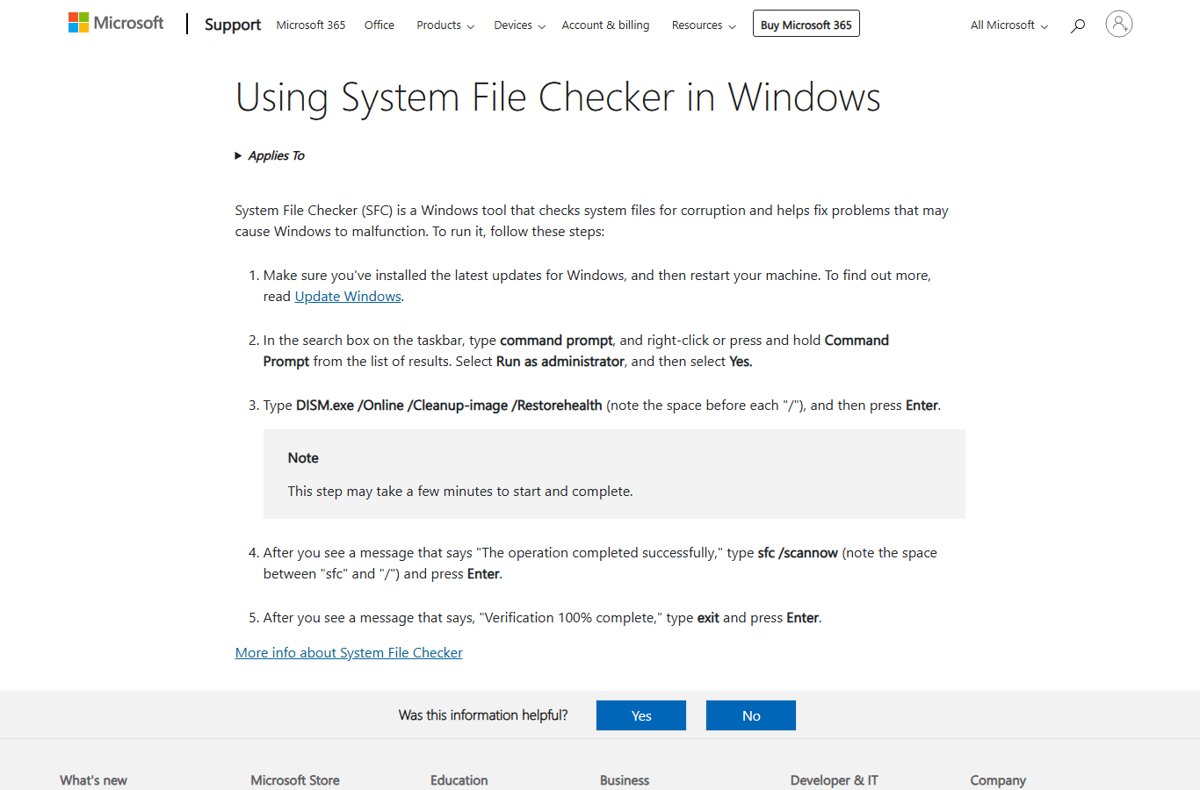
DISM.exe /Online /Cleanup-image /Restorehealth. - Run
sfc /scannowand leave the window open until verification reaches 100%. - Restart the PC when SFC reports that it repaired files.
Use chkdsk C: /r instead of /f if you suspect bad sectors; it includes the /f repair and also scans the physical disk, so it takes longer. Other CHKDSK switches handle read-only scans and offline repairs.
Fixing Kernel-Power critical error 41
Match the event data on your PC to a row, then start with the step it points to. Open the event in Event Viewer and select the Details tab to see these values.
| What event 41 shows | Likely cause | Start with |
|---|---|---|
| BugcheckCode is nonzero (for example 159) | A stop error (blue screen) crashed Windows | Step 1, then convert the code to hex and troubleshoot that stop error |
| BugcheckCode 0 and PowerButtonTimestamp 0 | Power was cut or the PC shut off too fast to record a code | Steps 3 and 4: cables, RAM and the power supply |
| PowerButtonTimestamp is nonzero | You held the power button because the PC stopped responding | Steps 1 and 5, then look for what caused the hang |
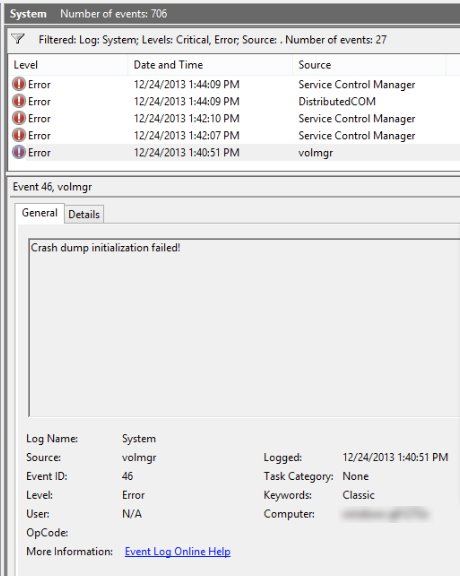
| All values 0 plus event 46 from volmgr | No dump file could be written, often a page file problem | Check the page file configuration, then steps 3 and 4 |
| Shutdowns only after a cold boot | Fast startup resume problem | Step 2 |
| Errors started after an upgrade or new hardware | Driver or power demand change | Step 1 and step 4 |
A nonzero code such as 292 converts to 0x124, which is the WHEA uncorrectable error, a hardware fault with its own fixes.
Find the Kernel-Power 41 event in Event Viewer
- Press Win + R, type
eventvwr.mscand press Enter. - In the console tree, expand Windows Logs and select System.
- In the Actions pane, select Filter Current Log.
- Type 41 in the event ID field and select OK.
- Open the newest Kernel-Power entry and select the Details tab.
- Write down BugcheckCode and PowerButtonTimestamp, then check what happened just before the time shown.
If the console looks unfamiliar, learn the basics of Windows Event Viewer before you filter the log.
Turn off automatic restart to see the Kernel-Power stop code
If you see a blue screen code but event 41 does not record it, stop Windows from restarting instantly so you can read the code on screen.
- Right-click This PC in File Explorer and select Properties.
- Select Advanced system settings, then the Advanced tab.
- Under Startup and Recovery, select Settings.
- Clear the Automatically restart check box.
- Select OK twice, then note the stop code the next time the PC crashes.
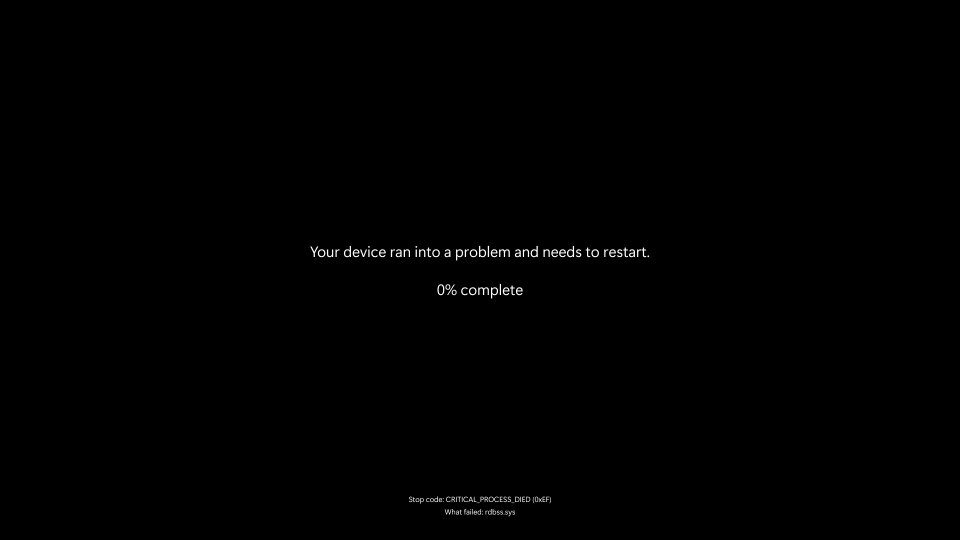
Kernel-Power 41 still appears after the 5 steps
Kernel-Power 41 with BugcheckCode 0 keeps returning
Power is being interrupted, or a hardware fault stops the PC before Windows can write a code.
- Turn off any CPU, memory or GPU overclock in the BIOS and run the PC at default speeds.
- Check that all memory modules run at the same speed and are configured correctly.
- Check the PSU wattage again against everything installed.
- Check internal temperatures and clean dust from fans and heatsinks.
- Reset the BIOS to its default configuration and test again.
Kernel-Power 41 on Windows 11 with a nonzero BugcheckCode
A stop error, most often from a third-party driver, crashed the PC.
- Open Calculator, select Programmer, enter the code with DEC selected, then select HEX.
- Pad the result to eight digits after 0x, for example 159 becomes 0x0000009F.
- Look up that bug check code in Microsoft's Bug Check Code Reference.
- Open Device Manager and update or roll back any device marked with an exclamation point.
- Remove drivers or apps you installed just before the crashes began.
Kernel power 41 shutdown with event 46 from volmgr
Windows started without a usable dump file, so it could not record the crash.
- Open Filter Current Log in the System log and search for event 46.
- If it reads Crash dump initialization failed!, check that a page file exists on the Windows drive.
- Restart and wait for the next crash, which should now record a bug check code.
Kernel-Power 41 started after you installed a third-party antivirus
Antivirus products load their own kernel drivers, and a faulty one can crash Windows like any other third-party driver.
- Uninstall the third-party antivirus the way you remove any other app, then restart the PC.
- Open Windows Security from the Start menu and select Virus & threat protection to confirm Microsoft Defender Antivirus is running again.
- Use the PC for a few days and check the System log for new event 41 entries.
- If the crashes stop, install the newest version of the antivirus from its developer, or keep Microsoft Defender Antivirus.
Kernel-Power 41 shutdowns only while a browser or game is open
The app hands drawing work to the graphics card, which exposes a graphics driver or power problem under load.
- Update the graphics driver with step 1 or from the graphics card maker.
- In Microsoft Edge, open Settings, search for graphics acceleration and turn off Use graphics acceleration when available.
- Restart the browser, then turn off the matching hardware acceleration option in any other app that crashes.
- If the PC still shuts off, run the step 4 load test, because the fault is more likely the power supply.
Check that the Kernel-Power 41 error is fixed
- Use the PC for several days, including the tasks that used to trigger shutdowns.
- Open Event Viewer and filter the System log for event 41 again.
- Confirm no new Kernel-Power entries appear after the date you made the fix.
- Check for event 6006 at each shutdown, which shows Windows turned off cleanly.
Kernel-Power 41 error FAQ
What is kernel power 41 error?
It is a critical System log event that Windows records when it restarts without a clean shutdown. It follows a crash, a hang you ended with the power button, or a sudden loss of power. The event records what happened, not why.
Why am I getting error 41 kernel power?
Your PC stopped without shutting down properly. Common causes are a stop error from a driver, a power interruption, a weak or failing power supply, overheating, overclocking, or memory problems. The BugcheckCode in the event narrows it down.
Why does the Kernel Power 41 black screen appear?
A PC that goes black and restarts without a blue screen usually lost power or shut off too fast to record a stop code. Event 41 then shows BugcheckCode 0, which Microsoft links to power problems such as an outage or a failing power supply.
How to fix kernel power 41?
Update Windows, turn off fast startup, reseat RAM and power cables, test the power supply, and run CHKDSK, DISM and SFC. Read the event's BugcheckCode first so you know whether to focus on drivers or hardware.
What does Kernel-Power 41 BugcheckCode 0 mean?
It means Windows could not record a stop error code before the PC turned off. Microsoft links this to power problems, such as an outage, a drained laptop battery or an underpowered or faulty power supply.
Can a bad power supply cause Kernel-Power 41?
Yes. Microsoft lists an underpowered or faulty power supply as a cause of event 41 with a zero bug check code. Upgrades such as a new graphics card can push demand past what an older unit delivers.
Should you increase the CPU core voltage to fix the Kernel-Power 41 error?
No. Microsoft's advice is the opposite: turn off overclocking and return the system to its default configuration, then check whether the error continues. Manual voltage changes add another variable while you test.
Does disabling fast startup fix Kernel-Power 41?
It can when the shutdowns follow a fast startup resume. Turn it off in Power Options as a test. Microsoft does not recommend leaving it off, so turn it back on if the errors continue.
Is Kernel-Power 41 the same on Windows 11 and Windows 10?
Yes. The event ID, source and data fields are the same on supported versions of Windows client, and the fixes in this guide apply to both.