Windows Event Viewer is a built-in Microsoft Management Console tool that records errors, warnings and routine activity from Windows and your apps, and you use it to find out what happened at the moment something went wrong.
This guide covers how to open it, what each log and level means, how to filter and save events, the commands that read the same logs, and why a screen full of red errors is usually normal.
How to Open Event Viewer
The Run box is the fastest route on Windows 11 and Windows 10. It needs no menus and works the same on every edition.
- Press Windows + R to open the Run box.
- Type
eventvwr.mscand press Enter. - Wait a few seconds while Event Viewer loads the log list on the left.
- Other routes: right-click Start and select Event Viewer, or type *Event Viewer* in the Start menu search and open the result.
Microsoft lists these three routes, the Start search, the Start right-click menu and eventvwr.msc, as the standard ways in.
What Is Windows Event Viewer?
Event Viewer is a Microsoft Management Console (MMC) snap-in that shows the event logs Windows keeps in the background. Every Windows 11 and Windows 10 PC already has it, so there is nothing to download.
Windows, drivers, services and apps write short records to these logs as they work. Most records say something succeeded; a few say something failed.
| What it does | What that means for you |
|---|---|
| Keeps categorized logs of application, security, setup and system events | One place to look after a crash, restart or failed update |
| Records the source, date, time, event ID and any error code for each event | You can match a symptom to the exact minute it happened |
| Filters logs by level, date, event ID and keywords | Thousands of routine entries shrink to the handful that matter |
| Saves filters as custom views | A filter you build once is one click away next time |
| Exports logs as .evtx files | Support staff can open your log on their own PC |
| Runs a task when a chosen event occurs, through Task Scheduler | Advanced users can react to a specific event automatically |
| Collects events from other computers through subscriptions | Mainly used by IT departments, shown under Forwarded Events |
Understanding the Event Viewer Layout
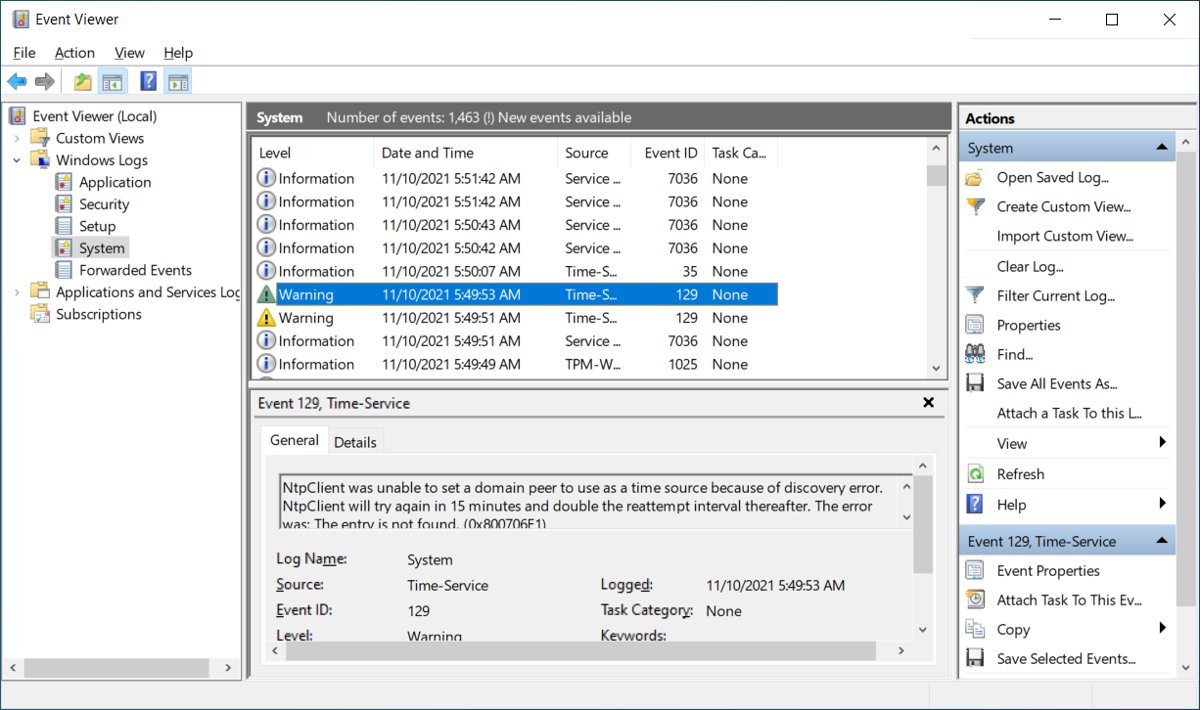
Event Viewer opens in three panes. The left pane is a tree of logs, the middle pane lists events, and the right pane holds actions for whatever you selected.
| Area | What you find there | When to use it |
|---|---|---|
| Custom Views (left) | Saved filters, including the built-in Administrative Events view | Quick look at errors and warnings across logs |
| Windows Logs (left) | Application, Security, Setup, System and Forwarded Events | Start here for almost every problem |
| Applications and Services Logs (left) | Per-component logs, such as Microsoft > Windows > User Profile Service > Operational | Deeper detail once a Windows log points at a component |
| Subscriptions (left) | Rules that pull events from other computers | Work networks only |
| Event list (middle, top) | One row per event with level, date and time, source and event ID | Scan and sort events |
| Preview (middle, bottom) | General and Details tabs for the selected event | Read the message and error codes |
| Actions pane (right) | Filter Current Log, Create Custom View, Save All Events As and more | Narrow, save or export what you see |
The Most Important Event Logs
Five logs sit under Windows Logs. For a home PC, System and Application answer most questions.
| Log | What it records | Check it when |
|---|---|---|
| Windows Logs > Application | Errors, warnings and information from apps and some Windows components | An app crashes, freezes or will not start |
| Windows Logs > System | Events from Windows components, services and drivers | The PC restarts, a device drops out, or a service fails |
| Windows Logs > Security | Audit results, such as successful or failed sign-ins, when auditing is on | You want to know who signed in and when |
| Windows Logs > Setup | Events related to setup and installation | An update or feature install fails |
| Windows Logs > Forwarded Events | Events collected from other computers through a subscription | Usually empty on a home PC |
| Applications and Services Logs | Admin and Operational logs for single components; Analytic and Debug logs are hidden and off by default | A Windows log names a component and you need its detail |
Admin logs describe a problem with a defined fix. Operational logs need more interpretation. To see Analytic and Debug logs, open the View menu and select Show Analytic and Debug Logs.
What Event Levels Mean
Every event has a level, shown as an icon and a word in the Level column. The numbers matter when you filter from PowerShell.
| Level | Number | What it means | Should you act? |
|---|---|---|---|
| Critical | 1 | The most severe level | Look if it matches a symptom you saw |
| Error | 2 | A significant problem, such as a service failing to load at startup | Only if it repeats or lines up with a problem |
| Warning | 3 | Not necessarily significant, but may point to a future problem, such as low disk space | Usually no |
| Information | 4 | A successful operation, such as a driver loading | No |
| Verbose | 5 | Extra detail, mostly in diagnostic logs | No |
| Audit Success / Audit Failure | Security log | An audited access attempt that succeeded or failed | Check failures you do not recognise |
A healthy PC logs errors and warnings every day. Microsoft's own troubleshooting pages tell you to ignore some of them, such as User Profile Service event 1530.
How to Read an Event
An event is a short report with a few fixed fields. Read them in this order and you know what failed, where, and when.
- Select a log, for example Windows Logs > System.
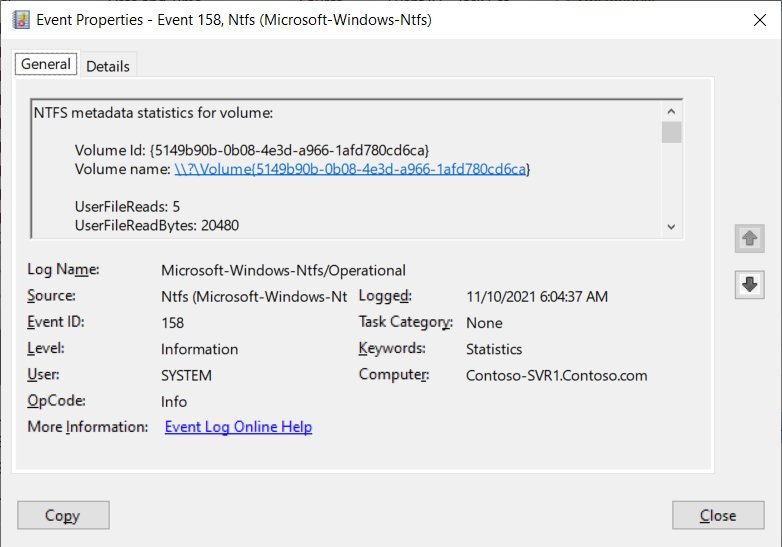
- Click an event in the list to show it in the preview pane, or double-click it to open it in its own window.
- On the General tab, read the description first; it states what happened in plain words.
- Note the Source (the component that wrote it), the Event ID, the Level and the date and time it was logged.
- Check User and Computer if several accounts or PCs are involved.
- Select the Details tab and check Friendly view to see extra data such as error codes.
- Select the Event Log Online Help link if you want Microsoft's page for that event.
Search with the source and the event ID together, for example *Kernel-Power 41*. The event ID alone repeats across unrelated sources.
How to Find Events Related to a Problem
Event Viewer is only useful when you know roughly when the problem happened. Start from the time, not from the list of red icons.
- Note the date and time of the problem as closely as you can, such as the moment of a crash or restart.
- Pick the log that matches the symptom: System for restarts, devices and drivers, Application for app crashes.
- Click the date and time column header to sort the list, then scroll to the time you noted.
- Read the Critical and Error events within a few minutes before the symptom.
- Compare them with the events just after it; a restart shows as a gap, then startup entries.
- If one source keeps appearing, open Applications and Services Logs and look for that component's Operational log around the same time.
How to Filter Event Viewer Logs
A filter hides everything you did not ask for. It changes the view only; no events are deleted.
- Select the log you want, for example Windows Logs > Application.
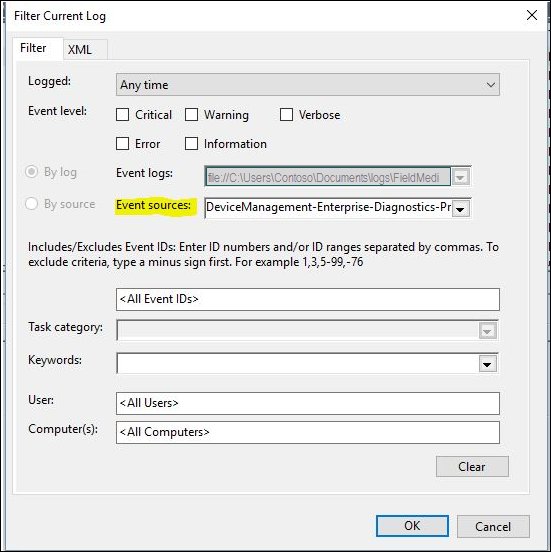
- In the Actions pane, select Filter Current Log.
- Choose a time range, such as the last 24 hours.
- Tick the event levels you need, usually Critical and Error.
- To limit the list to one component, pick it in the Event sources box.
- To show only specific events, type their IDs in the event ID box.
- Select OK to apply the filter.
- Check the list: only events matching every condition remain.
Using Custom Views
A filter applies to one log and disappears when you close Event Viewer. A custom view spans several logs and is saved for next time.
- In the left pane, right-click Custom Views and select Create Custom View.
- Choose the time range and the levels, for example Critical, Error and Warning over the last 7 days.
- Choose the logs to include, such as System and Application under Windows Logs.
- Optionally enter event IDs, a user or a computer to narrow it further.
- Select OK, then type a name and description in the Save Filter to Custom View dialog and select OK.
- Select the new view under Custom Views whenever you want the same list again.
For a precise query, open the XML tab and tick Edit query manually. After that, the query can no longer be changed from the Filter tab. Custom views can also be exported and imported, so a view can be shared with someone helping you.
Read the same logs with PowerShell (Get-WinEvent)
Get-WinEvent reads any event log from PowerShell. The -FilterHashtable parameter filters as events are read, which is faster than piping to Where-Object.
Get-WinEvent -FilterHashtable @{ LogName='System'; Level=1,2; StartTime=(Get-Date).AddDays(-1) }Lists Critical (1) and Error (2) events from the System log in the last 24 hours. Swap LogName for Application, add Id=41 to find one event ID, or add ProviderName='Application Error' for app crashes. Get-WinEvent -ListLog * lists every log on the PC.
You should see: A table with TimeCreated, Id, LevelDisplayName and Message columns, newest first. A 'No events were found' error means nothing matched, which is a good result for this query.
The Level key takes numbers, not words. Use 4 for Information and 3 for Warning.
Query and export logs from Command Prompt (wevtutil)
wevtutil is the built-in command-line tool for event logs. It works in Command Prompt and PowerShell.
wevtutil qe System /c:10 /rd:true /f:textqe queries events from the System log, /c:10 limits the output to 10 events, /rd:true returns the newest first and /f:text prints readable text instead of XML. wevtutil el lists all log names.
You should see: Ten blocks of text, each starting with the log name, source and date of one event.
Common Event Viewer Entries and What They Mean
These entries cause the most worry. Most of them describe something that already happened and needs no action unless it repeats.
| Entry | Log | What it means | What to do |
|---|---|---|---|
| Kernel-Power, Event ID 41 | System | Windows restarted without shutting down cleanly: power loss, a held power button, or a stop error | Check the Details tab: a nonzero BugcheckCode means a stop error; a nonzero PowerButtonTimestamp means the power button was held |
| Application Error (source) | Application | An app crashed; the event names the program file | Update or repair that app if it keeps happening |
| User Profile Service, Event ID 1530 | Application | Windows found the registry file still in use | Microsoft says it can be safely ignored |
| Group Policy errors | System | Policy processing failed, often on work PCs | Read the error code on the Details tab and pass it to your IT team |
| Audit Failure | Security | An audited sign-in or access attempt failed | Normal after a mistyped password; investigate repeated failures you did not cause |
| Warnings from services at startup | System | A service or driver loaded slowly or retried | Ignore unless a feature tied to it stops working |
Event ID 41 stores the stop code in decimal. Microsoft's example 159 converts to 0x0000009F, which is the form most stop code documentation uses.
Practical Troubleshooting Examples
Each example starts from a symptom and ends at the event that explains it.
Why did Windows restart on its own?
An unexpected restart leaves Kernel-Power Event ID 41 in the System log at the next startup.
- Open Windows Logs > System and select Filter Current Log.
- Type
41in the event ID box and select OK. - Open the event that matches the restart time and select the Details tab.
- If BugcheckCode is nonzero, the restart was a stop error; convert the number to hex in Calculator's Programmer view.
- If PowerButtonTimestamp is nonzero, the power button was held down.
- If every value is zero, suspect power loss or a hang, and check the power supply and recent hardware changes.
Crashes, no sound, or screen glitches in one app
App crashes are written to the Application log, usually with the source Application Error.
- Open Windows Logs > Application.
- Select Filter Current Log, tick Error, choose Application Error under Event sources and select OK.
- Open the newest event and note the program file named in the description.
- Check whether the same program appears in several events at different times.
- Update the app, then repair it from Settings > Apps > Installed apps if the crashes continue.
Blue screen, then the PC restarted
A stop error forces a restart, and Windows records the stop code in Event ID 41.
- Find the Event ID 41 entry for that time, as in the first example.
- Write down the stop code shown on screen or taken from BugcheckCode.
- Remove any hardware you added just before the errors started.
- Check Device Manager for devices marked with an exclamation point and update their drivers.
- Install the latest updates from Settings > Windows Update.
PC slower than it used to be
Slowness rarely logs one clear error, so look for repeating warnings or errors from the same source.
- Create a custom view of Error and Warning events from System and Application for the last 7 days.
- Click the Source column header to group identical sources together.
- Look for a source that logs many times a day, such as a disk or a service that keeps restarting.
- Search Microsoft Support for that source and event ID before changing anything.
Event Viewer vs. Reliability Monitor
Reliability Monitor is a separate mode of Windows Reliability and Performance Monitor. Open it with perfmon /rel from the Run box.
| Your situation | Use this | Why |
|---|---|---|
| You want a summarized first look at reliability problems | Reliability Monitor (perfmon /rel) |
It is a separate, simpler view; confirm details in Event Viewer |
| You need the exact time, source, event ID and error code | Event Viewer (eventvwr.msc) |
It shows the full record of every event |
| You need events from one component, such as User Profile Service | Event Viewer | Only Event Viewer shows Applications and Services Logs |
| You want to save or share the raw log | Event Viewer or wevtutil epl |
Both produce an .evtx file others can open |
| You want to script a check | Get-WinEvent |
It filters by log, level, ID and date from PowerShell |
How to Save or Share Event Logs
Support staff often ask for the log itself rather than a screenshot. Save it as an .evtx file, which opens in Event Viewer on any Windows PC.
- Right-click the log, for example Windows Logs > System.
- Select Save All Events As.
- Choose a folder, type a file name and select Save.
- If asked about display information, choose Display information for these languages, select English, and select OK.
- From a command line, run
wevtutil epl System C:\backup\system.evtxto export the same log.
Logs can contain user names, computer names and program paths. Share them only with support you contacted yourself.
Should You Clear Event Viewer Logs?
No. Leave the logs alone unless a support engineer asks you to clear one, and back it up first if you do. Clearing removes the evidence you or a technician need, and it fixes nothing. Windows already overwrites old events when a log reaches its size limit, so logs do not grow forever. If you must clear one, wevtutil cl Application /bu:C:\backup\app.evtx saves a copy before clearing, and clearing a log needs an administrator account.
A "cleaner" that offers to wipe your event logs to fix errors is removing the record, not the cause.
What Event Viewer Can and Cannot Tell You
| Event Viewer can tell you | Event Viewer cannot tell you |
|---|---|
| When a crash, restart or failed update happened | Whether an error you never noticed is a real problem |
| Which component or app reported it | The root cause when the component logs only a generic error |
| The stop code behind a restart, in Event ID 41 | Why power was lost if nothing was recorded |
| Who signed in, if auditing is enabled | Sign-in history when auditing is off |
| Error codes on the Details tab | Which fix to apply; codes still need looking up |
That gap is why the tool feels useless to many people. It is a record, not a diagnosis, and it pays off only when you start from a real symptom.
Tips for Using Event Viewer Effectively
| Tip | Why it helps |
|---|---|
| Start from the time of a symptom, not from the error count | Errors unrelated to your problem appear on every PC |
| Ignore one-off errors that never repeat | A single failed retry at startup is normal |
| Search with source plus event ID | The same ID means different things from different sources |
| Build one custom view for Critical and Error events | Your everyday check becomes one click |
| Read the Details tab for error codes | Codes are what Microsoft documentation refers to |
| Turn Analytic and Debug logs off after use | They log large volumes of events |
| Save the log before you change anything | You keep the evidence if the fix fails |
How to check you found the right event
- Confirm the event's logged time falls within minutes of the symptom you noted.
- Check that the same source and event ID appear each time the symptom returns.
- Confirm the event is absent on days when the problem did not happen.
- After applying a fix, reopen your custom view a few days later and check that no new copies of the event appear.
When to Get Help
Scammers use Event Viewer's normal errors as a prop. Microsoft warns that tech support scammers use remote access to misrepresent normal system messages as signs of problems, and that Microsoft error and warning messages never include phone numbers.
| Situation | What to do |
|---|---|
| The same Critical or Error event repeats and matches a crash or restart | Contact your PC maker or Microsoft Support yourself, and bring the saved .evtx file |
| A work or school PC shows Group Policy or sign-in errors | Send the event ID and Details tab error code to your IT team |
| A pop-up, call or email says Event Viewer shows your PC is infected and gives a number to call | Do not call; it is a scam. Microsoft does not make unsolicited support calls |
| Someone on the phone opens Event Viewer and points at red errors | Hang up and do not install remote access software |
| You already let a caller connect to your PC | Uninstall the apps they asked for, run a full Windows Security scan, change your passwords and contact your card provider |
Report tech support scams at www.microsoft.com/reportascam.
The Bottom Line
Open Event Viewer with eventvwr.msc only when you have a symptom and a time, filter System or Application to Critical and Error events around that time, and read the source, event ID and Details tab. Every Windows PC logs errors that mean nothing on their own. Event Viewer turns useful when it confirms a problem you already saw, and it is never a reason to call a number someone gives you.
Frequently Asked Questions
What is the Windows Event Viewer?
Windows Event Viewer is a built-in Microsoft Management Console tool that displays the event logs Windows keeps. It lists errors, warnings and information from Windows, drivers, services and apps, with the source, time, event ID and any error code for each event.
What is the use of Event Viewer in Windows?
Event Viewer is used to find out what happened when something went wrong, such as an app crash, an unexpected restart or a failed update. It also records sign-in audits in the Security log and can export logs as .evtx files for support staff.
Why is Windows Event Viewer so useless?
Event Viewer feels useless because every healthy PC logs errors that need no action, and the tool shows them without saying which matter. It becomes useful when you start from a symptom and its time, then filter to Critical and Error events around that moment.
How do I use Windows Event Viewer?
Open Event Viewer with Windows + R and eventvwr.msc, select Windows Logs > System or Application, and use Filter Current Log to show Critical and Error events from the right time. Open an event to read its description, source, event ID and Details tab.
How does Event Viewer work?
Windows components, drivers and apps write records to event logs as they run, and Event Viewer reads and displays those logs. Each record carries a level, source, event ID, time, user and computer. Event Viewer only shows and filters them; it does not fix anything.
How do I access Windows Event Viewer?
Press Windows + R, type eventvwr.msc and press Enter. You can also right-click the Start button and select Event Viewer, or search for Event Viewer in the Start menu. It is built into Windows 11 and Windows 10.
How can Event Viewer show why Windows restarted?
Open Windows Logs > System and filter for Event ID 41 from Kernel-Power. On the Details tab, a nonzero BugcheckCode means a stop error caused the restart, while a nonzero PowerButtonTimestamp means the power button was held down.
Do I need to download Windows Event Viewer?
No. Event Viewer is part of Windows and opens with eventvwr.msc. A site offering an Event Viewer download is not Microsoft, and there is no reason to install one.
What is the Event Viewer command in Windows?
The command that opens Event Viewer is eventvwr.msc. To read logs without opening it, use wevtutil qe System /c:10 /rd:true /f:text in Command Prompt or Get-WinEvent in PowerShell.
Are errors in Event Viewer a sign my PC is infected?
No. Errors and warnings appear on every working Windows PC. Tech support scammers point at them to sell fake repairs, and Microsoft states its error messages never include a phone number. Run a Windows Security scan if you are worried.





How to Run Memory Diagnostics on Windows 10 & 11 - Techdows
[…] If you missed it, the result is saved in Event Viewer. New to the tool? Read what Windows Event Viewer is and how to use it. […]