KMODE_EXCEPTION_NOT_HANDLED means a kernel-mode program, almost always a driver, raised an error Windows could not catch, so the fix is to update, roll back or remove the driver named on the blue screen.
This guide covers getting into Windows when it keeps crashing, every driver action, updates and BIOS, system file and disk repair, a memory test, and resetting Windows as the last step on Windows 11 and Windows 10.
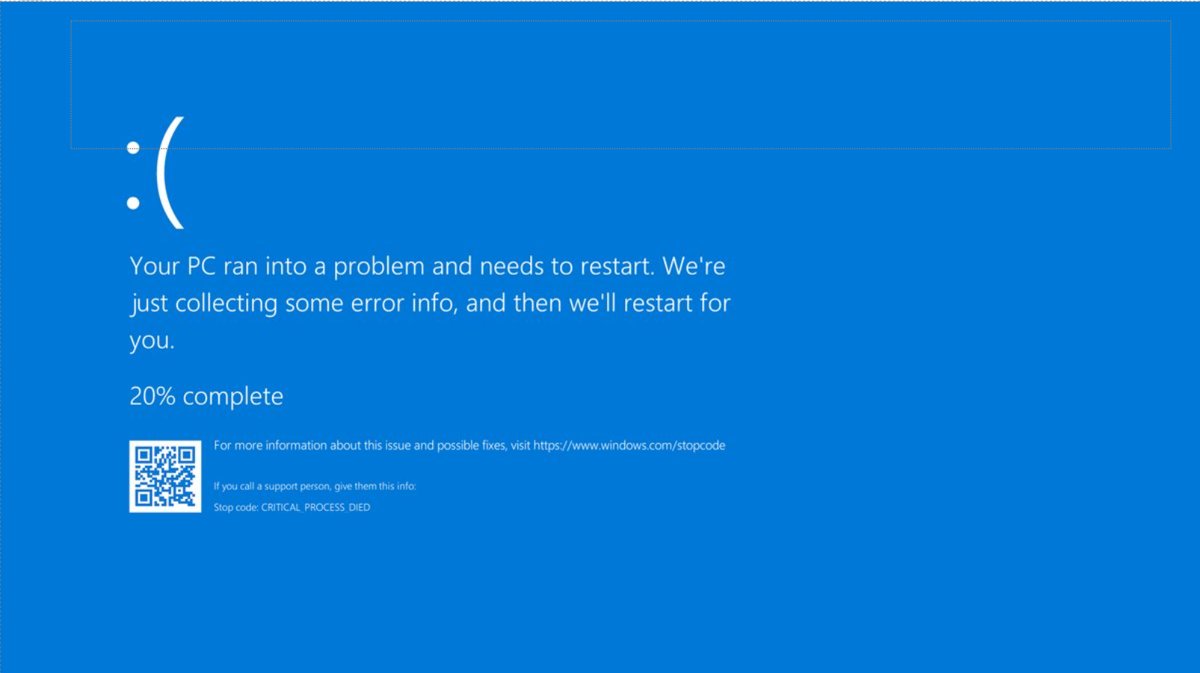
The fastest fix: deal with the driver named on the blue screen
Microsoft's guidance for bug check 0x1E is direct: if a driver is listed by name, disable or remove it, or get an update from its manufacturer. The stop screen shows the module name when one is available.
- Note the file name shown under the stop code, for example a .sys file.
- Unplug any hardware you added just before the crashes began, then restart.
- Right-click Start and select Device Manager.
- Find the device that uses that driver, or any device marked with an exclamation point.
- Right-click it and select Update driver; if the crashes started after an update, open Properties > Driver > Roll Back Driver instead.
- Restart and use the PC normally to see whether the blue screen returns.
What Kmode_Exception_Not_Handled Means
| Item | Detail |
|---|---|
| Bug check value | 0x0000001E |
| What happened | A kernel-mode program generated an exception the error handler did not catch |
| Most common cause | A faulty device driver or system service |
| Hardware causes | BIOS incompatibility, memory conflicts, IRQ conflicts, or new hardware that is not compatible with your Windows version |
| Common exception code 0xC0000005 | A memory access violation by the driver |
| During Windows Setup | Often a system BIOS incompatibility, fixed by updating the BIOS |
Which fix should you try first?
| Your situation | Start with | Why |
|---|---|---|
| A driver file is named on the blue screen | Update, roll back or uninstall that driver | Microsoft's first resolution for 0x1E |
| Crashes began after new hardware | Remove the hardware | Incompatible hardware triggers this bug check |
| Crashes began after a Windows or driver update | Roll Back Driver | Restores the previous working driver |
| Windows crashes before you can sign in | Safe Mode from Windows Recovery | Loads only basic drivers so you can work |
| No driver named, random timing | Memory test, then system file and disk repair | Memory faults and corruption point nowhere specific |
| Error during or right after Windows Setup | BIOS update from the PC maker | Microsoft lists BIOS incompatibility as a cause |
| Nothing else works | Reset this PC with Keep my files | Reinstalls Windows and its drivers |
Boot Into Safe Mode or Windows Recovery
If Windows fails to start several times in a row, it opens the Windows Recovery Environment (Windows RE) by itself. Have your BitLocker recovery key ready if the drive is encrypted.
- If Windows still starts, hold Shift while you select Power > Restart.
- If it does not, turn the PC on and hold the power button as soon as the Windows logo appears; repeat once, then let it start a third time to reach Automatic Repair.
- Select Advanced options > Troubleshoot > Advanced options > Startup Settings > Restart.
- Press 4 or F4 for Enable Safe Mode, or 5 or F5 for Safe Mode with Networking if you need to download drivers.
- Sign in and carry out the driver, repair and memory steps below.
If the PC restarts too fast to read the stop screen, choose Disable automatic restart on system failure (option 9) on the same Startup Settings screen.
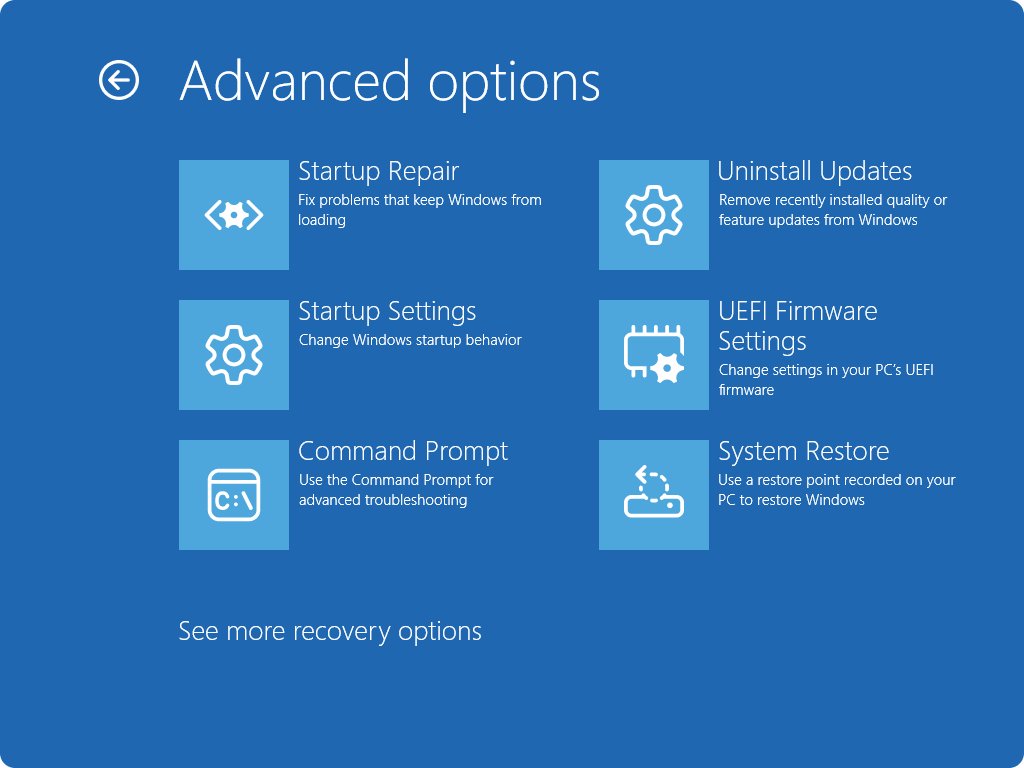
Update, Roll Back, or Uninstall Problem Drivers
You need administrator rights. If Roll Back Driver is grayed out, Windows has no earlier driver to return to.
- Right-click Start and select Device Manager.
- Right-click the suspect device and select Properties, then the Driver tab.
- Select Roll Back Driver > Yes if the problem began after an update.
- Otherwise select Update Driver and let Windows search automatically for a newer driver.
- If neither helps, select Uninstall Device, tick Attempt to remove the driver for this device, select Uninstall and restart.
- Install the latest driver from the device or PC maker's website if Windows does not reinstall a working one.
Microsoft also advises removing any driver or service you added recently. To find the culprit when none is named, check Event Viewer > Windows Logs > System for errors logged just before each crash.
Check for Windows Updates and BIOS or Firmware Updates
- Select Start > Settings > Windows Update > Advanced options.
- Switch Receive updates for other Microsoft products to On.
- Under Additional options, select Optional updates, choose the driver updates offered and select Download and install.
- Return to Windows Update, select Check for updates and install everything listed.
- Restart even if no update asked for it.
- Download any newer BIOS or firmware for your exact model from the PC or motherboard maker's support site and follow its instructions.
Windows 10 stopped receiving free updates on October 14, 2025, so a Windows 10 PC may get no new drivers through Windows Update. Use the maker's site for those.
Scan and Repair System Files and Disk Errors
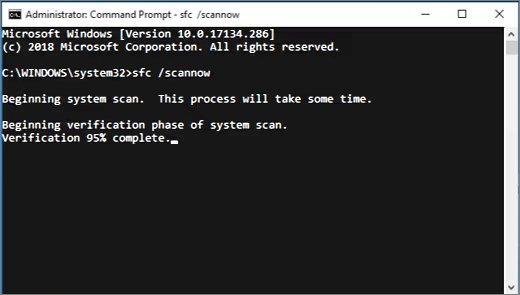
Search for Command Prompt, right-click it and select Run as administrator. Microsoft recommends running DISM before System File Checker.
DISM.exe /Online /Cleanup-image /Restorehealth
sfc /scannow
chkdsk C: /r
DISM downloads healthy copies of Windows components from Windows Update, sfc /scannow replaces damaged system files, and chkdsk /r fixes disk errors and recovers data from bad sectors.
You should see: SFC reports that Windows Resource Protection found no integrity violations, or that it repaired them. For the system drive, chkdsk asks to run at the next restart; type Y and restart.
Test RAM, Hardware, and Overclocking Settings
Microsoft lists memory conflicts among the hardware causes of 0x1E and recommends the system maker's own memory diagnostics. Windows Memory Diagnostic is built in.
- Save your work and close all apps.
- Press Windows key + R, type
mdschedand select OK. - Select Restart now and check for problems (recommended).
- For a deeper test, press F1 on the test screen, set Test Mix to Extended and press F10.
- After you sign in again, read the result in the notification, or in Event Viewer under Applications and Services Logs > Microsoft > Windows > MemoryDiagnostics-Results.
- If you overclock the CPU, memory or graphics card, return them to default settings while you test.
- If memory errors appear, test one memory module at a time or contact the PC maker.
Event ID 2001 means no memory errors were detected.
How to check the fix worked
- Use the PC for the activity that used to trigger the crash, such as gaming or connecting the device.
- Open Event Viewer > Windows Logs > System after a day of use.
- Confirm no new critical errors appear at the times the blue screens used to happen.
- If the same driver name returns on a new stop screen, uninstall that device's software completely and contact its maker.
Reset Windows if the Error Keeps Returning
Back up your files first. Resetting reinstalls Windows, and you need your BitLocker recovery key if the drive is encrypted.
- Open Settings > System > Recovery (on Windows 10, Update & Security > Recovery).
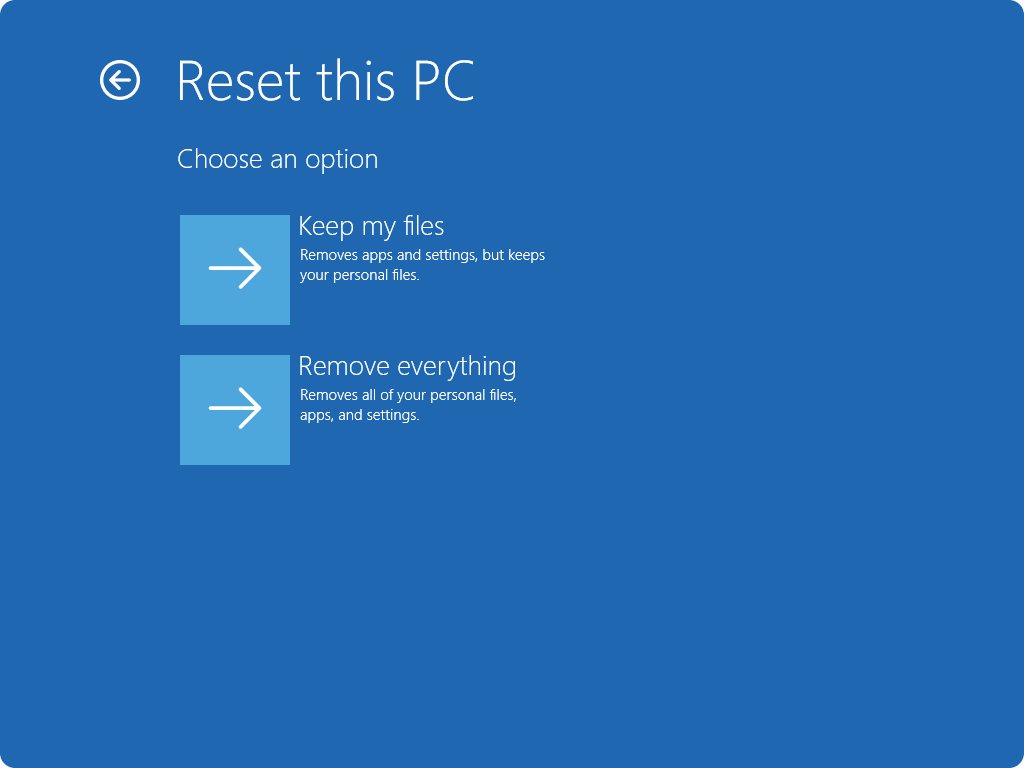
- Under Recovery options, select Reset PC, or choose Troubleshoot > Reset this PC from Windows RE.
- Choose Keep my files to keep documents while removing apps and settings.
- Choose Cloud download for a fresh copy of Windows, or Local reinstall on a slow connection.
- Do not switch the PC off if the screen stays black for a long time; the reset can take 15 minutes or more.
If the blue screen returns on a freshly reset PC before you add any drivers, the cause is hardware, so contact the PC maker.
Frequently Asked Questions
Can Kmode_Exception_Not_Handled be caused by a bad driver?
Yes. Microsoft names a faulty device driver or system service as the main cause of bug check 0x1E. If the stop screen lists a driver, disable or remove it, or install an update from its manufacturer.
How do I fix Kmode_Exception_Not_Handled if Windows will not boot?
Interrupt startup twice with the power button to reach Automatic Repair, then go to Advanced options > Troubleshoot > Advanced options > Startup Settings and start Safe Mode. From there, roll back or uninstall the suspect driver.
Should I update my BIOS to fix this BSOD?
Update it when the error appears during or after Windows Setup, or when driver fixes fail. Microsoft lists a system BIOS incompatibility as a possible cause of 0x1E. Download the BIOS only from your PC or motherboard maker for your exact model.
Can RAM or overclocking cause Kmode_Exception_Not_Handled?
Memory conflicts are one of the hardware causes Microsoft lists. Run Windows Memory Diagnostic with mdsched, and return any overclocked CPU, memory or graphics settings to default while you test.
Will resetting Windows remove the Kmode_Exception_Not_Handled error?
It removes software and driver causes, because Reset this PC reinstalls Windows and removes installed apps. It will not fix faulty hardware; if the error returns on a fresh reset, have the hardware checked.
What causes Kmode_Exception_Not_Handled?
A kernel-mode program, usually a driver, raised an exception that Windows could not handle. Faulty drivers, incompatible new hardware, BIOS incompatibilities, memory conflicts and IRQ conflicts are the documented causes.
What is stop code 0x0000001E?
0x0000001E is the numeric value of the KMODE_EXCEPTION_NOT_HANDLED bug check. Both names refer to the same blue screen error and share the same fixes.
Bottom Line
Fix the driver named on the stop screen first by rolling it back, updating it or uninstalling it, and move to memory tests, system file repair and a reset only if the crashes continue. Microsoft attributes bug check 0x1E mainly to faulty drivers, so the driver step resolves most cases, while hardware causes show up as crashes that survive a clean reset.


How do I fix the Windows 10 stop code - Techdows
[…] KMODE_EXCEPTION_NOT_HANDLED crash usually clears once you remove or update the faulty kernel driver named on the […]