To fix error code 0x0 in Windows, repair system files with DISM and SFC, restart, and then retry the task that failed, whether that was joining the Windows Insider Program or upgrading Windows.
This guide explains what the 0x0 code means, the separate fixes for Insider and upgrade failures, and the general repairs that clear the rest.
The fastest fix for error code 0x0 in Windows
Corrupted system files are the most common cause that you can fix in a few minutes, so start with the two built-in repair tools.
- Select Start, type cmd, right-click Command Prompt and select Run as administrator.
- Select Yes at the User Account Control prompt.
- Type
DISM.exe /Online /Cleanup-image /Restorehealthand press Enter. Wait until it reports that the restore operation completed. - Type
sfc /scannowand press Enter. Keep the window open until verification reaches 100%. - Restart the PC.
- Retry the Insider enrolment, upgrade or app that showed the 0x0 error.
If the error comes back, match your situation in the table below and go straight to that fix.
Which 0x0 error fix matches your situation?
| Where the 0x0 error appears | Start with | Why |
|---|---|---|
| Joining or updating through the Windows Insider Program | Turn on optional diagnostic data, check the Windows Insider Service, retry | Insider builds need optional diagnostic data, and the first upgrade to an Insider build sometimes fails once |
| Upgrading Windows with Windows Update | Free disk space, uninstall non-essential apps, then upgrade with Microsoft's own tool | Space, old apps and drivers are the usual blockers in Microsoft's quick fixes |
| Shown as 0x0 – 0x0 by Windows Setup | Run SetupDiag and read its log | The code itself carries no cause, so the setup logs are the only detail |
| Apps crash or Windows misbehaves with 0x0 | DISM and SFC, then a clean boot | Damaged system files and conflicting startup software are the common causes |
| Windows will not start after the error | Startup Repair from the Windows Recovery Environment | It scans and repairs start-up problems without signing in |
| Error began after a recent change | System Restore | It rolls back system files, registry settings and installed programs, not personal files |
Causes for the 0x0 error in Windows
In Microsoft's Win32 error table, code 0x00000000 is ERROR_SUCCESS, described as "The operation completed successfully." When a failed task reports 0x0, the program did not pass a real error code, so the cause has to be found another way.
| Likely cause | What you notice | Fix in this guide |
|---|---|---|
| Optional diagnostic data turned off | Insider settings will not enrol the PC or no preview builds arrive | Windows Insider fix |
| Windows Insider Service disabled | Insider settings page fails or enrolment stops with 0x0 | Windows Insider fix |
| Not enough free space on the system drive | Upgrade stops partway and rolls back | Upgrade fix |
| Third-party antivirus or outdated apps | Upgrade fails at the same point every time | Upgrade fix and clean boot |
| Outdated drivers or firmware | Failure after restart during setup | Upgrade fix |
| Corrupted system files | Several Windows features fail or freeze | DISM and SFC |
| Faulty memory (RAM) | Random crashes as well as the 0x0 error | Windows Memory Diagnostic |
| Malware | Unexpected changes, slowdowns or blocked tools | Microsoft Defender full scan |
Windows Setup normally returns a result code and an extend code, such as 0xC1900101 – 0x4000D. A 0x0 – 0x0 pair gives neither a Win32 error nor a setup phase, which is why the logs matter.
How to fix Windows Insider 0x0 error
You need a licensed, activated copy of Windows 11, a Microsoft account registered with the program, and administrator rights to see the Insider settings.
- Go to Settings > Windows Update > Windows Insider Program.
- If you are asked to enable optional diagnostic data, select Open Diagnostics & feedback and set Send optional diagnostic data to On.
- Press Win + R, type
services.mscand press Enter. Find Windows Insider Service, and if its startup type is Disabled, open it and set it back to Manual. - Return to the Windows Insider Program page and select Get started.
- Link the Microsoft account you registered with and select Continue.
- Choose a channel, accept the agreement and select Restart now.
- After the restart, go to Settings > Windows Update and select Check for updates.
Microsoft notes that the first upgrade from a retail build to an Insider build sometimes fails and succeeds when you try again. Check Settings > System > Activation as well, because Insider builds need an activated copy of Windows.
How to fix Windows upgrade 0x0 error
These steps follow Microsoft's quick fixes for failed upgrades, in the order that clears the most common blockers first.
- Unplug non-essential hardware such as docks, USB drives, printers, card readers and second monitors.
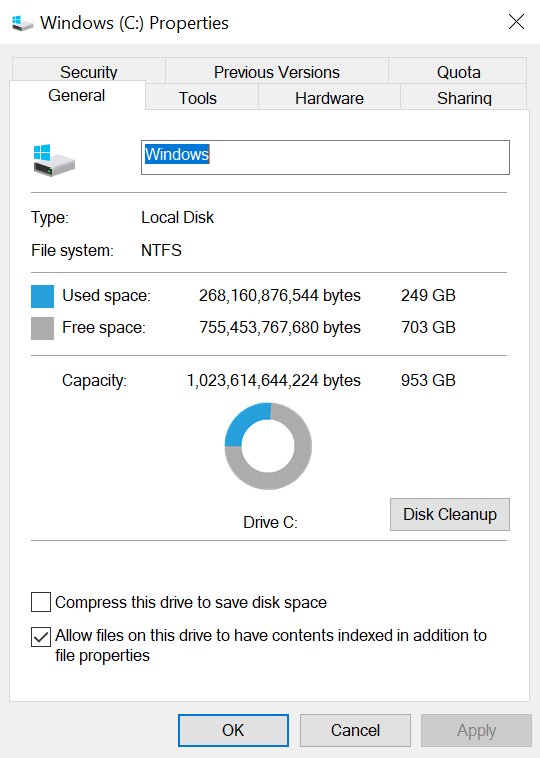
- Open File Explorer, select This PC and check the free space on the drive with the Windows logo. Free space with Disk Cleanup if it is low.
- Go to Settings > Windows Update, select Check for updates and install everything, restarting when asked.
- Uninstall third-party antivirus and other non-essential apps from Control Panel > Programs > Programs and Features. Microsoft Defender protects the PC in the meantime.
- Install the latest drivers and firmware from your PC manufacturer's support site.
- Run the upgrade again. When setup asks about updates, choose to download and install them.
- If Windows Update still fails, upgrade with Windows 11 Installation Assistant or create installation media from Microsoft's Windows 11 download page.
Installation Assistant needs a Windows 10 or 11 licence, Windows 10 version 2004 or later, 9 GB of free disk space, an x64 processor and administrator rights. The media creation option needs a blank USB drive of at least 8 GB.
General fixes for all 0x0 errors
When the 0x0 error is not tied to the Insider Program or an upgrade, work through these repairs in order and retry the failing task after each one.
| Fix | What it rules out | Restart needed |
|---|---|---|
| End unnecessary background applications in Task Manager | A running app holding files the task needs | No |
| Check the system drive has enough available space | A full drive stopping installs and updates | No |
| Update drivers and Windows | Known bugs fixed in later updates | Often |
| Run DISM and SFC | Corrupted system files | Afterwards, yes |
| Perform a clean boot | Third-party services and startup apps | Yes |
| Scan for malware with Microsoft Defender | Malicious software interfering | Only for an offline scan |
| Diagnose RAM with Windows Memory Diagnostic | Faulty memory | Yes |
| Perform System Restore | A recent driver, app or setting change | Yes, automatically |
To end background apps, press Ctrl + Shift + Esc, select the app on the Processes tab, and select End task. Leave Windows processes you do not recognise alone.
Run DISM and SFC to repair Windows system files
Microsoft recommends running DISM before System File Checker, because DISM supplies the files SFC uses for repairs. Open Command Prompt as administrator first.
DISM.exe /Online /Cleanup-image /Restorehealth
sfc /scannow
DISM downloads healthy copies of damaged Windows components through Windows Update. SFC then scans every protected system file and replaces corrupted ones with a cached copy.
You should see: SFC ends with "Windows Resource Protection did not find any integrity violations" or "Windows Resource Protection found corrupt files and successfully repaired them."
If SFC reports "Windows Resource Protection could not perform the requested operation", run the scan again in safe mode. If it found files it could not fix, the details are in the CBS log.
Perform a clean boot to find a conflicting app
A clean boot starts Windows with only essential drivers and startup programs, so a 0x0 error that disappears points to third-party software.
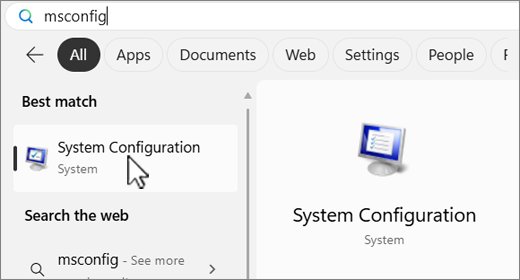
- Sign in as an administrator, select Search, type
msconfigand select System Configuration. - On the Services tab, select Hide all Microsoft services, then Disable all, then Apply.
- On the Startup tab, select Open Task Manager.
- On the Startup apps tab, select each Enabled item and select Disable. Note which ones you change.
- Close Task Manager, select OK in System Configuration and restart.
- Retry the task that showed 0x0. If it works, re-enable half of the services at a time to find the one causing it.
To return to normal, open System Configuration, select Normal Startup on the General tab, clear Hide all Microsoft services, select Enable all, re-enable your startup apps and restart.
Diagnose RAM with Windows Memory Diagnostic
- Save your work and close open apps.
- Press Win + R, type
mdschedand press Enter. - Select Restart now and check for problems (recommended).
- Let the test finish; the PC restarts into Windows on its own.
- After you sign in, read the Windows Memory Diagnostic notification near the clock. It can take a few minutes to appear.
If the test reports memory errors, the fix is hardware: reseat or replace the faulty memory module, or contact your PC manufacturer.
Scan for malware with Microsoft Defender
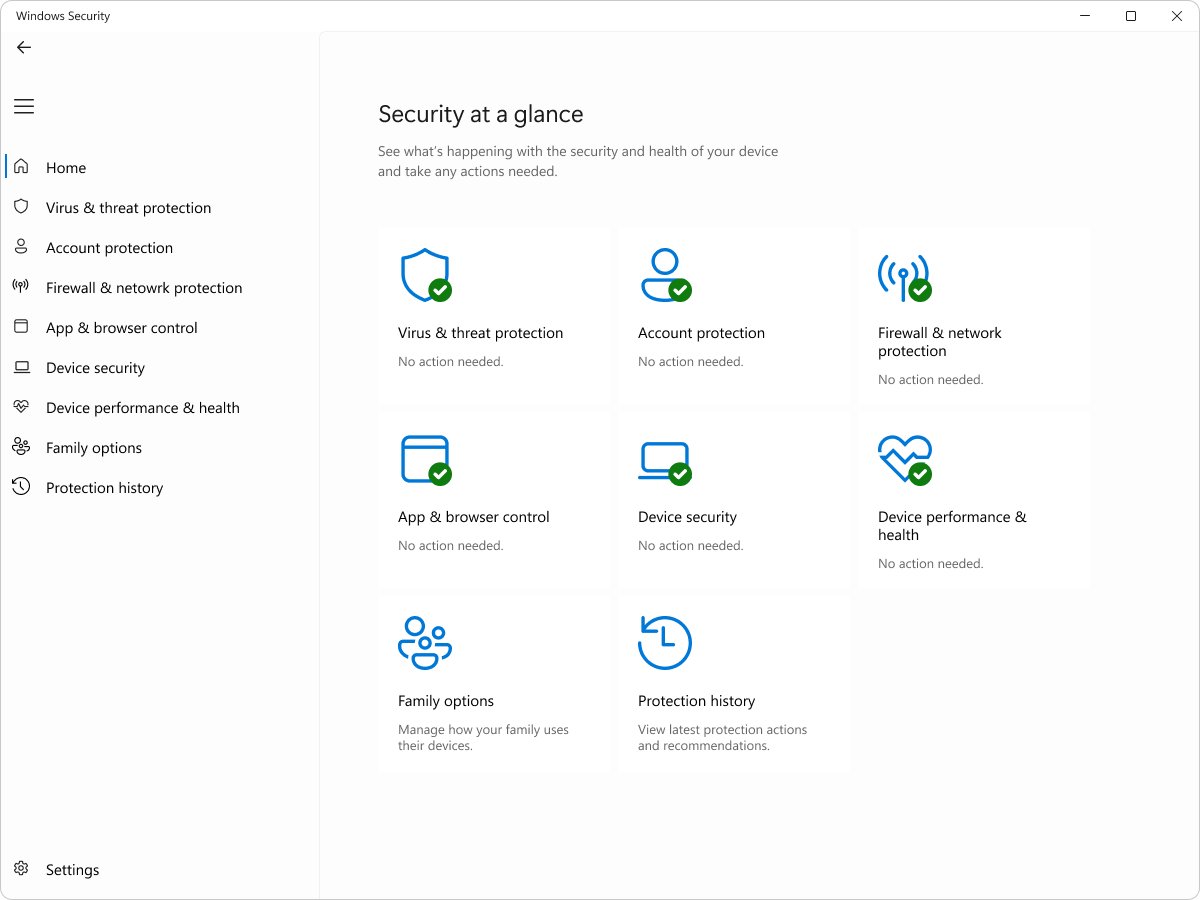
- Open the Windows Security app.
- Select Virus & threat protection.
- Select Scan options.
- Choose Full scan, which checks every file and program on the device, and start the scan.
- If threats are found, follow the prompts to remove them, then restart.
- For malware that hides while Windows runs, choose Microsoft Defender Antivirus (offline scan) instead; results appear under Protection history.
Perform System Restore to undo a recent change
System Restore returns system files, registry settings and installed programs to an earlier restore point without touching your personal files.
- Press Win + R, type
rstrui.exeand press Enter. You can also open Control Panel > Recovery > Open System Restore. - Select Next in the Restore system files and settings box.
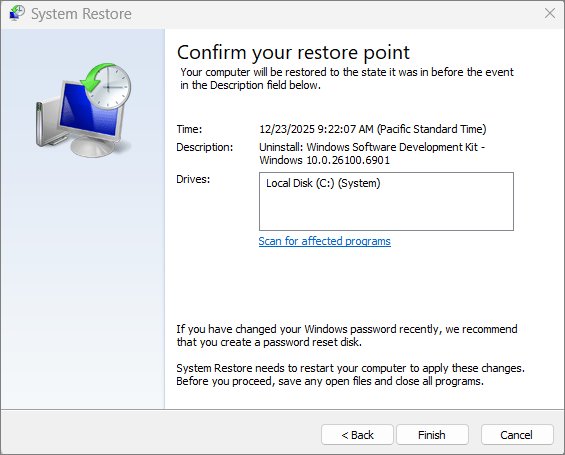
- Choose a restore point from before the 0x0 error started. Select Show more restore points if you need older ones.
- Select Scan for affected programs to see what will be removed.
- Select Next, then Finish. Windows restarts and applies the restore point.
Check that the 0x0 error is fixed
- Run
sfc /scannowagain and confirm it reports no integrity violations. - For an Insider fix, open Settings > Windows Update > Windows Insider Program and confirm your channel shows under Choose your Insider settings.
- For an upgrade, go to Settings > System > About and confirm the new version under Windows specifications.
- Repeat the exact task that showed 0x0 and confirm it finishes without an error.
- If you used a clean boot, return to normal startup and confirm the error stays away.
Fix Windows startup 0x0 error and other cases that persist
Windows will not start after the 0x0 error
Damaged start-up files or a failed update stop Windows from loading.
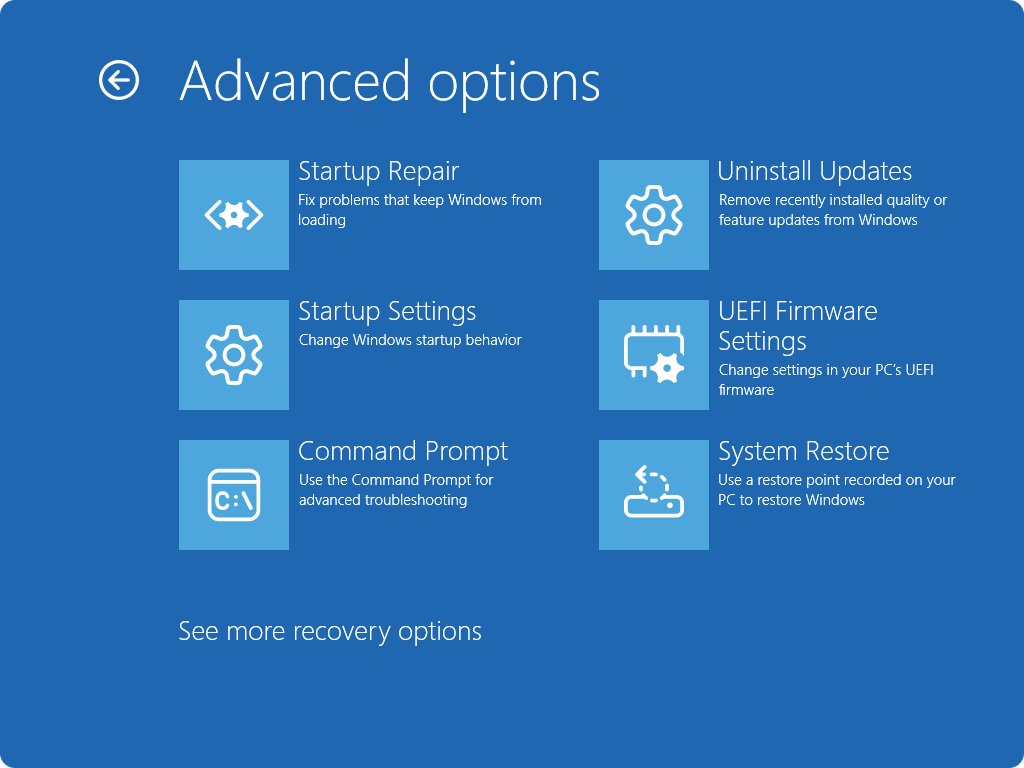
- Let Windows try to start a few times; after repeated failed starts it opens the Windows Recovery Environment automatically.
- Select Troubleshoot > Advanced options > Startup Repair > Restart.
- Have your BitLocker recovery key ready if the drive is encrypted.
- If Startup Repair cannot fix it, use System Restore from the same Advanced options menu.
The upgrade still fails with 0x0 – 0x0
Setup did not record a usable code, so the cause sits in its logs.
- Download SetupDiag from Microsoft Learn and run it.
- Open SetupDiagResults.log in Notepad when it finishes.
- Fix the cause it names, such as a driver or app, and run the upgrade again.
Insider builds still do not arrive
The PC is not activated, not enrolled in a channel, or already on the latest build.
- Check Settings > System > Activation.
- Confirm a channel is chosen in Settings > Windows Update > Windows Insider Program.
- Select Check for updates and keep the PC on and signed in outside active hours.
- If nothing works, reset the PC from Settings > System > Recovery > Reset this PC, after backing up your files.
If the PC also shows a blue screen, read and clear the Windows stop code it displays as well.
Error code 0x0 in Windows FAQ
What does error code 0x0 mean in Windows?
Code 0x0 is ERROR_SUCCESS in Microsoft's Win32 error table, meaning "The operation completed successfully." When a failed task shows it, the program did not record a real error, so you have to find the cause through repairs or logs.
What causes the 0x0 error in Windows?
Common causes are corrupted system files, too little free disk space, conflicting third-party apps or antivirus, outdated drivers, faulty RAM, malware, and, for Insider builds, optional diagnostic data being turned off.
How do I fix the Windows Insider 0x0 error?
Turn on Send optional diagnostic data, make sure the Windows Insider Service is not disabled, confirm Windows is activated, and retry from Settings > Windows Update > Windows Insider Program. Microsoft notes the first move to an Insider build sometimes fails and works on a second try.
How do I fix the 0x0 0x0 error when upgrading Windows?
Free disk space, install all updates, uninstall third-party antivirus and non-essential apps, update drivers, then retry. If Windows Update still fails, upgrade with Windows 11 Installation Assistant or run SetupDiag to read the cause from the setup logs.
Does SFC fix the 0x0 error?
SFC fixes the error when corrupted system files cause it. Run DISM.exe /Online /Cleanup-image /Restorehealth first, then sfc /scannow, from an administrator Command Prompt, and restart before retrying.
Will System Restore delete my files?
No. System Restore returns system files, registry settings and installed programs to an earlier point, and it does not affect your personal files. Apps installed after the restore point are removed.
Can a clean boot fix error code 0x0?
A clean boot shows whether third-party services or startup apps cause the error. If the task works in a clean boot, re-enable half the services at a time to find the culprit, then remove or update it.
Bottom line: fixing error code 0x0 in Windows
Run DISM and SFC first, then apply the Insider or upgrade fix that matches where the 0x0 error appeared. The code itself carries no cause, so the fastest route is to clear the common causes in order and use SetupDiag or a clean boot when they do not.

![How do I find saved passwords on my computer [Windows 11/10]](https://techdows.com/wp-content/uploads/2026/10/How-Do-I-Find-Saved-Passwords-on-My-Computer-Windows-1110.jpg)