To fix a Windows 10 stop code, note the code and any driver file named on the blue screen, remove hardware you just added, and update, roll back or uninstall that driver from Device Manager.
This guide covers what the code means, the common causes, twelve fixes from a simple restart to a full reset, how to confirm the crashes have stopped, and how to keep them from coming back.
How to fix the Windows 10 stop code
Microsoft notes that most unexpected restarts are resolved by the restart itself. When the same stop code keeps returning, work through these basic steps in order.
- Restart the PC once and use it normally; act only if the blue screen comes back.
- Write down the stop code at the bottom of the screen, such as
MEMORY_MANAGEMENT, and any module name shown with it. - Shut down, remove any hardware you added just before the errors began, and start the PC again.
- Right-click Start, select Device Manager, and look for devices marked with an exclamation point.
- Right-click that device and select Update driver; if that does not help, disable or uninstall the device.
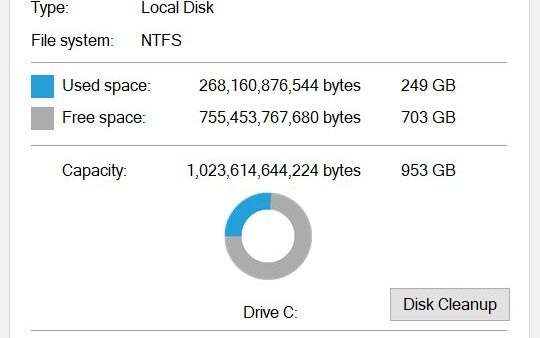
- Make sure the system drive has 10% to 15% free space.
- Select Start > Settings > Update & Security > Windows Update and install everything offered.
- If the crashes continue, roll Windows back with a restore point, as described further down.
If Windows crashes before you can sign in, start it in Safe Mode first and run the same steps from there.
Which Windows 10 stop code fix to try first
| Your situation | Start with | Why |
|---|---|---|
| A single blue screen, then normal use | Restart and watch | One crash is often resolved by the restart itself |
| A driver file (.sys) is named on the screen | Update, roll back or uninstall that driver | Microsoft estimates about 75% of stop errors come from faulty drivers |
| Crashes began after new hardware | Remove the hardware | Incompatible devices and their drivers trigger bug checks |
| Crashes began after a Windows update or new app | Uninstall the update or app, or use System Restore | Reverts the recent change without touching personal files |
| Windows will not reach the desktop | Safe Mode or Startup Repair from Windows RE | Loads only basic drivers, or repairs boot files |
| No driver named, crashes at random | Memory test, disk check, then DISM and SFC | Faulty RAM, bad sectors and damaged system files point nowhere specific |
| Crashes only with certain programs running | Clean boot | Isolates a conflicting service or startup app |
| Nothing else has worked | Reset this PC with Keep my files | Reinstalls Windows and its drivers from scratch |
Understanding Windows 10 stop codes
A stop code is the name Windows shows when it halts to prevent corruption or a security failure. Microsoft also calls it a bug check, a kernel error, a stop error or a Blue Screen error (BSOD).
| What you see | What it tells you |
|---|---|
| "Your device ran into a problem and needs to restart" | Windows hit a serious error and will restart automatically |
Stop code text, e.g. PAGE_FAULT_IN_NONPAGED_AREA |
The type of failure, which narrows the fix |
| Module name, e.g. a .sys file (when shown) | The code that was running at the time of the crash, usually a driver |
| Hex value, e.g. 0x0000001E | The numeric form of the same stop code, used in Microsoft's bug check reference |
| Green screen instead of blue | A stop error on a preview (Insider) build of Windows |
Common Windows 10 stop codes and what they mean
Many stop codes share the same fixes, so match yours to a row and start with the listed action. Microsoft keeps the full list in its Bug Check Code Reference.
| Stop code | Hex value | First thing to try |
|---|---|---|
| KMODE_EXCEPTION_NOT_HANDLED | 0x0000001E | Disable or remove the driver named on the screen, or any driver or service added recently |
| IRQL_NOT_LESS_OR_EQUAL | 0x0000000A | Update drivers through Windows Update, then run Windows Memory Diagnostic |
| DRIVER_IRQL_NOT_LESS_OR_EQUAL | 0x000000D1 | Install the latest updates and update the network driver from its maker |
| PAGE_FAULT_IN_NONPAGED_AREA | 0x00000050 | Update or disable the named driver, run chkdsk /f /r, reinstall recently added apps |
| NTFS_FILE_SYSTEM | 0x00000024 | Check the disk for errors and run the drive maker's diagnostics |
| DPC_WATCHDOG_VIOLATION | 0x00000133 | Update or disable the named driver and check new hardware is compatible |
| VIDEO_TDR_TIMEOUT_DETECTED / VIDEO_ENGINE_TIMEOUT_DETECTED | 0x00000117 / 0x00000141 | Get an updated display driver from the graphics card maker |
| Fatal System Error | c000021a | Repair system files with System File Checker |
A KMODE_EXCEPTION_NOT_HANDLED crash usually clears once you remove or update the faulty kernel driver named on the screen.
Common causes of Windows 10 stop codes
Microsoft's crash analysis splits root causes as shown below. A program such as a browser can trigger a crash, but it usually exposes a problem in a driver, hardware or Windows itself.
| Cause | Share of crashes | Typical examples |
|---|---|---|
| Third-party driver code | 70% | Graphics, network, storage and antivirus drivers |
| Hardware issues | 10% | Failing RAM, bad disk sectors, incompatible new devices |
| Microsoft code | 5% | Windows components, often fixed by a later update |
| Unknown | 15% | Memory too corrupted to analyze |
Low free disk space, outdated BIOS or firmware, damaged system files and malware are the other factors Microsoft asks you to rule out.
Find the Windows 10 stop code in Event Viewer and minidump files
If the screen vanished before you could read it, the code is still recorded. Set Windows to keep a dump file so the next crash leaves evidence.
- Right-click Start and select Event Viewer.
- Open Windows Logs > System and look for errors logged at the time of each crash.
- Type
Advanced system settingsin the taskbar search box and press Enter. - On the Advanced tab, select Settings under Startup and Recovery.
- Under Write debugging information, choose Automatic memory dump and select OK.
- Restart the PC so the setting takes effect.
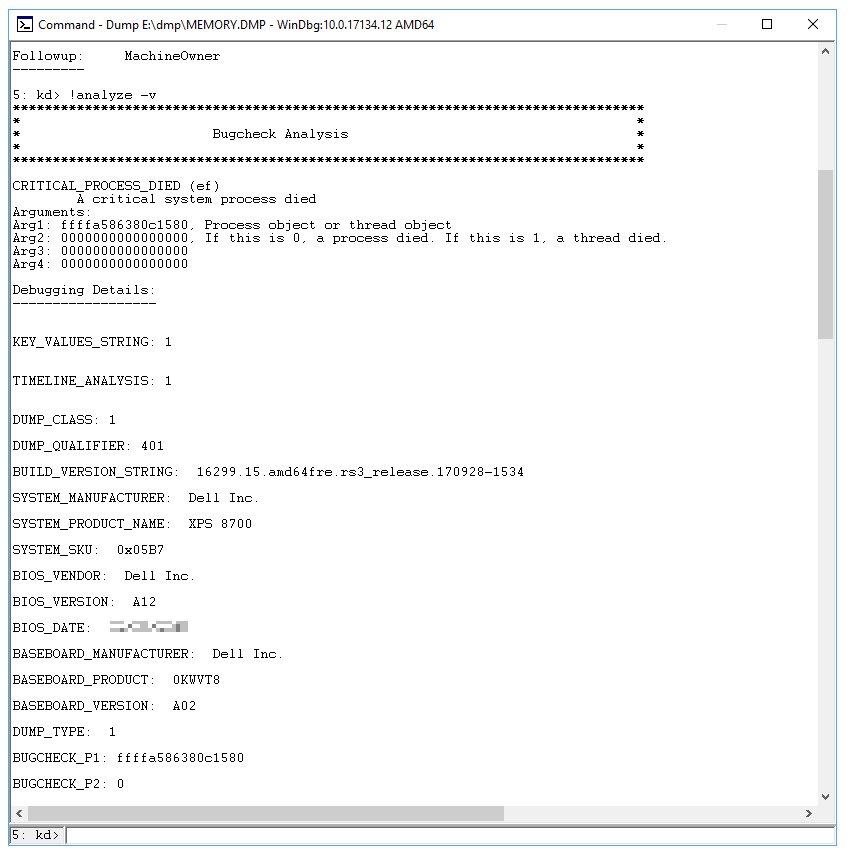
After the next crash, small dump files appear in %SystemRoot%\Minidump and larger ones in %SystemRoot%\MEMORY.DMP. Opening them needs WinDbg from the Windows SDK, which is a task for advanced users.
Boot Windows 10 into Safe Mode after a blue screen
Safe Mode starts Windows with a limited set of files and drivers. If the crash does not happen there, basic drivers and default settings are not the cause. Have your BitLocker recovery key ready if the drive is encrypted.
- If Windows starts, open Settings > Update & Security > Recovery and select Restart now under Advanced startup.
- If it does not start, hold the power button as soon as the Windows logo appears to force a shutdown; do this twice, then let it start a third time.
- On the Automatic Repair screen, select Advanced options.
- Select Troubleshoot > Advanced options > Startup Settings > Restart.
- Press 4 or F4 for Enable Safe Mode, or 5 or F5 for Safe Mode with Networking if you need to download drivers.
- Sign in and carry out the driver, repair and uninstall steps from there.
A normal restart takes you out of Safe Mode again.
Update, roll back or uninstall the driver causing the stop code
You need administrator rights. Roll back when the crashes started after a driver update; update when the driver is old.
- Type
device managerin the taskbar search box and open Device Manager. - Expand the category of the suspect device, right-click it and select Properties.
- On the Driver tab, select Roll Back Driver > Yes, then restart.
- If roll back is unavailable, right-click the device and select Update driver instead.
- If neither helps, open Properties > Driver > Uninstall Device, tick Attempt to remove the driver for this device, select OK and restart.
- Install the latest driver from the device or PC maker's website if Windows does not reinstall a working one.
If Roll Back Driver is unavailable, Windows has no earlier driver to return to. If the maker has no update, Microsoft advises disabling the related service or device.
Run Windows Memory Diagnostic to test RAM for a stop code
- Save your work and close all apps.
- Press Windows key + R, type
mdschedand select OK. - Select Restart now and check for problems (recommended).
- For a deeper test, press F1 on the test screen, change Test Mix from Standard to Extended with the arrow keys, and press F10.
- Sign in after the automatic restart and read the result in the notification near the clock.
- If you miss it, open Event Viewer > Applications and Services Logs > Microsoft > Windows > MemoryDiagnostics-Results.
Event ID 2001 means no memory errors were detected. Any reported errors point to a RAM module, so contact the PC maker or test one module at a time.
Check the disk for errors with chkdsk
Search for Command Prompt, right-click it and select Run as administrator. Bad sectors and file system damage cause stop codes such as NTFS_FILE_SYSTEM and PAGE_FAULT_IN_NONPAGED_AREA.
chkdsk C: /r/r finds bad sectors and recovers readable data, and it includes /f, which fixes file system errors. Windows is running from C:, so chkdsk cannot lock the drive and offers to check it at the next restart.
You should see: Type Y, restart, and let the check finish. chkdsk corrects errors automatically and restarts the PC when done.
Repair corrupted system files with DISM and SFC
Run both commands in the same elevated Command Prompt. Microsoft recommends DISM first because it supplies the files SFC uses for repairs.
DISM.exe /Online /Cleanup-image /Restorehealth
sfc /scannow
DISM downloads healthy Windows components through Windows Update. sfc /scannow then scans every protected system file and replaces damaged ones with a cached copy. Keep the window open until verification reaches 100%.
You should see: "Windows Resource Protection did not find any integrity violations" or "found corrupt files and successfully repaired them" means the system files are now sound.
Uninstall a recent Windows update or app causing a blue screen
Some updates cannot be uninstalled, and removing a security update leaves the PC exposed, so reinstall it once the cause is fixed.
- Select Start > Settings > Update & Security > Windows Update.
- Select View your update history > Uninstall updates.
- Select the update installed just before the crashes began and select Uninstall.
- For an app, open Control Panel > Programs > Programs and Features.
- Right-click the recently installed program and select Uninstall or Uninstall/Change, then follow the prompts.
- If Windows will not start, open Windows RE and select Troubleshoot > Advanced options > Uninstall Updates > Uninstall latest quality update.
Use System Restore to fix a Windows 10 stop code
System Restore returns system files, registry settings and installed programs to an earlier point. Personal files are not affected.
- Press Windows key + R, type
rstrui.exeand press Enter. - Select Next in the Restore system files and settings box.
- Pick a restore point dated before the crashes began; tick Show more restore points if the one you want is missing.
- Optionally select Scan for affected programs to see what will be removed.
- Select Next, then Finish, and let Windows restart.
- If Windows will not start, open Windows RE and select Troubleshoot > Advanced options > System Restore.
Perform a clean boot to find the program behind a stop code
A clean boot starts Windows with only essential drivers and startup programs. Use it when the blue screen appears only while certain software runs.
- Sign in as an administrator, search for
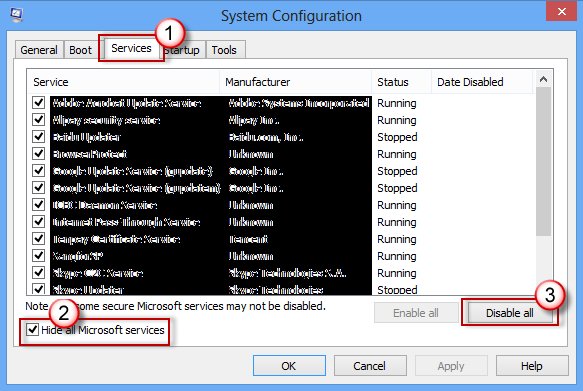
msconfigand open System Configuration. - On the Services tab, select Hide all Microsoft services, then Disable all, then Apply.
- On the Startup tab, select Open Task Manager.
- On the Startup tab in Task Manager, select each enabled item and select Disable, noting what you turned off.
- Close Task Manager, select OK in System Configuration and restart.
- If the crashes stop, re-enable half of the services at a time and restart until the culprit returns the blue screen.
To start normally again, open System Configuration, choose Normal Startup on the General tab, select Enable all on the Services tab, and re-enable your startup apps.
Check hardware components and BIOS for blue screen causes
- Disconnect every non-essential USB device and any internal card you added recently, then test.
- Run the hardware and memory diagnostics supplied by your PC or drive maker.
- Install any newer BIOS or firmware for your exact model from the PC or motherboard maker's support site.
- Free up space until the system drive has 10% to 15% available.
- Run a full virus scan, including the boot record, with Microsoft Defender or Microsoft Safety Scanner.
- Confirm that new hardware lists your version of Windows as supported.
Run Startup Repair or reset Windows 10 when the stop code keeps returning
Startup Repair fixes missing system files, damaged boot configuration data, incompatible drivers and registry errors that stop Windows from loading. Reset this PC reinstalls Windows; back up your files and keep your BitLocker recovery key nearby.
- Open Windows RE and select Troubleshoot > Advanced options > Startup Repair > Restart.
- If Windows still crashes, return to Windows RE and select Troubleshoot > Reset this PC.
- Choose Keep my files to keep documents while removing apps and settings.
- Choose Cloud download for a fresh copy of Windows, or Local reinstall on a slow connection.
- Leave the PC alone even if the screen stays black for 15 minutes or more; restarting it can make the reset fail.
If the stop code returns on a freshly reset PC before you add drivers or apps, the cause is hardware, so contact the PC maker's support.
How to check the Windows 10 blue screen is fixed
- Use the PC for the activity that used to trigger the crash, such as a game or a particular device.
- After a few days, open Event Viewer > Windows Logs > System.
- Confirm that no new critical errors appear at the times the blue screens used to occur.
- Check that
%SystemRoot%\Minidumpholds no new dump files dated after your fix. - If the same stop code returns, move to the next row of the decision table above.
Preventing future BSOD issues
| Habit | Why it prevents stop codes |
|---|---|
| Get drivers from Windows Update or the device maker | Faulty third-party drivers cause most crashes |
| Keep 10% to 15% of the system drive free | Windows needs room for the page file and other system functions |
| Keep BIOS and firmware current | Microsoft lists outdated firmware among the factors to rule out |
| Leave System Protection on so restore points exist | Lets you undo a bad driver or update in minutes |
| Check new hardware supports your Windows version | Incompatible devices trigger bug checks such as 0x133 |
| Plan a move off Windows 10 | Free security and driver updates through Windows Update ended on October 14, 2025 |
Windows 10 stop code fixes that do not work
Windows restarts before you can read the stop code
Automatic restart on system failure is on, which also causes a crash-and-restart loop.
- Open Windows RE and select Troubleshoot > Advanced options > Startup Settings > Restart.
- Press 9 or F9 for Disable automatic restart on system failure.
- Read the stop code the next time the blue screen appears.
Roll Back Driver is unavailable
Windows has no earlier driver for that device.
- Select Uninstall Device on the Driver tab instead.
- Tick Attempt to remove the driver for this device and select OK.
- Install an older or newer driver from the device maker's website.
SFC says Windows Resource Protection could not perform the requested operation
Files or services SFC needs are in use or missing.
- Start Windows in Safe Mode.
- Run
sfc /scannowagain from an elevated Command Prompt. - Make sure the PendingDeletes and PendingRenames folders exist under
%WinDir%\WinSxS\Temp.
Windows keeps booting into Safe Mode
The Safe boot option is still set in System Configuration.
- Press Windows key + R, type
msconfigand select OK. - Select the Boot tab.
- Under Boot options, clear Safe boot and restart.
Windows 10 stop code FAQ
How do I fix my Windows PC when it shows a stop code?
Restart once, then note the stop code and any driver named on the screen. Remove new hardware, update or roll back that driver in Device Manager, install Windows updates, and use System Restore if the crashes continue.
How do I repair Windows 10 after a blue screen without losing files?
Run DISM and then sfc /scannow from an elevated Command Prompt, or apply a System Restore point. Both leave personal files alone. If you must reset, choose Keep my files, which removes apps and settings but keeps documents.
How do I do a Windows repair if the PC will not start?
Interrupt startup twice with the power button so Windows opens Automatic Repair on the third start. Select Advanced options, then use Startup Repair, System Restore, Uninstall Updates or Startup Settings for Safe Mode.
Can a Windows 10 stop code fix itself?
Often, yes. Microsoft says most unexpected restarts are resolved by the restart and need no further action. Only start troubleshooting when the same stop code keeps returning.
Is a stop code a hardware or software problem?
Usually software. Microsoft's analysis puts 70% of crashes down to third-party drivers and about 10% to hardware. A crash that returns on a freshly reset PC with no extra drivers points to hardware.
Where are Windows 10 blue screen logs stored?
Crash events appear in Event Viewer under Windows Logs > System. Small dump files are saved in %SystemRoot%\Minidump and larger dumps in %SystemRoot%\MEMORY.DMP, provided Write debugging information is not set to none.
How do I fix Windows problems caused by a bad update?
Open Settings > Update & Security > Windows Update > View your update history > Uninstall updates, and remove the update installed just before the problem began. From Windows RE, use Troubleshoot > Advanced options > Uninstall Updates.
Does Windows 10 still get fixes for stop code errors?
Not for free. Microsoft ended Windows 10 support on October 14, 2025, so Windows Update no longer delivers free security fixes for it. Driver updates from device makers and the repair steps above still work.
Bottom line: how to stop Windows 10 stop codes for good
Read the stop code and driver name first, then fix that driver or remove the new hardware before you reach for memory tests, disk checks, System Restore or a reset. Microsoft traces about 70% of stop errors to third-party drivers, so the driver step resolves most cases, while hardware faults reveal themselves by surviving a clean reset.

![How to copy and paste on Chromebook [text & image shortcut]](https://techdows.com/wp-content/uploads/2026/10/Open-Chromebook-laptop-showing-its-keyboard-touchpad-and-ChromeOS-desktop-600x338.jpg)