To fix CLOCK_WATCHDOG_TIMEOUT, return the processor and memory to stock settings, then update Windows, the BIOS and your drivers, because the error means one CPU core stopped responding.
This guide explains what stop code 0x101 means, how to recognise it, eleven fixes in the order to try them, and how to confirm the blue screen is gone on Windows 11 and Windows 10.
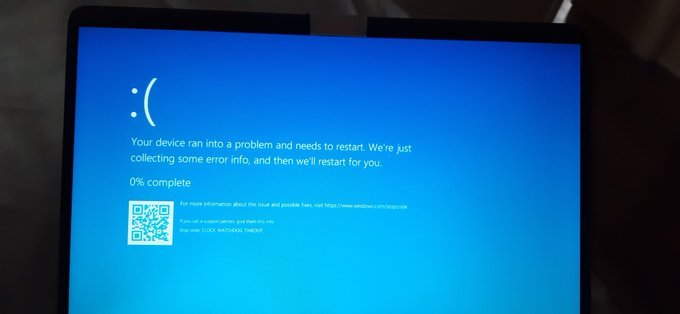
The fastest way to fix CLOCK_WATCHDOG_TIMEOUT
Microsoft's bug check reference says this crash happens when a processor is nonresponsive or deadlocked. Unstable CPU or RAM tuning and outdated firmware or drivers are the quickest things to rule out.
- Close any CPU, GPU or RAM tuning utility and set its profile back to default or stock.
- Open Settings > System > Recovery and select Restart now next to Advanced startup.
- Select Troubleshoot > Advanced options > UEFI Firmware Settings > Restart.
- Load the firmware's default settings (the option name varies by motherboard maker), then save and exit.
- Back in Windows, select Start > Settings > Windows Update > Check for updates and install everything offered.
- Check your PC or motherboard maker's support site for a newer BIOS or UEFI firmware and apply it using their instructions.
- Use the PC for the task that used to crash it. If the blue screen does not return, you are done.
If the crash comes back, match your situation to a row in the table under Step-by-Step Solutions to Fix the Error.
Understanding the Clock Watchdog Timeout Error
CLOCK_WATCHDOG_TIMEOUT is bug check 0x00000101. On a multi-core system, Windows expects every processor to answer a regular clock interrupt; when one core misses its deadline, Windows halts the whole machine.
| Term | What it means for you |
|---|---|
| Stop code CLOCK_WATCHDOG_TIMEOUT | Bug check 0x101. An expected clock interrupt on a secondary processor was not received in time. |
| Watchdog | A timer Windows uses to check that each processor core is still making progress. |
| Nonresponsive or deadlocked processor | The cause Microsoft names. The core is stuck and is not processing interrupts. |
| Parameter 4 in a crash dump | The index of the hung processor, which tells a technician which core stopped. |
| Who is usually to blame | Microsoft attributes about 70% of all stop errors to third-party driver code, about 10% to hardware and about 5% to Microsoft code. |
| Related stop codes | DPC_WATCHDOG_VIOLATION (0x133) and IRQL_NOT_LESS_OR_EQUAL (0xA) are different bug checks with different causes. |
The crash protects your data. Windows stops because continuing with a frozen processor core could corrupt files.
Symptoms of the Clock Watchdog Timeout Error
Confirm the stop code first. Several blue screens look alike, and the fixes differ.
| What you see | What it tells you |
|---|---|
| A blue screen with Stop code: CLOCK_WATCHDOG_TIMEOUT | This is the error this guide fixes. |
| The code 0x00000101 in a crash report or dump analysis | The numeric form of the same bug check. |
| The PC restarts on its own after the blue screen | Windows collected crash data and rebooted; the cause is still present. |
A new file in %SystemRoot%\Minidump after each crash |
Windows saved a small memory dump you can hand to a technician. |
| Crashes during heavy CPU load, such as gaming, rendering or compiling | Points to overclocking, cooling or power delivery before software. |
| Crashes started after a new driver, app or Windows update | Points to the recent change; undo it first. |
Step-by-Step Solutions to Fix the Error
Work down this table. The early rows are quick and safe; the last rows remove programs or reinstall Windows.
| Your situation | Try this fix | Why |
|---|---|---|
| Crashed once, first time | Perform a Power Reset | Clears a one-off hang and rules out a faulty external device |
| Updates are pending | Update Windows (and the BIOS) | Updates and firmware carry fixes for known processor and driver faults |
| Random crashes, no pattern | Check for Hardware Issues | Bad RAM or a failing drive can hang a core |
| A driver changed recently or is old | Update Device Drivers | Drivers cause most stop errors |
| CPU, RAM or GPU is tuned | Disable Overclocking | An unstable core stops answering interrupts |
| Other Windows errors too | Check for Data Corruption | DISM and SFC repair damaged system files |
| Began after installing an app | Remove Recently Installed Software | Removes the change that introduced the fault |
| Crashes around startup or wake | Disable Fast Startup | Rules fast startup in or out as a trigger |
| Worked last week, cause unknown | Perform System Restore | Reverts drivers and system files, keeps personal files |
| Unknown programs or services appear | Check for Malware | Malicious kernel drivers can crash Windows |
| Nothing above helped | Last Resort: Reset Windows | Replaces all software; a crash after that means hardware |
Boot into Safe Mode if the crash stops you signing in
Safe Mode loads only basic drivers, so you can apply the fixes below even when Windows crashes at startup. Have your BitLocker recovery key ready if the drive is encrypted.
- If you can reach the sign-in screen, hold Shift while you select Power > Restart.
- If Windows never loads, turn the PC on and hold the power button to force it off as the Windows logo appears; do this twice, and the third start opens Automatic Repair.
- Select Troubleshoot > Advanced options > Startup Settings > Restart.
- Press 4 or F4 for Safe Mode, or 5 or F5 for Safe Mode with Networking if you need to download a driver.
- Apply the fixes you need, then restart normally.
If the PC keeps returning to Safe Mode, press Win + R, type msconfig, select OK, and clear Safe boot under Boot options on the Boot tab.
Perform a Power Reset
A full power cycle clears a hung state, and unplugging peripherals rules out hardware you added recently, which Microsoft lists as a stop-error trigger.
- Save your work and select Start > Power > Shut down.
- Unplug the power cable, and on a laptop disconnect the charger.
- Disconnect every external device except the keyboard and mouse: USB drives, docks, printers, webcams and external GPUs.
- Reconnect power and start the PC.
- Use it normally. If the crash stops, reconnect devices one at a time and restart after each until the crash returns.
Update Windows
Microsoft's stop-error checklist starts with the latest Windows updates and up-to-date BIOS and firmware. Both matter here, because processor behaviour is partly controlled by firmware.
- Select Start > Settings > Windows Update.
- Select Check for updates and install everything offered.
- Select Start > Power > Update and restart if it appears.
- Note your PC or motherboard model, then open that manufacturer's support page and check for a newer BIOS or UEFI firmware.
- Apply the firmware update exactly as the manufacturer instructs, with a laptop plugged in to power.
AMD's Ryzen Master guide likewise recommends upgrading to the latest BIOS from the motherboard maker and using the BIOS's default settings.
Check for Hardware Issues
Microsoft advises running hardware and memory tests for stop errors and keeping 10 to 15 percent of the system drive free. Save your work first, because the memory test restarts the PC.
- Select Start, type Windows Memory Diagnostic, and press Enter.
- Choose to restart and check for problems now; for a deeper pass, press F1 during the test, set Test Mix to Extended, and press F10.
- After Windows restarts, open Event Viewer, go to Windows Logs > System, and open the MemoryDiagnostics-Results entry.
- Check the drive: in an administrator Command Prompt, run
chkdsk /fand type Y to schedule it for the next restart. - Clean dust from the CPU cooler and fans, and confirm every fan spins when the PC is on.
- If a test reports errors, run your PC maker's own hardware diagnostics and replace the failing part.
The Windows memory diagnostics guide covers the test options and how to read every result.
Update Device Drivers
Microsoft attributes most stop errors to third-party drivers. Roll back a driver that changed just before the crashes began; update one that is old.
- In the search box on the taskbar, type device manager, then select it.
- Expand the category for the suspect device; display, network, storage and chipset drivers are the ones to check first.
- To roll back: right-click the device, select Properties, open the Driver tab, and select Roll Back Driver.
- To update: right-click the device, select Update driver, then Search automatically for drivers.
- If Windows finds nothing newer, download the driver from the device or PC maker's own website.
- Restart and test. Never use a third-party driver updater; it can install the wrong driver.
Disable Overclocking
A core pushed past its rated speed or voltage can pass benchmarks and still hang under real load. AMD states that operating a processor outside its specifications can cause system instability.
- Open your tuning utility (for example, the CPU or GPU maker's own tool) and reset it to default or stock settings.
- Turn off any automatic overclocking or memory profile the utility applies at startup.
- Open Settings > System > Recovery > Advanced startup > Restart now, then select Troubleshoot > Advanced options > UEFI Firmware Settings > Restart.
- Load the firmware defaults using the option your motherboard maker documents, then save and exit.
- Use the PC normally for a day. If the crashes stop, the overclock was the cause.
If you want the overclock back, reapply it in smaller steps and test stability after each one.
Check for Data Corruption
Run DISM first, because it repairs the component store that SFC copies clean files from. Type cmd in Search, right-click Command Prompt, and select Run as administrator.
For every DISM option and error, see the DISM RestoreHealth guide.
DISM.exe /Online /Cleanup-image /Restorehealth
sfc /scannow
DISM repairs the Windows image using Windows Update as its source and can take several minutes. SFC then scans protected system files and replaces damaged ones. Leave the window open until verification reaches 100%.
You should see: "Windows Resource Protection did not find any integrity violations" or "Windows Resource Protection found corrupt files and successfully repaired them."
Remove Recently Installed Software
Microsoft tells you to contact the vendor or update after any software or hardware change that preceded stop errors. Remove the newest change first.
- To remove an app: open Settings > Apps, find the app you installed most recently, and select Uninstall.
- Start with tools that install their own drivers: tuning, RGB lighting, VPN, virtualization, antivirus and backup software.
- To remove a Windows update: open Settings > Windows Update > Update history > Uninstall updates, select it, then Uninstall.
- Restart and repeat the task that used to crash the PC.
- If the crash stops, check the vendor's site for a version that supports your Windows release before reinstalling.
Disable Fast Startup
Microsoft's bug check page does not name fast startup as a cause, so treat this as a test rather than a fix. It is worth trying when the crash appears after a shutdown and power-on.
- Press Win + R, type
powercfg.cpl, and select OK. - Select Choose what the power buttons do on the left.
- Select Change settings that are currently unavailable.
- Under Shutdown settings, clear Turn on fast startup.
- Save the change, shut down, and start the PC again.
If the crashes continue, turn fast startup back on the same way; it was not the cause.
Perform System Restore
System Restore reverts system files, drivers and installed programs to an earlier point without touching your personal files.
- Press Win + R, type
rstrui.exe, and press Enter. - In Restore system files and settings, select Next.
- Pick a restore point dated before the crashes began; tick Show more restore points if you need older ones.
- Select Next, then Finish. Windows restarts when the restore completes.
- If Windows will not start, open Troubleshoot > Advanced options > System Restore from the recovery screen instead.
Check for Malware
Malware that loads kernel drivers can hang Windows the same way a buggy driver does. Use the scanner built into Windows.
- Open the Windows Security app and select Virus & threat protection.
- Select Scan options, choose Full scan, and select Scan now.
- If you suspect persistent malware, choose Microsoft Defender Antivirus (offline scan) under Scan options and select Scan now; the PC restarts.
- Quarantine or remove anything found, then restart.
Last Resort: Reset Windows
Reset replaces every piece of software on the PC. If CLOCK_WATCHDOG_TIMEOUT survives a reset with stock firmware settings, the processor, motherboard, RAM or power supply is at fault. Back up your files first.
- Open Settings > System > Recovery (Windows 10: Update & Security > Recovery).
- Under Recovery options, select Reset PC.
- Choose Keep my files to keep documents, or Remove everything for a clean start.
- Follow the prompts, then install drivers from Windows Update or the PC maker before adding other apps.
- If Windows cannot start, use Troubleshoot > Reset this PC from the recovery screen.
How to check the blue screen is really fixed
A quiet day is encouraging; the logs are proof. Check them after each fix.
- Press Win + R, type
eventvwr.msc, and press Enter. - Open Windows Logs > System and look for critical errors after the time you applied the fix.
- Open File Explorer and check
%SystemRoot%\Minidump: no new dump file since the fix means no new crash was recorded. - Repeat the heavy task that used to crash the PC, such as a game or a long render, for at least as long as it used to take to fail.
- If the crash returns, note what you were doing and move to the next row in the solutions table.
Fix CLOCK_WATCHDOG_TIMEOUT when the usual fixes do not work
Clock watchdog timeout on Windows 11 after an upgrade
A driver, firmware or tuning tool built for the older release is no longer compatible.
- Install every update in Settings > Windows Update.
- Update the BIOS and chipset drivers from the PC or motherboard maker.
- Uninstall tuning, monitoring or RGB utilities whose vendor has no version for your Windows release.
Clock watchdog timeout stuck at 0% on the blue screen
The processor is hung so badly that Windows cannot finish collecting crash data.
- Wait a few minutes, then hold the power button until the PC turns off.
- Start the PC, or boot into Safe Mode if it crashes again before sign-in.
- Open Advanced system settings > Startup and Recovery > Settings and confirm Automatic memory dump is selected under Write debugging information.
- Remove overclocks and load firmware defaults, because a crash that cannot even write a dump points to hardware instability.
Clock watchdog timeout blue screen during games or heavy load
The processor or its power delivery cannot hold stable at full load.
- Load firmware defaults and turn off any memory profile or automatic overclock.
- Clean the CPU cooler and check that its fan is running.
- Update the graphics driver from the GPU maker, then test the same game again.
The stop code returns even after a Windows reset
No software remains from before the reset, so a hardware component is failing.
- Run your PC maker's own hardware diagnostics, including the processor and memory tests.
- Test with one RAM module at a time if the PC has several.
- Contact the PC or motherboard maker for warranty support, and send them a file from
%SystemRoot%\Minidump.
Frequently Asked Questions
How do I fix clock watchdog timeout?
Reset CPU and RAM to stock settings, update Windows, the BIOS and your drivers, then test RAM with Windows Memory Diagnostic and run DISM and SFC. If crashes continue, remove recent software or use System Restore, and reset Windows only as a last resort.
How do I fix clock watchdog timeout on Windows 11?
The fixes are the same on Windows 11 and Windows 10. Only some Settings paths differ: on Windows 11, Recovery is under Settings > System, while on Windows 10 it is under Update & Security.
What is a clock watchdog timeout?
A clock watchdog timeout is bug check 0x101. Windows expected a clock interrupt on a secondary processor core and did not receive it in time, because that core was nonresponsive or deadlocked, so Windows stopped the system.
What is stop code 0x00000101?
Stop code 0x00000101 is the numeric value of the CLOCK_WATCHDOG_TIMEOUT bug check. Both names describe the same crash, and the fixes in this guide apply to either.
Is clock watchdog timeout a CPU problem?
It is reported by the CPU, but the cause is often software or settings. Microsoft attributes about 70% of stop errors to third-party drivers and about 10% to hardware. A crash that survives a Windows reset with stock firmware settings points to hardware.
Can overclocking cause clock watchdog timeout?
Yes. An overclocked or undervolted core can stop responding under load, which is exactly what this bug check reports. Load the firmware defaults and reset tuning utilities to stock, then test again.
Can a BIOS update fix clock watchdog timeout?
It can. Microsoft lists up-to-date BIOS and firmware as a standard step for stop errors. Download the update only from your PC or motherboard maker and follow their instructions.
Where are clock watchdog timeout crash files saved?
Small memory dumps are saved in %SystemRoot%\Minidump, and kernel or automatic memory dumps in %SystemRoot%\MEMORY.DMP. A technician can analyse these files to find which processor core hung and which code it was running.
Bottom line
Start with stock firmware settings and the latest BIOS, Windows updates and drivers before anything else. CLOCK_WATCHDOG_TIMEOUT means a processor core stopped responding, and unstable tuning, old firmware and faulty drivers cause that far more often than a damaged Windows installation.



How to fix PAGE_FAULT_IN_NONPAGED_AREA BSOD error in Windows 11/10 - Techdows
[…] stop codes share many of these fixes; the steps for a Clock Watchdog Timeout blue screen follow the same driver-first […]