Every iPad uses one of two button layouts, a Home button or a top button only, and that layout decides how you take a screenshot, restart, force restart and reset it.
This iPad user guide covers models, setup, settings, apps, screenshots, restarts, resets, backups and battery fixes, with the short answer for each job first.
iPad user guide: get started with the Home button or top button
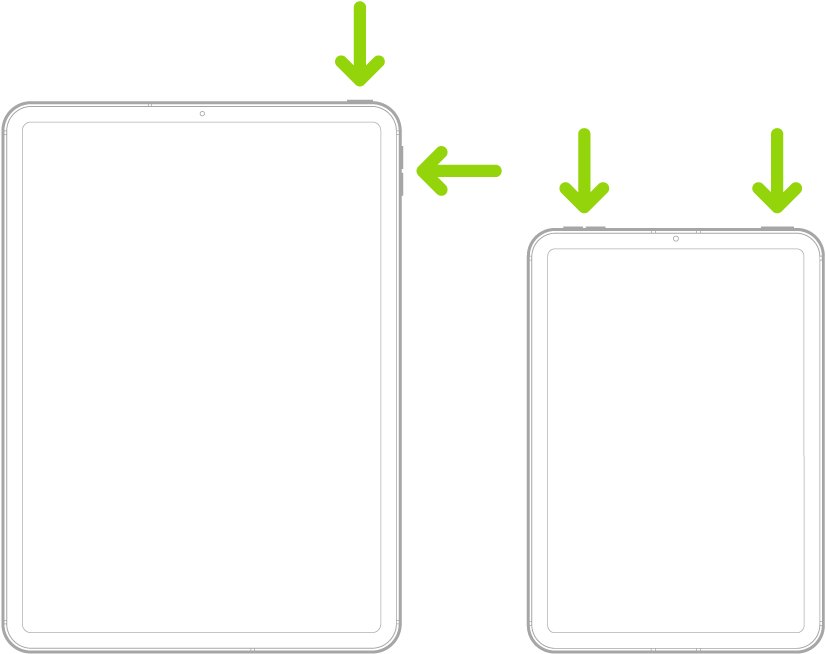
A round Home button below the screen means the middle column applies. No Home button means the right column, on Face ID and top-button Touch ID models alike, which is why the screenshot shortcut is different on every iPad.
| Job | iPad with a Home button | iPad without a Home button |
|---|---|---|
| Wake or lock | Press the top button | Press the top button |
| Turn on | Hold the top button until the Apple logo appears | Hold the top button until the Apple logo appears |
| Turn off | Hold the top button, then drag the slider | Hold the top button and either volume button, then drag the slider |
| Go to the Home Screen | Press the Home button | Swipe up from the bottom of the screen |
| Siri | Hold the Home button | Hold the top button |
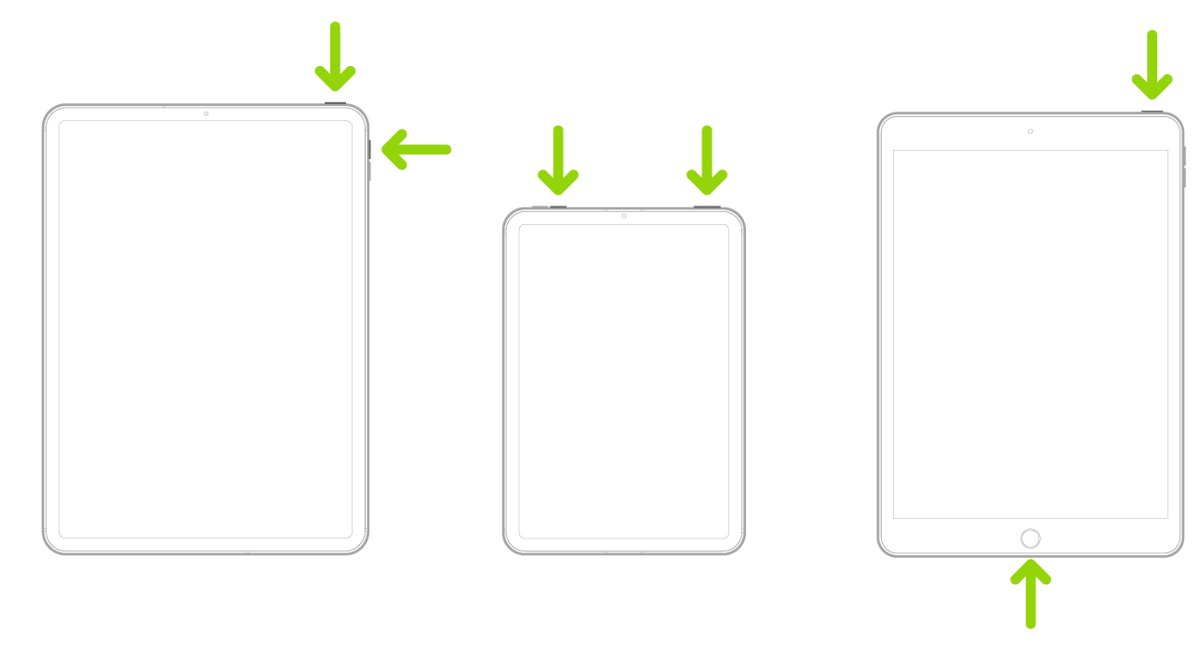
| Screenshot | Press top and Home together, then release | Press top and either volume button together, then release |
| Force restart | Hold top and Home until the Apple logo appears | Press the volume button nearest the top button, then the farthest one, then hold top until the Apple logo appears |
| Recovery mode (on a cable to a computer) | Hold Home and top until the computer-and-cable screen appears | Volume, volume, then hold top until the computer-and-cable screen appears |
| Guided Access shortcut | Triple-click the Home button | Triple-click the top button |
iPad models: how to find your model number and generation
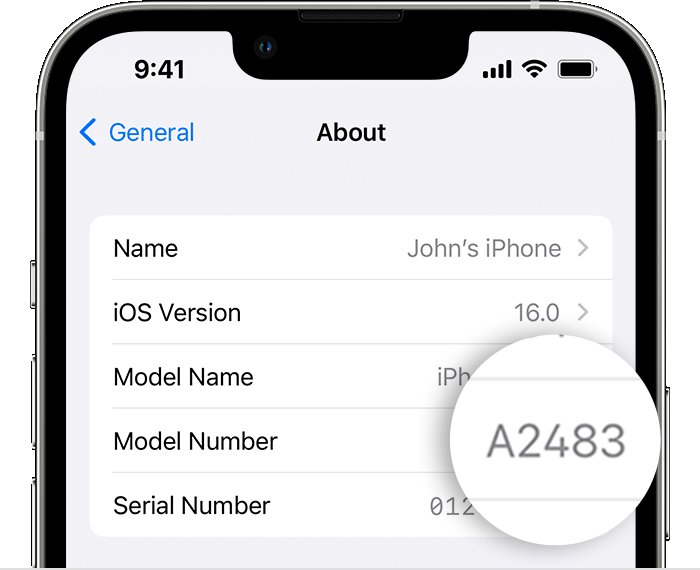
Open Settings > General > About and tap the part number beside Model Number to see the model number, such as A3354. Some iPads also print it on the back.
| Model | Year | Wi-Fi model number | Buttons |
|---|---|---|---|
| iPad (A16) | 2025 | A3354 | Touch ID in the top button |
| iPad (10th generation) | 2022 | A2696 | Touch ID in the top button |
| iPad (9th generation) | 2021 | A2602 | Home button with Touch ID |
| iPad mini (A17 Pro) | 2024 | A2993 | Touch ID in the top button |
| iPad Air 11-inch and 13-inch (M4) | 2026 | A3459, A3461 | Touch ID in the top button |
| iPad Pro 11-inch and 13-inch (M5) | 2025 | A3357, A3360 | Face ID |
The full list of iPad generations gives every release since 2010, and you can compare the iPad (A16) and iPad Air (M4) before you buy. Only Wi-Fi + Cellular models take cellular service, which rules out a data plan on a Wi-Fi iPad.
Set up your iPad
Have your Wi-Fi password and Apple Account ready. A nearby iPhone or iPad on iOS 11, iPadOS 13 or later can copy its settings across.
- Press and hold the top button until the Apple logo appears.
- Hold your current iPhone or iPad close and follow the prompts, or tap Set Up Without Another Device.
- Join Wi-Fi, or use cellular data on a Wi-Fi + Cellular model.
- Sign in with your Apple Account, or create one.
- On Transfer Your Apps & Data, choose From iCloud Backup, From Android or another option, then set a passcode.
Apple also supports setup over a cable to a computer, which helps when you need to skip Wi-Fi during iPad setup. If the Apple Account step rejects your password or code, sort out Apple Account sign-in and recovery first.
iPad passcodes & Touch ID or Face ID
Touch ID and Face ID need a passcode first, and the iPad asks for that passcode after every restart.
- Open Settings > Face ID & Passcode, or Touch ID & Passcode on Touch ID models.
- Tap Turn Passcode On and enter six digits, or tap Passcode Options for another format.
- Enter the passcode again to confirm it.
- On Touch ID models, tap Add a Fingerprint and rest your finger on the sensor until enrollment finishes.
A Screen Time passcode is separate; on iPadOS 27, change it in Settings > Screen Time > Passcode & Management. If you forgot the restrictions passcode, your Apple Account resets it when Screen Time Passcode Recovery was set up.
Guided Access in Settings > Accessibility keeps a child in one app: triple-click the top or Home button, then turn Touch off to lock the iPad screen from touch.
The Settings app and Control Center on iPad
Swipe down from the top-right edge to open Control Center, and swipe up from the bottom center to close it. Touch and hold a control for more options.
| To change | In Settings, go to | Notes |
|---|---|---|
| Model number, iPadOS version | General > About | Tap the part number for the model number |
| Updates | General > Software Update | Automatic Updates lives here |
| Battery | Battery | Low Power Mode and Battery Health |
| Reset or erase | General > Transfer or Reset iPad | Reset keeps data; Erase All Content and Settings wipes it |
| Wallpaper | Wallpaper > Add New Wallpaper | Set as Wallpaper Pair covers both screens |
| Liquid Glass, text size | Appearance | Slide Liquid Glass toward tinted or clear; Reduce Transparency overrides it if you want to tone down Liquid Glass |
| Windows | Multitasking & Gestures | Full Screen Apps, Windowed Apps or Stage Manager |
| Screenshot previews | General > Screen Capture | Full-Screen Previews on or off |
| iCloud sync | Your name > iCloud > See All | Turn on the apps that sync your iPhone and iPad |
| Control Center in apps | Control Center | Access Within Apps on or off |
For a personal touch, tap Customize Home Screen after you add a wallpaper to tint or blur it behind your apps.
How to install an app on iPad
- Open the App Store; it needs an internet connection and an Apple Account.
- Tap the search icon and type the app's name.
- Tap the app to check its size, compatibility and privacy details.
- Tap Get, or the price, then confirm with Face ID, Touch ID or your passcode.
- Find the app under Recently Added in App Library.
The Apple Books app for iPad is free with no subscription. WhatsApp now has its own iPad app for iPadOS 15.1 or newer, so WhatsApp on an iPad mini gets chats, calls and screen sharing without a browser.
Boost your creativity with Apple Pencil and iPad apps
Turn on Scribble in Settings > Apple Pencil to convert handwriting in any text field into typed text.
| App | What you make | Price and requirements |
|---|---|---|
| Freeform whiteboard app | Boards for diagrams and Apple Pencil sketches | Free |
| GarageBand music studio | Songs with touch instruments, loops and free sounds | App Store; projects open in Logic Pro for iPad |
| iMovie video editor | Video edits across iPhone, iPad and Mac | App Store |
| Final Cut Pro for iPad | Professional video editing | Apple Creator Studio; M1 or later, iPad (A16) or iPad mini (A17 Pro), iPadOS 18.6 or later |
| Logic Pro for iPad | Music production and beat-making | Apple Creator Studio; iPadOS 26 or later, A12 Bionic or later |
| Pages, Numbers and Keynote | Documents, spreadsheets and slides | Free |
Apple Creator Studio costs $12.99 a month or $129 a year after a one-month free trial.
Multitask with iPad
Settings > Multitasking & Gestures offers three layouts: Full Screen Apps, Windowed Apps and Stage Manager.
- Select Windowed Apps in Settings > Multitasking & Gestures.
- Open an app and drag the bottom-right handle to resize its window; drag the top edge to move it.
- Tap a second app in the Dock or App Library to open it alongside.
- For a split screen, tap Window > Move & Resize > Left & Right in the menu bar.
- Tap Window > Enter Full Screen to fill the screen again.
Stage Manager groups windows by task and lists other apps on the left. Swipe up from the bottom twice to minimize every window.
How to use iPad as a second monitor with a Mac or Windows 11 PC
Sidecar extends or mirrors a Mac desktop. It needs macOS Catalina or later and iPad (6th generation), iPad mini (5th generation), iPad Air (3rd generation) or later, or any iPad Pro.
- Sign in to the Mac and iPad with the same Apple Account, using two-factor authentication.
- Turn on Bluetooth, Wi-Fi and Handoff within 10 meters (30 feet), or connect a USB cable and trust the Mac.
- On the Mac, hover over a window's full-screen button and choose to move it to the iPad, or drag it across.
- To mirror instead, pick the iPad under Screen Mirroring in Control Center.
- Change sidebar options in System Settings > Displays on macOS Ventura or later.
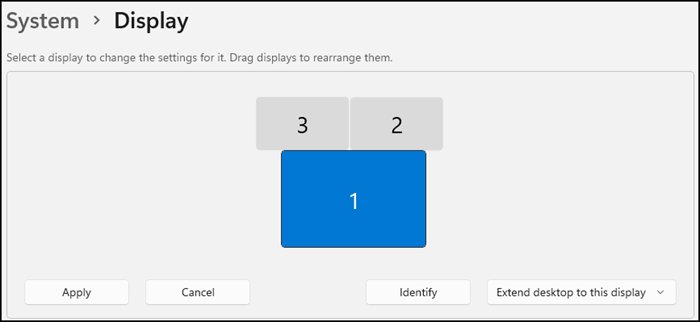
Sidecar works only with a Mac, so on a Windows 11 PC you use an iPad as a second monitor through a third-party display app.
How to update iOS or iPadOS on an iPad
iPadOS updates come from the same Software Update screen that iPhones use for iOS.
- Back up the iPad, plug it in and connect to Wi-Fi.
- Open Settings > General > Software Update.
- Tap Download and Install and follow the prompts.
- Tap Automatic Updates and turn on Automatically Install for overnight updates while it charges.
If it asks to remove apps for space, tap Continue; they reinstall afterwards. A VPN or proxy can block the update servers.
Which iPad screenshot method should you use?
Alternative ways to capture your iPad screen help when a button is broken or Apple Pencil is already in your hand.
| Method | How | Best for |
|---|---|---|
| Home button iPad | Press top and Home together, then release | Home button models such as iPad (9th generation) |
| Top-button iPad | Press top and either volume button together, then release | Face ID and top-button Touch ID models |
| Apple Pencil | Swipe up from the bottom-left corner | Marking up while you draw |
| Finger corner swipe | Set Swipe Finger from Corner in Multitasking & Gestures, then swipe up from a bottom corner | One-handed captures |
| AssistiveTouch or Siri | Use either instead of the buttons | A broken button |
If you screenshot an iPad often, the corner swipe saves a two-button press.
Take a screenshot on iPad and review your screenshots
- Press your model's buttons together and release them quickly.
- Open the preview; it shows full screen unless Full-Screen Previews is off, which gives a lower-left thumbnail.
- Crop with the handles, annotate with Markup, or tap Full Page for a whole webpage.
- Save it; screenshots go to your photo library.
- Review them in Photos > Collections > Media Types > Screenshots.
To change the default settings for screenshots, use Settings > General > Screen Capture. Tips for better iPad screenshots: crop before sharing, and use Full Page instead of several captures.
Screenshots still not working on your iPad?
Pressing the buttons turns off the iPad
Holding the top and volume buttons opens the power-off slider.
- Press both buttons at the same moment.
- Release them right away.
- On a Home button iPad, use the top and Home buttons.
No screenshot thumbnail appears
Full-Screen Previews is on, so the screenshot opens full screen.
- Open Settings > General > Screen Capture.
- Turn off Full-Screen Previews.
Screenshots are missing from Files
Screenshots save to the photo library, not Files.
- Open Photos and tap Collections.
- Tap Screenshots under Media Types.
A button is broken
A damaged button can't complete the combination.
- Use AssistiveTouch, Siri or Apple Pencil instead.
- Set up service with Apple if a restart doesn't help.
Soft restart: your first move for a sluggish iPad
A restart turns the iPad off and on and erases nothing. Apple suggests it first when an iPad isn't working as expected.
- Without a Home button, hold either volume button and the top button until the slider appears; with one, hold the top button.
- Drag the slider and wait 30 seconds.
- Hold the top button until the Apple logo appears.
- Or use Settings > General > Shut Down, or hold the power icon in Control Center.
Soft reset the iPad this way whenever it's acting up. If the buttons are awkward to reach, turn off an iPad from Settings; a frozen screen needs a force restart.
Force restart: for when your iPad won’t respond at all
Use it when the screen ignores touches. It keeps your apps and data, and people often call it a hard reset.
- Without a Home button, press and quickly release the volume button nearest the top button.
- Press and quickly release the volume button farthest from the top button.
- Hold the top button and release it when the Apple logo appears.
- With a Home button, hold the top and Home buttons together until the Apple logo appears.
That volume, volume, top sequence is the hard reboot for iPads without a Home button. A black screen may need up to an hour of charging before it responds.
Which reset method should you use?
Start with the lightest fix. Only erasing and a recovery-mode restore wipe the iPad.
| Your situation | Reset to use | What it erases |
|---|---|---|
| Slow, glitchy or one app misbehaving | Soft restart | Nothing |
| Frozen screen | Force restart, the same sequence as the iPad Pro hard reset | Nothing |
| Wi-Fi, Bluetooth or settings problems after a restart | Reset All Settings in Transfer or Reset iPad > Reset | Settings only, such as Wi-Fi passwords, Bluetooth pairings and wallpaper |
| Selling or starting clean | Erase All Content and Settings | Everything on the iPad; iCloud content stays in iCloud |
| Forgot the passcode | Forgot Passcode? on the Lock Screen, or recovery mode | Everything, unless your previous passcode still works within 72 hours |
| Lost or stolen | Erase This Device at icloud.com/find | Everything; Activation Lock stays on |
| Stuck on the Apple logo | Recovery mode, then Update | Try Update first; Restore erases everything |
Tips to make the reset go smoothly: back up, plug in, and know your Apple Account password. Apple calls Reset All Settings rarely necessary.
What happens when you factory reset an iPad?
Erase All Content and Settings returns the iPad to factory settings.
| Item | After the factory reset |
|---|---|
| Apps, photos, messages, settings, Apple Pay cards | Deleted from the iPad |
| Content stored in iCloud | Stays in iCloud |
| iCloud, iMessage, FaceTime, Game Center | Turned off on the iPad |
| Find My and Activation Lock | Turned off when you erase on the iPad |
| Remote erase in Find My | Activation Lock stays on until your Apple Account password is entered |
| eSIM | Keep or delete it; deleting means your carrier reactivates the plan |
| Last screen | The Hello screen, ready to set up or restore a backup |
How to backup iPad using iCloud
- Connect the iPad to Wi-Fi.
- Open Settings, tap your name, then tap iCloud > iCloud Backup.
- Tap Back Up Now and stay on Wi-Fi until it finishes.
- Check the time of the last backup under Back Up Now.
- Turn on Back Up This iPad for automatic backups while the iPad charges, locked, on Wi-Fi.
iCloud backups skip data that already syncs, such as iCloud Photos. To restore an iPad from a backup, erase it, then choose From iCloud Backup during setup.
How to backup your iPad to your Windows PC or Mac
A computer backup holds almost all of the iPad's data and settings.
- Connect the iPad to the computer with a cable.
- On a Mac, open Finder and select the iPad; on Windows, open the Apple Devices app and click General.
- Tap Trust on the iPad and enter your passcode if asked.
- Select Encrypt local backup to keep Health and Activity data, and store the password safely.
- Click Back Up Now and wait for the last-backup time to appear.
Apple Devices comes from the Microsoft Store and restores the iPad later too, one of the Apple apps for Windows PCs. On a Mac, backup size depends on free disk space, so check it with the Mac storage and update tips first.
How to factory reset your iPad from Settings
Back up first, because this erases everything.
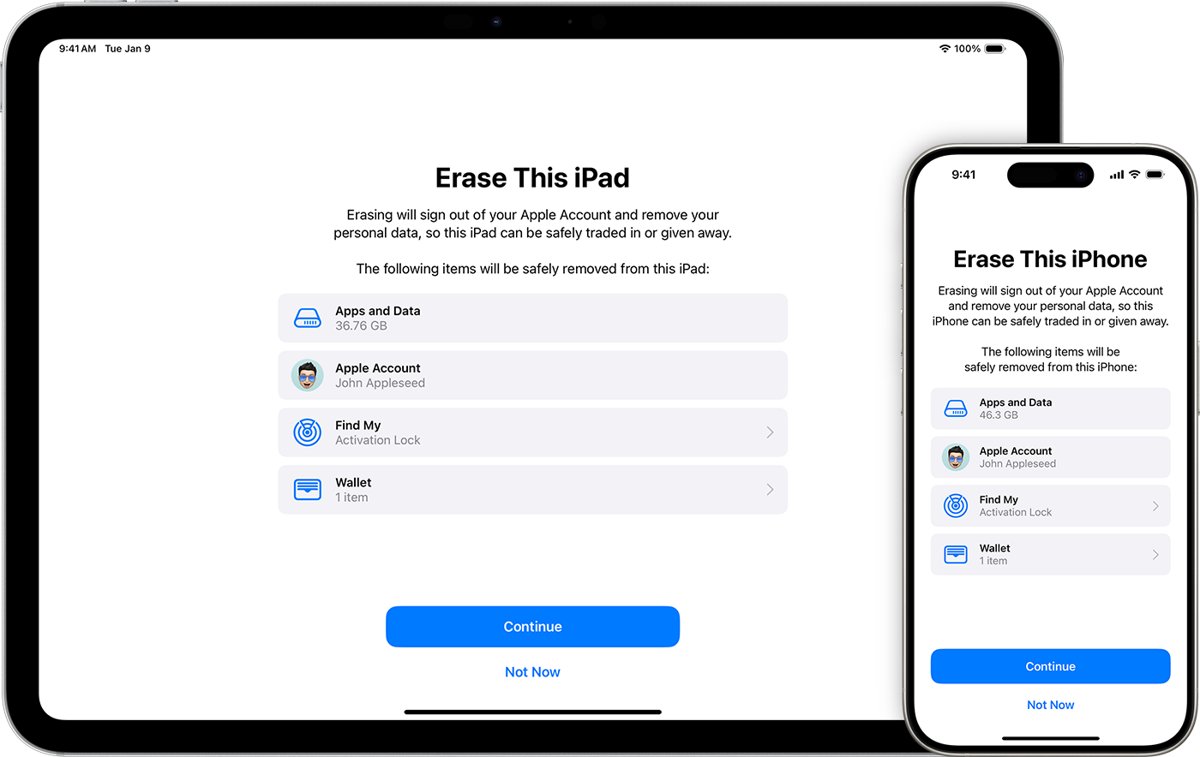
- Open Settings > General > Transfer or Reset iPad.
- Tap Erase All Content and Settings, then Continue.
- On a cellular model, choose to keep or delete the eSIM.
- Enter your passcode, then your Apple Account password.
- Wait for the iPad to reset and show the Hello screen.
This is how to wipe an iPad you can still unlock. Without the passcode, use a route below, or the model-by-model steps to factory reset an iPad.
How to factory reset an iPad without a passcode (recovery mode)
Forgot your passcode? Within 72 hours of changing it, tap Forgot Passcode? > Enter Previous Passcode on iPadOS 17 or later. Otherwise, erase the iPad from its Lock Screen or in recovery mode with a computer.
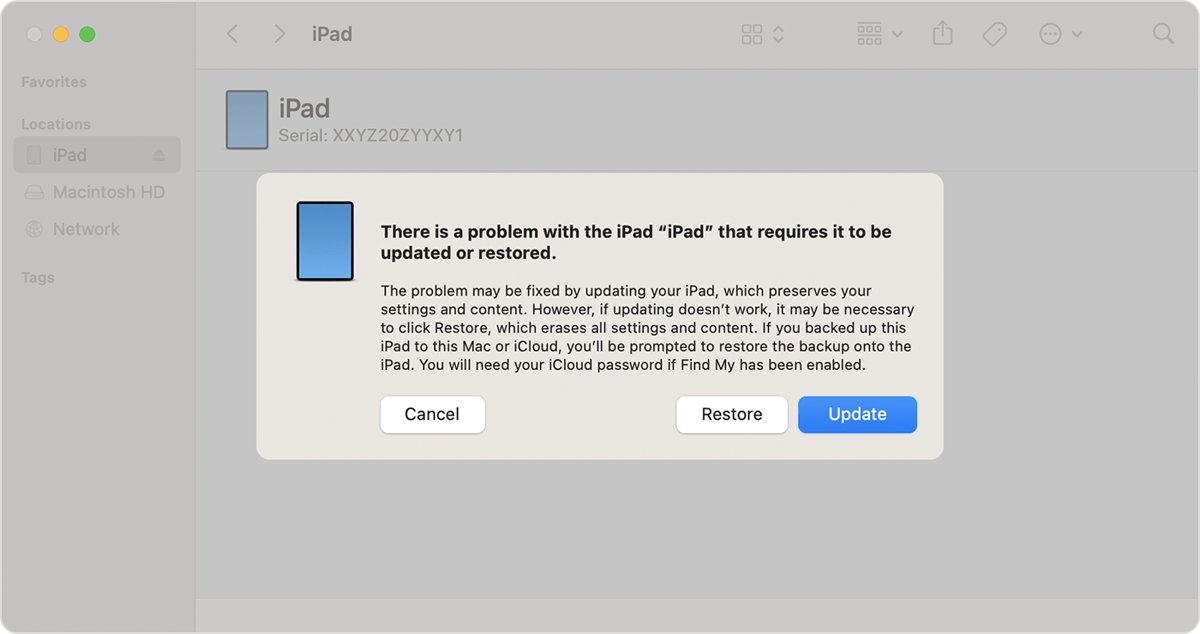
- Unplug and turn off the iPad, then connect it to a Mac or PC with a cable.
- Without a Home button, press volume nearest the top button, then volume farthest, then hold the top button.
- With a Home button, hold the Home and top buttons together.
- Release when the computer-and-cable screen appears.
- Select the iPad in Finder or Apple Devices and choose Restore.
- If the iPad leaves recovery mode after 15 minutes, let the download finish and start again.
No computer? On iPadOS 17 or later, enter passcodes until iPad Unavailable appears, tap Forgot Passcode? > Start iPad Reset, and enter your Apple Account password; Find My and a network connection are required.
The computer restore is also how you fix a disabled iPad after ten failed passcodes. iPhones use the same restore with their own buttons, listed with the iPhone recovery mode and reset steps.
How to erase an iPad remotely with iCloud Find My
This works only if Find My was on before the iPad went missing.
- Go to icloud.com/find and sign in with your Apple Account.
- Select the iPad in the list of devices.
- Select Erase This Device and follow the onscreen steps.
- If the iPad is offline, the erase starts when it reconnects; Stop Erase Request cancels it.
The Find My app on another Apple device does the same under Devices. To factory reset an iPad remotely before handing it on, remove it from your account too, or Activation Lock blocks the next owner.
Setting up your iPad for a new owner
Sign out before you erase, so Activation Lock comes off.
- Back up the iPad.
- Open Settings, tap your name, then tap Sign Out.
- On iPadOS 26 or later, choose Erase this iPad, or Sign Out But Don't Erase to erase separately.
- If you only signed out, tap General > Transfer or Reset iPad > Erase All Content and Settings.
- Remove the iPad from your list of trusted devices.
Before a trade-in, check Parts and Service History for a Finish Repair message. Selling an iPhone too? The same steps apply, and iPhone battery, Wi-Fi and call fixes help with the phone you keep.
When a soft restart, force restart, or factory reset isn’t enough
If your iPad is still having trouble after a reset, match the symptom below.
iPad stuck on the Apple logo
iPadOS can't finish starting and needs reinstalling from a computer.
- Connect the iPad to Finder on a Mac, or Apple Devices on a PC.
- Enter recovery mode with your model's buttons.
- Choose Update; if that fails, choose Restore, which erases the iPad.
- If both fail, restore from an IPSW file.
iPad won't turn on after a force restart
The battery is fully drained.
- Charge the iPad for up to an hour.
- Force restart it again.
- Set up service with Apple if the screen stays dark.
iPad asks for the previous owner's Apple Account
Activation Lock is still on.
- Ask the previous owner to enter their password, or to remove the iPad from their account in a browser.
- Don't keep a used iPad that stays locked to another account.
No computer for a restore
Recovery mode needs a Mac or Windows PC.
- Use Forgot Passcode? on the Lock Screen if the iPad is locked.
- Visit an Apple Store or Apple Authorized Service Provider.
How to charge your iPad
- Connect the iPad to a power outlet with the included cable and adapter.
- Or use a computer that's turned on; one that's off can drain the battery.
- If Not Charging appears, the computer can't supply enough power, so use the wall adapter.
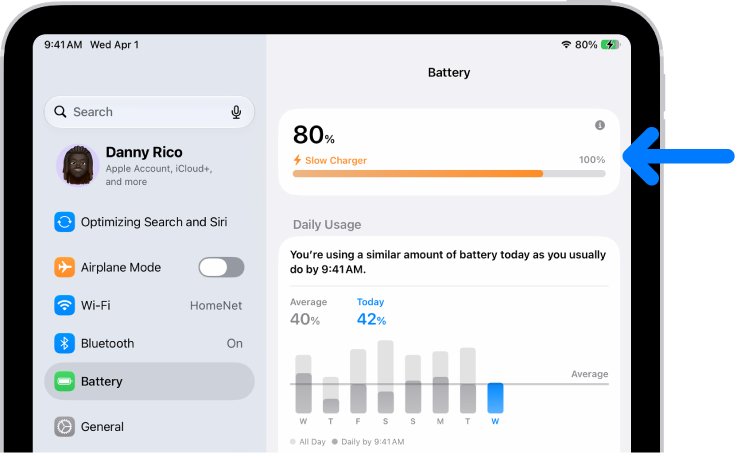
- If Settings > Battery shows Slow Charger, use a stronger adapter; 7.5-watt chargers or weaker take longer.
iPad fast-charges to about 80 percent, then trickle-charges. Choose the right iPad cable and adapter, because a low-power charger triggers the Slow Charger message.
How to check iPad battery health
Battery Health shows only on supported models.
- Open Settings > Battery to see Daily Usage and the apps using the most battery.
- Tap Battery Health for capacity, cycle count and manufacture date.
- Turn on 80% Limit on the same screen to stop charging at 80 percent.
- Turn on Low Power Mode in Settings > Battery when the charge runs low.
Apple suggests the 80% Limit if you charge often or stay plugged in for long periods, so factor it in when you decide when to charge an iPad. Apple or an Apple Authorized Service Provider should service the battery when you need to replace an iPad battery.
Common iPad problems and fixes
Match the symptom to a row, then try the fix in order.
| Problem | Likely cause | Fix |
|---|---|---|
| Ghost touching | Debris or water on the screen, a charger, a case or screen protector | Restart, clean the screen, unplug accessories and remove the case, then fix iPad ghost touching |
| Frozen screen | Software stopped responding | Force restart |
| Black screen | Drained battery | Charge for up to an hour, then force restart |
| Battery drains fast | Higher app or background activity | Check Settings > Battery, then turn on Low Power Mode |
| Album songs missing in the iTunes Store | A store service or connection problem | Check Apple's System Status page, then try the iTunes Store album song fixes |
| WhatsApp chats missing on iPad | A known WhatsApp issue: some linked devices don't show a year of history | Update WhatsApp, check the phone for full history, or fix WhatsApp partial syncing |
| OneDrive missing in Files | OneDrive isn't turned on as a location | Sign in to OneDrive, turn it on under Browse > More > Edit in Files, or find missing OneDrive files |
iPad user guide FAQ
What is the use of an iPad?
An iPad runs App Store apps on a large touchscreen. People use it for reading, video, video calls, notes and drawing with Apple Pencil, documents in Pages, music in GarageBand, and as a second display for a Mac.
How do I use an iPad?
Hold the top button to turn it on and follow the setup screens. Swipe up from the bottom, or press the Home button, to reach the Home Screen, tap an app to open it, and change everything else in Settings.
Can I use my iPad as a second monitor?
Yes, with a Mac. Sidecar extends or mirrors the desktop on iPad (6th generation) or later, iPad mini (5th generation) or later, iPad Air (3rd generation) or later and every iPad Pro, wirelessly or over USB.
Can I use my iPad as a second monitor with a Windows PC?
Not with Sidecar, which requires a Mac running macOS Catalina or later. A Windows 11 PC needs a third-party display app instead, so check that app's requirements for both the PC and your iPad model.
How do I use the iPad (A16)?
The iPad (A16) has no Home button and puts Touch ID in the top button. Rest your finger there to unlock, swipe up to go Home, press top and volume for a screenshot, and use volume, volume, top to force restart.
How do I use Apple Pencil on an iPad?
Center Apple Pencil Pro or Apple Pencil (2nd generation) on the magnetic connector, or plug in a 1st-generation Pencil, then tap Pair. Write in text fields with Scribble, or swipe from the bottom-left corner for a screenshot.
How do I take notes on an iPad with a pen?
Swipe Apple Pencil up from the bottom-right corner to open a Quick Note and start writing, or open the Notes app. Turn on Scribble in Settings > Apple Pencil to turn handwriting into typed text.