To back up an iPhone or iPad, tap Back Up Now under Settings > your name > iCloud > iCloud Backup, or click Back Up Now in iTunes, the Apple Devices app or the Finder; to restore, erase the device and choose that backup during setup.
This guide covers both backup methods, what each one leaves out, restoring from iCloud or a computer, using an iPhone backup on an iPad, and fixes for common restore problems.
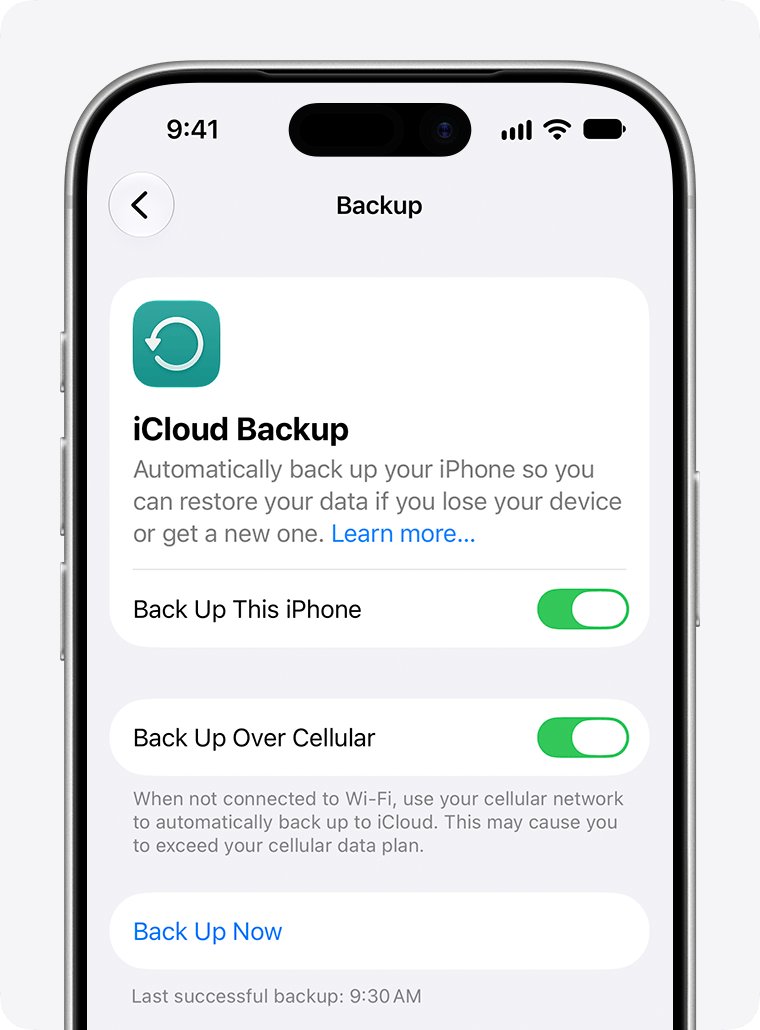
Back up an iPhone or iPad to iCloud
- Connect the device to a Wi-Fi network.
- Open Settings, tap your name, then tap iCloud.
- Tap iCloud Backup.
- Turn on Back Up This [Device] so backups run automatically.
- Tap Back Up Now and stay on Wi-Fi until it finishes.
- Check the date and time of the last backup shown under Back Up Now.
Automatic iCloud backups run when the device is on power, on Wi-Fi and locked. If iCloud storage runs out, the device offers to buy more space.
iCloud backup vs iTunes backup for iPhone and iPad
| Point | iCloud backup | iTunes, Apple Devices or Finder backup |
|---|---|---|
| Where it is stored | iCloud | Your Mac or PC |
| Space limit | Your iCloud plan, up to 12 TB (14 TB with Apple One Premier) | Free space on the computer |
| Encryption | Always encrypted | Optional, off by default |
| Health, Activity and Keychain data | Included | Only in an encrypted backup |
| Needs a cable or computer | No, Wi-Fi only | Yes, USB cable or Wi-Fi sync |
| Best for | Automatic backups from anywhere | Full local copies and slow internet |
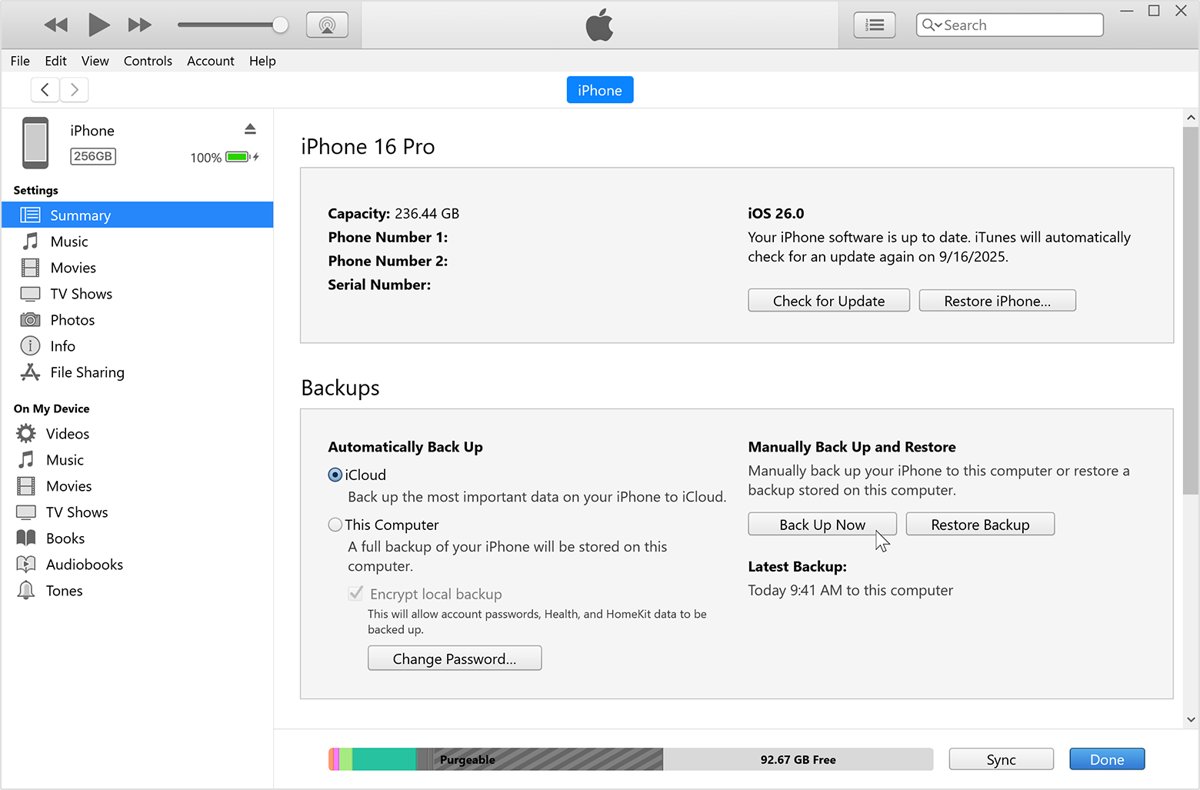
Back up an iPhone or iPad with iTunes or the Apple Devices app
On Windows, use the Apple Devices app. Use iTunes only if the PC does not have Apple Devices. On a Mac with macOS Catalina or later, use the Finder.
- Open the Apple Devices app or iTunes on your PC.
- Connect the device with its USB cable.
- If asked, enter the device passcode or tap Trust on Trust This Computer.
- Select the device, then click General in Apple Devices or Summary in iTunes.
- To keep Health and Activity data, tick Encrypt local backup and create a password you will not lose.
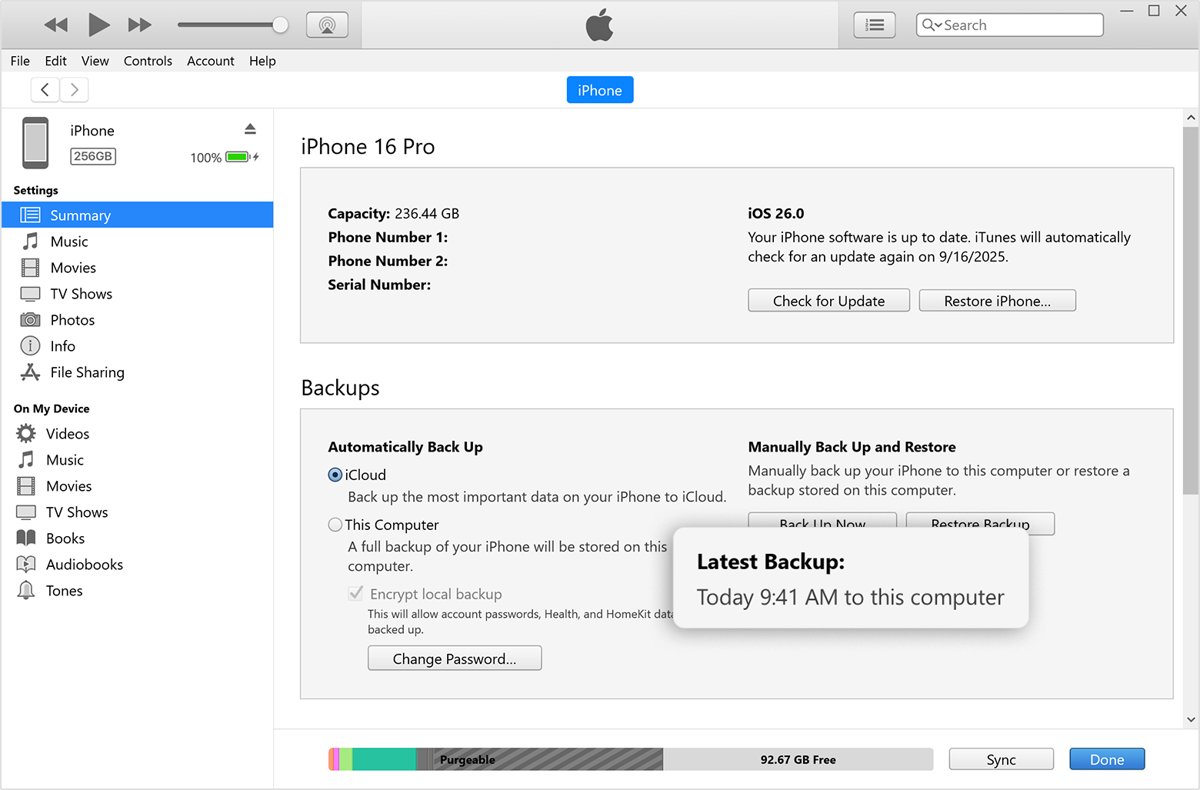
- Click Back Up Now and wait for the date and time of the last backup to appear.
There is no way to recover an encrypted backup without its password.
What an iPhone backup does not include
| Content | In iCloud backup? | In computer backup? |
|---|---|---|
| Photos with iCloud Photos on | No, already in iCloud | No, already in iCloud |
| Messages synced with iCloud | No | No |
| Face ID, Touch ID, Apple Pay settings | No | No |
| Apple Mail data and offline maps | No | No |
| iTunes Store, App Store and Apple Books content | No | No |
| Music, videos and photos synced from the computer | Not applicable | No |
| Activity, Health and Keychain data | Yes | Only if encrypted |
Restore an iPhone or iPad from an iCloud backup
If the device is already set up, erase it first: Settings > General > Transfer or Reset [Device] > Erase All Content and Settings.
- Turn on the device and wait for the Hello screen.
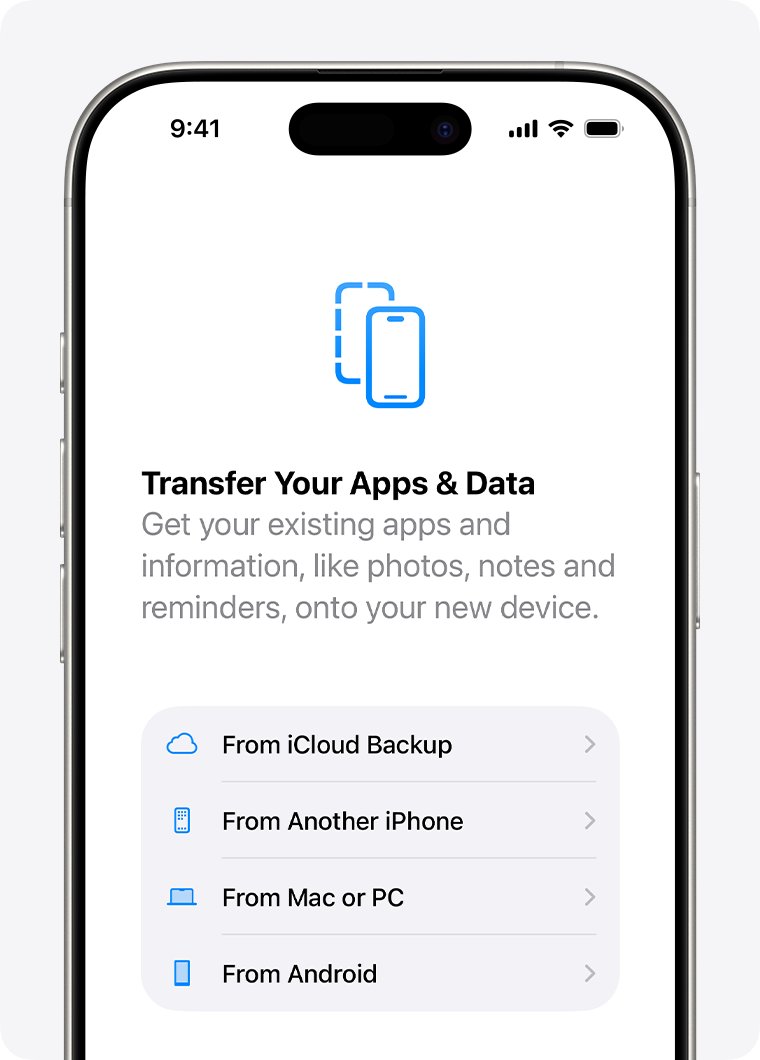
- Follow the setup steps until you reach Transfer Your Apps & Data.
- Tap From iCloud Backup and sign in to your Apple Account.
- Compare the date and size of each backup, then choose the most recent one.
- Sign in again when asked to restore apps and purchases.
- Keep the device on Wi-Fi and power until the progress bar finishes, then complete setup.
Restore an iPhone or iPad from an iTunes backup
- Open the Apple Devices app or iTunes on Windows, or the Finder on a Mac.
- Connect the device with a USB cable and select it.
- Click Restore Backup.
- Pick the most recent backup by its date and size.
- Enter the encrypted backup password if asked, then click Restore.
- Keep the device connected while it restarts and syncs, then disconnect it.
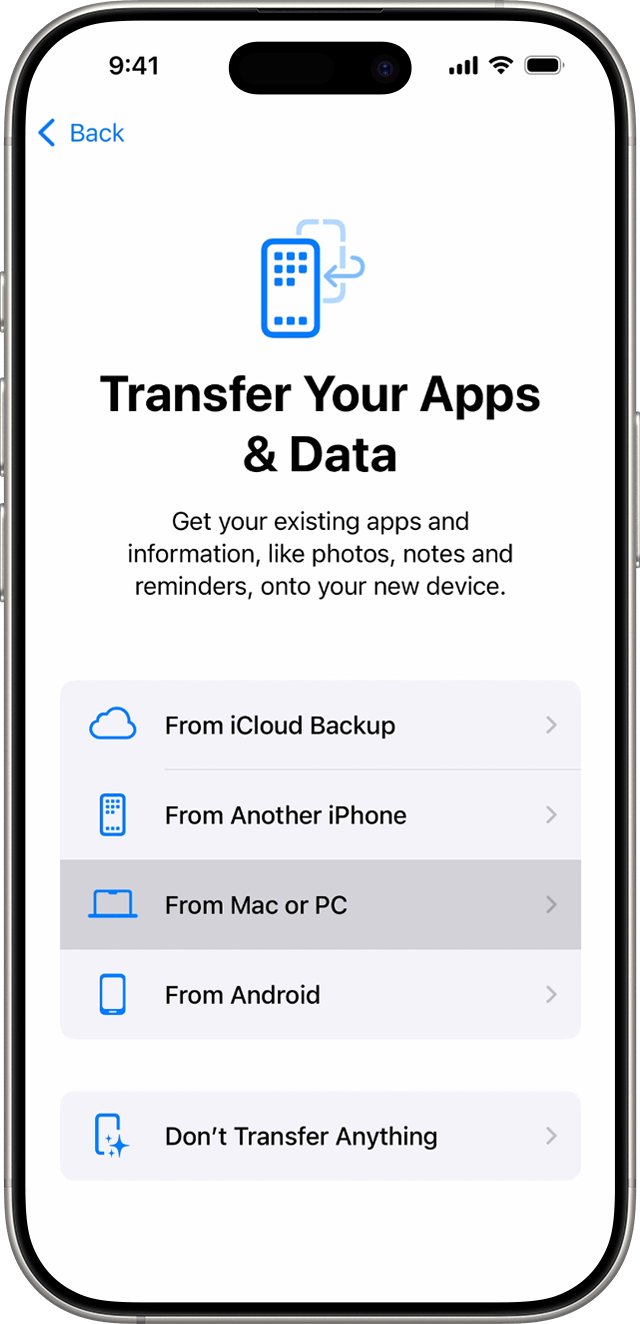
For a new device, choose Restore from Mac or PC on the Apps & Data screen during setup, then connect it to the computer that holds the backup.
How to restore an iPhone backup to an iPad
Apple supports restoring a backup from a different device type, so an iPhone backup can set up an iPad and the reverse.
| Content | Transfers to the other device? |
|---|---|
| Photos | Only with iCloud Photos |
| Messages and attachments | Only if messages sync with iCloud |
| Voice Memos | No |
| Apps not made for the new device | No |
| Settings and other app data | Yes |
Check that your iPhone backup finished
- For iCloud, open Settings > your name > iCloud > iCloud Backup and read the last backup time under Back Up Now.
- For a computer backup, open General in Apple Devices or Summary in iTunes and read the last backup date.
- In Apple Devices, click Manage Backups to see each saved backup.
Fix iPhone and iPad restore problems
The iPad or iPhone says it needs a newer iOS before restoring
The backup was made on a newer iOS or iPadOS version than the device runs.
- Follow the onscreen steps to update the device.
- Continue the restore after the update.
Restore asks for a password you do not know
The computer backup is encrypted.
- Try any password you used for backups before.
- If none works, restore from an iCloud backup instead, since encrypted computer backups cannot be recovered without the password.
Photos and apps are still missing after the restore
Content stored in iCloud keeps downloading after setup.
- Keep the device on Wi-Fi and power.
- Wait for the downloads to finish; time depends on content size and network speed.
The device does not appear in iTunes or Apple Devices
The device has not trusted the computer yet.
- Unlock the device and tap Trust on the alert.
- Enter the device passcode, then select the device again.
iPhone and iPad backup and restore FAQ
How do I restore an iPhone backup?
Erase the iPhone, then on the Transfer Your Apps & Data screen tap From iCloud Backup, or connect it to your computer and click Restore Backup in Apple Devices, iTunes or the Finder.
How do I restore an iPad from a backup?
The steps match the iPhone: erase the iPad, choose From iCloud Backup during setup, or use Restore Backup in Apple Devices, iTunes or the Finder with a USB cable connected.
What does restoring an iPhone from backup mean?
It copies the data and settings saved in a backup back onto the device, replacing what is on it. Apps, photos and music stored in iCloud then download again.
Will an iPhone backup restore everything?
No. Backups skip content already in iCloud, Face ID or Touch ID settings, Apple Pay, Apple Mail data and offline maps. Computer backups keep Health and Keychain data only when encrypted.
Can I back up my iPhone to an iPad?
No. An iPhone backs up to iCloud or a computer, not to another device. You can then use that iPhone backup to set up an iPad.
Can I restore an iPhone from an iPad backup?
Yes. Apple supports restoring from a different device type, but Voice Memos, apps made only for iPad, and photos or messages not synced with iCloud do not transfer.
How do I restore an iPad to a previous backup?
Erase the iPad and, during setup, review the date and size of each backup in the list, then choose the older backup you want instead of the most recent one.
Does iCloud backup my photos?
Not if iCloud Photos is on, because those photos are already stored in iCloud. With iCloud Photos off, photos on the device are part of the iCloud backup.