To use WhatsApp on an iPad mini, install the official WhatsApp app from the App Store and link it to your phone by scanning a QR code, the same way WhatsApp Web links a computer.
This guide covers which iPad mini models can run the app, how to link it or register a new account on the iPad itself, what syncs, how to unlink it, and what to do when it will not install or keeps logging out.
The fastest way to get WhatsApp on iPad mini
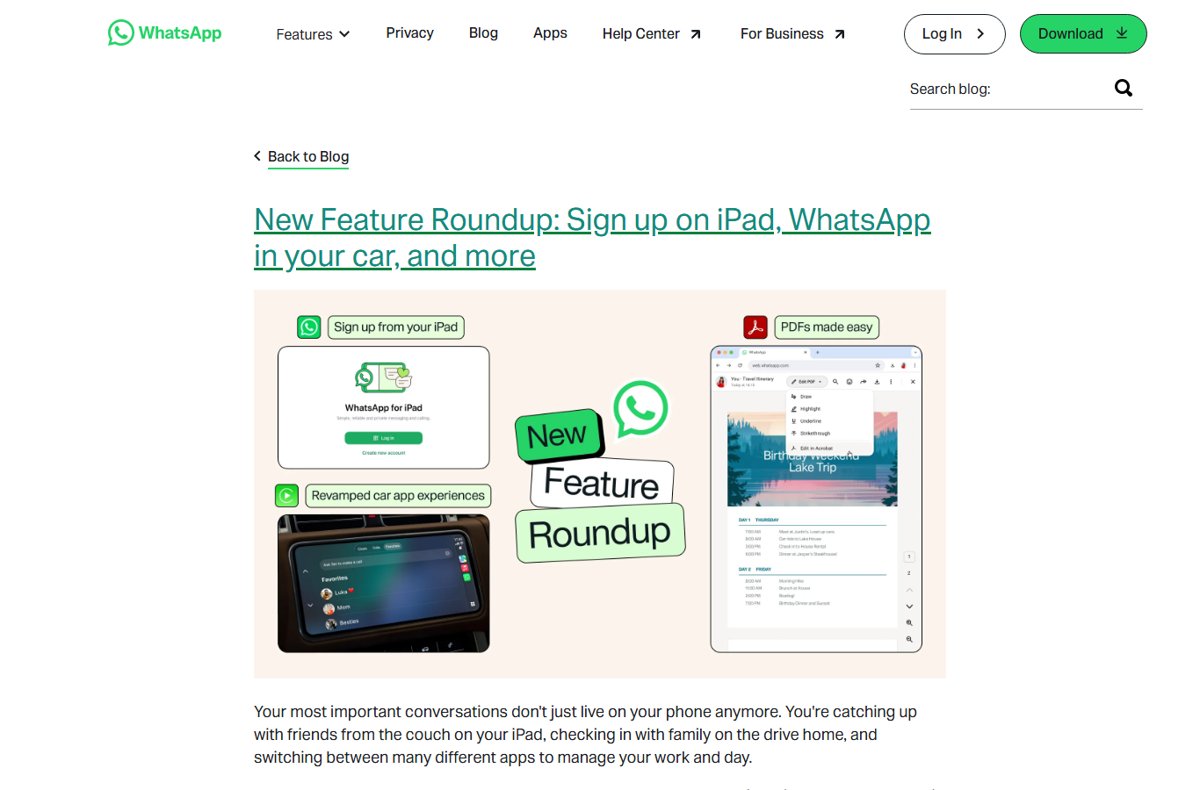
WhatsApp now publishes a dedicated iPad app, so you do not need a browser workaround. The app links to the WhatsApp account on your phone as a linked device.
- Open the App Store on your iPad mini and search for WhatsApp Messenger.
- Tap Get, then confirm with Face ID, Touch ID or your Apple Account password.
- Open WhatsApp on the iPad and choose to link it to your phone. A QR code appears on the iPad screen.
- On your iPhone, open WhatsApp and tap Settings or your profile picture, then tap Linked devices > Link device.
- Unlock with Face ID, Touch ID or your passcode when asked.
- Point the iPhone camera at the QR code on the iPad. Your chats start loading on the iPad within a few moments.
On an Android phone, the path is the three-dot menu > Linked devices > Link a device, and the rest of the steps are the same.
WhatsApp iPad app vs WhatsApp Web in Safari on iPad mini
| Your situation | Use this | Why |
|---|---|---|
| You already use WhatsApp on a phone | WhatsApp iPad app, linked by QR code | Your existing chats and contacts appear on the iPad, and the phone stays your primary device |
| You have no phone, or want a separate account on the iPad | Register directly in the WhatsApp iPad app | WhatsApp added sign-up on iPad in July 2026, so no phone link is needed |
| Your iPad mini cannot run iPadOS 15.1 | WhatsApp on your phone or the WhatsApp desktop app | The iPad app requires iPadOS 15.1 or newer, and older models cannot install it |
| You want to open web.whatsapp.com in Safari | The iPad app instead | WhatsApp lists WhatsApp Web as supported on Windows, Linux and macOS, not iPadOS |
Which iPad mini models support the WhatsApp iPad app
The WhatsApp iPad app requires iPadOS 15.1 or newer. That rules in every iPad mini that Apple updated to iPadOS 15 and rules out the first three generations.
| iPad mini model | Year | Can run WhatsApp for iPad? |
|---|---|---|
| iPad mini (A17 Pro) | 2024 | Yes |
| iPad mini (6th generation) | 2021 | Yes |
| iPad mini (5th generation) | 2019 | Yes, once updated to iPadOS 15.1 or later |
| iPad mini 4 | Late 2015 | Yes, once updated to iPadOS 15.1 or later |
| iPad mini 3 | Late 2014 | No, it cannot run iPadOS 15 |
| iPad mini 2 | Late 2013 and early 2014 | No, it cannot run iPadOS 15 |
| iPad mini (1st generation) | Late 2012 | No, it cannot run iPadOS 15 |
You also need an Apple Account to download from the App Store, an internet connection, and WhatsApp on your phone if you plan to link rather than register a new account.
Check your iPad mini model and iPadOS version
Check this first if the App Store says WhatsApp is not compatible with your iPad.
- Open Settings on the iPad mini.
- Tap General, then tap About.
- Read the number next to iPadOS Version. It must be 15.1 or later.
- Read Model Name to confirm which iPad mini you have.
- If the version is lower than 15.1, go back to General and tap Software Update.
- Tap Download and Install if an update is offered, then follow the onscreen instructions.
Back up the iPad and plug it into power on Wi-Fi before you update. If Software Update says the iPad is up to date and the version is still below 15.1, that model cannot run the WhatsApp iPad app.
Link WhatsApp on iPad mini to your iPhone or Android phone
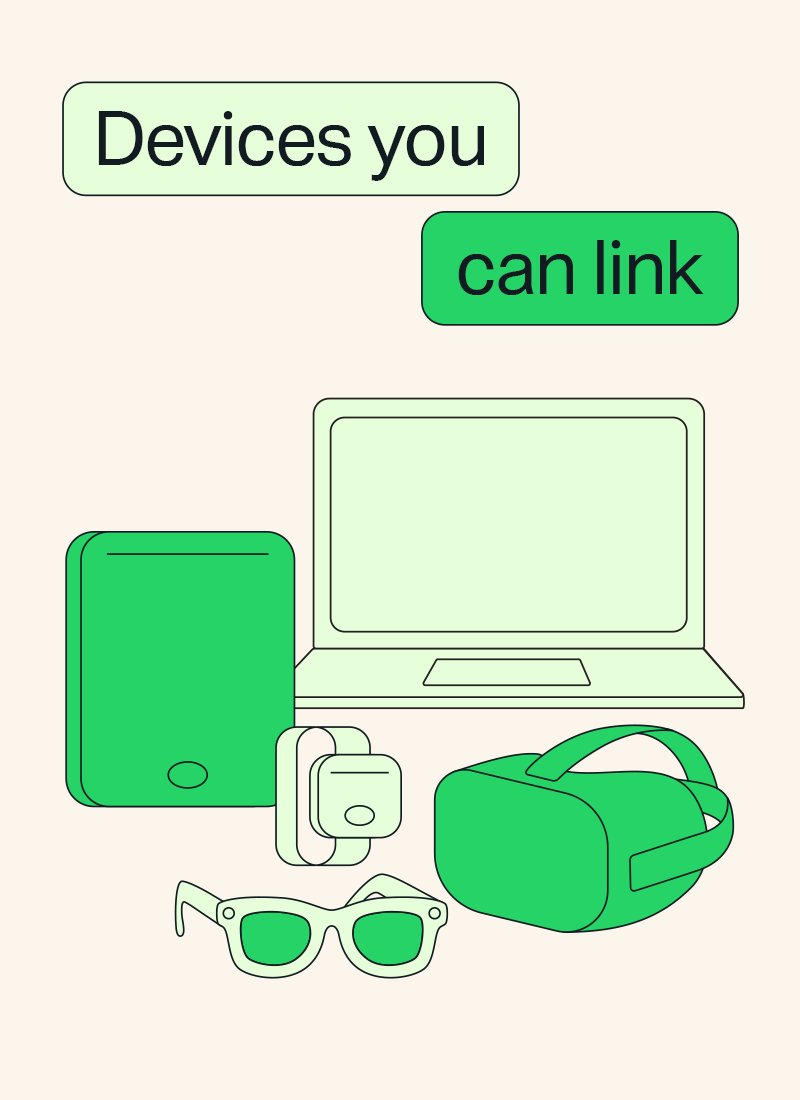
Linking makes the iPad mini one of up to four linked devices on your account. Your phone remains the primary device that owns the account.
- Install WhatsApp from the App Store on the iPad mini and open it.
- Choose the option to link to an existing account so the iPad shows a QR code.
- On an iPhone, open WhatsApp and tap Settings or your profile picture, then Linked devices > Link device.
- On an Android phone, tap the three-dot menu, then Linked devices > Link a device.
- Verify with Face ID, Touch ID or your phone PIN when prompted.
- Scan the QR code on the iPad with your phone.
- If WhatsApp asks whether you recognise this device, tap Link device.
WhatsApp also offers linking with a phone number instead of a QR code on some devices. The QR code route is the one WhatsApp documents step by step for linking.
Use WhatsApp on iPad without phone: register on the iPad
Since July 2026 you can create a WhatsApp account directly in the iPad app, without linking it to a phone. You still need a phone number that can receive the WhatsApp registration code.
- Install WhatsApp from the App Store on the iPad mini and open it.
- Choose to register a new account on the iPad instead of linking.
- Enter the phone number you want to use for the account.
- Enter the registration code WhatsApp sends to that number by SMS or phone call.
- Add your name and profile photo to finish setup.
Older WhatsApp help articles still say iPad can only be a linked device. Update the app from the App Store if you do not see a sign-up option on the iPad.
How to check WhatsApp is linked on your iPad mini
- On your phone, open WhatsApp and go to Linked devices.
- Look for the iPad in the list of linked devices, with its last active time.
- On the iPad, open a chat and send a message to yourself or a contact.
- Check that the same message appears on your phone within a few seconds.
Right after linking, the phone sends an end-to-end encrypted copy of your recent message history to the iPad. Older chats can take a while to appear, and full history stays on the phone.
What works in WhatsApp for iPad and what does not
| Feature | On a linked iPad mini |
|---|---|
| Chats, groups, status and calling | Supported in the iPad app, including screen sharing |
| Works when your phone is off | Yes, linked devices connect on their own |
| Phone unused for more than 14 days | Linked devices are logged out |
| Linked device inactive for 30 days | WhatsApp disconnects it automatically |
| Viewing a live location | Not supported on linked devices |
| Creating and viewing broadcast lists | Not supported on linked devices |
| WhatsApp Flows with businesses | Not supported on linked devices |
| Encryption | Each linked device connects independently with end-to-end encryption |
On a computer, the browser version works the same way; the basics of WhatsApp Web on a desktop carry over to the iPad app.
Turn on WhatsApp notifications on iPad mini
- Open the Settings app on the iPad mini.
- Tap Notifications, then tap WhatsApp below Notification Style.
- Turn on Allow Notifications.
- Under Alerts, choose Lock Screen, Notification Center or Banners.
- Turn on Badges to see an unread count on the WhatsApp icon.
How to unlink WhatsApp from iPad mini
- Open WhatsApp on your phone.
- Go to Linked devices.
- Tap the iPad in the list.
- Tap Log out to disconnect it.
Do the same for any device in the list that you do not recognise. WhatsApp also sends a notification when a new device links, and tapping it lets you review and remove that device.
Fix WhatsApp on iPad mini when it will not install or stay linked
Can't install WhatsApp on iPad mini
The iPad runs an iPadOS version older than 15.1, or the model cannot update that far.
- Open Settings > General > About and check iPadOS Version.
- Tap General > Software Update and install any available update.
- Search for WhatsApp in the App Store again once the iPad runs iPadOS 15.1 or later.
- On an iPad mini 3 or earlier, use WhatsApp on your phone or a computer instead.
WhatsApp on iPad logged out by itself
The primary phone was not used for more than 14 days, or the iPad was inactive for 30 days.
- Open WhatsApp on your phone so it reconnects to the account.
- Link the iPad again from Linked devices on the phone.
- Open WhatsApp on the phone at least once every 14 days to keep the iPad linked.
web.whatsapp.com does not work in Safari on iPad
WhatsApp supports WhatsApp Web on Windows, Linux and macOS computers, not on iPadOS.
- Close the Safari tab.
- Install the WhatsApp app from the App Store.
- Link it with the QR code steps above.
Old chats are missing on the iPad
Only a copy of recent message history is sent to a newly linked device.
- Keep WhatsApp open on both devices for a few minutes after linking.
- Update WhatsApp on the iPad from the App Store, since updates include fixes for linked device history.
- Open older chats on your phone, which keeps the full history.
WhatsApp on iPad mini FAQ
Is there WhatsApp for iPad?
Yes. WhatsApp publishes an official iPad app in the App Store. It needs iPadOS 15.1 or newer and offers chats, calling, status and screen sharing on the larger screen.
Does WhatsApp work on an iPad mini?
Yes, on any iPad mini that runs iPadOS 15.1 or later. That covers the iPad mini 4, 5th generation, 6th generation and A17 Pro models. The iPad mini 3 and earlier cannot run it.
How do I link WhatsApp to my iPad?
Open WhatsApp on the iPad to show a QR code. On your phone, go to Linked devices > Link device, verify your identity, and scan the code. Your chats then load on the iPad.
Can I use WhatsApp on iPad without a phone?
Yes. Since July 2026 you can register a WhatsApp account directly in the iPad app without linking to a phone. You still need a phone number that can receive the registration code.
How do I download WhatsApp on my iPad?
Open the App Store on the iPad, search for WhatsApp Messenger, and tap Get. If the App Store says it is not compatible, update iPadOS to 15.1 or later first.
Can I use WhatsApp Web on an iPad?
WhatsApp lists WhatsApp Web as supported on Windows, Linux and macOS, so iPad Safari is not an official platform. The WhatsApp iPad app links the same way, by QR code, and is the supported route.
How do I use WhatsApp Web on iPhone?
WhatsApp Web is meant for a computer browser. On the iPhone you use it to scan the QR code: open WhatsApp, tap Settings, then Linked devices > Link device, and point the camera at the code.
How many devices can I link to one WhatsApp account?
You can link up to four devices to your primary phone at the same time. An iPad, a computer running WhatsApp Web or the desktop app, and companion phones all count toward that limit.
Why did WhatsApp log out on my iPad?
Linked devices log out when the primary phone goes unused for more than 14 days, and WhatsApp disconnects any linked device after 30 days of inactivity. Open WhatsApp on the phone and link the iPad again.
Bottom line: WhatsApp iPad app or WhatsApp Web on iPad mini?
Use the official WhatsApp iPad app on any iPad mini running iPadOS 15.1 or later, linked to your phone by QR code. It is the supported route on iPadOS, keeps your chats in sync with end-to-end encryption, and works even when your phone is off, which WhatsApp Web in Safari does not reliably offer.


![HDMI port not working in Windows 11 [Easy fixing]](https://techdows.com/wp-content/uploads/2026/10/HDMI-Port-Not-Working-in-Windows-11-Easy-Fixing-600x338.jpg)