To lock an iPad screen from touch, turn on Guided Access in Settings > Accessibility, open the app, triple-click the top button or Home button, turn off Touch in Session Settings, and tap Start.
This guide covers Guided Access, Auto-Lock, the top button and passcode, Single App Mode for kiosks, Touch Accommodations, and how to end a locked session safely.
Method 1: Using Guided Access to Lock iPad Screen from Touch
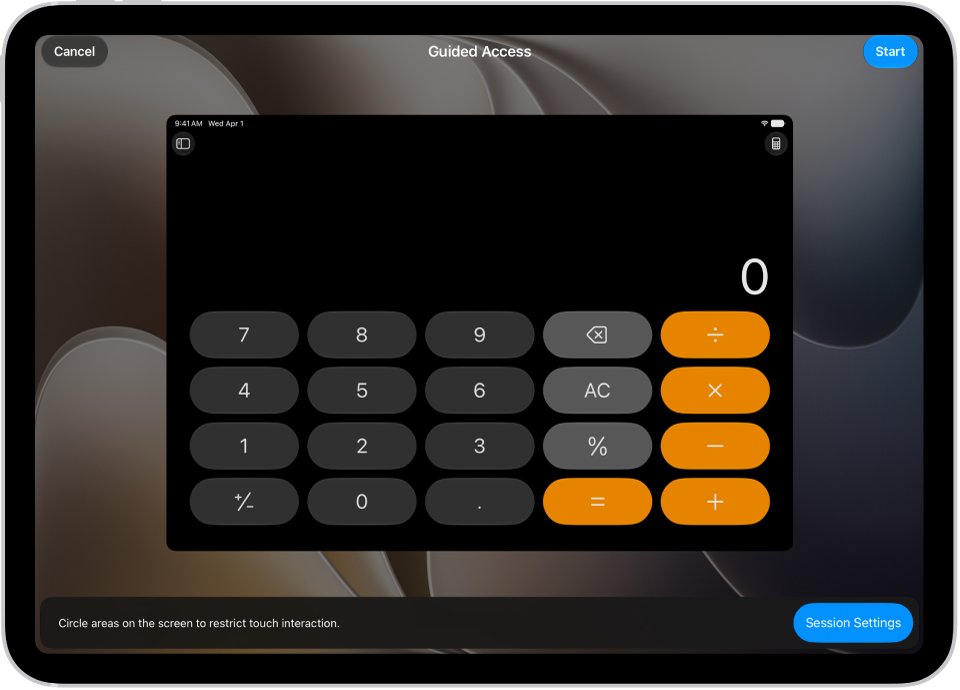
Guided Access keeps a video or app playing while the screen ignores every tap, which is what most people want when handing an iPad to a child. Set it up once, then start it from any app.
- Open Settings, tap Accessibility, tap Guided Access, and turn on Guided Access.
- Tap Passcode Settings, tap Set Guided Access Passcode, and enter a passcode you will remember.
- Open the app or video you want to keep on screen.
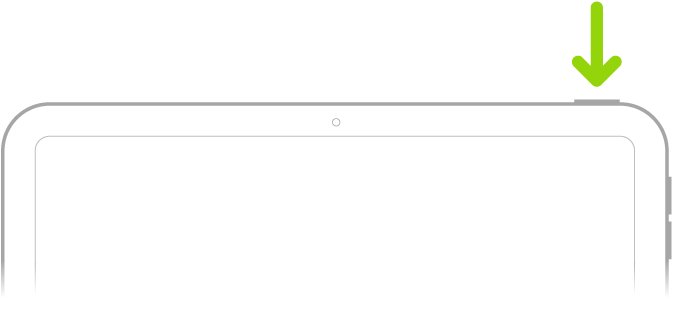
- Triple-click the top button, or the Home button on an iPad that has one. If the Accessibility Shortcuts panel appears, tap Guided Access.
- Tap Session Settings (or Options) and turn off Touch so all screen touches are ignored.
- Tap Done, then tap Start.
To end the session, triple-click the same button, enter the Guided Access passcode or use Face ID or Touch ID, and tap End. On iPadOS 18 or earlier, double-click instead of triple-click to pause a session.
Understanding the Need to Lock iPad Screen from Touch
| What you want | Best tool | Why |
|---|---|---|
| Let a child watch a video without tapping out of it | Guided Access with Touch off | Screen ignores touches while playback continues |
| Block only part of the screen, such as an ad or menu | Guided Access with circled areas | Circled areas stop responding; the rest still works |
| Stop the screen rotating | Guided Access with Motion off | The screen will not rotate however the iPad is held |
| Lock the iPad completely when you walk away | Top button and a passcode | Turns off the display and requires the passcode to unlock |
| Run one app all day on a shop or classroom iPad | Single App Mode in Apple Configurator | Works on supervised iPads and survives a restart |
| Reduce accidental taps from tremors or a resting hand | Touch Accommodations | Ignores short or repeated touches |
Preliminaries: Make Sure Your iPad Is Up to Date
Guided Access works on current iPadOS releases, but Apple changed the pause gesture in iPadOS 26, so the version you run decides whether you triple-click or double-click.
- Back up the iPad with iCloud or a computer.
- Plug it into power and connect to Wi-Fi.
- Open Settings, tap General, then tap Software Update.
- If an update is listed, tap Download and Install and follow the prompts.
Method 2: Lock Screen Using Auto-Lock Settings
Auto-Lock turns the display off and locks the iPad after a set time without touches. A short interval protects an unattended iPad; a longer one stops it locking during reading or a recipe.
- Open Settings.
- Tap Display & Brightness, then tap Auto-Lock.
- Choose a time interval.
- For Guided Access sessions, set a separate time under Accessibility > Guided Access > Display Auto-Lock.
If Auto-Lock cannot be changed, Guided Access is probably running; it disables Auto-Lock while active. Longer intervals use more battery.
Method 3: Using Physical and Security Features
- Press the top button once to lock the iPad and turn off the screen immediately.
- Set a passcode: on an iPad with Face ID open Settings > Face ID & Passcode; on others open Touch ID & Passcode or Passcode, then tap Turn Passcode On.
- Enter a six-digit passcode, or tap Passcode Options for a custom code, and confirm it.
- To stop screen taps from waking a locked iPad, open Settings > Accessibility > Touch and turn off Tap to Wake on supported models.
- Close a Smart Folio, Smart Cover or Magic Keyboard cover; opening it wakes the iPad again.
Method 4: Third-party Apps and Kiosk Mode Implementation
There is no need for a third-party app to lock touch on a personal iPad; Guided Access covers it. For kiosks, classrooms and shop counters, Apple's own route is Single App Mode, which needs a supervised iPad and Apple Configurator on a Mac, or a device management service.
- In Apple Configurator on the Mac, select the supervised iPad or a Blueprint.
- Choose Actions > Advanced > Start Single App Mode.
- Select the only app the iPad may use.
- Click Options to review the features available in Single App Mode and choose the ones you want.
- Click Apply, then click Select App.
The chosen app reopens immediately after the iPad restarts, so a visitor cannot escape it by rebooting.
Method 5: Preventing Unwanted Touch Using Accessibility Features
Touch Accommodations does not lock the screen, but it filters out the stray touches that cause most accidental taps.
- Open Settings, tap Accessibility, tap Touch, then tap Touch Accommodations.
- Tap Set up Touch Accommodations and follow the onscreen instructions.
- Turn on Hold Duration so quick brushes are ignored.
- Turn on Ignore Repeat to treat several quick touches as one.
- Turn off Shake to Undo under Touch if shaking the iPad triggers undo prompts.
To undo it, return to Touch Accommodations and tap Reset Touch Accommodations.
How to check the screen is locked from touch
- With Guided Access running and Touch off, tap and swipe across the screen; nothing should respond.
- Press the volume buttons; they stay blocked only if you turned off Volume Buttons in Session Settings.
- Turn the iPad sideways; the screen stays put if Motion is off.
- Triple-click the top or Home button and confirm the passcode prompt appears before anything else.
Fix problems when locking the iPad from touch
Triple-click does nothing
Guided Access is not turned on, or another accessibility shortcut is assigned.
- Open Settings > Accessibility > Guided Access and turn it on.
- Triple-click again and tap Guided Access if the Accessibility Shortcuts panel appears.
Forgot the Guided Access passcode
The session only ends with that passcode, or Face ID or Touch ID if enabled.
- Triple-click the button and try Face ID or Touch ID if you turned that option on.
- Next time, turn on Face ID or Touch ID under Passcode Settings as a backup.
How to keep the iPad screen from locking
Auto-Lock is set to a short interval.
- Open Settings > Display & Brightness > Auto-Lock and choose a longer interval.
- Check whether the app has its own setting to prevent Auto-Lock.
How to lock the iPad screen from rotating
The screen follows the iPad's motion sensors.
- For a locked session, turn off Motion in Guided Access Session Settings.
- Outside Guided Access, open Control Center and tap the orientation lock button.
Security Considerations
| Risk | What to do |
|---|---|
| Someone guesses a simple Guided Access passcode | Use a code different from the iPad passcode and add Face ID or Touch ID |
| Emergency calling is unavailable | Apple notes emergency services are not available during Guided Access; end the session if needed |
| Too many wrong iPad passcodes | Without Erase Data on, the iPad must be restored on a computer after ten failed attempts |
| Features reachable from the Lock Screen | Review Allow Access When Locked in the passcode settings |
| Kiosk iPad restarted by a visitor | Single App Mode reopens the app automatically on supervised devices |
Practical Tips for Locking iPad Screen from Touch
- Circle the controls you want to block instead of turning off all touch when a child should still be able to tap play.
- Set a Time Limit in Session Settings so the session ends with a message after the chosen time.
- Turn on Speak under Time Limits to hear how much time is left.
- Add Guided Access to Control Center if you prefer a button over the triple-click.
- Ask Siri to turn on Guided Access when your hands are busy.
Frequently asked questions
How do I lock my iPad screen from touch?
Turn on Guided Access in Settings > Accessibility > Guided Access. Open the app, triple-click the top or Home button, turn off Touch in Session Settings, and tap Start. Triple-click and enter the passcode to end it.
How do I lock the screen in place on iPad?
Start Guided Access and turn off both Touch and Motion in Session Settings. The screen then ignores taps and will not rotate however the iPad is held.
How do I lock my iPad screen?
Press the top button once. The display turns off and the iPad locks. With a passcode set, it must be entered, or Face ID or Touch ID used, to unlock.
How do I stop the iPad screen from locking?
Open Settings > Display & Brightness > Auto-Lock and choose a longer interval. Video, Maps and reading apps already keep the screen on while in use.
How do I lock the iPad screen from rotating?
Open Control Center and tap the orientation lock button, or turn off Motion in a Guided Access session. Some apps do not rotate at all, regardless of the setting.
How do I remove the passcode from the iPad lock screen?
Open Settings > Face ID & Passcode, Touch ID & Passcode, or Passcode, depending on the model, enter your passcode and tap Turn Passcode Off. Anyone can then unlock the iPad.
Can I lock iPad touch without Guided Access?
Not completely. Touch Accommodations can ignore brief or repeated touches, and turning off Tap to Wake stops taps waking a locked iPad, but only Guided Access ignores all touches in a running app.
Final Words
Use Guided Access with Touch turned off for children and short sessions, and Single App Mode for iPads that run one app all day. Both are built into iPadOS and Apple Configurator, need a passcode or management access to undo, and avoid trusting a third-party lock app with the device.