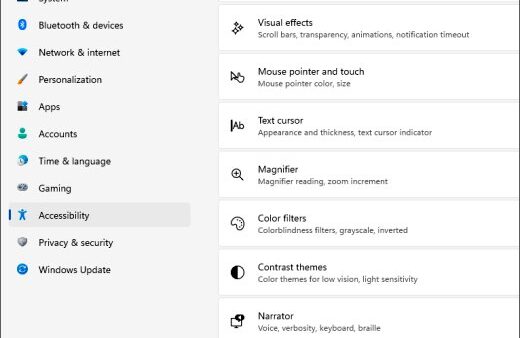
To turn off Liquid Glass on iOS 26, open Settings > Accessibility > Display & Text Size and turn on Reduce Transparency, which makes the see-through backgrounds solid.
There is no single off switch for the design, so this guide covers the four settings that tone it down on iPhone and iPad, how to confirm each one worked, and what to do when the glass look stays.
The fastest way to turn off Liquid Glass transparency on iOS 26
Reduce Transparency is the closest thing to an off switch. It gives transparent and blurred backgrounds a solid color, so menus, panels and notifications stop showing what sits behind them.
- Open the Settings app on your iPhone.
- Tap Accessibility.
- Tap Display & Text Size.
- Turn on Reduce Transparency.
- Open Control Center and check that the panels now look solid instead of glassy.
The same Reduce Transparency switch exists in the iPad's Accessibility settings, so the steps carry over to iPadOS 26.
What Liquid Glass is (and what you can actually control)
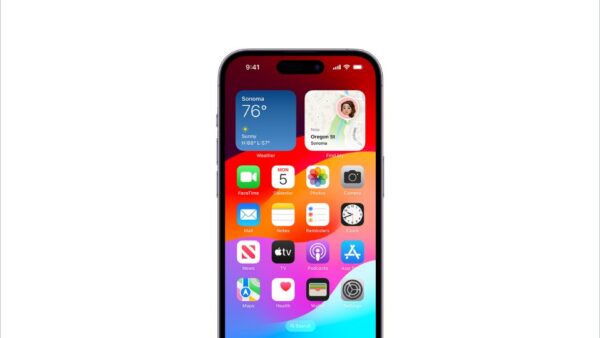
Liquid Glass is the translucent material Apple introduced in iOS 26. Apple describes it as refracting and reflecting content in real time across the Lock Screen, Home Screen, apps, navigation and controls.
Apple does not offer a switch that restores the older iOS 18 look. You can only reduce the parts of the design that bother you.
| Part of Liquid Glass | Setting that controls it | Where it is |
|---|---|---|
| Transparent and blurred backgrounds | Reduce Transparency | Settings > Accessibility > Display & Text Size |
| Clear versus more opaque glass in apps and Lock Screen notifications | Liquid Glass (Clear or Tinted) | Settings > Display & Brightness > Liquid Glass |
| Fluid morphing animations | Reduce Motion | Settings > Accessibility > Motion |
| Low contrast between elements and backgrounds | Increase Contrast | Settings > Accessibility > Display & Text Size |
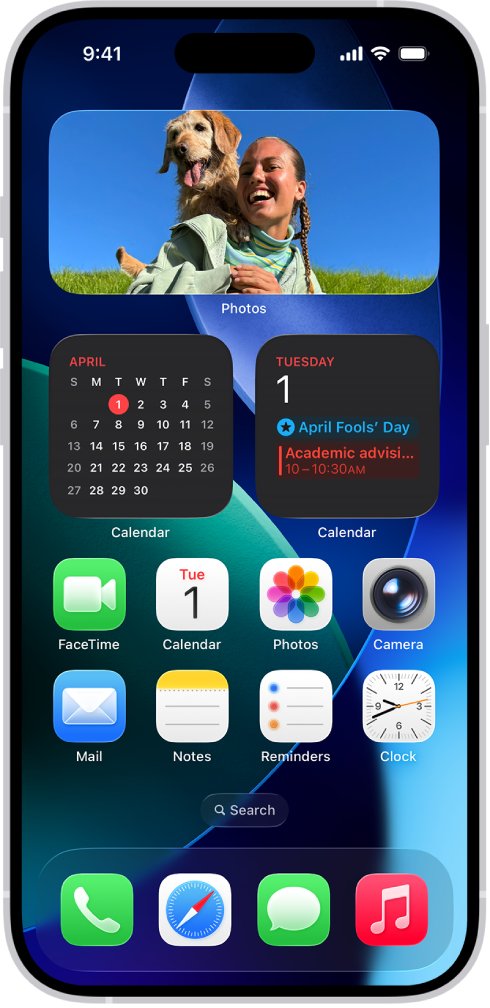
| Clear or tinted app icons | Home Screen Customize menu | Touch and hold the Home Screen, tap the edit button, then choose Customize |
Prerequisites and what to check first
Reduce Transparency, Increase Contrast and Reduce Motion work on every iOS 26 release. The dedicated Liquid Glass setting arrived later, in iOS 26.1.
| Check | Why it matters | How to check |
|---|---|---|
| iOS or iPadOS 26.1 or later | The Clear and Tinted Liquid Glass setting first shipped in iOS 26.1 | Open Settings > General > Software Update; the installed version is shown at the top |
| iOS 26.4 or later for motion | Apple says Reduce Motion more reliably reduces Liquid Glass animations from iOS 26.4 | Same Software Update screen |
| Reduce Transparency and Increase Contrast state | While either is on, the Liquid Glass look cannot be changed | Settings > Accessibility > Display & Text Size |
| A ProMotion display, if you want Limit Frame Rate | Limit Frame Rate only caps the display at 60 frames per second on ProMotion models | Settings > Accessibility > Motion shows the switch |
Method 1: Turn off transparency with Accessibility
Use this when the see-through panels make text hard to read. Pair it with Increase Contrast if edges still blend into the wallpaper.
- Open Settings.
- Tap Accessibility, then tap Display & Text Size.
- Turn on Reduce Transparency to make transparent backgrounds solid.
- Optional: turn on Increase Contrast to sharpen the contrast between app elements and backgrounds.
- Lock the iPhone, then wake it to check the Lock Screen notifications.
Method 2: Reduce motion to minimize the glassy effects
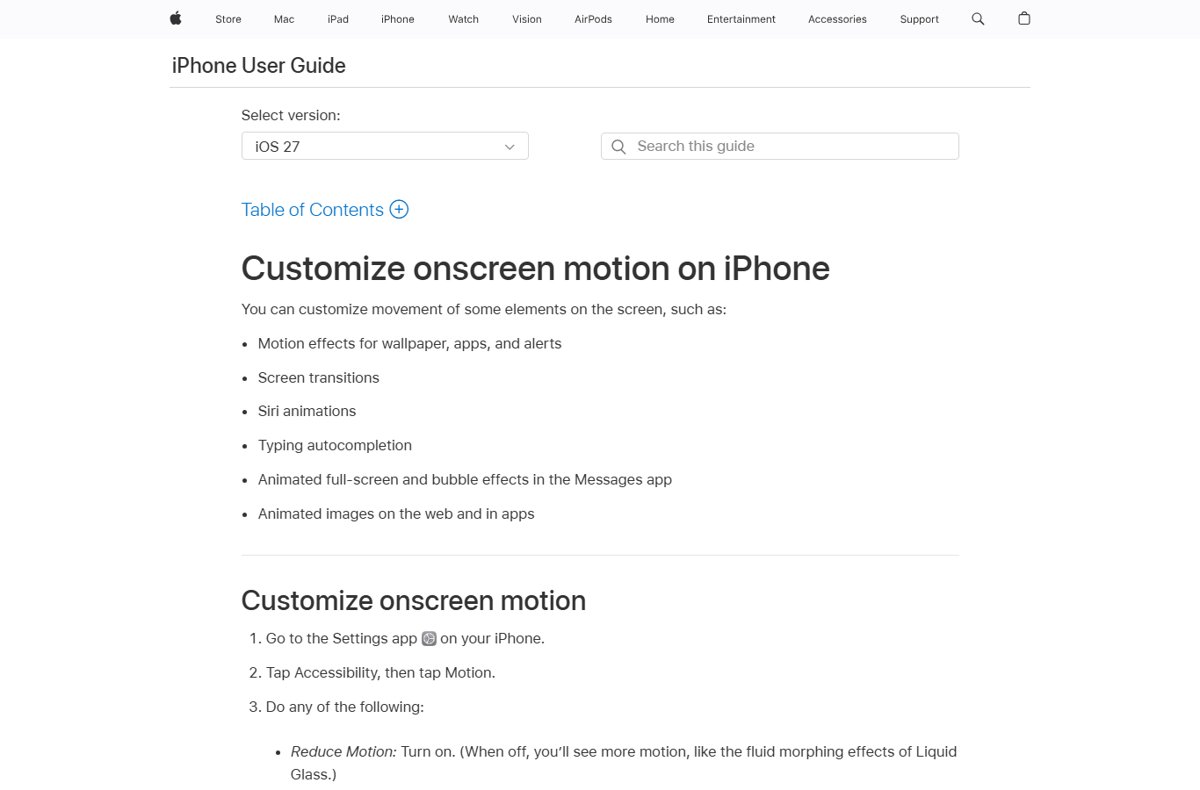
Apple's own description of Reduce Motion says that when it is off, you see more motion, like the fluid morphing effects of Liquid Glass. Turning it on calms those animations and screen transitions.
- Open Settings.
- Tap Accessibility, then tap Motion.
- Turn on Reduce Motion.
- Optional: turn off Auto-Play Animated Images and Auto-Play Video Previews to limit animated imagery in Messages, Safari and the App Store.
- Optional on ProMotion models: turn on Limit Frame Rate to cap the display at 60 frames per second.
Method 3: Adjust display settings that affect the look
These settings do not remove the glass, but they make the interface easier to see on top of it.
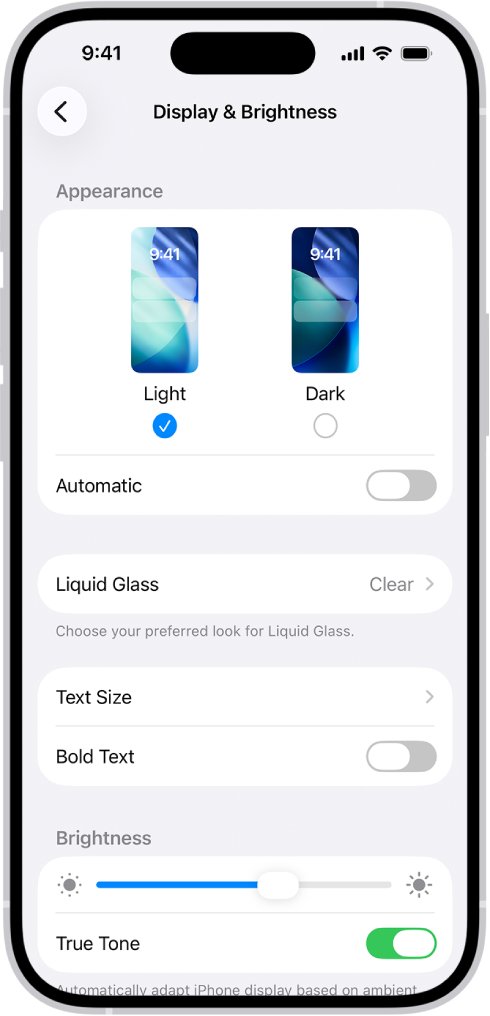
- Open Settings and tap Display & Brightness.
- Turn on Bold Text so labels stand out against translucent bars.
- Tap Text Size and drag the slider to increase the text size.
- Select Dark to use Dark Mode, which reduces glare from bright glass panels.
- Go back to Settings > Accessibility > Display & Text Size and turn on Differentiate Without Color if color alone makes items hard to tell apart.
- On the Home Screen, touch and hold the background, tap the edit button at the top of the screen, choose Customize, then choose Dark or Tinted instead of Clear for app icons.
Method 4: Use the dedicated Liquid Glass setting (Clear or Tinted)
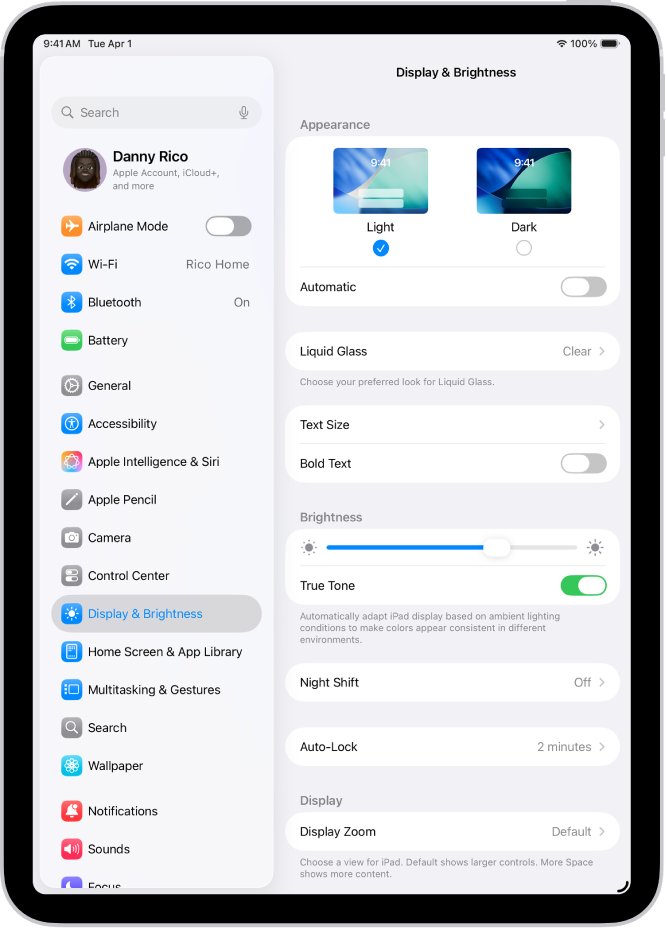
A dedicated Liquid Glass setting exists from iOS 26.1 and iPadOS 26.1. It has two choices: Clear, the default transparent look, and Tinted, which adds contrast and increases the opacity of the material in apps and Lock Screen notifications.
- Open the Settings app on your iPhone or iPad.
- Tap Display & Brightness.
- Tap Liquid Glass.
- Select Tinted for more contrast and opacity.
- Select Clear later if you want the original transparent look back.
If Liquid Glass is missing or will not change, turn off Reduce Transparency and Increase Contrast first. Apple notes that either one blocks this setting.
Comparing your options: what changes and what won’t
| Your situation | Use this | What changes | What stays |
|---|---|---|---|
| You want the glass gone as much as possible | Reduce Transparency (Method 1) | Transparent and blurred backgrounds turn solid | Rounded shapes and the new layout |
| You like the design but want it easier to read | Liquid Glass > Tinted (Method 4) | Glass in apps and Lock Screen notifications becomes more opaque | Some translucency; animations |
| The morphing animations make you uncomfortable | Reduce Motion (Method 2) | Fewer fluid morphing effects and transitions | Transparency |
| Text and buttons blend into the background | Increase Contrast plus Bold Text (Methods 1 and 3) | Stronger edges and heavier labels | The glass material itself |
| Only the Home Screen icons bother you | Home Screen Customize (Method 3) | Icons switch from Clear to Light, Dark or Tinted | Glass in menus, Control Center and apps |
How to confirm the change actually worked
- Open Control Center; with Reduce Transparency on, the panel background is solid instead of showing the Home Screen through it.
- Lock the iPhone and look at a notification on the Lock Screen; with Tinted selected, the notification is more opaque than before.
- Open Settings > Display & Brightness > Liquid Glass and confirm the option you chose has a checkmark.
- Swipe between Home Screen pages and open an app; with Reduce Motion on, the zoom and morph animations are replaced by simpler transitions.
- Open Settings > Accessibility > Display & Text Size and confirm the switches you turned on are green.
Troubleshooting when Liquid Glass won’t turn off
No Liquid Glass option in Display & Brightness
The device runs iOS 26.0, which predates the Clear and Tinted setting.
- Open Settings > General > Software Update.
- Tap Download and Install if an update is available.
- After the restart, open Settings > Display & Brightness and look for Liquid Glass.
The Liquid Glass setting will not switch between Clear and Tinted
Reduce Transparency or Increase Contrast is on, and Apple blocks the Liquid Glass choice while either is active.
- Open Settings > Accessibility > Display & Text Size.
- Turn off Reduce Transparency and Increase Contrast.
- Return to Settings > Display & Brightness > Liquid Glass and choose Tinted.
- Turn Increase Contrast back on afterwards if you still want it, knowing the Liquid Glass choice locks again.
The glass animations still morph after turning on Reduce Motion
Before iOS 26.4, Reduce Motion did not reduce every Liquid Glass animation.
- Install the latest update from Settings > General > Software Update.
- Open Settings > Accessibility > Motion and turn Reduce Motion off and back on.
- Turn on Limit Frame Rate on a ProMotion model to slow fast animations further.
Liquid Glass still appears in some apps
The Tinted look changes the material in apps and notifications, but apps draw their own toolbars and content on top of it.
- Turn on Reduce Transparency for the strongest system-wide effect.
- Close the app from the App Switcher and reopen it so it redraws with the new setting.
- Restart the device if one screen still looks unchanged; on iPad you can power the iPad down and turn it back on.
How to turn the iOS 26 Liquid Glass look back on
- Open Settings > Accessibility > Display & Text Size and turn off Reduce Transparency and Increase Contrast.
- Open Settings > Accessibility > Motion and turn off Reduce Motion.
- Open Settings > Display & Brightness > Liquid Glass and select Clear.
- On the Home Screen, touch and hold the background, tap the edit button at the top, choose Customize, then tap Clear for translucent icons.
iOS 26 Liquid Glass FAQs
How do I turn off iOS 26 Liquid Glass?
Turn on Reduce Transparency in Settings > Accessibility > Display & Text Size. It replaces transparent and blurred backgrounds with solid color. Apple does not provide a switch that removes the design entirely, so combine it with Reduce Motion if the animations also bother you.
Can you turn off the glass effect in iOS 26?
Yes, mostly. Reduce Transparency removes the see-through effect, and from iOS 26.1 the Liquid Glass setting in Display & Brightness offers a Tinted look with more opacity. The rounded shapes and new layout stay either way.
How do I turn off transparency in iOS 26?
Open Settings, tap Accessibility, tap Display & Text Size, then turn on Reduce Transparency. The change applies immediately across Control Center, menus and notifications, and you can switch it off again at any time from the same screen.
Why don't I see a Liquid Glass toggle in iOS 26?
The Liquid Glass setting first appeared in iOS 26.1, so iOS 26.0 does not have it. Update from Settings > General > Software Update, then look under Settings > Display & Brightness. If it is greyed out, turn off Reduce Transparency and Increase Contrast.
Can I disable Liquid Glass only on the Home Screen?
Partly. Touch and hold the Home Screen, tap the edit button, choose Customize, and pick Light, Dark or Tinted instead of Clear for icons and widgets. That changes the icons only; menus, Control Center and apps keep their own glass settings.
Which iOS 26 features should you turn off for Liquid Glass?
Start with Reduce Transparency and Reduce Motion in Accessibility settings. If you prefer to keep some glass, choose Tinted in Settings > Display & Brightness > Liquid Glass instead, and add Bold Text or Increase Contrast if labels still blend into backgrounds.
How do I stop the iOS 26 update from installing?
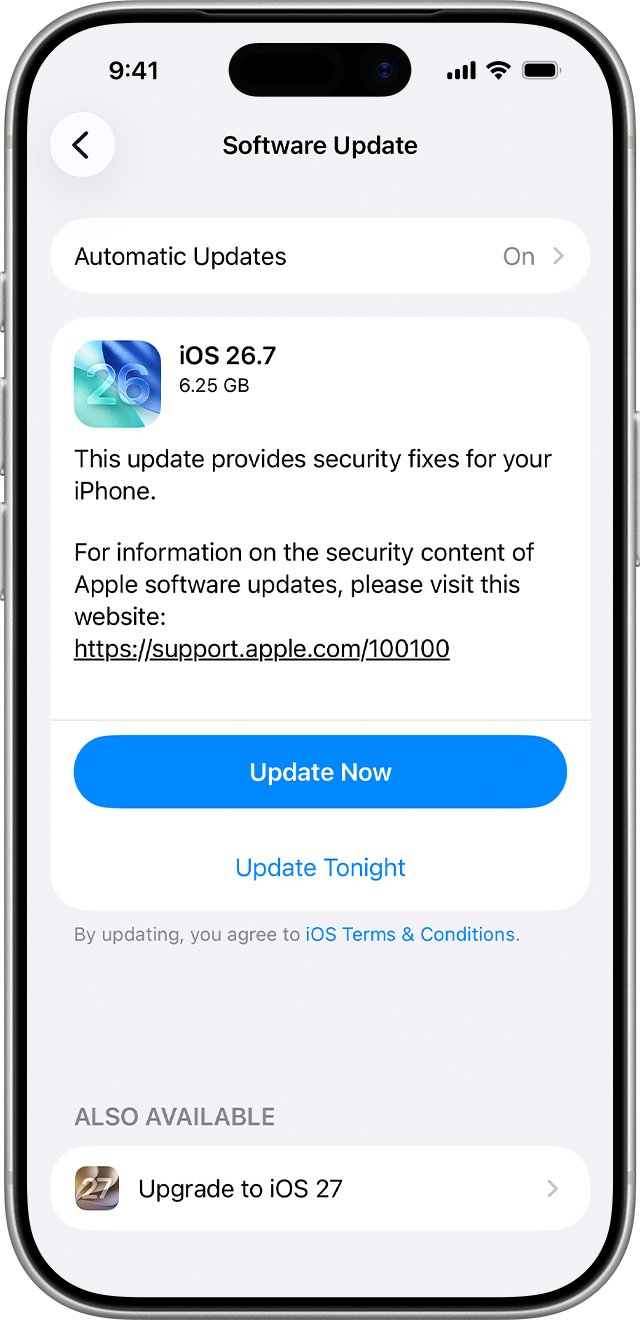
Open Settings > General > Software Update > Automatic Updates and turn off Automatically Install. Your iPhone then waits for you to tap Download and Install. Apple recommends keeping updates on because they carry security fixes.
How do I remove or uninstall iOS 26 from my iPhone?
Settings has no option to uninstall iOS 26, and Apple's support pages only describe updating to the latest version. To get closer to the older look, use Reduce Transparency, Reduce Motion and the Tinted Liquid Glass setting instead of trying to remove the update.
Bottom line: should you turn off Liquid Glass on iOS 26?
Turn on Reduce Transparency if you want the glass gone, or choose Tinted under Display & Brightness > Liquid Glass if you only want better readability. Reduce Transparency is the strongest control Apple offers and works on every iOS 26 release, while Tinted keeps the design but raises opacity without locking other settings; add Reduce Motion if the animations are the problem.