If you forgot the restrictions passcode on your iPhone or iPad, reset it in Settings > Screen Time with the Apple Account you used to set it up.
Restrictions now live inside Screen Time, so this guide covers resetting that passcode on your own device or a child's device, what to do when no recovery account was added, and the separate case of a forgotten unlock passcode.
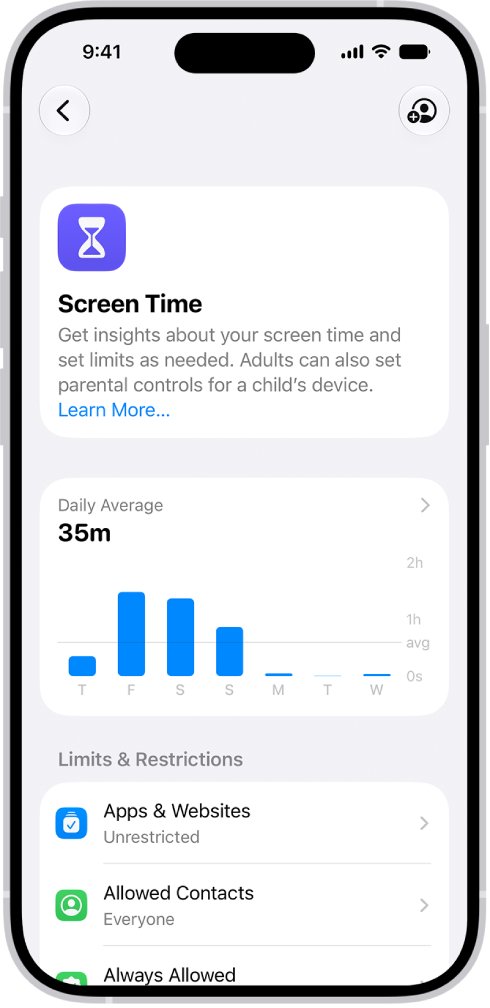
Reset a forgotten Screen Time passcode on iPhone or iPad
This works when Screen Time Passcode Recovery was set up with an Apple Account, which iPhone and iPad suggest when you first create the passcode.
- Open the Settings app, then tap Screen Time.
- Tap Manage Screen Time.
- Tap Change Screen Time Passcode, then tap Change Screen Time Passcode again.
- When asked, enter the Apple Account email address and password that you used to set up the Screen Time passcode.
- Enter a new Screen Time passcode, then enter it again to confirm.
If Share Across Devices is turned on, the new passcode also updates on your other iPhone, iPad and Mac signed in to the same Apple Account.
Which restrictions passcode fix fits your iPhone or iPad?
| Your situation | What to do | Data lost? |
|---|---|---|
| You set up Screen Time Passcode Recovery with your Apple Account | Reset it in Settings > Screen Time with that Apple Account | No |
| The passcode guards a child's device in Family Sharing | Reset it from the organizer's or parent's own device | No |
| You do not know which Apple Account set the passcode | Try every Apple Account used on the device, including family members' accounts | No |
| No recovery account was ever added | Back up, then erase the device and set it up again | Yes, unless you restore a backup |
| You forgot the passcode that unlocks the screen | Use Passcode Reset, Forgot Passcode? or a computer restore | Yes, except with Passcode Reset |
Restrictions passcode vs Screen Time passcode vs iPhone passcode
Many people mix up these codes, and the fix depends on which one you forgot.
| Passcode | What it protects | Where you reset it |
|---|---|---|
| Restrictions passcode (older name) | The parental controls now found under Content & Privacy Restrictions in Screen Time | Same as the Screen Time passcode |
| Screen Time passcode | Changes to Screen Time settings, limits and Content & Privacy Restrictions | Settings > Screen Time > Manage Screen Time |
| Device (unlock) passcode | Unlocking the iPhone or iPad from the Lock Screen | Lock Screen Forgot Passcode? option or a computer restore |
Apple states that a Screen Time passcode is not the same as the passcode you use to unlock your device.
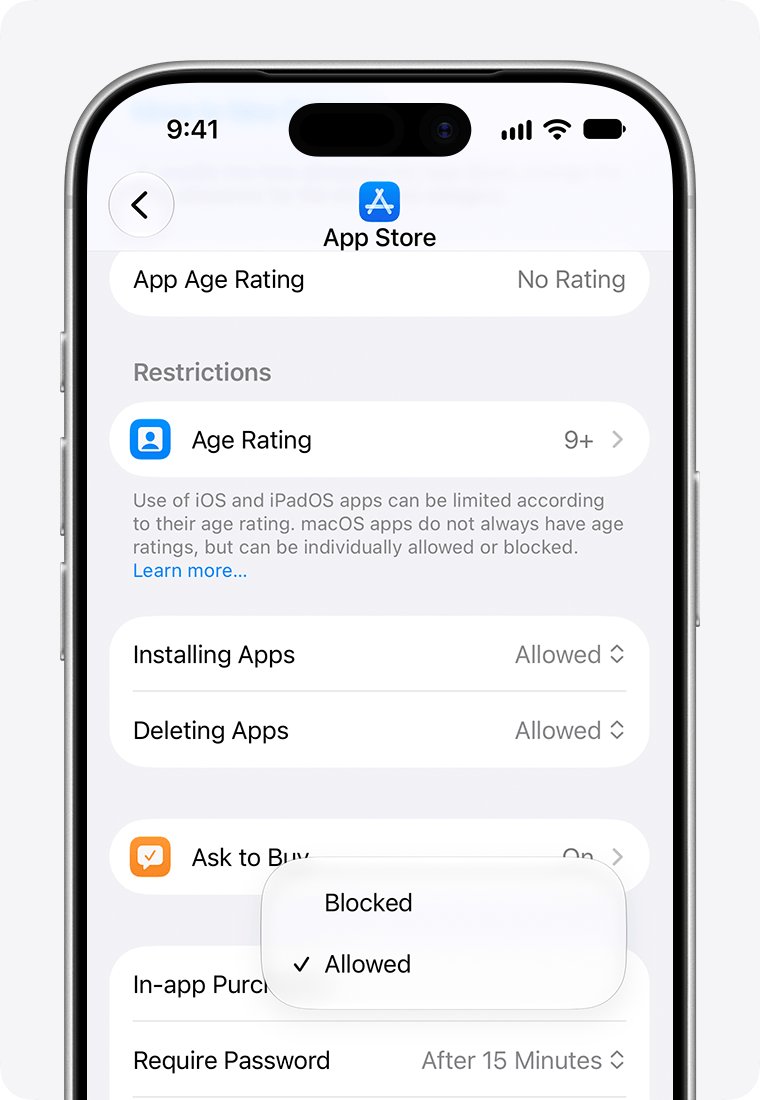
Reset the Screen Time passcode on a child's iPhone or iPad
When Apple's Family Sharing manages a child's Apple Account, the reset happens on the parent's device, not the child's.
- On the family organizer's or parent/guardian's device, open the Settings app and tap Screen Time.
- Scroll down and tap the child's name under Family.
- Tap Manage Screen Time.
- Tap Change Screen Time Passcode, then tap Change Screen Time Passcode again.
- Enter a new Screen Time passcode, then enter it again to confirm.
Update every device in the family group to the latest software first, so the new passcode and Screen Time settings sync correctly.
Erase iPhone to remove a restrictions passcode with no recovery
Without a recovery Apple Account, Apple offers no way to reveal or bypass a Screen Time passcode. Erasing the device returns it to factory settings, which clears Screen Time with everything else.
- Back up the iPhone or iPad to iCloud or a computer so you keep photos, messages and app data.
- Open Settings and tap General.
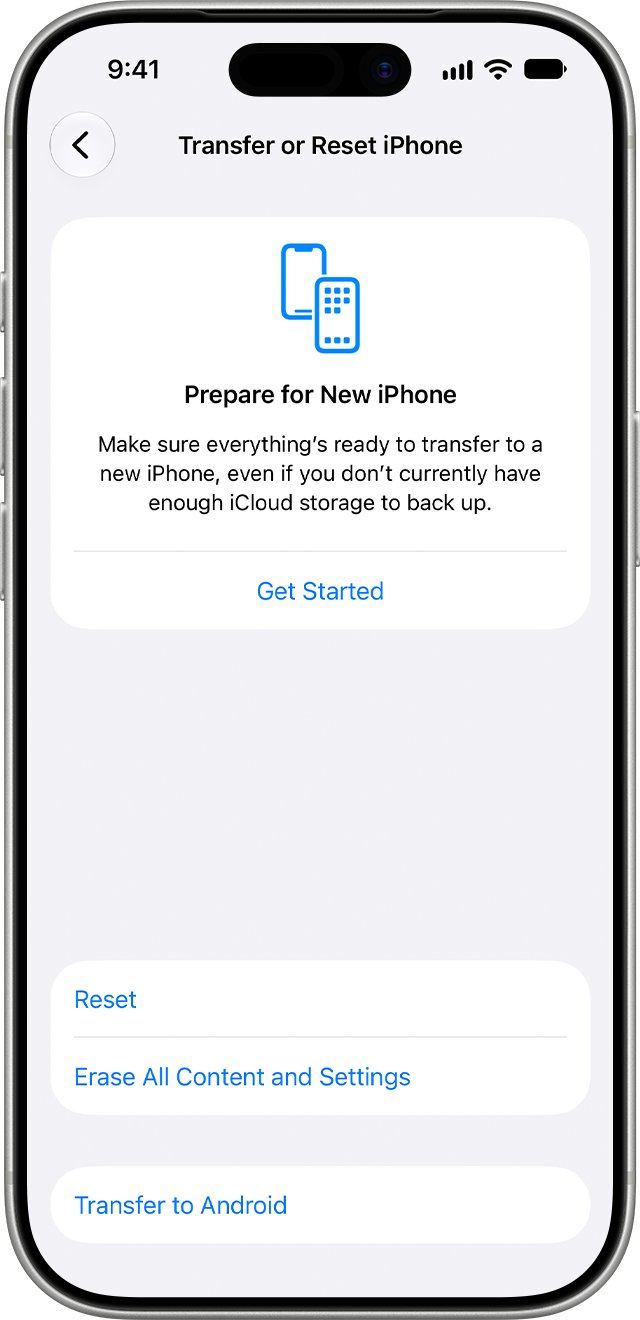
- Tap Transfer or Reset iPhone (or Transfer or Reset iPad).
- Tap Erase All Content and Settings, then tap Continue.
- Choose whether to keep or delete your eSIM, then enter your device passcode.
- Enter your Apple Account password and wait for the device to reset to the Hello screen.
- Set up the device again and create a new Screen Time passcode with recovery turned on.
A backup carries your settings as well as your content, so restoring one can bring Screen Time settings back. Setting up as a new device avoids that, at the cost of the data in the backup.
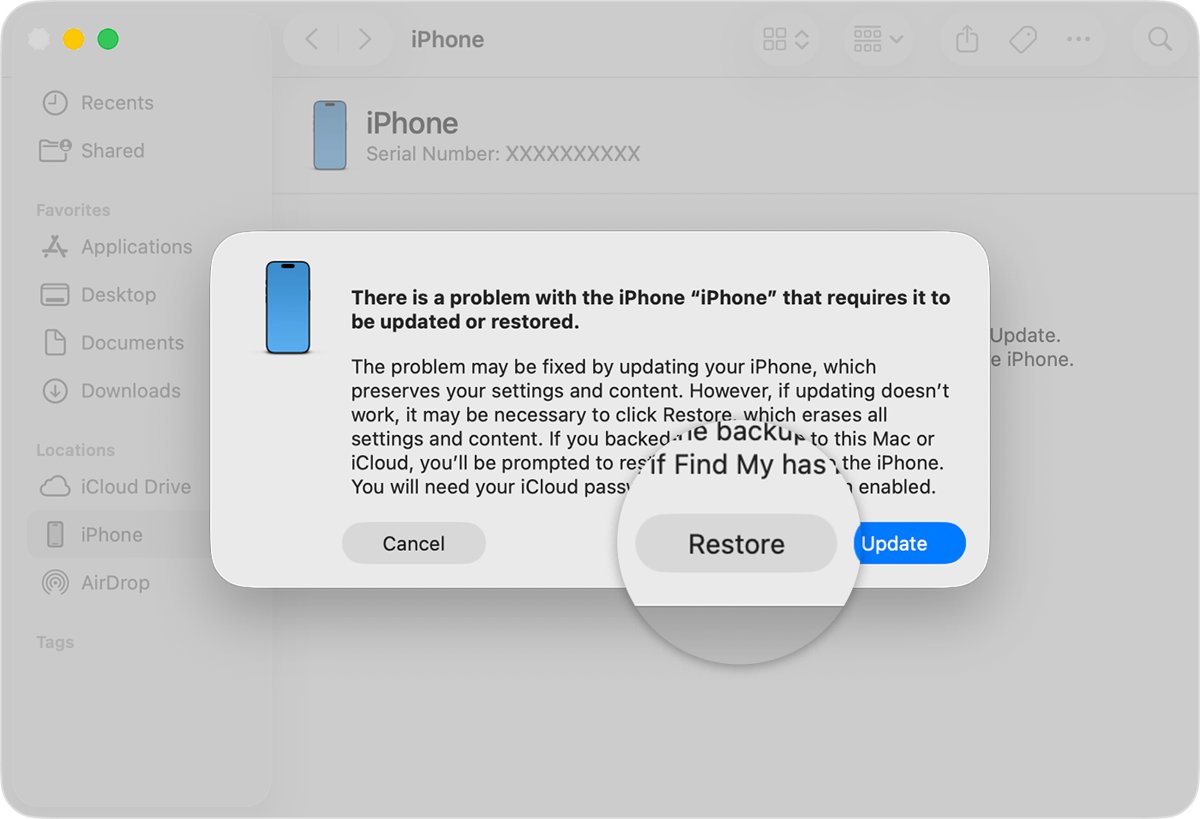
Reset an iPhone with a computer in recovery mode
Use this when you cannot erase the device from Settings, or when you also forgot the unlock passcode. It needs a Mac or Windows PC, a charging cable, an internet connection and up to 60 minutes.
- On an iPhone with Face ID, press and hold the side button and the Volume down button until the power off slider appears, then drag it to turn the phone off.
- Connect the cable to the computer, then connect it to the iPhone and quickly hold the side button.
- Keep holding the side button through the Apple logo until an image of a computer and a cable appears.
- On a Mac, open a Finder window and select the iPhone under Locations. On Windows, open the Apple Devices app and select the iPhone in the sidebar.
- Select Restore when offered Restore or Update, then follow the onscreen instructions.
- If the download takes more than 15 minutes and the phone leaves recovery mode, let the download finish, turn the iPhone off and start recovery mode again.
- When the Hello screen appears, disconnect the phone and set it up.
iPhone models with a Home button use a different button for recovery mode, and Apple's restore article lets you pick your iPhone type for those steps.
Check the new Screen Time passcode works
- Open Settings and tap Screen Time.
- Tap Manage Screen Time and try to change a restricted setting.
- Enter the new passcode when prompted and confirm the setting unlocks.
- On a child's device, ask the child to request access to a blocked app and approve it from your device with the new passcode.
Set up Screen Time Passcode Recovery for next time
Apple recommends that you never skip Screen Time Passcode Recovery. With it, a forgotten Screen Time passcode takes a minute to reset instead of a full erase.
- Open Settings, tap Screen Time, then tap Manage Screen Time.
- Tap Change Screen Time Passcode and enter your current passcode.
- When the device asks for an Apple Account for Screen Time Passcode Recovery, enter the email address and password instead of skipping the step.
- Write down which Apple Account you used, especially if the device has more than one account signed in.
If you have more than one Apple Account, recovery only works with the same account you entered when you set it up.
Fix Screen Time and iPhone passcode reset problems
Apple Account not accepted when resetting the Screen Time passcode
The passcode was set up with a different Apple Account than the one signed in to the device.
- Try the Apple Account email address and password used when the Screen Time passcode was created.
- In a Family Sharing group, try a family member's Apple Account or the child's own Apple Account.
- If no account works, back up and erase the device.
Forgot Passcode option not showing on iPhone
The Lock Screen option needs a network connection, a signed-in Apple Account and Find My turned on.
- Connect the iPhone to Wi-Fi or make sure cellular data is active.
- Keep entering the passcode until the iPhone Unavailable screen appears; the option shows only after several wrong attempts.
- On iOS 15.2 and iOS 16, look for Erase iPhone instead of Forgot Passcode?.
- If neither appears, reset the iPhone with a computer in recovery mode.
iPhone passcode stopped working after a recent change
You changed the unlock passcode and the new one is not sticking in memory.
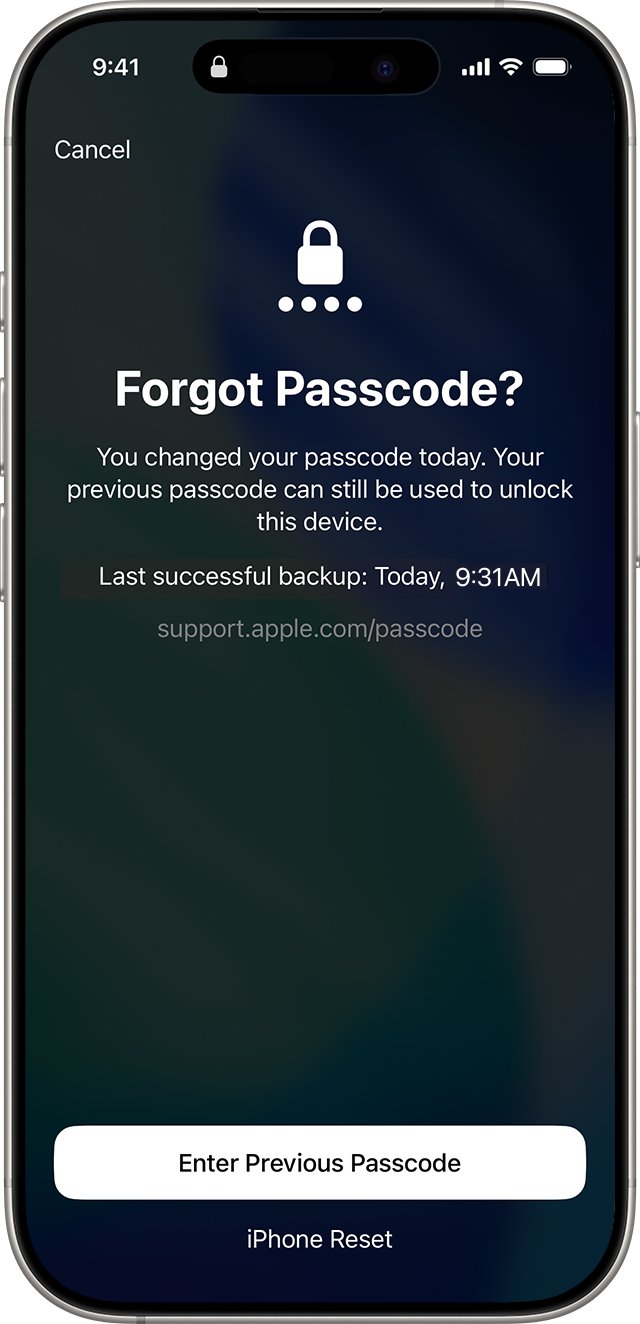
- On iOS 17 or later, enter wrong passcodes until iPhone Unavailable appears, then tap Forgot Passcode?.
- Tap Enter Previous Passcode and type the old passcode; this works for 72 hours after the change.
- Set a new passcode when prompted.
Reset iPhone but it still requires a passcode or password
Activation Lock asks for the Apple Account password after an erase when Find My was on.
- Enter the Apple Account email address and password linked to the device.
- If you forgot that password, reset the Apple Account password from Apple's Apple Account recovery pages on another device, such as a Mac.
- If the device belongs to someone else, ask them to remove it from their account before setup.
Forgot restrictions passcode on iPhone FAQ
How do I reset the restrictions passcode on iPhone?
Open Settings, tap Screen Time, tap Manage Screen Time, then tap Change Screen Time Passcode twice. Enter the Apple Account you used for Screen Time Passcode Recovery, then set a new passcode. Restrictions are part of Screen Time, so this one passcode covers them.
Can I reset the restrictions passcode on iPad without erasing it?
Yes, if you added an Apple Account for Screen Time Passcode Recovery when you created the passcode. Without recovery, Apple offers no reset that keeps the data on the device, so you need a backup and a factory reset of the iPad.
What if I forgot my iPhone passcode?
Try Passcode Reset first if you changed it in the last 72 hours on iOS 17 or later. Otherwise tap Forgot Passcode? on the iPhone Unavailable screen to erase the phone, or restore it with a Mac or Windows PC in recovery mode.
What happens when you forget your iPhone passcode?
After several wrong attempts the iPhone shows an Unavailable or Security Lockout screen. To get back in, you must reset the device, which erases its data. A backup lets you restore your content and settings afterwards.
How do I access my iPhone if I forgot the passcode?
Reset the iPhone from the Lock Screen with Forgot Passcode? and your Apple Account password, or put it in recovery mode and restore it with Finder on a Mac or the Apple Devices app on Windows. Both routes erase the phone.
Why did my iPhone passcode stop working?
Usually the passcode was changed recently and the new one was mistyped or forgotten. On iOS 17 and later you can use your previous passcode for 72 hours through Forgot Passcode? and Enter Previous Passcode, then set a fresh one.
Is the Screen Time passcode the same as my iPhone passcode?
No. The Screen Time passcode only protects Screen Time settings, limits and Content & Privacy Restrictions. The device passcode unlocks the iPhone or iPad. They can be different codes, and forgetting one does not lock you out of the other.
Who can reset the Screen Time passcode on my child's iPhone?
The Family Sharing organizer or a parent/guardian resets it on their own device: Settings, Screen Time, the child's name, Manage Screen Time, then Change Screen Time Passcode. The reset cannot be done from the child's device.
Does erasing my iPhone remove the Screen Time passcode?
Erase All Content and Settings returns the iPhone to factory settings, which removes Screen Time with the rest of your settings. Restoring a backup brings settings back, so set up as new if the old Screen Time setup must not return.
Bottom line on a forgotten restrictions passcode
Try the Apple Account reset in Settings > Screen Time first, using every Apple Account that could have set the passcode, and erase the device only when none of them work. The Apple Account reset keeps all your data, while every route without it ends in an erase, so it is worth ruling out first.