To factory reset an iPad, open Settings > General > Transfer or Reset iPad, tap Erase All Content and Settings, enter your passcode and Apple Account password, then tap Erase iPad.
This guide also covers a locked or disabled iPad, recovery mode with a Mac or Windows PC for Home button and non-Home button models, remote erase with Find My, and Activation Lock before a sale.
Method 1: Factory Reset an iPad from Settings
Use this route when you can unlock the iPad. It works on every iPad model, whether it has a Home button or not, because no buttons are involved.
Back up first if you want to keep anything. The erase removes all content on the iPad, but it does not delete what is stored in iCloud.
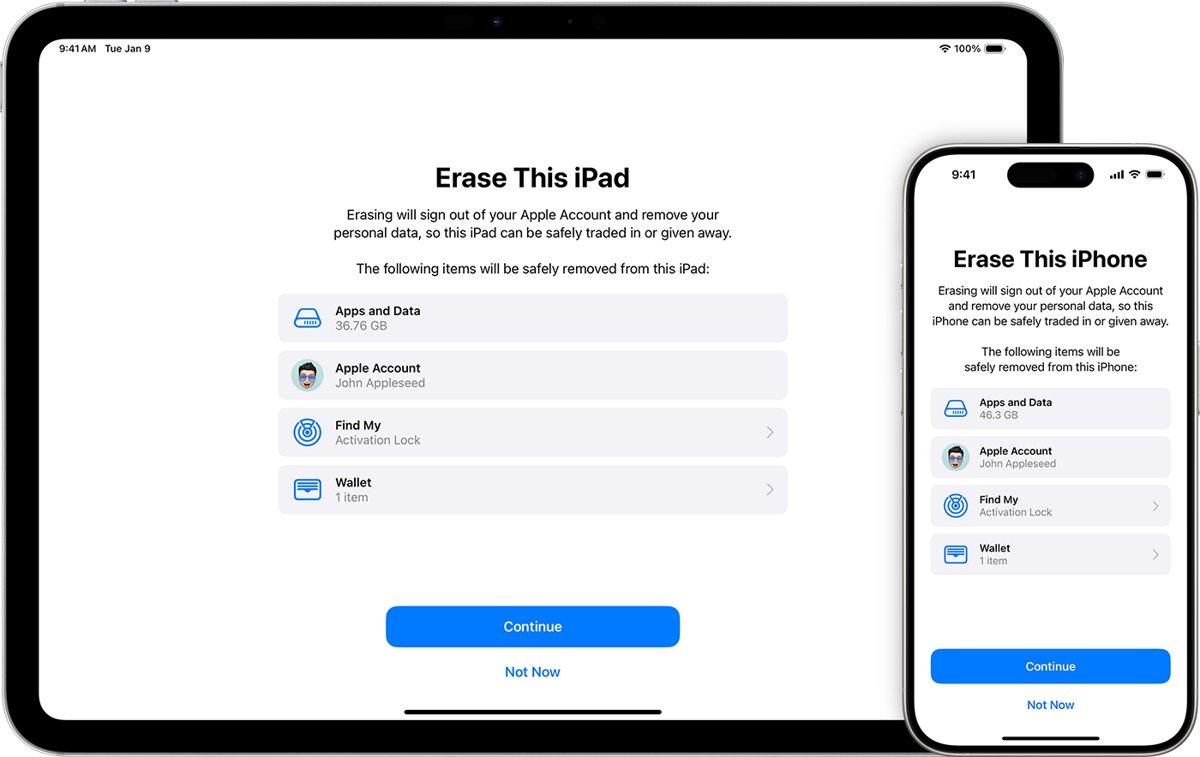
- Open the Settings app and tap General.
- Tap Transfer or Reset iPad.
- Tap Erase All Content and Settings. Do not tap Reset; that menu only resets settings.
- Enter your iPad passcode, or your Restrictions passcode if asked.
- If Find My is on, enter your Apple Account password when prompted. This signs the iPad out of your account and turns off Activation Lock.
- On a cellular iPad with an eSIM, choose whether to erase the eSIM too. Erase it if the iPad is leaving your hands.
- Tap Erase iPad to confirm, then wait. The iPad restarts on the Hello screen when it is finished.
Reset vs. Erase: Transfer or Reset iPad has two options. Reset opens a list of settings resets that keep your data. Erase All Content and Settings is the factory reset. Picking the wrong one either leaves your data on the iPad or wipes it when you only wanted a settings fix.
Which Reset Method Should You Use?
| Your situation | Use this | Why |
|---|---|---|
| You know the passcode and have the iPad | Method 1: Settings > Erase All Content and Settings | No computer, no cable, and it removes Activation Lock in the same pass |
| Forgot the passcode, iPadOS 15.2 or later, Find My on, iPad online | Method 2: Forgot Passcode? on the Lock Screen | Resets the iPad on the device itself with your Apple Account password |
| Forgot the passcode and the on-device option is missing | Recovery mode with a Mac or Windows PC | Works on any iPad, even when it shows iPad Unavailable or will not start |
| You changed the passcode in the last 72 hours and forgot the new one | Passcode Reset with your old passcode | Unlocks without erasing anything (iPadOS 17 and later) |
| The iPad is lost, stolen, or already given away | Method 3: Find My app or icloud.com/find | Erases it over the internet the next time it comes online |
| The iPad is slow or glitchy but you want to keep your data | Restart, force restart, or Reset All Settings | Fixes many problems without deleting apps, photos or files |
What a Factory Reset Does to an iPad
A factory reset is Apple's Erase All Content and Settings, or a Restore from a computer. A computer restore also installs the latest iPadOS.
| Item | After a factory reset | Notes |
|---|---|---|
| Apps, photos, files, messages on the iPad | Deleted | Restore them from a backup during setup |
| Passcode, Face ID and Touch ID data | Deleted | You set new ones on the Hello screen |
| Apple Pay cards | Removed from the iPad | Add them again after setup |
| iCloud, iMessage, FaceTime, Game Center | Turned off on the iPad | Your iCloud data stays in iCloud |
| Find My and Activation Lock | Turned off when you erase from Settings and sign out | A remote erase from Find My leaves Activation Lock on |
| eSIM (cellular models) | Kept or deleted, your choice | A computer restore does not delete the eSIM |
| iPadOS version | Unchanged from Settings; latest version from a computer restore | A computer restore downloads fresh software |
Before You Reset: Important Things to Check
| Check | Why it matters | What to do |
|---|---|---|
| Back up your iPad | The erase cannot be undone | Make an iCloud backup or a computer backup (steps below) |
| Know your Apple Account password | Needed to turn off Find My and to reactivate the iPad | Reset it at Apple's password reset page before you start if you are unsure |
| Charge the iPad and connect to Wi-Fi | Backups, on-device resets and Find My erase need a network | Plug in to power and join Wi-Fi |
| Unpair accessories and transfer cellular service if needed | An eSIM can be deleted or kept during the erase | Contact your carrier if the new owner needs the cellular plan |
| Finish any repair | A part marked Finish Repair blocks Apple Trade In | Check Parts and Service History in Settings |
| AppleCare plan | It stays tied to you until you act | Cancel it or transfer it to the new owner |
Back Up Your iPad
An iCloud backup is the fastest route when you have enough iCloud storage. For a backup on a computer, use the Finder on a Mac, or the Apple Devices app on Windows.
- Connect the iPad to Wi-Fi.
- Open Settings, tap your name, then tap iCloud.
- Tap iCloud Backup.
- Tap Back Up Now and stay on Wi-Fi until it finishes.
- Check the date and time under Back Up Now. It should show today.
- For a computer backup instead, connect the iPad, select it in the Finder or Apple Devices app, click General, then click Back Up Now. On Windows without Apple Devices or on macOS Mojave and earlier, use iTunes and click Summary.
Select Encrypt local backup in a computer backup if you want Health and Activity data saved. Write the password down; an encrypted backup cannot be restored without it.
Method 2: Factory Reset an iPad Without the Passcode
An iPad on iPadOS 15.2 or later can reset itself from the Lock Screen. You need Find My already turned on, a Wi-Fi or cellular connection, and your Apple Account password.
If you changed your passcode in the last 72 hours, try Passcode Reset first: tap Forgot Passcode?, then Enter Previous Passcode. That unlocks the iPad with the old passcode and erases nothing.
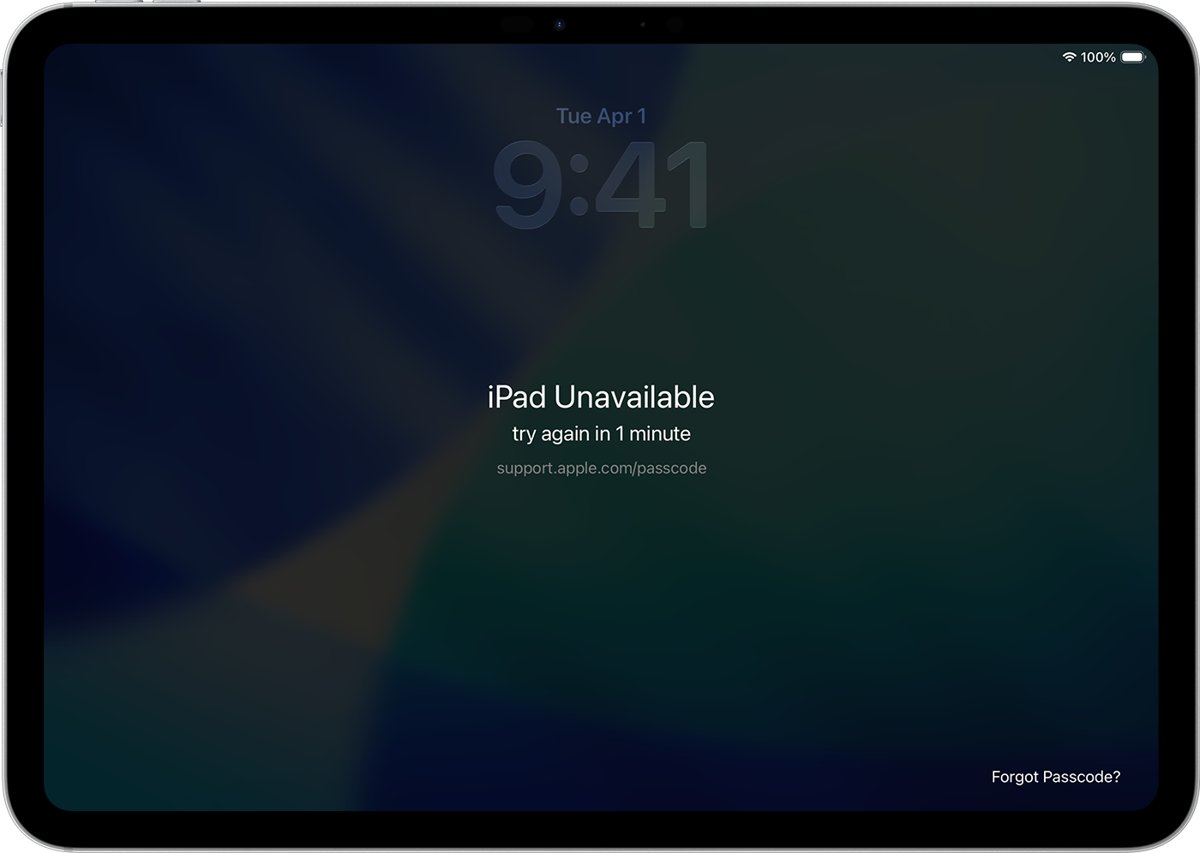
- On the Lock Screen, enter a passcode until the iPad Unavailable screen appears.
- Tap Forgot Passcode? in the bottom corner of the screen. On iPadOS 15.2 or iPadOS 16, tap Erase iPad instead.
- On the Security Lockout screen, tap Start iPad Reset.
- Enter your Apple Account password to sign out of your Apple Account on the iPad.
- Tap Erase iPad to delete all data and settings.
- When the iPad restarts, follow the setup steps, restore a backup if you have one, and set a new passcode.
No Forgot Passcode? button means the iPad is offline, Find My is off, or it runs older software. Use recovery mode with a computer instead.
Put an iPad into Recovery Mode: Buttons for Every Model
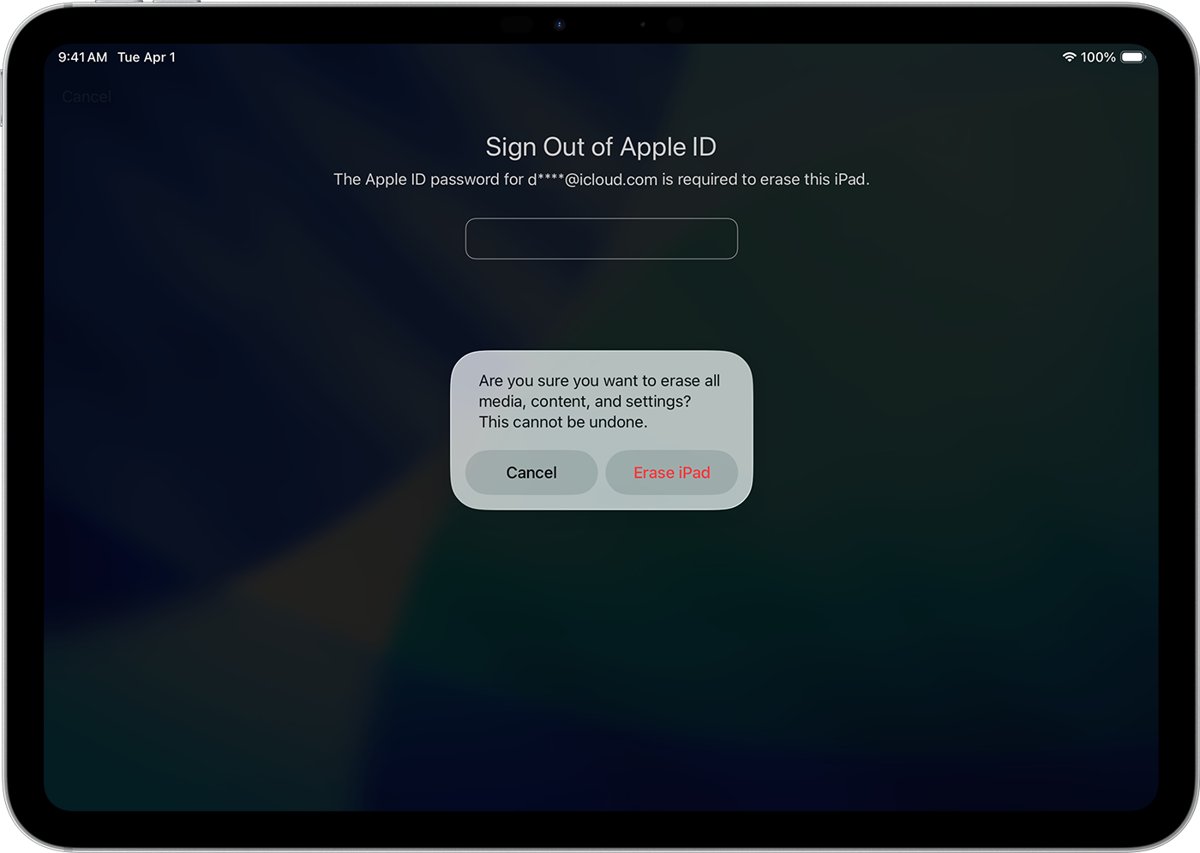
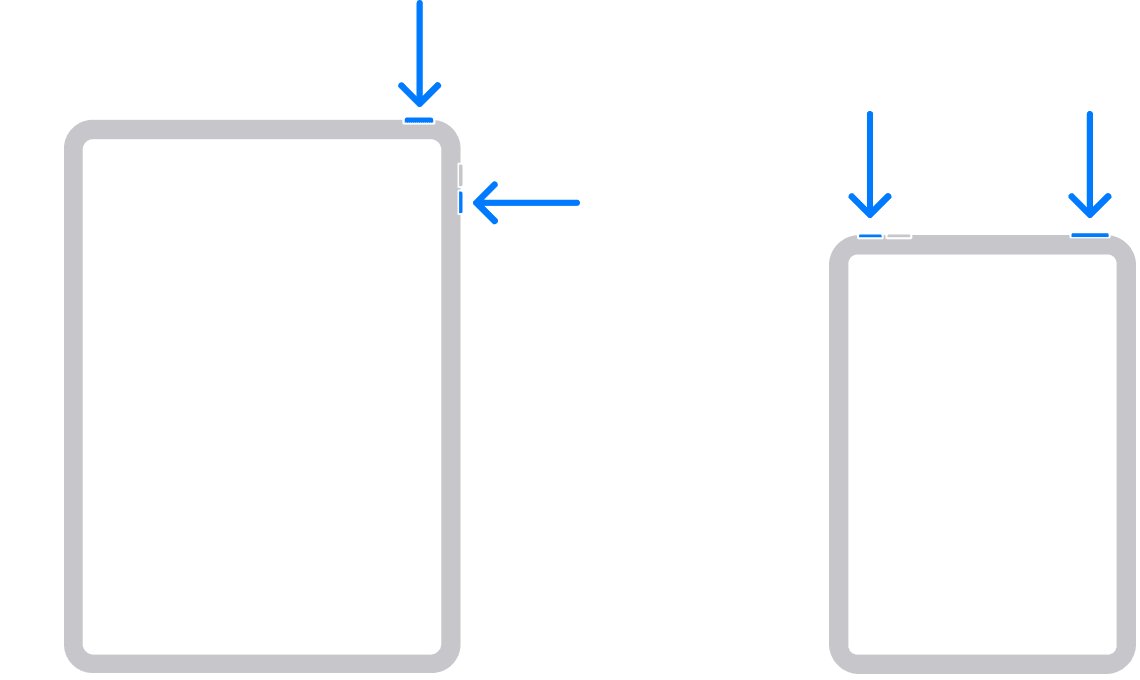
Recovery mode is the button-based factory reset. It works when the iPad is locked, disabled, or stuck on the Apple logo. Match your iPad to a row, then use the buttons shown.
| Your iPad | Home button? | Recovery mode buttons (iPad connected to the computer) |
|---|---|---|
| iPad Pro 11-inch (all), iPad Pro 12.9-inch (3rd gen and later), iPad Pro 13-inch | No | Press and quickly release the volume button closest to the top button. Press and quickly release the volume button farthest from the top button. Press and hold the top button. |
| iPad Air (4th gen and later), iPad Air 11-inch and 13-inch | No | Same as above: volume up-then-down quick presses, then hold the top button |
| iPad mini (6th gen) and iPad mini (A17 Pro) | No | Same as above |
| iPad (10th gen) and iPad (A16) | No | Same as above |
| iPad (9th gen) and earlier, iPad mini (5th gen) and earlier, iPad Air (3rd gen) and earlier, iPad Pro 12.9-inch (1st and 2nd gen), iPad Pro 10.5-inch and 9.7-inch | Yes | Press and hold the Home button and the top (or side) button at the same time |
Keep holding while the Apple logo appears. Let go only when you see an image of a computer and a cable. If the passcode screen appears instead, turn the iPad off and start again.
Restore the iPad on Your Computer
This is the reset for a locked or disabled iPad with no on-device option. You need a Mac or Windows PC, a cable that can charge the iPad, an internet connection, and up to 60 minutes. On Windows, install Apple Devices from the Microsoft Store first.
- Unplug the iPad from the computer.
- Turn the iPad off. Without a Home button, hold a volume button and the top button until the slider appears. With a Home button, hold the top button. Drag the slider and wait a minute.
- Connect the iPad to the computer with the USB cable.
- Press the recovery mode buttons for your model from the table above until the computer-and-cable screen appears.
- Open the Finder on a Mac, or the Apple Devices app on Windows, and select the iPad.
- Choose Restore when you see the option to Restore or Update.
- Wait while the computer downloads iPadOS and erases the iPad. If the download takes more than 15 minutes and the iPad leaves recovery mode, let the download finish, then repeat steps 2 to 4.
- When the Hello screen appears, disconnect the iPad and set it up.
Know the passcode but want a clean install? Skip recovery mode. Turn off Find My, connect the iPad, tap Trust if asked, select it, click Restore iPad, then click Restore again. On a Windows PC, the button sits under General in Apple Devices. Macs on macOS Mojave or earlier use iTunes instead of the Finder.
Method 3: Erase an iPad Remotely with Find My
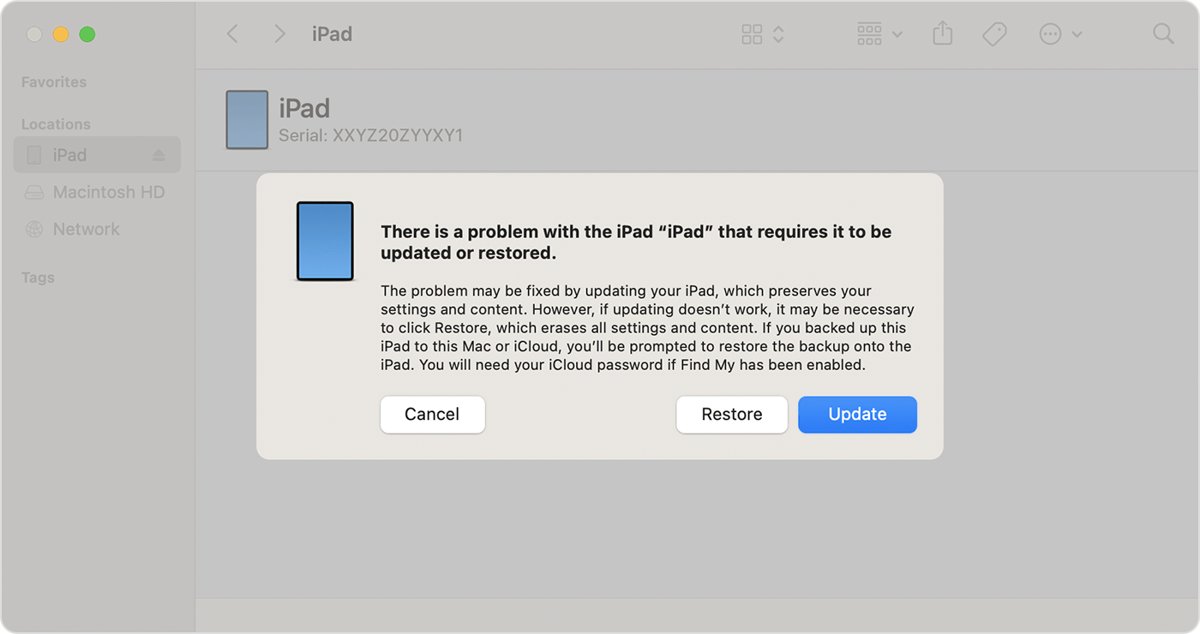
Use this when the iPad is lost, stolen, or already out of your hands. Find My needs to be on before the iPad goes missing. Activation Lock stays on after a remote erase, so nobody can reactivate it without your password.
- Go to icloud.com/find in any browser and sign in with your Apple Account.
- Select the iPad in the device list. Select All Devices first if another device is open.
- Select Erase This Device.
- Follow the onscreen steps. If the iPad is lost, add a phone number or message for the Lock Screen; skip this if you are selling it.
- Wait for the confirmation email. An offline iPad is erased the next time it connects to the internet.
In the Find My app on another Apple device, tap Devices, tap the iPad's name, then tap the More button. Tap Erase, then Continue, then Erase. Enter your Apple Account password and tap Erase again. Erase Pending means the iPad is offline.
How to Remove Activation Lock Before Selling or Giving Away an iPad
Best option: sign out before erasing. Erasing from Settings with your Apple Account password turns off Find My and Activation Lock in one pass, so the buyer sees the Hello screen.
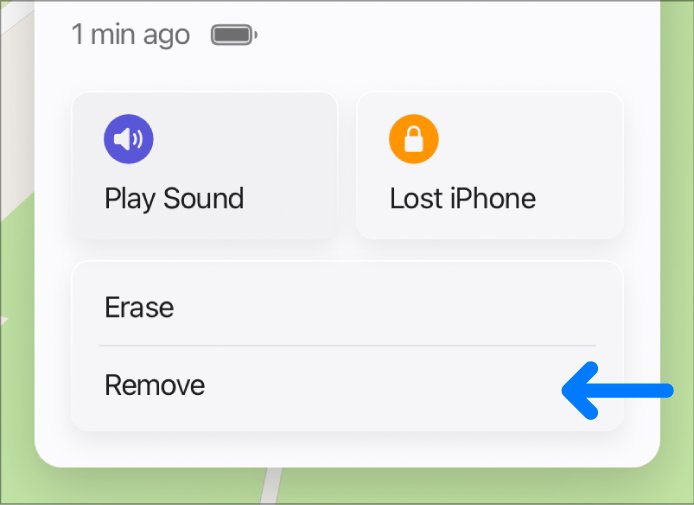
If you already handed the iPad over while still signed in, remove it from your account in a browser instead.
- Go to icloud.com/find and sign in with the Apple Account that was on the iPad.
- Select the iPad in the device list.
- Erase the device if it has not been erased. Do not enter a phone number or message, because it is not lost.
- When the erase is done, select Remove This Device.
- Activation Lock is removed immediately, and the new owner can activate the iPad with their own Apple Account.
Do not remove a lost or stolen iPad from Find My. Removing it takes off Activation Lock, which makes the iPad easier to resell.
How to Factory Reset an iPad for Trade-In, Sale, or Recycling
Apple's checklist for a device that is leaving your hands runs in this order. Skipping the sign-out step is what leaves a buyer stuck on Activation Lock.
- Back up the iPad and transfer your data to the new device, for example with Quick Start.
- Open Parts and Service History in Settings. Finish any repair marked Finish Repair before an Apple Trade In.
- Cancel or transfer any AppleCare plan.
- Open Settings, tap your name, scroll down and tap Sign Out. On the newest iPadOS, choose the option to erase the iPad.
- If you are still signed in, go to Settings > General > Transfer or Reset iPad > Erase All Content and Settings and tap Erase iPad.
- On a cellular iPad with an eSIM, choose to erase the iPad and the eSIM when asked.
- Remove the iPad from your Apple Account's list of trusted devices.
How to Reset an iPad for Troubleshooting Without Erasing Everything
Try these before a factory reset when the iPad is slow, frozen, or will not join Wi-Fi. Only a full erase deletes your data; none of these do.
An iPhone uses a different button sequence — force restart or hard reset an iPhone instead.
| Reset | How to do it | What it changes |
|---|---|---|
| Restart the iPad | Hold a volume button and the top button (no Home button) or the top button (Home button), drag the slider, wait 30 seconds, then hold the top button until the Apple logo appears | Nothing; it just turns the iPad off and on |
| Force restart the iPad | No Home button: press and release volume closest to the top button, then the farthest one, then hold the top button until the Apple logo appears. Home button: hold Home and the top button until the Apple logo appears | Nothing; use it when the screen is black or frozen |
| Reset Network Settings | Settings > General > Transfer or Reset iPad > Reset > Reset Network Settings | Removes saved Wi-Fi networks and VPN settings, and renames the iPad to its default name |
| Reset All Settings | Settings > General > Transfer or Reset iPad > Reset > Reset All Settings | Returns all settings to defaults; no data or media is deleted |
| Update in recovery mode | Recovery mode with a computer, then choose Update instead of Restore | Reinstalls iPadOS and keeps your data when the iPad is stuck on the Apple logo |
How to check the factory reset worked
- Turn on the iPad. A finished reset shows the Hello screen, not a Lock Screen or Home Screen.
- Start setup. If it asks for the previous owner's Apple Account, the iPad is still tied to that account and Activation Lock is on.
- Sign in at icloud.com/find on another device. After a sale, the iPad should no longer be listed under All Devices.
- Check your email. A remote erase from Find My sends a confirmation email to your Apple Account address.
How to Set Up the iPad After a Factory Reset
A reset cannot be reversed, but a backup puts your apps and data back. Choose Set Up as New for a clean start or to hand the iPad to someone else.
- Turn on the iPad and follow the setup steps from the Hello screen.
- On the Transfer Your Apps & Data screen, tap From iCloud Backup to restore from iCloud.
- Sign in to your Apple Account and pick the backup with the right date and size.
- Stay on Wi-Fi until the progress bar completes. Apps and photos keep downloading in the background afterwards.
- To restore from a Mac or PC instead, connect the iPad, select it in the Finder, Apple Devices or iTunes, click Restore Backup, pick a backup and click Restore.
- Enter the backup password if the backup is encrypted, and keep the iPad connected until it syncs.
Common Problems and How to Fix Them
The iPad asks for someone else's Apple Account
Activation Lock is still on because the previous owner did not sign out before erasing.
- Hand the iPad back to the seller and ask them to enter their password.
- If they are not present, ask them to sign in at icloud.com/find, select the iPad and choose Remove This Device.
- Restart the iPad and begin setup again once they confirm.
iPad is locked or disabled and shows iPad Unavailable
Too many wrong passcode attempts.
- Tap Forgot Passcode? if it appears, then follow Method 2.
- If it does not appear, put the iPad into recovery mode and choose Restore on a computer.
- If you have no computer to use, visit an Apple Store or Apple Authorized Service Provider.
Erase All Content and Settings is missing or blocked
The iPad asks for a passcode or Apple Account password that you cannot supply.
- Enter your device passcode, or your Restrictions passcode if asked.
- If the Apple Account password is the blocker, reset it through Apple's account recovery, then try again.
- If you cannot enter the passcode at all, use Method 2 or recovery mode instead.
The iPad will not connect to the computer
Cable, port, trust prompt or outdated software.
- Plug the iPad straight into the computer, not a USB hub or keyboard.
- Click Allow on a Mac if asked, and tap Trust on the iPad.
- On a Mac, choose View > Show Sidebar in the Finder if the iPad is not listed.
- Try another cable that supports data and charging, another USB port, or another computer.
- Update macOS, or update Apple Devices or iTunes on Windows.
The restore fails or shows an error
An outdated computer, a bad connection, or security software blocking the connection.
- Update the Mac, or install the latest Apple Devices app or iTunes on Windows.
- Restart the computer and the iPad.
- Try a different Apple USB cable and a different port.
- Check security software on the computer that might block the connection.
- Try the restore on another computer on a different network.
The iPad leaves recovery mode before the restore starts
The software download took longer than 15 minutes.
- Let the download finish on the computer.
- Turn the iPad off.
- Put it back into recovery mode and choose Restore again.
Frequently Asked Questions
How do I factory reset an iPad that is locked?
Tap Forgot Passcode? on the iPad Unavailable screen, then Start iPad Reset, and enter your Apple Account password. This needs iPadOS 15.2 or later, Find My on and a network connection. Otherwise, put the iPad in recovery mode and restore it with a Mac or PC.
How do I factory reset an iPad without the PIN?
Use the Forgot Passcode? option on the Lock Screen or recovery mode with a computer. Both erase everything, including the forgotten passcode. If you changed the passcode within 72 hours, Enter Previous Passcode unlocks the iPad with the old one and erases nothing.
How do I factory reset a disabled iPad?
A disabled iPad now shows iPad Unavailable or Security Lockout. Tap Forgot Passcode? or Erase iPad if it appears. If not, connect the iPad to a Mac or Windows PC, enter recovery mode with the buttons for your model, and choose Restore.
How do I factory reset an iPad with iTunes?
Use iTunes only on a Mac with macOS Mojave or earlier, or on a Windows PC without the Apple Devices app. Connect the iPad, enter recovery mode, select the iPad in iTunes and choose Restore. Newer Macs use the Finder, and Windows PCs use Apple Devices.
How do I factory reset an iPad using a PC?
Install Apple Devices from the Microsoft Store, connect the iPad and select it in the sidebar. Click General, then Restore iPad. If the iPad is locked, put it into recovery mode first, then choose Restore when Apple Devices offers Restore or Update.
How do I factory reset an iPad with a Home button?
From Settings, the steps are the same as any iPad. For recovery mode, connect the iPad to a computer, then press and hold the Home button and the top (or side) button together. Release them when the computer-and-cable screen appears, then choose Restore.
How do I factory reset an iPad Pro, iPad Air or iPad mini?
Use Settings > General > Transfer or Reset iPad > Erase All Content and Settings on any model. For recovery mode, newer iPad Pro, iPad Air (4th gen and later) and iPad mini (6th gen and later) models have no Home button: press volume closest to the top button, then farthest, then hold the top button.
How do I factory reset an iPad 10th gen?
The iPad (10th generation) resets from Settings like any iPad. It has no Home button, so recovery mode uses the volume buttons: press and release the one closest to the top button, then the farthest one, then hold the top button until the recovery screen appears.
How do I physically factory reset an iPad with buttons?
Buttons alone cannot erase an iPad. They put it into recovery mode, and a Mac or Windows PC then performs the restore. Without a computer, the only on-device route is Forgot Passcode? on the Lock Screen, which needs Wi-Fi or cellular and Find My turned on.
Can I factory reset an iPad without an Apple ID?
Yes, recovery mode erases an iPad without the Apple Account password. The iPad still stays locked to that account by Activation Lock, so setup asks for the original Apple Account and password. Only the owner can remove the lock, from icloud.com/find.
How do I completely factory reset an iPad before selling it?
Back it up, sign out of your Apple Account in Settings, then choose Erase All Content and Settings. Delete the eSIM when asked. The iPad is ready for a buyer when it starts on the Hello screen without asking for your Apple Account.
Does a factory reset delete my iCloud photos?
No. Erasing an iPad deletes the copy on the device, but your content stays in iCloud. Manually deleting photos while still signed in to iCloud does delete them everywhere, so erase the iPad rather than deleting items one by one.