WhatsApp Web on an iPad Pro shows only part of your chats because web.whatsapp.com syncs a limited slice of recent history, so the fix is to install the WhatsApp for iPad app, which syncs up to a year of recent chat history.
This guide explains why the browser session stops short, how to link the iPad app, how to relink web.whatsapp.com in Safari if you prefer the browser, and what to do when messages still go missing.
Fix WhatsApp Web partial sync on iPad Pro
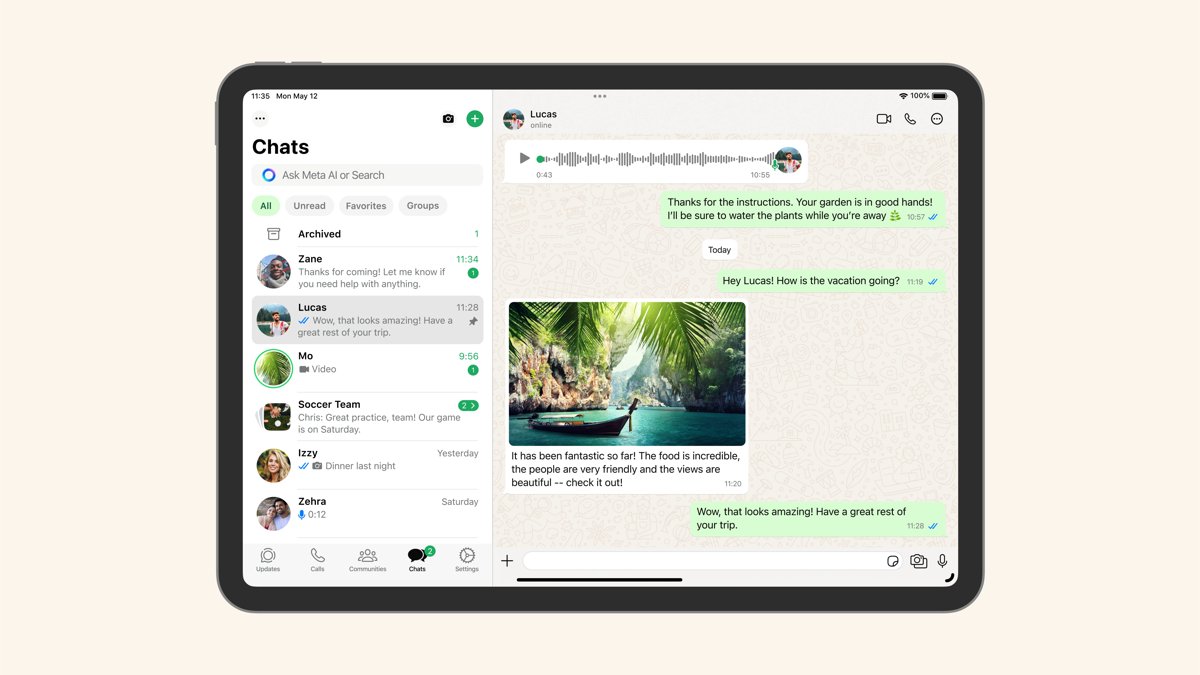
WhatsApp now has an iPad app that works as a linked device, the same way WhatsApp Web does, but with more history and iPad features. It runs on iPadOS 15.1 or newer, so any iPad Pro on iPadOS 17.3 qualifies.
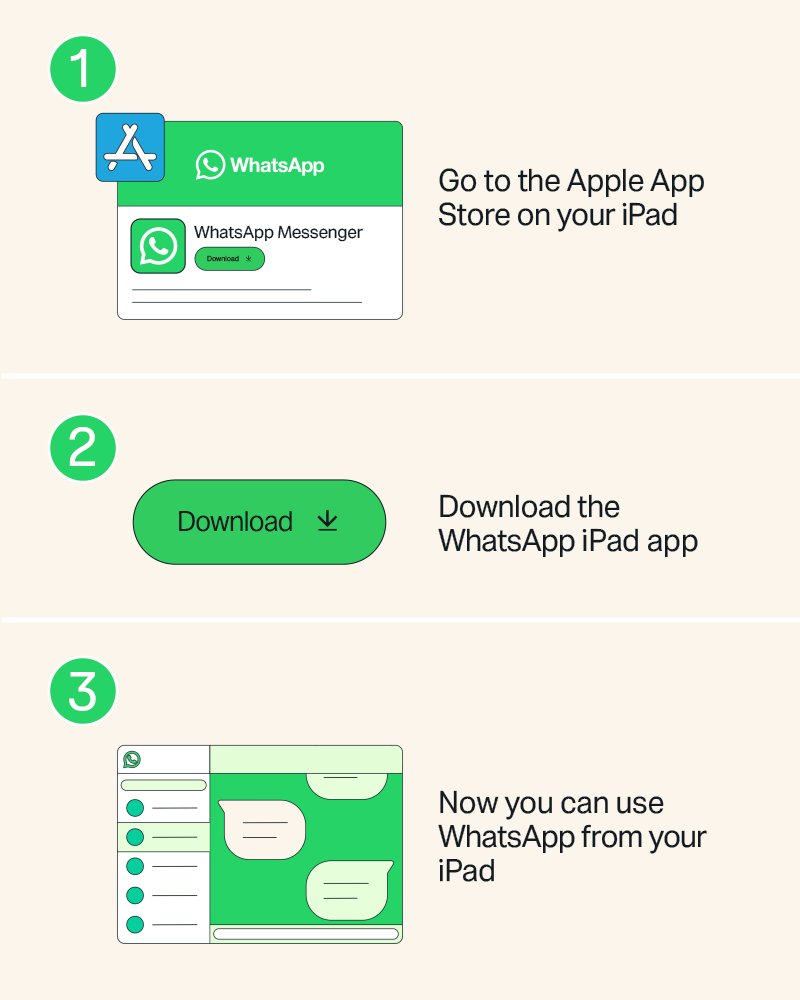
- On the iPad, open the App Store, search for WhatsApp and install the official WhatsApp app.
- Open WhatsApp on the iPad. A QR code appears.
- On your iPhone, open WhatsApp and tap Settings or your profile picture, then Linked devices > Link device > OK. On Android, tap the menu, then Linked devices > Link a device.
- Confirm with Face ID, Touch ID or your phone passcode if asked.
- Point the phone at the QR code on the iPad.
- Keep both devices online and wait a few minutes while the chat history copies across.
Once the app works, log the old browser session out from Linked devices on the phone so it does not count toward your device limit.
Why web.whatsapp.com shows only some chats on iPad
| Cause | What happens |
|---|---|
| Web syncs limited history | When you link a device, your phone sends an encrypted copy of your most recent messages only. WhatsApp states that Desktop syncs more history than Web |
| Not every chat is copied | WhatsApp says not all messages and chats sync to linked devices; your phone keeps the full history |
| iPad is not a listed Web platform | WhatsApp lists Windows, Linux and macOS for WhatsApp Web, with Safari 15 or later. iPad Safari is outside that list |
| Sync still in progress | History can take a few minutes to appear, longer for large chats |
| Known linked-device issue | WhatsApp acknowledges some linked devices do not show up to one year of history and asks users to keep the app updated |
WhatsApp Web vs WhatsApp for iPad app
| Your situation | Use this | Why |
|---|---|---|
| You want older chats on the iPad | WhatsApp for iPad app | Syncs up to a year of recent chat history |
| You need calls, screen sharing or locked chats on the iPad | WhatsApp for iPad app | Supports calls with up to 32 people, screen sharing and chat lock |
| You use Split View, Slide Over or Stage Manager | WhatsApp for iPad app | Built for iPad multitasking, keyboards and Apple Pencil |
| You only need to reply to recent chats quickly | web.whatsapp.com in Safari | No install, but it shows less history |
| You need a message older than what synced | Your phone | The phone always holds the full chat history |
Relink web.whatsapp.com in Safari on iPad
If you stay in the browser, a fresh WhatsApp Web login makes the phone send its recent history again. It does not raise the amount of history Web receives.
- On the phone, open WhatsApp and go to Linked devices.
- Tap the existing web session and tap Log out.
- On the iPad, open Safari and go to web.whatsapp.com.
- On the phone, tap Link device (iPhone) or Link a device (Android) and scan the QR code on the iPad.
- Leave the tab open and both devices online until the chat list stops loading.
Unlink old WhatsApp linked devices
WhatsApp allows up to four linked devices per phone. Old browser tabs and computers you no longer use take up slots and can confuse which session is current.
- Open WhatsApp on the phone.
- Go to Linked devices.
- Tap each device you no longer use.
- Tap Log out.
- On a linked device you still have in hand, you can also go to WhatsApp Settings > Log out > Log out.
Check WhatsApp chat history synced on iPad
- On the iPad, open a busy chat and scroll up past the last few days.
- Open the same chat on the phone and compare the oldest message each device shows.
- Send a test message from the iPad and confirm it appears on the phone.
- On the phone, open Linked devices and confirm the iPad is listed and old sessions are gone.
A gap older than a year is expected on the iPad app. A gap of days or weeks in the browser is the normal Web limit, not a fault.
WhatsApp Web not syncing messages on iPad: fixes
Older messages missing on WhatsApp Web
WhatsApp Web receives only recent history; the full history stays on the phone.
- Install WhatsApp for iPad and link it for up to a year of history.
- Search the phone for anything older.
Chats still loading after linking
The phone is still sending its encrypted history copy.
- Keep both devices online and WhatsApp open on the phone for a few minutes.
- If nothing changes, log the session out from Linked devices and link it again.
WhatsApp for iPad shows less than a year of chats
WhatsApp lists this as a known linked-device issue.
- Update WhatsApp on the iPad and the phone from the App Store.
- Read older chats on the phone until a fix arrives.
iPad logged out of WhatsApp on its own
Linked devices log out when the phone goes unused for over 14 days, and after 30 days of inactivity on the linked device.
- Open WhatsApp on the phone at least once every 14 days.
- Link the iPad again with the QR code.
Live location or broadcast lists missing on iPad
Linked devices do not support viewing live location or creating and viewing broadcast lists.
- Use the phone for those features.
WhatsApp on iPad Pro FAQ
Is there a WhatsApp app for iPad?
Yes. WhatsApp for iPad is on the Apple App Store and needs iPadOS 15.1 or newer. It links to the WhatsApp account on your phone by QR code and syncs up to a year of recent chat history.
Why doesn't WhatsApp Web show all my messages?
WhatsApp Web receives only a copy of your most recent history when you link it, and not every chat is synced. WhatsApp states that its desktop app for Windows and Mac and its iPad app sync more. Your phone always keeps the complete history.
Can you use WhatsApp Web on iPad?
web.whatsapp.com can load in Safari on an iPad, but WhatsApp lists Web support for Windows, Linux and macOS only. The WhatsApp for iPad app is the supported way to use WhatsApp on an iPad.
How much chat history syncs to WhatsApp on iPad?
Linking WhatsApp for iPad lets you sync up to a year of your most recent chat history. WhatsApp notes a known issue where some linked devices show less, so keep the app updated.
Does WhatsApp on iPad work when the phone is off?
Yes. Linked devices, including the iPad app and WhatsApp Web, work without the phone online. They log out if the phone goes unused for more than 14 days.
How many devices can be linked to WhatsApp?
Up to four linked devices at a time, such as an iPad, a browser session and a computer, alongside your primary phone. Remove unused ones from Linked devices on the phone.
Can an iPad be the main WhatsApp device?
No. An iPad works only as a linked device, so you still need a phone to register the account and link new devices. Only an Android tablet can be registered as a primary device.