To restore an iPhone or iPad with an IPSW file, connect it to a Mac running Apple Configurator, drag the .ipsw file onto the device and choose Restore; Finder and the Apple Devices app restore the latest signed iOS without needing a file.
This guide covers each restore route on Mac and Windows, recovery mode, why unsigned IPSW files are refused, and the errors that stop a restore.
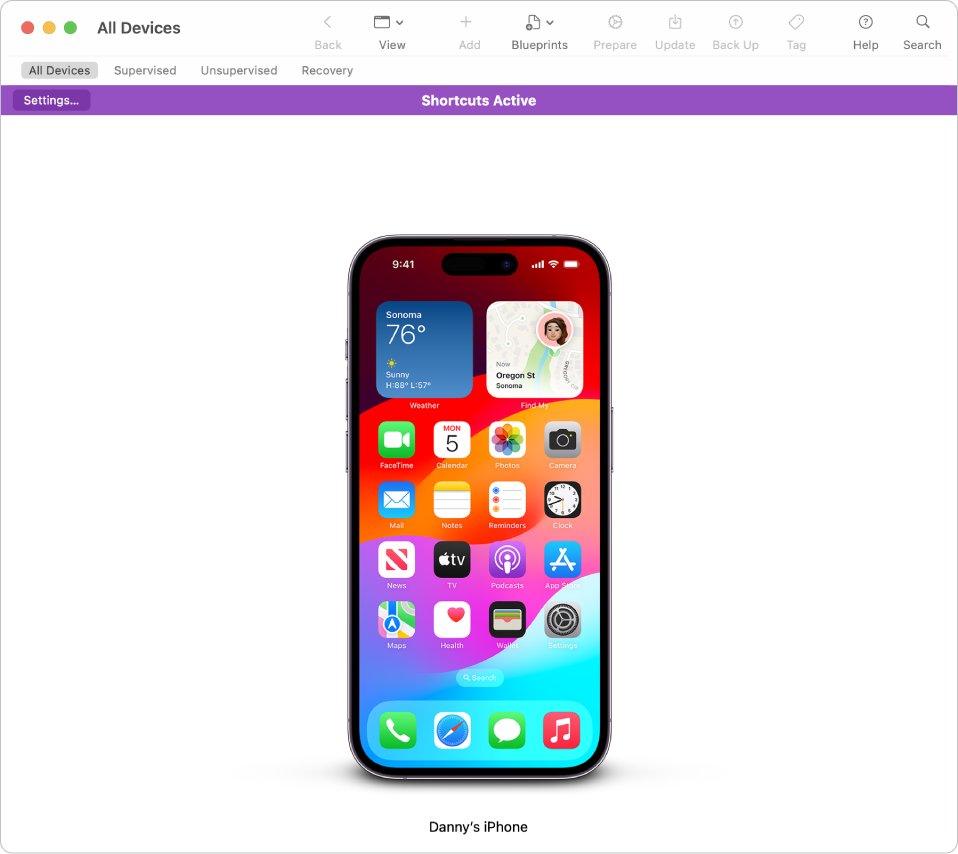
IPSW restore with Apple Configurator on a Mac
Apple Configurator is Apple's free Mac tool for managing iPhone, iPad and Apple TV, and it is the route Apple documents for installing a specific .ipsw file. Version 2.21 needs macOS 15.7 or later.
A restore erases everything on the device, so back it up first.
- Install Apple Configurator on the Mac and open it.
- Connect the iPhone or iPad to the Mac with a USB or USB-C cable, unlock it and tap Trust if asked.
- Select the device in the Apple Configurator device window.
- Drag the .ipsw file from Finder onto the device.
- Choose Restore when asked whether to update or restore.
- Wait for the restore to finish and the device to show the Hello screen, then set it up or restore your backup.
If the file is older than the version on the device, Apple Configurator warns that the operating system may not work properly. The restore also fails if Apple no longer signs that version.
IPSW restore tool: Finder, Apple Devices app or Apple Configurator
Every Apple restore tool installs a full copy of iOS or iPadOS. They differ in whether you choose the file and which computer they run on.
| Your situation | Use this | Why |
|---|---|---|
| You have a Mac and want the current iOS | Finder | Downloads and installs the latest signed version for you |
| You have a Windows 10 or 11 PC | Apple Devices app from the Microsoft Store | Apple's Windows tool for update, backup and restore |
| You already have an .ipsw file or need a beta build | Apple Configurator on a Mac | Accepts a dragged .ipsw file for update or restore |
| Many iPads or iPhones at once | Apple Configurator with a Blueprint | Drag the .ipsw onto a Blueprint and apply it to every device |
| Device stuck on the Apple logo or Connect to computer screen | Recovery mode with Finder or Apple Devices | Works when iOS will not start |
| Device works and you only want it wiped | Erase All Content and Settings on the device | No computer or IPSW needed |
Before you restore an iPhone with an IPSW file
| Requirement | Why it matters |
|---|---|
| A current backup | Restore erases all data and settings on the device |
| Find My turned off | Apple requires Find My to be off in iCloud settings before a computer restore |
| Your Apple Account password | Needed to set the device up again after the restore |
| An internet connection | Apple's servers must authorize every install, even from a local .ipsw file |
| An up-to-date Mac or Apple Devices app | Older software causes update and restore errors |
| A direct USB connection | Apple advises against keyboards and USB hubs for restores |
Restoring an iPhone does not delete its eSIM.
How to restore an iPhone with Finder on a Mac
Finder fetches the right IPSW from Apple and installs it, so you never handle the file yourself. Use it on macOS Catalina 10.15 or later.
- Connect the iPhone or iPad to the Mac with a USB or USB-C cable.
- Open a Finder window and select the device in the sidebar.
- Click Trust on the Mac, tap Trust on the device and enter the device passcode.
- Click General in the row near the top, then Back Up Now if you have no recent backup.
- Click Restore [device] and follow the onscreen instructions.
- Review the terms and click Agree. The Hello screen appears on the device when the restore finishes.
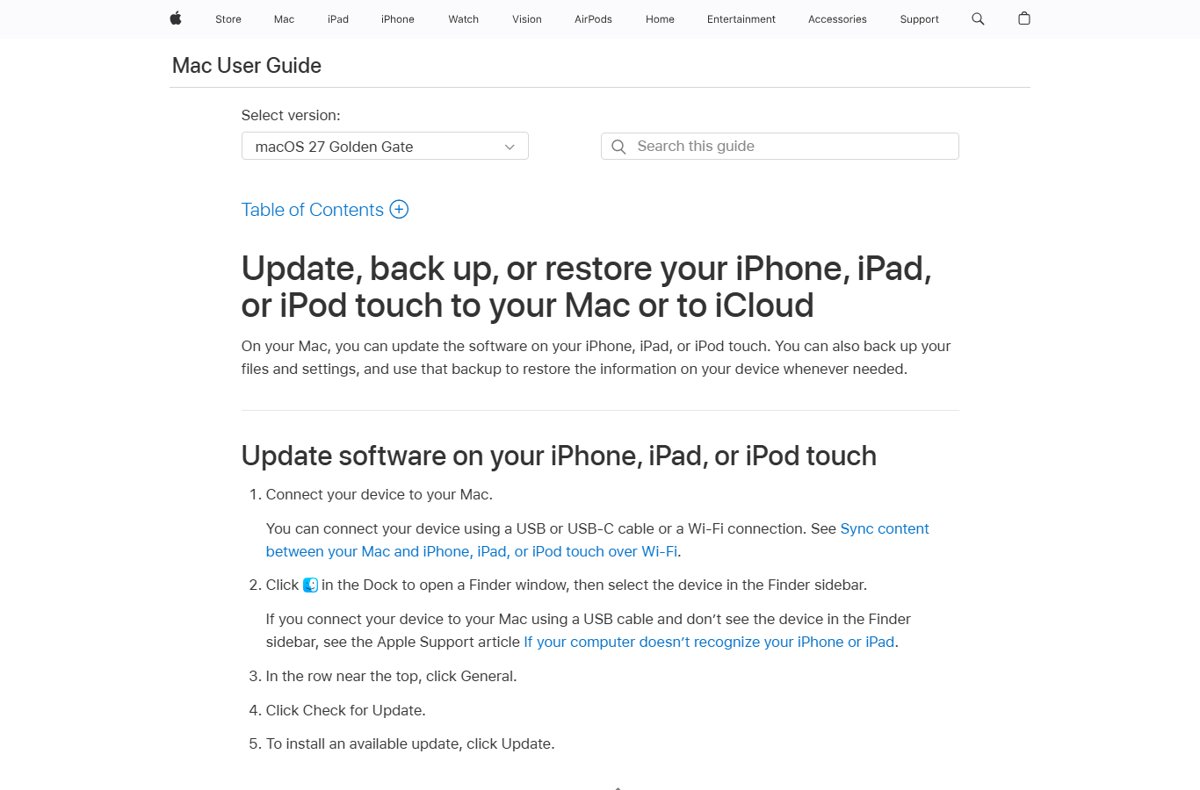
Restore IPSW on Windows with the Apple Devices app
On Windows 10 or later, the Apple Devices app handles backup, update and restore. The iTunes route still appears in some Apple error articles, but the Apple Devices app is the current Windows tool.
- Open the Microsoft Store, search for Apple Devices and select Get.
- Connect the iPhone or iPad to the PC with a USB or USB-C cable.
- Unlock the device and select Trust This [device] if a dialog appears.
- In the Apple Devices app, select the device in the sidebar, then select General.
- Select Restore [device] and follow the onscreen instructions.
If the device does not appear in the sidebar, check that it is charging from the cable and that the Home Screen is unlocked.
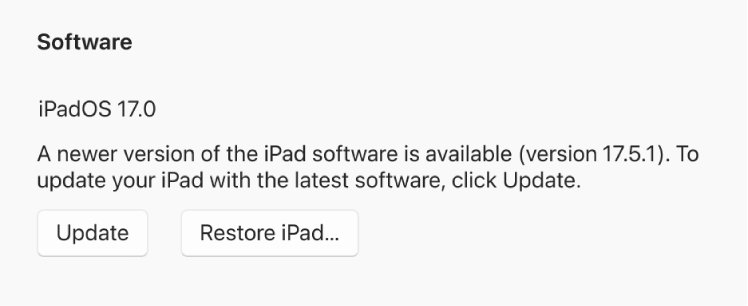
IPSW iPhone restore from recovery mode
Use recovery mode when the device shows the Apple logo for minutes with no progress bar, shows the Connect to computer screen, or the computer does not recognise it.
- Update your Mac, or install the latest Apple Devices app on your PC, then connect the device with a USB cable.
- Open Finder on the Mac or the Apple Devices app on the PC.
- On iPhone 8 or later, press and quickly release Volume Up, press and quickly release Volume Down, then hold the side button until the Connect to computer screen appears.
- On iPhone 7 or 7 Plus, hold the top (or side) and Volume Down buttons together until the same screen appears.
- On iPhone 6s or earlier, including iPhone SE (1st generation), hold the Home and top (or side) buttons together until the screen appears.
- Choose Restore when the computer offers Update or Restore.
- If the download takes more than 15 minutes and the device leaves recovery mode, let the download finish and repeat the button steps.
On a Mac with Apple Configurator, Actions > Advanced > Revive Device can try to recover a device stuck in recovery mode without erasing data. Try it before a full restore.
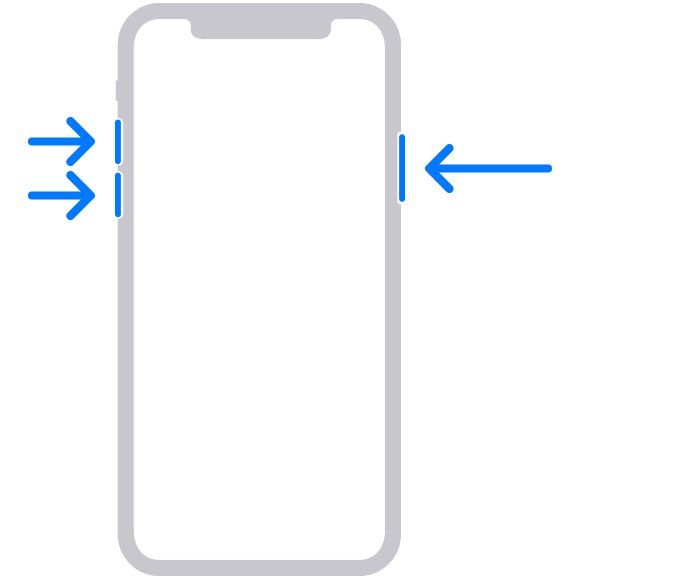
Can you restore an unsigned IPSW?
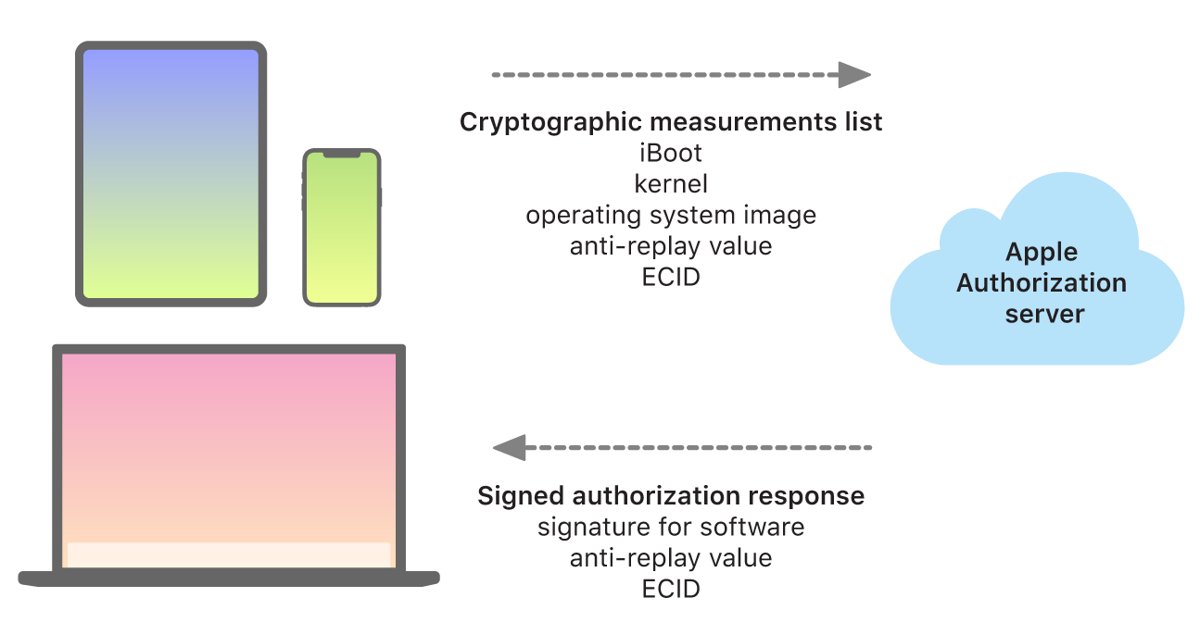
No. Apple's installation authorization server checks every iOS and iPadOS install and only approves versions Apple is still signing.
| What happens | Detail |
|---|---|
| Signing check | The device sends measurements of the IPSW contents and its unique chip ID (ECID) to Apple's server |
| Signed version | The server signs the request for that one device and the restore continues |
| Unsigned version | The server refuses, so the restore stops; the purpose is to block downgrades to versions with known flaws |
| Copying an old approval | Blocked; each approval is tied to one device and a one-time value |
| Offline restore | Not possible; a connection to Apple is always required |
| Typical error | Error 3194 or 'This device isn't eligible for the requested build' |
Third-party tools sold as unsigned IPSW restore software cannot get Apple's signature. Download IPSW files only through Apple's own tools and stick to versions Apple still signs.
How to check the IPSW restore worked
- Look for the Hello setup screen on the device; it confirms a clean install.
- Finish setup, then confirm in Settings that the device runs the iOS or iPadOS version you expected.
- If the device sits on the Apple logo with a progress bar, leave it connected; the bar can stall or restart and still complete.
- Restore your data from the backup with Restore Backup in Finder or the Apple Devices app, or From iCloud Backup during setup.
Fix IPSW restore errors
Error 3194, 1109, 17 or 'This device isn't eligible for the requested build'
The computer cannot reach Apple's update servers, or the IPSW is no longer signed.
- Use a version Apple still signs, or let Finder or the Apple Devices app download the current one.
- Update macOS, iTunes or the Apple Devices app.
- Check that your firewall or security software allows access to Apple's update servers.
- On a Mac, open Terminal, run
sudo nano /private/etc/hosts, put#in front of any line containing gs.apple.com, save with Control-O and restart. - Try again on a different network or computer.
Errors 1639, 3000-3020 or 3100-3999
Proxies, firewalls or a managed network block the connection.
- Connect the computer straight to the modem with an Ethernet cable, bypassing the router.
- Restart the computer and the modem.
- On a work network, ask the network administrator, or restore from a home network instead.
Other error codes or alerts during restore
Usually a cable, port or connection fault.
- Plug the device straight into the computer's USB port, not a hub or keyboard.
- Unlock the device and trust the computer.
- Swap to a different Apple USB cable or another USB port.
- Restart both the computer and the device, then try again.
Restore stuck on the Apple logo with a progress bar
Large restores take time and the bar can appear frozen.
- Leave the device connected and wait; the bar can complete and start again.
- If it never completes, force restart the device and run the restore again from recovery mode.
IPSW restore FAQ
How do I use an IPSW to restore an iPhone?
Open Apple Configurator on a Mac, connect the iPhone, drag the .ipsw file onto the device and choose Restore. Apple's servers must still sign that iOS version, and the restore erases all data on the phone.
How do I restore an iPhone with an IPSW file on Windows?
Windows has no Apple tool that takes a dragged IPSW file. Use the Apple Devices app from the Microsoft Store and select Restore; it downloads the current signed IPSW itself and installs it.
How do I restore an IPSW with iTunes?
Apple's restore articles for Windows 10 and later point to the Apple Devices app: select the device, select General, then Restore. On a Mac running Catalina or later, Finder does the same job. Both download the signed IPSW for you.
How do I restore an unsigned IPSW?
You cannot. Apple's authorization server must approve every install for each device's unique chip ID, and it only approves versions Apple still signs. Unsigned files fail with errors such as 3194.
Can I restore an IPSW without iTunes?
Yes. Use Finder on a Mac, the Apple Devices app on Windows, or Apple Configurator on a Mac, which is the only Apple tool that accepts a dragged .ipsw file.
Does an IPSW restore delete everything?
Yes. A restore reinstalls iOS or iPadOS and erases all data and settings. Back up first, then restore the backup after the Hello screen appears. Restoring an iPhone does not remove its eSIM.
How do I do an IPSW restore on an iPad?
The same tools work for iPad: Apple Configurator for a dragged .ipsw file, or Finder and the Apple Devices app for the current signed version. Select the iPad, choose General, then Restore iPad.
Do I need to turn off Find My before restoring?
Yes. Apple requires Find My to be turned off in iCloud settings on the device before you restore it from a Mac. After the restore, you need your Apple Account password to set the device up.
Bottom line: the right IPSW restore route
Let Finder or the Apple Devices app restore the current iOS, and use Apple Configurator only when you must install a specific signed .ipsw file. Apple signs only current versions, so a downloaded file adds nothing unless you need a beta or a mass restore, and the built-in tools always fetch a file Apple will approve.