AppX Deployment Service (AppXSVC) is the Windows 11 service that provides the infrastructure for deploying Microsoft Store apps, so it runs whenever a Store app is installed, updated or removed.
This guide explains what the service does, how to check its state, why it can load the CPU, how wsreset.exe and the deployment logs help, and why disabling it breaks Store apps.
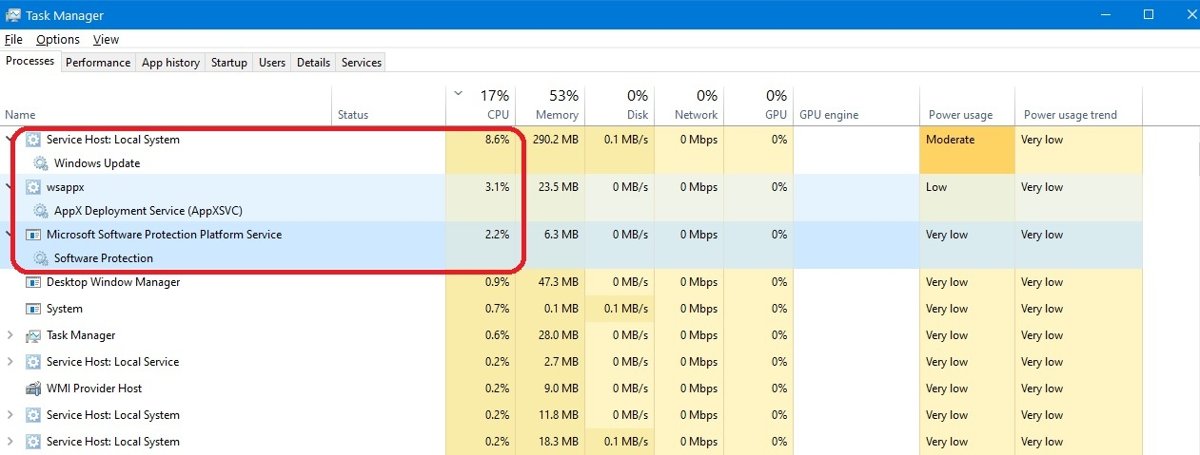
AppX Deployment Service (AppXSVC) in Windows 11: quick answer
AppXSVC is a built-in Windows service, not malware and not a third-party add-on. Since the December 2025 update KB5072033 it starts automatically, and it still does its heavy work only while apps are deployed.
| Question | Answer | What it means for you |
|---|---|---|
| What does AppXSVC do? | Provides infrastructure support for deploying Microsoft Store apps | It runs when a Store app is installed, updated or removed |
| What is its service name? | AppXSvc, shown as AppX Deployment Service (AppXSVC) | Look for that exact name in services.msc |
| How does it start? | Automatic since KB5072033 (December 2025); Manual, started on demand, before that | Automatic is the current default on Windows 11 24H2 and 25H2 |
| Is it part of Windows? | Always installed | It is not malware or a third-party add-on |
| What if it is disabled? | Store apps are not deployed and may not work properly | App installs and updates fail |
| Should you disable it? | No | Fix the update or Store problem that keeps it busy instead |
What is AppXSVC?
Microsoft describes AppXSVC as the service that provides infrastructure support for deploying Store applications. In practice that means packaged apps in the .appx and .msix formats, including the inbox apps that ship with Windows 11.
AppXSVC works alongside other Store and app-model services. Each one has its own job, and each is set to start only when needed.
| Service | Service name | What it does | Startup type |
|---|---|---|---|
| AppX Deployment Service (AppXSVC) | AppXSvc | Deploys Store applications to the system | Automatic since KB5072033 |
| Client License Service (ClipSVC) | ClipSVC | Infrastructure support for the Microsoft Store; apps bought in the Store misbehave without it | Manual |
| State Repository Service | StateRepository | Required infrastructure support for the application model | Manual |
Technical primer: packages are installed per user, and AppXSVC stages their files in the default package volume, C:\Program Files\WindowsApps, then registers them so the app appears for that account.
The KB5072033 change: AppXSVC now starts automatically in Windows 11
Background and overview: until December 2025, AppXSVC was a Manual service that Windows started on demand when an app needed deploying. The December 9, 2025 cumulative update KB5072033 (OS builds 26100.7462 and 26200.7462) changed that for Windows 11 24H2 and 25H2, and the same update made the change on Windows Server 2025.
| Before KB5072033 | KB5072033 and later | |
|---|---|---|
| Startup type | Manual (demand) | Automatic |
| When it starts | Only when an app install, update or removal needs it | Each time the computer restarts, even if no one signs in |
| Microsoft's stated reason | – | To improve reliability in some isolated scenarios |
| Affected releases | – | Windows 11 24H2 and 25H2, Windows Server 2025 |
| Later updates | – | Every later monthly update is cumulative, so it keeps the change |
Microsoft's position is that Automatic is the intended setting, not a bug, and its stated rationale is reliability. The immediate trade-off is that a service which used to load only when needed now loads at every boot, which matters most on low-spec PCs and on servers that alert on service state.
Quick checks to confirm whether KB5072033 changed AppXSVC
- Press Win + R, type
winverand press Enter; build 26100.7462 or 26200.7462 or higher includes the change. - Open PowerShell and run
Get-HotFix -Id KB5072033; no result can simply mean a later cumulative update replaced it, so trust the build number first. - Open
services.msc, double-click AppX Deployment Service (AppXSVC) and read Startup type. - Automatic confirms the update changed the service; Manual means the PC is on an older build or the setting was changed back.
How to check if AppX Deployment Service is running in Windows 11
A Stopped status between deployments is not a fault. The startup type tells you whether the KB5072033 change has reached the PC.
- Press Win + R, type
services.mscand press Enter. - Scroll to AppX Deployment Service (AppXSVC).
- Read the Status column: Running during an app install or update, blank when idle.
- Read the Startup Type column: Automatic on a PC with KB5072033 or a later update, Manual on older builds.
- Or open PowerShell and run
Get-Service -Name AppXSvcto see the same status in one line.
Why is AppX churning your CPU?
AppXSVC does real work when it runs: it unpacks, registers and removes app packages. High CPU or disk use from it lines up with Store app activity, such as a batch of automatic app updates after Windows has been offline for a while.
If Task Manager shows wsappx using high CPU rather than the service by name, the steps to fix WSAPPX high CPU usage cover that entry.
| What you notice | Likely trigger | What to do |
|---|---|---|
| CPU spike for a few minutes after sign-in | Store apps updating in the background | Let the updates finish; the service stops when they are done |
| Spike every time you open Microsoft Store | The Store is checking for and installing updates | Open Library in Microsoft Store and let Get updates finish once |
| Constant use that never settles | An app update keeps failing and retrying | Reset the Store cache with wsreset.exe, then read the deployment log |
| Use while installing an app package yourself | A normal deployment operation | Wait for the install to finish |
| Use on a PC where you never use Store apps | Inbox apps such as Photos and Calculator still update through the Store | Turn off App updates in Store settings if you prefer to update manually |

How to detect whether AppXSVC is affecting your PC
Why this matters for performance and monitoring telemetry: an Automatic service loads at every boot instead of only when needed, so it can cost resources even when no app is being deployed. The real-world impact reported so far in Microsoft Q&A support threads comes mostly from administrators whose Windows Server 2025 monitoring flagged repeated AppXSVC stop and start cycles after the update; that is the community evidence to date.
Who feels the pain most depends on the machine. Diagnosing the impact on your machine takes a few minutes with the checks below, so measure before you change anything.
| Situation | What to check | How |
|---|---|---|
| Consumer or low-spec device with little RAM | Memory and CPU used by the AppXSvc host process | Run tasklist /svc /fi "services eq AppXSvc" to get the PID, then find that PID on the Details tab of Task Manager |
| Disk I/O and boot delays | Disk activity in the first minutes after sign-in | Watch the Disk column on the Processes tab right after boot and see whether it settles once Store updates finish |
| Server and monitoring environments | Alerts that fire each time AppXSvc starts or stops | Compare alert times with app deployment events in Microsoft-Windows-AppXDeploymentServer/Operational |
| Sustained high CPU on any PC | A failing app update retrying in a loop | Read the newest Error entries in the deployment log, then reset the Store cache |
The IT pro fix for AppXSVC: wsreset.exe
wsreset.exe resets the Microsoft Store cache. It is the first fix when the Store and AppXSVC keep retrying the same failed download or update.
- Close Microsoft Store if it is open.
- Press Win + R to open the Run dialog.
- Type
wsreset.exeand select OK. - Wait while a blank Command Prompt window stays open for about ten seconds.
- Let Microsoft Store open on its own when the window closes.
- Select Library > Get updates and watch whether pending updates now finish.
If the cache reset does not help, repair or reset the Microsoft Store app from Settings, which goes one step further than wsreset.exe.
How to stop Microsoft Store app updates from waking AppXSVC
Automatic Store updates are the most common reason AppXSVC starts on its own. Turning them off moves that work to a time you choose. Some publishers update their apps themselves, so this does not cover every app.
- Select Start, search for Microsoft Store and open it.
- Select your profile picture at the top of the window.
- Select Settings.
- Turn App updates off to stop automatic updates, or on to restore them.
- Update apps later from Library > Get updates when the PC is idle.
Leaving updates off for long periods means missing app fixes. A better habit is to update Microsoft Store apps manually once a week.
AppXSVC mitigation and rollback options after KB5072033
Practical mitigations range from a reversible setting change to removing the update. Weigh each against its risks, side effects and long-term implications.
| Option | Who it suits | Risk |
|---|---|---|
| A. Revert the startup type to demand (Manual) | Home PCs and single servers where AppXSVC load is measurable | Low and reversible, but it goes against Microsoft's new default |
| B. Registry workaround: take ownership of the AppXSvc service key and change its ACL to force Manual | Nobody as a first step | High, and requires caution; ACL considerations include losing the protection Windows puts on the key, and a mistake can break app deployment |
| C. Uninstall the update (last resort for managed fleets) | Fleets with a confirmed, serious regression | Removes that month's security fixes; it needs DISM /Remove-Package because wusa.exe cannot remove the combined SSU and LCU package |
| D. Block or delay the update via management tools (enterprises) | Organizations still testing | Quality updates can be deferred up to 30 days, after which the security fixes are still needed |
Because each later cumulative update carries the same change, options C and D only buy time. Option A is the only one most readers should consider.
How to safely change AppXSVC back to Manual
Only do this if the detection checks show AppXSVC costing resources. Manual keeps Store apps working because Windows still starts the service on demand; Disabled does not.
- Right-click Start and select Terminal (Admin).
- Run
sc config AppXSvc start= demand(the space afterstart=is required). - If the command reports success, open
services.mscand confirm Startup type now shows Manual. - If it returns Access is denied, the service configuration is protected on that build; leave it on Automatic rather than editing registry permissions.
- To undo the change, run
sc config AppXSvc start= auto.
AppXSVC enterprise guidance: rollout, testing and policy options
| Area | What to do |
|---|---|
| Pilot, pilot, pilot | Install the update on a pilot ring first and test Store app installs, App Installer packages and line-of-business MSIX apps before broad rollout |
| Deferral | Use Windows Update client policies to defer quality updates (up to 30 days) for the rest of the fleet while the pilot runs |
| Group Policy and management strategies | Domain Group Policy can set a service startup mode under Computer Configuration > Windows Settings > Security Settings > System Services; forcing AppXSvc to Manual there overrides Microsoft's new Automatic default, so document why |
| Monitoring and alert tuning | Stop alerting on AppXSvc start and stop events, and alert on errors in Microsoft-Windows-AppXDeploymentServer/Operational instead |
| Recommendations for admins | Never push Disabled for AppXSvc; it stops Store apps and MSIX packages from deploying |
Where is the AppXSVC log? Read AppX deployment events
When an app install or update fails, the deployment service writes the reason to the Windows Event Viewer. The log tells you which package failed and the error code.
- Press Win + R, type
eventvwr.mscand press Enter. - Expand Event Viewer (Local) > Applications and Services Logs > Microsoft > Windows.
- Open AppXDeployment-Server > Microsoft-Windows-AppXDeploymentServer/Operational.
- Sort by Level and open the newest Error entry to read the package name and error code.
- Check AppxPackagingOM > Microsoft-Windows-AppxPackaging/Operational if the error is 0x80073CF0.
- Or run
Get-AppxLogin PowerShell to list the events from the most recent deployment operation.
How AppXSVC relates to Microsoft Store, App Installer and WinGet
Several tools request package installs, and AppXSVC does the deployment and package registration behind all of them.
| Tool | What it does | How it uses AppXSVC |
|---|---|---|
| Microsoft Store | Installs and updates Store apps, including inbox apps | Every Store install, update and removal is a deployment job |
| App Installer | Installs .appx and .msix packages by double-clicking them; it is a system component delivered and updated by Microsoft Store | Hands the package to the deployment service |
| WinGet (Windows Package Manager) | Command-line tool to install, upgrade and remove apps; it ships as part of App Installer | Packaged apps it installs go through AppXSVC; classic installers do not |
| PowerShell Appx cmdlets | Add, remove, reset and inspect packages per user | Each Add or Remove call is a deployment operation |
PowerShell cmdlets around AppXSVC
The Appx module talks to the same deployment stack as the Store. Run these in PowerShell; packages are per user, so results depend on the account you use.
| Cmdlet | What it does |
|---|---|
Get-AppxPackage |
Lists the app packages installed in a user profile |
Add-AppxPackage |
Adds a signed app package to a user account |
Remove-AppxPackage |
Removes an app package from one or more user accounts |
Reset-AppxPackage |
Restores a Windows app to its initial configuration |
Get-AppxLog |
Shows the app package installation log for the latest operation |
Get-AppxLastError |
Shows the last error reported in the installation logs |
Common symptoms and causes of AppXSVC problems
Safe first checks come before any repair: confirm the service is not Disabled, check free disk space, and install pending Windows updates.
| Symptom | Common cause | First check |
|---|---|---|
| Store downloads stuck at pending | Corrupt Store cache or a failed update retrying | Run wsreset.exe |
| Install fails with 0x80073CF4 | Not enough disk space | Settings > System > Storage |
| Install fails with 0x80073D3F | New apps set to save to a missing drive | Reconnect the drive or change where new content is saved |
| One app crashes or will not open | Damaged app data or files | Repair or reset that app in Settings |
| Every Store app fails | AppXSVC disabled | Startup type in services.msc |
| Apps fail for one account only | Profile-specific package registration | Test with another user account |
Repairing one broken Store app, Microsoft Store and App Installer
The same Settings page repairs a single app, Microsoft Store itself and App Installer, which also carries WinGet.
- Select Start > Settings > Apps > Installed apps.
- Find the broken app, Microsoft Store or App Installer, and select the More (three dots) icon next to it.
- Select Advanced options.
- Select Repair first; it keeps the app's data.
- If Repair is missing or does not help, select Reset, which clears the app's data.
- Open the app again, or run
winget --versionto confirm App Installer works.
Fix AppX Deployment Service errors in Windows 11
Store app installs fail with 0x80073CF4
There is not enough free disk space to deploy the package.
- Open Settings > System > Storage.
- Free space with Cleanup recommendations or by removing large files.
- Retry the install from Microsoft Store.
Store app install fails with 0x80073D3F
Apps were set to install on a drive that is disconnected or missing.
- Reconnect the external or secondary drive if you still use it.
- Or open Settings > System > Storage.
- Select Advanced storage settings > Where new content is saved and set new apps to the system drive.
- Retry the install.
Updates stuck pending and AppXSVC keeps running
A cached download or a failed update is retrying in a loop.
- Run
wsreset.exefrom the Run dialog. - Select Start > Settings > Windows Update > Check for updates and install what is offered.
- Restart the PC.
- Open Microsoft Store and select Library > Get updates.
- Read Microsoft-Windows-AppXDeploymentServer/Operational in Event Viewer if the same app fails again.
Store apps will not open after AppXSVC was disabled
With the service disabled, Store apps are not deployed and may not work.
- Press Win + R, type
services.mscand press Enter. - Double-click AppX Deployment Service (AppXSVC).
- Set Startup type back to Automatic (or Manual on a build older than KB5072033) and select OK.
- Restart the PC and open the app again.
Store apps fail for one user account only
Packages are installed per user, so a problem can sit in one profile while other accounts work.
- Sign in with a different user account on the same PC and open the same app.
- If it works there, return to the first account and repair or reset the app from Settings > Apps > Installed apps > Advanced options.
- Or run
Get-AppxPackage *AppName*in that account to confirm the package is still registered for it.
AppXSVC fixes to avoid in Windows 11
| Don't | Why |
|---|---|
| Disable the service | Store apps are not deployed and may not work, including inbox apps |
| Edit files in C:\Program Files\WindowsApps | Package files are read-only and locked down, and Windows stops an app from launching if its files are tampered with |
| Run broad app re-registration for all users as a first fix | Re-registering every package for every account touches apps that work fine; repair the single broken app first |
| Take ownership of the AppXSvc registry key | It removes the protection Windows puts on the service configuration |
| Install a third-party cleaner or optimizer | Windows already manages AppXSVC; the fixes above use only built-in tools |
Safe repair order for AppXSVC in Windows 11
This practical checklist runs from least to most invasive. Stop as soon as the problem is gone.
- Let pending Store updates finish and restart the PC.
- Install everything offered in Settings > Windows Update.
- Confirm AppXSVC is not Disabled in
services.msc. - Run
wsreset.exeto reset the Store cache. - Repair, then reset, the single broken app in Settings > Apps > Installed apps.
- Repair or reset Microsoft Store and App Installer the same way.
- Read the newest error in Microsoft-Windows-AppXDeploymentServer/Operational or run
Get-AppxLastError. - Test with another user account to rule out a profile-specific problem.
Can you disable AppX Deployment Service in Windows 11?
Do not disable AppXSVC on a Windows 11 PC. Microsoft states that if the service is disabled, Store applications are not deployed to the system and may not function properly. That covers inbox apps like Photos, Calculator and Microsoft Store itself, not only apps you added. The service already stops when idle, so disabling it saves nothing while the PC is quiet.
FAQ about the AppX Deployment Service (AppXSVC)
What is AppX Deployment Service (AppXSVC)?
AppXSVC is a built-in Windows service that provides infrastructure support for deploying Microsoft Store apps. It installs, updates and removes packaged apps, and since the December 2025 update KB5072033 its startup type is Automatic.
Is AppXSVC in Windows 10 as well as Windows 11?
Yes. Windows 10 uses the same AppX Deployment Service to deploy Store apps, with the same service name and Event Viewer logs. The KB5072033 switch to Automatic startup applies to Windows 11 24H2, 25H2 and Windows Server 2025.
Where is the AppXSVC log?
Open Event Viewer and go to Applications and Services Logs > Microsoft > Windows > AppXDeployment-Server > Microsoft-Windows-AppXDeploymentServer/Operational. In PowerShell, Get-AppxLog lists the events from the most recent deployment operation.
Why does AppXSVC use high CPU?
It runs while Store apps are installed, updated or removed, and unpacking and registering packages takes CPU and disk time. Usage that never settles usually means an update is failing and retrying; wsreset.exe and the deployment log help find it.
What does wsreset.exe do?
wsreset.exe resets the Microsoft Store cache. Run it from the Run dialog: a blank Command Prompt window opens for about ten seconds, then Microsoft Store opens on its own with a fresh cache.
What happens if I disable AppXSVC?
Store apps stop being deployed to the system and may not function properly, according to Microsoft. App installs and updates fail, and inbox apps can break. Set the startup type back to Automatic, or Manual on older builds, to recover.
What startup type should AppXSVC have?
Automatic on Windows 11 24H2 and 25H2 with KB5072033 or any later update, because Microsoft moved it there to improve reliability. Builds older than that use Manual, started on demand.
The wrap: AppXSVC in Windows 11
Leave AppXSVC at its default startup type, and treat sustained CPU use as a Store update problem to fix rather than a service to kill. Final analysis, balancing reliability and resource stewardship: Microsoft moved the service to Automatic for reliability, and it does heavy work only when apps are deployed, so the cost on an idle PC is small. Letting updates finish, resetting the Store cache with wsreset.exe and reading the AppXDeployment-Server log solve the cause, while disabling the service breaks Store apps.