To uninstall McAfee on Windows 11 or Windows 10, right-click the McAfee app in the Start menu, select Uninstall, follow the prompts and restart; on a Mac, run the McAfee uninstaller from the Applications folder.
This guide covers Settings and Control Panel, McAfee's MCPR removal tool, the Mac uninstaller, WebAdvisor and Security Scan Plus leftovers, your subscription, and how Microsoft Defender takes over afterwards.
Uninstall McAfee on Windows 11 or Windows 10 from the Start menu
This is McAfee's standard removal method, and it works for LiveSafe, Total Protection and other McAfee apps. Sign in with an administrator account first.
- On Windows 11, select Start > All apps and find McAfee in the list. On Windows 10, select Start and find or search for McAfee.
- Press and hold or right-click the McAfee app, then select Uninstall.
- Follow the McAfee prompts to remove the app.
- Restart your PC to complete the removal.
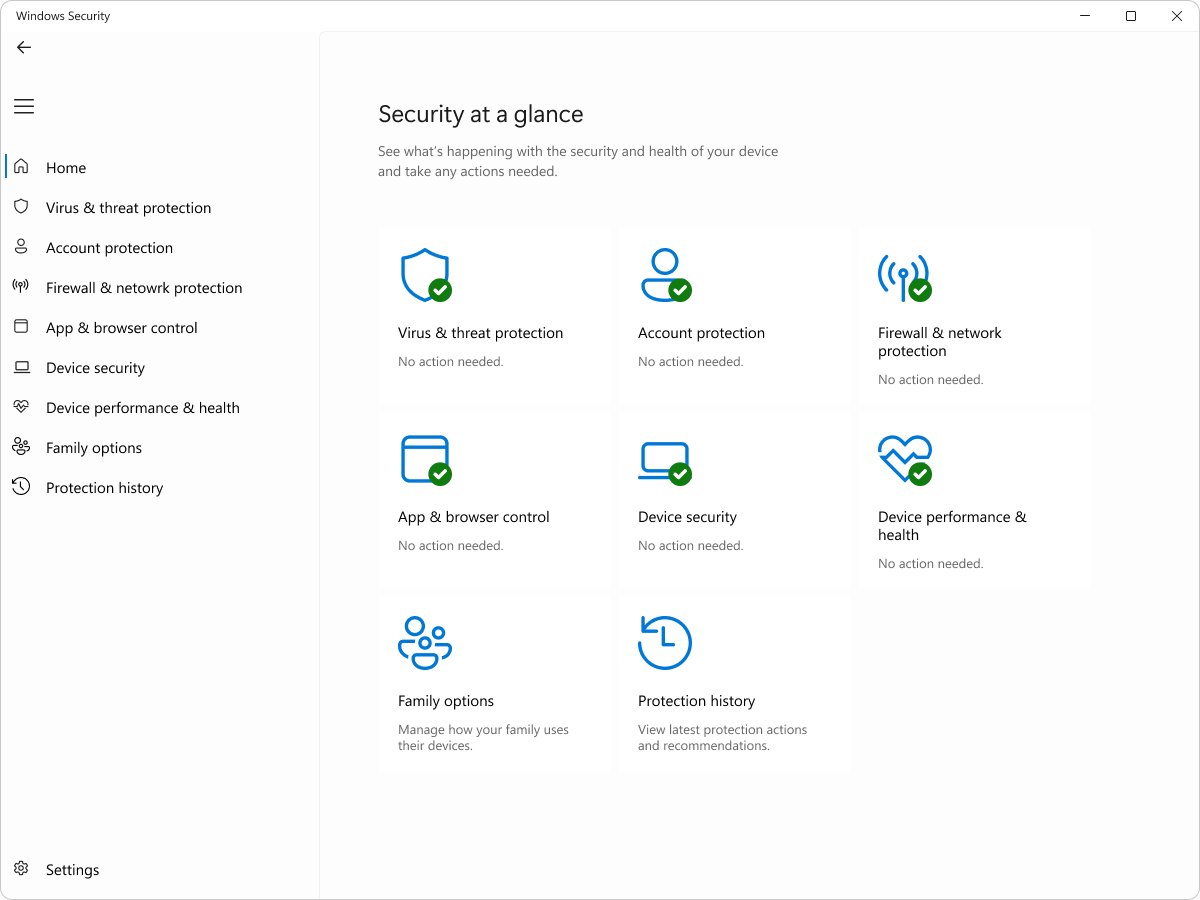
Microsoft Defender Antivirus turns itself back on when a non-Microsoft antivirus is uninstalled, so Windows keeps real-time protection. Confirm that in the checklist further down.
Choose the right McAfee removal method
Start with the standard method. McAfee tells you to use its removal tool only when the normal uninstall fails.
| Your situation | Use this | Why |
|---|---|---|
| McAfee shows in the Start menu or Settings | Start menu or Settings > Apps > Installed apps | McAfee's standard removal method |
| Settings has no working Uninstall option | Control Panel > Programs and Features | Microsoft notes some apps can only be removed from Control Panel |
| Error code 104.0 or 104.3, or McAfee stays installed | McAfee Consumer Product Removal (MCPR) tool | McAfee requires MCPR for these failures |
| You own a Mac | The McAfee uninstaller in Applications | McAfee's documented macOS removal route |
| WebAdvisor or Security Scan Plus is still listed | Uninstall each one separately | They are standalone apps that stay after the main app is gone |
| McAfee PC Optimizer is installed | Standard Windows uninstall | MCPR does not remove PC Optimizer |
Before you uninstall McAfee: what to check first
Two minutes of preparation prevents the two most common regrets: a surprise renewal charge and a lost preinstalled subscription.
| Check | Why it matters |
|---|---|
| Note every McAfee product in Installed apps, including WebAdvisor by McAfee, McAfee Security Scan Plus and McAfee PC Optimizer | Each one uninstalls separately |
| Decide whether you want the subscription to renew | Uninstalling the app does not cancel a paid McAfee subscription |
| On a new laptop, check whether you activated the included McAfee subscription | If you remove a preinstalled app you never activated, you may need to buy a subscription to reinstall it later |
| Plan your replacement protection | McAfee protection ends at uninstall; on Windows 10 and 11, Microsoft Defender Antivirus re-enables automatically |
| Sign in with an administrator account | McAfee's Windows and Mac steps both expect admin rights |
| Save open files and close all programs | Removal ends with a restart |
Uninstall McAfee from Windows Settings
Settings shows every installed McAfee product in one list, which makes it the easiest place to catch WebAdvisor and Security Scan Plus too.
- On Windows 11, select Start > Settings > Apps > Installed apps. On Windows 10, select Start, type Apps & features and press Enter.
- Find the McAfee app in the list.
- On Windows 11, select More (the three dots) next to the McAfee app, then Uninstall. On Windows 10, select the app, then Uninstall.
- Select Uninstall again if Windows asks you to confirm, then follow the McAfee prompts.
- Repeat for any other McAfee entry in the list.
- Restart your PC.
Uninstall McAfee from Control Panel
Use Control Panel when Settings will not remove McAfee. The same Programs and Features screen works on Windows 11 and Windows 10.
- In the taskbar search box, type Control Panel and select it from the results.
- Select Programs > Programs and Features.
- Right-click the McAfee app and select Uninstall or Uninstall/Change.
- Follow the McAfee prompts until removal finishes.
- Restart your PC.
If Control Panel shows error code 104.0 or 104.3, stop here and use the MCPR tool below.
Remove McAfee completely with the official MCPR tool
The McAfee Consumer Product Removal tool (MCPR) removes McAfee apps that the standard method cannot. Get it only from McAfee's MCPR support article, and download a fresh copy each time so it recognizes newer McAfee products.
MCPR does not remove McAfee PC Optimizer. Uninstall that from Settings or Control Panel instead.
- Save open files and close all programs, because MCPR ends with a restart.
- Open McAfee's MCPR article, download the tool, and double-click MCPR.exe.
- If Windows shows a security warning, select Yes, Continue or Run.
- On the McAfee Software Removal screen, select Next, then Agree to accept the licence agreement.
- On the Security Validation screen, type the characters exactly as shown; they are case-sensitive. Select Next.
- Wait for MCPR to finish, which can take 20 minutes or more.
- When Removal Complete appears, restart your PC.
If MCPR shows Cleanup Unsuccessful, restart and run it again. If the message returns, contact McAfee Customer Service.
Uninstall McAfee on a Mac
McAfee for Mac removes itself through a dedicated uninstaller. Its name depends on the product, such as McAfee LiveSafe – Internet Security Uninstaller or McAfee Total Protection Uninstaller.
- Sign in to your Mac with an administrator account and quit every McAfee app.
- In Finder, select Go > Applications and find the McAfee uninstaller. If it is missing, press Command + Space and search for McAfee.
- Double-click the uninstaller and select Continue on the welcome screen.
- Enter your administrator password and select OK.
- Select Allow if the uninstaller asks to access data from other apps.
- If McAfeeSystemExtensions asks to modify a system extension, enter your password and select OK.
- Select Finish when McAfee reports a successful uninstall, then restart your Mac.
A McAfee icon with a question mark can stay in the Dock. Control-click it and select Options > Remove from Dock.
Remove leftover McAfee apps: WebAdvisor, Security Scan Plus and PC Optimizer
McAfee WebAdvisor is a standalone app that can stay on your PC after LiveSafe or Total Protection is gone. Security Scan Plus is a separate free tool that runs a weekly security check. Remove each one on its own.
| Leftover app | How to remove it | Finish |
|---|---|---|
| WebAdvisor by McAfee on Windows | Open Installed apps (Windows 11) or Apps & features (Windows 10), find WebAdvisor by McAfee, select Uninstall, confirm with Uninstall, then select No thanks, just uninstall it and Done | Restart your PC |
| McAfee Security Scan Plus on Windows | Select Start > All apps, right-click McAfee Security Scan Plus, select Uninstall and follow the prompts | Restart your PC; contact McAfee Customer Service if it will not uninstall |
| McAfee PC Optimizer on Windows | Uninstall it from Settings or Control Panel; MCPR skips it | Restart your PC |
| McAfee WebAdvisor on a Mac | Open LiveSafe or Total Protection for Mac, select Identity > McAfee WebAdvisor, then remove the extension from each browser | Restart your Mac |
Remove McAfee browser extensions from Edge and Chrome
A McAfee extension such as WebAdvisor can stay in your browser after the app is removed. Delete it from each browser you use.
| Browser | Steps | Check |
|---|---|---|
| Microsoft Edge | Select Extensions to the right of the address bar, select More actions next to the McAfee extension, then Remove from Microsoft Edge > Remove | The extension is gone from Manage extensions |
| Google Chrome | Select More > Extensions > Manage extensions, select Remove on the McAfee extension, then Remove again | The extension is gone from the extensions list |
| Either browser, quick route | Right-click the McAfee icon next to the address bar and select Remove from Microsoft Edge or Remove from Chrome | The icon disappears from the toolbar |
Complete removal checklist: confirm McAfee is gone and Windows Security took over
Rather than hunting through services and startup items by hand, check the places McAfee and Microsoft document. Each step proves one part of the removal.
- Open Settings > Apps > Installed apps and scan the list for McAfee; no McAfee app, WebAdvisor or Security Scan Plus should appear.
- Open File Explorer, select View > Show > Hidden items, and confirm
C:\Program Files\McAfee,C:\ProgramData\McAfeeandC:\Users\<your name>\AppData\Local\McAfeeno longer exist. - Search the Start menu for Security and open Windows Security.
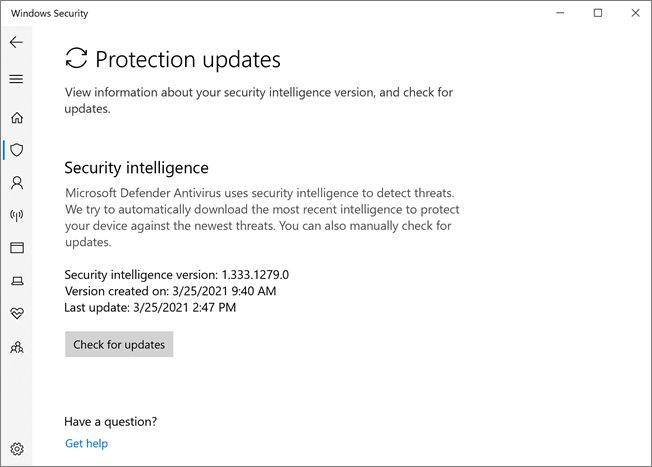
- Select Virus & threat protection, then under Who's protecting me? select Manage providers; you should see Microsoft Defender Antivirus is turned on.
- For an advanced check, open PowerShell and run
Get-MpComputerStatus | select AMRunningMode; Normal means Defender is providing antivirus protection. - Back in Virus & threat protection, select Virus & threat protection updates > Check for updates, then run a Quick scan.
- On a Mac, open Finder > Applications and confirm the McAfee product is gone and no McAfee prompts appear.
Do not delete leftover McAfee folders yourself. McAfee's standard removal article says to leave them untouched, note which remain, and contact McAfee Customer Service.
Cancel McAfee auto-renewal if you no longer need the subscription
Removing the app leaves billing untouched. Turn off auto-renewal more than 30 days before the term ends to avoid the next charge; you keep protection rights until the current term expires.
- Go to myaccount.mcafee.com and sign in to your McAfee account.
- Select Subscriptions.
- Select Cancel next to the subscription you do not want to renew.
- Scroll down and select Cancel Auto-Renewal.
If a retailer or internet provider bills your McAfee subscription, cancel renewal with that company. For a renewal charge you already paid, contact McAfee Customer Service.
Fix McAfee when it will not uninstall
Why can't I uninstall McAfee on Windows 11?
Some apps cannot be removed from the Settings app, and some McAfee installs resist the standard method.
- Open Control Panel and select Programs > Programs and Features.
- Right-click the McAfee app and select Uninstall or Uninstall/Change.
- Restart your PC.
- If McAfee is still listed, run a freshly downloaded copy of MCPR.
"Uninstall failed", error code 104.0 or 104.3, or McAfee remains installed
The standard uninstaller could not finish; McAfee requires its MCPR tool for these errors.
- Save your files and close all programs.
- Download the latest MCPR from McAfee's MCPR article and run MCPR.exe.
- Complete Security Validation and wait for Removal Complete.
- Restart your PC.
- If MCPR reports Cleanup Unsuccessful, restart, run MCPR again, then contact McAfee Customer Service if it repeats.
McAfee uninstall gets stuck or freezes
MCPR can take 20 minutes or more, which often looks like a freeze.
- Leave MCPR running for at least 20 minutes before assuming it has stopped.
- If nothing changes, restart the PC.
- Download a new copy of MCPR and run it again.
- Contact McAfee Customer Service if it stalls a second time.
McAfee keeps coming back after uninstalling
WebAdvisor and Security Scan Plus are separate apps, and a browser extension can outlive both.
- Open Installed apps and look for any entry containing McAfee or WebAdvisor.
- Uninstall WebAdvisor by McAfee and McAfee Security Scan Plus if they appear.
- Remove any McAfee extension from Edge and Chrome.
- Restart your PC.
Mac says McAfee cannot be moved to Trash
McAfee's documented Mac removal route is its own uninstaller, which needs admin rights and closed McAfee apps.
- Restart your Mac.
- Sign in with an administrator account.
- Quit all open McAfee apps.
- Run the McAfee uninstaller from Applications again.
- Contact McAfee Support if the product still appears in Applications.
Internet or security warnings after removal
Windows Security needs a moment to switch to Microsoft Defender, and a disabled Windows Security app can stop Defender re-enabling.
- Search the Start menu for Security and open Windows Security.
- Select Virus & threat protection > Virus & threat protection settings.
- Turn Real-time protection to On.
- Select Virus & threat protection updates > Check for updates.
- Check Manage providers again; if another McAfee product is listed, uninstall it.
Reinstall says "You have an older version of the McAfee app installed"
An older McAfee app is still installed and blocks the new version.
- Select Remove old app on the error message, or open Programs and Features.
- Right-click the McAfee app, select Uninstall, and restart your PC.
- Download a new McAfee installer and run it.
- If the same error returns, run MCPR, restart, and install again.
What not to do when removing McAfee
Each mistake below either leaves McAfee half-installed or leaves you paying for, or missing, protection.
| Avoid this | Do this instead |
|---|---|
| Deleting, moving or renaming leftover McAfee folders | Note which folders remain and contact McAfee Customer Service |
| Running an old MCPR copy saved from a previous removal | Download a new MCPR from McAfee's article every time |
| Using a third-party uninstaller or PC cleaner | Use McAfee's own MCPR, the vendor's removal tool for its products |
| Assuming the uninstall cancels billing | Turn off auto-renewal in your McAfee account |
| Leaving the PC without antivirus | Confirm Microsoft Defender Antivirus is turned on, or install your replacement security app straight away |
| Turning off the Windows Security app | Leave it on; Microsoft warns that disabling it can stop Defender re-enabling |
Frequently asked questions
How do I uninstall McAfee on Windows 11?
Select Start > All apps, right-click the McAfee app, select Uninstall, follow the prompts, and restart. You can also use Settings > Apps > Installed apps > More > Uninstall. If the standard uninstall fails or shows error 104.0 or 104.3, run McAfee's MCPR removal tool.
How do I uninstall McAfee on Windows 10?
Select Start, find McAfee, right-click it and select Uninstall, then follow the prompts and restart. Control Panel > Programs > Programs and Features works too. If McAfee remains installed afterwards, download a fresh copy of McAfee's MCPR tool and run it.
How do I uninstall McAfee completely on Windows 11?
Run the standard uninstall, then remove WebAdvisor by McAfee and McAfee Security Scan Plus if they are still listed, and delete McAfee browser extensions. If the main app will not leave, use MCPR. Finally, confirm Windows Security shows Microsoft Defender Antivirus is turned on.
How do I uninstall McAfee WebAdvisor on Windows 11?
Open Settings > Apps > Installed apps, search for WebAdvisor by McAfee, select the three-dot icon and Uninstall. Confirm with Uninstall, select No thanks, just uninstall it, then Done, and restart your PC. WebAdvisor is a standalone app, so it can remain after McAfee itself is removed.
Do I need the McAfee removal tool after uninstalling from Windows Settings?
No, not if the standard uninstall worked. McAfee recommends MCPR only when the standard method fails, shows error 104.0 or 104.3, or leaves McAfee installed. Check Installed apps and the McAfee folders after restarting; if both are clean, MCPR is unnecessary.
Is it safe to uninstall McAfee from my computer?
Yes, as long as protection continues. On Windows 10 and 11, Microsoft Defender Antivirus re-enables automatically when a non-Microsoft antivirus is uninstalled. Check Windows Security > Virus & threat protection > Manage providers to confirm it is on. Uninstalling does not cancel a paid McAfee subscription.
How do I remove McAfee from a new laptop?
Uninstall the preinstalled McAfee app from the Start menu or Settings like any other install, then restart. Before you do, note that if you never activated the included McAfee subscription, reinstalling McAfee later can require buying a subscription.
How do I reinstall McAfee on Windows 11 or Windows 10?
Download McAfee again from where you bought it; McAfee purchases start at protection.mcafee.com, where you sign in to your McAfee account. If the installer says an older McAfee app is installed, remove that app, restart, and run MCPR if the error repeats.
Can I install McAfee on Windows 11 in S mode?
No. Windows in S mode installs apps only from the Microsoft Store, and McAfee's installer is a web download, so it will not run. McAfee's fix is to switch out of S mode first. Switching out of S mode is free but permanent, so you cannot switch back.
Does uninstalling McAfee cancel my subscription?
No. Uninstalling the McAfee app does not cancel a paid subscription. Sign in at myaccount.mcafee.com, select Subscriptions, select Cancel next to the subscription, then select Cancel Auto-Renewal. Do this more than 30 days before the term ends to avoid the next charge.