To uninstall an app on Windows 11, select Start > All apps, right-click the app and select Uninstall.
This guide covers all six routes, including Settings, Control Panel, winget, vendor removal tools and PowerShell for built-in apps, plus what to do when an app refuses to uninstall.
1. Uninstall apps from the Start menu
The Windows 11 Start menu is the quickest route because you never leave the app list.
- Select Start > All apps.
- Find the app in the list.
- Press and hold, or right-click, the app and select Uninstall.
- Confirm with Uninstall, or follow the uninstaller that opens for desktop programs.
Desktop programs may hand you to Control Panel or their own uninstaller to finish.
Which way to uninstall apps on Windows 11 should you use?
| Your situation | Use this | Why |
|---|---|---|
| You know the app's name | Start menu | Two clicks from the app list |
| You want to see sizes and install dates | Settings > Apps > Installed apps | Lists every app with sort and search |
| An older desktop program is missing from Settings | Control Panel > Programs and Features | Some apps can only be removed here |
| You want to remove several apps by command | winget uninstall | Microsoft's own command-line uninstaller program |
| The normal uninstall leaves the app half-removed | The app's own uninstaller or removal tool | Vendors such as Microsoft ship tools for their own products |
| A pre-installed app has no Uninstall option | PowerShell Remove-AppxPackage | Removes Store-style app packages for one or all users |
2. Uninstall apps from the Settings app
Settings lists Microsoft Store apps and desktop programs together, which makes it the best place to clear out several apps in one sitting.
- Select Start > Settings > Apps > Installed apps.
- Find the app in the list, or type its name in the search box.
- Select More (the three dots) next to the app.
- Select Uninstall, then select Uninstall again to confirm.
- Follow any on-screen prompts from the program's uninstaller.
If an app is misbehaving rather than unwanted, select More > Advanced options and try Repair or Reset first. Not every app has these options, but there are other ways to repair broken apps and programs.
3. Uninstall apps from Control Panel
Control Panel only shows desktop programs, but some of them cannot be removed from Settings and must be removed here.
- Select the search box on the taskbar, type Control Panel, and open it.
- Select Programs > Programs and Features.
- Press and hold, or right-click, the program.
- Select Uninstall or Uninstall/Change.
- Follow the on-screen prompts, then restart if the uninstaller asks.
4. Use uninstaller programs such as winget
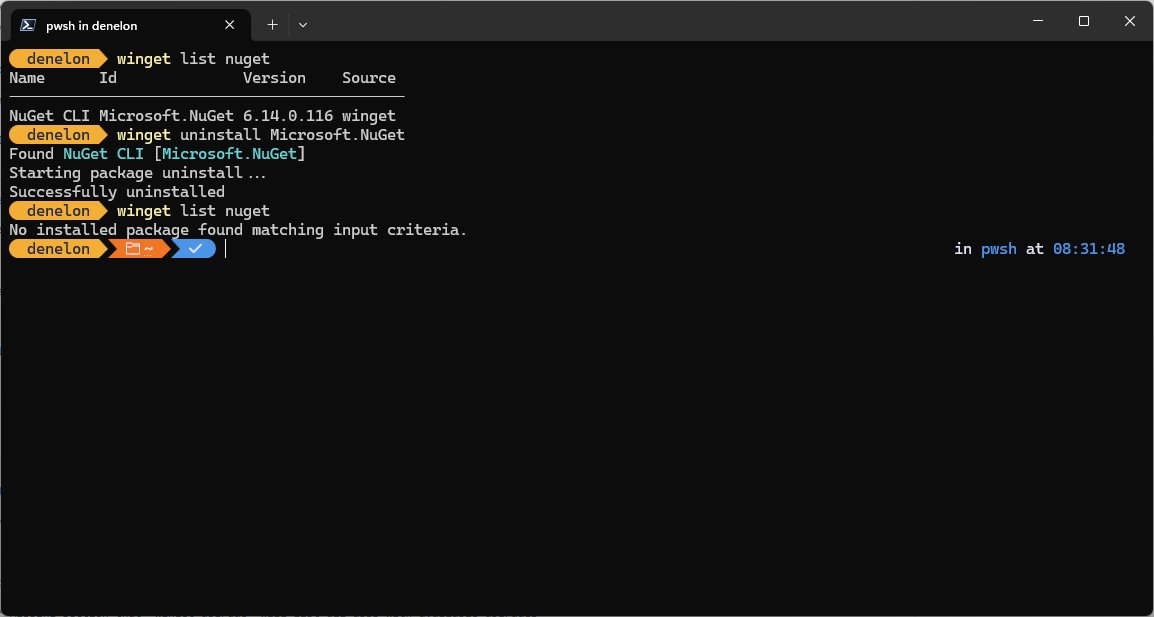
Windows Package Manager (winget) is Microsoft's command-line uninstaller program. It can remove apps it did not install, because winget list shows apps installed by other means too.
Run winget list first to see the exact name or ID, then uninstall by that value in Command Prompt or PowerShell.
winget uninstall --id <AppID> --source winget--id limits the uninstall to that exact app ID taken from winget list. --source winget avoids a Microsoft Store agreement prompt during the lookup. Add --interactive to see the app's own uninstaller, or --silent to hide it. List several IDs in one command to remove several apps at once.
You should see: winget reports that the app was uninstalled, and it no longer appears in winget list or in Settings > Apps > Installed apps.
Third-party uninstaller software is not needed for normal removals. Settings, Control Panel and winget already run each program's own uninstaller.
5. Use the app's uninstaller or product removal tool
Large suites often ship their own uninstaller or a dedicated removal tool that cleans up more than a standard uninstall. Microsoft 365 is the clearest example.
- Open the app's support page on the publisher's own website and look for its uninstall or removal tool.
- For Microsoft 365 or Office, open the Uninstall Microsoft 365 or Office from a PC page on support.microsoft.com and select Uninstall to start the uninstall troubleshooter.
- Select Open if a pop-up says the site is trying to open Get Help.
- Follow the prompts, and restart your computer when asked.
- If the tool cannot remove the product, uninstall it from Control Panel > Programs and Features instead.
The Microsoft 365 uninstall troubleshooter covers Microsoft 365, Office 2021, Office 2019 and Office 2016, but not Office 2024. Uninstalling Office removes the apps, not the documents you created with them. The same idea applies to single apps, such as when you remove Skype from Windows 11.
6. Uninstall Windows apps or pre-installed apps using PowerShell
Built-in apps are app packages, so PowerShell can find and remove them by package name. Some apps are part of Windows and cannot be uninstalled at all.
- Search for PowerShell from the taskbar and open it. Choose Run as administrator if you will remove an app for every user.
- Run
Get-AppxPackage -Name Microsoft.ScreenSketchto see one package, replacing the name with the app you want. RunGet-AppxPackagealone to list all your packages. - Copy the PackageFullName value from the output.
- Run
Remove-AppxPackage -Package '<PackageFullName>'to remove it from your account. - To remove it for all user accounts, run the command with
-AllUsersfrom an administrator terminal. - Run
Get-AppxPackage -Namewith the same name again: no output means the package is gone.
Paint and Snipping Tool can now be uninstalled like any other app. Microsoft provides installer files to put them back if you change your mind.
How to check an app is uninstalled from Windows 11
- Open Settings > Apps > Installed apps and search for the app's name.
- Open Start > All apps and confirm it is gone from the list.
- For desktop programs, check Control Panel > Programs and Features as well.
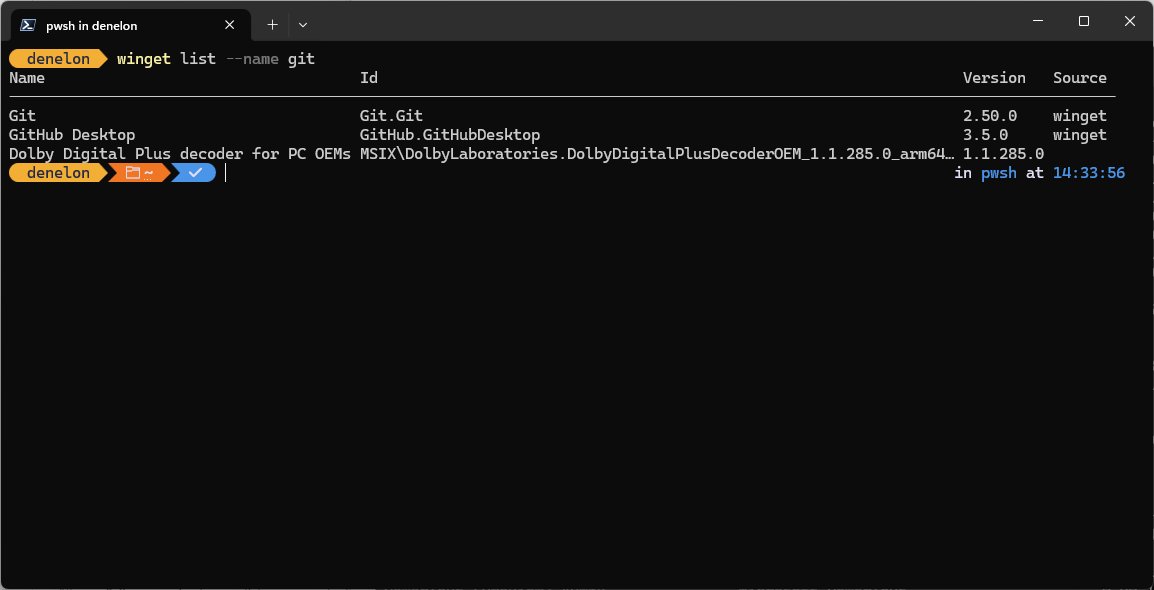
- Run
winget list --name <app name>in Command Prompt: no match means Windows no longer sees it as installed.
Fix apps that will not uninstall on Windows 11
The Uninstall option is greyed out or missing
The app is built into Windows, or it can only be removed from Control Panel.
- Look for the program in Control Panel > Programs and Features and uninstall it there.
- For a pre-installed app package, use
Remove-AppxPackagein PowerShell. - If neither offers removal, the app is part of Windows and cannot be uninstalled.
The uninstaller fails or shows an error
An incomplete install, corrupted app data, or a file still in use.
- Select Start > Power > Restart, then try the uninstall again.
- Open Settings > Apps > Installed apps, select the app, then Advanced options > Repair, then uninstall.
- If Repair does not help, select Reset and try again.
- Run the Program Install and Uninstall Troubleshooter, or follow any troubleshooting prompt Windows shows.
- Contact the app publisher for its removal tool if the error continues.
A suspicious app keeps coming back
Unwanted or malicious software is reinstalling itself.
- Open Windows Security and run a scan.
- Remove any threats it finds.
- Uninstall the app only after the threats are cleaned.
Uninstall apps on Windows 11 FAQ
What is the fastest way to uninstall an app on Windows 11?
Select Start > All apps, right-click the app and select Uninstall. Desktop programs may open their own uninstaller or Control Panel to finish the job.
Why can't I uninstall some apps on Windows 11?
Some apps are built into Windows and cannot be uninstalled. Others cannot be removed from Settings and must be removed from Control Panel > Programs and Features instead.
How do I uninstall pre-installed apps on Windows 11?
Try Start or Settings > Apps > Installed apps first. If there is no Uninstall option, find the package with Get-AppxPackage in PowerShell and remove it with Remove-AppxPackage. Core Windows components still cannot be removed.
How do I uninstall an app for all users?
Open PowerShell as administrator and run Remove-AppxPackage with the -AllUsers parameter and the app's package name. The parameter removes the package from every user account and needs administrator permissions.
Can I uninstall apps with a command on Windows 11?
Yes. Run winget list to find the app's ID, then winget uninstall –id followed by that ID. winget can remove apps it did not install, and you can list several IDs in one command.
Should I repair an app before uninstalling it?
Yes, if it is misbehaving rather than unwanted. Open Settings > Apps > Installed apps, select More > Advanced options and choose Repair, then Reset. Not every app offers these options.
Does uninstalling Microsoft 365 delete my documents?
No. Uninstalling Microsoft 365 removes the apps only. Files, documents and workbooks you created with the apps are not removed.
Can I reinstall Paint or Snipping Tool after uninstalling it?
Yes. Microsoft provides installer files for Paint and Snipping Tool on its support site, in 64-bit, 32-bit and ARM64 versions. Run the installer and follow the steps to get the app back.
Remove unwanted apps: which Windows 11 method is best?
Remove unwanted apps from Settings > Apps > Installed apps for everyday clean-ups, and switch to Control Panel, winget or PowerShell only when Settings cannot do the job. Settings shows Store apps and desktop programs together with sizes, and runs each program's own uninstaller. The other routes cover the exceptions: legacy programs, bulk removals and pre-installed packages. When you need an app back later, install apps on Windows again from the Microsoft Store or the publisher.