To uninstall third-party antivirus software in Windows 11 or 10, open Settings > Apps > Installed apps, select More next to the antivirus, choose Uninstall, restart, and run the vendor's removal tool if anything is left behind.
This guide covers the Settings and Control Panel routes, official removal tools from Norton, Bitdefender, ESET and Kaspersky, Safe Mode for stubborn suites, leftover cleanup, and how to confirm Microsoft Defender Antivirus is protecting the PC again.
How to uninstall third-party antivirus software in Windows 11 & 10
The same five steps work for Norton, McAfee, Avast, AVG, Bitdefender, ESET, Kaspersky and most other security suites. Sign in with an administrator account first.
- Save your license key or activation code, or confirm it is stored in your account on the vendor's website.
- Select Start > Settings > Apps > Installed apps.
- Find the antivirus, select More (the three dots) > Uninstall, and confirm any User Account Control prompt.
- Follow the vendor's uninstall wizard to the end, then restart the PC.
- Open Windows Security > Virus & threat protection and check that Microsoft Defender Antivirus is on. If the old product still appears, run the vendor's official removal tool.
Which antivirus removal method should you use?
| Your situation | Use this | Why |
|---|---|---|
| The antivirus is listed in Installed apps | Windows Settings | Fastest route; runs the vendor's own uninstaller |
| Settings shows no Uninstall option or fails | Control Panel > Programs and Features | Microsoft says some apps can only be removed this way |
| The uninstaller errors out or leaves the product half-installed | The vendor's official removal tool | Built to remove drivers, services and settings the normal uninstaller misses |
| The removal tool refuses to run or fails in normal mode | Safe Mode, then the removal tool | Fewer drivers and services load, so the product's own protection is not active |
| Windows Security still names the old antivirus | Removal tool, then restart | The product is still registered with Windows Security Center |
| You are switching to another paid antivirus | Any method above, then install the new product | Running two real-time scanners side by side causes conflicts |
Why completely remove third-party antivirus?
A partial uninstall is the most common reason a new antivirus refuses to install, or Windows keeps reporting a product that no longer works.
| Reason | What a leftover causes |
|---|---|
| Switching to a different antivirus | The new installer detects the old product and stops, or both scan the same files |
| Returning to Microsoft Defender Antivirus | Defender stays in disabled mode while Windows thinks another product is registered |
| Expired trial or preinstalled suite on a new laptop | Renewal pop-ups and background services keep running after protection has lapsed |
| Slow boot or high disk use | Leftover startup entries, services and scheduled tasks still load |
| Network or browsing problems | A web-filtering component or browser extension stays behind after the main app is gone |
Understanding why antivirus software is hard to remove
Security suites are designed to resist changes, because malware tries to switch them off. The same defences get in the way when you are the one removing them.
| Component | Why it resists removal | What removes it |
|---|---|---|
| Self-protection | Blocks other processes from stopping the product or deleting its files | The vendor's uninstaller or removal tool |
| Filter and boot drivers | Load with Windows and stay in use until a restart | Uninstall, restart, or the removal tool in Safe Mode |
| Services | Run in the background and restart themselves | The vendor's uninstaller; Safe Mode stops most of them loading |
| Windows Security Center registration | Tells Windows another product is protecting the PC | A completed uninstall or the removal tool |
| Extra modules (VPN, password manager, browser extension, agent) | Install as separate programs that need their own uninstall | Uninstall each one from Installed apps or the browser |
Kaspersky describes its kavremover tool as the fix for products that standard Windows tools cannot remove completely, and ESET's uninstaller will not run outside Safe Mode at all.
Part 2: Disadvantages of removing third-party antivirus programs
| What you lose | What to do about it |
|---|---|
| Extras bundled in the suite: VPN, password manager, parental controls, backup | Export passwords and settings first, and plan a replacement for each feature you use |
| Saved license details on the PC | Kaspersky warns that kavremover deletes license information; save the key or activation code first |
| Nothing on the billing side | Norton states that uninstalling does not cancel the subscription; cancel in your vendor account if you want to stop paying |
| Protection during the gap | Microsoft Defender Antivirus re-enables automatically after removal; confirm it is on before browsing |
| Custom network settings from a suite firewall | ESET suggests backing up network adapter settings before running its uninstaller |
Check before you uninstall your antivirus
These precautions take a few minutes and prevent the two worst outcomes: a lost license and a PC with no working protection.
| Precaution to take before uninstalling | Why it matters |
|---|---|
| Sign in with an administrator account | Uninstallers and removal tools need admin rights |
| Save the license key or activation code | Some removal tools delete license data from the PC |
| Export settings, exclusions and any password vault | The uninstall deletes them along with the program |
| Note every product from the same vendor (VPN, agent, browser add-on) | Each one needs its own uninstall |
| Close open programs and save your work | Most uninstalls end with a required restart |
| Create a system restore point | Lets you roll back if the uninstall breaks networking or startup |
| Keep the PC connected to the internet afterwards | Microsoft Defender Antivirus needs to download fresh security intelligence once it turns back on |
Important: Create a system restore point before starting
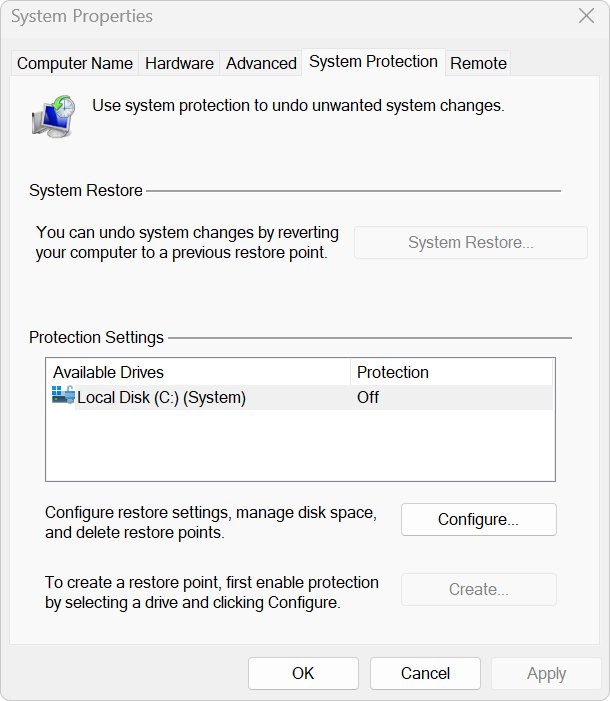
A restore point captures system files, drivers and settings, so you can undo a removal that leaves Windows unstable. It does not touch your personal files.
- Select Start, type Create a restore point, and open the result with that name. Or press Win + R, type
systempropertiesprotection.exeand press Enter. - On the System Protection tab, check that protection is On for your system drive. If it is off, select Configure…, choose Turn on system protection, set the disk space slider and select Apply.
- Select Create….
- Type a description such as
Before antivirus removaland select Create. - Wait for the confirmation message, then close System Properties.
Uninstall antivirus software from Windows Settings
Microsoft documents the same Settings path for Windows 11 and Windows 10. You can also right-click the antivirus in Start > All apps and choose Uninstall.
- Select Start > Settings > Apps > Installed apps.
- Type the antivirus name in the search box above the list.
- Select More next to it, then Uninstall, and confirm.
- Select Yes on the User Account Control prompt.
- In the vendor's wizard, choose the full removal option rather than repair, and decline offers to keep settings if you are not reinstalling.
- Repeat for any companion apps from the same vendor, such as a VPN or agent.
- Restart the PC when the wizard asks.
Remove antivirus programs using Control Panel
Use this route when the Settings uninstall is missing or fails. Bitdefender's own instructions use this same Programs and Features window.
- In the taskbar search box, type Control Panel and select it. Or press Win + R, type
appwiz.cpland press Enter. - Select Programs > Programs and Features.
- Right-click the antivirus and select Uninstall or Uninstall/Change.
- Approve the User Account Control prompt and finish the vendor's wizard.
- Uninstall any remaining entries from the same vendor in the list.
- Restart the PC.
On Windows 10, Microsoft also offers the Program Install and Uninstall troubleshooter for desktop programs that fail to uninstall through Programs and Features.
Use the antivirus vendor's official removal tool
Every major vendor publishes a cleanup tool for installs that the normal uninstaller cannot finish. Download it only from the vendor's own support site, and get the version that matches your product.
The general pattern is the same: download the tool, run it as an administrator, pick the product, confirm, and restart.
| Antivirus | Official tool | Notes from the vendor |
|---|---|---|
| Norton 360 | Norton 360 Remover | Choose Remove to uninstall only, or Reinstall to remove and install fresh; restart when prompted |
| Bitdefender | Bitdefender Uninstall Tool | Use it when the Programs and Features uninstall errors out; if the tool fails, run it again in Safe Mode |
| ESET | ESET Uninstaller | Runs only in Safe Mode; run it a second time to confirm the product is gone, then restart normally |
| Kaspersky | kavremover (kavremvr.exe) | Save your license key first; if it fails, start the PC in Safe Mode and run it again |
| McAfee, Avast, AVG and others | Search the vendor's support site for its removal or uninstall utility | Use only the tool published on the vendor's own domain |
Older Bitdefender and AVG releases had their own cleanup tools too, such as the Bitdefender Free Edition uninstall tool and the AVG 2015 removal tool, but current versions need the vendor's current tool.
Use Safe Mode for stubborn antivirus software
Safe Mode starts Windows with a minimal set of drivers, so the antivirus cannot block its own removal. If BitLocker is on, have your recovery key ready before you start.
- Download the vendor's removal tool first and save it to the desktop.
- On Windows 11, open Settings > System > Recovery. On Windows 10, open Settings > Update & Security > Recovery.
- Next to Advanced startup, select Restart now.
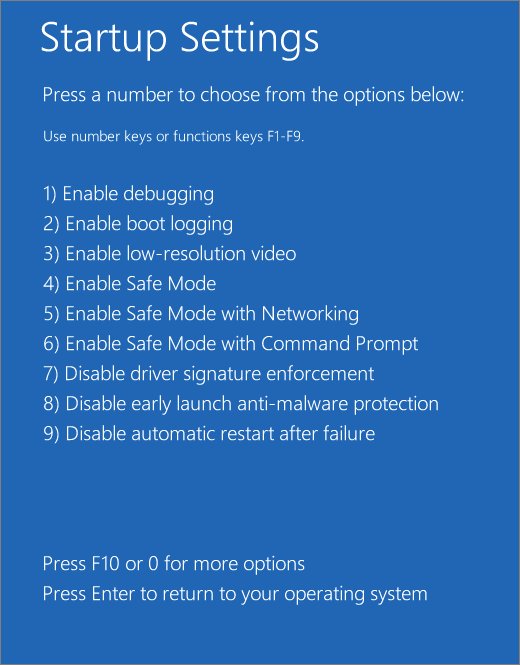
- Select Troubleshoot > Advanced options > Startup Settings > Restart.
- After the restart, press 4 for Enable Safe Mode.
- Run the removal tool, confirm the product, and let it finish.
- Restart the PC to return to normal mode.
If the PC keeps starting in Safe Mode, press Win + R, type msconfig, open the Boot tab and clear Safe boot.
Delete leftover files, extensions, and startup entries
Do this only after the uninstaller or removal tool has finished and you have restarted. These steps remove remaining program files and antivirus startup entries; they do not touch Windows itself.
- Open File Explorer and check
C:\Program FilesandC:\Program Files (x86)for a folder named after the antivirus vendor. Delete it if it is still there. - Type
%ProgramData%in the File Explorer address bar, press Enter, and delete any folder with the vendor's name. - In your browser, open the extensions page and remove the antivirus vendor's web protection or safe-search extension.
- Press Ctrl + Shift + Esc to open Task Manager and select the Startup apps tab (Startup on Windows 10).
- Select any entry from the removed antivirus and choose Disable.
- Restart the PC.
If Windows says a file is in use, the product is not fully removed. Run the vendor's removal tool in Safe Mode instead of forcing the delete.
Remove leftover services, drivers and scheduled tasks
Leftover services, device drivers and scheduled tasks are the parts most likely to cause problems, and the parts most risky to delete by hand. Use these checks to find them, then let the vendor's tool remove them.
- Press Win + R, type
services.mscand press Enter. Sort by Name and look for services carrying the vendor's name. - Press Win + R, type
devmgmt.mscand press Enter. Select View > Show hidden devices and check device drivers under Network adapters for a leftover filter or VPN adapter from the vendor. - Select Start, type Task Scheduler and open it. Expand Task Scheduler Library and look for a folder or scheduled tasks named after the vendor.
- If you find a scheduled task from the removed product, right-click it and select Delete.
- If services or drivers from the vendor remain, run the vendor's removal tool again, in Safe Mode if needed, and restart.
Do not delete Microsoft Defender Antivirus services such as WinDefend. Microsoft does not support changing their start type by hand on Windows 10 and 11.
Run Disk Cleanup after removing antivirus
Security suites keep large quarantine, update and log folders. Cleanup removes the temporary files the uninstall leaves behind.
- On Windows 11, select Start > Settings > System > Storage > Cleanup recommendations, choose Temporary files, and select Clean up.
- On Windows 10, type disk cleanup in the taskbar search box and open it.
- Choose the system drive and select OK.
- Select Clean up system files, choose the drive again, and select OK.
- Tick the file types to remove, select OK, then Delete files.
Install the new antivirus (optional)
Skip this if you are staying with Microsoft Defender Antivirus. Install the replacement only after the old product is fully gone and the PC has restarted.
- Download the installer from the new vendor's own website.
- Run it and sign in to activate your subscription.
- Let it download its first updates and run an initial scan.
- Open Windows Security > Virus & threat protection and check that the new product is named as the active provider.
- Expect Microsoft Defender Antivirus to show as turned off; Windows disables it automatically when another registered antivirus is active.
Restart Windows and confirm security protection is active
Restart once more, then check Windows Security status. This is the proof that the removal finished and the PC is not left unprotected.
- Select Start, type Windows Security and open it.
- Select Virus & threat protection.
- Confirm the page no longer names the old antivirus and shows Microsoft Defender Antivirus options such as Quick scan.
- Select Virus & threat protection updates > Check for updates to download current security intelligence.
- Select Firewall & network protection and confirm Microsoft Defender Firewall is on for your active network.
- Run a Quick scan to confirm scanning works.
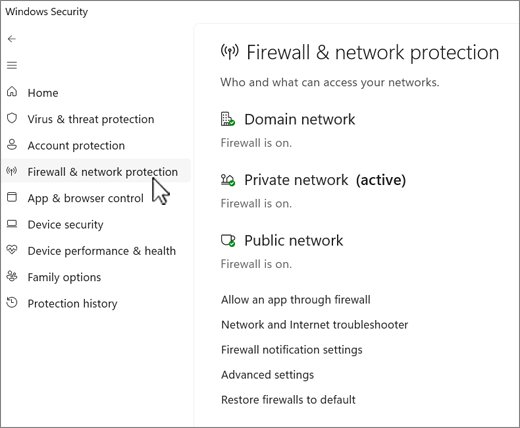
Check Microsoft Defender status with PowerShell
Use this when the Windows Security app looks wrong or you want an exact answer. Open Windows PowerShell as an administrator.
Get-MpComputerStatusReports the state of Microsoft Defender Antivirus. Look at the AMRunningMode value. To check the Defender services and drivers instead, run gsv WinDefend, WdBoot, WdFilter, WdNisSvc, WdNisDrv | ft -auto DisplayName, Name, StartType, Status.
You should see: AMRunningMode shows Normal, and the WinDefend service shows Running with an Automatic start type.
Post-uninstallation: How to re-enable Windows Defender
Microsoft Defender Antivirus switches to disabled mode automatically when another antivirus is installed, and Microsoft says it re-enables automatically when that product is uninstalled, expires or stops protecting the PC. Turn it on manually only if it stays off.
- Open Windows Security > Virus & threat protection.
- Select Virus & threat protection settings (or Manage settings).
- Toggle Real-time protection to On.
- Go back and select Virus & threat protection updates > Check for updates.
If the settings are greyed out, a Group Policy or your organization is managing them. On a work device, contact your IT admin.
Troubleshooting: Fixing internet issues after uninstallation
Suites with a firewall, web shield or VPN change network settings. When the uninstall leaves them half-removed, connections fail even though Wi-Fi shows as connected.
No internet after uninstalling antivirus
A leftover network filter or the suite's firewall changes are still in place.
- Run the vendor's removal tool and restart.
- Open Command Prompt as administrator and run
netsh winsock reset,netsh int ip reset,ipconfig /release,ipconfig /renewandipconfig /flushdns, in that order. - Restart the PC and test the connection.
Still no connection after the commands
Adapter settings are damaged beyond what the reset commands fix.
- On Windows 11, open Settings > Network & internet > Advanced network settings > Network reset. On Windows 10, open Settings > Network & internet > Status > Network reset.
- Select Reset now > Yes.
- Let the PC restart, then reconnect to Wi-Fi and reinstall any VPN client you use.
Windows says a third-party antivirus is installed after you uninstalled it
The product is still registered with Windows Security Center.
- Run the vendor's official removal tool, in Safe Mode if needed.
- Restart the PC.
- Open Windows Security > Virus & threat protection and confirm the old name is gone.
The Uninstall option is missing or the uninstall fails
Some apps cannot be removed from Settings, or self-protection blocks the uninstaller.
- Try Control Panel > Programs > Programs and Features instead.
- If that fails, use the vendor's removal tool.
- If the tool fails, boot into Safe Mode and run it again.
Microsoft Defender will not turn back on
A leftover component still reports to Windows that another antivirus is active.
- Run
Get-MpComputerStatusin an admin PowerShell window and check AMRunningMode. - Run the vendor's removal tool again and restart.
- Toggle Real-time protection to On in Virus & threat protection settings.
Uninstall third-party antivirus FAQ
What is the best way to uninstall third-party antivirus software Windows struggles to remove?
Use the vendor's official removal tool. Norton, Bitdefender, ESET and Kaspersky all publish one for installs the normal uninstaller cannot finish. If the tool fails, start Windows in Safe Mode and run it again, then restart normally.
Will Windows Defender automatically turn on after I remove my old antivirus?
Yes. Microsoft states that Microsoft Defender Antivirus re-enables automatically when a third-party antivirus is uninstalled, expires or stops providing real-time protection. Restart, then confirm in Windows Security > Virus & threat protection that it is on.
Should I use uninstaller software like Revo Uninstaller?
Use the antivirus vendor's own removal tool first. It knows which drivers, services and registry entries its product installs. A general uninstaller adds another program to trust and does not replace the vendor's cleanup for security software.
Why does Windows 11 say I have a third-party antivirus after I uninstalled it?
Part of the product is still registered with Windows Security Center. Run the vendor's removal tool, restart, and check Windows Security again. Until the registration is gone, Microsoft Defender Antivirus can stay in disabled mode.
What do I do if the Uninstall button for my antivirus is greyed out?
Open Control Panel > Programs > Programs and Features and uninstall it there; Microsoft notes that some apps cannot be removed from Settings. If it still will not uninstall, run the vendor's removal tool, in Safe Mode if necessary.
Should I remove the pre-installed antivirus that came with my laptop?
Remove it if you do not plan to pay once the trial ends. An expired suite keeps running background services but stops real-time protection. After removal, Microsoft Defender Antivirus turns on automatically and needs no subscription.
Can I run two antivirus programs at the same time?
Not as two active real-time scanners. On Windows 11 and 10, Microsoft Defender Antivirus switches to disabled mode automatically when another antivirus is installed. Passive mode alongside another product needs Microsoft Defender for Endpoint, a business product.
Does uninstalling antivirus cancel my subscription?
No. Norton states directly that uninstalling does not cancel the subscription, and the same applies to most vendors. Sign in to your account on the vendor's website to turn off automatic renewal or cancel.
Will I lose my antivirus license key when I uninstall it?
You can. Kaspersky warns that its kavremover tool deletes license information from the PC. Save the license key or activation code, or confirm it is linked to your online account, before you uninstall.
Bottom line: the safest way to remove third-party antivirus
Uninstall from Settings first, use the vendor's official removal tool only when something is left behind, and finish by confirming Microsoft Defender Antivirus is on in Windows Security. The built-in uninstall handles most products cleanly, the vendor tool removes the drivers and services that cause conflicts, and the final check is the only way to know the PC is not left without protection.