To uninstall WinZip completely, remove it from Settings > Apps > Installed apps, uninstall any other WinZip-branded apps, then delete the leftover WinZip folders.
This guide covers Settings, Control Panel and WinGet, the manual uninstaller, companion apps like WinZip Courier, startup items, scheduled tasks, registry leftovers and fixes when WinZip will not go.
How to completely uninstall WinZip in Windows 11/10
These steps remove the main program and the usual leftovers on Windows 11. Windows 10 uses Apps & features instead of Installed apps.
- Close WinZip and any open WinZip windows.
- Select Start > Settings > Apps > Installed apps.
- Find WinZip in the list, select More (the three dots) and then Uninstall.
- Follow the WinZip uninstaller until it reports that removal is finished.
- Repeat for every other entry whose name starts with WinZip, such as WinZip Courier.
- Delete any leftover WinZip folders in
%ProgramData%,%AppData%and%LocalAppData%. - Restart the PC so any WinZip files that were in use are released.
Which uninstall route should you use?
| Your situation | Use this | Why |
|---|---|---|
| WinZip is listed in Settings | Settings > Apps > Installed apps | Runs WinZip's own uninstaller with the fewest clicks |
| Settings refuses or shows no Uninstall option | Control Panel > Programs and Features | Microsoft notes some programs uninstall only from Control Panel |
| You prefer a command line or manage several PCs | winget uninstall |
Finds apps installed by any method, not only through WinGet |
| WinZip is missing from every list | Run the uninstaller from its registry UninstallString | Starts the same uninstaller Settings would have started |
| The uninstall entry stays after WinZip is gone | Delete the stale registry subkey | Removes an orphaned entry without touching other apps |
Before uninstalling WinZip
| Check | Why it matters |
|---|---|
| Sign in with an administrator account | Removing a program installed for all users needs admin rights |
| Keep your WinZip registration or order details | You need them to activate WinZip again if you reinstall later |
| Extract any encrypted archives you still need | The Windows built-in archive support does not open encrypted archives |
| Note which WinZip apps are installed | Companion apps such as Courier have their own uninstall entries |
| Save your work and close WinZip | Open files block the uninstaller from deleting them |
Your own .zip files are not WinZip program files. They stay where they are, and File Explorer can still open them after WinZip is gone.
Check Your WinZip Version and Close Related Processes
Knowing the exact product name and version tells you which entries to look for later. Closing WinZip first prevents locked-file errors during removal.
- Right-click Start and select Terminal or Windows PowerShell.
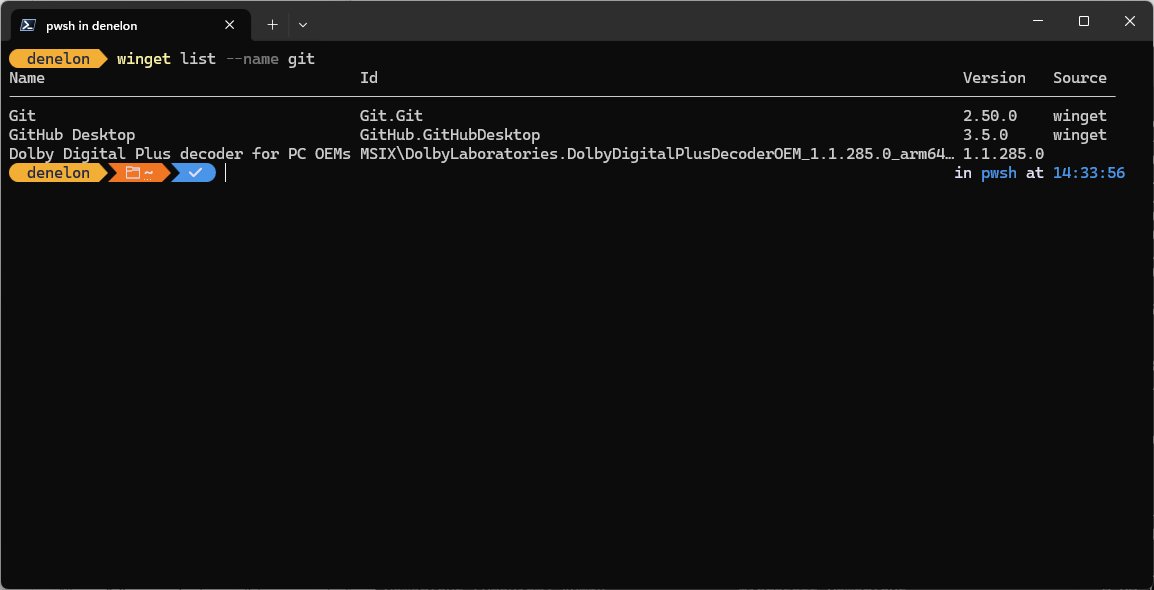
- Run
winget list winzipto see every installed package with WinZip in its name, plus its Version and Id. - Write down each name the command returns, for example WinZip and any WinZip companion app.
- Right-click Start and select Task Manager.
- On the Processes tab, right-click each WinZip entry and select End task.
- Right-click the WinZip icon in the notification area, if one is shown, and exit it.
What you may need to uninstall separately
WinZip's product page lists several tools that sit alongside the main archiver. Any of them that appears as its own entry in Installed apps needs its own uninstall.
| WinZip-branded app | What it does | What to do |
|---|---|---|
| WinZip | Main zip and unzip program | Uninstall first, from Settings, Control Panel or WinGet |
| WinZip Courier | Zips and encrypts email attachments | Uninstall its own entry if one is listed |
| WinZip SafeShare | Encrypts and shares files | Uninstall its own entry if one is listed |
| WinZip PDF Express | Converts and edits documents | Uninstall its own entry if one is listed |
| WinZip Duplicate File Finder | Finds duplicate files | Uninstall its own entry if one is listed |
| WinZip Image Manager | Organises photos | Uninstall its own entry if one is listed |
| WinZip PDF Pro, WinZip System Utilities Suite | Separate WinZip-branded products | Uninstall each one that is listed |
The quickest check is winget list winzip, which shows every match on one screen.
Uninstall WinZip from Windows Settings or Control Panel
The menu path depends on your Windows version. Every route below starts the same WinZip uninstaller.
| Where you start | Exact path | Final click |
|---|---|---|
| Windows 11 Settings | Start > Settings > Apps > Installed apps, find WinZip | More (three dots) > Uninstall |
| Windows 10 Settings | Start > Settings > Apps > Apps & features, find WinZip | Uninstall |
| Control Panel (Windows 11 and 10) | Search Control Panel on the taskbar, then Programs > Programs and Features | Right-click WinZip > Uninstall or Uninstall/Change |
| Start menu (Windows 11) | Start > All apps, find WinZip | Right-click > Uninstall |
After the final click, confirm the prompt and follow the WinZip uninstaller to the end. If Settings shows no uninstall option, use the Control Panel row.
Uninstall WinZip with WinGet
WinGet lists apps installed by any method, so it can remove a WinZip copy you installed from the website. Run these commands in Terminal opened as administrator.
- Right-click Start and select Terminal (Admin) or Windows PowerShell (Admin).
- Run
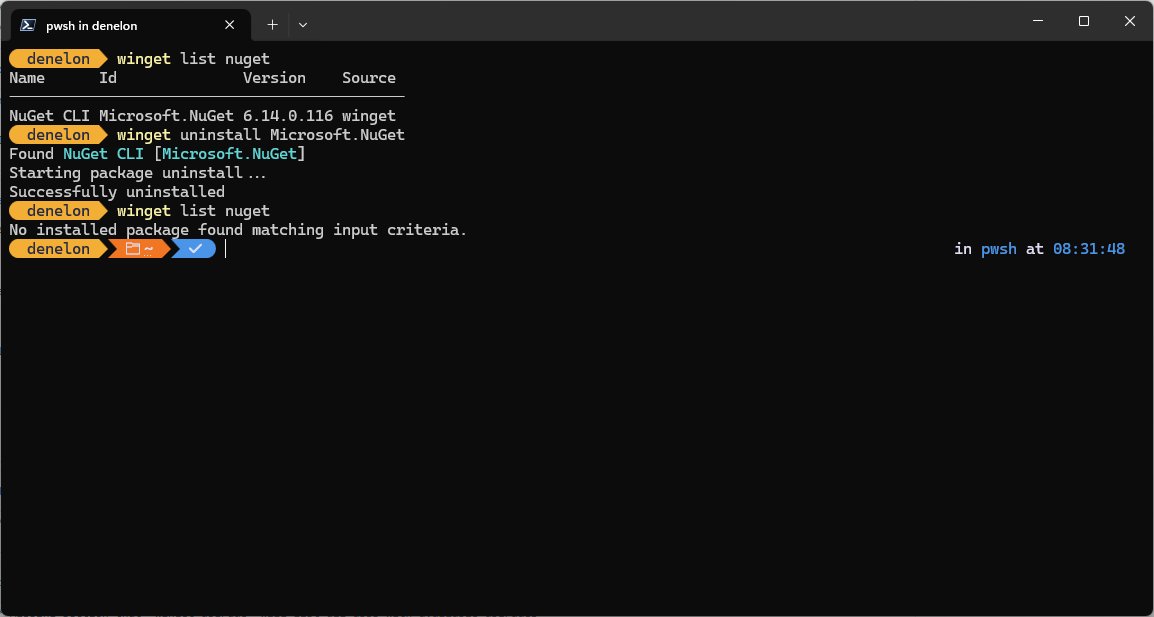
winget list winzipand copy the value in the Id column for WinZip. - Run
winget uninstall --id "<Id>" --source winget, replacing<Id>with the value you copied. If it reports no match, runwinget uninstall --id "<Id>"without the source flag. - Confirm any prompt from the WinZip uninstaller and wait for WinGet to report success.
- Run
winget list winzipagain. WinZip should no longer be listed.
Microsoft documents --source winget as a way to avoid a Microsoft Store agreement prompt during uninstall. If several WinZip matches appear, WinGet asks you to narrow the query, which --id does.
Run WinZip’s uninstaller manually
Every Windows program that shows in the uninstall list stores its uninstall command in a registry value named UninstallString. Running that command starts WinZip's own uninstaller directly.
- Select Start, type
regedit.exeand press Enter. Approve the User Account Control prompt. - Expand
HKEY_LOCAL_MACHINE\SOFTWARE\Microsoft\Windows\CurrentVersion\Uninstall. - Select each subkey and check the DisplayName value in the right pane until you find WinZip.
- If it is not there, repeat the search under
HKEY_LOCAL_MACHINE\SOFTWARE\WOW6432Node\Microsoft\Windows\CurrentVersion\Uninstall, where 32-bit programs register. - Double-click UninstallString, copy the full Value data and select Cancel.
- Search for Command Prompt, right-click it and select Run as administrator.
- Paste the copied command, press Enter and follow the WinZip uninstaller.
The same subkey holds InstallLocation, which names the WinZip program folder. Note it before you uninstall so you know which folder to check for leftovers.
Uninstall WinZip Courier separately
WinZip Courier zips and encrypts email attachments. When it has its own entry in the app list, uninstall that entry as well.
- Close your email client so no Courier component is in use.
- Select Start > Settings > Apps > Installed apps (Windows 10: Apps & features).
- Type
Courierin the search box above the list. - Select More next to WinZip Courier and choose Uninstall.
- Follow the uninstaller, then restart your email client.
- Repeat for SafeShare, PDF Express or any other WinZip entry that remains.
Remove Leftover WinZip Files and Folders
Uninstallers commonly leave settings and data folders behind. Check each location below and delete a folder only when it is named WinZip or clearly belongs to it.
- Restart the PC after the uninstall so no WinZip file is locked.
- Open File Explorer, click the address bar, type
%ProgramFiles%and press Enter. - If a WinZip folder remains, right-click it and select Delete.
- Repeat the check in
%ProgramFiles(x86)%, the location of 32-bit programs. - Delete the remaining WinZip data folder in
%ProgramData%if one is there. - Repeat the check in
%AppData%and%LocalAppData%, which hold your per-user settings. - Empty the Recycle Bin once you are sure nothing else is needed.
If Windows says a folder is in use, restart and try again. Do not delete folders for other products just because they sit next to WinZip.
Clean Up WinZip Startup Items, Services, and Scheduled Tasks
A clean uninstall removes these, but check them if WinZip pop-ups or update prompts continue. Use PowerShell to find entries by name instead of scrolling through every list.
- Select Start > Settings > Apps > Startup and set any WinZip toggle to Off.
- Open Task Manager, select the Startup apps tab and confirm no WinZip entry is enabled.
- Right-click Start, select Terminal (Admin) and run
Get-ScheduledTask | Where-Object TaskName -like "*WinZip*". - For each task it returns, run
Unregister-ScheduledTask -TaskName "<TaskName>" -TaskPath "<TaskPath>"with the values shown, and confirm with Y. - Run
Get-Service -DisplayName "*WinZip*"to check for a leftover service. - If a WinZip service remains, run the WinZip uninstaller again rather than deleting the service by hand.
Shortcuts added by hand to the Startup folder do not show in Settings. Type shell:startup in the File Explorer address bar and delete any WinZip shortcut there.
Remove WinZip Browser Extensions and File Associations
Browser extensions are not removed by the Windows uninstaller. File types that pointed to WinZip should also be handed back to File Explorer.
- In Microsoft Edge, select Extensions to the right of the address bar, select More actions next to any WinZip extension, then Remove from Microsoft Edge > Remove.
- In Google Chrome, select More > Extensions > Manage extensions, select Remove on any WinZip extension and confirm with Remove.
- Select Start > Settings > Apps > Default apps.
- Type
.zipin the search box and select the result. - Choose the app you want to open .zip files with from the list and confirm.
- Repeat for
.zipx,.rar,.7zor any other extension that still shows WinZip.
Windows 11 version 24H2 opens ZIP, RAR, 7z and TAR archives natively, so File Explorer can take over those types. It does not handle encrypted archives.
Remove a stale WinZip entry from the registry
Use this only when WinZip is already gone but its name still sits in the uninstall list. Back up the key first so you can restore it.
- Select Start, type
regedit.exeand press Enter. - Find the WinZip subkey under
...\CurrentVersion\Uninstallor...\WOW6432Node\...\Uninstall, checking DisplayName as described above. - With the subkey selected, select File > Export, choose a location, name the file and select Save.
- Right-click the WinZip subkey, select Delete and confirm with Yes.
- Close Registry Editor and reopen Installed apps to confirm the entry is gone.
- To undo, double-click the exported .reg file, or use File > Import in Registry Editor.
Delete only the one subkey whose DisplayName is WinZip. The neighbouring subkeys belong to other installed programs.
Verify that WinZip is completely removed
Run through these checks after the final restart. If every one passes, WinZip is completely gone.
- Run
winget list winzip. It should return no installed package. - Search WinZip in Settings > Apps > Installed apps and in Programs and Features. No entry should appear.
- Search WinZip in Start > All apps. No shortcut should remain.
- Check
%ProgramFiles%,%ProgramData%and%AppData%for a WinZip folder. None should exist. - Double-click any .zip file. It should open in File Explorer or the archive tool you picked.
If WinZip is missing from the uninstall lists
WinZip does not appear in the uninstall list in Settings
Microsoft notes that some apps cannot be uninstalled from the Settings app.
- Open Control Panel > Programs > Programs and Features and look for WinZip there.
- Run
winget list winzip, which also lists apps installed outside WinGet. - If it appears in either, uninstall it from that list.
WinZip still runs but is in no list at all
The uninstall entry is gone while program files remain.
- Look for a WinZip subkey under both Uninstall registry keys, as shown in the manual uninstaller section.
- If a subkey exists, run its UninstallString from an administrator Command Prompt.
- If no subkey exists, reinstall the same WinZip version from winzip.com, then uninstall it normally.
The WinZip uninstall.exe file is missing
The program folder was deleted or damaged before WinZip was uninstalled.
- Reinstall WinZip from winzip.com over the damaged copy so a working uninstaller is written back.
- Restart the PC.
- Uninstall WinZip from Settings > Apps > Installed apps.
Use Microsoft Troubleshooter or a Trusted Uninstaller if Removal Fails
Microsoft's current guidance for blocked removals is a short sequence of built-in fixes. The trusted uninstaller for WinZip is WinZip's own, started from Settings, WinGet or its UninstallString.
You cannot delete WinZip because files are in use
WinZip, its tray icon or a companion app is still running.
- End every WinZip process in Task Manager > Processes.
- Select Start > Power > Restart.
- Run the uninstall again before opening any other program.
The uninstaller shows an error and stops
The WinZip installation is incomplete or its data is corrupted.
- Select Start > Settings > Apps > Installed apps, select WinZip and then Advanced options.
- Select Repair if it is offered, then Reset if the problem continues. Not every desktop app offers these.
- Uninstall WinZip again from Installed apps.
- Follow any troubleshooter Windows offers in the error notification.
- If it still fails, contact WinZip support, which Microsoft names as the next step for app-specific failures.
WinZip returns after you remove it
Another WinZip-branded app or a scheduled task reinstalls or updates it.
- Run
winget list winzipand uninstall every remaining WinZip entry. - Remove WinZip scheduled tasks with
Unregister-ScheduledTask, as shown above. - Run a scan in Windows Security if it reappears after that.
Some vendors publish dedicated removal tools, such as AVG Clear for AVG products. For WinZip, the built-in uninstaller covers removal, so a third-party cleaner is not needed.
Frequently Asked Questions
Is it okay to uninstall WinZip?
Yes. WinZip is an optional program, and Windows 11 and 10 open .zip files in File Explorer without it. Windows 11 version 24H2 also opens RAR, 7z and TAR archives. Keep an archive tool only if you need encrypted archives, which the built-in support does not open.
How do I delete WinZip in Windows 11?
Select Start > Settings > Apps > Installed apps, find WinZip, select More and then Uninstall. Follow the WinZip uninstaller, uninstall any other WinZip-branded apps, and delete leftover WinZip folders in %ProgramData% and %AppData%.
How do I remove WinZip from my PC completely?
Uninstall WinZip from Settings, Control Panel or winget uninstall, then remove companion apps such as WinZip Courier. Finish by deleting leftover folders, WinZip scheduled tasks and browser extensions, and resetting .zip to File Explorer in Default apps.
Where is the WinZip uninstaller in Windows 10?
Open Start > Settings > Apps > Apps & features, select WinZip and select Uninstall, which launches WinZip's own uninstaller. Its exact command is stored in the UninstallString registry value for WinZip, which you can run from an administrator Command Prompt.
What if the WinZip uninstall.exe file is missing?
Reinstall WinZip from winzip.com over the damaged copy so a working uninstaller is restored, restart, then uninstall it from Installed apps. If the entry lingers with no program behind it, back up and delete its registry uninstall subkey.
Why can I not delete WinZip on my computer?
WinZip is usually still running, or you are not signed in as an administrator. End WinZip in Task Manager, restart, and uninstall from an admin account. If it is missing from Settings, try Control Panel or winget list winzip.
Is WinZip preinstalled on Windows?
No. Windows does not include WinZip; its own zip support is built into File Explorer. A WinZip copy on your PC was installed separately, so you can uninstall it like any other desktop program.
Bottom Line
Uninstall WinZip from Settings, run winget list winzip to catch companion apps, then delete the leftover WinZip folders and restart. Settings runs WinZip's own uninstaller, WinGet shows every remaining WinZip entry at once, and the leftover folders are the only part a normal uninstall skips.

![How to change your user account picture in Windows 11? [Easy steps]](https://techdows.com/wp-content/uploads/2026/10/How-to-Change-Your-User-Account-Picture-in-Windows-11-Easy-Steps-600x338.jpg)