You do not need to download the Microsoft Store app on Windows 11 or Windows 10, because it is built in: select Start, then Microsoft Store, and if it is broken, repair or reset it from Settings.
This guide covers opening the Store, signing in, getting free and paid apps, updating them, clearing the Store cache, and the only supported way to restore a Store app that was removed.
The fastest way to get the Microsoft Store app working
Microsoft Store ships with every consumer edition of Windows 11 and Windows 10. There is no separate installer for it, and Microsoft does not offer one.
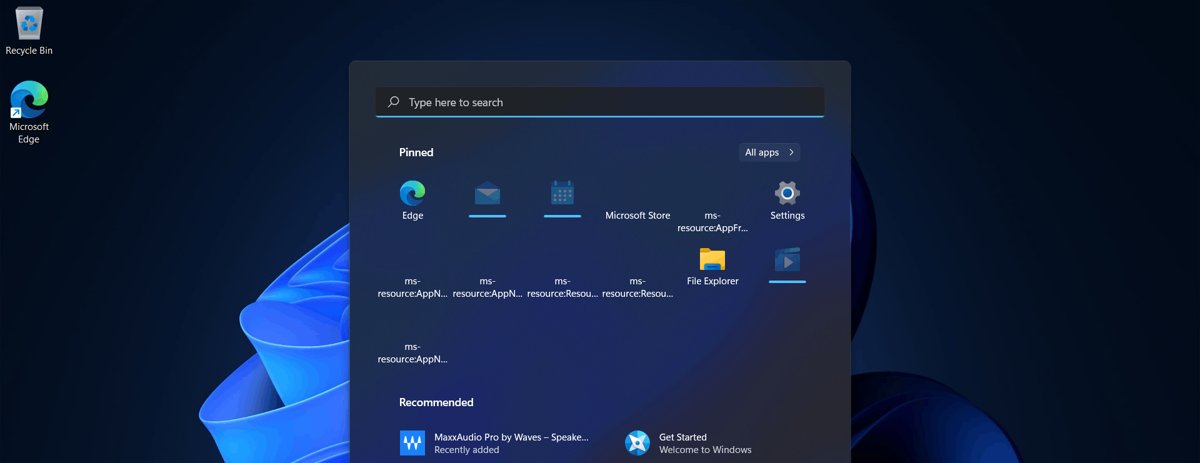
- Select Start, then select Microsoft Store. You can also select the Microsoft Store icon on the taskbar.
- If the Store opens, search for the app you want and select Get.
- If the Store will not open or will not download, press Windows key + R, type
wsreset.exeand select OK. - If that fails, open Settings > Apps > Installed apps, select the More icon next to Microsoft Store, then select Advanced options > Repair.
- If the Store is missing entirely, check whether a work or school policy blocks it before you consider Reset this PC.
Windows 10 reached end of support on October 14, 2025. The Store still opens there, but new apps increasingly target Windows 11.
Check That Microsoft Store Is Available on Your PC
Before you try any fix, confirm the Store is supposed to be there. Most "missing Store" cases are a policy or edition setting, not a deleted app.
| Check | Where to look | What it means |
|---|---|---|
| The Store is in the Start menu | Start > All apps (Windows 11) or the Start list (Windows 10), under M | If Microsoft Store is listed, the app is installed and you only need to open it |
| The Store appears in Settings | Settings > Apps > Installed apps (Windows 11) or Apps & features (Windows 10) | A listed Microsoft Store entry can be repaired or reset from Advanced options |
| Your Windows edition and S mode | Settings > System > Activation (Windows 11) or Update & Security > Activation (Windows 10) | Windows in S mode installs apps only from Microsoft Store, so the Store is required there, not optional |
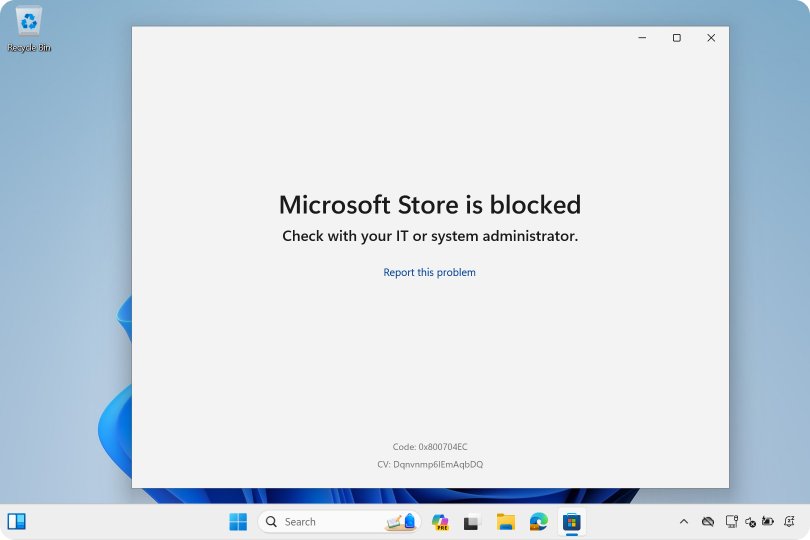
| A work or school policy | The message shown when you open the Store | Organizations can enable Turn off the Store application under Computer Configuration\Administrative Templates\Windows Components\Store; only your IT admin can lift it |
| Windows version | Settings > System > About | Windows 10 is out of support since October 14, 2025; Store and app fixes arrive through Windows Update on supported versions |
Open Microsoft Store in Windows 10 or Windows 11
Every route below opens the same app. Pick the one that suits where you already are.
| Where you are | What to do | Why use it |
|---|---|---|
| Start menu | Select Start, then select Microsoft Store | Works on both Windows 11 and Windows 10 with no typing |
| Anywhere, keyboard in hand | Press the Windows key, type Microsoft Store, press Enter |
Finds the Store even if it is not pinned |
| Desktop | Select the Microsoft Store icon on the taskbar | One click when the icon is pinned; right-click the Start entry and choose Pin to taskbar to add it |
| Run dialog | Press Windows key + R, type ms-windows-store://home, select OK |
Opens the Store home page through its documented URI, useful when the Start entry is hidden |
| You want your owned apps | Press Windows key + R, type ms-windows-store://mylibrary, select OK |
Jumps straight to Library |
Sign In With a Microsoft Account
Microsoft lists "your PC isn't authorized to use Microsoft Store apps" as a cause of failed installs, and the fix is signing in to the Store. Buying an app always needs a Microsoft account.
- Open Microsoft Store.
- Select Profile, the account picture next to the search box (Windows 10 shows See more instead).
- Choose to sign in, pick the Microsoft account you use on Windows, and enter its password or PIN.
- Optional: open Profile > App settings > Purchase sign-in (Windows 10: See more > Settings > Purchase sign-in) and turn it On to buy without typing a password on this PC.
- If you share the PC with a child, check you are signed in with the correct account, because family settings hide age-restricted apps.
Search for and Download an App
This is the short version; other install routes, including installers from official sites and winget, are covered in installing apps on a Windows PC.
- Open Microsoft Store and type the app name in the search box at the top.
- Or choose Apps or Gaming and select Show all in a category.
- Select the app and check that the publisher named on its page is the company that makes it.
- Select Get for a free app, or the price button for a paid one.
- Wait for the download to finish, then select Open, or find the app under Start.
Well-known desktop apps are listed too, such as Firefox in the Microsoft Store.
Install Free and Paid Microsoft Store Apps
The Store hides or blocks the purchase button on apps that are incompatible with your device, so a missing button usually means the app cannot run on that PC.
| What you see on the app page | What to do | What happens |
|---|---|---|
| Get | Select it | The free app downloads and installs; sign in if the Store asks |
| A price button | Select it, sign in, confirm the payment method | The paid app is bought on your Microsoft account and then installs; it stays in Library on your other PCs |
| Install or a Download icon in Library | Select it | You already own the app, so it reinstalls without paying again |
| Open | Select it | The app is already installed on this PC |
| No purchase button at all | Check the system requirements on the page | The app is incompatible with this device, not available in your region, or blocked by family settings |
Past purchases you never installed are listed in your Microsoft account order history.
Update or Reinstall Microsoft Store Apps
Store apps update automatically by default, and you can pause updates if you need to. Updating the Store itself works the same way, because the Store is listed in its own Library.
- Open Microsoft Store.
- Select Library (Windows 10: See more > Downloads and updates).
- Select Get updates to update every app, including Microsoft Store itself.
- To reinstall an app you removed, stay in Library (Windows 10: See more > My Library), find the app, and select Install.
- Restart the PC if Windows installed updates, because pending updates can block new Store installs.
Clear the Microsoft Store cache with wsreset
This resets the Store app's cache without touching your installed apps or your account. Try it first whenever the Store stalls, shows a blank page or will not start a download.
wsreset.exePress Windows key + R, type the command and select OK. It clears the Microsoft Store cache and relaunches the Store.
You should see: A blank command prompt window opens, closes after about ten seconds, and Microsoft Store opens on its own.
Repair or reset the Microsoft Store app in Settings
Microsoft's order is Repair first, then Reset only if Repair is unavailable or does not fix the problem.
- Windows 11: select Start > Settings > Apps > Installed apps.
- Scroll to Microsoft Store and select the More icon next to it, then Advanced options.
- Windows 10: select Start > Settings > Apps > Apps & features, select Microsoft Store, then Advanced options.
- Select Repair and let it finish.
- Open the Store and try the download again.
- If it still fails, return to the same page and select Reset.
Can you reinstall the Microsoft Store itself?
Microsoft's support policy (KB 4339074) states that uninstalling the Microsoft Store app is not supported and that there is no supported workaround to uninstall or reinstall it. PowerShell re-register commands circulate widely, but Microsoft does not document them as a fix.
Techdows reported this policy when Microsoft first published it for Windows 10: Microsoft does not support uninstalling or reinstalling the Store app.
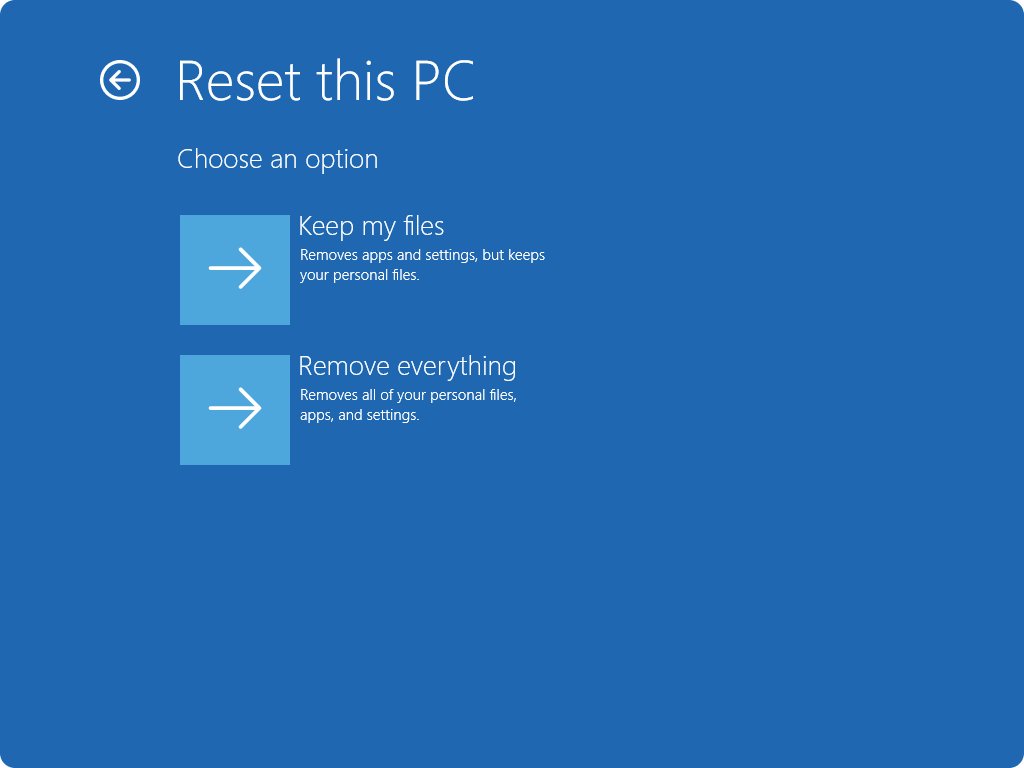
If the Store was removed, the only Microsoft-supported way back is Reset this PC or a Windows reinstall: on Windows 11 open Settings > System > Recovery > Reset PC; on Windows 10 open Settings > Update & Security > Recovery > Get started, and choose Keep my files. Resetting restores Microsoft Store with Windows. Keep my files keeps your documents and photos but removes installed apps and settings, so back up and note your apps first, and never download a Store installer from a third-party site.
How to check the Microsoft Store is working
- Open Microsoft Store and confirm the home page loads with Apps and Gaming available.
- Check that your account picture appears next to the search box, which shows you are signed in.
- Select Library and confirm your owned apps are listed.
- Select Get updates and confirm it finishes without an error.
- Install a small free app and confirm it appears under Start with an Open button on its Store page.
Fix Common Microsoft Store Download Problems
Microsoft Store won't download apps
A stale Store cache, a pending Windows restart, or an out-of-date Store app.
- Restart the PC if Windows installed updates recently.
- Run
wsreset.exefrom Windows key + R. - Select Start > Settings > Windows Update > Check for updates (Windows 10: Update & Security > Windows Update) and install what is offered.
- In the Store, select Library > Get updates to update the Store itself.
- Repair, then reset, Microsoft Store from Advanced options in Settings.
Why can't I find or download a specific app?
The app is not offered in your region, was removed from the Store, is incompatible with the device, or is hidden by family settings.
- Confirm you are signed in with the correct Microsoft account, not a child account.
- Read the system requirements on the app page.
- Check the developer's own website to see whether the app is still offered in the Store for your country.
- Run
wsreset.exe, then search again.
Microsoft Store is missing from the PC
A policy hides it, or the app package was removed.
- Search Start for
Microsoft Store, and check Settings > Apps > Installed apps. - If the Store opens with a blocked message on a work or school PC, contact your IT admin, because a policy turned it off.
- If it is listed in Settings but will not open, use Repair, then Reset.
- If it is gone from both places, use Reset this PC with Keep my files, which is the only supported way to restore it.
An app from the Store won't install on Windows 10
Store app components are damaged or out of date.
- Select Start > Settings > Update & Security > Troubleshoot.
- Select Windows Store apps > Run the troubleshooter.
- Apply any fix it offers, then restart the PC and retry the install.
Frequently Asked Questions
How do I download the Microsoft Store app on my PC?
You do not need to. Microsoft Store is built into Windows 11 and Windows 10; select Start > Microsoft Store to open it. If it is broken, repair or reset it under Settings > Apps. Microsoft offers no standalone Store installer.
Can I download the Microsoft Store app again after uninstalling it?
Not as a separate download. Microsoft states that the only supported way to reinstall the Store is to reset or reinstall Windows, which restores it. Use Reset this PC with Keep my files to keep personal files; installed apps are removed.
Why won't Microsoft Store download apps?
The usual causes are a pending restart after Windows updates, a stale Store cache, or an outdated Store. Restart the PC, run wsreset.exe from Windows key + R, install Windows updates, then select Library > Get updates in the Store.
How do I download Microsoft Store apps for free?
Open the app's Store page and select Get. Apps with a Get button cost nothing to install, though some offer in-app purchases. Apps with a price button must be bought with a Microsoft account before they install.
Where does the Microsoft Store download apps to?
Store apps install to the drive set for new apps. Change it under Settings > System > Storage > Advanced storage settings > Where new content is saved. Apps appear in Start, not as a file in your Downloads folder.
Do I need a Microsoft account to download apps from the Microsoft Store?
You need one to buy apps, and Microsoft lists signing in as the fix when a PC is not authorized to install Store apps. Signing in also puts your apps in Library, so they can be reinstalled on your other Windows PCs.
Where is the Microsoft Store on Windows 10 or Windows 11?
Select Start and look for Microsoft Store, or press the Windows key and type Microsoft Store. You can also press Windows key + R, type ms-windows-store://home and select OK. The taskbar icon is there if the Store is pinned.
Should I download apps from the Microsoft Store?
Yes, when the app is listed there. Microsoft checks Store apps before offering them, and they update automatically. On Windows in S mode, the Store is the only place apps can come from until you switch out of S mode.
How can I download the App Store on Windows?
The Windows equivalent of an app store is Microsoft Store, which is already installed. Apple's App Store does not run on Windows; see Apple App Store for PC for what Apple offers on PCs.
Why is Microsoft Store blocked on my work computer?
Your organization turned it off with the Turn off the Store application policy, which shows a blocked message when the Store opens. Only your IT admin can change it, and some managed PCs still get Store apps through Company Portal or Intune.
Bottom Line
Treat Microsoft Store as a Windows component to fix, not an app to download: open it from Start, then use wsreset.exe, Repair and Reset in that order when it fails. Microsoft offers no standalone Store installer and supports no reinstall other than resetting Windows, so any site offering a Store download is not a Microsoft source.



How to Repair/Reset Microsoft Store or Clear Windows (11/10) Store Cache - Techdows
[…] Once the Store is healthy, follow the full Microsoft Store app install flow. […]
How to update Microsoft Store Apps manually in Windows 11 - Techdows
[…] the Store is missing entirely, follow the steps to download Microsoft Store in Windows 10/11 […]
How to install Outlook in Windows 11: A step-by-step guide - Techdows
[…] for Windows, published by Microsoft and priced free. If the Store itself is missing or broken, reinstall the Microsoft Store app […]