The easiest fix when Microsoft Store won't download games is to restart the PC, clear the Store cache with wsreset.exe, update Windows and the Store, then select Install again from Library.
If that fails, the steps below cover the Store troubleshooter, a Store repair or reset, a Gaming Services reinstall, install-drive errors and Xbox app checks for Game Pass titles.
Easiest fix for Microsoft Store not downloading games
Microsoft asks you to restart before installing Store apps if Windows updates were installed recently. A stale Store cache is the next most common block.
- Save your work and restart the PC from Start > Power > Restart.
- Press Windows + R, type
wsreset.exeand select OK. - Wait about ten seconds while a blank Command Prompt window opens and closes; Microsoft Store then opens on its own.
- In Microsoft Store, select Library > Get updates and let any Store or Gaming Services updates finish.
- Find the game in Library and select Install.
Make sure you are signed in to Microsoft Store with the Microsoft account that owns the game or the Game Pass subscription before you retry.
Why won't the Microsoft Store let me download a game?
Most failed game downloads come from one of a handful of causes, and each has its own fix.
| Cause | What you notice | Fix |
|---|---|---|
| Pending restart after Windows updates | Install does nothing or stalls at the start | Restart the PC, then retry |
| Corrupt Microsoft Store cache | Store hangs, Install button greyed out | Run wsreset.exe |
| Outdated Windows or Store | Game page asks for a newer version | Windows Update and Library > Get updates |
| Damaged Gaming Services package | Error 0x87e00196 or a redirect to the Gaming Services page | Reinstall Gaming Services |
| Game set to install on a non-system drive | Error 0x80073D21 | Install on the system drive |
| Not enough free space | Low Disk Space warning | Free up space with Cleanup recommendations |
| Region, family settings or device compatibility | Game is missing or the buy button is hidden | Check account, family settings and requirements |
| PC not authorized for your account | Owned game will not install | Sign in with your Microsoft account and check the device list |
Which Microsoft Store game download fix to try first
| Your situation | Try this | Why |
|---|---|---|
| Nothing downloads at all | Restart, wsreset.exe, Library > Get updates | Clears the most common blocks in a few minutes |
| Store apps install but games do not | Reinstall Gaming Services | Games depend on that package; apps do not |
| You see 0x80073D21 | Change where new content is saved to the system drive | Some games must install on the system drive |
| Store itself misbehaves | Windows Store Apps troubleshooter, then Repair or Reset | Fixes the Store app without touching games |
| Game Pass game fails in the Xbox app | Xbox app checks below | Subscription, sign-in and launcher issues are separate |
| Every fix fails | Clean boot | Finds a background app that blocks the install |
How do I fix Microsoft Store not downloading games?
Work through Microsoft's own order: sign in first, then update everything the game depends on.
- Open Microsoft Store and confirm you are signed in with your Microsoft account.
- Select Start > Settings > Windows Update > Check for updates, and select Install now if an update appears.
- Restart the PC once the updates finish.
- Open Microsoft Store and select Library > Get updates to update the Store itself.
- Check the game page to make sure the game supports your version of Windows.
- In Library, find the game and select Install.
If a game update stalls rather than a new install, update Microsoft Store apps manually from the same Library page.
Run the Windows Store Apps troubleshooter
- Select Start > Settings > System > Troubleshoot.
- Select Other troubleshooters.
- Next to Windows Store Apps, select Run.
- Apply any fixes the troubleshooter suggests.
- Run the Windows Update troubleshooter from the same list if updates are also failing.
- Restart the PC and try the game download again.
Repair or reset the Microsoft Store app
Repair keeps the app's data. Reset clears it and signs you out of the Store, so use it second.
- Select Start > Settings > Apps > Installed apps (on Windows 10: Apps > Apps & features).
- Find Microsoft Store and select the More icon next to it.
- Select Advanced options.
- Select Repair and wait for it to finish.
- If the game still will not download, return here and select Reset.
- Open Microsoft Store, sign in again and retry the install.
Running wsreset.exe afterwards will clear the Microsoft Store cache as well.
Reinstall Gaming Services with PowerShell
Microsoft Store games and Game Pass titles rely on the Gaming Services package. Xbox Support gives this command for error 0x87e00196, and it removes the package so the Store can install a clean copy.
Get-AppxPackage *gamingservices* -allusers | remove-appxpackage -allusersRight-click Start, select Windows Terminal (Admin), paste the command into the Administrator: Windows PowerShell window and press Enter. It removes Gaming Services for every user account on the PC.
You should see: The command returns to the prompt without red error text. Open the game page in Microsoft Store, install Gaming Services when prompted, restart and retry the game.
Install Microsoft Store games on the system drive
Some games must install on the system drive. Error 0x80073D21 means the default save location points somewhere else, such as a second drive or an SD or microSD card.
| Windows version | Path | What to set |
|---|---|---|
| Windows 11 | Start > Settings > System > Storage > Advanced storage settings > Where new content is saved | Set new apps to save to the system drive (usually C:) |
| Windows 10 | Settings > System > Storage > Change where new content is saved | Select your system drive for new apps |
Retry the install after the change. If an SD card is inserted and set as the app location, switch it to the system drive or remove the card before installing.
Free up disk space for Microsoft Store game downloads
Modern games need tens of gigabytes, and the Store's temporary .appx files also use space while a download runs, so free up disk space before you retry a large game.
- Select Start > Settings > System > Storage > Cleanup recommendations.
- Review Temporary files, Large or unused files, Files synced to the cloud and Unused apps.
- Select the items you want to remove and confirm.
- If a Low Disk Space warning keeps returning, run the Windows Store Apps troubleshooter, then
wsreset.exe, then the Windows Update troubleshooter. - Restart the PC and retry the download.
Clean boot Windows to find what blocks game installs
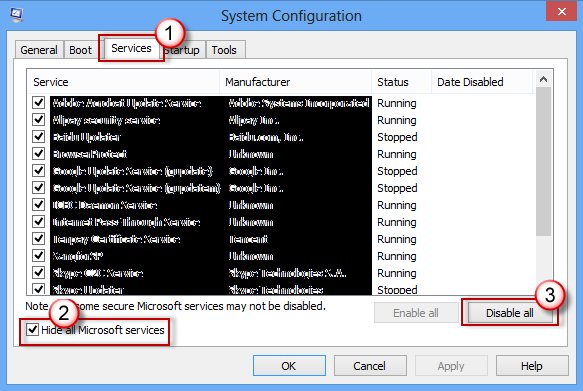
A clean boot starts Windows with only Microsoft services, which shows whether another app is interfering. Sign in as an administrator first.
- Select Search, type
msconfigand select System Configuration. - On the Services tab, select Hide all Microsoft services, then Disable all, then Apply.
- On the Startup tab, select Open Task Manager.
- On the Startup apps tab, select each Enabled item and select Disable, noting what you turned off.
- Close Task Manager, select OK in System Configuration and restart.
- Install the game from Microsoft Store Library.
- Re-enable the services and startup apps afterwards to return to a normal startup.
If the game installs in a clean boot, one of the disabled items was the cause. Turn them back on in small groups to find it.
Check the Microsoft Store game installed correctly
- Open Microsoft Store and select Library to confirm the game no longer waits on Install.
- Select Start and look for the game in the apps list.
- Open Settings > Apps > Installed apps and confirm the game is listed with its size.
- Launch the game once to make sure it opens past the first screen.
Fix Microsoft Store and Xbox app game download errors
Why can't I download games from Microsoft? The game is missing or the button is hidden
The game is unavailable in your region, blocked by family settings, removed from the Store or not compatible with your device.
- Confirm you are signed in with the right Microsoft account, not a child or work account.
- Check whether Microsoft family settings limit apps on this account.
- Look at the game's system requirements on its Store page.
- If you moved country after buying it, note that previously bought apps can disappear in the new region.
Error 0x87e00196 when installing a Game Pass game
The Gaming Services package is damaged.
- Open Windows Terminal (Admin) from the Start button's right-click menu.
- Run
Get-AppxPackage *gamingservices* -allusers | remove-appxpackage -allusers. - Reinstall Gaming Services from Microsoft Store, restart and retry.
Why won't my games download in the Xbox app on PC?
An Xbox service outage, an expired Game Pass plan, a sign-in problem or another launcher running at the same time.
- Check the Xbox status page for service problems.
- Make sure you are signed in to the Xbox app for PC, then restart the PC.
- Check that your Xbox Game Pass subscription is still active on your Microsoft account.
- Close any other game launchers that are running.
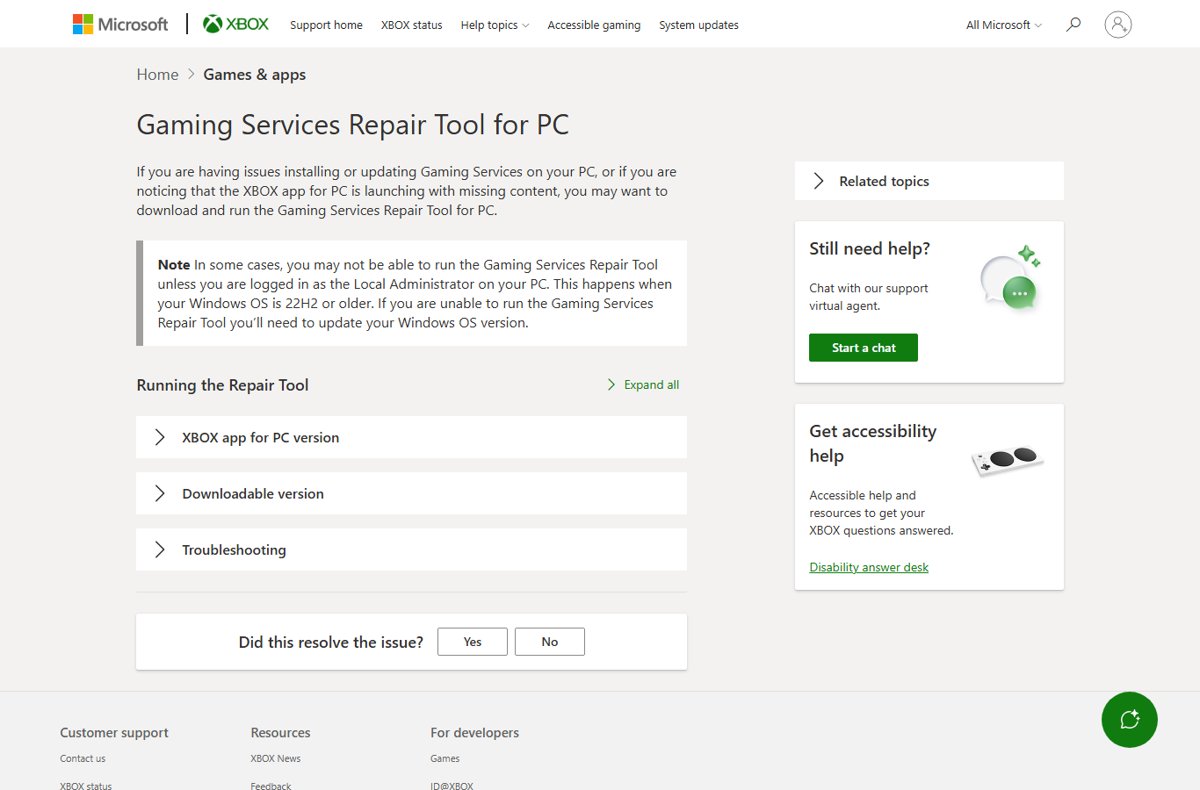
- Run the Gaming Services Repair Tool from Xbox Support if the Xbox app opens with missing content.
Why won't my laptop download games after Windows updates?
Windows installed updates and is waiting for a restart before Store installs can run.
- Select Start > Settings > Windows Update and finish any pending installs.
- Restart the laptop.
- Open Microsoft Store and retry the game from Library.
Owned game will not install on a new PC
The PC is not authorized for your Microsoft account.
- Sign in to Microsoft Store with the account that bought the game.
- Check that this PC appears in your Microsoft account device list.
- Add the device if it is missing, then retry the install.
Download stops with a security warning
Your antivirus has blocked or quarantined a Store or Gaming Services file.
- Open your security app and look at its blocked or quarantined items.
- Restore any item from Microsoft Store, the Xbox app or Gaming Services, keeping protection turned on.
- Retry the download from Library.
Microsoft Store game download FAQ
Why can't I download games on my laptop?
The usual causes are a pending restart after Windows updates, a corrupt Store cache, a damaged Gaming Services package, a non-system install drive or low disk space. Restart, run wsreset.exe, update the Store from Library and retry.
Why can't I download games from Microsoft?
Microsoft Store hides or blocks games that are unavailable in your region, restricted by family settings, removed by the publisher or not compatible with your PC. Check the account you are signed in with and the game's system requirements.
Why can't I download games on my HP laptop?
The causes are the same as on any Windows laptop: pending updates, the Store cache, Gaming Services, storage location or free space. Work through the fixes in order, starting with a restart and wsreset.exe.
Why won't any games download on PC?
If no game installs while normal Store apps do, Gaming Services is the likely culprit. Reinstall it with the PowerShell command from Xbox Support, restart and install the game again.
Why aren't my games downloading in the Xbox app?
Check the Xbox status page, confirm you are signed in and that your Game Pass plan is active, close other launchers and restart. Then run the Gaming Services Repair Tool if the Xbox app shows missing content.
Can I download games on my laptop from Microsoft Store?
Yes. Any Windows 11 or Windows 10 laptop signed in with a Microsoft account can install Store games that support its hardware. Some games must install on the system drive and need tens of gigabytes free.
Does wsreset.exe delete my games?
No. wsreset.exe only clears the Microsoft Store cache. A blank window opens for about ten seconds, then the Store reopens, and your installed games stay where they are.
What does error 0x80073D21 mean?
It means the game must install on the system drive but your default location for new apps is elsewhere. Change Where new content is saved in Storage settings to the system drive and retry.