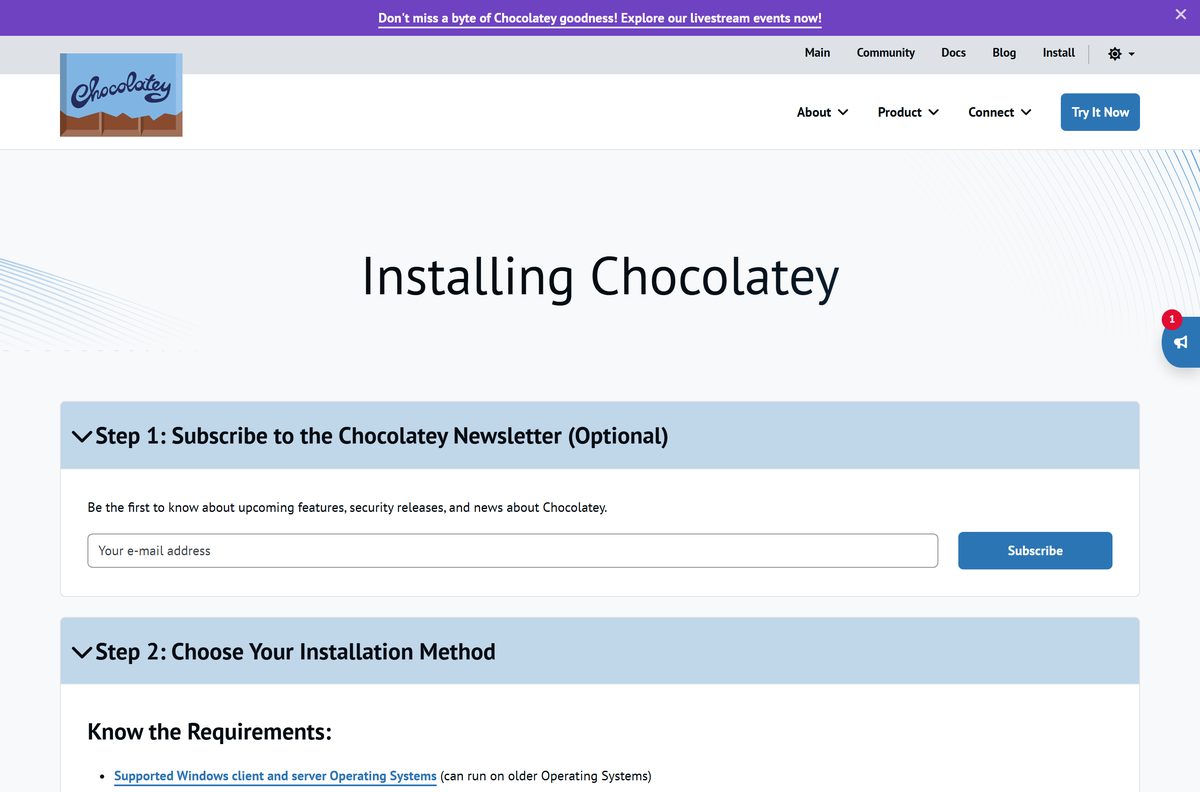
The Chocolatey download for Windows 11 and Windows 10 is one PowerShell command from chocolatey.org. Paste it into an administrator window, and Chocolatey installs in a few seconds, ready to run choco install .
The open-source edition is free, with no machine limit, for home and business use. Paid Pro and Business editions add extra features on top.
This guide covers the official install command, the Command Prompt and offline routes, Chocolatey GUI, pricing, updates and fixes for common install errors.
Which Chocolatey install method do you need?
Chocolatey has no setup.exe. Every route ends with the same 5.4 MB package in C:\ProgramData\chocolatey, so pick the route that fits your machine.
| Your situation | Use this | Official link |
|---|---|---|
| Home or work PC with internet | One PowerShell command | chocolatey.org/install |
| Only Command Prompt allowed | The cmd.exe one-liner | Chocolatey setup docs |
| PC with no internet access | Offline .nupkg install | Chocolatey package page |
| You prefer a point-and-click app | Chocolatey CLI, then Chocolatey GUI | Chocolatey GUI package |
| A company fleet of 100+ PCs | Chocolatey for Business | Chocolatey pricing |
| A Mac | Homebrew instead | brew.sh |
Most readers want the first row. It takes one paste and a few seconds.
Check the Chocolatey system requirements before you install
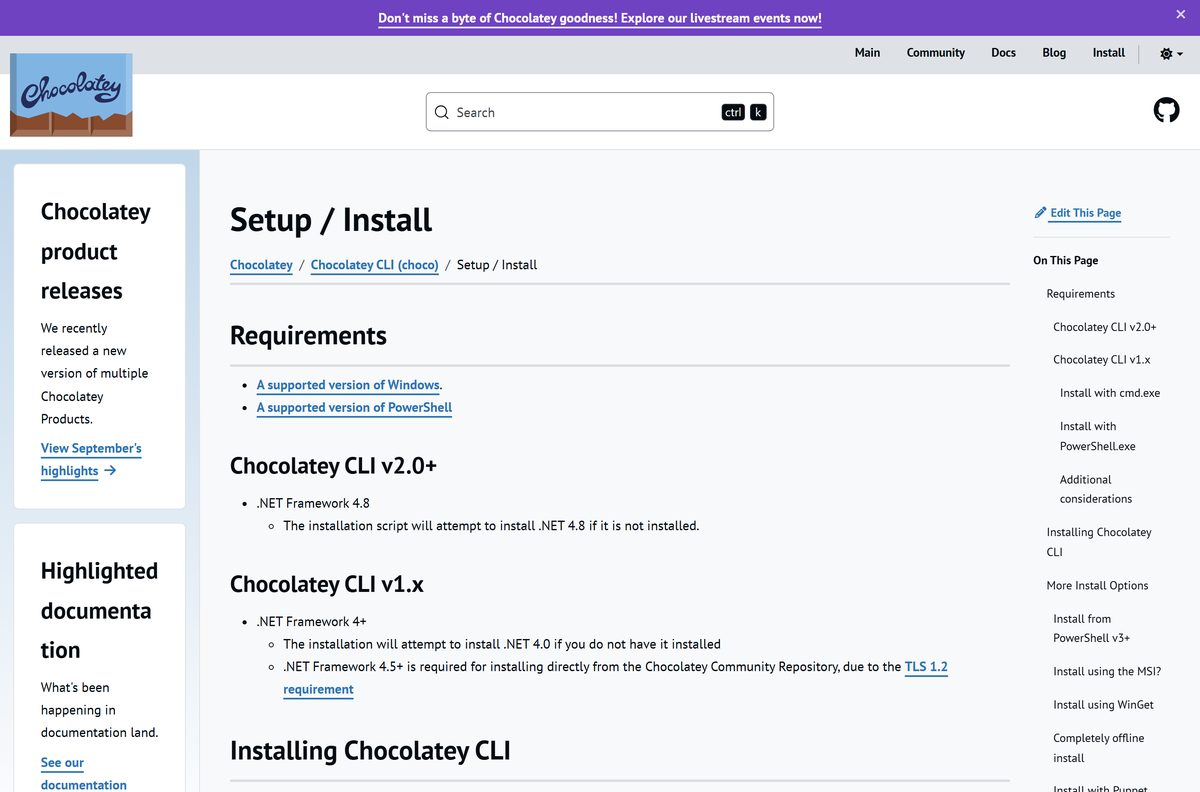
Chocolatey is a command-line package manager built on PowerShell and .NET Framework. It needs an administrator shell and nothing else you have to buy.
| Field | Value |
|---|---|
| Software | Chocolatey CLI (open-source edition) |
| Developer | Chocolatey Software, Inc. |
| Latest version | 2.7.4 |
| Released | 19 August 2026 |
| License | Free and open source, Apache License 2.0 |
| Windows | Windows 11, Windows 10 and Windows Server 2016, 2019, 2022 and 2025 |
| Mac and Linux | Not supported; Windows only |
| Architecture | x64 and x86 (32-bit); ARM64 not listed |
| PowerShell | 3.0 or later for the website install; 5.1 recommended |
| .NET Framework | 4.8 (the installer tries to add it if missing) |
| Download size | 5.4 MB package |
| Install folder | C:\ProgramData\chocolatey |
| Offline installer | Yes, from the .nupkg file |
| Official download source | chocolatey.org/install |
| Last verified | 2026-09-25 |
Windows 11 and Windows 10 already include PowerShell 5.1, so most PCs only need the admin shell.
Download Chocolatey from the official chocolatey.org pages
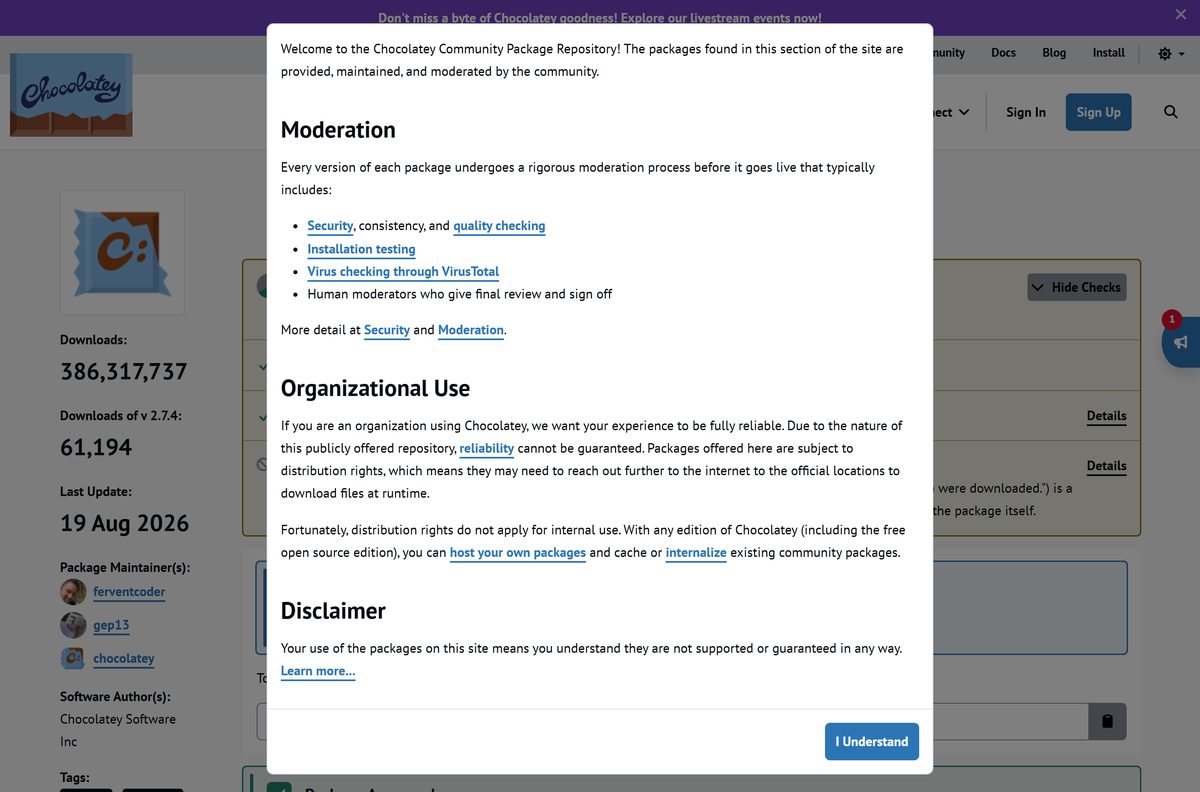
Get Chocolatey only from chocolatey.org and community.chocolatey.org. The install script and the package both live there.
- Installing Chocolatey (official install page) — the PowerShell command and requirements
- Chocolatey CLI setup documentation — cmd.exe, offline, proxy and non-admin installs
- Chocolatey 2.7.4 package page — version history and moderation results
- install.ps1 script — read it before you run it
- chocolatey.2.7.4.nupkg — 5.4 MB · for offline installs
Open install.ps1 in a browser first if your company requires a script review. The one-line command runs exactly that file.
How to install Chocolatey on Windows 11 and 10
This is the official PowerShell route. It takes under a minute on a normal connection.
- Press the Windows key and type PowerShell.
- Right-click Windows PowerShell and select Run as administrator, then click Yes.
- Type Get-ExecutionPolicy and press Enter. If it returns Restricted, the install command below bypasses it for this window only.
- Paste this command and press Enter: Set-ExecutionPolicy Bypass -Scope Process -Force; [System.Net.ServicePointManager]::SecurityProtocol = [System.Net.ServicePointManager]::SecurityProtocol -bor 3072; iex ((New-Object System.Net.WebClient).DownloadString(‘https://community.chocolatey.org/install.ps1’))
- Wait a few seconds while the script downloads the package and adds C:\ProgramData\chocolatey\bin to your PATH.
- Close PowerShell and open a new administrator window so the PATH change takes effect.
- Type choco -? and press Enter. A list of commands confirms Chocolatey is installed.
- Install your first app, for example choco install 7zip -y .
The -y switch answers every prompt with yes and accepts the package licence.
Install Chocolatey from Command Prompt instead of PowerShell
Some managed PCs block PowerShell windows but still allow cmd.exe. Chocolatey publishes a Command Prompt version of the same install.
- Press Windows + S, type cmd, then select Run as administrator.
- Paste this command and press Enter: @”%SystemRoot%\System32\WindowsPowerShell\v1.0\powershell.exe” -NoProfile -InputFormat None -ExecutionPolicy Bypass -Command “[System.Net.ServicePointManager]::SecurityProtocol = 3072; iex ((New-Object System.Net.WebClient).DownloadString(‘https://community.chocolatey.org/install.ps1’))” && SET “PATH=%PATH%;%ALLUSERSPROFILE%\chocolatey\bin”
- Wait for the script to finish. The trailing SET adds Chocolatey to PATH for the current window.
- Type choco -? to confirm it works.
The command still calls PowerShell in the background, so a policy that removes powershell.exe entirely blocks both routes.
Install Chocolatey offline from the .nupkg file
Use this on air-gapped PCs or servers with no route to community.chocolatey.org. A .nupkg is an ordinary zip archive.
- On a PC with internet, download chocolatey.2.7.4.nupkg (5.4 MB) from the official package API.
- Copy the file to the offline PC with a USB stick or a network share.
- Open the file with any zip tool, or rename it to chocolatey.2.7.4.zip, right-click it and select Extract All.
- Open PowerShell as administrator and run Set-ExecutionPolicy Bypass -Scope Process -Force .
- Change to the extracted tools folder with cd .
- Run & .\chocolateyInstall.ps1 .
- Close and reopen PowerShell, then run choco upgrade chocolatey -y so Chocolatey also registers itself as an installed package.
To pin a specific older version with the online script instead, set $env:chocolateyVersion before running it.
Which package manager should you download for your Mac?
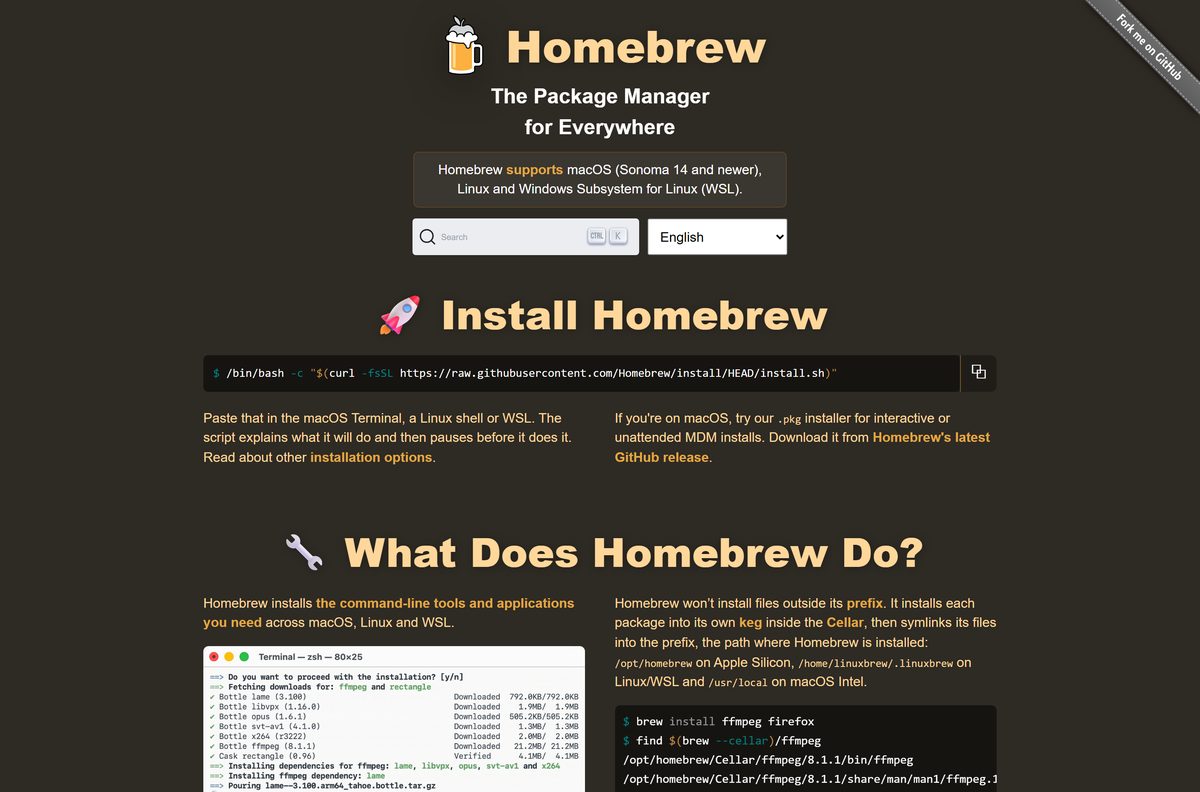
Chocolatey is built for Windows and has no macOS build. Homebrew does the same job on a Mac.
| Your Mac | Use this | Official link |
|---|---|---|
| macOS Sonoma 14 or newer | Homebrew | brew.sh |
| Windows 11 in a virtual machine | Chocolatey inside the VM | chocolatey.org/install |
Install Homebrew by pasting /bin/bash -c “$(curl -fsSL https://raw.githubusercontent.com/Homebrew/install/HEAD/install.sh)” into Terminal.
Is Chocolatey free?
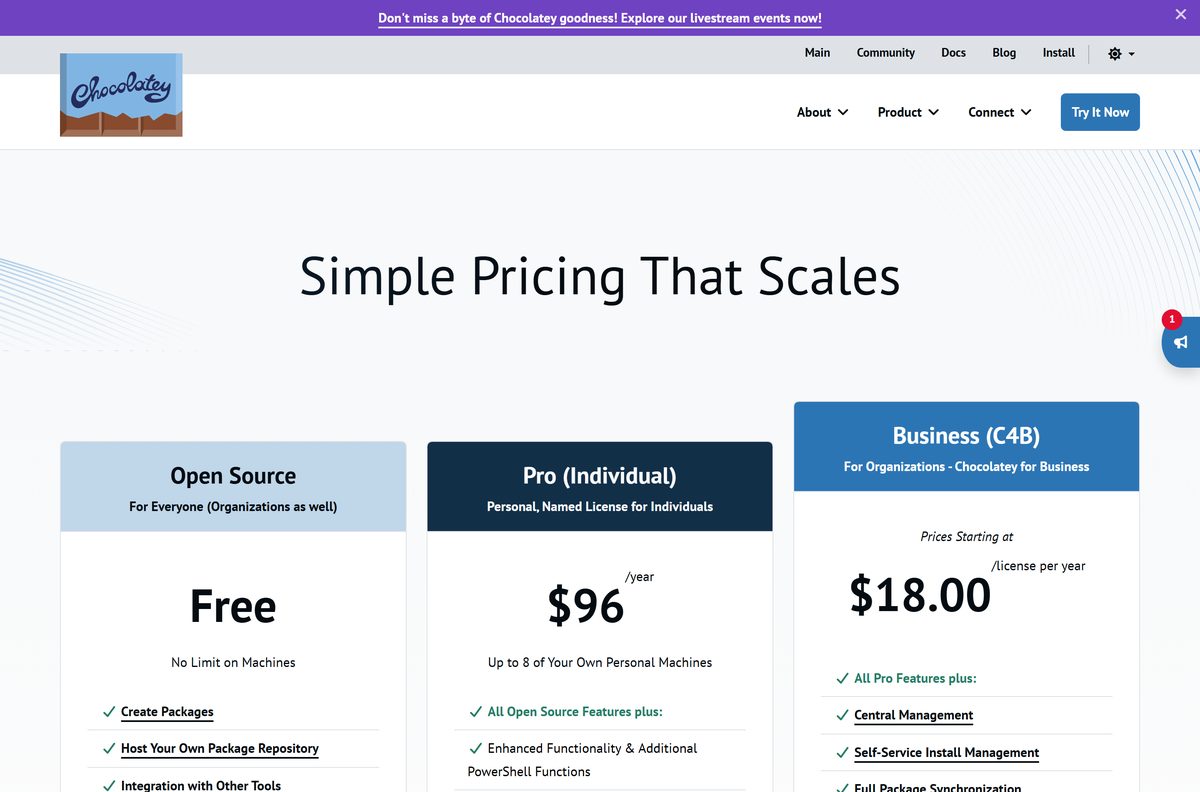
Chocolatey comes in three editions. The package format, the community repository and the core commands are the same in all of them.
Install the free open-source edition. It has no machine limit, organisations may use it, and it covers installing, upgrading and uninstalling apps with one command. Pro costs $96 a year for up to 8 personal machines and adds runtime malware protection, Package Reducer, Package Throttle and a download CDN cache. Chocolatey for Business starts at $18.00 per node per year with a 100-node minimum ($1,800), and adds Central Management, Self-Service and the Package Internalizer.
The install command is the same for every edition. A paid licence file is added afterwards, so there is no separate paid download to hunt for.
Chocolatey CLI or Chocolatey GUI: which should you install?
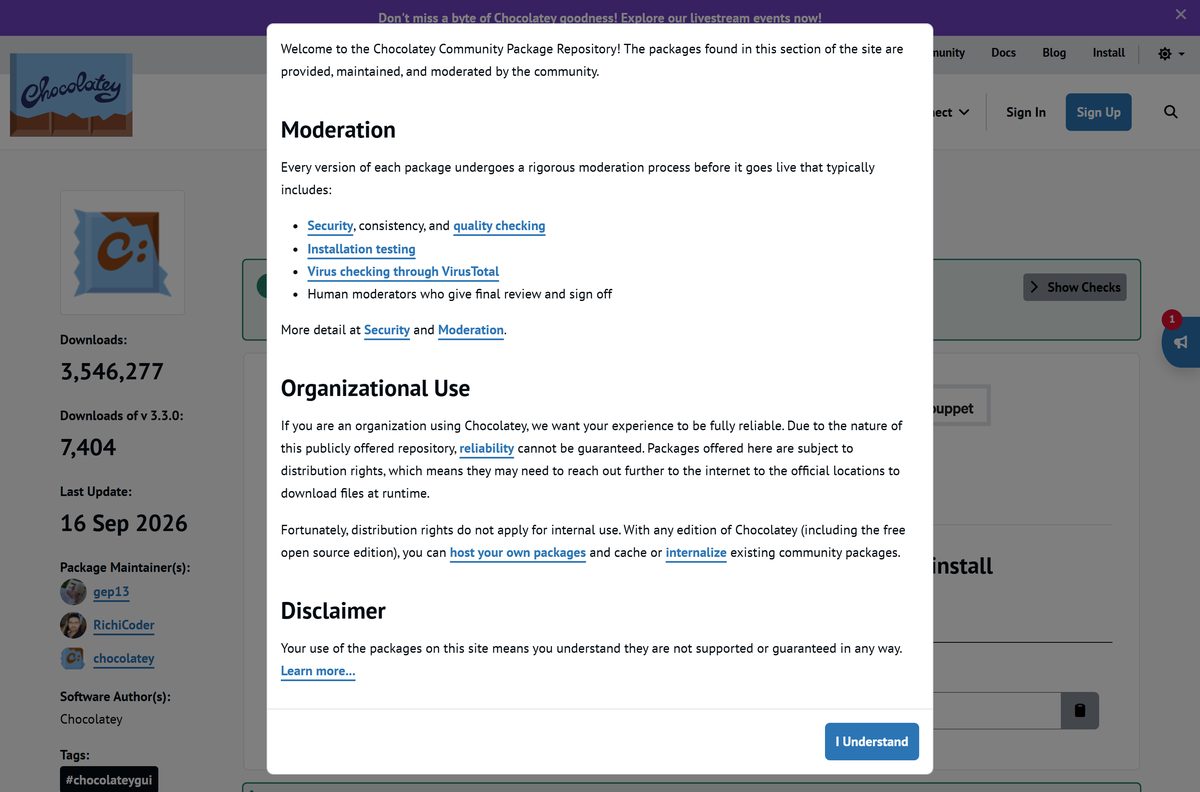
Chocolatey GUI 3.3.0 is a separate, free desktop app that sits on top of the command line tool.
Install Chocolatey CLI first, and add the GUI only if you prefer clicking to typing. The GUI needs the CLI underneath it. Once the CLI works, run choco install chocolateygui -y from an administrator shell to get a window for browsing, installing and upgrading packages.
How to check your Chocolatey version and update it
- Open PowerShell as administrator.
- Type choco and press Enter. The first line shows your version, such as Chocolatey v2.7.4.
- Run choco outdated to list every package with a newer version available.
- Run choco upgrade chocolatey -y to update Chocolatey itself.
- Run choco upgrade all -y to update every installed package in one pass.
Use choco pin add -n=
Use the Chocolatey commands you need every day
Chocolatey installs apps from the moderated community repository or from your own internal source. These commands cover almost all daily use.
| Command | What it does |
|---|---|
| choco search |
Finds packages in the remote repository |
| choco info |
Shows details for one package |
| choco install |
Installs a package without prompts |
| choco list | Lists packages installed on this PC (local only in version 2) |
| choco outdated | Shows packages with updates waiting |
| choco upgrade |
Updates one package |
| choco pin add -n= |
Stops a package from being upgraded |
| choco uninstall |
Removes a package |
| choco source list | Shows which package sources are configured |
Add –help to any command, such as choco install –help , for its full switch list. See the command reference for the rest.
Fix Chocolatey not installing on Windows 11 or 10
‘choco’ is not recognized as a command
The install added Chocolatey to PATH, but the open window still uses the old PATH.
- Close every PowerShell and Command Prompt window.
- Open a new administrator PowerShell window and run choco -? .
- If it still fails, check that C:\ProgramData\chocolatey\bin is listed in $env:Path .
Running scripts is disabled on this system
The execution policy blocks install.ps1.
- Paste the full official command, which starts with Set-ExecutionPolicy Bypass -Scope Process -Force .
- Do not remove that first part; it changes the policy for the current window only.
Could not create SSL/TLS secure channel
community.chocolatey.org requires TLS 1.2, and older PowerShell sessions do not use it by default.
- Use the complete command, which sets SecurityProtocol to 3072 (TLS 1.2) before downloading.
- Make sure PowerShell is version 3.0 or later by running $PSVersionTable.PSVersion .
The download fails behind a company proxy
The script cannot pass the proxy with your credentials.
- Run [System.Net.WebRequest]::DefaultWebProxy.Credentials = [System.Net.CredentialCache]::DefaultCredentials first.
- Run the install command again in the same window.
- If the proxy still blocks it, use the offline .nupkg method above.
The install stops at .NET Framework 4.8
Chocolatey CLI 2.x needs .NET Framework 4.8, and the installer adds it when missing.
- Restart Windows when the .NET setup asks.
- Run the install command again after the restart.
How to uninstall Chocolatey and its packages
Removing a single app is safe and quick. Removing Chocolatey itself deletes every package it manages, so back up first.
- Open PowerShell as administrator and run choco list to see what Chocolatey manages.
- Remove any app you no longer need with choco uninstall
-y . - To remove Chocolatey itself, copy the lib and bin folders from C:\ProgramData\chocolatey somewhere safe.
- Save a copy of your current PATH value.
- Delete the C:\ProgramData\chocolatey folder.
- Open System Properties > Environment Variables and delete ChocolateyInstall, ChocolateyToolsLocation and ChocolateyLastPathUpdate.
- Edit Path and remove every entry that points to the Chocolatey folder.
- Restart Windows.
Chocolatey’s own uninstall documentation warns that removing the folder takes all installed packages and their settings with it.
Choose another package manager instead of Chocolatey
| Tool | Platform | Best for | Official page |
|---|---|---|---|
| Chocolatey | Windows | A moderated community repository, offline installs and internal repositories | chocolatey.org |
| WinGet | Windows 11, Windows 10 1809 or later | Built in through App Installer, no extra install | Microsoft Learn |
| Homebrew | macOS 14 or newer, Linux, WSL | Mac users | brew.sh |
Chocolatey and WinGet run side by side without conflict. Use WinGet for quick one-off installs and Chocolatey where you need internal repositories or offline installs.
Other developer tools for Windows include Node.js and Unity Hub.
Frequently asked questions
Is Chocolatey free?
Yes. The Chocolatey open-source edition is free under the Apache License 2.0, with no limit on machines, and organisations can use it too. Pro costs $96 a year for up to 8 personal machines, and Chocolatey for Business starts at $18.00 per node per year.
Where is the official Chocolatey download?
The official source is chocolatey.org/install. It shows the PowerShell command that runs install.ps1 from community.chocolatey.org. The package itself, including every past version, is listed at community.chocolatey.org/packages/chocolatey.
Does Chocolatey work on Windows 11?
Yes. Chocolatey supports every Windows version Microsoft still supports, which includes Windows 11, Windows 10 and Windows Server 2016 through 2025. Run the install command from an administrator PowerShell window on Windows 11.
How big is the Chocolatey download?
The Chocolatey 2.7.4 package is 5.4 MB. The PowerShell install command fetches it for you. The apps you later install with choco download separately, so their size depends on each package.
Is there a Chocolatey offline installer?
Yes. Download the chocolatey .nupkg file from community.chocolatey.org on a connected PC, copy it across, unzip it and run chocolateyInstall.ps1 from its tools folder. Then run choco upgrade chocolatey -y so Chocolatey registers itself as a package.
Is there Chocolatey for Mac?
No. Chocolatey runs on Windows only. On a Mac, Homebrew fills the same role and supports macOS Sonoma 14 and newer. You can still use Chocolatey inside a Windows virtual machine on a Mac.
Does Chocolatey support 64-bit and ARM64?
Chocolatey runs on 64-bit and 32-bit Windows, and packages can be forced to their 32-bit build with the x86 option. ARM64 Windows is not listed in the official requirements, so test it before relying on it.
Is Chocolatey safe?
Chocolatey itself is safe when installed from chocolatey.org. Every community package version goes through automated validation, installation testing, a VirusTotal scan and a human moderator. Packages are community-maintained, so check the maintainer and the software source before installing.
What is the latest version of Chocolatey?
The latest Chocolatey CLI is 2.7.4, released on 19 August 2026. Run choco upgrade chocolatey from an administrator shell to move an older copy to it. Chocolatey GUI is separate and is at version 3.3.0.
Why won’t Chocolatey install?
Chocolatey fails to install when the shell is not elevated, the execution policy blocks scripts, TLS 1.2 is off, or a proxy blocks community.chocolatey.org. Run PowerShell as administrator, use the full official command, and close and reopen the shell afterwards.
Is Chocolatey free for commercial use?
Yes. The open-source edition is free for organisations as well as individuals, with no machine limit. Companies pay only when they want business features such as Central Management, Self-Service, package internalizing and support, which come with Chocolatey for Business.
How do I uninstall a package with Chocolatey?
Open an administrator PowerShell window and run choco uninstall followed by the package name, for example choco uninstall 7zip -y. Run choco list first to see the exact names of the packages installed on your PC.