To reset an iPhone, open Settings > General > Transfer or Reset iPhone and tap Erase All Content and Settings; to restart a frozen one without losing data, press volume up, volume down, then hold the side button.
It also covers every reset type and what it erases, recovery mode and DFU restores, forgotten passcodes, Activation Lock, restore errors and iOS updates.
How to factory reset your iPhone or iPad
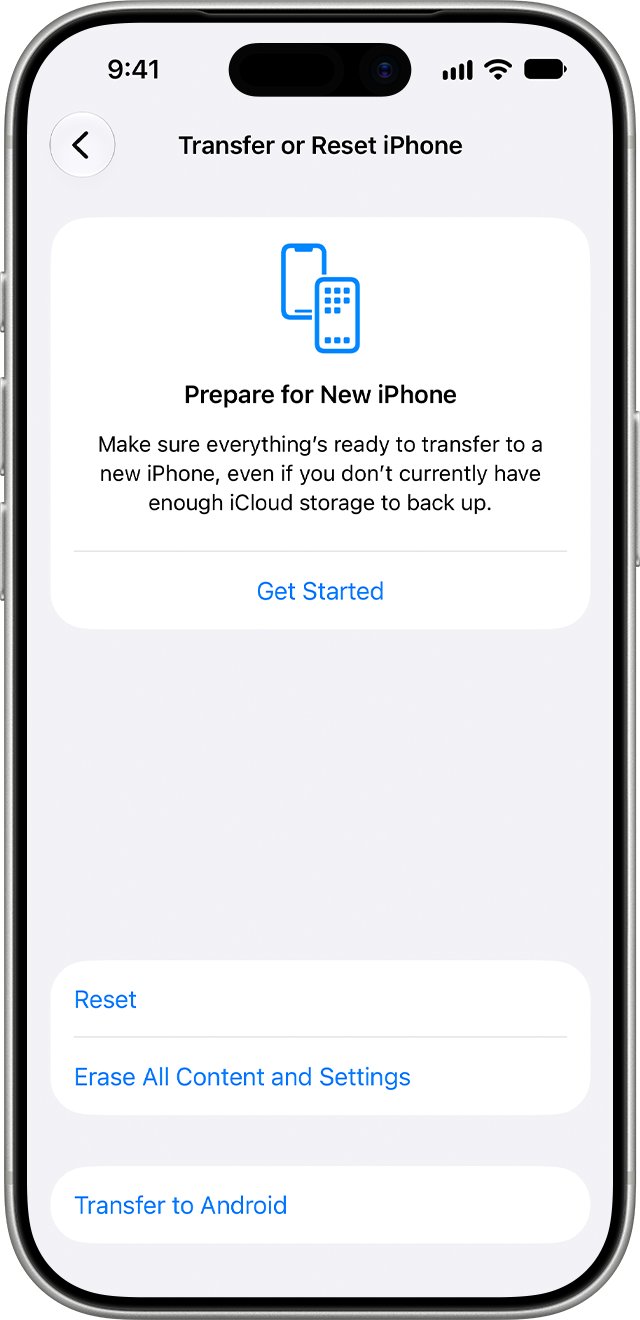
A factory reset from Settings erases all content and settings. You need the device passcode and your Apple Account password.
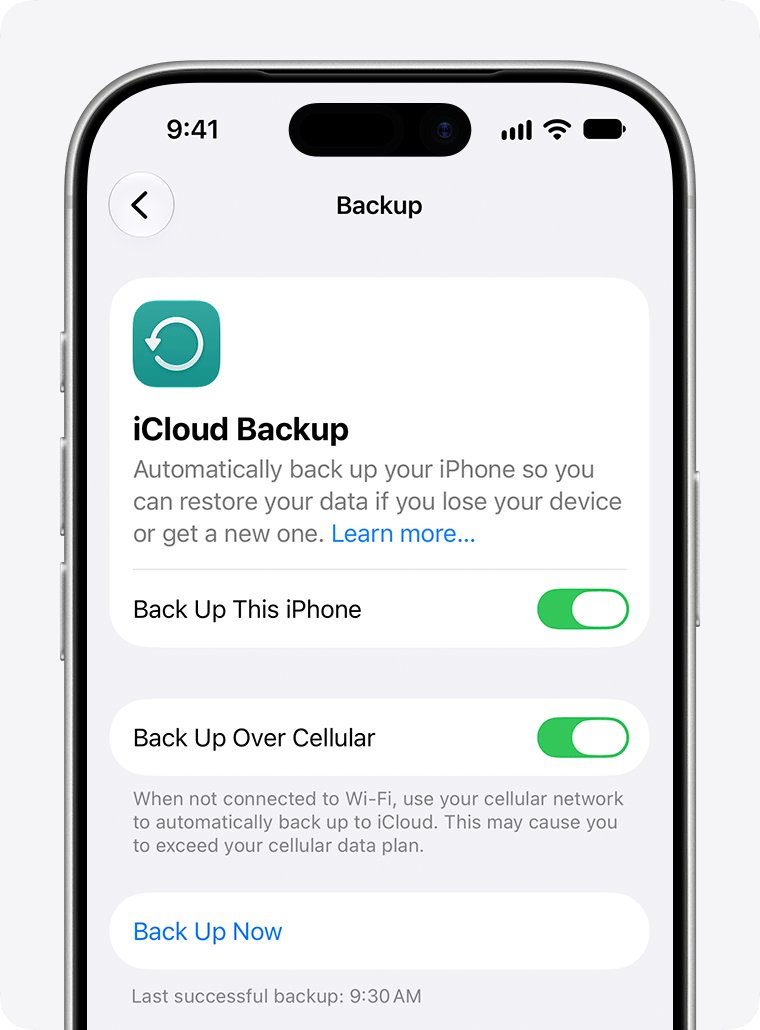
- Back up the iPhone to iCloud or a computer.
- Open Settings > General > Transfer or Reset iPhone.
- Tap Erase All Content and Settings, then Continue.
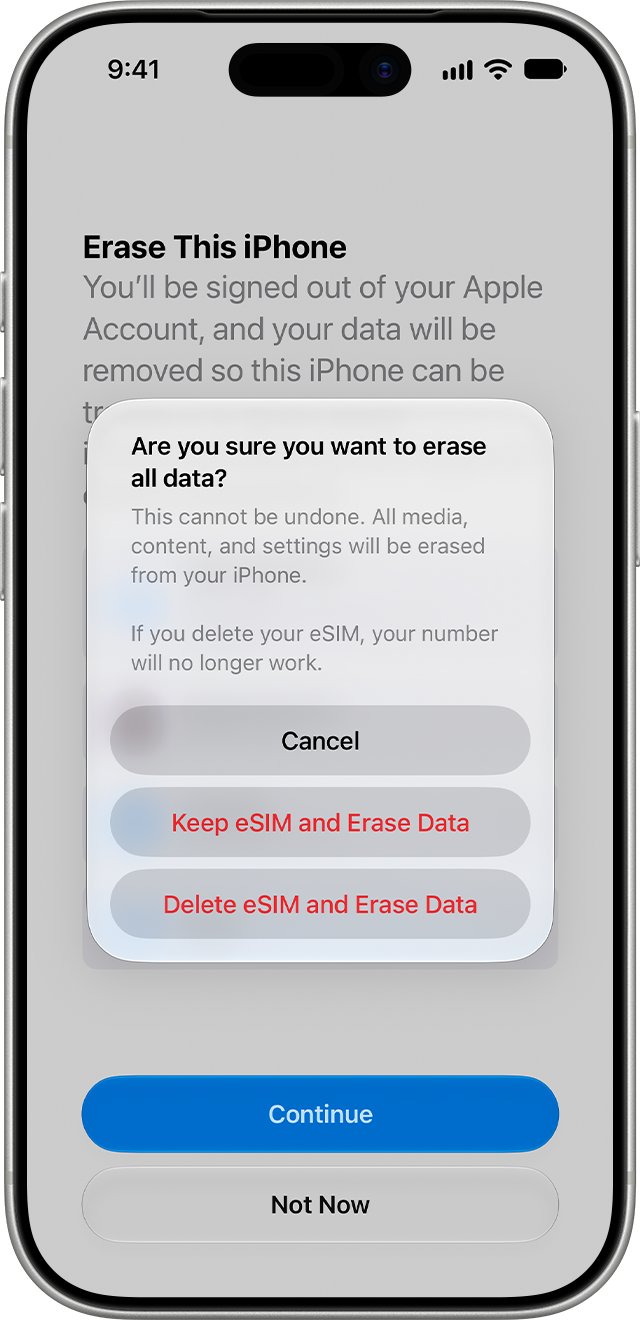
- Choose to keep or delete your eSIM.
- Enter your passcode, wait for the backup to finish, then enter your Apple Account password.
- Wait for the Hello screen, which means the reset is done.
Erasing from Settings also turns off Find My and Activation Lock, so a step-by-step factory reset from Settings is the right route before you sell the phone.
An iPad erases the same way from Transfer or Reset iPad, and the iPad restart and reset fixes cover its button combinations.
How to reset iPhone (all methods)
The difference between a restart, a reset and a restore is your data. Choose the right option by matching your problem to a row.
A hard reset is the same as a force restart, and it erases nothing.
| Option | What it does | Your data | Use it when |
|---|---|---|---|
| Restart (soft reset) | Off with the slider, then on | Kept | Apps freeze or lag |
| Force restart (hard reset) | Restarts a phone that won't respond | Kept | Frozen or black screen |
| Reset All Settings | Every setting back to default | Kept | A setting broke something |
| Reset Network Settings | Clears saved networks and VPNs | Kept | Wi-Fi, cellular or VPN fails |
| Erase All Content and Settings | Deletes everything, turns off Find My | Erased; iCloud copies stay | Selling, or nothing else worked |
| Restore with a computer | Erases and installs the latest iOS | Erased | You want a clean iOS |
| Recovery mode restore | Reinstalls iOS on a phone that won't start | Erased by Restore; try Update first | Stuck at the Apple logo, or passcode forgotten |
| DFU mode restore | Restores from the lowest startup level | Erased | Recovery mode restores keep failing |
| Remote erase in Find My | Erases over the internet | Erased; Activation Lock stays on | Lost, stolen or dead screen |
What happens when you factory reset your iPhone or iPad?
A factory reset on iPhone or iPad wipes the device, not your Apple Account.
| Item | After a factory reset |
|---|---|
| Photos, contacts, messages, music and apps | Deleted from the phone; copies in iCloud stay in iCloud |
| Apple Pay cards | Removed |
| iCloud, iMessage, FaceTime and Game Center | Turned off on the phone |
| Find My and Activation Lock | Off after an erase from Settings; a remote erase keeps Activation Lock on |
| eSIM | Kept or deleted, as you choose |
| Face ID and Touch ID | Removed and not in any backup, so set them up again |
| iCloud and computer backups | Untouched and ready to restore |
Whether a factory reset turns off Find My depends on the method, so erase from Settings before a sale.
When should you factory reset your iPhone or iPad?
Factory resetting matters most when the phone is leaving your hands or you are locked out. For everyday glitches it is the last step.
| Situation | Factory reset? | Try first |
|---|---|---|
| Selling or giving it away | Yes | Back up, unpair Apple Watch, sign out |
| Forgot the passcode | Yes, unless Passcode Reset works | Your old passcode within 72 hours of a change |
| Frequent freezes | Yes, as a computer restore | Update iOS |
| Frozen right now | No | Force restart |
| Slow after an update | Rarely | Restart, then install the latest update |
| Stuck on the Apple logo | Only if recovery mode Update fails | Recovery mode Update |
Work through the iOS 26 slowdown fixes before you erase a phone that only feels slow.
Things to do before you reset your iPhone
Preparation depends on how much the reset removes. A restart needs nothing; an erase needs a backup and both passwords.
| Reset type | Back up first? | You need |
|---|---|---|
| Restart or force restart | No | Nothing |
| Reset All Settings or Network Settings | Optional | Wi-Fi passwords to rejoin networks |
| Erase All Content and Settings | Yes, an iCloud or computer backup | Passcode, Apple Account password, eSIM decision |
| Restore with a computer | Yes | Passcode, Find My off, updated Mac, Apple Devices or iTunes |
| Recovery mode restore | Use your last iCloud backup | Mac or PC, charging cable, internet, up to 60 minutes |
| Remote erase in Find My | Use your last iCloud backup | Apple Account password; Find My already on |
If Find My won't turn off, fix that before the erase, or the next owner meets Activation Lock.
How to prepare your iPhone for a factory reset
- On Wi-Fi, open Settings, tap your name, then iCloud > iCloud Backup > Back Up Now.
- Or back up with the Finder on a Mac or Apple Devices on a Windows PC.
- Unpair your Apple Watch if one is paired.
- On iOS 26 or later, go to Settings > your name > Sign Out, then choose Erase this iPhone or Sign Out But Don't Erase.
- On iOS 18 or earlier, tap Sign Out, enter your Apple Account password and tap Turn Off.
- Deregister iMessage if you are moving to a non-Apple phone.
If your PC's C: drive is short of space, move the Apple Devices backup folder to another drive first.
Should you keep or erase your eSIM?
Keep the eSIM if the iPhone stays with you; erase it if the phone is leaving. A Settings reset asks you to choose, and a computer restore doesn't remove the eSIM.
| Your situation | eSIM choice | Result |
|---|---|---|
| Fixing a problem, keeping the phone | Keep | Your plan stays on the phone |
| Selling or giving the phone away | Erase the device and the eSIM | Your plan leaves with your data |
| Erased it by mistake | – | Ask your carrier to reactivate the plan |
| Lock Screen reset on iOS 16 or earlier | Ask your carrier first | Get a QR code to set the eSIM up again |
| Removing every eSIM, keeping data | Delete All eSIMs under Transfer or Reset iPhone > Reset | You need a new eSIM or SIM |
How to restart an iPhone without losing data
A normal restart, or soft reset, turns the iPhone off and on and keeps every file. Drag the power-off slider, wait 30 seconds, then hold the button again until the Apple logo appears.
| iPhone model | Hold until the slider appears | Hold to turn on |
|---|---|---|
| iPhone X, 11, 12, 13 or later | Either volume button and the side button | Side button |
| iPhone 6, 7, 8 or SE (2nd or 3rd generation) | Side button | Side button |
| iPhone SE (1st generation), 5 or earlier | Top button | Top button |
A soft reset on any iPhone is the first thing to try when the screen still responds.
How to force restart an iPhone (no data loss)
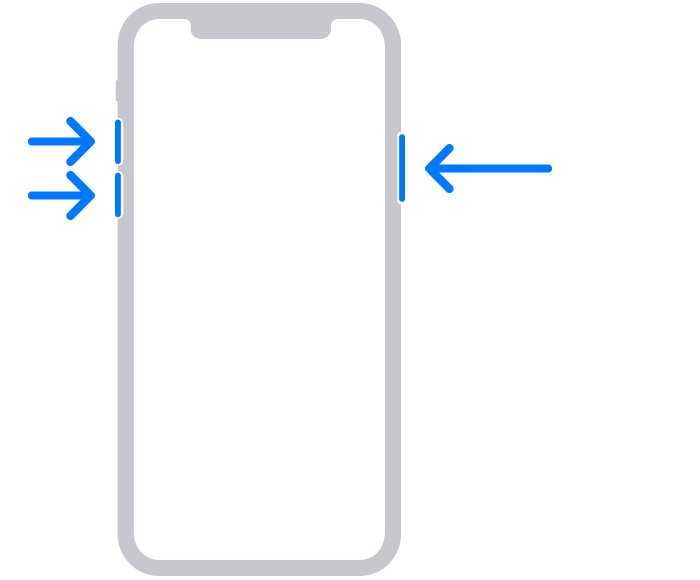
A force restart revives an iPhone that won't respond to the slider. It deletes nothing. Release the buttons when the Apple logo appears.
| iPhone model | Button sequence |
|---|---|
| iPhone 8 or later, including SE (2nd and 3rd generation) | Press and quickly release volume up, then volume down, then press and hold the side button |
| iPhone Duo | Press and quickly release the volume button nearest the side button, then the other volume button, then hold the side button |
| iPhone 7 | Hold volume down and the Sleep/Wake button together |
| iPhone 6s or SE (1st generation) | Hold the Sleep/Wake button and the Home button together |
If the phone still won't respond after a force restart on any iPhone model, connect it to a computer and use recovery mode.
How to restart an iPhone with broken buttons
AssistiveTouch adds an onscreen button that can restart the iPhone when the hardware buttons fail.
- Open Settings > Accessibility > Touch > AssistiveTouch.
- Turn on AssistiveTouch, or ask Siri to "Turn on AssistiveTouch".
- Tap the onscreen AssistiveTouch button to open its menu.
- Select the restart option in the menu.
Recovery mode needs working buttons, so a phone with a stuck button that also needs a restore is a service repair.
Reset all settings or network settings on iPhone
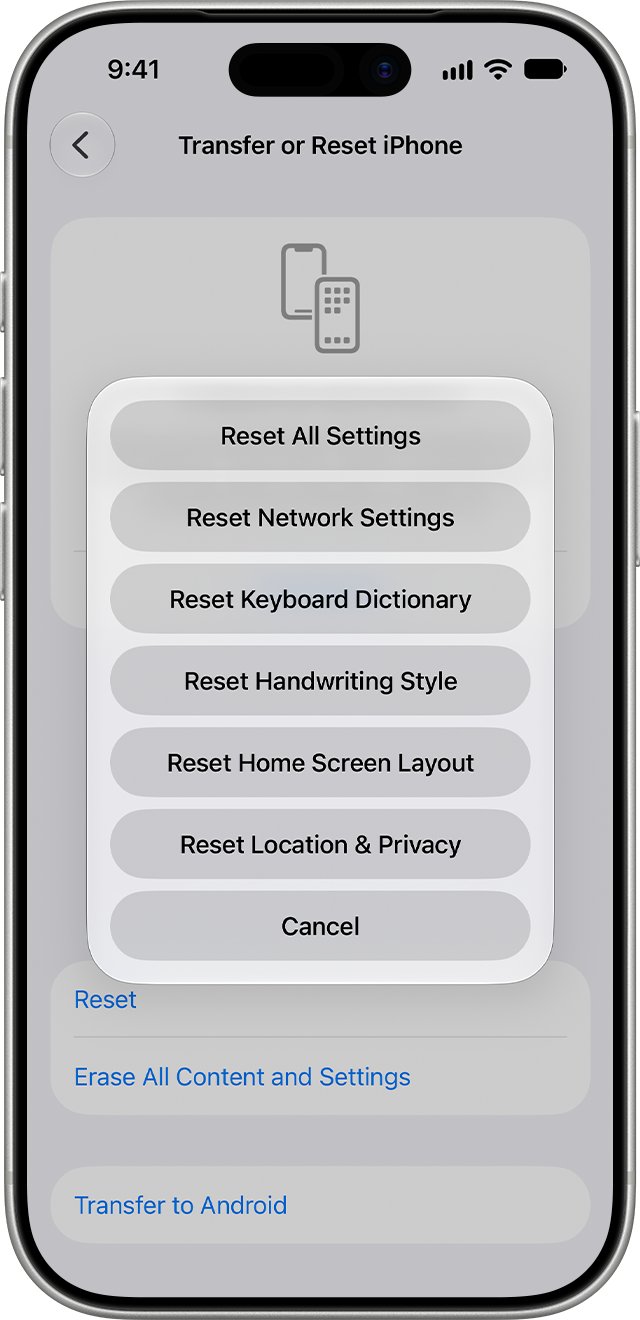
Go to Settings > General > Transfer or Reset iPhone > Reset to reset settings without erasing photos, messages or apps.
| Reset option | What it changes | Use it for |
|---|---|---|
| Reset All Settings | Every setting, including network, keyboard dictionary, location, privacy and Apple Pay cards; no data is deleted | Problems you can't pin on one setting |
| Reset Network Settings | Removes saved networks and VPN settings and renames the device "iPhone" | Wi-Fi, cellular or VPN trouble |
| Reset Keyboard Dictionary | Erases only words you added | Bad autocorrect suggestions |
| Reset Location & Privacy | Returns location and privacy settings to defaults | Resetting app permissions at once |
For a clean phone with your data back, you can reset without losing everything by backing up, erasing and restoring the backup.
If Wi-Fi still drops afterwards, move on to the everyday iPhone Wi-Fi and battery fixes.
How to factory reset an iPhone with a computer
A computer restore erases the iPhone and installs the latest iOS from the Finder on a Mac or the Apple Devices app on a PC.
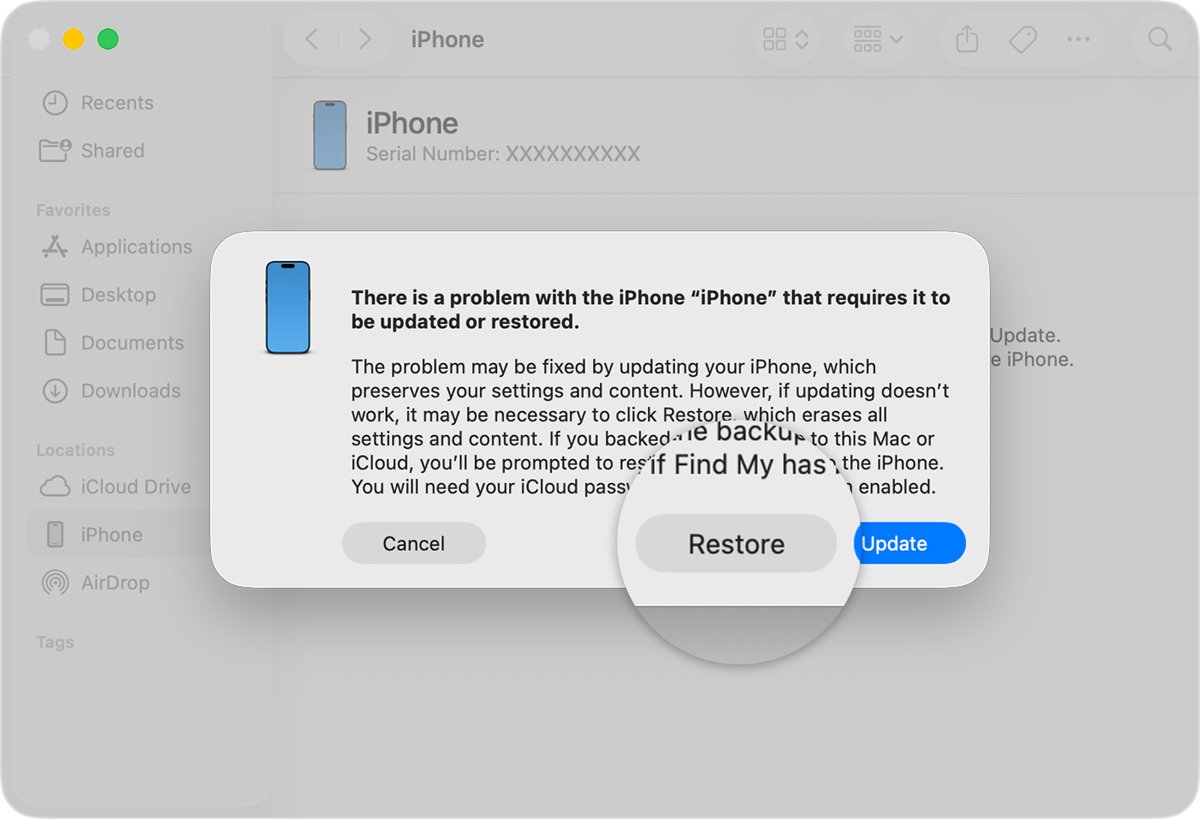
- Update the Mac, or get the latest Apple Devices app or iTunes on the PC.
- On the iPhone, go to Settings > your name > Find My > Find My iPhone and turn it off.
- Connect the iPhone by USB and click Allow if asked.
- Select the iPhone in the sidebar, click Trust, then tap Trust on the iPhone and enter its passcode.
- Click Restore iPhone, then Agree, and wait for the Hello screen.
The computer downloads the full copy of iOS, which is how you reset an iPhone without Wi-Fi on the phone itself.
On Windows, connect the iPhone to iTunes or Apple Devices and accept Trust This Computer first.
How to erase an iPhone remotely with Find My
Remote erase works from iCloud.com or the Find My app on another device, if Find My iPhone was on before the phone went missing.
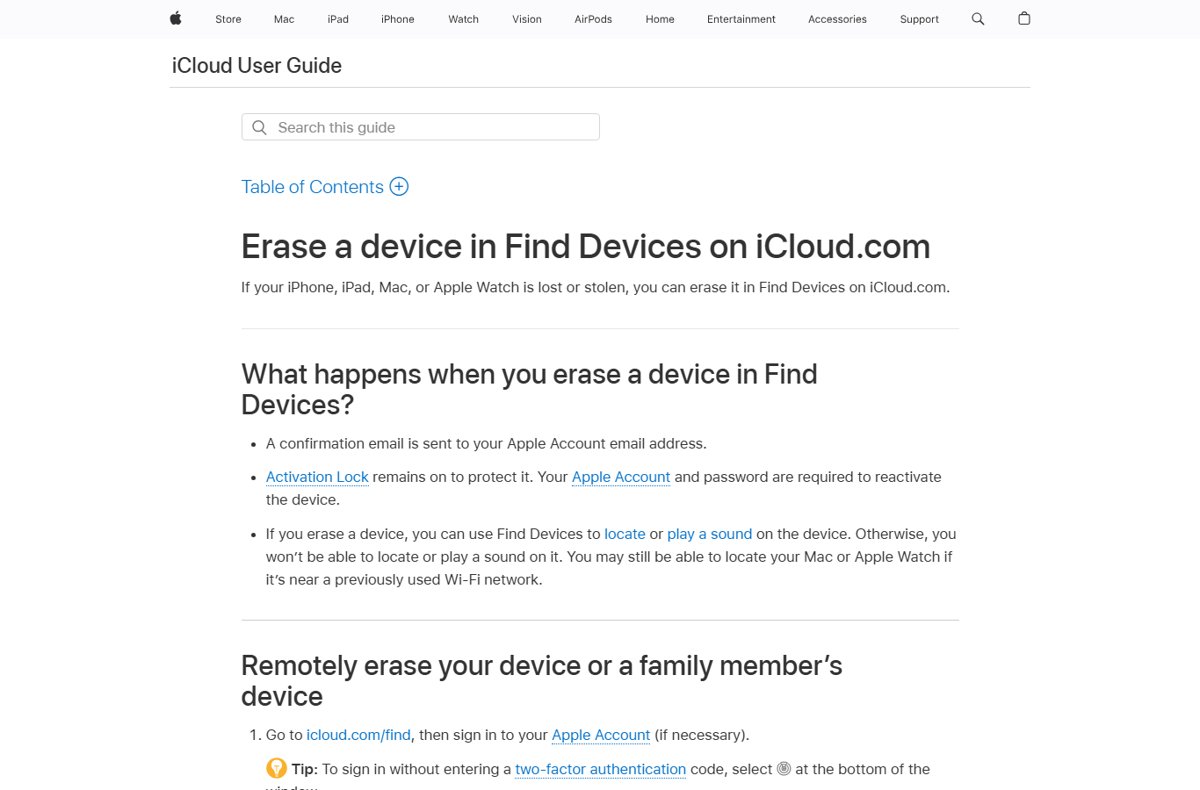
- Go to icloud.com/find, or open Find My on a device signed in to the same Apple Account.
- Select the iPhone in the list of devices.
- Select Erase This Device, or in the Find My app tap Erase, then Continue.
- Add a phone number or message for the Lock Screen if the phone is lost.
- Enter your Apple Account password. An offline iPhone erases the next time it connects.
Activation Lock stays on after a remote erase. It is also the practical way to reset an iPhone with a broken screen you can't tap through.
First steps when you forgot your iPhone passcode
Try these in order; each row erases more than the one above. Only Passcode Reset keeps your data.
| Your situation | What to do | Data kept? |
|---|---|---|
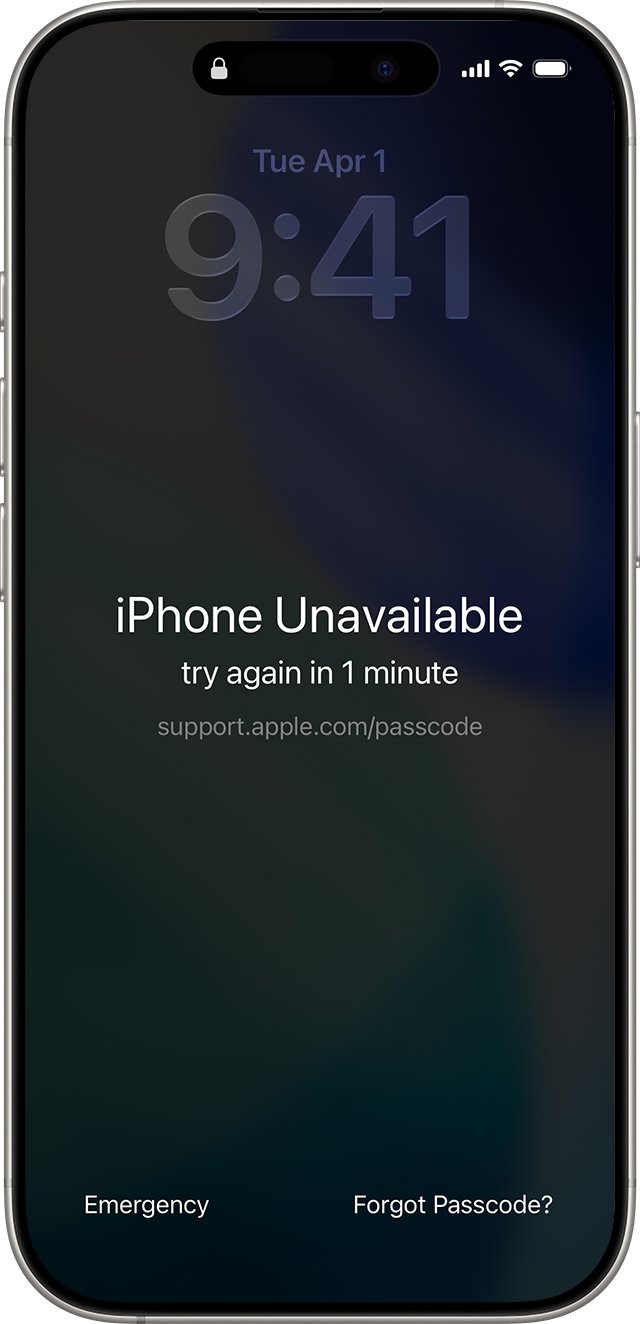
| Changed the passcode in the last 72 hours (iOS 17 or later) | After five wrong tries, tap Forgot Passcode? > Enter Previous Passcode | Yes |
| iOS 17 or later, online, Find My on | Tap Forgot Passcode?, then Start iPhone Reset | No |
| iOS 15.2 to iOS 16, online, Find My on | Tap Erase iPhone on the lockout screen | No |
| Offline, Find My off, or older than iOS 15.2 | Restore in recovery mode with a computer | No |
| Forgot the Screen Time passcode (iOS 27) | Settings > Screen Time > Passcode & Management > Change Screen Time Passcode, with your recovery Apple Account | Yes |
A lockout after a forgotten passcode is easiest to undo inside that 72-hour window.
If the phone asks for a Restrictions passcode instead, reset a forgotten restrictions passcode before you consider an erase.
How to reset iPhone without a passcode
On iOS 17 or later, a locked iPhone can erase itself from the Lock Screen if it is online, Find My is on and you know your Apple Account password.
- Enter passcodes until iPhone Unavailable appears.
- Tap Forgot Passcode?, then Start iPhone Reset on the Security Lockout screen.
- Enter your Apple Account password to sign out of your account.
- Tap Erase iPhone, keeping or deleting an eSIM if you have one.
- When the iPhone restarts, set it up and restore a backup.
No Forgot Passcode? button means the phone is offline or Find My is off. You can still factory reset a locked iPhone from iCloud.com or a computer.
How to reset iPhone password with recovery mode
A Mac or Windows PC erases a locked iPhone and its passcode when the Lock Screen route fails. Allow up to 60 minutes and use a cable that charges the phone.
- On a Face ID iPhone, hold the side and volume down buttons until the slider appears, then drag it.
- Connect the cable to the computer, then to the iPhone while holding the side button.
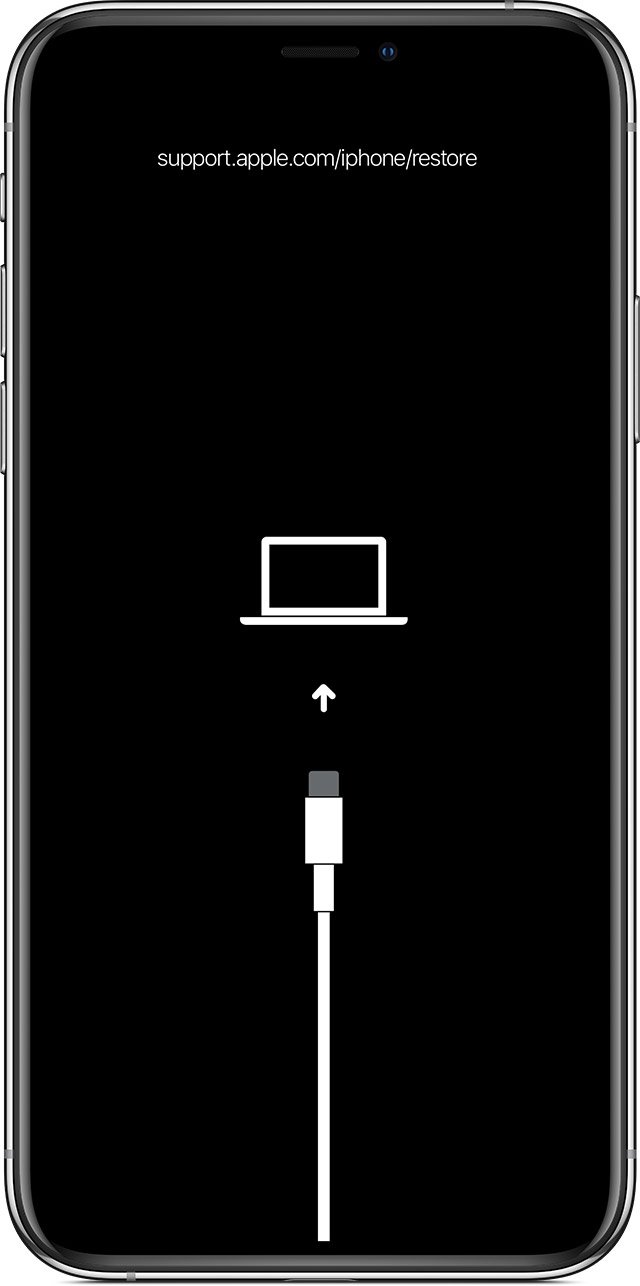
- Keep holding until a computer-and-cable image appears.
- In the Finder or Apple Devices, select the iPhone and choose Restore.
- If the download passes 15 minutes and the phone leaves recovery mode, let it finish and start again.
- When the Hello screen appears, disconnect and set it up.
Home button models use the button pairs in the recovery mode sections below, and very old phones restore the same way, such as an iPhone 4s reset without the passcode.
Can you reset an iPhone without Apple ID or passcode?
The Settings erase asks for the device passcode, not Face ID, so you can factory reset without Face ID when Face ID stops working.
Yes without the passcode; not without the Apple ID password if Find My was on. The Lock Screen, iCloud.com and recovery mode all erase a phone whose passcode you forgot. Activation Lock then asks for the Apple Account password during setup. Activation Lock only turns on with Find My.
Activation Lock is separate from the passcode, and each type of iPhone lock has its own unlock steps.
What is recovery mode?
Recovery mode lets a Mac or PC update or reinstall iOS on an iPhone that won't start normally. Try Update first, because Restore erases all your data.
| What you see | Next step |
|---|---|
| Apple logo for several minutes, no progress bar | Recovery mode, then Update |
| Computer doesn't recognize the iPhone | Recovery mode, then Update or Restore |
| Connect to computer screen, or an iPhone stuck on the restore screen | Already in recovery mode: connect it and choose Update |
| Starts up to Recovery Assistant repeatedly | Restore with a computer |
| Apple logo with a progress bar | Wait on power; force restart only if it never finishes |
Enter recovery mode on the iPhone 8 or later
This covers every Face ID iPhone and the iPhone SE (2nd generation and later).
- Connect the iPhone to an updated Mac or PC and open the Finder or Apple Devices.
- Press and quickly release the volume up button.
- Press and quickly release the volume down button.
- Hold the side button until the Connect to computer screen appears.
- Choose Update; choose Restore only if the update fails.
Enter recovery mode on the iPhone 7 or iPhone 7 Plus
- Connect the iPhone to the Mac or PC and open the Finder or Apple Devices.
- Hold the top (or side) button and the volume down button together.
- Release when the Connect to computer screen appears.
- Choose Update, or Restore to erase and reinstall iOS.
On the iPhone 6s or earlier, including the SE (1st generation), hold the Home and top (or side) buttons instead.
That pair also restores an iPhone 5 that says it is disabled, and it puts an iPhone 4 into recovery mode.
Recover an iPhone or iPad on a Mac or Windows PC
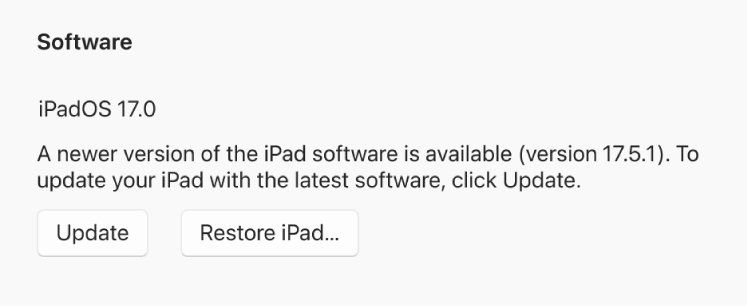
On the recovery screen, the computer offers Update or Restore. Where you click depends on the computer.
| Computer | Open | Then |
|---|---|---|
| Mac with macOS Catalina or later | Finder; the iPhone is in the sidebar under Locations | Update, or Restore to erase |
| Mac with macOS Mojave or earlier | iTunes | Update or Restore |
| Windows 10 or later | Apple Devices app from the Microsoft Store | General, then Restore |
If the download runs past 15 minutes, the iPhone leaves recovery mode; let it finish and enter recovery mode again.
The Finder also handles iPhone backups and updates as part of everyday Mac and macOS maintenance. On a PC, Apple Devices sits alongside the other Apple apps on Windows, such as iCloud for Windows.
DFU mode and IPSW restore on iPhone
Apple's security documentation describes DFU (Device Firmware Upgrade) mode as the fallback when the Boot ROM can't load the next startup stage; recovery mode handles later failures. Both end in a computer restore to factory settings.
| Question | Answer |
|---|---|
| What does a DFU restore do? | Restores the iPhone from the lowest startup level, so it always erases the phone. The DFU mode steps for every iPhone list each button sequence. |
| What is an IPSW file? | The full iOS image a computer installs during a restore; IPSW files explained shows what one contains. |
| Can you restore with a downloaded IPSW? | Only for an iOS version Apple still signs, so an IPSW restore with Finder or Apple Devices fails on anything else. |
| Can you go back to an older iOS? | No. Apple states that iOS updates can't be downgraded once installed. |
| Does DFU mode remove Activation Lock? | No. An iPhone checks for Activation Lock every time it is activated or recovered. |
What to do after an iPhone factory reset
The reset is complete when the Hello screen appears.
- Follow the setup screens to Transfer Your Apps & Data.
- Tap From iCloud Backup and pick the latest backup, or connect to your computer and click Restore Backup.
- Keep the phone on Wi-Fi and power until the progress bar finishes.
- Set up Face ID or Touch ID again; backups don't include them.
- If setup asks for an Apple Account, enter the one used before the reset.
- On a used iPhone showing iPhone Locked to Owner, ask the seller to remove it from their account.
A phone that asks for a passcode after a factory reset is still linked to an Apple Account and needs the owner's details.
If you forgot that password, reset your Apple Account password first; without it, the phone can't get past Activation Lock.
How to update iOS on iPhone
Install the latest iOS before you consider a reset, because updates carry Apple's bug and security fixes.
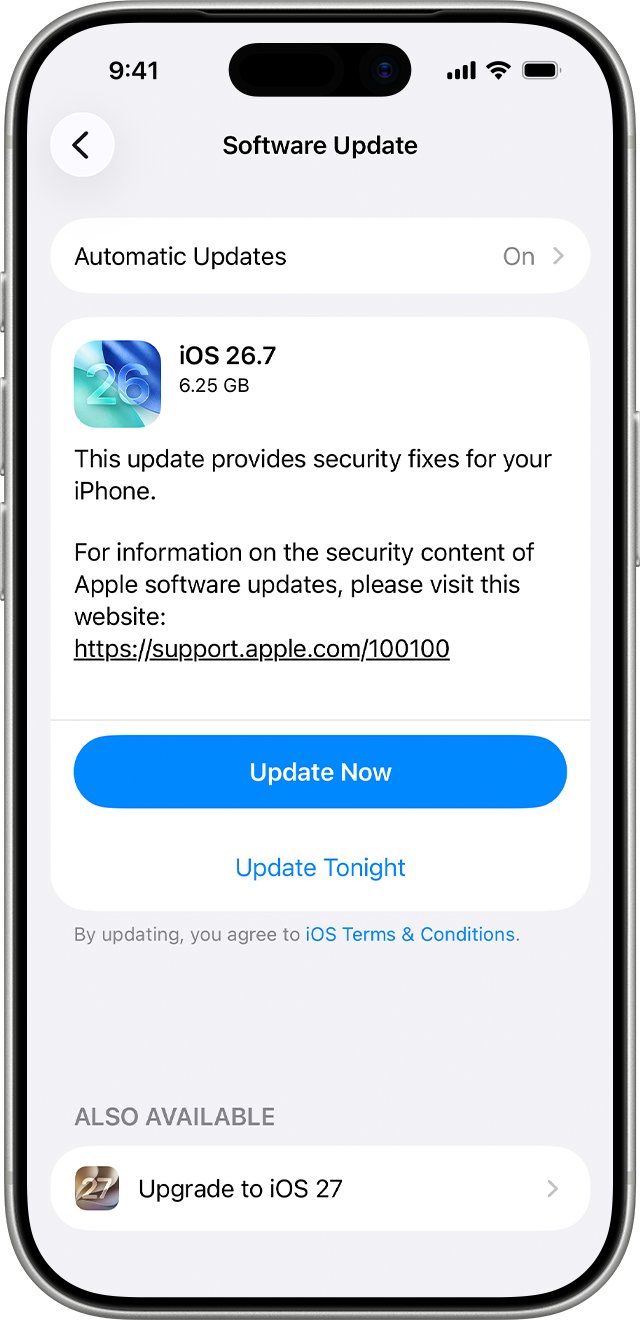
- Back up, plug into power and connect to Wi-Fi.
- Open Settings > General > Software Update.
- Tap Download and Install and follow the onscreen instructions.
- If asked to remove apps temporarily for space, tap Continue; they reinstall afterwards.
- On a Mac, select the iPhone in the Finder, click General > Check for Update, then Download and Update.
Back up before a big jump, such as taking an iPhone 13 Pro Max to iOS 18. If a phone feels slower afterwards, as with an iPhone 16 Pro Max lagging on iOS 18, install the latest point release before resetting anything.
Alerts such as Unable to Check for Update have their own iOS update problem fixes.
Latest iOS version for older iPhone models
Apple's security release list shows the newest iOS each model can install, so you can tell a failed update from the end of support.
| iPhone model | Latest iOS listed by Apple | Released |
|---|---|---|
| iPhone 11 and later, SE (2nd generation and later) | iOS 27.2; iPhone 11 and later can stay on iOS 26.7.2 | 26 October 2026 |
| iPhone 11 to 16, 16e and SE (2nd and 3rd generation) that stayed on iOS 18 | iOS 18.7.8, the last iOS 18 release listed for them | 22 April 2026 |
| iPhone XS, XS Max, XR | iOS 18.7.11 | 26 October 2026 |
| iPhone 8, 8 Plus, X | iOS 16.7.16, reached with the iPhone 8 update steps | 11 May 2026 |
| iPhone 6s, 7, SE (1st generation) | iOS 15.8.8 | 11 May 2026 |
| iPhone 5s, 6, 6 Plus | iOS 12.5.8 | 26 January 2026 |
Apple lists the iPhone SE (2nd generation and later) as iOS 27 compatible, so iPhone SE 2020 support continues on the current release.
Common iPhone reset problems and fixes
Most restore errors trace back to the network, the USB connection or old software on the computer.
| Problem | Cause | Fix |
|---|---|---|
| Error 1109, 3194, 17 or 1639 | The computer can't reach Apple's update servers | Update the computer's software, allow Apple's servers through the firewall, comment out gs.apple.com lines in the hosts file, or try another network to fix error 1109 on a restore |
| Error 4005, 4013 or 4014 | USB connection | Retry with another Apple cable or USB port, plugged straight into the computer |
| Error 4037 | The iPhone is locked | Unlock it before you update |
| Error 10 | iOS is newer than the computer's software | Update macOS, iTunes or Apple Devices |
| Error 1015 | Modified software or a downgrade attempt | Restore the latest iOS in recovery mode, since an unsigned IPSW won't install |
| Restarts over and over at the Apple logo | Startup can't complete | Force restart, then use recovery mode Update to fix the boot loop |
| Update stuck at Update Requested | The download hasn't started | Delete the update in Settings > General > iPhone Storage and download it again to fix a stuck iOS 26 update |
| Unable to Check for Update | No internet, or a VPN or proxy blocks the servers | Retry, then use another network or a computer |
Unable to reset your iPhone? Try these troubleshooting tips
Why can't I reset my iPhone from Settings?
The erase needs the device passcode and the password of the Apple Account on the phone.
- Reset a forgotten Apple Account password, then start the erase again.
- Enter a Restrictions passcode if the erase asks for one.
- Without the device passcode, use Forgot Passcode? or recovery mode.
Why won't my iPhone factory reset with a computer?
The computer can't see the phone or reach Apple's servers, or the phone left recovery mode during a long download.
- Plug straight into the computer, not a hub, unlock the iPhone and tap Trust.
- Update macOS, iTunes or Apple Devices, then restart both devices.
- Enter recovery mode again, or try another computer on a different network.
Why did my iPhone reset itself?
Automatic Updates install iOS overnight and restart the phone, and a Find My remote erase wipes it from afar.
- Check Settings > General > Software Update for a newly installed version.
- Look for a Find My erase confirmation in your Apple Account email.
- If you didn't request an erase, change your Apple Account password and restore your backup.
FAQ: How to reset iPhone
Where do you reset an iPhone?
Open Settings > General > Transfer or Reset iPhone. Tap Reset to reset settings and keep your data, or Erase All Content and Settings to wipe the phone. A locked iPhone resets from the Lock Screen, iCloud.com or recovery mode instead.
How do you reset an iPhone 13, 16 or 17?
The iPhone 13, 16, 17 and 17 Pro all erase from Settings > General > Transfer or Reset iPhone > Erase All Content and Settings. They share one force restart: press volume up, press volume down, then hold the side button until the Apple logo appears.
How do you reset an iPhone 7, XR or SE?
The XR and SE (2nd and 3rd generation) force restart with volume up, volume down, then a long press of the side button. The iPhone 7 uses volume down plus Sleep/Wake, and the first SE uses Home plus Sleep/Wake. All erase from Erase All Content and Settings.
How do you reset an iPhone passcode when you forgot it?
If you changed it in the last 72 hours on iOS 17 or later, tap Forgot Passcode? > Enter Previous Passcode and use the old one; your data stays. Otherwise the passcode can't be recovered, so you erase the iPhone and restore a backup.
Does resetting an iPhone delete everything?
Erase All Content and Settings deletes everything on the phone, including photos, contacts, apps and Apple Pay cards, but content stored in iCloud stays there. A restart, force restart or Reset All Settings deletes none of your data.
Can you reset an iPhone on an HP laptop?
Yes. Any PC with Windows 10 or later, HP laptops included, restores an iPhone with the Apple Devices app from the Microsoft Store: select the iPhone, select General, then Restore. The app installs the latest iOS.
Can you reset an iPhone with an iPad?
Yes, if both use the same Apple Account and Find My was on for the iPhone. Open Find My on the iPad, tap Devices, select the iPhone, tap Erase, then Continue, and confirm with your Apple Account password.