An iPhone asks for a passcode after a factory reset because Activation Lock is still on, and it wants the passcode or Apple Account password that was used on the phone before the erase.
This guide explains each passcode prompt you can see around Erase All Content and Settings, how to get past it, and what to do if you never knew the old passcode.
How to get past the passcode screen after resetting an iPhone
Find My links the phone to an Apple Account, and that link survives an erase. Each time the iPhone is activated, it checks with Apple whether Activation Lock is on.
- Turn on the iPhone and follow setup until the Activation Lock or iPhone Locked to Owner screen appears.
- Choose the option to unlock with the device passcode, if it is offered.
- Enter the passcode the iPhone used before it was erased.
- Or choose the Apple Account option and enter the Apple Account email and password used to set up the phone.
- Continue setup until the Home Screen appears.
Which passcode is iPhone asking for after erase?
The phone can ask for a passcode at three points. Match the screen you see to the passcode it wants.
| When you see the prompt | What it wants | Why |
|---|---|---|
| Right after tapping Erase All Content and Settings | The current device passcode, or a Restrictions or Screen Time passcode | Confirms the owner is the one erasing the phone |
| After the erase, during setup (Activation Lock) | The old device passcode or the Apple Account password | Find My was still on, so the phone is linked to that account |
| During setup, on a used iPhone you bought | The previous owner's Apple Account details | The seller did not remove the phone from their account |
Forgot old iPhone passcode after factory reset
| Your situation | What to do |
|---|---|
| You remember the Apple Account password | Choose the Apple Account option on the Activation Lock screen and sign in |
| You forgot the Apple Account password | Reset the Apple Account password, then sign in on the lock screen |
| You do not remember your Apple Account | Try the email address or phone number you use most with Apple services |
| You still own the account and the phone is offline | Remove the device at icloud.com/find |
| You bought it used | Ask the seller to enter their password or remove it from their account |
| None of the above works and you have proof of purchase | Start an Activation Lock support request with Apple |
| The phone belongs to a business or school | Contact the IT department or manager |
Remove Activation Lock from iCloud.com
Use this when the account is yours but the passcode screen still blocks setup. Apple notes that for iPhone this may work even when the phone is not offline.
- Go to icloud.com/find in a browser on another device.
- Sign in with the Apple Account that was used on the iPhone.
- Select the iPhone in the device list.
- Click Remove This Device.
- Restart the iPhone and go through setup again.
Why is my new iPhone asking for a passcode it never had?
On a second-hand iPhone with iOS 15 or later, an iPhone Locked to Owner screen means the phone is still protected by the previous owner's Activation Lock. Apple advises against taking ownership of such a phone.
- Hand the iPhone back to the seller and ask them to enter their Apple Account password.
- If the seller is not there, ask them to remove the device from their account in a browser.
- Restart setup once they confirm it is removed.
- Check that the Hello screen appears, which means the phone is ready for you.
How to erase an iPhone so it does not ask for a passcode
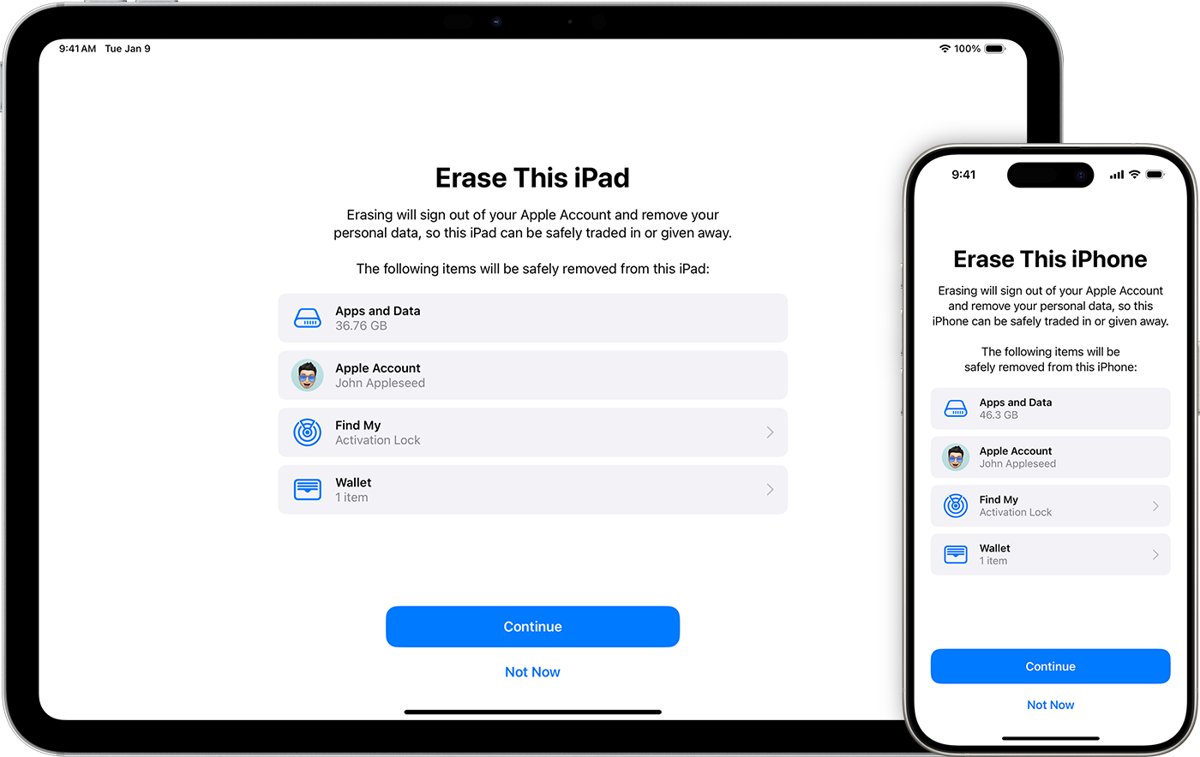
Signing out of the Apple Account before erasing removes Activation Lock, so the next owner never sees the prompt.
- Back up the iPhone.
- Open Settings, tap your name, scroll down and tap Sign Out.
- On iOS 26 or later, choose Erase this iPhone or Sign Out But Don't Erase; on iOS 18 or earlier, enter your Apple Account password and tap Turn Off.
- Go to Settings > General > Transfer or Reset iPhone and tap Erase All Content and Settings.
- Enter your device passcode or Restrictions passcode if asked.
- Tap Erase iPhone.
How to know the iPhone is no longer locked
- Turn on the iPhone after the erase.
- Confirm the Hello screen appears instead of iPhone Locked to Owner.
- Start setup and check that no previous Apple Account details are requested.
- Sign in with your own Apple Account when setup asks.
iPhone passcode not working after reset
iPhone is not recognizing the passcode at Activation Lock
The screen wants the passcode the phone used before the erase, not a new one.
- Enter the last passcode that unlocked this iPhone before it was erased.
- Switch to the Apple Account option if that passcode does not work.
- Reset the Apple Account password if you cannot sign in.
Forgot the passcode before you could erase the iPhone
Erase All Content and Settings needs the current passcode.
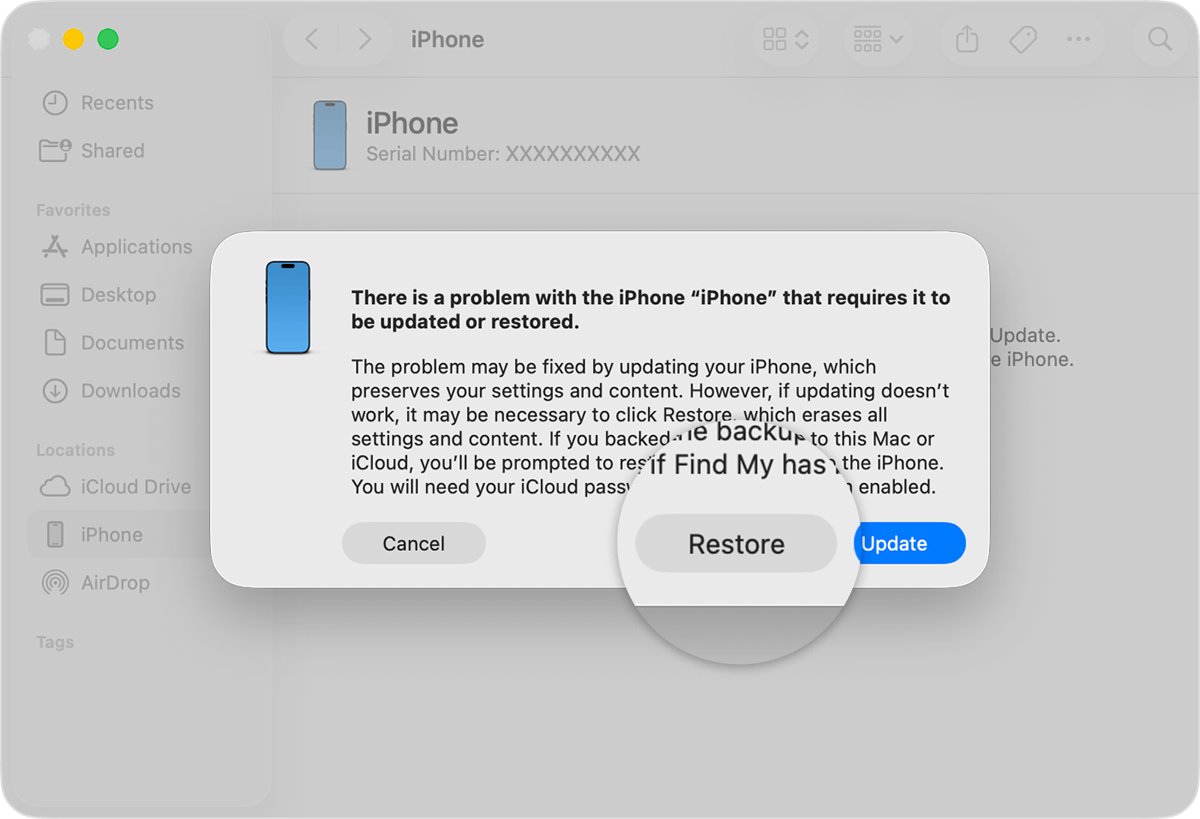
- Turn off the iPhone and connect it to a Mac or Windows PC.
- Hold the side button (Face ID models) until the recovery mode screen with a computer and cable appears.
- Select the iPhone in Finder on a Mac, or in Apple Devices on Windows.
- Select Restore and follow the prompts.
- Expect Activation Lock afterwards, and sign in with your Apple Account.
Activation Lock screen on a phone you cannot unlock at all
The linked Apple Account cannot be accessed.
- Collect your proof of purchase.
- Start an Activation Lock support request with Apple.
iPhone asking for passcode after reset FAQ
Why is my iPhone asking for a passcode after a reset?
Activation Lock is still on. Find My links the iPhone to an Apple Account, and the link survives Erase All Content and Settings. Enter the old device passcode or the Apple Account password to continue setup.
Why is my iPhone asking for the old passcode?
The Activation Lock screen accepts the passcode the phone used before it was erased, as proof that the owner is setting it up again. A new passcode does not exist yet, so only the old one or the Apple Account password works.
Why is my new iPhone asking for a passcode?
A used iPhone that asks for a passcode or the previous owner's account is still linked to that owner. Ask the seller to enter their password or remove the device from their account before you take it.
Why does my iPhone passcode not work after reset?
Erasing removes the passcode from the phone, but Activation Lock asks for the previous one. If you set a different passcode recently, use the latest one, or sign in with the Apple Account instead.
How do you remove Activation Lock without the passcode?
Sign in with the Apple Account email and password on the Activation Lock screen, or remove the iPhone at icloud.com/find. If you have no account access but have proof of purchase, start an Activation Lock support request.
Does a factory reset remove Activation Lock?
No. Activation Lock stays on after an erase while Find My was on. Sign out of your Apple Account before erasing, or remove the device from your account, to turn it off.
Do I need a passcode on iPhone to erase it?
Yes, if a passcode is set. Erase All Content and Settings asks for the device passcode, or a Restrictions passcode, before it erases. Without it, reset the iPhone with a computer in recovery mode.
Can you set up an iPhone without the old passcode?
Yes, if you can sign in with the Apple Account that owns the iPhone or remove it at icloud.com/find; otherwise only the owner or an Apple support request can release it. Activation Lock is designed to block anyone except the owner from reactivating an erased iPhone, so no reset method bypasses it.