To soft reset an iPhone, turn it off with the power-off slider, wait 30 seconds, then hold the side button until the Apple logo appears.
This guide gives the button steps for every iPhone model, two ways to do it without buttons, and what to try when the screen is too frozen to show the slider.
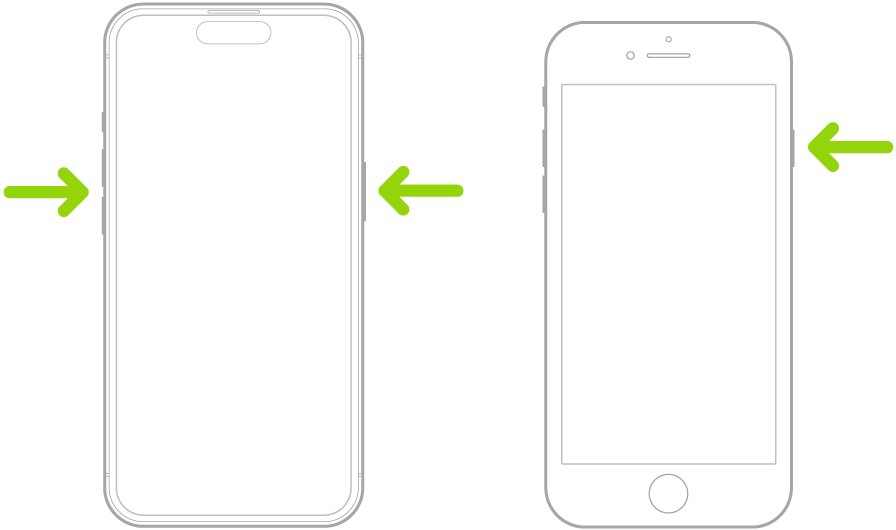
How to soft reset iPhone with Face ID
These steps work on iPhone X and every later Face ID model, including iPhone 11, 12, 13, 14, 15, 16 and 17 and their Pro and Pro Max versions.
A soft reset is simply a normal restart. Apple calls it restarting your iPhone, and nothing on the phone is erased.
- Press and hold the side button and either volume button at the same time.
- Release both buttons when the power-off slider appears.
- Drag the slide to power off slider to the right.
- Wait 30 seconds so the iPhone shuts down completely.
- Press and hold the side button on the right edge until the Apple logo appears, then release it.
Hold the two buttons together, not one after the other. Pressing the volume buttons in quick sequence starts a force restart instead.
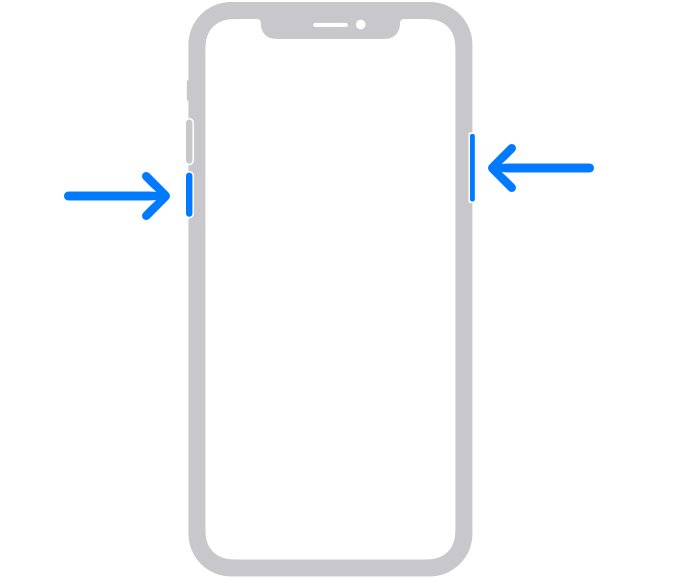
Soft reset iPhone 17, 16, 15, SE and older: which buttons to press
The button combination depends on whether your iPhone has Face ID or a Home button. Find your model in the first column.
| Your iPhone | Hold to show the power-off slider | Hold to turn it back on |
|---|---|---|
| iPhone X, 11, 12, 13, 14, 15, 16, 17 and other Face ID models | Side button plus either volume button | Side button |
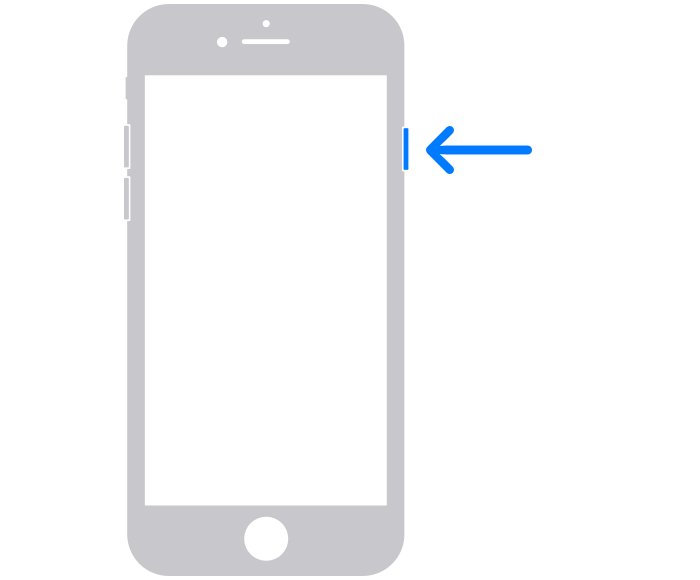
| iPhone 6, 7, 8, SE (2nd or 3rd generation) | Side button only | Side button |
| iPhone SE (1st generation), iPhone 5 or earlier | Top button only | Top button |
| Any model with a broken or stuck button | Settings > General > Shut Down, or Restart in AssistiveTouch | Connect a charger if the side button cannot be pressed |
Searches such as soft reset iPhone 16 Pro Max or iPhone 17 Pro land on the first row. Every current Face ID model uses the same two buttons.
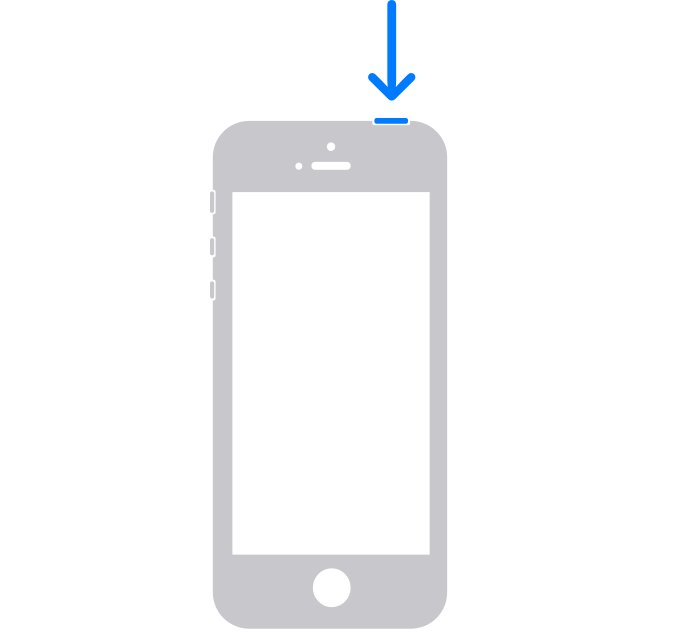
How to soft reset iPhone 8, SE, and older models
Models with a Home button need only one button to reach the slider. iPhone 6, 7, 8 and SE (2nd or 3rd generation) use the side button; iPhone SE (1st generation) and iPhone 5 or earlier use the top button.
- Press and hold the side button (or the top button on iPhone SE 1st generation and iPhone 5 or earlier).
- Release it when the power-off slider appears.
- Drag the slide to power off slider.
- Wait 30 seconds for the iPhone to turn off.
- Press and hold the same button until the Apple logo appears.
Soft reset iPhone from Settings or Control Center without buttons
Both routes show the same power-off slider, so they suit a phone with a worn volume button. You still need the side button, or a charger, to turn the iPhone back on.
- Open the Settings app and tap General.
- Scroll to the bottom and tap Shut Down.
- Drag the slider to turn off the iPhone.
- Alternatively, open Control Center, then touch and hold the power icon in the top-right corner until you feel a vibration and drag the slider.
- Wait 30 seconds, then hold the side button until the Apple logo appears.
Soft reset iPhone with AssistiveTouch or Siri
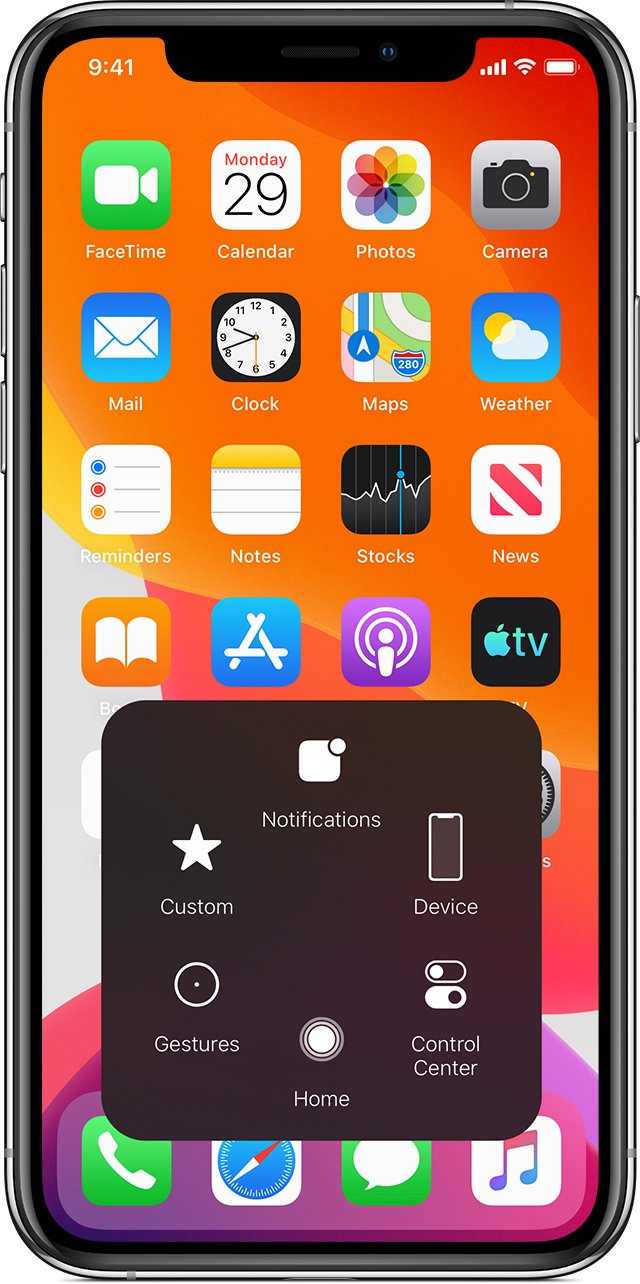
AssistiveTouch puts an on-screen button on your iPhone, and its menu includes a Restart function. This route needs no hardware button at all.
Siri can switch the feature on for you if you say "Turn on AssistiveTouch".
- Go to Settings > Accessibility > Touch > AssistiveTouch, then turn on AssistiveTouch.
- Tap Customize Top Level Menu, tap an icon you rarely use, and choose Restart to place it on the main menu.
- Tap the floating AssistiveTouch button anywhere on screen.
- Tap Restart.
- Wait for the Apple logo and the Lock Screen to appear.
To put the menu back as it was, open Customize Top Level Menu again and tap Reset.
How to tell an iPhone soft reset worked
A completed soft reset always passes through a fully dark screen and then the Apple logo.
- Confirm the screen went fully dark after you dragged the slider.
- Confirm the Apple logo appeared when you held the side button.
- Unlock the iPhone and confirm your apps, photos and messages are still there.
- Open the app or feature that misbehaved before the restart and check that it now responds.
What a soft reset does on an iPhone
A soft reset is a full shutdown followed by a cold start. Apple treats it as the first fix to try when the iPhone is not working as expected.
| During a soft reset | What happens |
|---|---|
| Open apps | Every app closes and reloads from scratch on the next launch |
| System memory | iOS shuts down fully, so temporary processes start fresh |
| Photos, messages, apps, settings | Nothing is deleted or changed |
| Wi-Fi | iPhone rejoins known networks after it starts |
When you should soft reset your iPhone
Restart when the iPhone still responds to touch but something is off. If the screen does not respond at all, skip to a force restart.
| Situation | Soft reset helps? |
|---|---|
| An app keeps freezing or closing | Yes, after you quit and reopen the app first |
| iPhone feels slow or laggy after long use | Yes, a restart clears running processes |
| Wi-Fi, Bluetooth or cellular data behaves oddly | Yes, as a first step before resetting settings |
| Touch screen does not respond and the slider will not appear | No, force restart instead |
| You are selling or giving away the iPhone | No, use Erase All Content and Settings |
Soft reset vs. force restart vs. factory reset on iPhone
The three terms get mixed up, but only one of them deletes your data. A force restart, often called a hard reset, cuts the running software without the slider; the separate guide to force restart any iPhone model covers each button sequence.
| Soft reset | Force restart (hard reset) | Factory reset | |
|---|---|---|---|
| How you start it | Power-off slider, then side button | Volume Up, Volume Down, then hold side button (iPhone 8 and later) | Settings > General > Transfer or Reset iPhone > Erase All Content and Settings |
| Screen must respond | Yes | No | Yes, or use a computer |
| Data kept | All of it | All of it | None; everything is erased |
| Use it when | Something is slow or glitchy | Screen is frozen or black | Selling the phone or starting over |
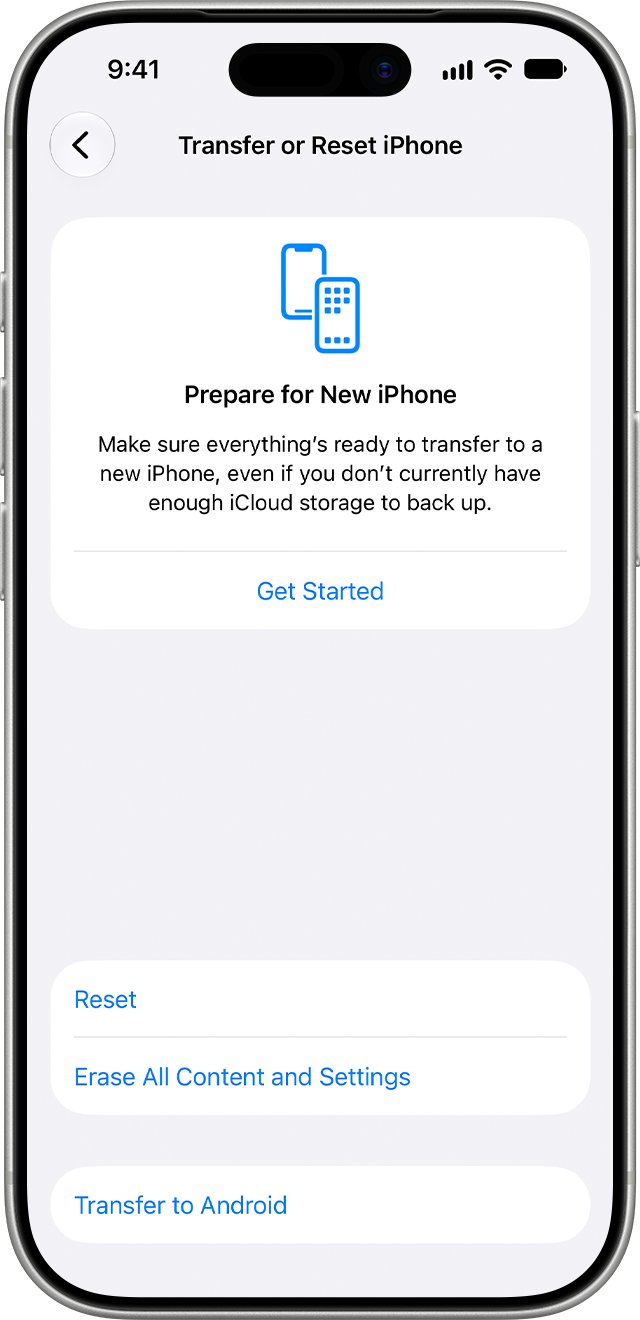
What to do if your iPhone is frozen or unresponsive
The screen is frozen and you cannot slide to power off
iOS is not responding to touch, so the slider cannot work.
- On iPhone 8 or later, press and quickly release Volume Up.
- Press and quickly release Volume Down.
- Press and hold the side button until the Apple logo appears; this can take longer than 10 seconds.
- On iPhone 7, or on iPhone 6s and earlier, use that model's own force restart combination.
The iPhone will not turn back on after the soft reset
The battery is usually too low to start up.
- Connect the iPhone to a charger and leave it for one hour.
- Hold the side button again until the Apple logo appears.
- If a low-charge battery icon shows, keep charging for 30 minutes or until it starts.
- If it still stays dark, contact Apple Support for service.
The soft reset does not fix the problem
The fault survives a clean start, so a deeper step is needed.
- Try a force restart for your model.
- Install any available iOS update, then restart again.
- Back up the iPhone before you try Reset All Settings or a full erase.
- Contact Apple Support if the problem returns after those steps.
iPhone soft reset FAQ
What is a soft reset on iPhone?
A soft reset is a normal restart: you turn the iPhone off with the power-off slider and turn it back on with the side button. It closes every app and restarts iOS without deleting photos, messages, apps or settings.
How do you soft reset an iPhone 16, 15 or 14?
Hold the side button and either volume button until the power-off slider appears, drag it, and wait 30 seconds. Then hold the side button until the Apple logo appears. Every Face ID iPhone, including the Pro and Pro Max models, uses these buttons.
How do you soft reset an iPhone 17 or iPhone 17 Pro?
Use the Face ID steps: hold the side button with either volume button, drag the power-off slider, wait 30 seconds, then hold the side button until the Apple logo shows. You can also tap Settings, General, Shut Down.
How do you soft reset an iPhone 11, 12 or 13?
Press and hold the side button and either volume button together until the slider appears. Drag it to power off, wait 30 seconds, then press and hold the side button until the Apple logo appears. Nothing on the phone is erased.
How do you soft reset an iPhone SE or iPhone 8?
On iPhone 8 and iPhone SE (2nd or 3rd generation), hold only the side button until the slider appears, drag it, wait 30 seconds, and hold the side button again. iPhone SE (1st generation) uses the top button instead.
Can you soft reset an iPhone 11 with Siri?
Siri can switch on AssistiveTouch when you say "Turn on AssistiveTouch". Add Restart to the AssistiveTouch menu with Customize Top Level Menu, then tap the on-screen button and choose Restart to restart the iPhone without pressing any hardware button.
Does a soft reset delete anything on an iPhone?
No. A soft reset only turns the iPhone off and on again, so apps, photos, messages, accounts and settings all stay. Only Erase All Content and Settings or a computer restore deletes data from the phone.
Is a soft reset the same as restarting an iPhone?
Yes. Soft reset is the informal name for a normal restart using the power-off slider. Apple's own instructions call it restarting your iPhone, while a force restart is the separate button sequence for a frozen screen.
How long should you wait before turning the iPhone back on?
Wait 30 seconds after you drag the slider. That gives the iPhone time to shut down fully before you hold the side button, or the top button on older models, to turn it back on.
How do you go from a soft reset to a hard reset on iPhone?
If the slider never appears, use a force restart instead. On iPhone 8 and later, press and release Volume Up, press and release Volume Down, then hold the side button until the Apple logo appears. Your data stays on the phone.
Bottom line: soft reset your iPhone first, force restart second
Soft reset with the power-off slider whenever an iPhone feels slow or glitchy, and force restart only when the screen will not respond. A soft reset closes everything cleanly and keeps every file and setting. A force restart is the fallback for a frozen screen, and a factory reset is the only option that erases your data.