Apple still supports the iPhone SE 2020, officially the iPhone SE (2nd generation), and it can run iOS 27.2, but iOS 18.6.2 is out of date and no longer receives security fixes on this model.
This guide covers how to update from iOS 18.6.2, the support timeline Apple has published so far, what iOS 18.6.2 fixed, the phone's eSIM and 5G status, and how to turn it on, restart and troubleshoot it.
Is the iPhone SE 2020 still supported?
Yes. Apple lists the iPhone SE (2nd generation) as compatible with iOS 27.2, the current release in October 2026.
An iPhone SE 2020 still on iOS 18.6.2 should move to the latest version, because Apple stopped shipping iOS 18 security updates for this model after iOS 18.7.2.
- Back up your iPhone to iCloud or to your computer.
- Plug the iPhone into power and connect to Wi-Fi.
- Open Settings and tap General.
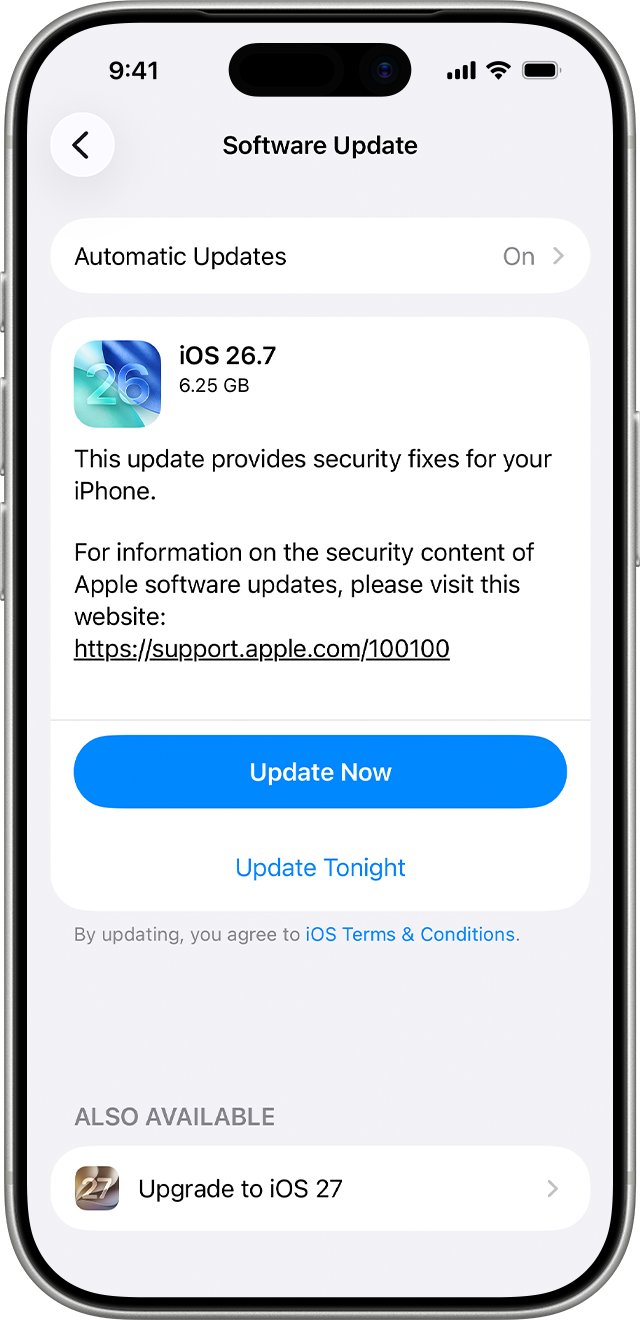
- Tap Software Update. The installed iOS version is shown, along with any available update.
- Tap Download and Install, then follow the onscreen instructions.
If a message asks to temporarily remove apps to make space, tap Continue. Those apps reinstall automatically after the update finishes.
iPhone SE 2020 iOS support end date
Apple does not announce an end date for software support. The only reliable guide is the list of devices each release supports, published on Apple's security releases page.
| Release | Date | Available for iPhone SE (2nd generation)? |
|---|---|---|
| iOS 18.6.2 | August 20, 2025 | Yes (iPhone XS and later) |
| iOS 26 | September 15, 2025 | Yes (iPhone 11 and later, plus iPhone SE 2nd generation) |
| iOS 18.7.2 | November 5, 2025 | Yes, the last iOS 18 update offered to this model |
| iOS 18.7.3 to 18.7.11 | December 2025 to October 2026 | No, limited to iPhone XS, XS Max and XR |
| iOS 27 | September 14, 2026 | Yes |
| iOS 26.7.2 and iOS 27.2 | October 26, 2026 | Yes |
Hardware support follows a separate rule. Apple service providers offer parts and service for at least 5 years after Apple last sold a product, and up to 7 years subject to parts availability.
A product becomes vintage 5 to 7 years after Apple stopped selling it and obsolete after 7 years. The iPhone SE (2nd generation) is not on Apple's vintage list as of October 2026.
What iOS 18.6.2 fixed on iPhone
iOS 18.6.2 was a single-fix security update released on August 20, 2025 for iPhone XS and later, which includes the iPhone SE 2020.
| Component | Issue | Fix | CVE |
|---|---|---|---|
| ImageIO | Processing a malicious image file may result in memory corruption | An out-of-bounds write issue was addressed with improved bounds checking | CVE-2025-43300 |
Apple said it was aware of a report that this issue may have been exploited in an extremely sophisticated attack against specific targeted individuals.
Every later release has carried further fixes, so staying on iOS 18.6.2 leaves the phone exposed to issues Apple has since patched.
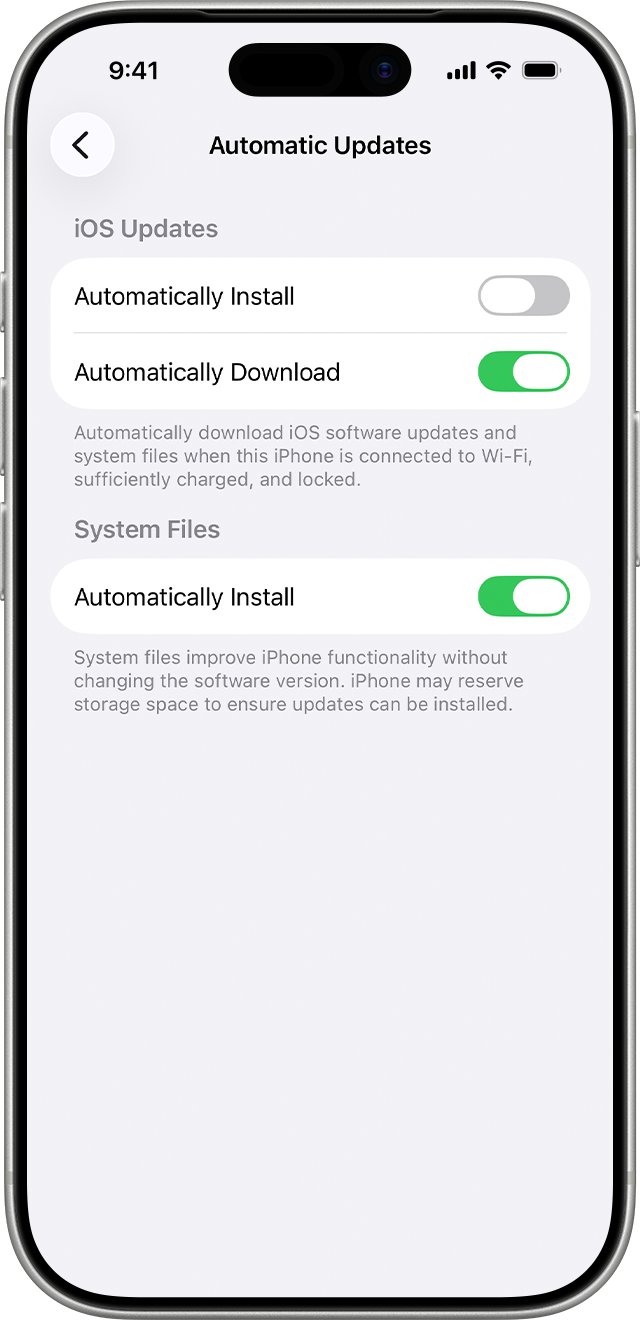
Turn on automatic updates on iPhone SE 2020
Automatic updates keep the phone on the newest supported release without you checking for each one.
- Open Settings.
- Tap General, then tap Software Update.
- Tap Automatic Updates.
- Turn on Automatically Install so the iPhone installs updates overnight while charging and on Wi-Fi.
- Or turn off Automatically Install and turn on Automatically Download to install updates yourself later.
You are notified before the iPhone installs an update, so an overnight install never happens without warning.
Apple iPhone SE 2020 model and generation
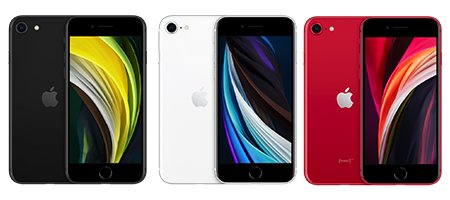
The iPhone SE 2020 is the iPhone SE (2nd generation). It sits between the 2016 first-generation SE and the 2022 third-generation SE, which look almost identical.
| Spec | iPhone SE (2nd generation) |
|---|---|
| Year introduced | 2020 |
| Model numbers | A2275 (Canada, United States), A2298 (China mainland), A2296 (other countries and regions) |
| Chip | A13 Bionic |
| Display | 4.7-inch, with a Home button and Touch ID |
| SIM | Dual SIM (nano-SIM and eSIM); eSIM not supported in all regions |
| Cellular | Gigabit-class LTE with 2×2 MIMO and LAA; no 5G listed |
| Water resistance | IP67, tested to 1 meter for up to 30 minutes |
| Fast charging | Up to 50 percent in 30 minutes with an 18W or higher adapter |
| Latest iOS supported | iOS 27.2 |
The model number appears in the About screen alongside the iOS version, and Apple's Identify your iPhone model page matches it to the right generation.
How to turn on iPhone SE 2020
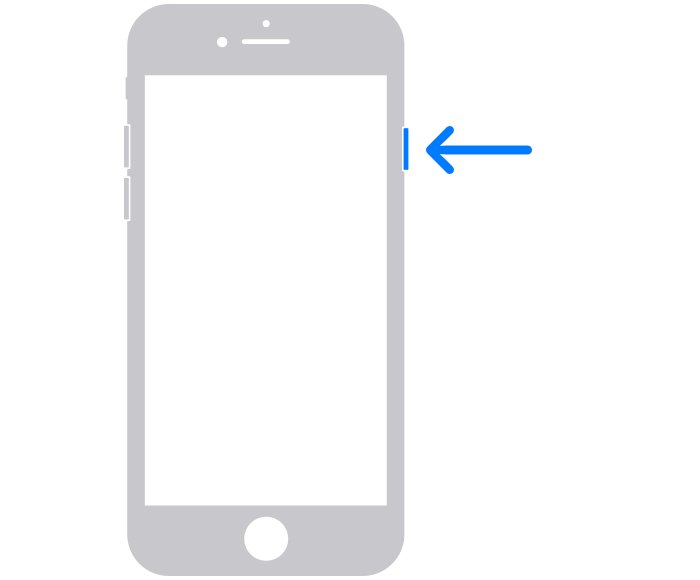
The iPhone SE (2nd generation) uses only the side button on the right edge to power on and off.
- To turn it on, press and hold the side button until the Apple logo appears.
- To turn it off, press and hold the side button until the power-off slider appears.
- Drag the slider, then wait 30 seconds for the phone to turn off.
- To force restart a frozen phone, press and quickly release volume up, press and quickly release volume down, then press and hold the side button.
- Release the side button when the Apple logo appears.
Check which iOS version your iPhone SE 2020 is running
- Open Settings.
- Tap General, then tap About.
- Read the iOS Version line. iOS 26.7.2 or iOS 27.2 or later means the phone is current.
- Go back and tap Software Update to confirm no further update is waiting.
If the version still reads 18.6.2 after you install an update, restart the iPhone and open About again.
iPhone SE 2020 not updating: fixes
Software Update doesn't show a new version
Some updates aren't offered wirelessly, and a VPN or proxy can block the update servers.
- Turn off any VPN or proxy connection.
- Connect to a different Wi-Fi network.
- Open Settings > General > Software Update again.
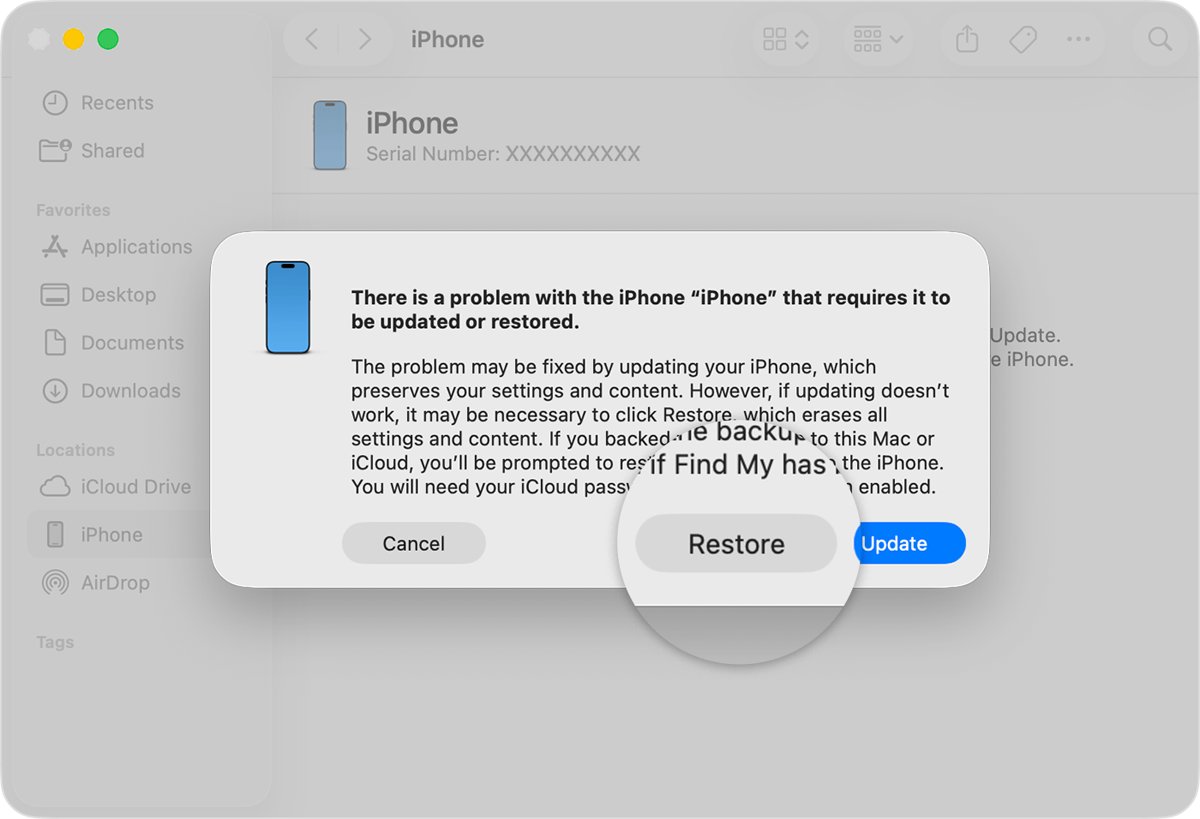
- If the update still doesn't appear, connect the iPhone to a Mac with Finder or a Windows PC and update it from there.
Not enough storage to install the update
The update needs free space to unpack before it installs.
- Tap Continue when asked to temporarily remove apps.
- Wait for the update to finish; the removed apps reinstall automatically.
- If you tap Cancel, delete content yourself and try again.
iPhone SE 2020 frozen during or after the update
The phone stopped responding and needs a force restart.
- Press and quickly release the volume up button.
- Press and quickly release the volume down button.
- Press and hold the side button until the Apple logo appears.
- If it still doesn't start, use a computer to update or restore it.
Forgot the passcode needed to install the update
iOS asks for the passcode before installing, and the only fix without it is a reset that erases the phone.
- Try Passcode Reset first if it is offered on the Lock Screen.
- If that is not available, reset the iPhone on the device or connect it to a Mac or Windows PC with a charging cable.
- Put the iPhone in recovery mode and restore it from the computer.
- Set it up again and restore your most recent backup.
When none of these work, report the problem to Apple Support with your model number and iOS version.
iPhone SE 2020 support FAQ
How long will Apple support the iPhone SE 2020?
Apple does not publish an end date. The iPhone SE (2nd generation) runs iOS 27.2 in October 2026, and Apple offers hardware service for at least 5 years after it last sold a model, up to 7 years subject to parts.
Is the iPhone SE 2020 still supported?
Yes. Apple's list of iPhone models compatible with iOS 27 includes the iPhone SE (2nd generation), and the iOS 26.7.2 and 27.2 updates of October 26, 2026 are available for it.
Does the iPhone SE 2020 still get updates on iOS 18?
No. The last iOS 18 update offered to the iPhone SE (2nd generation) was iOS 18.7.2 in November 2025. Later iOS 18.7 releases cover only iPhone XS, iPhone XS Max and XR, so update to iOS 26 or iOS 27.
Does the Apple iPhone SE 2020 support eSIM?
Yes. The iPhone SE (2nd generation) supports Dual SIM with a nano-SIM and an eSIM. eSIM is not supported in all regions, and some carriers disable it on phones they sell.
Does the iPhone SE 2020 support 5G?
No. Apple's tech specs for the iPhone SE (2nd generation) list Gigabit-class LTE, VoLTE and Wi-Fi calling, but no support for the 5G cellular network.
What generation is the Apple iPhone SE 2020?
It is the iPhone SE (2nd generation). The 2016 model is the 1st generation and the 2022 model is the 3rd generation. Model numbers A2275, A2298 and A2296 identify the 2020 phone.
How do you turn on an iPhone SE 2020?
Press and hold the side button on the right edge until the Apple logo appears. If the phone does not respond, force restart it with volume up, volume down, then a long press of the side button.
How do you open the SIM tray on an iPhone SE 2020?
The SIM tray sits on the right side of the phone and holds one nano-SIM card. Push a SIM eject tool into the small hole to open it. For battery or screen work, contact Apple or an Apple Authorized Service Provider.
Is the iPhone SE 2020 still good in 2026?
It still runs the current iOS 27.2 with an A13 Bionic chip and Touch ID. It lacks 5G, and its battery may need a replacement after years of charge cycles, which Apple service providers still offer.