To fix an iPhone in a boot loop, force restart it first, and if it keeps cycling on the Apple logo, connect it to a Mac or PC, put it in recovery mode and choose Update, which reinstalls iOS and keeps your data.
This guide gives the button presses for every iPhone model, the recovery mode update and restore steps, how to tell a real loop from a slow update, and fixes for restore errors.
Force restart an iPhone stuck in a boot loop
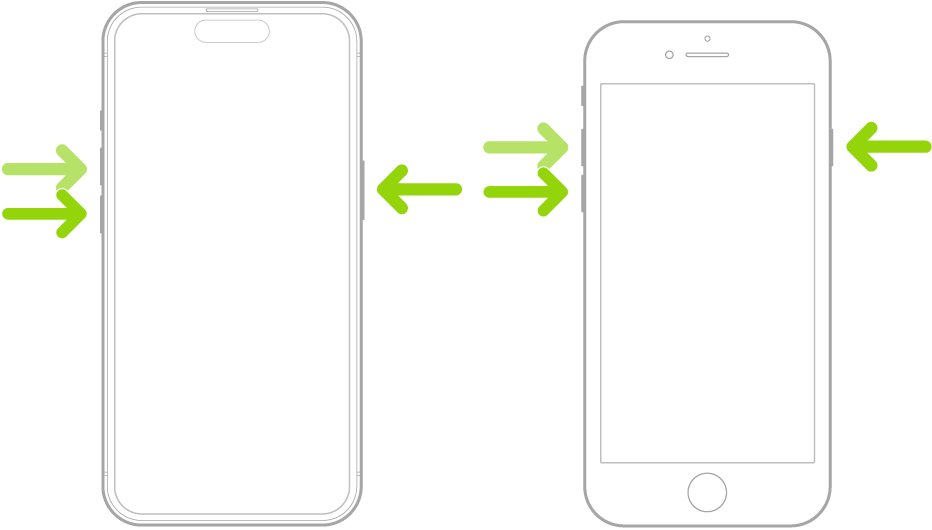
A force restart cuts power to the running software without touching your data. These steps are for iPhone 8 and later, including iPhone SE (2nd generation and later). Older models are in the table below.
- Press and quickly release the volume up button.
- Press and quickly release the volume down button.
- Press and hold the side button. Keep holding it even when the screen goes dark; this can take longer than 10 seconds.
- Release the side button when the Apple logo appears.
- Leave the iPhone alone for a few minutes to see whether it reaches the Lock Screen.
If the iPhone reaches the Lock Screen, the loop is broken; update iOS and your apps before anything else. If it goes back to the Apple logo and restarts again, use recovery mode below.
Which iPhone boot loop fix to use
| What the iPhone does | Do this | Data kept? |
|---|---|---|
| Restarts over and over, Apple logo flashes | Force restart, then recovery mode Update | Yes, with Update |
| Apple logo for several minutes with no progress bar | Recovery mode, choose Update | Yes |
| Apple logo with a progress bar after an update or restore | Wait at least one hour before acting | Yes |
| Shows the "Connect to computer" screen | Connect to a Mac or PC and choose Update, then Restore if Update fails | Only if Update works |
| Keeps starting up to Recovery Assistant | Recovery mode on a computer | Only if Update works |
| Starts but restarts randomly during use | Update iOS and apps, check battery health | Yes |
| A button is broken or recovery mode fails | Contact Apple for service | Depends on repair |
What causes an iPhone boot loop
| Cause | Typical sign | Fix |
|---|---|---|
| Interrupted or failed iOS update | Apple logo with no progress, or the "Connect to computer" screen | Recovery mode Update, then Restore |
| Out-of-date iOS or apps | Restarts or spinning gear during normal use | Update iOS and every app |
| Worn battery | Unexpected shutdowns or restarts, more often under load | Check Battery Health, replace the battery if recommended |
| Hardware fault | Restarts continue after a successful restore | Apple service |
| Normal migration after a restore (iOS 13 and later) | Apple logo with a progress bar for up to an hour | Wait; it is not a loop |
Apple's own guidance for unexpected restarts is to check software first and hardware second, which is the order this guide follows.
Force restart buttons for every iPhone model
The force restart button sequence changed with iPhone 7 and again with iPhone 8. Find your model, then press the buttons exactly as listed.
| iPhone model | Force restart | Recovery mode (while connected to a computer) |
|---|---|---|
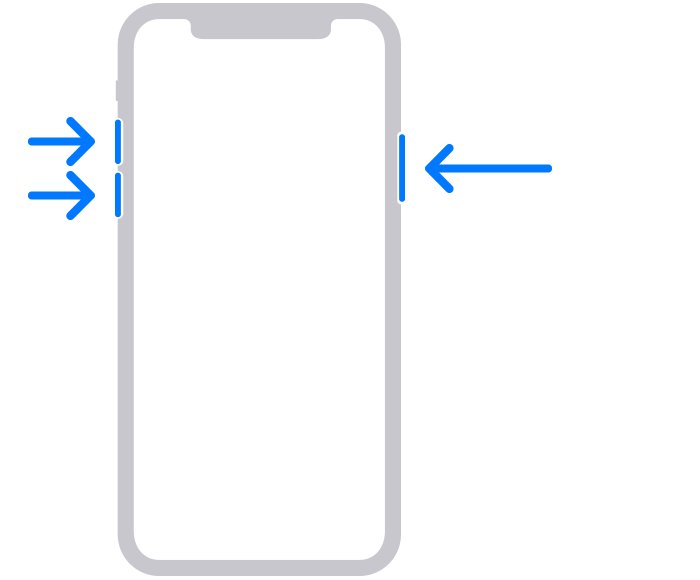
| iPhone 8 and later, iPhone SE (2nd generation and later) | Press and release volume up, press and release volume down, hold side until the Apple logo | Same presses, but keep holding side until the "Connect to computer" screen |
| iPhone 7 and iPhone 7 Plus | Hold side and volume down together until the Apple logo | Hold side and volume down until the "Connect to computer" screen |
| iPhone 6s and earlier, iPhone SE (1st generation) | Hold Home and side (or top) together until the Apple logo | Hold Home and side (or top) until the "Connect to computer" screen |
Update iOS in recovery mode without losing data
Recovery mode lets a computer reinstall iOS when the iPhone cannot start on its own. Choosing Update keeps your personal data, so always try it before Restore.
- Update your Mac, or on a Windows PC install the latest Apple Devices app from the Microsoft Store.
- Connect the iPhone to the computer with a USB cable, directly to the computer rather than a hub or keyboard port.
- Open Finder on a Mac with macOS Catalina 10.15 or later, or the Apple Devices app on a PC.
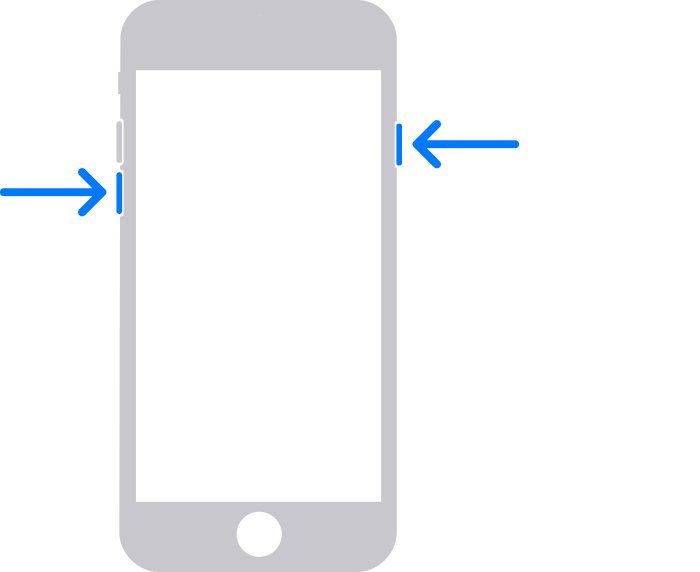
- Put the iPhone into recovery mode using the presses for your model, and keep holding until the Connect to computer screen appears.
- Locate the iPhone on the computer.
- Click Update when the Update or Restore options appear.
- Wait for the download and install to finish. If the download takes more than 15 minutes, the iPhone may leave recovery mode; let the download finish, then enter recovery mode again.
When the update completes, the iPhone restarts to the Lock Screen with your data in place.
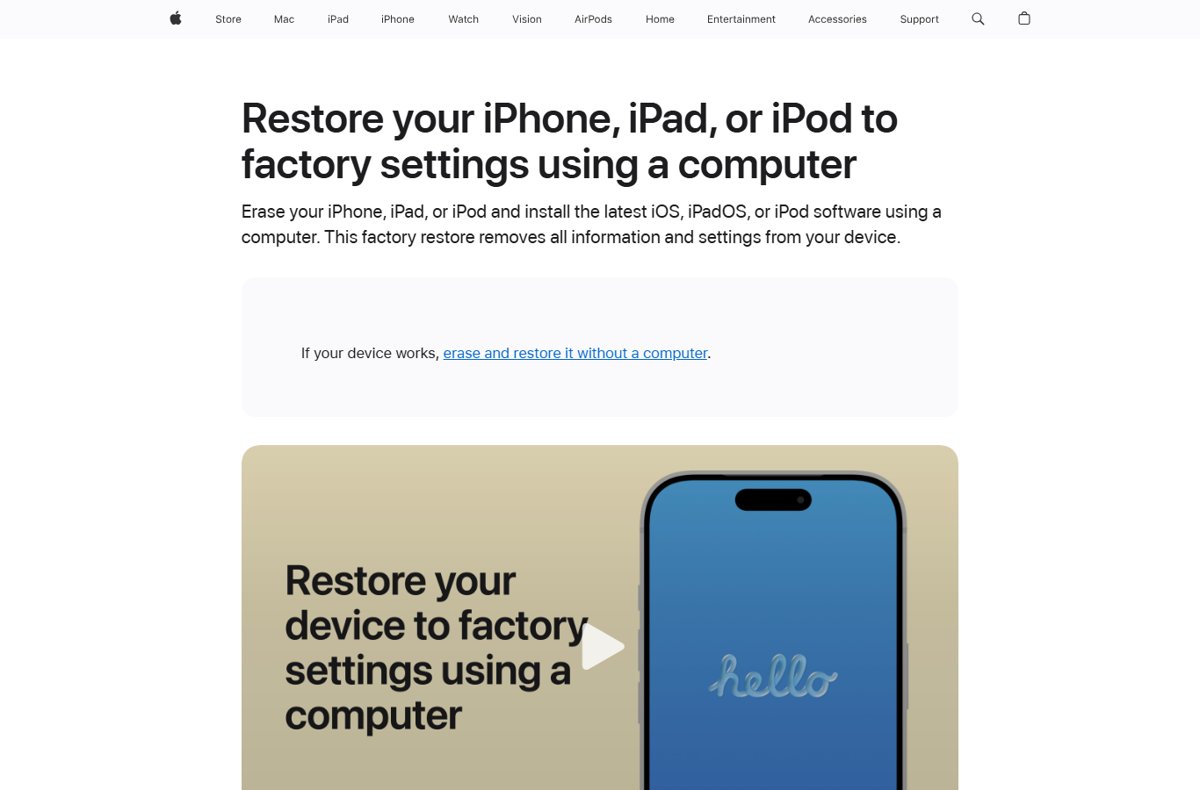
Restore an iPhone in recovery mode when Update fails
Restore reinstalls iOS and erases everything on the iPhone. Use it only after Update has failed, and set the iPhone up from an iCloud or computer backup afterwards.
- Repeat the recovery mode steps until the Connect to computer screen appears.
- Locate the iPhone in Finder or the Apple Devices app.
- Click Restore when the Update or Restore options appear.
- Wait while the computer downloads the software and restores the iPhone.
- When the Hello screen appears, set up the iPhone and choose to restore from your backup.
If the iPhone started up in recovery mode during an update, Apple advises restoring it rather than updating, then setting it up from a backup.
Stop the boot loop coming back: update apps and check battery health
Once the iPhone starts, remove the conditions Apple links to repeated restarts. Old software and a worn battery are the two it names.
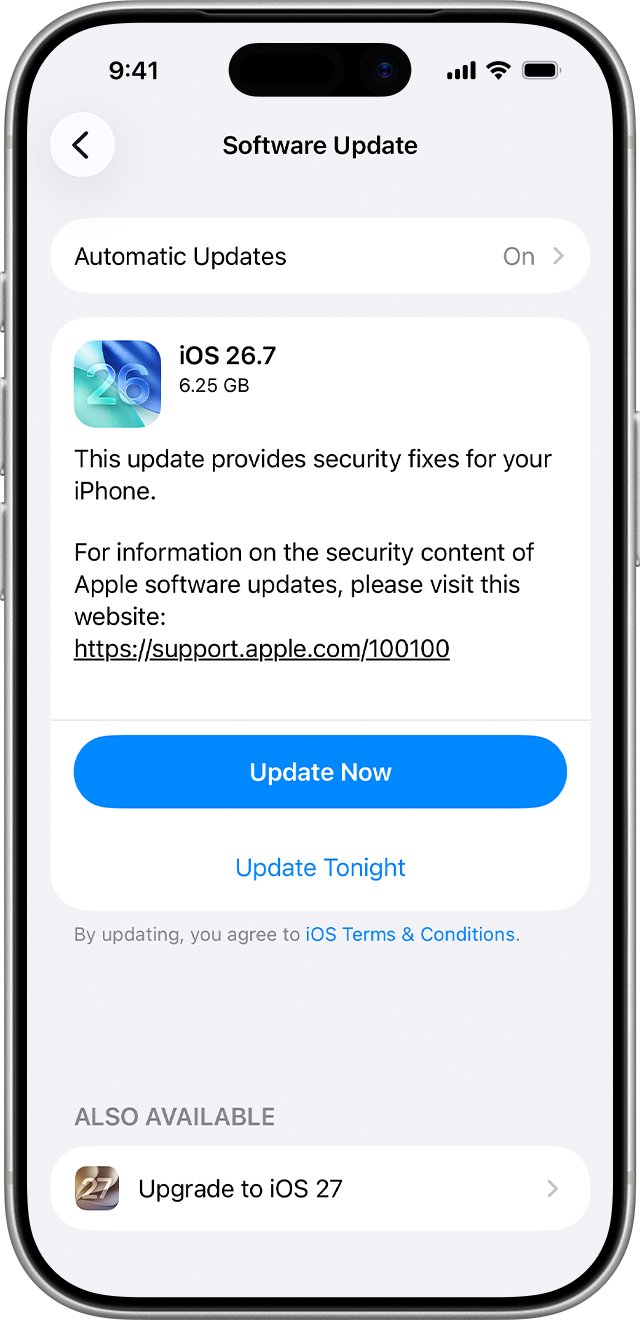
- Open Settings > General > Software Update and install any available iOS update.
- Update every app from the App Store.
- Open Settings > Battery > Battery Health on iPhone 15 models and later, or Battery Health & Charging on iPhone 11 to 14 models.
- Check whether a battery replacement is recommended.
- If an app keeps quitting before the restarts begin, update or delete that app.
How to check the iPhone boot loop is fixed
- Confirm the iPhone reaches the Lock Screen and stays on for at least 10 minutes of normal use.
- Open Settings > General > Software Update and confirm the installed iOS version is shown with no update waiting.
- Charge the iPhone and use a demanding app, such as the camera, to check it does not restart under load.
- If restarts return with the latest iOS installed and a healthy battery, treat it as a hardware fault and arrange service.
iPhone still in a boot loop: fixes by symptom
Apple logo and progress bar that does not move
After a restore or migration on iOS 13 and later, the progress bar can stay on screen for over an hour.
- Keep the iPhone on power and wait at least one hour without pressing anything.
- Press a button once; if an updating message appears, the update is still running.
- If the bar has not moved for more than an hour, connect the iPhone to a computer.
- Put it into recovery mode and choose Update.
Restore fails with error 9, 4005, 4013 or 4014
The iPhone or computer lost the connection during the update or restore.
- Update the Mac, or the Apple Devices app or iTunes on a PC.
- Force restart the iPhone.
- Connect the iPhone directly to the computer and click Update instead of Restore.
- If the error repeats, try another USB cable, then another computer.
The computer does not see the iPhone in recovery mode
A cable, port, hub or security software is blocking the connection.
- Plug the iPhone straight into a USB port on the computer, not a keyboard or hub.
- Try a different Apple USB cable and a different port.
- Turn the computer off and on again, and restart the iPhone.
- Update or change security software that interferes with the connection, or use another computer on a different network.
iPhone keeps starting up to Recovery Assistant
The on-device recovery could not repair the installed iOS.
- Connect the iPhone to a Mac or PC with the latest software.
- Put it in recovery mode and wait for the Connect to computer screen.
- Choose Update, then Restore if the update fails.
iPhone is frozen and will not respond to the buttons
The battery may be flat, or a button may be faulty.
- Charge the iPhone for one hour, then force restart it again.
- If it shows a low-battery icon, check the cable and charger, then charge for 30 minutes or until it starts.
- If a button does not work or sticks, recovery mode cannot be used; contact Apple for service.
iPhone still restarts after a successful restore
With fresh software, repeated restarts point to the battery or other hardware.
- Check Battery Health for a replacement recommendation.
- If the battery does not need service but the restarts continue, book a repair with Apple.
iPhone boot loop FAQ
How do I fix an iPhone in a boot loop without a computer?
Force restart it with the button sequence for your model and charge it for an hour if it will not stay on. If it still loops, a Mac or PC is required, because recovery mode needs a computer to reinstall iOS.
Will fixing a boot loop erase my iPhone?
Not if Update works. Choosing Update in recovery mode reinstalls iOS and keeps your personal data. Choosing Restore erases the iPhone, so use it only after Update fails and restore from a backup afterwards.
How do I fix an iPhone in recovery mode?
Connect it to a Mac with Finder or a PC with the latest Apple Devices app, locate the iPhone and click Update. If Update fails, click Restore, which erases the iPhone, then set it up from a backup.
How do I fix an iPhone in DFU mode?
Apple does not publish DFU mode steps for consumers; its documented route for an iPhone that will not start is recovery mode rather than DFU mode on iPhone. Force restart the iPhone to leave the black screen, then use recovery mode Update or Restore on a computer.
How do I fix an iPhone on a computer?
On a Mac, open Finder; on a Windows PC, install the Apple Devices app from the Microsoft Store. Connect the iPhone, put it in recovery mode, and choose Update, or Restore if Update fails.
Why is my iPhone frozen and how do I fix it?
A frozen iPhone usually has a stuck app, failed update or flat battery. Force restart it, charge it for an hour if the screen stays black, and use recovery mode on a computer if it freezes on the Apple logo.
How long should I wait on the Apple logo before acting?
If a progress bar is showing after an update or restore, wait at least one hour. If the Apple logo shows for several minutes with no progress bar, the iPhone needs recovery mode.
Will Apple fix my iPhone if it is stuck in a boot loop?
Yes. Apple offers service when recovery mode cannot update or restore the iPhone, when a button needed for recovery mode does not work, or when restarts continue after a restore. Start a repair request from Apple Support.
Can a bad battery cause an iPhone boot loop?
Yes. Apple lists battery health as the hardware check for unexpected restarts. Open Settings, Battery, Battery Health, or Battery Health & Charging on iPhone 11 to 14, to see whether a replacement is recommended.
Bottom line on fixing an iPhone boot loop
Force restart first, then use recovery mode on a computer and choose Update; only choose Restore if Update fails. Update reinstalls iOS while keeping your data and clears most software loops, Restore wipes the phone, and loops that survive a clean restore point to the battery or other hardware that Apple needs to inspect.