iOS 18.7.2 is no longer the newest iOS 18 build for an iPhone 11 Pro: Apple replaced it with iOS 18.7.8 on April 22, 2026, so install that iOS 18 update from Settings > General > Software Update and leave the iOS 26 or iOS 27 upgrade alone.
This guide covers which iOS 18 releases the iPhone 11 Pro can get, how to choose between iOS 18 and a major upgrade, wireless and computer updates, and fixes when the update redirects or fails.
Install the latest iOS 18 update on iPhone 11 Pro without iOS 26
- Back up your iPhone to iCloud or your computer.
- Plug the iPhone into power and connect to Wi-Fi.
- Open Settings and tap General.
- Tap Software Update and wait for the page to check for updates.
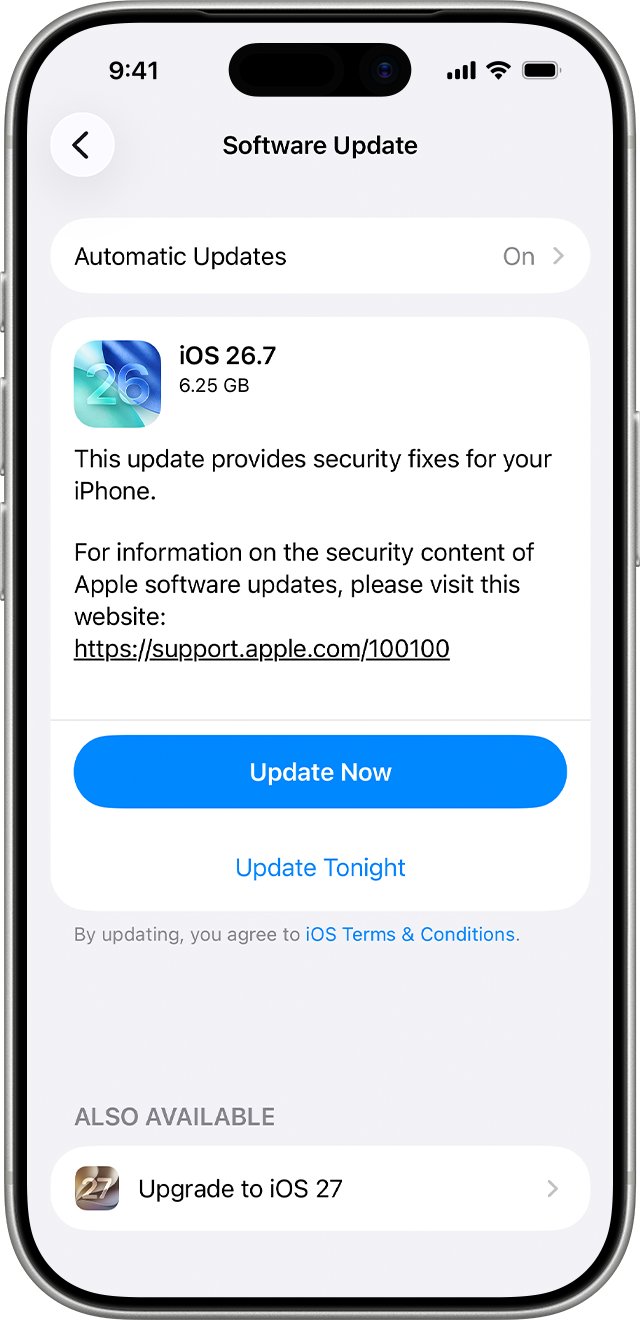
- Find the update whose name starts with iOS 18, not the iOS 26 or iOS 27 upgrade listed separately.
- Tap Download and Install under the iOS 18 update and follow the onscreen instructions.
- Enter your passcode when asked and let the iPhone restart.
If Software Update shows only an iOS 26 or iOS 27 upgrade, Apple is not offering an iOS 18 build for your phone at that moment. Do not install the upgrade if you want to stay on iOS 18.
iOS 18.7.2 and later iOS 18 updates for iPhone 11 Pro
iOS 18.7.2 was a security release for every iPhone that runs iOS 18, including the iPhone 11 Pro. Apple then dropped the iPhone 11 family from iOS 18 updates for several releases and added it back in April 2026.
| iOS 18 release | Release date | Available for iPhone 11 Pro? |
|---|---|---|
| iOS 18.7.1 | September 29, 2025 | Yes (iPhone XS and later) |
| iOS 18.7.2 | November 5, 2025 | Yes (iPhone XS and later) |
| iOS 18.7.3 to 18.7.6 | December 2025 to March 2026 | No; limited to iPhone XS, XS Max and XR |
| iOS 18.7.7 (second release) | April 1, 2026 | Yes (iPhone 11, all models) |
| iOS 18.7.8 | April 22, 2026 | Yes (iPhone 11, all models); the newest iOS 18 build for this phone |
| iOS 18.7.9 and 18.7.10 | May and August 2026 | No; limited to iPhone XS, XS Max and XR |
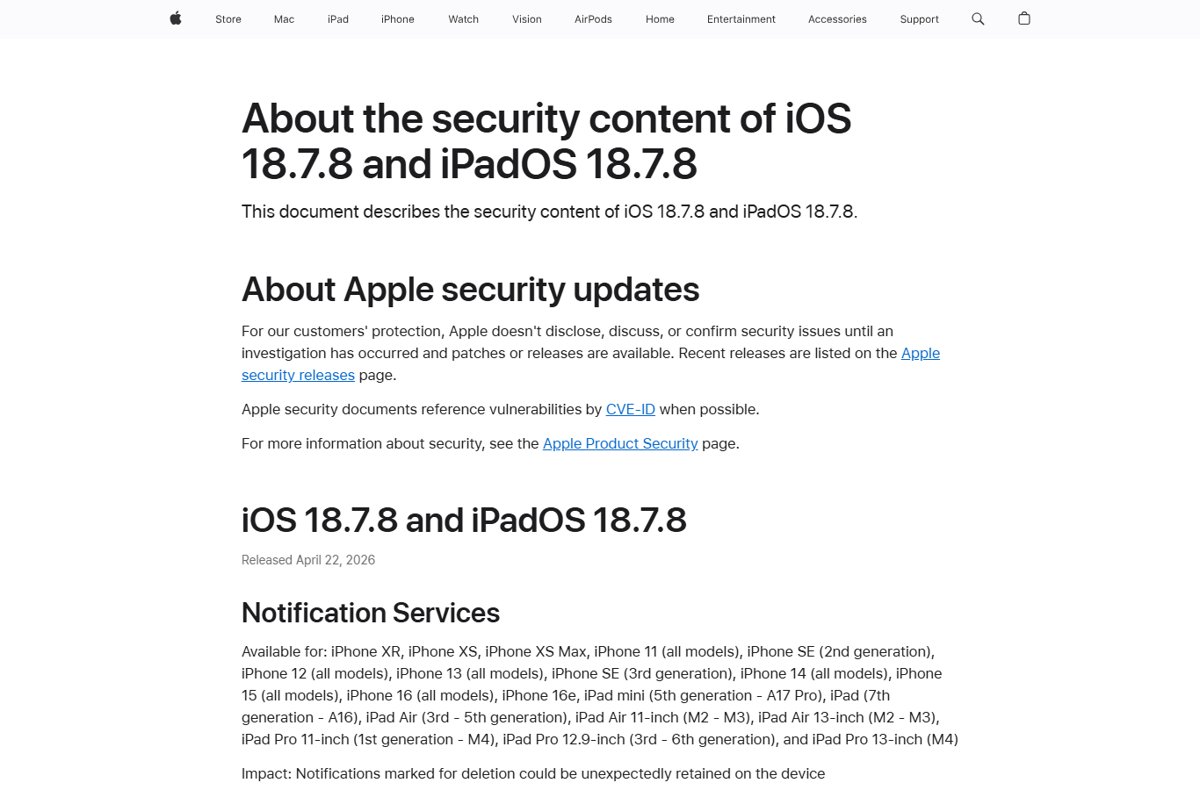
Apple's security notes for iOS 18.7.2 list fixes in Accessibility, the App Store, Assets, Audio and other components. iOS 18.7.8 fixes a Notification Services issue where notifications marked for deletion could stay on the device.
iOS 18, iOS 26 or iOS 27 on iPhone 11 Pro: which update to choose
The iPhone 11 Pro supports iOS 26 and iOS 27, so a newer major version is always on offer alongside any iOS 18 build.
| Your situation | Install this | Why |
|---|---|---|
| You want only security fixes and the iOS 18 design | The newest iOS 18 update shown (iOS 18.7.8) | Keeps your current version family |
| You want the longest support and every new feature | iOS 27 | iOS 27 supports iPhone 11 and later |
| You want a newer system but not the newest major release yet | iOS 26 (latest 26.7.1) | Still updated for iPhone 11 and later |
| Software Update shows no iOS 18 option | Wait, or upgrade when ready | Apple decides which builds each model is offered |
| You update from a computer | Expect the latest version | Apple's computer method installs the latest iOS |
Prepare iPhone 11 Pro for a software update
| Check | What to do |
|---|---|
| Backup | Back up to iCloud or your computer before you start |
| Power | Keep the iPhone plugged in for the whole update |
| Network | Use Wi-Fi; turn off any VPN or proxy that could block Apple's update servers |
| Storage | If asked to remove apps temporarily, tap Continue and they reinstall afterwards |
| Passcode | Know your passcode, because the update asks for it |
Update iPhone 11 Pro software wirelessly in Settings
- Open the Settings app.
- Tap General, then tap Software Update.
- Read the installed version shown at the top and the updates listed below it.
- Tap Download and Install under the update you chose.
- Tap Continue if a message asks to remove apps temporarily for space.
- Enter your passcode and keep the phone on the charger until it restarts.
Update iPhone 11 Pro on a computer with Finder or iTunes
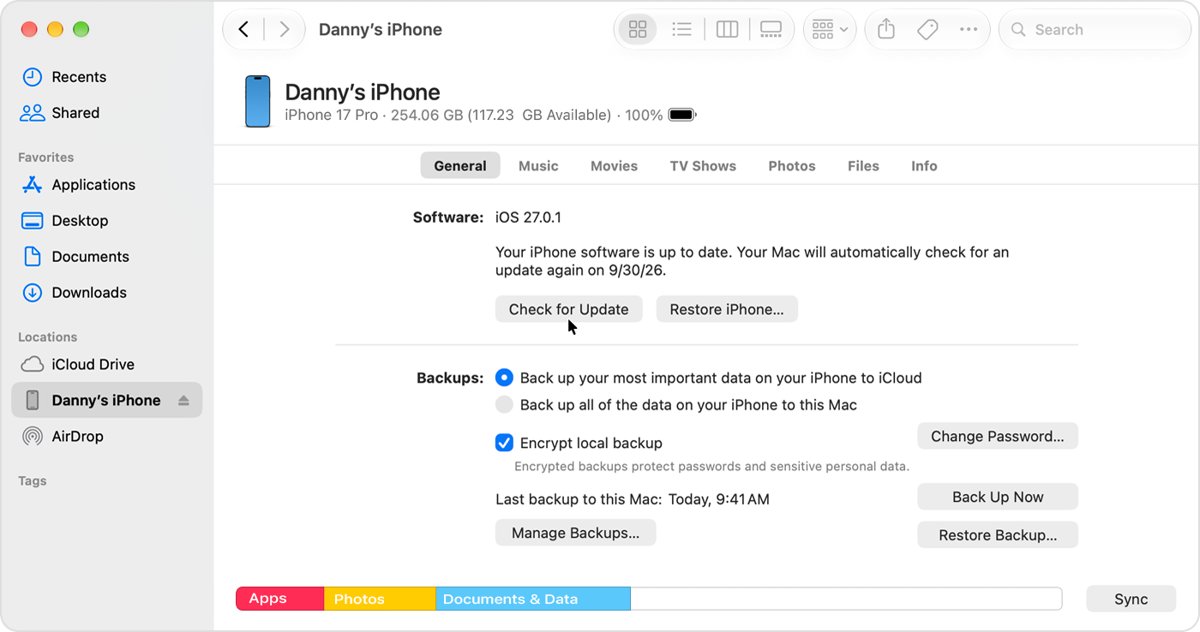
Use a computer only when the update does not appear on the phone. Apple's computer method installs the latest version of iOS, which can be a major upgrade rather than iOS 18.
- Connect the iPhone to the computer with a cable.
- On a Mac with macOS 10.15 or later, select the iPhone in the Finder sidebar, then click General.
- On a Mac with macOS 10.14 or earlier, or on Windows, open iTunes, click the iPhone button near the top left, then click Summary.
- Click Check for Update.
- Click Download and Update, or Update, and follow the onscreen prompts.
- Enter your passcode on the iPhone when asked.
Turn off automatic updates on iPhone 11 Pro to choose each update
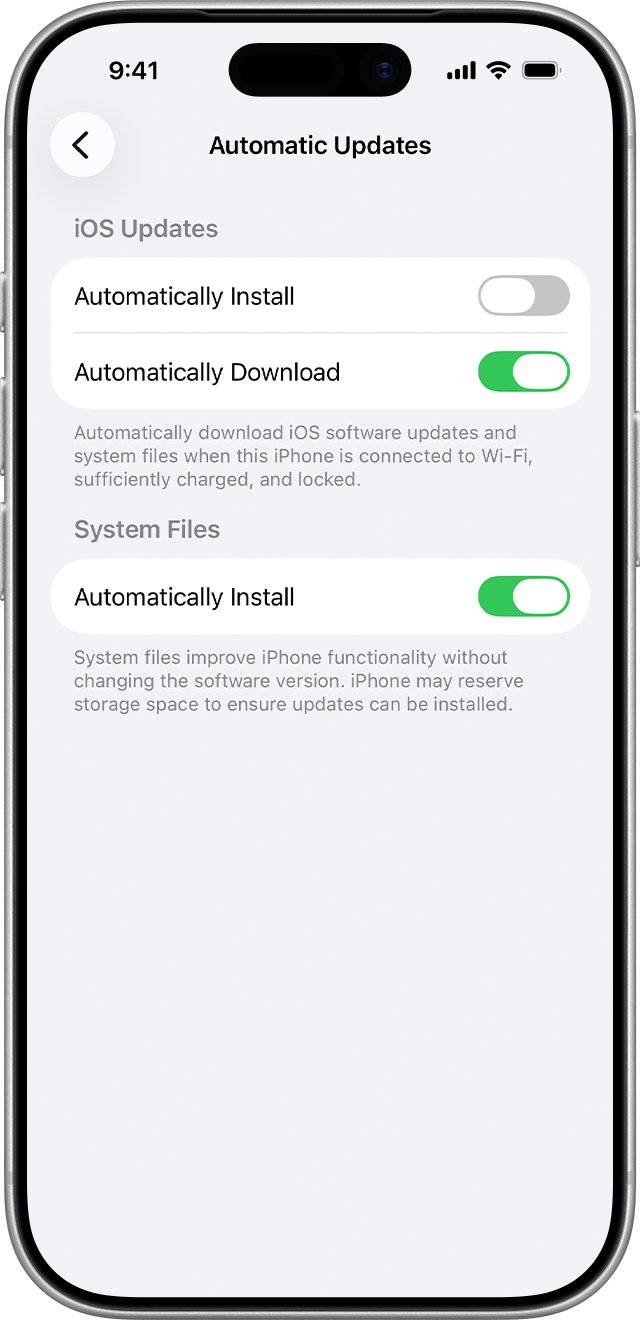
Turning off automatic installs lets you pick the iOS 18 build yourself instead of having an update applied overnight.
- Open Settings and tap General.
- Tap Software Update, then tap Automatic Updates.
- Turn off Automatically Install under iOS Updates.
- Leave Automatically Download off too if you do not want update files stored in advance.
- Turn on Automatically Install under System Files to keep receiving system file fixes without changing iOS.
Check which iOS version iPhone 11 Pro is running
- Open Settings and tap General.
- Tap Software Update.
- Read the version shown, such as iOS 18.7.8.
- Confirm the page no longer lists an iOS 18 update, which means you have the newest iOS 18 build offered.
A version starting with 26 or 27 means a major upgrade was installed instead of an iOS 18 update.
Fix iPhone 11 Pro iOS 18 update problems
Tapping the iOS 18.7.2 update opens the iOS 26 upgrade instead
The notification and the iOS 26 upgrade are listed on the same Software Update page, and iOS 18.7.2 has since been replaced.
- Ignore the notification and open Settings > General > Software Update directly.
- Look for an item named iOS 18 below the iOS 26 or iOS 27 upgrade.
- Tap Download and Install only on the iOS 18 item.
- Leave the upgrade untouched if no iOS 18 item is listed.
No update appears in Software Update
Some updates are not available wirelessly, or a VPN or proxy blocks Apple's servers.
- Turn off any VPN or proxy profile.
- Connect to a different Wi-Fi network and check again.
- Use the Finder or iTunes method, knowing it installs the latest iOS version.
Not enough storage to update iPhone 11 Pro
The update needs more free space than the phone has.
- Tap Continue when asked to remove apps temporarily.
- Or tap Cancel and delete large videos, photos or unused apps yourself.
- Return to Software Update and try again.
iPhone 11 Pro iOS update FAQ
Is the iPhone 11 Pro still supported?
Yes. Apple lists the iPhone 11 and later as supported by iOS 27, released September 14, 2026, and by iOS 26.7.1. The iPhone 11 Pro therefore still receives software and security updates.
Does the iPhone 11 still receive updates?
Yes. Every iPhone 11 model gets iOS 26 and iOS 27 updates. The newest iOS 18 build for the iPhone 11 family is iOS 18.7.8 from April 22, 2026.
Does the iPhone 11 support the latest iOS?
Yes. iOS 27 lists iPhone 11 and later as compatible, so the iPhone 11, iPhone 11 Pro and iPhone 11 Pro Max can all run the latest major version of iOS.
How do I update the iOS on an iPhone 11?
Back up, connect to Wi-Fi and power, then open Settings, tap General, tap Software Update and tap Download and Install under the update you want. Enter your passcode when asked.
How do I update an iPhone 11 on a computer?
Connect it with a cable, select it in the Finder sidebar on a Mac, or open iTunes on Windows and click Summary. Click Check for Update, then Download and Update. This installs the latest iOS version.
Can an iPhone 11 update to iOS 17?
Yes. iOS 17 supported the iPhone XS and later, which includes every iPhone 11 model. Apple now offers newer versions, so Software Update will not list iOS 17 for a phone already past it.
Should I upgrade my iPhone 11 to iOS 26 or iOS 27?
Upgrade if you want new features and the longest security support, because iOS 27 supports the iPhone 11. Stay on iOS 18 only if you prefer it, and install each iOS 18 build Apple offers.
How do I update apps on an iPhone 11?
Open the App Store, tap the My Account button or your photo at the top, then tap App Updates. Tap Update next to one app, or tap Update All. Apps from the App Store update automatically by default.
Bottom line: staying on iOS 18 with an iPhone 11 Pro
Install the newest iOS 18 build Software Update offers your iPhone 11 Pro, currently iOS 18.7.8, rather than hunting for iOS 18.7.2, and turn off Automatically Install so a major upgrade is never applied without your choice. iOS 18.7.2 was replaced months ago, and Apple's iOS 18 support for the iPhone 11 family has been patchy, while iOS 26 and iOS 27 keep receiving regular fixes for this phone.