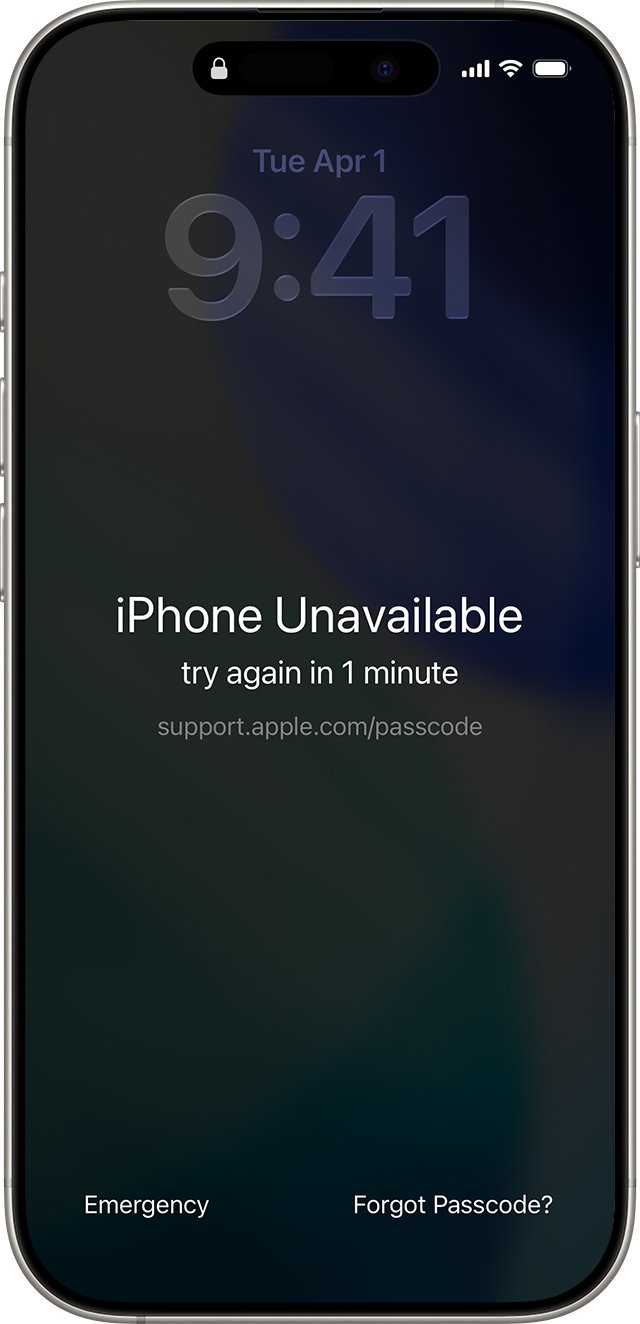
To factory reset a locked iPhone, enter wrong passcodes until iPhone Unavailable appears, tap Forgot Passcode?, then Start iPhone Reset, and sign in with your Apple Account password.
If that option does not appear, you can erase the iPhone with a Mac or Windows PC in recovery mode, or remotely from iCloud.com or the Find My app, and this guide covers all of them.
How to factory reset a locked iPhone from the Lock Screen
This works on iOS 17 or later without a computer. The iPhone needs Find My turned on and a Wi-Fi or cellular connection, and you need your Apple Account password.
- On the Lock Screen, enter the passcode until the iPhone Unavailable screen appears. Apple shows it after five incorrect attempts.
- When the option appears, tap Forgot Passcode? in the bottom corner.
- On the Security Lockout screen, tap Start iPhone Reset.
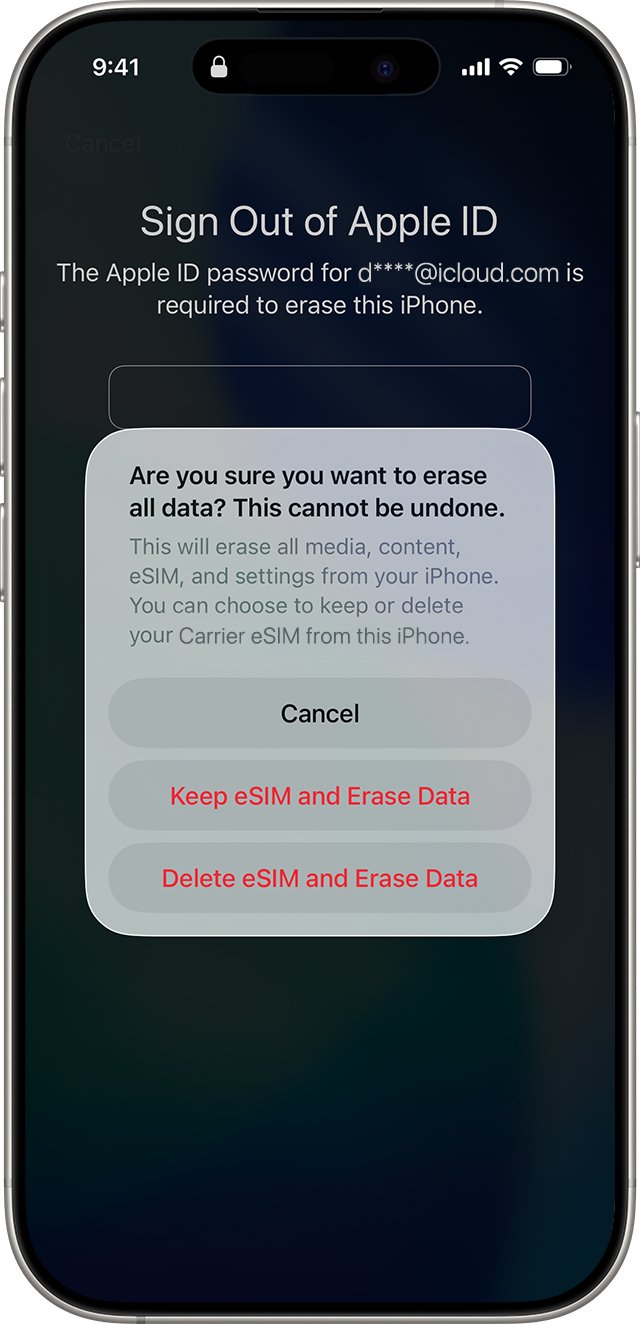
- Enter your Apple Account password to sign out of your Apple Account on the iPhone.
- Tap Erase iPhone. With an eSIM, choose whether to keep the eSIM or delete it while erasing your data.
- When the iPhone restarts, follow the setup screens, restore from a backup if you have one, and set a new passcode.
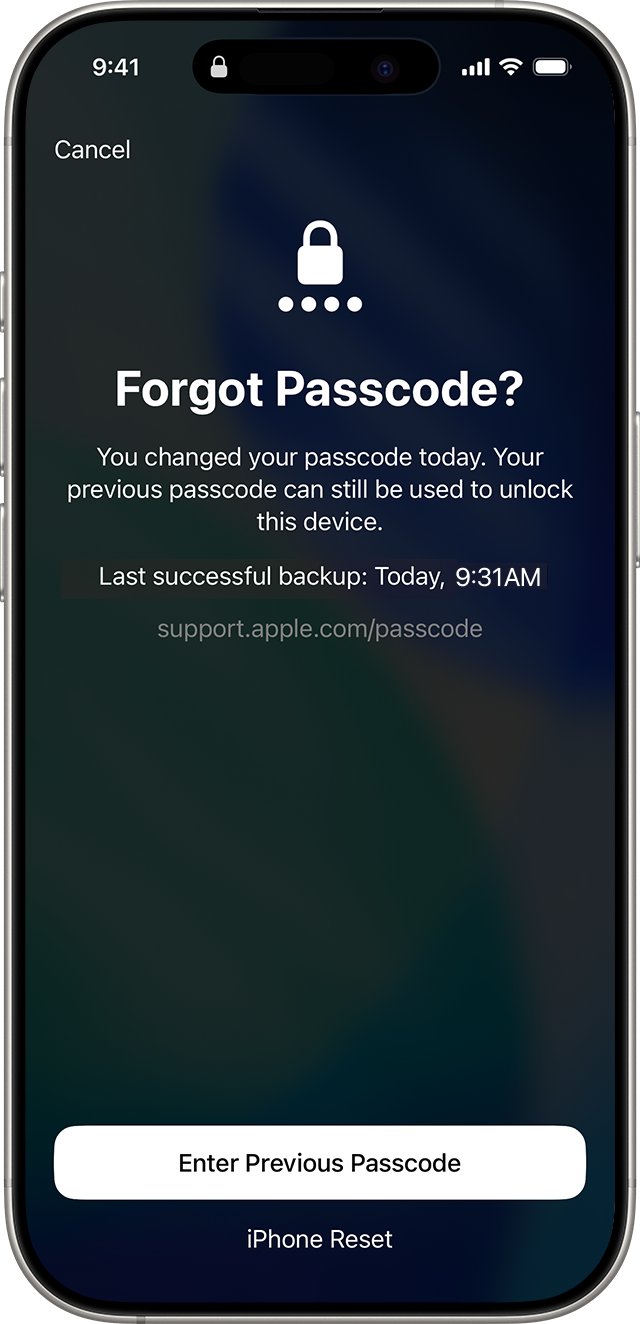
If you changed your passcode in the last 72 hours on iOS 17 or later, the same Forgot Passcode? screen offers Enter Previous Passcode. Try that first, because it unlocks the iPhone without erasing it.
Which method should you use?
| Your situation | Use this method | Erases data? |
|---|---|---|
| Changed the passcode in the last 72 hours (iOS 17 or later) | Enter Previous Passcode on the Lock Screen | No |
| iOS 17 or later, online, Find My on | Forgot Passcode? and Start iPhone Reset | Yes |
| iOS 15.2 to iOS 16, online, Find My on | Erase iPhone option on the Lock Screen | Yes |
| No reset option on the Lock Screen, or iOS older than 15.2 | Recovery mode with a Mac or Windows PC | Yes |
| iPhone is lost, stolen or out of reach | Erase This Device on iCloud.com/find | Yes |
| You have another Apple device signed in to the same account | Erase from the Find My app | Yes |
| No computer and no way to borrow one | Apple Store or Apple Authorized Service Provider | Yes |
If the iPhone is frozen rather than locked, a force restart of the iPhone brings it back without erasing anything, and a quick soft reset clears smaller glitches.
Why does an iPhone lock you out in the first place?
Three different locks get called "locked iPhone". Only the first one needs a factory reset.
| Lock | What it protects | What fixes it |
|---|---|---|
| Device passcode | Unlocking the iPhone itself; repeated wrong entries trigger iPhone Unavailable | Passcode Reset within 72 hours, otherwise an erase |
| Screen Time passcode | Screen Time limits and restrictions only | Change it in Settings > Screen Time with the Apple Account used to set it; no erase |
| Activation Lock | Setting up the iPhone after an erase, linked to the owner's Apple Account | The Apple Account password; an erase does not remove it |
Why your iPhone says “iPhone Unavailable”
iPhone Unavailable and Security Lockout are the screens iOS shows after too many wrong passcode attempts. What you can do from them depends on your iOS version.
| iOS version | Option on the lockout screen | Conditions |
|---|---|---|
| iOS 17 or later | Forgot Passcode? (with Enter Previous Passcode and Start iPhone Reset) | Online, signed in to an Apple Account, Find My on |
| iOS 15.2 to iOS 16 | Erase iPhone | Online, signed in to an Apple Account, Find My on |
| Earlier than iOS 15.2 | No reset option | Use recovery mode with a computer |
What a factory reset actually does
| Item | After a factory reset |
|---|---|
| Photos, messages, apps and settings on the iPhone | Deleted from the device |
| iCloud backup or computer backup | Kept, and you can restore it during setup |
| Passcode | Removed; you set a new one during setup |
| Activation Lock | Stays on if Find My was on; your Apple Account password is needed to reactivate |
| eSIM | On iOS 17 or later, the Lock Screen reset lets you keep or delete it |
| iOS version | A recovery mode restore downloads iOS software for that iPhone |
Before you reset: things to check first
| Check | Why it matters |
|---|---|
| Your Apple Account email and password | Every reset method asks for it, and Activation Lock needs it after the erase |
| Whether you have a recent iCloud or computer backup | Data that is not backed up cannot be recovered after the erase |
| Whether the lock is a Screen Time passcode | A Screen Time passcode can be changed without erasing anything |
| Whether you changed the passcode in the last 72 hours | Passcode Reset lets you use the old passcode instead of erasing |
| eSIM on iOS 16 or earlier | Ask your carrier for a QR code to set the eSIM up again before you reset |
| A cable, a Mac or Windows PC, and up to 60 minutes | Needed for the recovery mode method |
Method 2: Erase a locked iPhone running iOS 15.2 or iOS 16
On iOS 15.2 through iOS 16, the Lock Screen shows an Erase iPhone option instead of Forgot Passcode?. The same conditions apply: Find My on, an Apple Account signed in and a network connection.
- Enter the passcode on the Lock Screen until iPhone Unavailable or Security Lockout appears.
- Tap Erase iPhone in the bottom corner of the screen.
- Enter your Apple Account password to sign out of your account on the iPhone.
- Wait for the erase to finish and the iPhone to restart.
- Set the iPhone up again and restore from a backup.
If you use an eSIM on iOS 16 or earlier, contact your carrier first for a QR code, because the erase removes it. Older than iOS 15.2 shows no erase option, so use the computer method below.
Method 3: Factory reset a locked iPhone using a computer
Recovery mode works on any iPhone, whatever iOS it runs and whether or not it is online. You need a Mac or Windows PC, a cable that charges the phone, an internet connection and up to 60 minutes.
- Turn the iPhone off. On a Face ID iPhone, hold the side button and Volume down until the slider appears, then drag it. On a Home button iPhone, hold the side or top button.
- Connect the cable to the computer, then to the iPhone, and immediately hold the recovery button for your model (see the table below).
- Keep holding through the Apple logo, and let go only when an image of a computer and a cable appears.
- On a Mac, open a Finder window and select the iPhone under Locations. On Windows, open the Apple Devices app and select the iPhone.
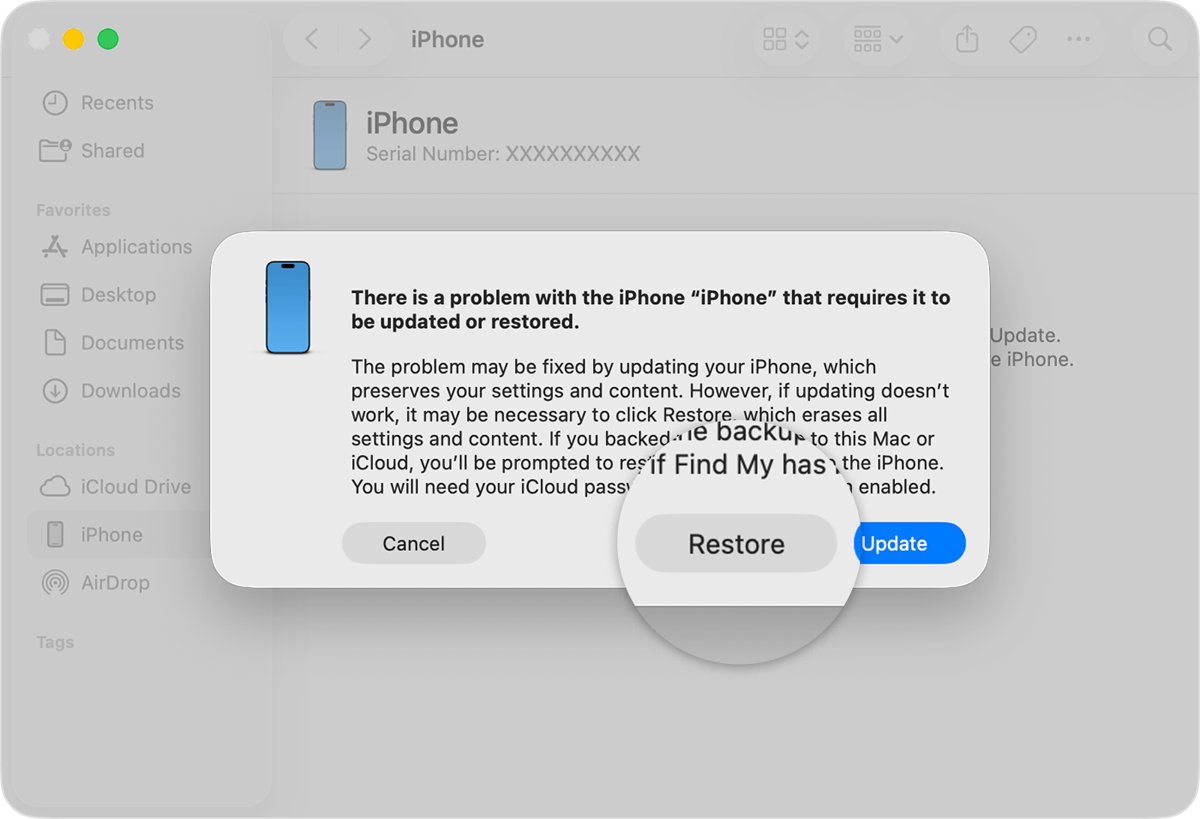
- Choose Restore when offered Restore or Update. On Windows, select General first, then Restore.
- Wait for the software download and restore. If it takes more than 15 minutes and the iPhone leaves recovery mode, let the download finish, then repeat steps 1 to 3.
- When the Hello screen appears, disconnect the iPhone and set it up.
Recovery mode button for each iPhone model
| iPhone model | Button to hold while connecting |
|---|---|
| iPhone with Face ID (iPhone X and later, including iPhone 11 and iPhone XR) | Side button |
| iPhone 8, iPhone 8 Plus, iPhone SE (2nd and 3rd generation) | Side button |
| iPhone 7 and iPhone 7 Plus | Volume down button |
| iPhone 6s and earlier, iPhone SE (1st generation) | Home button |
If the buttons do not respond and you never reach the computer-and-cable screen, the iPhone needs service from Apple.
Method 4: Erase a locked iPhone with iCloud Find Devices
This erases the iPhone from any web browser, which suits a phone that is lost, stolen or with someone else. Find My needs to have been on before the iPhone was locked.
- Go to icloud.com/find and sign in with the Apple Account used on the locked iPhone.
- Select the iPhone in the list of devices. If a device is already selected, choose All Devices first.
- Select Erase This Device.
- Follow the onscreen instructions. Add a phone number or message if the iPhone is lost; it appears on the Lock Screen.
- Wait for the erase. An online iPhone erases right away; an offline one erases the next time it connects.
To cancel an erase on an offline iPhone, select it again and choose Stop Erase Request, then enter your Apple Account password.
Method 5: Use the Find My app on another Apple device
Any iPhone or iPad signed in to the same Apple Account can erase the locked one from the Find My app.
- Open the Find My app on the other device.
- Tap Devices, then tap the name of the locked iPhone.
- Open the device options and tap Erase, then tap Continue.
- Enter a phone number or message if asked, then tap Erase.
- Enter your Apple Account password and tap Erase again.
- If you see Erase Pending, the iPhone is offline and erases the next time it connects to Wi-Fi or cellular.
Alternative approaches worth knowing
These alternative solutions can save you from wiping the iPhone, or get you through a reset you cannot finish alone.
- Use your old passcode: if you changed it in the last 72 hours on iOS 17 or later, tap Forgot Passcode? > Enter Previous Passcode, then set a new passcode.
- Check whether it is a Screen Time passcode: open Settings > Screen Time > Change Screen Time Passcode and sign in with the Apple Account used to set it. A parent resets a child's code from their own device.
- Recover the Apple Account instead of guessing: if you forgot the account password, use Forgot password? on a trusted device, or start account recovery at iforgot.apple.com.
- Book an Apple Store or service visit: if you have no computer and cannot borrow one, an Apple Store or Apple Authorized Service Provider can restore the iPhone.
- Skip third-party unlock tools: none of them is needed for a reset, and none removes Activation Lock, which only the Apple Account password clears.
What to do after the reset
- Confirm the iPhone shows the Hello screen, which means the erase finished.
- Connect to Wi-Fi or tap Continue Without Wi-Fi to use cellular, because activation needs a network.
- Enter your Apple Account email and password if the Activation Lock screen appears.
- Set up Face ID or Touch ID and create a new passcode you will remember.
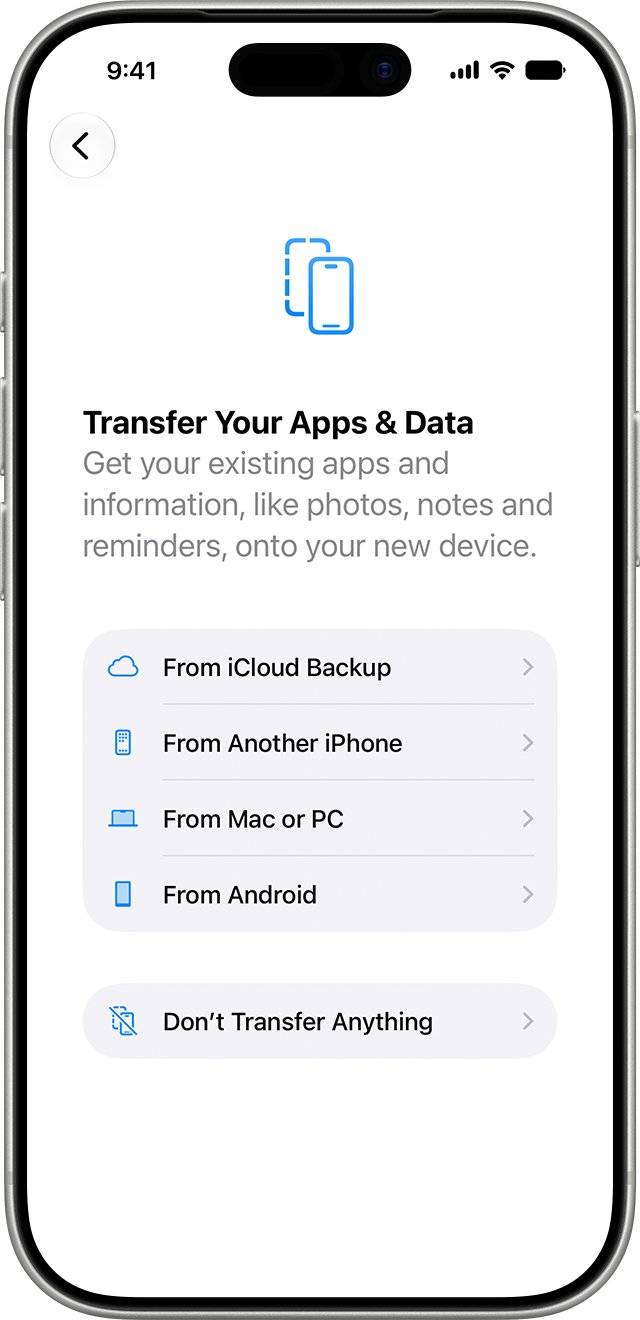
- Choose an iCloud backup or computer backup to restore, or Don't Transfer Anything if you have none.
- Turn on Screen Time Passcode Recovery if you use a Screen Time passcode, so you can reset it with your Apple Account later.
Still not working? Locked iPhone reset fixes
Forgot Passcode? or Erase iPhone does not appear on the Lock Screen
The iPhone is offline, Find My is off, no Apple Account is signed in, or iOS is older than 15.2.
- Bring the iPhone in range of a known Wi-Fi network or make sure cellular data is working.
- Wait until the lockout timer allows another attempt, then check again.
- If the option still does not appear, use recovery mode with a computer.
The iPhone will not enter recovery mode
The button was released too early, or the buttons do not respond.
- Check the recovery button for your model in the table above.
- Connect the cable first, then hold the button straight away and keep holding past the Apple logo.
- If the computer-and-cable screen never appears, contact Apple for service.
The iPhone leaves recovery mode during the restore
The software download took longer than 15 minutes.
- Let the download finish on the computer.
- Turn the iPhone off and enter recovery mode again.
- Choose Restore again and follow the onscreen instructions.
Asked for an Apple Account after the factory reset
Activation Lock stays on after any erase while Find My was on.
- Enter the Apple Account email and password that were signed in on the iPhone.
- If you forgot the password, choose Forgot password? and follow account recovery.
- On a used iPhone, ask the previous owner to remove it from their account.
Factory reset a locked iPhone: frequently asked questions
Can I factory reset a locked iPhone?
Yes. On iOS 15.2 or later you can reset it from the Lock Screen if Find My is on and the iPhone is online. On any iPhone you can restore it in recovery mode with a Mac or Windows PC, or erase it remotely from iCloud.com or the Find My app.
How do I factory reset a locked iPhone using a PC?
Install the Apple Devices app from the Microsoft Store, turn the iPhone off, connect it while holding the recovery button for your model, and wait for the computer-and-cable screen. In Apple Devices, select the iPhone, then General > Restore.
How do I factory reset an iPhone from the Lock Screen?
Enter wrong passcodes until iPhone Unavailable appears, tap Forgot Passcode?, then Start iPhone Reset. Enter your Apple Account password and tap Erase iPhone. On iOS 15.2 to 16, the button is Erase iPhone instead.
How do I factory reset a locked iPhone 11 or iPhone XR?
The iPhone 11 and iPhone XR use the Face ID steps. Reset from the Lock Screen if the option appears. For recovery mode, turn the iPhone off, connect it to a computer, and hold the side button until the computer-and-cable screen appears.
What happens during a factory reset?
A factory reset deletes all data and settings on the iPhone, removes the passcode and installs a clean copy of iOS when done through recovery mode. Backups in iCloud or on a computer are not affected, and Activation Lock stays on if Find My was on.
Can I factory reset a locked iPhone without the Apple ID password?
You can start a recovery mode restore without it, but Activation Lock then asks for the Apple Account password before the iPhone can be used. Change the Apple Account password through Forgot password? or account recovery first, so the iPhone is usable afterwards.
Can I factory reset a locked iPad?
Yes. You can factory reset a locked iPad with the same options as an iPhone: the Lock Screen reset on iPadOS 15.2 or later, recovery mode with a computer, or a remote erase from iCloud.com or Find My.
Will a factory reset delete my photos and messages permanently?
It deletes them from the iPhone. Anything in an iCloud backup or a computer backup comes back when you restore it during setup. Data that was never backed up cannot be recovered.
How long does it take to factory reset a locked iPhone?
Apple allows up to 60 minutes for the computer method, and the iOS download alone can take more than 15 minutes. The Lock Screen reset and remote erase do not need a computer download.
Quick summary: the best way to reset a locked iPhone
Try Enter Previous Passcode first, then the Lock Screen reset; use recovery mode with a computer only when the Lock Screen offers no option, and iCloud or Find My when the iPhone is out of reach. The Lock Screen reset needs no computer or download, while recovery mode works on every iPhone and iOS version. Every method needs your Apple Account password to get past Activation Lock afterwards.