To reset your iPhone without losing everything, go to Settings > General > Transfer or Reset iPhone > Reset and tap Reset All Settings, which returns settings to their defaults without deleting any data or media.
This guide also covers the other reset options, the force restart for a frozen iPhone, and how to back up so even a full factory reset brings everything back.
How to reset all settings on iPhone without deleting data
Reset All Settings clears network settings, the keyboard dictionary, location and privacy settings, and Apple Pay cards. Your photos, messages, apps and other media stay on the iPhone.
- Open the Settings app.
- Tap General.
- Tap Transfer or Reset iPhone, then tap Reset.
- Tap Reset All Settings. Do not tap Erase All Content and Settings, which removes your content.
- Enter your passcode if asked and confirm the reset.
- After the iPhone restarts, rejoin your Wi-Fi network and re-add any Apple Pay cards.
Apple suggests a backup first if you want to keep your current settings, so you can return to them if the reset does not fix the problem.
Which iPhone reset keeps your data?
| Your problem | Use this | What you lose |
|---|---|---|
| iPhone is frozen or unresponsive | Force restart | Nothing |
| Settings are misbehaving or you want a clean setup | Reset All Settings | Settings, saved Wi-Fi, Apple Pay cards; no data or media |
| Wi-Fi, cellular or VPN trouble | Reset Network Settings | Saved networks, VPN settings, device name and trusted certificates |
| Home Screen is cluttered | Reset Home Screen Layout | Only the layout; built-in apps return to their original places |
| Apps keep asking for location or privacy access | Reset Location & Privacy | Location services and privacy permissions |
| Selling the iPhone or fixing deep problems | Erase All Content and Settings, then restore a backup | Everything on the phone, until you restore the backup |
What each iPhone reset option in Transfer or Reset iPhone does
All of these options sit under Settings > General > Transfer or Reset iPhone > Reset. Only one of them erases your content.
| Option | What it removes or resets | Deletes data? |
|---|---|---|
| Reset All Settings | All settings, including network settings, keyboard dictionary, location, privacy and Apple Pay cards | No |
| Reset Network Settings | Saved networks and VPN settings; device name returns to "iPhone"; manually trusted certificates become untrusted; cellular data roaming may turn off | No |
| Delete All eSIMs | Every eSIM on the iPhone; you need a new eSIM or a physical SIM to reconnect | No, but cellular service stops |
| Reset Keyboard Dictionary | Only the words you added by rejecting suggestions | No |
| Reset Handwriting Style | Custom handwriting preferences | No |
| Reset Home Screen Layout | The layout; built-in apps go back to their original positions | No |
| Reset Location & Privacy | Location services and privacy settings | No |
| Erase All Content and Settings | All content and settings on the iPhone | Yes |
VPN or network settings installed by a configuration profile or MDM survive Reset Network Settings. Remove those under Settings > General > VPN & Device Management.
Force restart a frozen iPhone without losing data
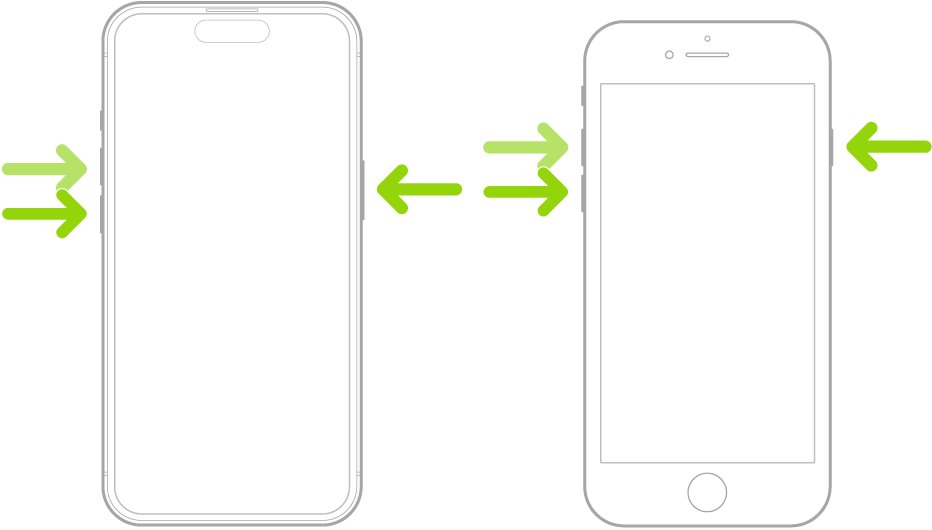
A force restart only reboots the phone. It is the right first step when the screen is stuck, and you can force restart or hard reset any iPhone model the same way on Face ID iPhones.
- Press and quickly release the volume up button.
- Press and quickly release the volume down button.
- Press and hold the side button.
- Release the side button when the Apple logo appears.
If the phone responds normally and you only want a fresh start, a soft reset of the iPhone is the gentler restart to try first.
Back up your iPhone to iCloud before any reset
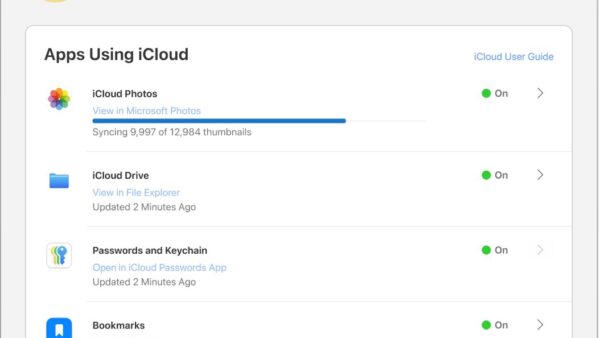
A backup is what turns a full erase into a reset that loses nothing. iCloud Backup saves device settings, Home Screen layout and app organization that do not otherwise sync to iCloud.
- Connect the iPhone to Wi-Fi.
- Open Settings and tap [your name].
- Tap iCloud, then tap iCloud Backup.
- Turn on Back Up This iPhone.
- Tap Back Up Now and wait for it to finish.
iCloud also backs up automatically each day when the iPhone is on power, locked and on Wi-Fi.
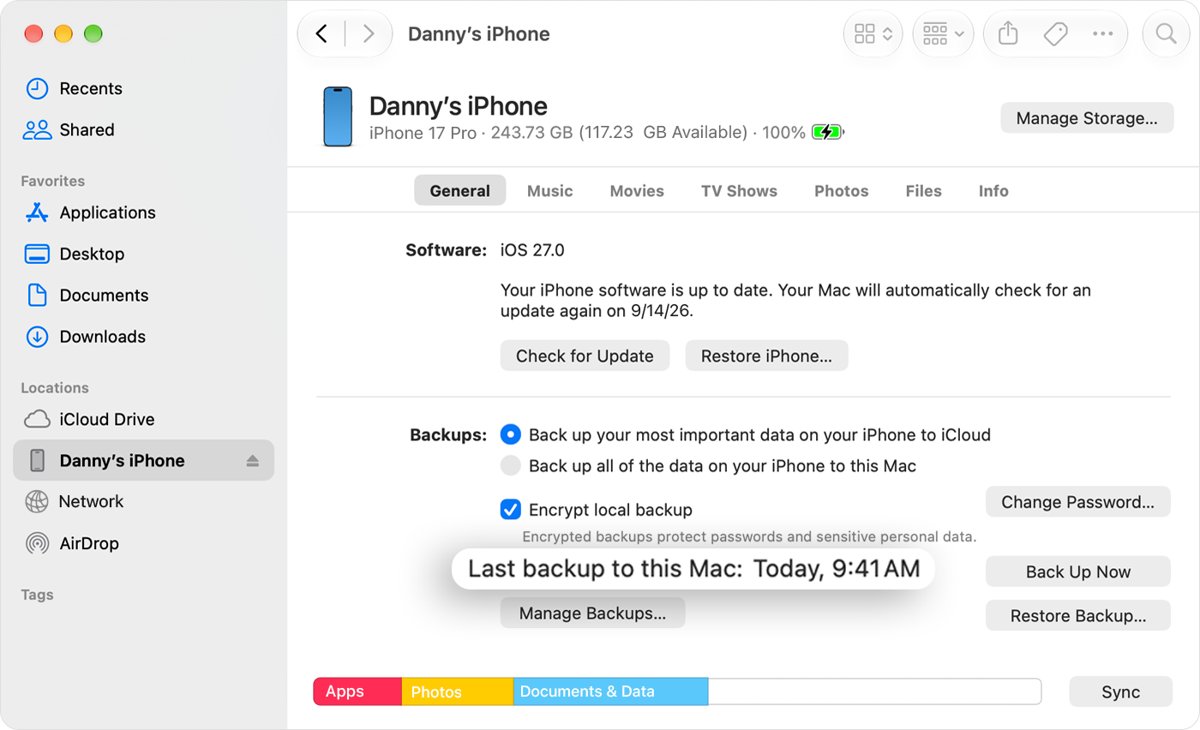
Back up iPhone to a Mac or Windows PC before resetting
Use a computer backup if your iCloud storage is too small for a full backup.
- Connect the iPhone to the computer with a cable.
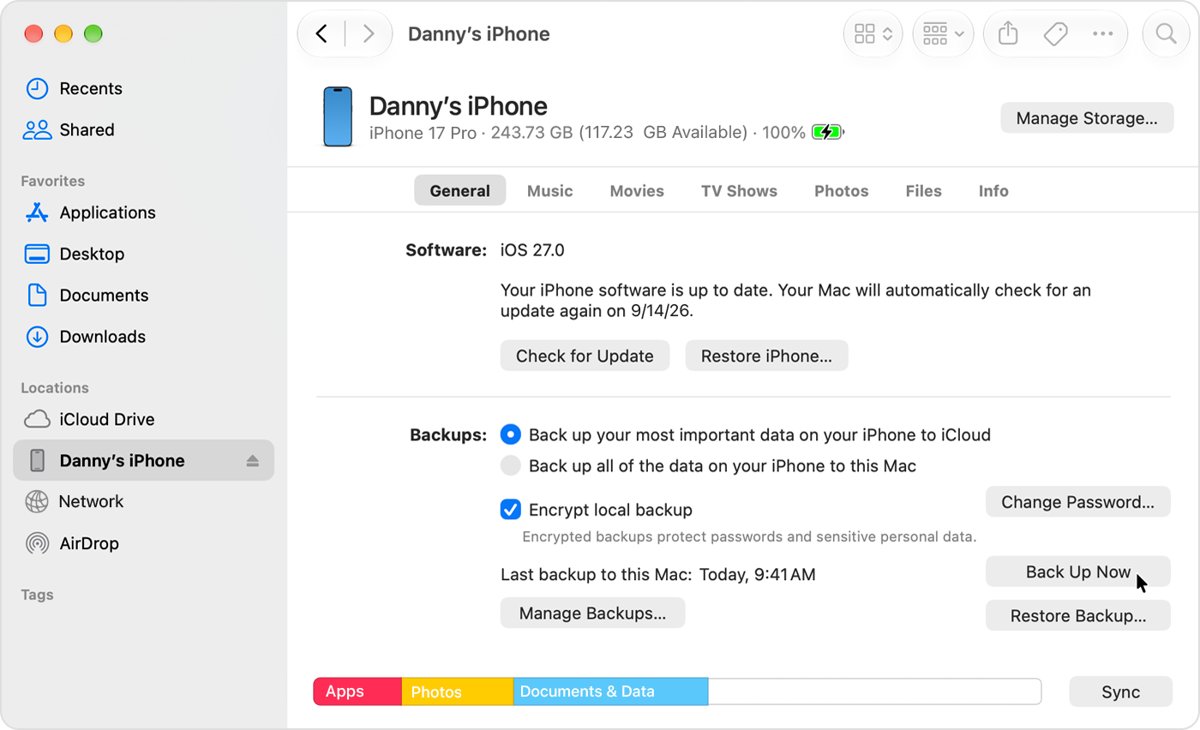
- On a Mac with macOS 10.15 or later, select the iPhone in the Finder sidebar and click General. On Windows, open iTunes, click the iPhone button and click Summary.
- If asked, click Trust on the computer and on the iPhone, then enter your passcode.
- Select Encrypt local backup and set a password if you want Health and Activity data saved. You cannot recover the backup without that password.
- Click Back Up Now.
- Wait until the date and time of the last backup appear.
Check your iPhone backup finished before you erase it
- Open Settings > [your name] > iCloud.
- Tap iCloud Backup, then tap This iPhone.
- Check the time of the last backup and make sure it is from today.
- Review the list of apps included in the backup and keep on any app whose data you need.
- For a computer backup, confirm the Finder or iTunes window shows the latest backup date and time.
Do not erase the iPhone until the backup date is current, because the erase removes everything the backup does not hold.
Factory reset iPhone and restore everything from a backup
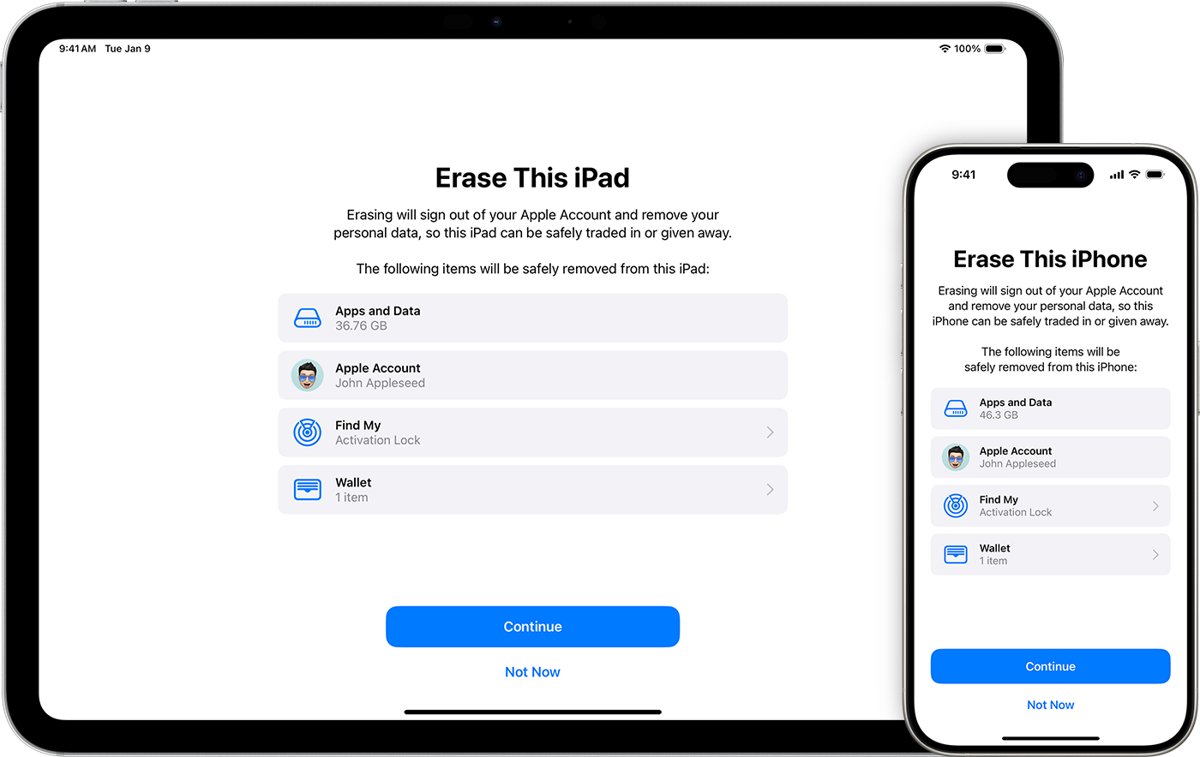
Use this when Reset All Settings is not enough, or before you sell the phone. It erases the iPhone and then puts your apps and data back.
- Back up the iPhone and confirm the backup date, as shown above.
- Open Settings > General > Transfer or Reset iPhone.
- Tap Erase All Content and Settings, enter your passcode if asked, and tap Erase iPhone.
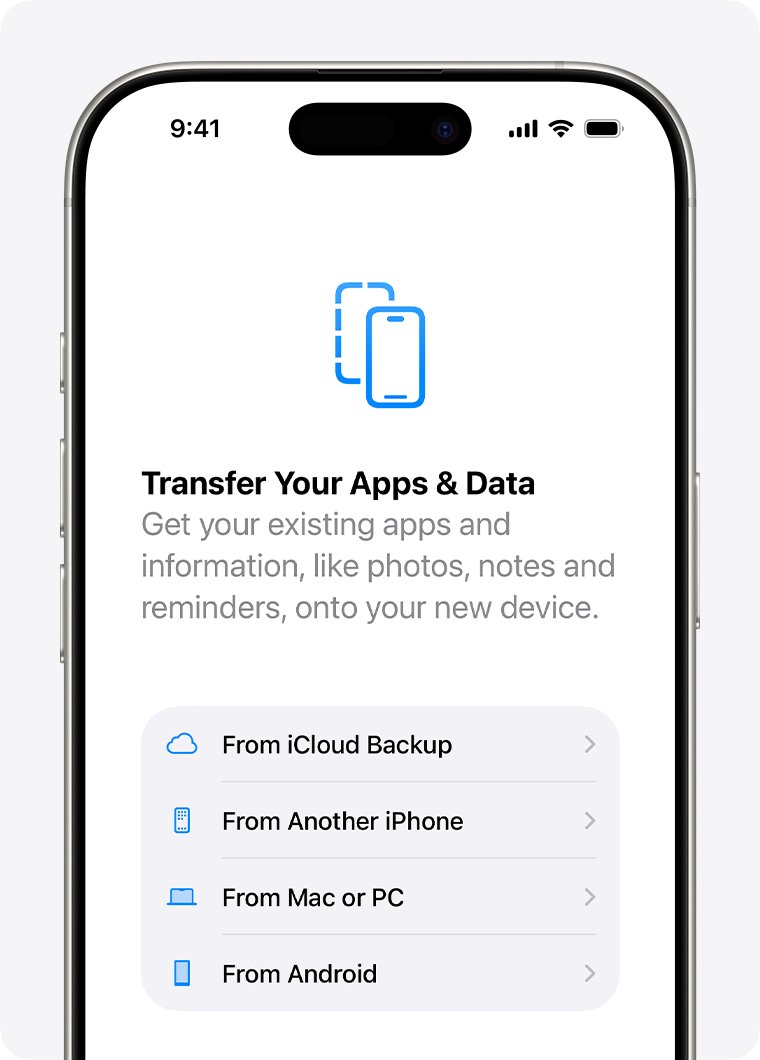
- When the Hello screen appears, follow the setup steps until you reach Transfer Your Apps & Data.
- Tap From iCloud Backup, sign in to your Apple Account and choose the most recent backup.
- Keep the iPhone on Wi-Fi and power until the progress bar finishes, then complete setup.
To restore from a computer instead, connect the iPhone, select it in the Finder or the Apple Devices app on Windows, click Restore Backup, choose the newest backup and click Restore.
Why won't my iPhone reset?
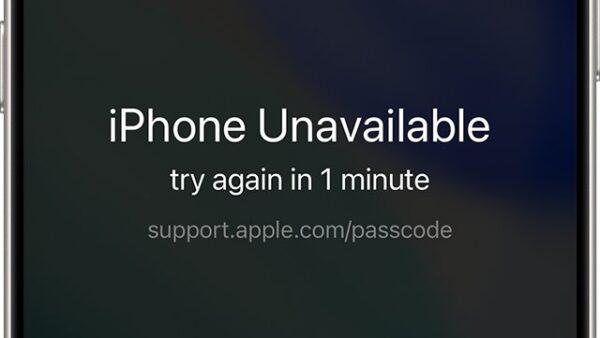
I reset my iPhone and now it's locked
Activation Lock from Find My is still linked to your Apple Account, so setup asks for that account.
- Enter the Apple Account email and password that were signed in before the erase.
- If you forgot the password, reset your Apple Account password first, then try setup again.
- On a used iPhone, ask the previous owner to enter their password or remove the device from their account.
Can't factory reset the iPhone because you forgot the passcode
Erase All Content and Settings asks for the device passcode.
- Try Passcode Reset first if your iOS version offers it.
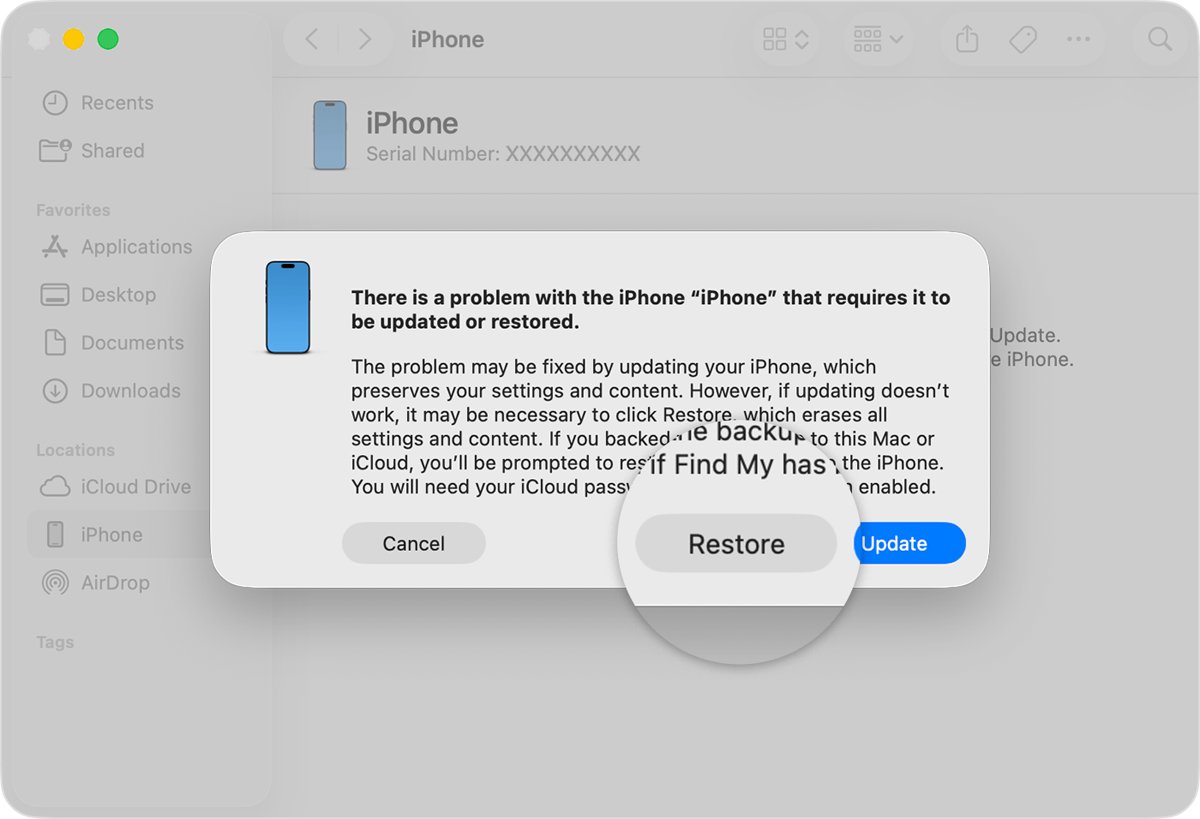
- Otherwise, turn off the iPhone, connect it to a Mac or Windows PC and hold the side button until the computer-and-cable screen appears.
- Select the iPhone in the Finder or Apple Devices and choose Restore. This erases the iPhone, so restore your latest backup during setup.
iPhone won't reset because it is frozen
The phone is not responding to touch, so the Settings app cannot be used.
- Force restart the iPhone with volume up, volume down, then hold the side button.
- Once it responds, run the reset from Settings > General > Transfer or Reset iPhone.
Restore from the computer stops or the iPhone leaves recovery mode
The software download took longer than 15 minutes and the iPhone exited the recovery screen.
- Let the download finish on the computer.
- Turn off the iPhone and start recovery mode again.
- Choose Restore again when the option appears.
Reset iPhone without losing data FAQ
What will resetting my iPhone do?
It depends on the option. Reset All Settings returns every setting to its default and keeps your data and media. Erase All Content and Settings removes everything from the iPhone, so only a backup brings your photos, messages and apps back.
Does Reset All Settings delete photos?
No. Apple states that no data or media are deleted with Reset All Settings. Photos, messages and apps stay, while Wi-Fi networks, the keyboard dictionary, location and privacy settings and Apple Pay cards are reset or removed.
How do I reset my iPhone to factory settings?
Back up first, then open Settings > General > Transfer or Reset iPhone, tap Erase All Content and Settings, enter your passcode and tap Erase iPhone. During setup, choose From iCloud Backup to restore your data.
How do I reset my iPhone 16, 15, 14 or 13?
Every current iPhone model uses the same path: Settings > General > Transfer or Reset iPhone > Reset. The force restart buttons are also the same on these models: volume up, volume down, then hold the side button.
How do I reset my iPhone passcode when locked?
Try Passcode Reset first. If that is not available, you must restore the iPhone with a Mac or Windows PC in recovery mode. That erases the iPhone, so a recent backup is the only way to keep your data.
How do I reset my iPhone if it is frozen?
Force restart it: press and release volume up, press and release volume down, then hold the side button until the Apple logo appears. A force restart deletes nothing.
How do I reset my iPhone so I can sell it?
Back up the iPhone, unpair any Apple Watch, sign out of your Apple Account in Settings > [your name] > Sign Out, then use Erase All Content and Settings. Signing out first unlinks the phone from your account before the buyer sets it up.
Why reset location and privacy on iPhone?
Reset Location & Privacy returns location services and privacy settings to their defaults. Use it when you want to start over with location and privacy permissions without touching any other setting or data.
Why can't I factory reset my iPhone?
The erase asks for your device passcode and, with Find My on, your Apple Account password. If you do not know them, use Passcode Reset or a computer restore for the passcode, and reset your Apple Account password for Activation Lock.