To factory reset an iPhone with a broken screen, erase it remotely from Find Devices on iCloud.com, or put it in recovery mode and select Restore on a Mac or Windows PC.
Neither route needs a working touchscreen, and both erase everything on the phone, so this guide also covers backups, Activation Lock and what to do when the buttons fail too.
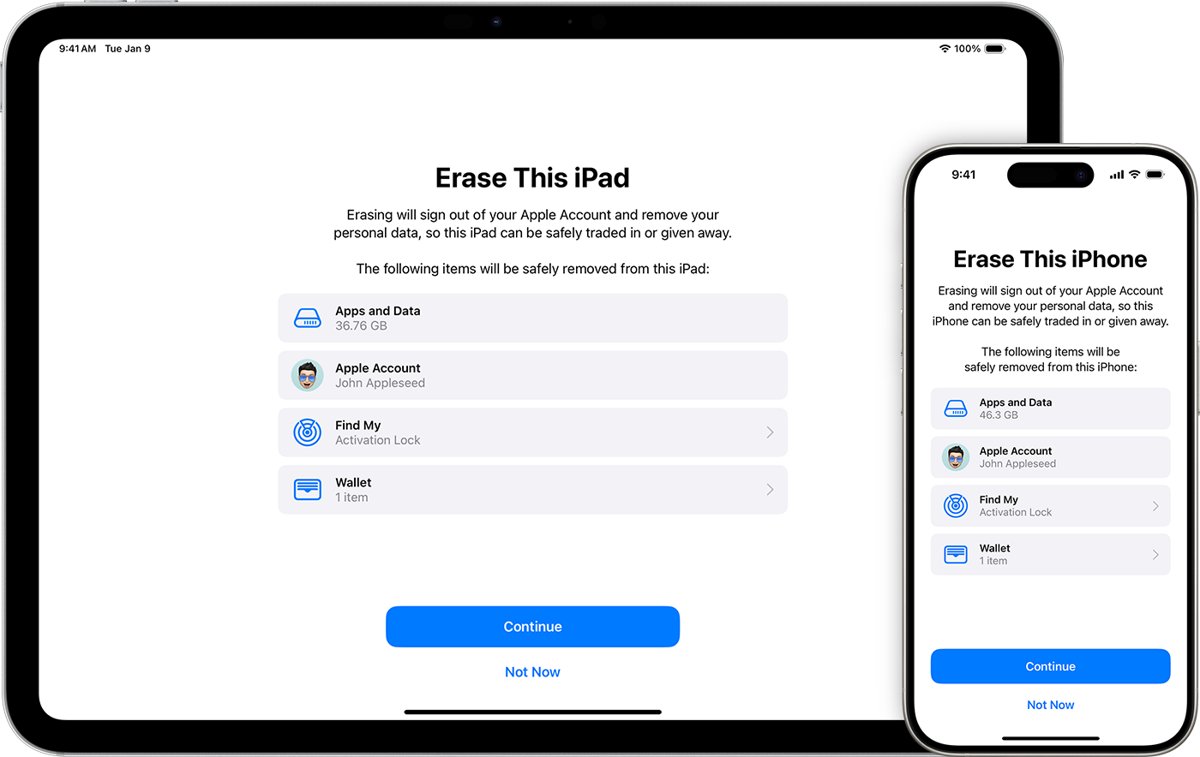
Erase a broken-screen iPhone from iCloud.com
This is the fastest route when Find My was turned on. You only need a browser on another device and your Apple Account password.
If the glass is intact and only touch has stopped working, try to fix the unresponsive touch screen before you erase anything. The same steps also factory reset an iPad signed in to your account.
- On a computer or another device, go to icloud.com/find and sign in with your Apple Account.
- Select the iPhone with the broken screen in the device list.
- Select Erase This Device.
- Follow the onscreen prompts to confirm the erase.
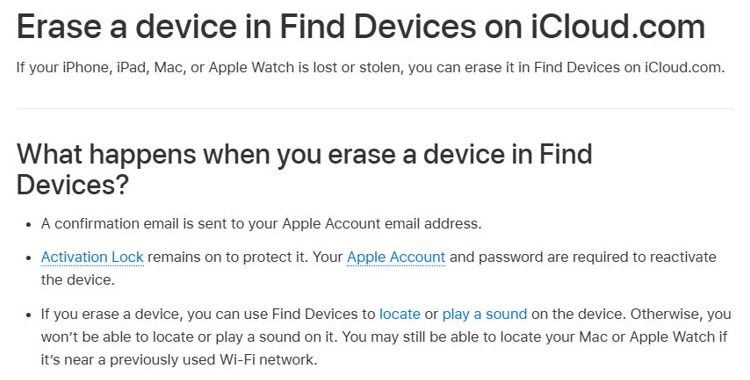
If the iPhone is online, the erase starts right away. If it is offline, the erase starts the next time it connects to a network.
Apple sends a confirmation email to your Apple Account address. You can cancel a pending erase with Stop Erase Request.
iCloud erase vs recovery mode for a cracked iPhone screen
| Your situation | Use this | Why |
|---|---|---|
| Find My is on and the phone has Wi-Fi or cellular | Erase in Find Devices on iCloud.com | No buttons, cable or computer needed |
| Find My is off, or the phone cannot connect | Recovery mode and Restore on a Mac or PC | Works offline through a USB cable |
| Screen is black but the buttons work | Recovery mode | The computer shows the Restore option, not the phone |
| Buttons do not respond and Find My is off | Apple Store or Apple Authorized Service Provider | Recovery mode needs working buttons |
| You are selling or trading in the phone | Either route, then remove it from your trusted devices | Erasing alone does not remove it from your account list |
Back up an iPhone with a broken screen before resetting
A factory reset deletes photos, messages and apps from the phone. Content already stored in iCloud is not deleted when you erase the device.
| What you have | What it means for your data |
|---|---|
| iCloud Backup was turned on | Restore from the latest iCloud backup when you set up the repaired or new iPhone |
| Photos, contacts and calendars sync to iCloud | They stay in iCloud after the erase |
| The computer was previously trusted by this iPhone | You may be able to back up in Finder or Apple Devices before restoring |
| No backup and no trusted computer | Data on the phone is lost when you reset; a screen repair first is the only way to keep it |
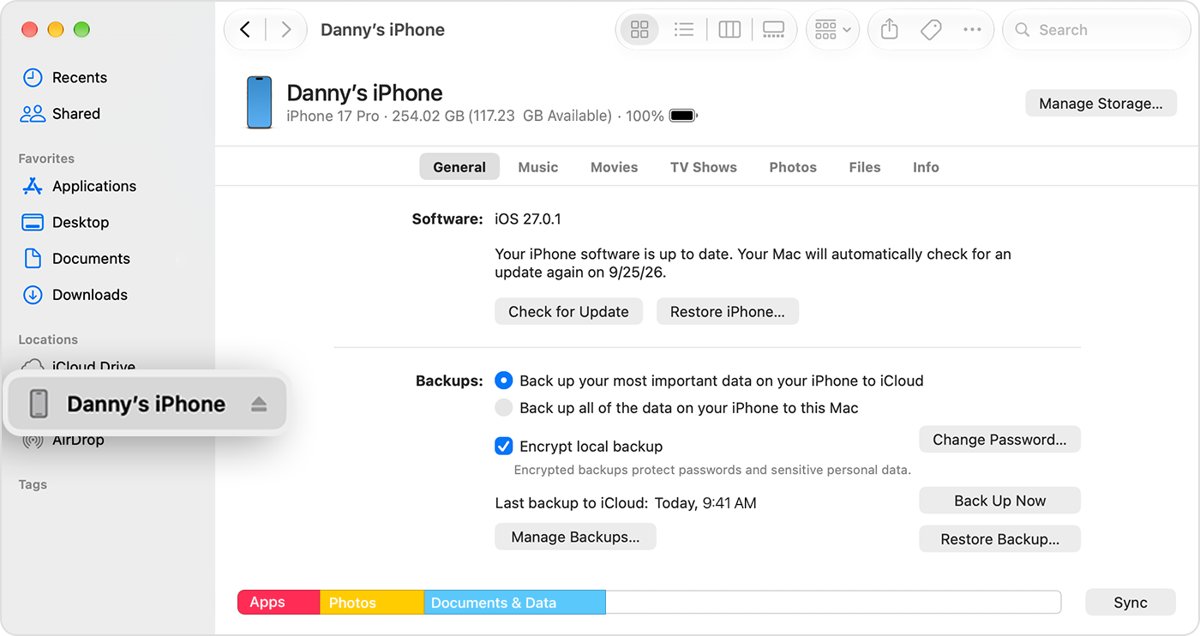
Factory reset an iPhone with a broken screen using a Mac or PC
Recovery mode lets the computer reinstall iOS and erase the phone. Use Finder on a Mac, or the Apple Devices app on a Windows PC, which you get from the Microsoft Store.
- Update macOS, or install the latest Apple Devices app on your PC.
- Connect the iPhone to the computer with a USB cable.
- Open Finder on the Mac, or open Apple Devices on the PC.
- Put the iPhone in recovery mode with the button sequence for your model in the next section.
- Select the iPhone on the computer when it appears.
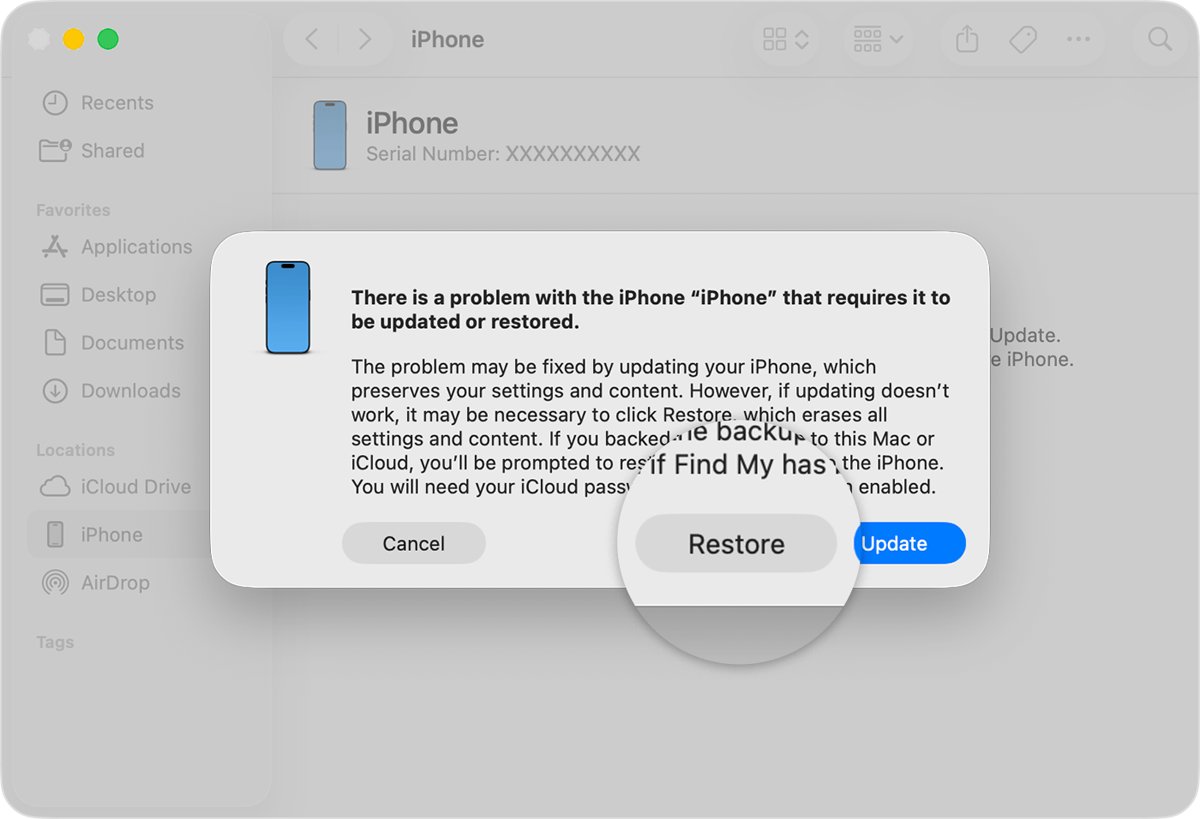
- Select Restore when you see the option to Restore or Update.
- Wait while the computer downloads the software and erases the phone.
If the download takes more than 15 minutes, the iPhone can leave recovery mode. Let the download finish, then enter recovery mode again and select Restore.
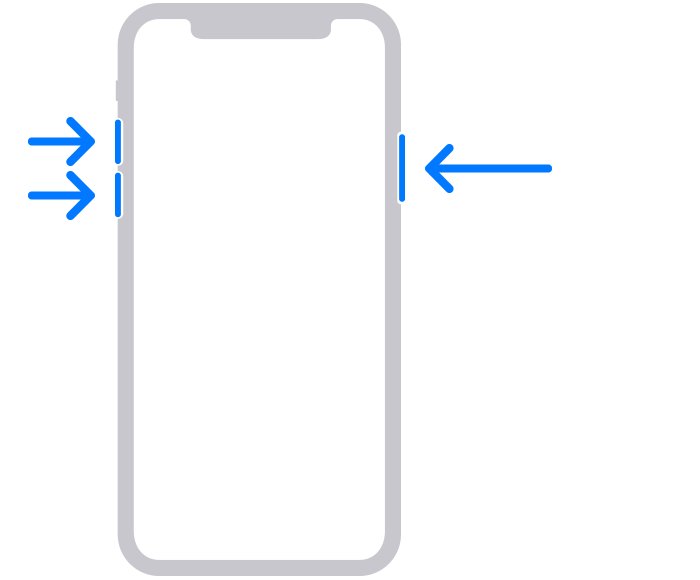
iPhone recovery mode buttons for every model
You do not need to see the screen for these steps. Keep holding until the computer reports a device in recovery mode.
| Model | Button sequence |
|---|---|
| iPhone 8 or later, including iPhone SE (2nd generation and later), iPhone 11, 12, 13, 14, 15, 16 and 17 | Press and quickly release Volume Up, press and quickly release Volume Down, then press and hold the side button |
| iPhone 7 and iPhone 7 Plus | Press and hold the top (or side) and Volume Down buttons at the same time |
| iPhone 6s or earlier, including iPhone 6 and iPhone SE (1st generation) | Press and hold the Home and top (or side) buttons at the same time |
Check that the broken-screen iPhone was reset
- Watch the computer: when the restore finishes, Finder or Apple Devices shows the iPhone as a new device ready to set up.
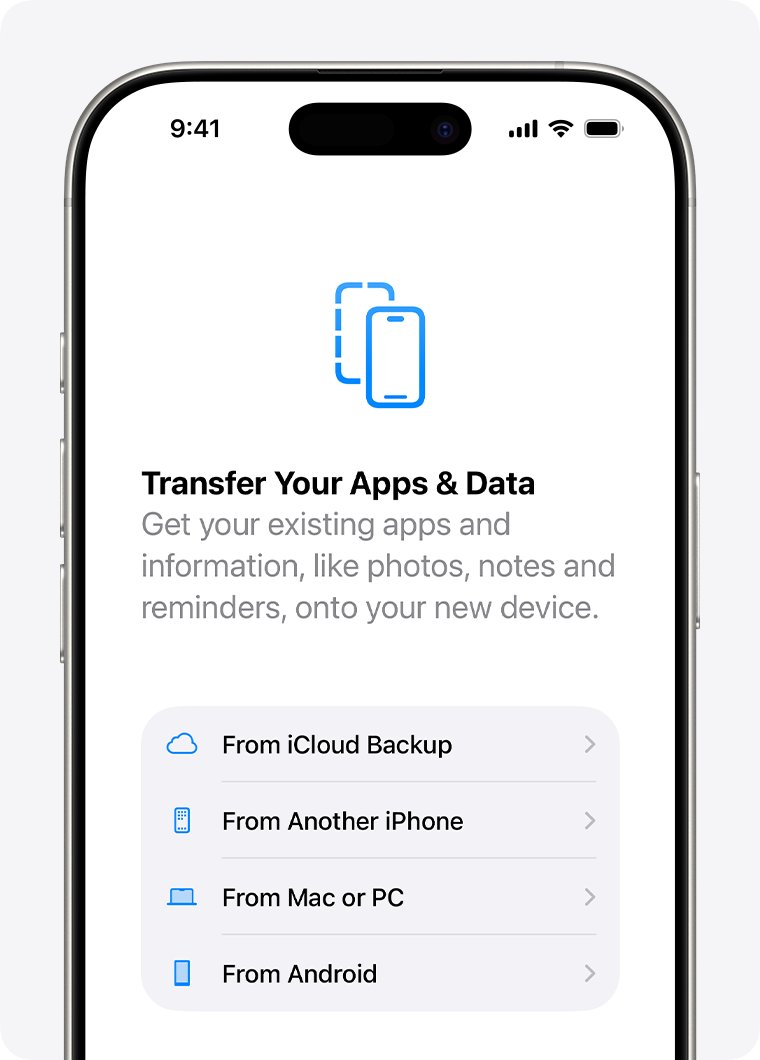
- If the screen shows anything at all, look for the Hello screen.
- For an iCloud erase, check your email for Apple's confirmation message.
- Sign in at icloud.com/find and confirm the erase is no longer listed as pending.
Activation Lock after erasing an iPhone remotely
Keep your Apple Account password ready, because an iPhone erased from iCloud.com still asks for it before anyone can set it up again. Apple keeps Activation Lock on after a remote erase to protect the device. If you are selling or giving the phone away, remove it from your trusted devices and from Find Devices after the erase.
Fix an iPhone that won't factory reset
Why can't I factory reset my iPhone from iCloud?
Find My was off, or the phone has no network connection, so the erase never reaches it.
- Check that the iPhone appears in the list at icloud.com/find.
- If it shows as offline, connect it to power and leave it in range of a known Wi-Fi network.
- If it does not appear at all, use recovery mode on a computer instead.
Why is my iPhone factory reset taking so long?
The computer is downloading the full iOS software before it can restore.
- Leave the cable connected and let the download finish.
- If the iPhone exits recovery mode after 15 minutes, enter recovery mode again.
- Select Restore again on the computer.
The computer doesn't recognise the iPhone
The cable, an outdated Mac, or an old version of the Apple Devices app blocks the connection.
- Update macOS, or update Apple Devices from the Microsoft Store.
- Try a cable that can charge the phone and a different USB port.
- Repeat the recovery mode button sequence for your model.
Why won't my iPhone factory reset when the buttons don't work?
Recovery mode needs working buttons, and a broken side or volume button stops it.
- Use the iCloud.com erase if Find My is on.
- Otherwise, take the phone to an Apple Store or Apple Authorized Service Provider.
Broken-screen iPhone factory reset FAQ
Can I factory reset my iPhone if the screen is broken?
Yes. Erase it from Find Devices on iCloud.com if Find My is on, or connect it to a Mac or Windows PC, put it in recovery mode and select Restore. Neither method uses the touchscreen.
Can I factory reset an iPhone without a password?
Recovery mode resets an iPhone without its screen passcode, but it erases everything. After the reset, Activation Lock still asks for the Apple Account password that was signed in before anyone can set the phone up.
How do I factory reset an iPhone that is locked?
Turn the iPhone off, connect it to a computer, and enter recovery mode with the button sequence for your model. In Finder or Apple Devices, select Restore. The process erases the data on the phone.
How do I factory reset an iPhone 13, 14 or 15 with a broken screen?
These models use the same recovery mode sequence: press and release Volume Up, press and release Volume Down, then hold the side button while connected to a computer. Then select Restore in Finder or Apple Devices.
How do I factory reset an iPhone 7 or iPhone 6 with a broken screen?
On iPhone 7 and 7 Plus, hold the top or side button and Volume Down together while connected to a computer. On iPhone 6s or earlier, hold Home and the top or side button. Then select Restore.
Does a factory reset delete my iCloud data?
No. Erasing the iPhone removes content from the phone only. Photos, contacts and other data stored in iCloud stay in your account and return when you sign in on a repaired or new iPhone.
Why did my iPhone factory reset itself?
An iPhone can be erased remotely from Find Devices on iCloud.com by anyone signed in to the same Apple Account. Check your Apple Account email for an erase confirmation and change your password if you did not request it.
Best way to wipe an iPhone with a broken screen
Use the iCloud.com erase first, and switch to recovery mode on a computer only if Find My was off or the phone cannot connect. The remote erase needs no cable, buttons or screen, while recovery mode works offline but depends on working buttons and a full iOS download.