To force restart an iPhone 8 or later, press and quickly release Volume Up, press and quickly release Volume Down, then hold the side button until the Apple logo appears.
This guide gives the sequence for every iPhone model, explains why a hard reset keeps your data while a factory reset erases it, and covers recovery mode as Apple documents it.
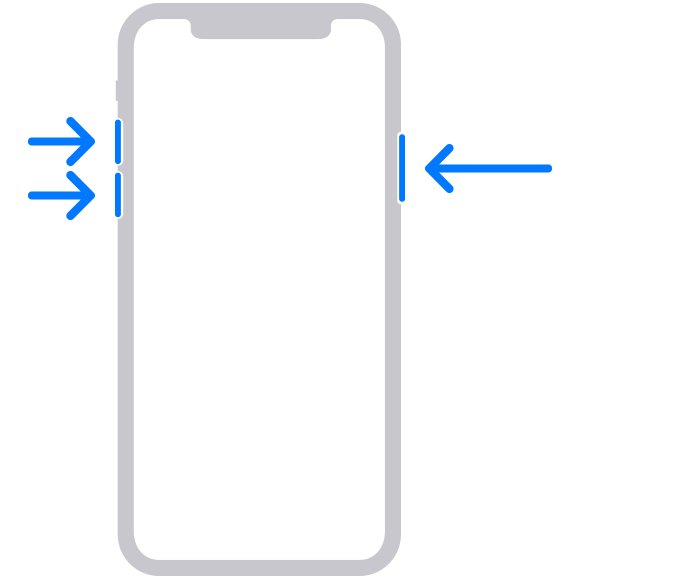
The fastest way to force restart an iPhone 8, iPhone X or later
This sequence works on iPhone 8, iPhone 8 Plus, iPhone SE (2nd generation and later) and every Face ID iPhone, including iPhone X, iPhone 11 and newer models.
A force restart, often called a hard reset, only cuts power to the running software. Your photos, apps and messages stay where they are.
- Press and quickly release the Volume Up button.
- Press and quickly release the Volume Down button.
- Press and hold the side button on the right edge of the iPhone.
- Keep holding the side button until the Apple logo appears. Apple notes this can take longer than 10 seconds.
- Release the button and let the iPhone finish starting up.
Press and release the two volume buttons quickly, one after the other, before you hold the side button.
Force restart vs. hard reset vs. factory reset: which one you need
Apple does not use the term hard reset. Most guides use it for a force restart, which is not the same as a factory reset.
| Your situation | Do this | What happens to your data |
|---|---|---|
| iPhone works but feels slow or an app misbehaves | Normal restart with the power-off slider | Nothing is deleted |
| Screen is frozen, black or does not respond to touch | Force restart (hard reset) for your model | Nothing is deleted |
| Wi-Fi, Bluetooth or other settings keep misbehaving | Reset All Settings | Settings return to defaults; photos, messages, apps and documents stay |
| Apple logo stays on screen for minutes, or the "Connect to computer" screen appears | Recovery mode, then choose Update | Update reinstalls iOS and keeps your personal data |
| Selling, giving away or starting fresh | Factory reset with Erase All Content and Settings | Everything on the iPhone is erased |
| Forgotten passcode or Update fails in recovery mode | Restore with a computer | Everything on the iPhone is erased |
Back up your iPhone before you erase anything
A force restart needs no preparation. A factory reset and a computer restore both erase the iPhone, so back it up first while it still works.
- Connect your iPhone to a Wi-Fi network.
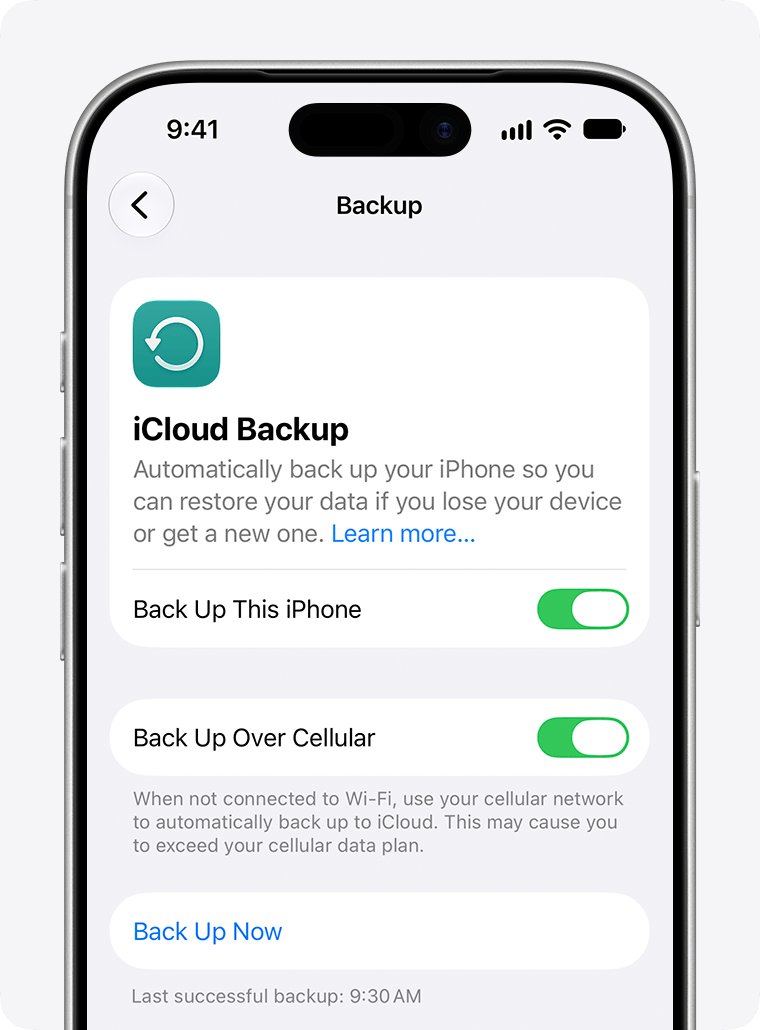
- Open Settings, tap your name, then tap iCloud.
- Tap iCloud Backup.
- Tap Back Up Now and stay on Wi-Fi until the backup finishes.
- Check the date and time shown under Back Up Now to confirm the backup is current.
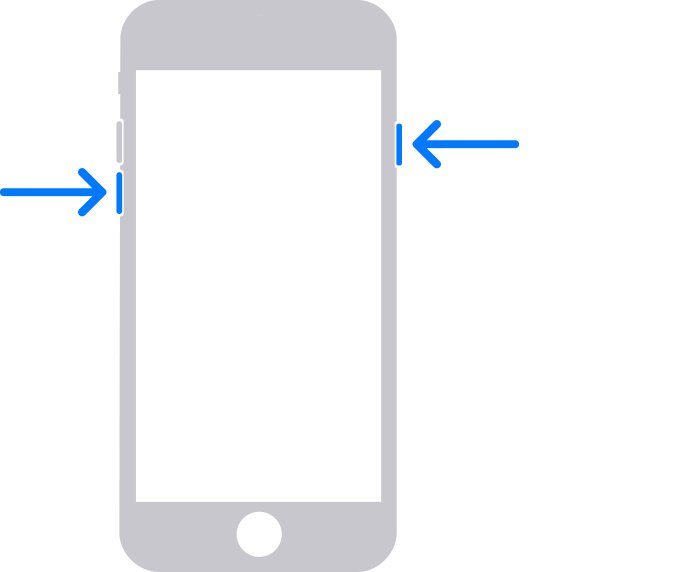
How to force restart iPhone 7 and iPhone 7 Plus
iPhone 7 and iPhone 7 Plus use their own combination. It is the only generation that pairs the side button with Volume Down.
- Find the side button on the right edge and the Volume Down button on the left edge.
- Press and hold both buttons at the same time.
- Keep holding both buttons; this can take longer than 10 seconds.
- Release both buttons when the Apple logo appears.
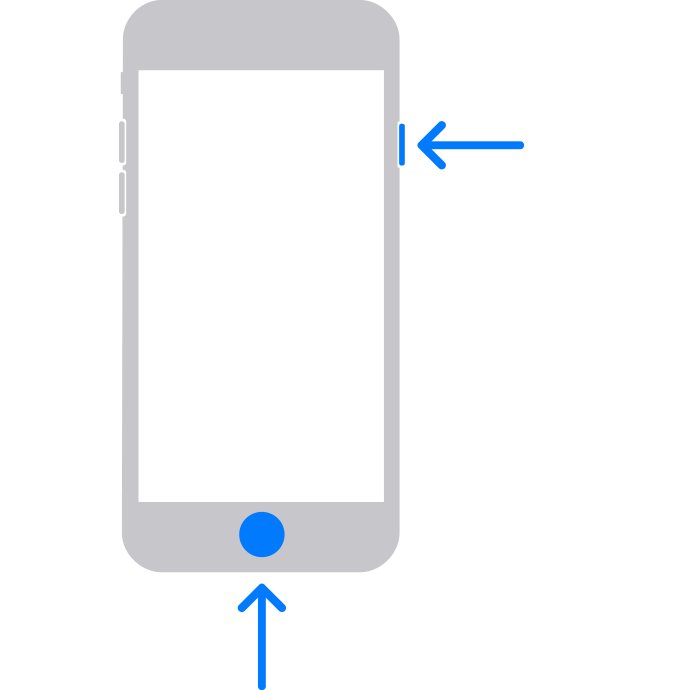
How to force restart iPhone 6s, iPhone SE (1st generation) and earlier
These models have a physical Home button. iPhone 6s and 6s Plus have the power button on the side; iPhone SE (1st generation) and older models have it on top.
- Press and hold the Home button.
- At the same time, press and hold the side button or the top button.
- Keep holding both buttons, which takes about 10 seconds.
- Release both buttons when the Apple logo appears.
How to factory reset an iPhone from Settings when you need to erase everything
This is the true reset: the iPhone returns to factory settings and every app, photo and message on it is deleted. Use it before selling the phone or when a clean start is the goal.
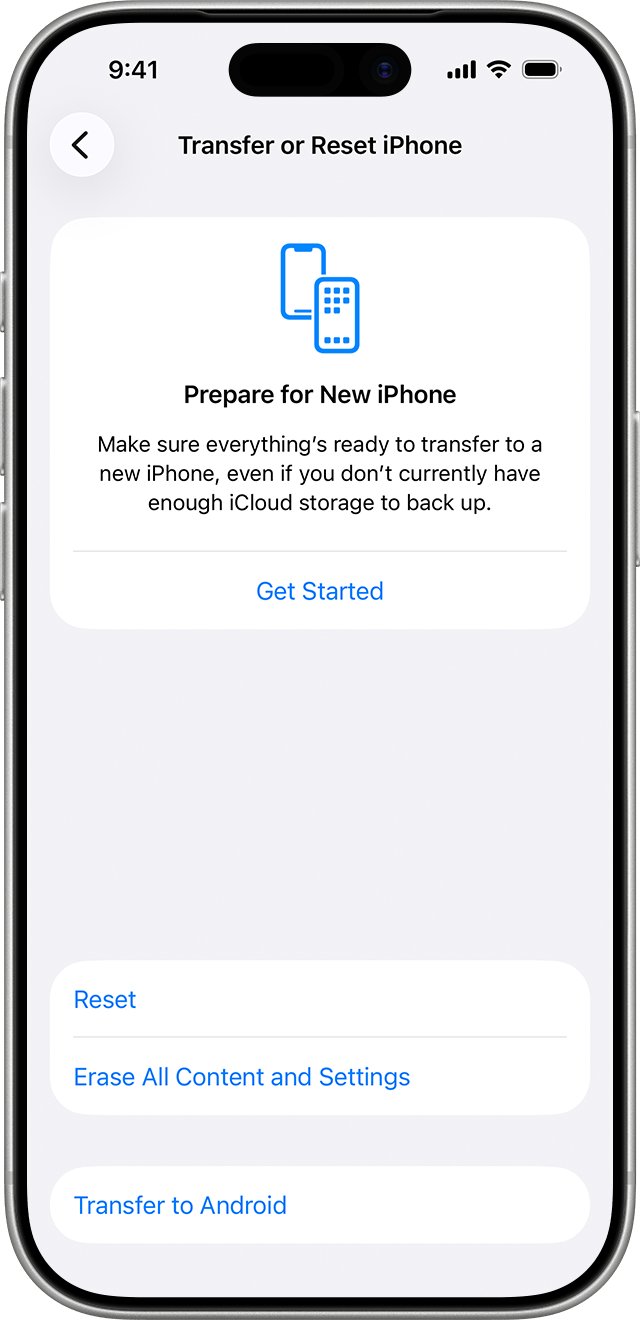
- Open Settings and tap General.
- Tap Transfer or Reset iPhone, then tap Erase All Content and Settings.
- Tap Continue.
- Choose to keep or delete your eSIM. If you delete it, contact your carrier to reactivate your plan.
- Enter your device passcode and wait for the backup to finish.
- Enter your Apple Account password and tap the done button on the keyboard.
- Wait for the iPhone to erase and reset.
How to restore an iPhone to factory settings with a Mac or PC
Use a computer when the iPhone cannot erase itself from Settings. The computer erases the iPhone and installs the latest iOS. Restoring this way does not delete the eSIM.
- Update your Mac, or install the latest Apple Devices app on a Windows PC.
- On the iPhone, go to Settings, tap your name, tap Find My, and turn off Find My iPhone with your Apple Account password.
- Connect the iPhone to the computer with a USB cable.
- Open Finder on a Mac or the Apple Devices app on a PC, then select your iPhone.
- Enter your passcode or tap Trust if the iPhone asks.
- Click Restore iPhone, then confirm.
How to check the restart or reset worked
Each procedure ends on a distinct screen. Match what you see to the step for the procedure you ran.
- After a force restart, confirm the Apple logo appeared and the Lock Screen then loaded. Unlock the iPhone and open Photos to confirm your data is still there.
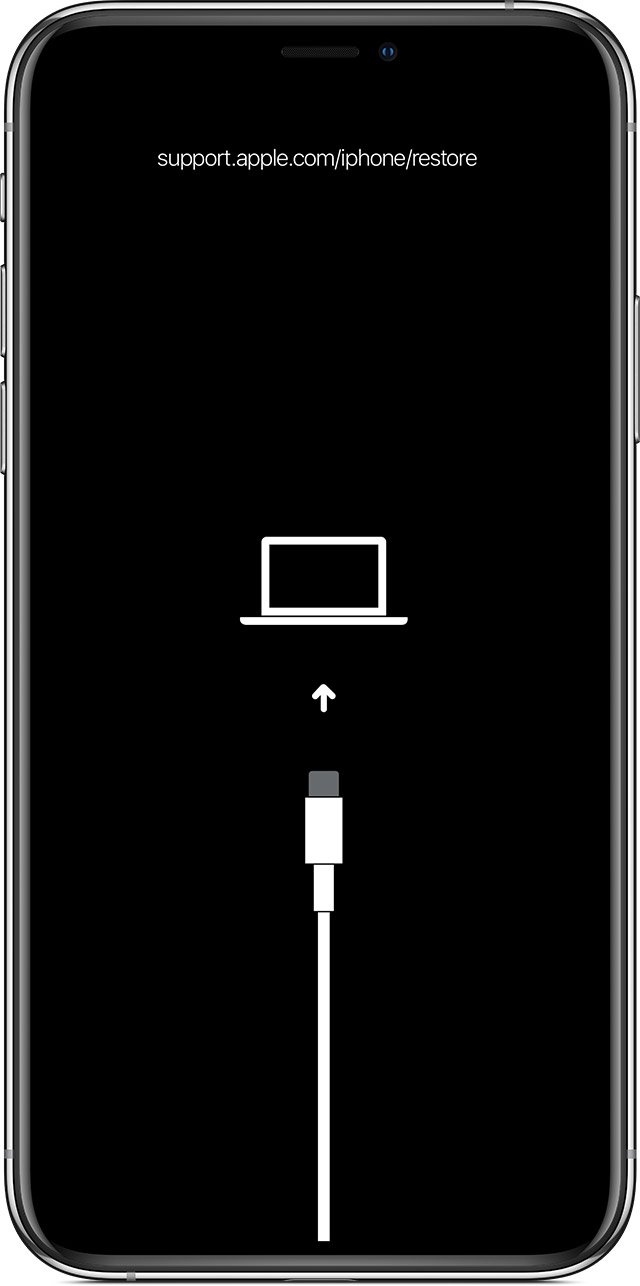
- After entering recovery mode, confirm the iPhone shows the "Connect to computer" screen and the computer offers Update or Restore. If the download passes 15 minutes, the iPhone can leave that screen, so repeat the button sequence.
- After a factory reset or a computer restore, confirm the Hello setup screen appears, as on a new iPhone.
- Before erasing, confirm a current date and time appears under Back Up Now in iCloud Backup.
What to do if your iPhone will not force restart
Force restart is not working and the screen stays black
The battery is usually too drained to start, or the button presses were too slow.
- Plug the iPhone into a charger and leave it for one hour.
- Repeat the force restart sequence for your model, pressing the volume buttons quickly.
- If a low-charge battery icon appears, keep it charging for 30 minutes or until it starts.
- If the iPhone still will not turn on, contact Apple Support for service.
iPhone is stuck on the Apple logo or shows "Connect to computer"
iOS cannot finish starting, which Apple fixes through recovery mode.
- Update your Mac, or get the latest Apple Devices app on your PC.
- Connect the iPhone to the computer with a USB cable and open Finder or Apple Devices.
- On iPhone 8 or later: press and quickly release Volume Up, press and quickly release Volume Down, then hold the side button until the "Connect to computer" screen appears.
- On iPhone 7 or 7 Plus: hold the side button and Volume Down together until that screen appears.
- On iPhone 6s or earlier: hold the Home button and the side or top button together until that screen appears.
- Locate the iPhone on the computer and choose Update, which keeps your data.
- Choose Restore only if Update fails. Restore reinstalls iOS and erases all your data.
The Restore screen appears on the iPhone
A software update or restore was interrupted.
- Connect the iPhone to your computer with its cable and keep it connected.
- Force restart the iPhone with the sequence for your model.
- If the Restore screen returns, open Finder or the Apple Devices app.
- Click Update, not Restore, to reinstall iOS and keep your personal data.
The iPhone will not erase from Settings
Erase needs your passcode and Apple Account password, or a Screen Time passcode is blocking it.
- If you forgot your Apple Account password, reset it through Apple's account recovery page first.
- If you forgot a Screen Time passcode, reset it before erasing. Restoring from a backup does not remove it.
- If you forgot the device passcode, turn the iPhone off and connect it to a Mac or PC.
- Hold the side button (iPhone 8 or later), Volume Down (iPhone 7) or Home (iPhone 6s or earlier) while connecting, until the recovery screen appears.
- Select Restore in Finder or Apple Devices. This erases the iPhone; allow up to 60 minutes.
A button is broken or sticks, so no sequence works
Every force restart and recovery mode sequence depends on working hardware buttons.
- Charge the iPhone for an hour in case it only needs power.
- Book a repair through Apple Support, since Apple lists a stuck or broken button as a reason for service.
Bottom line: start with a force restart, erase only as a last step
Force restart first, try recovery mode with Update second, and factory reset or Restore only after a current backup. A force restart and an Update in recovery mode keep your data. Erase All Content and Settings and Restore delete everything on the iPhone, and only a backup brings it back.
Frequently asked questions
How do you force restart or hard reset an iPhone 11?
Press and quickly release Volume Up, press and quickly release Volume Down, then hold the side button until the Apple logo appears. The iPhone 11 uses the same sequence as every iPhone 8 and later model, and nothing on the phone is deleted.
Does force restarting an iPhone delete anything?
No. A force restart only shuts down and restarts the software, so photos, messages, apps and settings stay on the iPhone. Use it whenever the screen freezes or stops responding.
Is a hard reset the same as a factory reset on iPhone?
No. A hard reset is the common name for a force restart, which keeps your data. A factory reset uses Erase All Content and Settings or a computer Restore and deletes everything on the iPhone.
What if force restart doesn't work?
Charge the iPhone for one hour and try the sequence again. If a low-battery icon appears, charge for 30 minutes or until it starts. If it still shows nothing, or stays on the Apple logo, use recovery mode or contact Apple for service.
Why is force restart not working on my iPhone?
The most common causes are a drained battery, pressing the volume buttons too slowly on iPhone 8 or later, or using the sequence for a different model. A broken or sticking button also stops every sequence from working.
How long should you hold the buttons when force restarting an iPhone?
Hold until the Apple logo appears, not for a fixed time. Apple notes this can take longer than 10 seconds on newer models and about 10 seconds on iPhone 6s and earlier. Release the buttons once the logo shows.
How do you do a normal restart instead of a force restart?
On iPhone X and later, hold either volume button and the side button until the power-off slider appears, drag it, wait 30 seconds, then hold the side button. On iPhone 6s, 7, 8 and SE (2nd or 3rd generation), hold only the side button.
What should you do before factory resetting an iPhone?
Back up the iPhone with iCloud or a computer and confirm the backup date under Back Up Now. Know your passcode and Apple Account password, and decide whether to keep or delete your eSIM, since deleting it needs your carrier to reactivate the plan.
Does recovery mode erase an iPhone?
Not by itself. In recovery mode the computer offers Update and Restore. Update reinstalls iOS and keeps your data, while Restore reinstalls iOS and erases everything, so choose Update first.







How to Factory Reset an iPad: A Step-by-Step Guide for All Models - Techdows
[…] An iPhone uses a different button sequence; see how to force restart or hard reset iPhone. […]
How to Enter DFU Mode on iPhone (All Models) - Techdows
[…] The full set of hard reset sequences is in How to Force Restart or Hard Reset iPhone (All Models). […]
How to soft reset iPhone - Techdows
[…] often called a hard reset, cuts the running software without the slider; the separate guide to force restart any iPhone model covers each button […]
Is your iPhone screen black? Here’s the fix - Techdows
[…] happens at first. Apple notes the logo can take longer than 10 seconds to appear. You can also force restart any iPhone model with the same […]