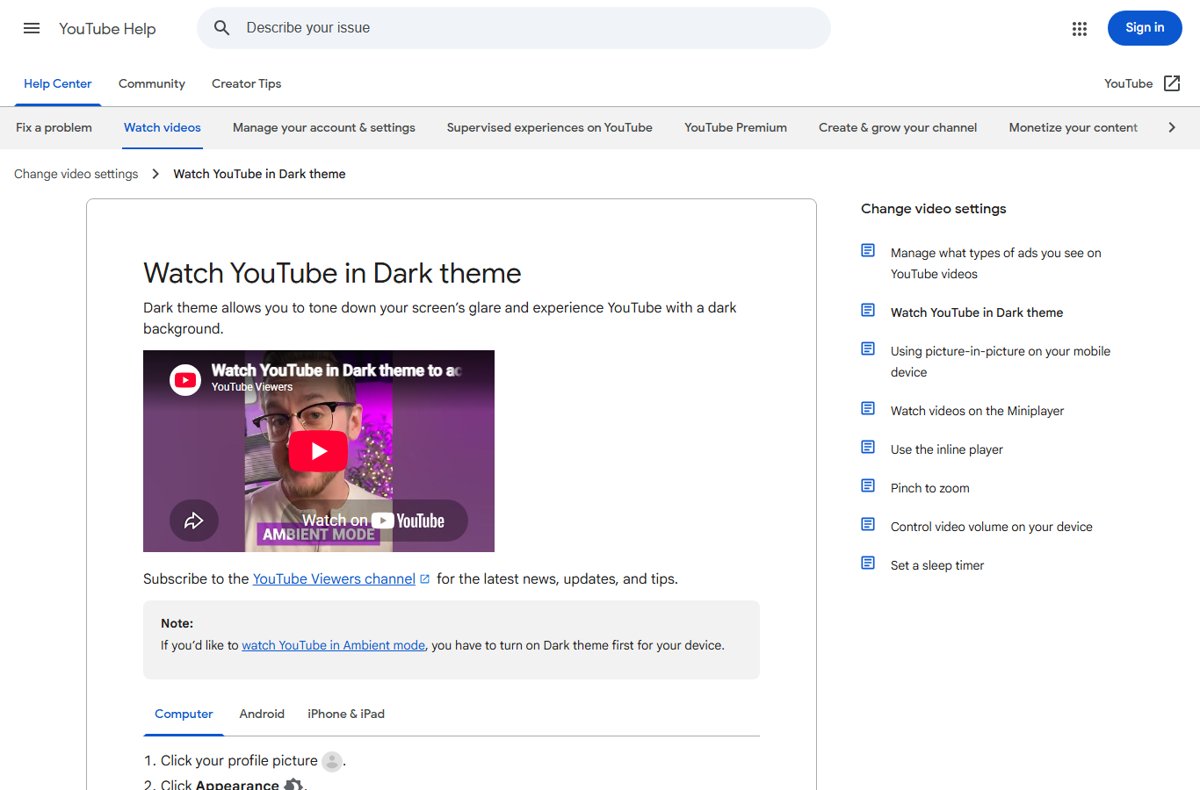
To enable YouTube dark mode on a computer, click your profile picture, select Appearance and choose Dark theme; in the mobile app, go to Settings > General > Appearance and pick Dark.
This guide covers YouTube's dark theme on Windows and Mac browsers, Android, iPhone and iPad, what happens on TVs, the Ambient mode effect it unlocks, and how to switch back.
Enabling YouTube Dark Mode on Desktop and Laptop
These steps work in Chrome, Edge, Firefox and Safari on Windows or Mac.
- Open youtube.com in your browser.
- Click your profile picture in the top-right corner.
- Click Appearance.
- Select Dark theme. The page switches to a dark background straight away.
- To follow your computer's own light or dark setting instead, select Use device theme.
Use device theme only turns dark when the operating system is dark, so on a PC you also need Windows 11 dark mode switched on for that option to look dark.
Enabling YouTube Dark Mode on Mobile Devices
| Device | Steps in the YouTube app | Options |
|---|---|---|
| Android 10 or newer | Profile picture > Settings > General > Appearance | Use device theme, Light or Dark |
| Older Android versions | Profile picture > Settings > General | Turn on Light or Dark theme |
| iPhone or iPad on iOS 13 or newer | Profile picture > Settings > General > Appearance | Use device theme, Light or Dark |
| iPhone or iPad on older iOS | Profile picture > Settings > Appearance | Light or Dark |
Pick Dark to keep YouTube dark all the time, or Use device theme if your phone already switches between light and dark on a schedule.
Enabling Dark Mode on Smart TVs and Streaming Devices
| Where you watch | Dark theme setting | What to do |
|---|---|---|
| Browser on a computer | Yes, under Appearance | Follow the desktop steps above |
| YouTube app on Android, iPhone or iPad | Yes, under Settings > General | Follow the mobile steps above |
| YouTube app on a smart TV, game console or streaming stick | Not documented by YouTube Help | No theme switch to look for; YouTube's dark theme instructions cover computers and phones only |
| Phone or computer screen mirrored to a TV | Set on the source device | Turn dark theme on in the phone app or browser before you mirror it |
Why Enable YouTube Dark Mode?
| Reason | What changes |
|---|---|
| Less glare | YouTube describes dark theme as a way to tone down your screen's glare with a dark background |
| Night viewing | White page areas around the player turn dark, so the video stands out in a dim room |
| Ambient mode | Dark theme is required for Ambient mode, which casts colors from the video into the background |
| Consistency | Use device theme keeps YouTube matched to the rest of your phone or computer |
Customizing YouTube Dark Mode for Better Experience
Ambient mode is the main extra that dark theme unlocks. YouTube describes it as a lighting effect that casts gentle colors from the video into your screen's background.
- Turn on dark theme first; on a computer this activates Ambient mode automatically.
- To turn Ambient mode off on a computer, open a video, click Settings on the watch page and switch off Ambient mode.
- On Android, open a video, tap Settings, tap Additional settings, then tap Ambient mode to switch it off for all videos.
- Use Use device theme if you want YouTube to switch automatically with your phone's or computer's schedule.
How to check dark mode is on
- Look at the home page: the background should be dark grey or black with white text.
- Click your profile picture again; Appearance should show Dark theme as the current choice.
- Open a video and check for the soft colored glow around the player, which means Ambient mode is active too.
How to turn YouTube dark mode off
- On a computer, click your profile picture, click Appearance and select Light theme.
- In the Android or iPhone app, tap your profile picture, then Settings > General > Appearance and choose Light.
- If YouTube stays dark with Use device theme selected, your phone or computer is in dark mode; choose Light in YouTube instead.
Troubleshooting Common Issues
There is no Appearance option in the Android app
On Android versions older than 10, the theme toggle sits directly under General.
- Tap your profile picture, then Settings.
- Tap General.
- Turn on Dark theme from that screen.
YouTube stays light even though Use device theme is selected
Use device theme copies the system setting, and the device is in light mode.
- Switch your phone or computer to dark mode, or
- Choose Dark or Dark theme in YouTube's Appearance settings to force it.
Ambient mode does not appear
Ambient mode only works when dark theme is on.
- Turn on dark theme using the steps above.
- Open a video and check Settings on the watch page for the Ambient mode switch.
Dark mode works on the computer but not on the phone
YouTube sets the theme for each device separately, with its own steps on computer, Android and iPhone.
- Open the YouTube app on the phone.
- Tap your profile picture, then Settings > General > Appearance, and choose Dark there too.
Why Some Users Prefer Not to Use Dark Mode
Use Light theme in a bright room and Dark theme in a dim one, or let Use device theme switch for you. Light text on a dark background is harder for some people to read in bright light, and some viewers find the Ambient mode glow distracting. Use device theme follows your system schedule, so YouTube changes with the time of day without you touching it.
Final Tips for Optimal YouTube Viewing
| Tip | Why it helps |
|---|---|
| Set the theme on every computer and phone you use | Each device has its own Appearance setting |
| Pick Use device theme on phones with a dark schedule | YouTube follows the phone automatically |
| Turn Ambient mode off if the glow distracts you | Dark theme stays on without the lighting effect |
| Lower screen brightness at night | Dark theme reduces glare further when the screen itself is dimmer |
Frequently asked questions
How do I enable dark mode in YouTube on a PC?
Open youtube.com, click your profile picture in the top-right corner, click Appearance and select Dark theme. The change applies immediately. Choose Use device theme instead if you want YouTube to follow Windows or macOS light and dark mode.
How do I turn on YouTube dark mode on my phone?
Open the YouTube app, tap your profile picture, then Settings > General > Appearance, and choose Dark. On older Android versions the Light and Dark toggle sits directly under General, and on older iOS versions Appearance sits directly under Settings.
Can you make YouTube dark mode permanent?
Yes. Choose Dark or Dark theme rather than Use device theme, and YouTube stays dark whatever your phone or computer is set to. Repeat the setting on each device you use, because the computer, Android and iPhone apps each have their own Appearance setting.
Is YouTube dark mode the same as Windows dark mode?
No. They are separate settings. Windows dark mode changes Windows and apps that follow it, while YouTube's Dark theme only changes YouTube. The two link up only when you choose Use device theme in YouTube's Appearance menu, which copies the system setting.
Does YouTube TV have dark mode?
YouTube Help documents the dark theme switch for computers and the Android, iPhone and iPad apps only. There is no documented theme switch in the YouTube app on smart TVs, consoles or streaming sticks, so there is no setting to look for there.
What is Ambient mode on YouTube?
Ambient mode is a lighting effect that casts gentle colors from the video into the screen's background. It needs dark theme. On a computer it turns on with dark theme, and you can switch it off from Settings on the watch page.
How do I use YouTube dark mode only at night?
Select Use device theme in YouTube's Appearance settings, then set your phone or computer to switch between light and dark on a schedule. YouTube changes with the system, so it turns dark at night without any manual step.
Closing Remarks
Choose Dark theme for a permanently dark YouTube, or Use device theme if your phone or computer already switches on a schedule. Both are under Appearance and apply instantly, and dark theme also unlocks Ambient mode. Set it once on each device you use, since each one has its own Appearance setting.