YouTube usually pauses on purpose: the Video paused. Continue watching? prompt, a take a break reminder, a bedtime reminder or a sleep timer stops playback, and the rest of the time a slow connection or a browser problem is to blame.
This guide shows how to tell which one you have, the 9 fixes in order, how to confirm playback is stable again, and what to do when YouTube Music or a video pauses and unpauses on its own.
The fastest fix: answer "Continue watching?" and check your reminders
YouTube shows Video paused. Continue watching? when Autoplay is on and nobody has touched the player for a while. It exists to protect your watch history and to stop YouTube using data when nobody is watching.
The prompt appears after 30 minutes of uninterrupted watching on mobile, 60 minutes on the web and 180 minutes on a TV. YouTube's Help Center lists no setting that turns it off.
- When the prompt appears, select Yes to resume the video.
- On your phone, tap your profile picture, then tap Settings.
- Tap General.
- Turn off the Remind me to take a break switch.
- Turn off the Remind me when it's bedtime switch.
- Play a video again and leave it running past the time it used to stop.
Tapping the screen or pressing a key now and then also resets the idle timer, because the prompt only appears after uninterrupted watching. If your video stopped with no prompt at all, the cause is somewhere else; use the table below.
Understanding Why YouTube Keeps Pausing
Match what you see when playback stops to a row, then jump to that fix. Pauses caused by YouTube's own features always show a message; pauses caused by the network usually show a spinning loading circle instead.
| What you see | Likely cause | Go to |
|---|---|---|
| Video paused. Continue watching? after a long session | Autoplay idle check (30 min mobile, 60 min web, 180 min TV) | The fastest fix, above |
| A break reminder card on your phone | Remind me to take a break is on (on by default for ages 13-17) | Fix 8 |
| A bedtime card at night | Remind me when it's bedtime is on (on by default for ages 13-17) | Fix 8 |
| Video pauses after a set time with a silent notification | A Sleep timer is running | Fix 8 |
| Autoplay stops starting the next video | Autoplay stops after 30 inactive minutes on mobile data, or 4 hours on Wi-Fi | Fix 8 |
| Audio stops when you leave the app or lock the phone | Background play needs YouTube Premium, or it is set to Off | Fix 8 |
| Spinning circle, then playback resumes | Connection too slow for the selected quality | Fixes 1 and 5 |
| Freezes or pauses only in one browser | Cache, an outdated browser, an extension or hardware acceleration | Fixes 2, 3, 4 and 7 |
| Fails on every device and every video | A problem on YouTube's side | Fix 9 |
1. Check Your Internet Connection
Buffering looks like pausing: the player stops, shows a loading circle and then carries on. YouTube's own troubleshooting starts here, with a speed test measured against the quality you are watching.
| Video quality you are watching | Sustained speed YouTube recommends | If your speed test is lower |
|---|---|---|
| 4K | 20 Mbps | Drop to 1080p or let Auto choose |
| HD 1080p | 5 Mbps | Drop to 720p |
| HD 720p | 2.5 Mbps | Drop to 480p |
| SD 480p | 1.1 Mbps | Drop to 360p |
| SD 360p | 0.7 Mbps | Restart the router or switch networks |
To run the check, restart your router or modem, run any internet speed test on the same device, and compare the result with the row above. On a phone on mobile data, connect to Wi-Fi and replay the video; if it now plays straight through, the mobile signal was the cause.
2. Clear Browser Cache and Cookies
Stale site data can break the YouTube player in one browser while it works everywhere else. These steps are Google's instructions for Chrome on a computer; Safari, Firefox and Edge have equivalent options in their own settings.
- Open Chrome on your computer.
- At the top right, select More, then select Delete browsing data.
- Choose a time range, such as Last hour or All time.
- Select Cookies and other site data, plus any other items you want to delete, such as cached images and files.
- Select Delete data.
- Reopen YouTube, sign in again and replay the video.
Deleting cookies signs you out of most sites, so have your Google password ready. On Android, the equivalent step for the app is clearing the YouTube app's cache from the phone's Settings app; the exact menu names vary by phone maker.
3. Update Your Browser or YouTube App
YouTube asks you to use a current version of a supported browser such as Chrome, Firefox or Safari, and the newest available version of the app. YouTube also suggests updating your device's firmware and system software.
- On Android, open the Google Play Store, search for YouTube and tap Update if it appears.
- On iPhone or iPad, open the App Store, search for YouTube and tap Update if it appears.
- On a computer, open your browser's About page, which checks for and installs updates, then restart the browser.
- On a smart TV or streaming device, check the device's app store or system update screen for a newer YouTube app and firmware.
- Replay the video that paused.
If one browser still misbehaves after updating, try the same video in a different browser. The fix for YouTube videos freezing in Firefox covers Firefox-specific settings in more depth.
4. Disable or Remove Browser Extensions
Ad blockers and video add-ons inject code into the YouTube page, and YouTube names them as a cause of playback errors. A private window loads the page without most extensions, which makes it a quick test.
- Open a private window (Incognito in Chrome, InPrivate in Edge, a private window in Firefox or Safari).
- Open YouTube in that window and play the video that kept pausing.
- If it plays normally, open your browser's extensions page.
- Turn off every extension, then turn them back on one at a time, replaying the video after each.
- Remove the extension that brings the pausing back, or leave it off on YouTube.
5. Adjust Video Quality Settings
YouTube changes stream quality based on your connection speed, screen size and the source video. Forcing a quality your connection cannot sustain causes repeated buffering pauses.
- On a computer, select Settings (the gear) in the video player, click Quality and choose a lower resolution or Auto.
- On a phone, tap the video, tap Settings, tap Quality and choose Auto (recommended) or Data saver.
- To change the default for every video on a phone, tap your profile picture, tap Settings, then tap Video quality preferences.
- Set the mobile network and Wi-Fi preferences separately; Data saver starts faster, while Higher picture quality uses more data and can buffer more often.
- Replay the video and watch whether the loading circle still appears.
6. Restart Your Device or App
A restart clears a stuck player, a frozen background process or a device that has lost its network session. YouTube recommends it for both phones and TVs.
- On a phone or tablet, fully close the YouTube app from the recent apps view, then reopen it.
- If pausing continues, restart the phone or tablet.
- On a computer, close every browser window and reopen the browser.
- On a smart TV or streaming device, unplug the power cable from the outlet.
- Wait at least 30 seconds, then plug it back in and reopen YouTube.
- If the app still pauses, uninstall and reinstall it.
7. Disable Hardware Acceleration
Hardware acceleration hands video decoding to the graphics card. When the graphics driver misbehaves, YouTube can stall, flicker or show a green or black player. Google's YouTube Help lists turning it off for Chrome.
- In Chrome, select More at the top right, then select Settings.
- Select System (on older versions, select Advanced first, then System).
- Turn off Use hardware acceleration when available.
- Relaunch Chrome and replay the video.
- If the problem started after a driver change, install the latest graphics driver from your PC maker's website, or on a Mac, install macOS updates from Software Update.
Other browsers have their own hardware acceleration switch in their settings. If playback is smoother with it off, leave it off until a newer graphics driver is available, then test turning it back on.
8. Check for Device or Software Conflicts
Several YouTube features pause playback deliberately, and most of them are settings on the device you are using. Work down this table on the device where the pausing happens; the settings do not follow you to other devices.
| Feature | What it does | Where to turn it off |
|---|---|---|
| Take a break reminder (mobile app) | Pauses the video until you dismiss the reminder | Profile picture > Settings > General > Remind me to take a break |
| Bedtime reminder (mobile app) | Interrupts the video at a set time, unless Wait until I finish video to show reminder is selected | Profile picture > Settings > General > Remind me when it's bedtime |
| Sleep timer | Pauses the video after the time you chose | Player Settings > Sleep timer; the same steps change or reset it |
| Autoplay | Stops after 30 minutes of inactivity on mobile data, or 4 hours on Wi-Fi | Keep interacting with the player, or switch Autoplay with the Autoplay control in the player or in Settings |
| Background play (YouTube Premium) | Off stops audio when you leave the app; Headphones or external speakers plays in the background only with an audio device connected | Settings > Background & downloads > Background play > Always on |
| Picture-in-picture | Keeps a small player over other apps; music content needs Premium | Pause the video before you exit YouTube if you do not want the small player |
Without YouTube Premium, leaving the YouTube app or locking the screen stops playback because background play is a Premium benefit. Background play is also not available in the Shorts player.
9. Check YouTube Server and Service Status
When every fix above fails, test whether the fault is on YouTube's side rather than yours. The pattern of what fails tells you.
- Play a different video; if only one video fails, the problem is with that video.
- Play the same video on a different supported device, such as your phone instead of your PC.
- Check that you are signed in to YouTube, because YouTube lists signing in as a fix for playback errors.
- If every video fails on every device and every network, wait and try again later, because the fault is on YouTube's side.
- If only one device fails, right-click the player on a computer and select Copy debug info to share with YouTube support.
Error text such as Something went wrong. Tap to retry. or Connection to server lost. points to a playback error rather than a deliberate pause. The guide to YouTube's An error occurred, please try again later message covers that variant.
How to check the pausing is fixed
A fix is proven when a long video plays through the point where it used to stop, and when the connection shows headroom above the quality you are watching.
- On a computer, open a long video, right-click the player and select Stats for nerds.
- Watch the connection speed readout while the video plays; it should stay above the speed listed for your quality in fix 1.
- Let the video run past the time it used to pause, whether that was a few minutes or a reminder interval.
- On a phone, play the same video with the screen on for the same length of time.
- Close Stats for nerds from its close button when you are done.
If the Continue watching? prompt still appears after 30, 60 or 180 minutes of no interaction, playback is working as designed rather than failing.
Additional Tips for YouTube Viewing
These settings reduce interruptions once the underlying problem is fixed. Each is documented in YouTube Help.
| Tip | How |
|---|---|
| Pause and resume with the keyboard | Press k in the player, or the Spacebar when the seek bar is selected, or the Play/Pause media key |
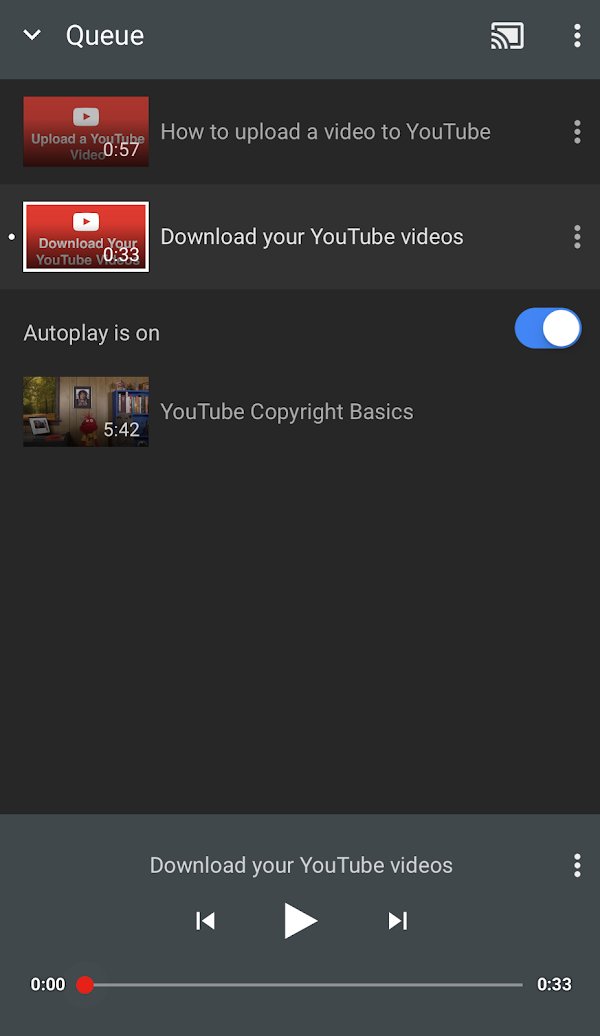
| Queue videos instead of relying on Autoplay | Add videos to the queue so the next ones are lined up without interrupting your session |
| Loop a video or playlist | Loop a video on repeat so it does not stop at the end |
| Keep audio playing with the screen off | YouTube Premium background play, set to Always on |
| Watch without a connection | Download videos with YouTube Premium, where downloads are available |
| Pause on purpose at night | Set a Sleep timer instead of leaving Autoplay running |
Fix YouTube when it still pauses by itself
YouTube keeps pausing itself with no message
Buffering, a stale player in one browser, or an extension interfering with the page.
- Watch for a loading circle when it stops; if you see one, lower the quality under Settings > Quality.
- Open the video in an Incognito or InPrivate window to rule out extensions.
- Clear cache and cookies, then update the browser.
- Restart the device and the router.
YouTube Music keeps pausing
Music usually stops because the app lost the foreground: background play needs Premium, or it is set to Off or to headphones only.
- Check that you are signed in with your YouTube Premium or Music Premium account.
- Open Settings > Background & downloads > Background play.
- Select Always on, unless you only want background audio with headphones or speakers connected.
- Check that no sleep timer is running on the video.
YouTube keeps pausing and unpausing
The player stops when the buffer runs empty and restarts when it refills, which means the connection cannot keep up with the stream.
- Run a speed test and compare it with YouTube's figures, such as 5 Mbps for 1080p.
- Set Video quality preferences to Data saver on mobile networks.
- Move closer to the Wi-Fi router or switch from mobile data to Wi-Fi.
- Pause other downloads or streams on the same network.
Frequently Asked Questions
Why does my YouTube keep pausing?
YouTube pauses on purpose when the Continue watching prompt, a take a break reminder, a bedtime reminder or a sleep timer is triggered. Without any message, the usual causes are a slow connection, an outdated app or browser, a browser extension, or background play being unavailable without Premium.
Why is YouTube pausing by itself?
YouTube pauses by itself after 30 minutes of uninterrupted Autoplay on mobile, 60 minutes on the web or 180 minutes on a TV, and shows Video paused. Continue watching?. Select Yes to resume. Pauses with a loading circle instead are buffering from a slow connection.
How do I stop YouTube from pausing videos?
Turn off Remind me to take a break and Remind me when it's bedtime under Settings > General in the mobile app, cancel any sleep timer, and lower the video quality if it buffers. Then update the app, clear the browser cache and test without extensions.
How do I stop YouTube from pausing music?
Music stops when you leave the app unless you have YouTube Premium background play. In the app, open Settings > Background & downloads > Background play and choose Always on. The Headphones or external speakers option only plays in the background when an audio device is connected.
Can you turn off the YouTube Continue watching prompt?
YouTube's Help Center lists no setting that turns off the Video paused. Continue watching? prompt. It appears only when Autoplay is on and you have not interacted for 30 minutes on mobile, 60 minutes on the web or 180 minutes on a TV. Select Yes to continue.
Why does YouTube pause videos when I leave the app?
Playing audio after you leave the app or lock the screen is background play, a YouTube Premium benefit on the YouTube, YouTube Music and YouTube Kids mobile apps. Without Premium, playback stops. With Premium, check that Background play is not set to Off.
How do I pause a YouTube video?
Click or tap the video player, or press the k key on a computer. The Spacebar also pauses and plays when the seek bar is selected, and the Play/Pause media key on keyboards works too. To pause automatically later, set a sleep timer from the player's Settings menu.
Why does YouTube keep pausing and unpausing?
Stop-start playback means the buffer is emptying faster than your connection refills it. Lower the quality under Settings > Quality or choose Auto, then check that your speed meets YouTube's figures: 2.5 Mbps for 720p, 5 Mbps for 1080p and 20 Mbps for 4K.

![Unable to accept invite in Discord [Fix]](https://techdows.com/wp-content/uploads/2026/10/Unable-to-accept-invite-in-Discord-Fix-1-600x338.jpg)