When Gmail says it sent a prompt to your phone, keep the YouTube app open and online, then tap Resend it on the computer's sign-in screen; if the prompt still never loads, tap Try another way and use a text code or backup code instead.
This guide explains why Google uses the YouTube app for Gmail sign-in, how to make the prompt appear on an iPhone, the other ways to finish signing in, and what to do about expired or unexpected prompts.
How to get the Gmail sign-in prompt to appear in the YouTube app
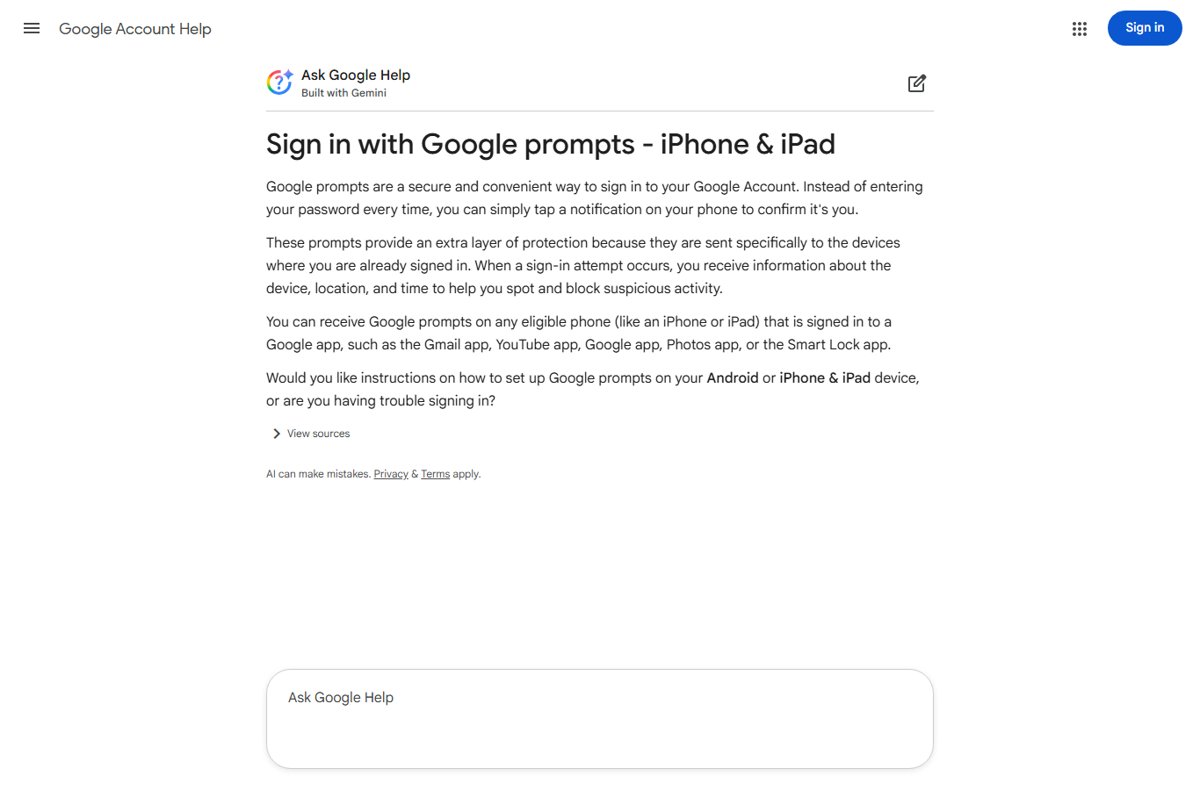
A Google prompt is a push notification, so the phone needs a connection and the app needs permission to show notifications.
- Unlock your iPhone and check that it has Wi-Fi or cellular data.
- Open the YouTube app and confirm it is signed in to the same Google Account you are signing in to on the computer.
- On the computer's Gmail sign-in screen, tap or click Resend it to send a fresh prompt.
- Wait for the Trying to sign in? notification on the iPhone and tap it.
- Check the device, location and time shown, then tap Yes if the sign-in is yours.
- If Google shows a number on the computer, tap the matching number on the iPhone to finish.
If nothing arrives after one resend, skip to the notification fix or use Try another way below rather than waiting on a loading screen.
Why Gmail sends a sign-in prompt to the YouTube app on iPhone
Gmail, YouTube and the other Google services share one Google Account. On an iPhone, Google delivers its sign-in prompts through any Google app that is signed in to that account, so YouTube can receive a prompt for a Gmail sign-in.
| Question | Answer |
|---|---|
| Which iPhone apps can show Google prompts? | Gmail, YouTube, the Google app, Google Photos, the Google Ads app and Google Smart Lock |
| Do you need all of these apps? | No. One of them signed in to your Google Account is enough |
| Which iPhones are supported? | iPhone 5S or later |
| When does Google send a prompt? | For password-free sign-in, as the second step of 2-Step Verification, during account recovery, or when Google wants to confirm a sign-in |
| Why a prompt instead of a text code? | Prompts go only to your signed-in devices, show sign-in details, and resist SIM swap attacks |
| What happens if you tap No? | Google blocks the sign-in and helps you secure the account |
YouTube app prompt not loading: which fix to try first
| Your situation | Do this | Why |
|---|---|---|
| YouTube app shows a loading screen and no prompt | Tap Resend it on the computer, keep the app open | The first prompt may have been missed or timed out |
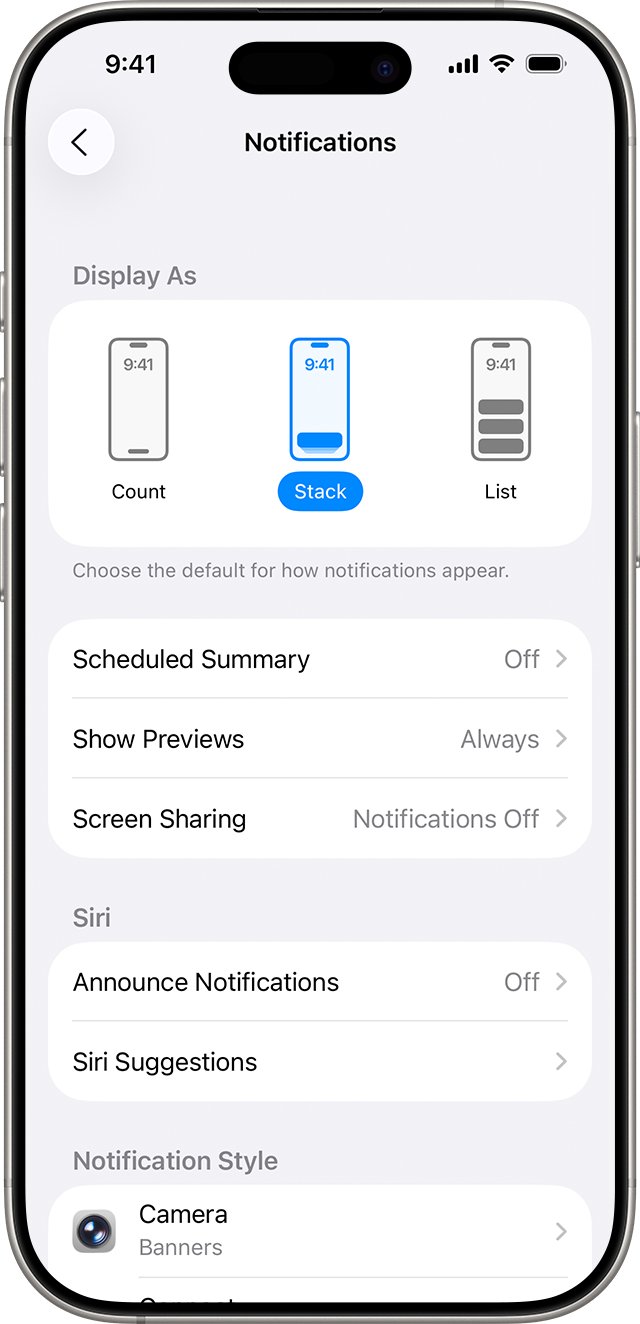
| No notification ever appears | Turn on notifications for YouTube in iPhone Settings | Prompts are push notifications and need permission |
| A Focus or Do Not Disturb is on | Turn the Focus off and resend | A Focus can silence the prompt notification |
| The YouTube app is signed out or on another account | Sign in to YouTube with the right Google Account | Prompts only go to apps signed in to that account |
| The computer says Request Expired | Tap Resend and respond within the time limit | The prompt was not answered in time |
| The phone is not with you | Tap Try another way and pick a code or backup code | You can finish sign-in without the phone |
Turn on YouTube app notifications for Google prompts on iPhone
If notifications for YouTube are off, the prompt reaches the app but never shows on screen.
- Open Settings on the iPhone.
- Tap Notifications.
- Under Notification Style, tap YouTube.
- Turn on Allow Notifications.
- Return to the computer and tap Resend it on the sign-in screen.
The same setting applies if Gmail, the Google app or Google Photos is the app holding your sign-in on the phone.
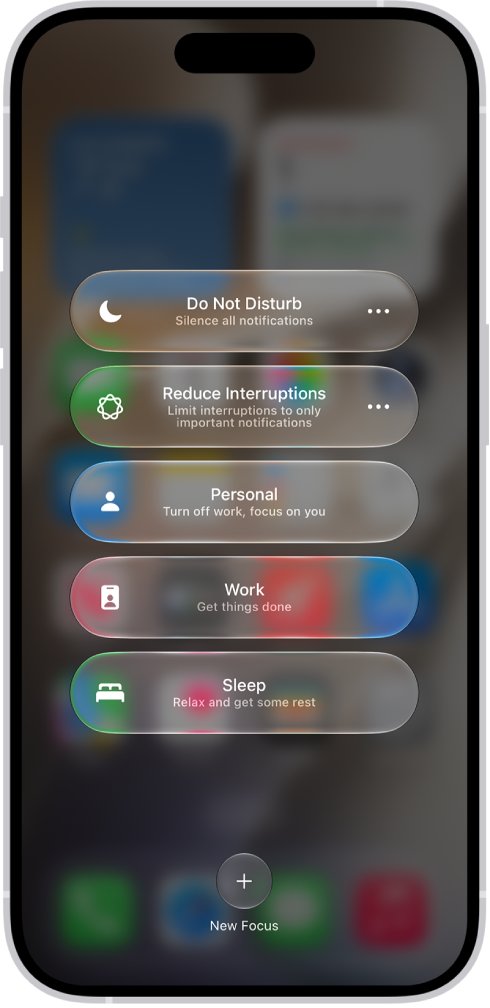
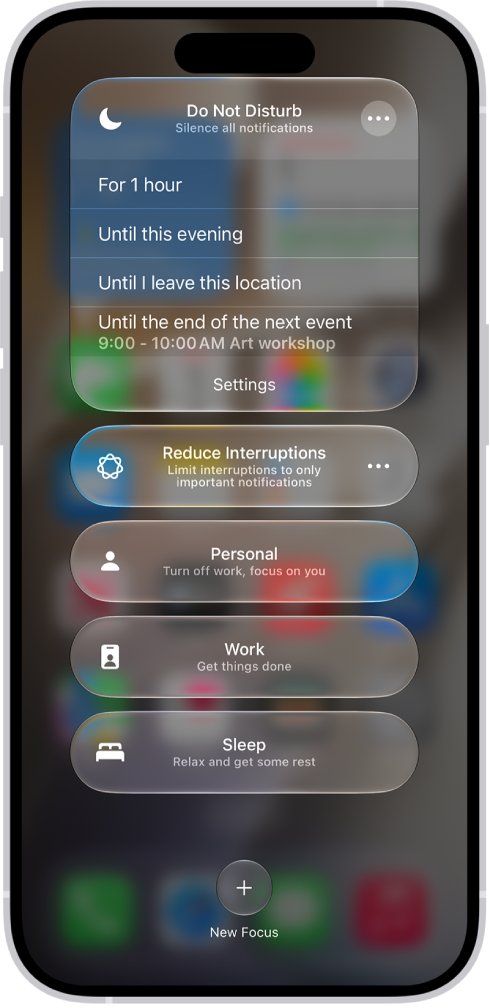
Turn off Focus or Do Not Disturb so the Google prompt arrives
- Open Control Center on the iPhone.
- Tap Focus.
- Tap the Focus that is on, such as Do Not Disturb, to turn it off.
- Tap Resend it on the computer and watch for the Trying to sign in? notification.
You can also turn a Focus off in Settings > Focus by selecting it and switching it off.
Sign in to the YouTube app again to receive the Gmail prompt
Google sends prompts only to apps signed in to the account you are using. If YouTube is signed out, or signed in to a different account, the prompt goes nowhere useful.
- Open the YouTube app on the iPhone.
- Sign in with the Google Account email you are trying to use on the computer.
- Complete any sign-in steps the app shows.
- Go back to the computer and start the Gmail sign-in again.
- Tap Yes on the prompt when it appears.
If another signed-in Google app such as Gmail is already on the phone, the prompt can arrive there instead. You do not need to install a second app.
Use Try another way to sign in to Gmail without the YouTube prompt
Every Google sign-in screen offers other verification methods, so a stuck prompt never has to block you.
- On the computer's sign-in screen, select Try another way. The wording can differ, for example I can't do this.
- Pick a method from the list, such as a text message code, a voice call code or Enter one of your 8-digit backup codes.
- Enter the code you receive or one unused backup code.
- Select Next to finish signing in to Gmail.
If text verification codes are slow to arrive and you requested several, only the newest one works. Once you are in, you can sign in to your Gmail account on that computer without a fresh prompt if you tick Don't ask again on this computer.
How to confirm the Gmail sign-in from the YouTube prompt worked
- Look at the computer: your Gmail inbox should open within a few seconds of tapping Yes.
- On the phone, the prompt notification disappears once Google accepts the response.
- Open your Google Account and select Security & sign-in to review recent sign-in activity.
- Confirm the new sign-in shows your computer and location. If it does not, change your password.
Set up backup codes so a missing YouTube prompt never locks you out
Backup codes work when the phone is offline, lost or simply refuses to show the prompt, so you never have to recover the Google Account without the old phone. Each code works once, and a new set replaces the old one.
- Open your Google Account on a computer.
- Click Security & sign-in.
- Under How you sign in to Google, click 2-Step Verification. Sign in again if asked.
- Under Backup codes, click Continue.
- Click Get backup codes.
- Click Print codes or Download Codes and store them somewhere safe.
Google Authenticator, a security key or a passkey are other second steps that do not depend on the YouTube app.
Fix Gmail login prompt problems in the YouTube app
The YouTube app only shows a loading screen and no prompt
The notification was missed, notifications are off, or the phone lost its connection.
- Check that the iPhone has Wi-Fi or cellular data.
- Turn on Allow Notifications for YouTube in Settings > Notifications.
- Turn off any Focus such as Do Not Disturb.
- Tap Resend it on the computer's sign-in screen.
- If it still fails, select Try another way and use a code.
The computer says "Request Expired"
The prompt was not answered in time.
- If you were signing in, select Resend on the sign-in screen.
- Open the new notification on the iPhone and tap Yes.
- If you were not signing in, review sign-in activity in your Google Account.
- Change your password if you see a sign-in you do not recognise.
A Trying to sign in? prompt appears that you did not request
Someone may have your password, or a recovery contact is signing in.
- Tap No, don't allow on the prompt.
- Change your Google Account password.
- Review the devices and sign-in activity in your Google Account.
The iPhone with the YouTube app is lost or not nearby
The prompt can only be answered on a signed-in device.
- On the sign-in screen, select Try another way.
- Select I don't have my phone if the phone is lost, or choose a code option.
- Follow the on-screen steps to finish signing in.
- After you are in, sign out of the lost phone and change your password.
Gmail asks for a prompt on a work or school account and nothing works
Your organisation controls 2-Step Verification settings.
- Use any backup option your administrator set up.
- Contact your administrator to reset your sign-in methods.
Does YouTube require a Gmail account?
YouTube requires a Google Account, not a Gmail address. You can create a Google Account with an email address from another provider.
| Account question | Answer |
|---|---|
| What do you sign in to YouTube with? | A Google Account email and password |
| Is a Gmail account the same as a Google Account? | No. Gmail is one service a Google Account can use, like YouTube or Drive |
| Can you use a non-Gmail address? | Yes. Choose Use your existing email when you create the Google Account |
| Does signing in to Gmail sign you in to YouTube? | Yes. Signing in to one Google service signs you in to YouTube with the same account |
| What happens to YouTube if you delete the Google Account? | Your videos, comments and subscriptions are deleted too |
Gmail and YouTube sign-in prompt FAQ
Why does Gmail send a sign-in prompt to the YouTube app?
Gmail and YouTube use the same Google Account. On an iPhone, Google sends sign-in prompts to any signed-in Google app, including YouTube, Gmail, the Google app and Google Photos, so a Gmail sign-in can be confirmed in YouTube.
How do I log in to YouTube without Gmail?
Create a Google Account with your existing email address instead of a Gmail address. On the Google Account sign-in page choose Create account, then Use your existing email, and verify the address with the code Google sends.
Does YouTube only use Gmail?
No. YouTube uses Google Accounts, and a Google Account can be tied to a Gmail address or to an email address from another provider. Both sign in to YouTube the same way.
Does a YouTube account have to be Gmail?
No. A YouTube account is a Google Account, and Google lets you create one with a non-Gmail email address or a phone number. Gmail is optional.
Does YouTube require a Gmail account?
YouTube requires a Google Account, not specifically Gmail. You can watch videos signed out, but liking, subscribing, Watch Later and history need you to sign in with a Google Account.
Do I need Gmail for YouTube?
No. You need a Google Account to sign in to YouTube, but that account can use any email address you already own. If you already use Gmail, the same login works on YouTube.
Why is the Google prompt not showing on my iPhone?
The usual causes are notifications turned off for the app, an active Focus such as Do Not Disturb, no internet connection, or the app being signed in to a different account. Fix the cause, then tap Resend it on the sign-in screen.
Can I stop Google prompts going to the YouTube app?
Google sends prompts to every eligible phone signed in to your account, so a signed-in YouTube app can receive them. Set up backup codes or Google Authenticator so you can finish sign-in another way when a prompt does not arrive.
Bottom line: fixing a Gmail prompt stuck in the YouTube app
Turn on YouTube notifications, turn off any Focus and tap Resend it; if the prompt still fails, use Try another way and a backup code. The prompt is just a notification to a signed-in Google app, so permission and connection problems cause most failures, and Google always offers another verification route.