YouTube Restricted Mode is an optional filter that hides potentially mature videos and comments; to disable it on a computer, click your profile photo, click Restricted Mode, and turn off Activate Restricted Mode.
This guide covers what the filter does, how to turn it off on every device, why it can stay locked on at school, work or through a parent or carrier, and how to fix each case.
How to disable YouTube Restricted Mode on a computer
The setting is stored per browser, so repeat these steps in every browser and browser profile where you see the filter.
- Open youtube.com and sign in to your account.
- At the top right, click your profile photo.
- At the bottom of the menu, click Restricted Mode.
- In the box that opens at the top right, click Activate Restricted Mode to switch it off.
- Reload the page.
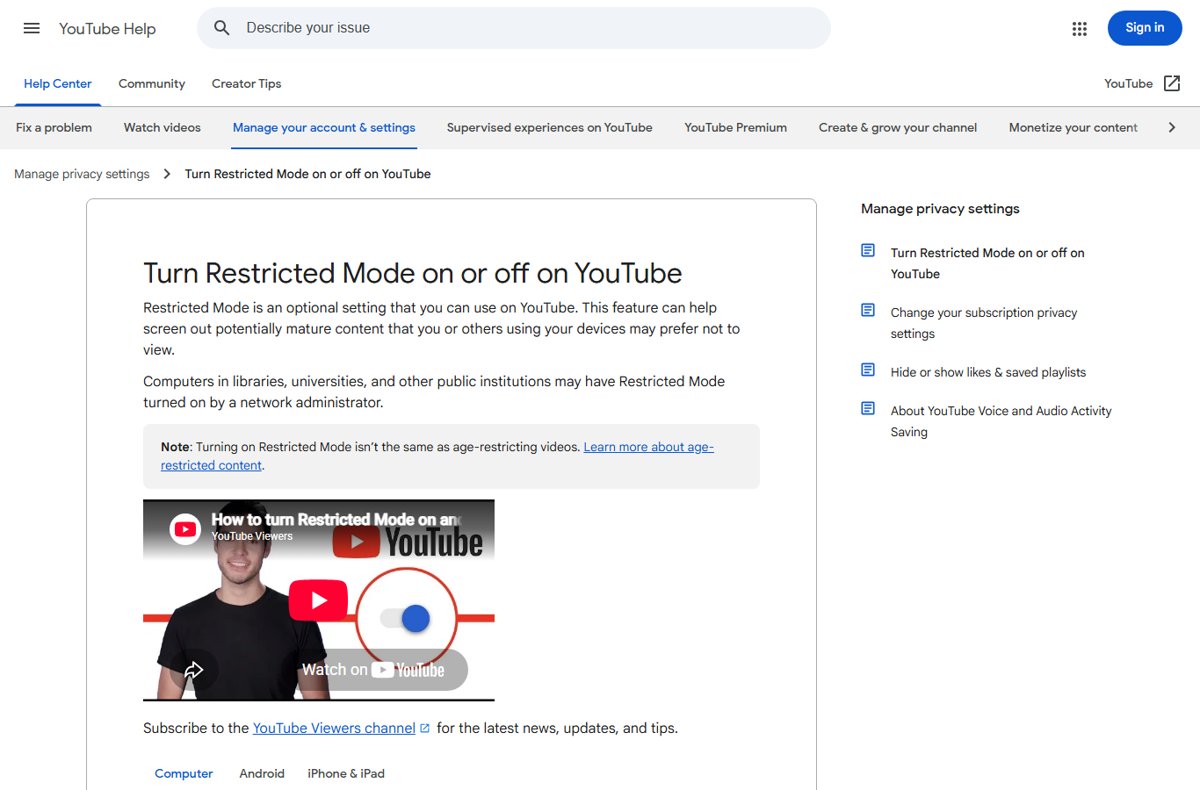
What is YouTube Restricted Mode?
Restricted Mode screens out potentially mature content using signals such as the video title, description, metadata, Community Guidelines reviews and age restrictions. It is not the same as age-restricting a video.
| What it affects | With Restricted Mode on |
|---|---|
| Videos | Potentially mature videos are screened out |
| Comments | You cannot view comments on any video |
| YouTube Music | Songs marked Explicit still appear but are skipped when played |
| Scope | Per browser or device, and per profile where a browser has several |
| Languages | Available in every language, though filtering quality varies |
How to turn off Restricted Mode in the YouTube app on Android, iPhone or iPad
- Open the YouTube app and sign in to your account.
- At the top right, tap your profile photo.
- Tap Settings, then General.
- Turn off Restricted Mode.
- Close and reopen the app if videos are still hidden.
Where the Restricted Mode setting is on each device
| Device | Path to the setting | Notes |
|---|---|---|
| Computer browser | Profile photo > Restricted Mode > Activate Restricted Mode | Repeat for each browser and profile |
| YouTube app on Android, iPhone or iPad | Profile photo > Settings > General > Restricted Mode | Sign in first |
| Mobile site (m.youtube.com) | Profile photo > Settings > Account > Restricted Mode | Separate from the app setting |
| Android TV | Apps row > YouTube > Settings > Restricted Mode or Safety Mode > Off | Start from the Home screen |
| Google smart speaker or display | Home app > device > Settings > Notifications & digital wellbeing > YouTube Settings | Device managers can set it for all other users |
How to check Restricted Mode is off
- Open any popular video and scroll down; comments should now be visible.
- Open your profile photo menu and confirm Restricted Mode no longer reads On.
- Visit www.youtube.com/check_content_restrictions to see whether any account, network or DNS restriction still applies.
- Repeat the check in each other browser or app you use, since the setting does not sync between them.
Who can lock Restricted Mode on
If the switch is greyed out or snaps back on, the filter is coming from outside your own account setting. Libraries, universities and other public institutions often turn it on at network level.
| Source | How it is enforced | Who can remove it |
|---|---|---|
| Network administrator | DNS records pointing YouTube to restrict.youtube.com (strict) or restrictmoderate.youtube.com (moderate) | The school, office or Wi-Fi owner |
| Network filter or proxy | A YouTube-Restrict: Strict or Moderate header added to traffic | The network administrator |
| Google Workspace or school account | Admin console setting for strict or moderate restricted access | The account's administrator |
| Parent through Family Link | Restricted Mode set on a supervised child's account; the child cannot change it | The parent in Family Link |
| Mobile carrier | Carrier content filter shown as DNS restriction at moderate or strict | The mobile network provider |
Problems and Fixes
Why can't I turn off Restricted Mode on YouTube?
An administrator, network or parent has locked the setting.
- Open www.youtube.com/check_content_restrictions in the same browser.
- Find the restriction with a check mark beside it: account, network or DNS.
- Follow the tool's next step, or ask the administrator who manages that account or network.
Why is my restricted mode locked on YouTube?
You are signed in to a work or school account, or a supervised account managed in Family Link.
- Check which account is signed in from the profile photo menu.
- Switch to a personal account if you are allowed to use one on this device.
- On a supervised account, ask the parent to change the setting in Family Link.
Restricted Mode is on only when using mobile data
The mobile carrier applies a content filter.
- Turn off Wi-Fi and open www.youtube.com/check_content_restrictions.
- If DNS restrictions show moderate or strict, contact your mobile provider to change the filter.
Why is my YouTube in Restricted Mode on one browser only?
The setting is saved per browser and per profile.
- Open that browser and turn off Activate Restricted Mode from your profile photo menu.
- Repeat in each browser profile.
Comments are missing under every video
Restricted Mode hides all comments while it is on.
- Turn Restricted Mode off using the steps for your device.
- Reload the video page.
How to turn Restricted Mode back on
Parents who want the filter on a shared device should turn it on in each browser and app, because it does not carry over.
- On a computer, click your profile photo, click Restricted Mode, and turn on Activate Restricted Mode.
- In the YouTube app, tap your profile photo, tap Settings > General, and turn on Restricted Mode.
- On a child's supervised account, turn it on in the Family Link app so the child cannot switch it off.
Frequently asked questions
What is YouTube Restricted Mode?
Restricted Mode is an optional YouTube setting that filters out potentially mature videos and hides comments. YouTube uses titles, descriptions, metadata, Community Guidelines reviews and age restrictions to decide what to hide.
How do I turn off YouTube Restricted Mode?
On a computer, click your profile photo, click Restricted Mode and turn off Activate Restricted Mode. In the mobile app, tap your profile photo, then Settings > General, and turn off Restricted Mode.
Why is Restricted Mode on in YouTube?
Either it was turned on in that browser or app, or a network administrator, school or work account, parent through Family Link, or mobile carrier has applied it. The content restrictions check page shows which.
Why am I on Restricted Mode on YouTube when I never turned it on?
Public networks in libraries, universities and offices often enforce it through DNS or a filter. Mobile carriers and Family Link can also turn it on. Check www.youtube.com/check_content_restrictions to find the source.
Why can't I turn off Restricted Mode on YouTube?
The setting is locked by someone else: a network administrator, a Workspace or school admin, a parent, or your carrier. Only that person or provider can remove the restriction.
Does Restricted Mode turn off on all my devices at once?
No. Restricted Mode works per browser and per device, and per profile in browsers with several profiles. Turn it off separately in each one.
Does Restricted Mode affect YouTube Music?
Yes. Songs and videos in YouTube Music are filtered too. Content marked Explicit still appears in lists but is skipped when you try to play it.