YouTube usually stops working because of a slow or dropped connection, an outdated browser or app, an ad blocker or other extension, or a short YouTube service interruption, and restarting the app or device fixes most cases.
This guide covers quick fixes for every device, then separate steps for Windows and Mac browsers, iPhone, Android and TVs, plus sound, sign-in and buffering problems and what each common error message means.
Quick Fixes That Work on Almost Any Device
These are the first fixes YouTube's own help center lists for video errors. Test a video after each step.
- Close the YouTube app or browser tab completely and open it again.
- Restart the phone, computer, TV or streaming device.
- Restart your internet connection, then run a speed test. You need about 0.7 Mbps for 360p, 2.5 Mbps for 720p, 5 Mbps for 1080p and 20 Mbps for 4K.
- Check that you are signed in to YouTube; some videos are blocked for signed-out viewers.
- Update your browser or the YouTube app to the newest version.
- Turn off ad blockers and other extensions, or test in an incognito window.
- Clear the browser's cache and cookies if pages still load wrongly.
First: Figure Out What Kind of YouTube Problem You Have
| What you see | Likely cause | Go to |
|---|---|---|
| Nothing loads anywhere, or only a basic watch page with no comments | YouTube service interruption | Check Whether YouTube Is Down |
| Works on your phone but not in one browser | Browser cache, extension or outdated browser | Fix YouTube Not Working on Desktop |
| App crashes or shows "Something went wrong" | Outdated or damaged app | iPhone or Android sections |
| Video spins, stutters or drops to low quality | Connection speed | Fix YouTube Buffering, Lagging, or Loading Slowly |
| Picture plays but no audio | Muted player or device sound settings | Fix YouTube Sound Problems |
| "This video is unavailable" or age warnings | Region, privacy or age restriction | Sign-In, Account, and Age-Restriction section |
| Comments hidden and some videos missing | Restricted Mode set by you, a school or a network | Network Blocks section |
| Problem only on a TV, Roku or Xbox | TV app or device firmware | Smart TVs, Streaming Devices, and Game Consoles |
Check Whether YouTube Is Down
- Open YouTube on a second device, ideally on a different network such as mobile data.
- If it fails everywhere, the problem is probably on YouTube's side rather than yours.
- Look for a reduced watch page: during service interruptions YouTube may load a minimal page where Like, Share, Download, descriptions and comments are missing.
- Wait a while and reload; YouTube's advice for "Error loading the page, please try again" is to reload or try again later.
- If only your devices fail, continue with the fixes below for your device.
Fix YouTube Not Working on Desktop
YouTube supports the newest versions of Google Chrome, Firefox and Safari on a computer. Microsoft Edge users can apply the same steps in Edge's own settings.
- Update your browser to the latest version and restart it.
- Turn off ad blockers and script blockers, or open YouTube in an incognito or private window where extensions are off.
- Clear cookies and cache in Chrome: select More > Delete browsing data, choose a time range, tick Cookies and other site data, then select Delete data.
- Sign in to YouTube again after clearing cookies.
- If the video area turns green or black, try another browser, then turn off hardware acceleration: in Chrome select More > Settings > System (under Advanced in older versions) and turn off Use hardware acceleration when available.
- Update your graphics driver from your computer maker's website, or on a Mac install the latest macOS update, which includes the graphics driver.
Firefox users who see videos freeze can also try these Firefox fixes for frozen YouTube videos.
Fix YouTube Not Working on iPhone or iPad
- Close the YouTube app completely and reopen it, or restart the iPhone or iPad.
- Update the YouTube app from the App Store.
- Check free space: open Settings > General > iPhone Storage (or iPad Storage).
- Tap YouTube and choose Offload App, which keeps your data, then reinstall YouTube from the App Store. Or delete and reinstall the app.
- If videos look poor or stall on mobile data, check Settings > Cellular > Cellular Data Options and turn off Low Data Mode, which reduces streaming quality. For Wi-Fi, tap the Info button next to your network.
- If YouTube is blocked on a child's device, review Screen Time: Settings > Family > the child's name > Apps & Websites.
Fix YouTube Not Working on Android
- Close the YouTube app and reopen it, or restart the phone.
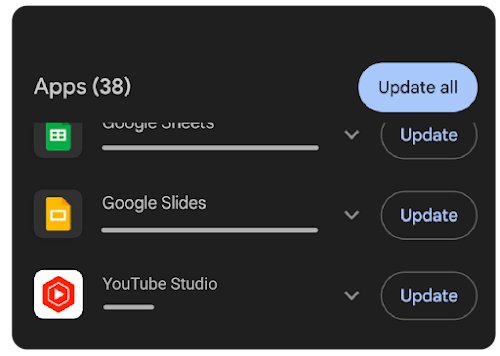
- Open the Google Play Store, tap your profile picture, tap Manage apps & device and update YouTube from Updates available.
- Touch and hold the YouTube app icon, tap App info, then Storage & cache > Clear cache.
- If the app still fails, uninstall and reinstall it.
- If you see "The following content is not available on this app", you are using a third-party app; switch to the official YouTube app or m.youtube.com.
- If the Play Store itself misbehaves, update it from Play Store Settings > About > Update Play Store.
Fix YouTube Buffering, Lagging, or Loading Slowly
Videos keep buffering or loading slowly
The connection is slower than the resolution needs.
- Run a speed test and compare it with YouTube's figures: 1.1 Mbps for 480p, 2.5 Mbps for 720p, 5 Mbps for 1080p.
- In the player, select Settings > Quality and pick a lower resolution.
- Close other tabs, browsers and programs, and use a wired connection if you can.
Quality keeps dropping on its own
YouTube adjusts quality to your connection, player size and browser.
- Set a fixed quality under Settings > Quality.
- Make the player larger; higher qualities play better on larger players.
- Try a different browser if 1080p or 4K is missing; some do not support newer formats.
Video stops and asks "Continue watching?"
With Autoplay on, YouTube pauses after 30 minutes on mobile, 60 minutes in a browser or 180 minutes on TV to protect your watch history and data.
- Select Yes to keep watching.
- For more causes, see these fixes for YouTube pausing on its own.
Fix YouTube Sound Problems
Video plays with no sound
The player, browser tab or device is muted.
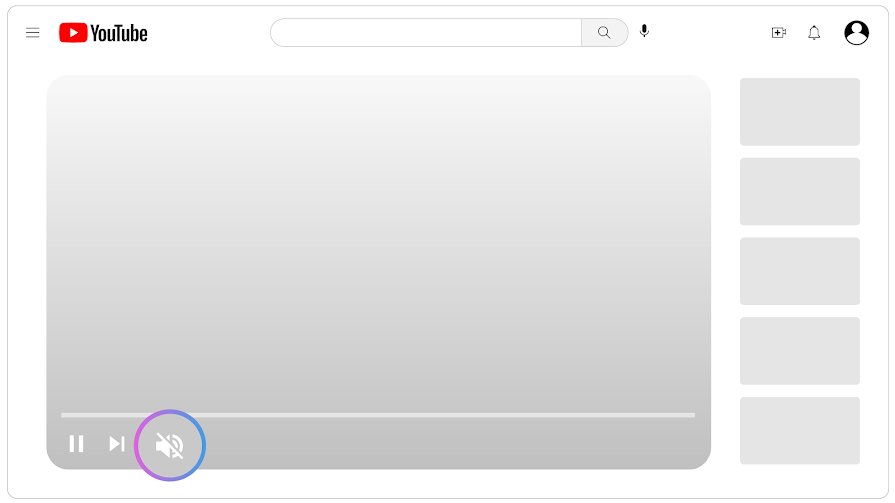
- Check the volume button in the YouTube player and unmute it.
- Make sure sound is turned on for the browser or device.
- Check your device's sound settings, including the output device.
- Restart the browser or device.
Sound works in other apps but not on YouTube TV app
The TV app is stuck.
- Unplug the TV or streaming device for at least 30 seconds and plug it back in.
- Check the device's app store for a YouTube update.
Fix YouTube Sign-In, Account, and Age-Restriction Problems
"Sign in to confirm your age" or an age-restricted video will not play
Age-restricted videos cannot be watched by signed-out viewers or viewers under 18.
- Sign in with an account that belongs to someone over 18.
- Watch on YouTube itself; most third-party sites cannot play age-restricted videos.
Some videos play only when signed in
YouTube may block signed-out users from certain content.
- Sign in to YouTube and reload the video.
"Video isn't available in your country"
The owner limited it to certain regions, or local law requires a block.
- Accept that the video cannot be played in your region; there is no setting to change this.
"This video is private"
Only accounts the owner invited can watch it.
- Sign in with the account the owner shared it with, or ask the owner for access.
Fix YouTube on Smart TVs, Streaming Devices, and Game Consoles
YouTube runs on Roku TVs, Xbox and PlayStation consoles, Fire TV, Apple TV, Chromecast with Google TV and many smart TVs. YouTube calls power cycling the most effective fix on a TV.
- Unplug the TV, streaming device or console from the outlet.
- Wait at least 30 seconds, then plug it back in.
- Open the device's app store and install any YouTube update; most TVs update apps automatically.
- Update the device's own software. On Roku, press Home and go to Settings > System > Software update > Check Now.
- On Roku, remove and re-add the app: highlight YouTube, press Star, select Remove app, restart, then add it again from the Streaming Store.
- Lower the quality under Settings > Quality in the TV player; some TVs cannot play 1080p or 4K formats.
Check for Network Blocks, Parental Controls, and School or Work Restrictions
Comments are hidden and some videos do not appear
Restricted Mode is on for this browser or profile.
- Select your profile photo at the top right of YouTube.
- Select Restricted Mode at the bottom and turn off Activate Restricted Mode.
- Repeat in each browser and profile, because the setting is stored per browser.
Restricted Mode will not turn off
A network administrator, school, library, Family Link or a mobile carrier filter set it.
- Open YouTube's content restrictions check page from the Restricted Mode help article to see which restriction applies.
- Ask the school or workplace administrator, or the parent who manages Family Link.
- For DNS filtering on mobile data set to moderate or strict, contact your mobile carrier.
"Something went wrong. Refresh or try again later" on one network only
DNS settings changed by a third-party app, or an ad blocker.
- Check that no third-party app has changed your DNS settings.
- Allow ads on YouTube or turn off the ad blocker, then reload.
Advanced Fixes for Stubborn YouTube Problems
- Uninstall and reinstall the YouTube app on the affected device.
- Update the device's firmware and operating system, not just the app.
- On a computer, turn off browser hardware acceleration and update the graphics driver.
- Test in a different browser to rule out the browser profile.
- On Android, clear the YouTube app cache, then update the Google Play Store.
- On older phones that the app no longer supports, use m.youtube.com in the mobile browser.
Common YouTube Error Messages and What They Mean
| Message | What it usually means | First fix |
|---|---|---|
| "An error has occurred." | Playback failed on your side | Reload, then restart the app or browser |
| "Playback error. Tap to retry." | The stream dropped | Check your connection speed and retry |
| "Connection to server lost." | Your connection to YouTube dropped | Restart your router and device |
| "This video is unavailable." | Region, privacy or removal limits | Check whether it is private or region-blocked |
| "Something went wrong. Tap to retry." | App or browser problem | Update the app or browser and sign in |
| "Error loading the page, please try again." | YouTube service interruption; a minimal page may load | Reload or try later |
| "Something went wrong. Refresh or try again later." | Ad blocker, DNS change or unsupported browser | Allow ads, check DNS, use Chrome, Firefox or Safari |
| "The following content is not available on this app" | A third-party app that breaks YouTube's API terms | Use the official app or m.youtube.com |
| Green or black video area | Hardware acceleration or graphics driver | Turn off hardware acceleration, update the driver |
What to Do If YouTube Still Is Not Working
- Confirm the same video plays on another device; if it does, the problem is local to the first device.
- On a computer, right-click the player and select Stats for nerds to see playback details, or Copy debug info.
- Post the issue to the YouTube Help Community and include the debug info if someone asks for it.
- If nothing works on one network only, contact your internet provider or network administrator.
How to Prevent YouTube Problems in the Future
| Habit | Why it helps |
|---|---|
| Keep the browser, app and device software updated | YouTube's fixes start with the newest browser or app version |
| Use the official YouTube app or a supported browser | Third-party apps can be blocked, and YouTube supports Chrome, Firefox and Safari |
| Keep extensions to a minimum | Ad blockers and script blockers are a listed cause of playback errors |
| Leave free storage on phones | iPhones and iPads remove unused apps and files when storage runs low |
| Match quality to your speed | Choose a resolution your connection sustains |
| Power cycle the TV now and then | YouTube calls it the most effective TV fix |
Frequently asked questions
Why isn't YouTube working today?
If YouTube fails on several devices and networks at once, YouTube itself is probably having a service interruption; it may show a minimal watch page with no comments. If only one device fails, restart it, check your connection and update the browser or app.
Why isn't YouTube working on my PC or laptop?
On a computer the usual causes are an outdated browser, an ad blocker or other extension, corrupted cookies, or hardware acceleration. Update the browser, test in an incognito window, clear cache and cookies, and turn off hardware acceleration if the video turns green or black.
Why isn't YouTube working on Chrome?
Update Chrome, disable extensions such as ad blockers, then use More > Delete browsing data to clear cookies and cached files. If the video is green or black, turn off Use hardware acceleration when available under Settings > System and restart Chrome.
Why isn't YouTube working on Microsoft Edge?
Edge problems usually come from extensions, cached data or an outdated version. Update Edge, turn off ad blockers, and clear its cookies and cache. If YouTube still fails, test in Chrome or Firefox, the browsers YouTube lists as supported, to see whether the problem is Edge itself.
Why isn't YouTube working on my phone?
Restart the YouTube app and the phone, then update the app. On iPhone, offload and reinstall YouTube and check that Low Data Mode is off. On Android, clear the app's cache from App info > Storage & cache. A third-party YouTube app can also be blocked.
Why isn't YouTube working on my Roku or Roku TV?
Unplug the Roku for at least 30 seconds, then check for software updates under Settings > System > Software update. If YouTube still fails, highlight it, press Star, select Remove app, restart the Roku and add YouTube again from the Streaming Store.
Why isn't YouTube working on Xbox?
YouTube supports Xbox Series X|S and Xbox One consoles. Fully unplug the console for at least 30 seconds, then check the console's app store for a YouTube update. Also confirm other apps can stream, which rules out the home network.
Why aren't YouTube videos working when the site loads?
When the page loads but videos do not, the connection may be too slow for the chosen quality, an extension may block the player, or the video may be private, age-restricted or region-blocked. Lower the quality, disable extensions and sign in.
Why does YouTube not work after clearing cookies?
Clearing cookies signs you out of YouTube, and some videos are blocked for signed-out viewers. Sign in again and reload the video. Sites may also feel slower at first because images and other content need to load again.

How to restore old YouTube.com design on desktop - Techdows
[…] it still fails, fix YouTube not working on desktop before trying the filter […]