To log in to YouTube on a TV, open the YouTube app, go to yt.be/activate on your phone or computer, type the code the TV shows and choose your Google Account.
This guide covers the code route, signing in with the remote, adding and removing accounts, the separate TV code for phone control, and fixes for codes that fail.
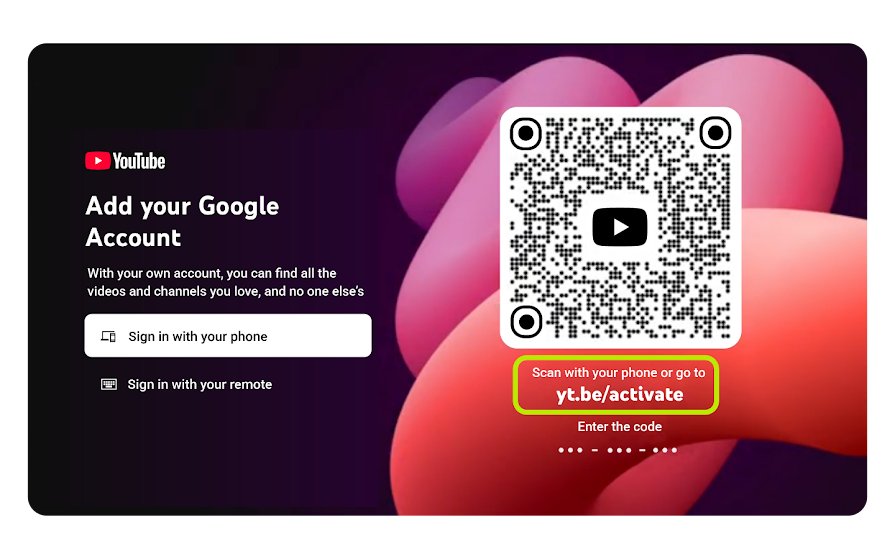
How to log in to YouTube on a TV with yt.be/activate
Google documents this route for smart TVs, streaming devices and game consoles running the YouTube app. Keep the TV on the sign-in screen until the last step.
- Install the YouTube app from your TV's app store if it is not already on the device.
- Open the YouTube app on your smart TV, streaming device or game console.
- Choose Sign in with your phone so the screen shows a QR code and an activation code.
- Scan the QR code with your phone, or open yt.be/activate in a browser on your phone, tablet or computer.
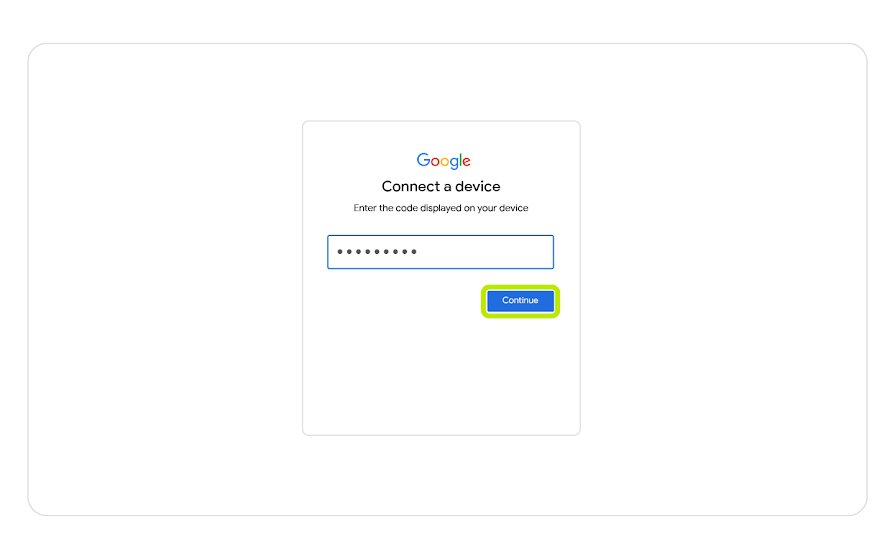
- Type the code exactly as it appears on the TV.
- Select the Google Account you want to use on the TV and approve the sign-in.
- Wait for the TV to load your Home feed under that account.
If the phone route stalls, Google's own advice is to switch to the other option and sign in with the remote instead.
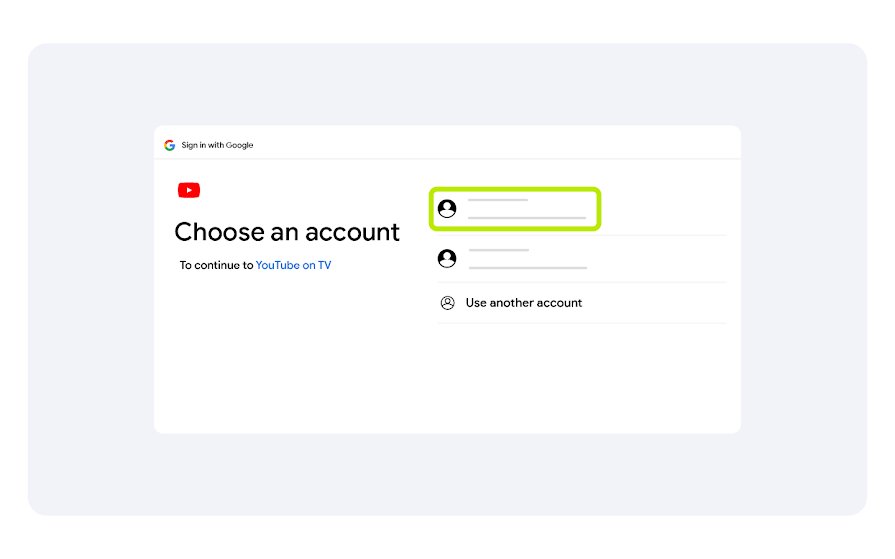
Before entering the code, check which app you opened
YouTube and YouTube TV are separate apps with separate sign-in addresses. A code from one app does nothing on the other app's page.
| What the TV screen shows | App you opened | Where to enter the code |
|---|---|---|
| Red YouTube logo, free videos, Shorts, your subscriptions | YouTube (regular app) | yt.be/activate |
| YouTube TV branding, live channels and a paid plan prompt | YouTube TV | tv.youtube.com/start |
| YouTube Kids characters and a kids profile | YouTube Kids profile inside YouTube | Pick a different profile in the YouTube app first |
| Settings page with a numeric code under linked devices | YouTube TV code screen, not sign-in | Enter it in the YouTube phone app under Cast, not on a website |
YouTube versus YouTube TV sign-in pages
| Detail | YouTube app | YouTube TV app |
|---|---|---|
| What it is | Free video service, optional Premium | Paid live TV subscription |
| Sign-in page for the TV code | yt.be/activate | tv.youtube.com/start |
| Account to pick | Any Google Account | The account that holds the YouTube TV Base Plan or shares it through a family group |
| Remote sign-in option | Yes, on-screen keyboard | Yes, Sign in with your remote |
| Remote sign-out | myaccount.google.com/permissions > YouTube on TV > Remove Access | myaccount.google.com/permissions > YouTube TV > remove access |
| Help Center | YouTube Help | YouTube TV Help |
Google's YouTube sign-in article itself sends YouTube TV members to the YouTube TV Help Center, so the two flows never share a code.
How to sign in to the YouTube TV app
Use this only if you pay for YouTube TV live channels. The steps mirror the yt.be route but use a different address and ask for the account that holds the plan.
- Open the YouTube TV app on the TV, streaming device or console.
- Scan the QR code, or go to tv.youtube.com/start on your phone or computer.
- Type the code from the TV and tap Continue.
- Pick the Google Account with the YouTube TV Base Plan.
- Select Allow to finish.
Each device has its own app install and location check when you activate YouTube TV on a new device. Billing or plan questions go to YouTube TV customer service, not YouTube Help.
Sign in with the TV remote
This route needs no phone and no website. It suits a TV that cannot reach your phone's Wi-Fi network, or a code that keeps failing.
- Open the YouTube app on the TV or console.
- Choose Sign in with your remote on the sign-in screen.
- Use the remote and the on-screen keyboard to type your Google Account email address.
- Enter your password the same way.
- Pick your channel or profile when the app asks.
Typing a long password with a remote is slow, so the phone route is quicker whenever both devices work.
yt.be/activate code or TV remote: which sign-in to use
| Your situation | Use this | Why |
|---|---|---|
| Phone and TV are on the same Wi-Fi | QR code or yt.be/activate | Fastest, no password typing on the TV |
| Phone is on mobile data only | TV remote, or switch the phone to Wi-Fi | Google lists a different network as a cause of failed phone sign-in |
| No phone or computer nearby | TV remote | Only route that runs entirely on the TV |
| Older Chromecast with no YouTube app | Cast from your phone | Direct sign-in on older Chromecast devices is not supported |
| You only want your phone as a controller | TV code under Cast > Add a device | Links devices without signing the TV in |
Add another Google Account to YouTube on your TV
Each person in the household can keep their own account on the TV and switch between them. Guests can use guest mode, which keeps their viewing out of your recommendations.
- Open the YouTube app on the TV.
- On the Who's Watching? screen, select Add account.
- If the app opens straight into an account, open the left-hand menu and select your profile picture at the top.
- On the Accounts tab, select Add account.
- Sign in with the phone code at yt.be/activate or with the remote.
- To switch later, select the account on Who's Watching? or on the Accounts tab.
The same screen offers Guest for signed-out viewing and a YouTube Kids profile option, which opens YouTube Kids instead of the main app.
YouTube activation code vs TV code: do not confuse them
Both are codes shown on the TV, but they do different jobs and are entered in different places.
| Activation code | TV code | |
|---|---|---|
| What it does | Signs the TV app in to your Google Account | Links your phone or tablet to the TV as a controller and cast target |
| Where the TV shows it | Sign-in screen of the YouTube app | YouTube app Settings > link with TV code / add a device |
| Where you enter it | yt.be/activate in any browser, or by QR scan | YouTube phone app: Cast > Add a device |
| Works on a computer | Yes | No, Google says TV code is not available with computers |
| Needs the same Wi-Fi | Phone and TV on the same network is recommended | No, it is the way to link devices on different Wi-Fi networks |
| How to undo it | Sign out or remove the account on the TV | Unlink all devices in TV Settings > Linked devices |
Link your phone to YouTube on TV with a TV code
Use this when you want to cast from your phone but the phone and TV are on different Wi-Fi networks.
- Open the YouTube app on the TV and go to Settings.
- Choose the option to link a device with a TV code and note the number it shows.
- Open the YouTube app on your phone or tablet.
- Tap Cast, then tap Add a device.
- Enter the TV code and tap Link.
- Select the TV from the device list to start casting.
How to check YouTube is signed in on your TV
- Open the left-hand menu in the YouTube app on the TV.
- Check that your profile picture shows at the top instead of a sign-in prompt.
- Select the picture and confirm the right account is highlighted on the Accounts tab.
- Open your subscriptions or Library and check your own channels and playlists appear.
- Open the YouTube app on your phone with the same account; a pop-up showing what plays on the TV confirms the companion link.
Fix YouTube activation problems
The code is rejected at yt.be/activate
A mistyped code, a code from a different app, or one that has already refreshed on the TV.
- Compare every character on the page with the code currently on the TV.
- Check that the TV shows the regular YouTube app, not YouTube TV; a YouTube TV code belongs at tv.youtube.com/start.
- Go back on the TV and reopen the sign-in screen to get a fresh code, then enter it straight away.
Phone sign-in does not finish
The phone and TV are on different networks, or the phone is using mobile data.
- Open Settings on the TV and note which Wi-Fi network it uses.
- Connect the phone to the same Wi-Fi network.
- Turn off mobile data on the phone for the moment so the Wi-Fi connection is used.
- Start the sign-in again, or switch to Sign in with your remote.
The TV is frozen or keeps showing an old code
The app or the network connection has stalled.
- Unplug the TV or streaming device, wait 30 seconds and plug it back in.
- Restart your router.
- Restart your phone.
- Open the YouTube app again and request a new code.
You are using an older Chromecast
Signing in directly to YouTube on older Chromecast devices is not supported.
- Sign in to the YouTube app on your phone instead.
- Tap Cast in the phone app and pick the Chromecast.
- Control playback from the phone; the session uses the phone's account.
The wrong Google Account appears on the TV
Another household account was signed in earlier, or you approved the code with a different account on your phone.
- Open the left-hand menu and select the profile picture.
- Pick the correct account on the Accounts tab, or select Add account if it is missing.
- Remove the unwanted account if nobody else needs it on this TV.
YouTube keeps asking you to log in or re-authenticate
YouTube shows sign-in reminders to signed-out viewers and can ask for re-authentication before some features.
- Dismiss the reminder if you want to keep watching signed out; Google says the prompt can be closed.
- For a re-authentication request, confirm with a 2-Step Verification method such as a security key, a phone prompt, a backup code or an SMS code.
- If you see Action blocked, stay signed in on your phone for 7 or more days, or add a recovery phone number and wait 7 days.
Remove a YouTube account from the TV
Sign out to keep the account listed for next time, or remove it to take it off the TV entirely. Remote removal works when you no longer have the TV, such as a hotel or a sold set.
- Open the YouTube app on the TV and open the left-hand menu.
- Select your profile picture to reach the accounts page.
- Choose the account and select Sign out, or select Remove Account to delete it from the TV.
- Without the TV, open myaccount.google.com/device-activity, select the device and choose Sign out.
- To sign out every TV at once, open myaccount.google.com/permissions, select YouTube on TV and choose Remove Access.
- To unlink phones paired with a TV code, open TV Settings > Linked devices and unlink all devices.
Removing YouTube on TV access signs out every device using the YouTube on TV app with that account, so you will need a new code on each TV you keep.
yt.be/activate TV sign-in FAQ
How do I log in to YouTube on my TV?
Open the YouTube app on the TV, then scan the QR code or go to yt.be/activate on your phone or computer. Enter the code from the TV and pick your Google Account. You can also type your account details with the remote.
How do I log in to YouTube on a computer?
Go to youtube.com and click Sign in in the top right corner, then enter your Google Account email and password. If you have no Google Account yet, click Create Account on the same screen and choose personal, child or business use.
How do I log in to my YouTube account if I do not have one?
YouTube uses Google Accounts, so you need a Google Account first. Click Sign in on YouTube, then Create Account. Once signed in, you can create a YouTube channel to upload videos, comment and build playlists.
Why is YouTube requiring a login?
YouTube shows sign-in reminders to signed-out viewers, and these can be dismissed. Age-restricted videos are different: they cannot be watched signed out or by viewers under 18, so you must sign in to an adult account to play them.
What website do I use for the YouTube TV login code?
Use tv.youtube.com/start for a code from the YouTube TV app. Use yt.be/activate only for a code from the regular YouTube app. Entering a code on the other app's page will not sign the TV in.
Why is my YouTube TV code not working?
The most common causes are a code from the other app, a mistyped character, or a code that has refreshed on the TV. Check which app is open, request a fresh code, and power cycle the TV and router if it still fails.
Is a YouTube TV code the same as a TV code?
No. An activation code signs a TV app in to your account, while the YouTube TV code links your phone to the TV for casting and remote control. The TV code is entered in the YouTube phone app under Cast, not on a website.
Can I sign in to YouTube without using yt.be/activate?
Yes. Choose Sign in with your remote on the TV and type your Google Account details with the on-screen keyboard. Google recommends switching to this route when the phone method does not work.
Can someone use YouTube on my TV without my account?
Yes. Guest mode lets others watch on your TV while signed out, and nothing they watch affects your account's recommendations. Select Guest on the Who's Watching? screen or on the Accounts tab.
The bottom line on yt.be/activate sign-in
Use the QR code or yt.be/activate with your phone on the same Wi-Fi as the TV, and fall back to remote sign-in when the code route fails. The phone route avoids typing a password with a remote, and the remote route is the one Google documents for when phone sign-in will not complete. Keep tv.youtube.com/start for the paid YouTube TV app only.

![How to use a laptop screen as an external monitor [tutorial]](https://techdows.com/wp-content/uploads/2026/10/macOS-Displays-settings-with-an-iPad-added-as-an-extended-display-600x338.jpg)