To see your subscriptions list on YouTube, sign in and click Subscriptions in the Guide on a computer, or tap the Subscriptions tab and then All in the YouTube app.
This guide covers the desktop and mobile routes, how to sort and trim the list, who can see it, what YouTube Studio shows instead, and fixes for subscription limits and unwanted channels.
The fastest way to see your YouTube subscriptions
The Subscriptions page is the same list on every device, because it belongs to your Google account rather than to the app or browser.
- Open youtube.com in a browser, or open the YouTube app on your phone or tablet.
- Sign in with the Google account you subscribe with.
- On a computer, click Subscriptions in the Guide, the menu down the left side of the page.
- In the app, tap the Subscriptions tab at the bottom of the screen.
- In the app, tap All at the top to switch from the video feed to the full list of channels.
The feed shows the newest uploads from those channels, and the All view shows the channels themselves.
Numerous Ways to Access Your Subscriptions List
Each route answers a slightly different question: what is new, which channels you follow, or who follows you. Match your goal to a row.
| What you want | Where to go | What you get |
|---|---|---|
| Latest videos from channels you follow, on a computer | Guide > Subscriptions | The Subscriptions feed, newest uploads first |
| The full list of channels you follow, on a phone or tablet | Subscriptions tab > All | Every subscribed channel, with a drop-down filter |
| The list without installing the app | m.youtube.com in a mobile browser | The same Subscriptions tab as the Android app |
| An alert the moment a channel posts | The Notification bell on the channel | All, Personalized or no notifications per channel |
| Who subscribes to your own channel | YouTube Studio > Analytics | Your subscriber count and recent subscribers, not your subscriptions |
| To let others see the channels you follow | Settings > Privacy | A public subscriptions list on your channel homepage |
Viewing Subscriptions on the Desktop
On a computer, the Subscriptions feed is one click away in any browser once you are signed in.
- Go to youtube.com and click Sign in at the top right if you are not signed in already.
- Open the Guide on the left side of the page if it is collapsed.
- Click Subscriptions to open the feed of recent uploads from every channel you follow.
- Scroll down to load older uploads from your subscriptions.
- Click a channel name under any video to open that channel's page and its Subscribed button.
Videos from your subscriptions can also appear on the Home tab mixed with recommendations. The Subscriptions feed is the only view limited to channels you chose.
Using the YouTube Mobile App
The Android, iPhone and iPad apps add a channel-by-channel list that the desktop feed does not show at the top of the page.
- Open the YouTube app, or go to m.youtube.com in your phone's browser.
- Sign in to YouTube with your Google account.
- Tap the Subscriptions tab.
- Tap All to open the list of every channel you subscribe to.
- Tap the drop-down arrow at the top of the list to filter the channels.
- Tap any channel in the list to open its page and browse its videos.
A dot next to a channel name means it has new content you have not seen. The word Live next to a name means that channel is streaming right now.
Make your subscriptions list public or private
Subscriptions are private by default, so nobody else can see the channels you follow unless you change this setting.
When the list is public, it appears on your channel homepage and your account shows in each channel's Subscribers List. When it is private, it does neither.
- Sign in to YouTube on a computer.
- Click your profile picture at the top right.
- Click Settings.
- Select Privacy in the left menu.
- Turn Keep all my subscriptions private on to hide the list, or off to make it public.
Even with a private list, joining a subscriber-only live chat or commenting where comments are limited to subscribers shows other viewers that you subscribe to that channel.
Using YouTube Studio
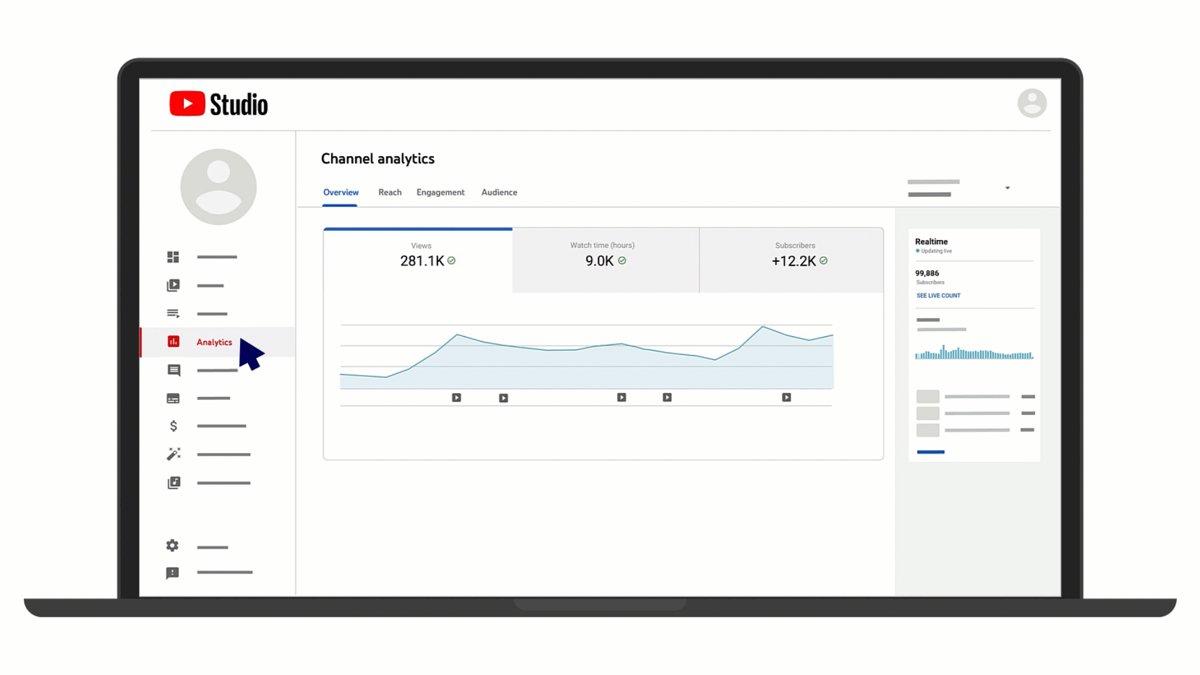
YouTube Studio does not list the channels you follow. It shows the other side: how many people subscribe to your own channel.
Use it when the question is "who subscribed to me" rather than "who do I subscribe to".
- Sign in to YouTube Studio.
- Select Analytics in the left menu.
- Stay on the Overview tab and find the Realtime card.
- Click SEE LIVE COUNT to view your subscriber count over time.
Your channel dashboard also lists recent subscribers. Only people who subscribed in the last 28 days and keep their subscriptions public appear there, so the list is always shorter than your total count.
Subscription Notifications
Subscribing sends new uploads to your Subscriptions feed. The Notification bell decides whether YouTube also alerts you, and each channel starts on Personalized.
- Open the channel page, or a video from that channel.
- Click Subscribe if you are not subscribed yet.
- Click the Notification bell next to the Subscribed button.
- Choose All for alerts on long-form uploads and live streams, Personalized for highlights only, or None to stop alerts.
- To set account-wide rules, click your profile picture, then Settings > Notifications, and pick your mobile, desktop and email preferences.
Click the Notification bell at the top of any YouTube page to read the alerts you already have.
How to check the list is complete
A channel belongs on your list only if its button reads Subscribed. Use that as the proof.
- Open a channel you expect to follow from the All list or from a video in your Subscriptions feed.
- Confirm the button under the channel name reads Subscribed, not Subscribe.
- Click your profile picture and check that you are signed in to the Google account you subscribe with.
- Compare the All list on your phone with the desktop feed; both come from the same account, so a channel missing from one is not subscribed.
Understanding YouTube Subscriptions
A subscription is a free follow. It is separate from paid channel memberships and YouTube Premium, which are billed plans with their own pages.
| What subscribing does | Detail |
|---|---|
| Fills your Subscriptions feed | Every new video a subscribed channel publishes appears there |
| Shapes your Home tab | Home can show videos from your subscriptions next to recommendations |
| Turns on alerts | New subscriptions start on Personalized notifications with highlights from the channel |
| Resets when you re-subscribe | Unsubscribing and subscribing again resets that channel's notification setting |
| Skips made-for-kids channels | Channels set as made for kids send no notifications, and the bell cannot be changed |
| Stays private by default | Other users cannot see your list until you switch it to public |
Organizing Your Subscriptions
There are no folders for subscriptions. You organize the list by filtering it and by unsubscribing from channels you no longer watch.
- In the app, open Subscriptions > All and use the drop-down arrow at the top to filter the list.
- Look for channels without a dot for a long time; those are the ones you rarely see new videos from.
- Open a channel or one of its videos that you want to drop.
- Click or tap Subscribed under the video player.
- Select Unsubscribe and confirm; a message at the bottom of the screen confirms the change.
Unsubscribing also clears your notification choice for that channel. If you subscribe again later, set the bell to All again if you want every upload.
Fix problems with your subscriptions list
These symptoms come from YouTube's own troubleshooting notes for subscriptions.
"Too many subscriptions" when you click Subscribe
You hit a limit: 75 new subscriptions per day, or the account maximum, which is generally 2,000 channels.
- Wait a day if you subscribed to many channels today, then try again.
- Open Subscriptions > All and unsubscribe from channels you no longer watch to free space.
- Keep the list at 5,000 channels or fewer, the ceiling YouTube recommends for a feed that works well.
Channels you never subscribed to appear in your list
A browser extension can subscribe you to channels without your permission. The same cause brings back channels you already removed.
- Open your browser's extensions page and remove any extension you do not recognise or no longer use.
- Return to your subscriptions and unsubscribe from the unwanted channels.
- Check the list again after a day to confirm the channels did not come back.
Subscribed, but no alerts for new videos
The channel is on Personalized, you re-subscribed and the bell reset, or the channel is set as made for kids.
- Open the channel and click the Notification bell.
- Select All to get alerts for every long-form upload and live stream.
- Check your Subscriptions feed instead for made-for-kids channels, which never send notifications.
Utilizing Third-Party Services
Extensions and outside sites that promise to export or bulk-manage your subscriptions need access to your YouTube account to do it.
Use YouTube's own Subscriptions tab and All list instead of third-party tools to view or clean up your subscriptions. YouTube names browser extensions as a cause of channels being subscribed without permission, and everything a viewer needs, including filtering and unsubscribing, is already built in.
Conclusion
Use the app's Subscriptions > All view when you want the full channel list, and the desktop Subscriptions feed when you only want new videos. The All view is the only official screen that lists every channel with a filter, while the feed is faster for catching up on uploads.
Frequently Asked Questions
Bing autocomplete for this topic returns general "see my subscriptions" searches, so these questions apply those searches to YouTube.
How can I see all my subscriptions on YouTube?
Open the YouTube app, tap the Subscriptions tab and then tap All. That shows every channel you subscribe to, and the drop-down arrow at the top filters the list. On a computer, click Subscriptions in the Guide to see their newest videos.
How do I view my subscriptions on YouTube on a computer?
Sign in at youtube.com and click Subscriptions in the Guide on the left side of the page. The page shows recent uploads from every channel you follow, newest first. Click a channel name under any video to open that channel.
How do I find out which channels I am subscribed to on my phone?
In the YouTube app or at m.youtube.com, sign in and tap Subscriptions, then All. A dot beside a channel means new content, and Live means the channel is streaming. Tap a channel to open it.
Can other people see my YouTube subscriptions?
Not by default, because YouTube sets subscriptions to private. If you turn off Keep all my subscriptions private under Settings > Privacy, your list appears on your channel homepage. Subscriber-only chats and comments can still reveal a single subscription.
How many channels can I subscribe to on YouTube?
You can add up to 75 new channels per day. The general maximum is 2,000 channels, and it grows with your own channel's subscribers or your account's age. YouTube recommends staying at or under 5,000 for a feed that works well.
Why am I subscribed to channels I did not choose?
A browser extension can subscribe you to channels without your permission, and can bring back channels you removed. Remove extensions you do not trust, then unsubscribe from the unwanted channels under Subscriptions > All.
How do I see who subscribed to my YouTube channel?
Sign in to YouTube Studio and select Analytics for your subscriber count, or check the recent subscribers list on your channel dashboard. That list shows only people with public subscriptions who subscribed in the last 28 days.
What is the difference between the Subscriptions feed and notifications?
The Subscriptions feed lists recent uploads from every channel you follow, whether or not you were alerted. Notifications are alerts sent to your phone, browser or inbox, and the bell on each channel controls how many you get.
Why did my notifications change after I re-subscribed to a channel?
Unsubscribing and subscribing again resets that channel's notification setting to Personalized or no notifications. Click the Notification bell on the channel and choose All if you want an alert for every upload.