Run a Microsoft Defender Offline scan from Windows Security > Virus & threat protection > Scan options when a full scan keeps finding the same threat, when malware returns after every restart, or when Windows Security tells you to.
This guide covers when the reboot is worth it, the BitLocker and WinRE checks to do first, the PowerShell route, where the results land, and what to do when the scan will not start.
How to run Microsoft Defender Offline scan on Windows 11/10
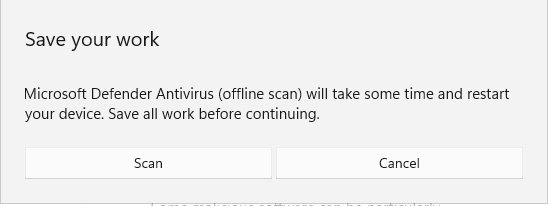
Save your work first. The PC signs you out, restarts, scans for about 15 minutes outside Windows, then restarts back into Windows on its own.
- Open Start, type Windows Security and open the app.
- Select Virus & threat protection.
- Under Current threats, select Scan options.
- Select Microsoft Defender Antivirus (offline scan), then select Scan now.
- Save any open files when Windows prompts you, then select Scan.
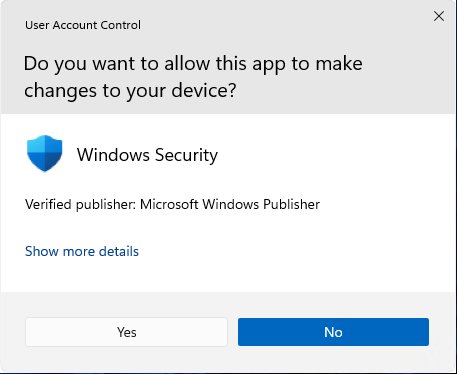
- Select Yes in the User Account Control prompt.
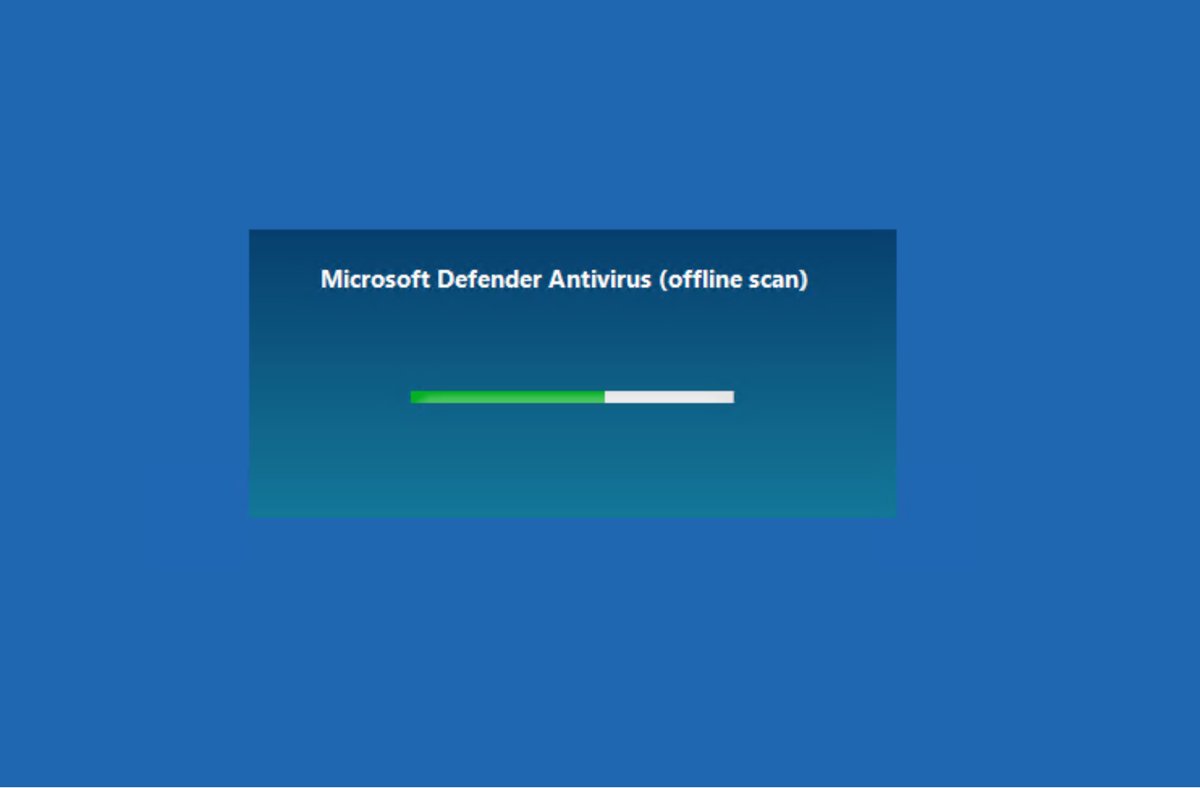
- Leave the PC alone while it signs out, restarts and runs the scan. Do not power it off.
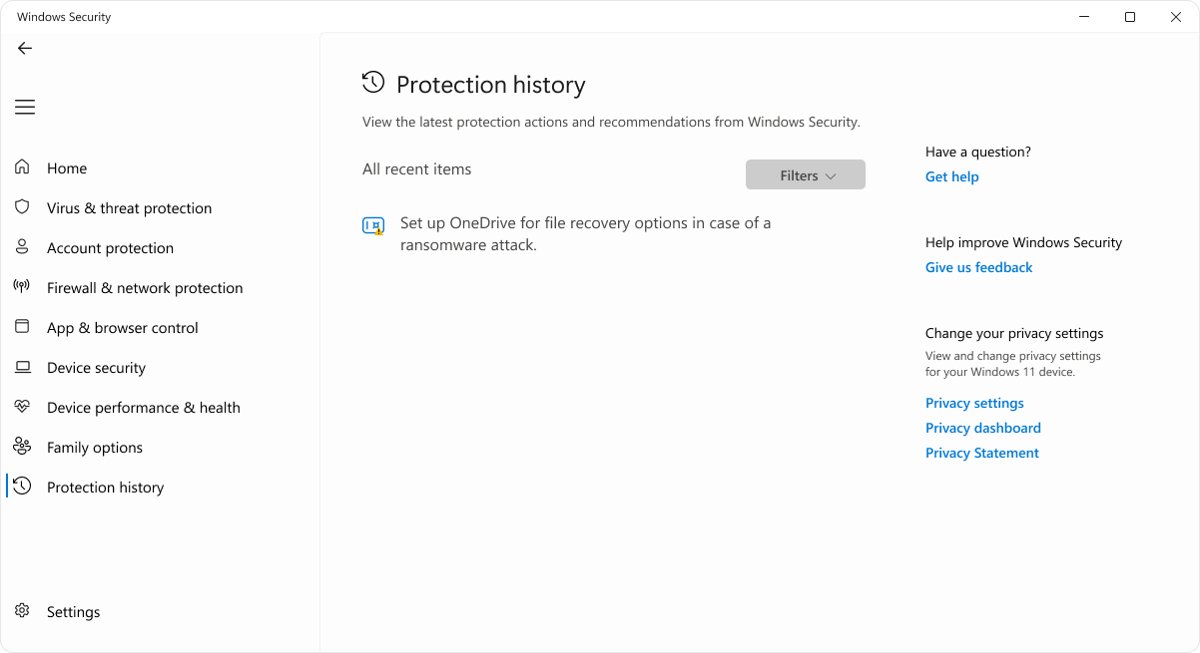
When Windows loads again, open Windows Security > Protection history to read what the scan found.
Defender Offline scan vs full scan: when to reboot
Real-time protection is still the front door: it checks files as they are opened, downloaded or run, so most threats never need a manual scan. A full scan is the sensible first escalation, and the offline scan comes after that.
| Your situation | Use this | Why |
|---|---|---|
| Routine check, nothing looks wrong | Quick scan | Microsoft recommends a quick scan for most cases; it checks the places malware registers to start with Windows |
| You opened a suspicious file or the PC behaves oddly | Full scan | Scans every file and program on the drive while Windows keeps running |
| One file or USB drive is in doubt | Custom scan | Scans only the files and folders you pick |
| The same threat comes back after every restart | Offline scan | A hidden component may be reinstalling it; the offline scan runs before that component can load |
| Windows Security or a notification says an offline scan is required | Offline scan | Defender asks for it when it cannot finish the clean-up from inside Windows |
| You suspect a rootkit or boot-record infection | Offline scan | It runs outside the normal Windows kernel, where rootkits and MBR malware cannot hide |
| You want proof the PC is clean after an outbreak | Offline scan | Microsoft lists confirming a thorough clean as a reason to run it |
Run a Microsoft Defender full scan inside Windows first, and reboot into the offline scan only if the threat survives it.
Microsoft lists the signs that a scan is due: the PC suddenly runs much slower, battery life drops, data usage rises unexpectedly, ads or pop-ups appear out of nowhere, or the browser redirects you to sites you did not open. Scan as well when you want to confirm an earlier infection is gone.
Is the Defender Offline scan built in or downloaded?
The offline scan is built in, not downloaded, on Windows 11 and on Windows 10 version 1607 or newer. There is nothing to install on a supported PC, and a site offering a separate "Defender Offline" download for Windows 11 is not something you need. Check these prerequisites before you restart.
| Requirement | What it means |
|---|---|
| Windows edition | x64 Windows 11, or x64/x86 Windows 10 version 1607 or later |
| Not supported | Windows 11 and Windows 10 on ARM, and Windows Server |
| Defender must be active | The Microsoft Defender Antivirus service must be your primary antivirus, not in passive mode behind another product |
| Account | You must sign in with local administrator rights |
| Windows Recovery Environment | WinRE must be enabled, or the scan silently fails to start |
| BitLocker | Suspend protection on the system drive first, or have the recovery key ready |
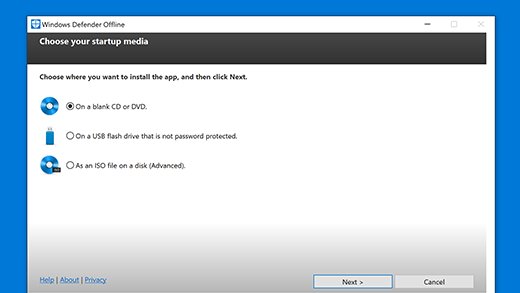
| Older systems | Windows 7 SP1 and Windows 8.1 need bootable media made with Microsoft's Defender Offline tool |
The scan uses the definitions already on the PC, so update Microsoft Defender Antivirus before you reboot if the last update is more than a day old.
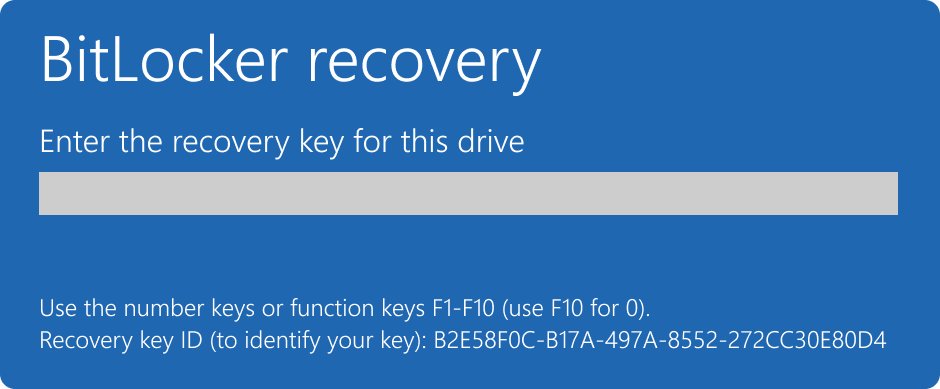
BitLocker and the Defender Offline scan: suspend protection or keep the recovery key ready
BitLocker turns a security scan into a recovery-key test. Microsoft warns that with BitLocker on the system drive, the restart into the offline environment can stop at the BitLocker recovery screen.
Find your recovery key before you start. Personal devices usually store it in your Microsoft account at aka.ms/myrecoverykey; work devices store it with your organisation.
- Confirm you can see the recovery key for the system drive in your Microsoft account, or on the printout or file you saved.
- Right-click Start and select Terminal (Admin) or Windows PowerShell (Admin).
- Run
Suspend-BitLocker -MountPoint "C:" -RebootCount 1to pause protection for one restart. - Start the offline scan from Windows Security.
- After Windows loads again, run
Resume-BitLocker -MountPoint "C:"if protection has not already resumed.
Suspending BitLocker does not decrypt the drive; it leaves the key available in the clear until protection resumes. Because the offline scan restarts the PC more than once, check Manage BitLocker afterwards and resume protection if it still shows as suspended.
Start Microsoft Defender Offline scan from PowerShell
PowerShell starts the same scan without the Windows Security prompts. The PC restarts as soon as the command runs, so save everything first.
Start-MpWDOScanRun it in an elevated PowerShell window. It reboots the device into the isolated offline environment, scans, and boots back into Windows. The WMI equivalent is wmic /namespace:\\root\Microsoft\Windows\Defender path MSFT_MpWDOScan call Start.
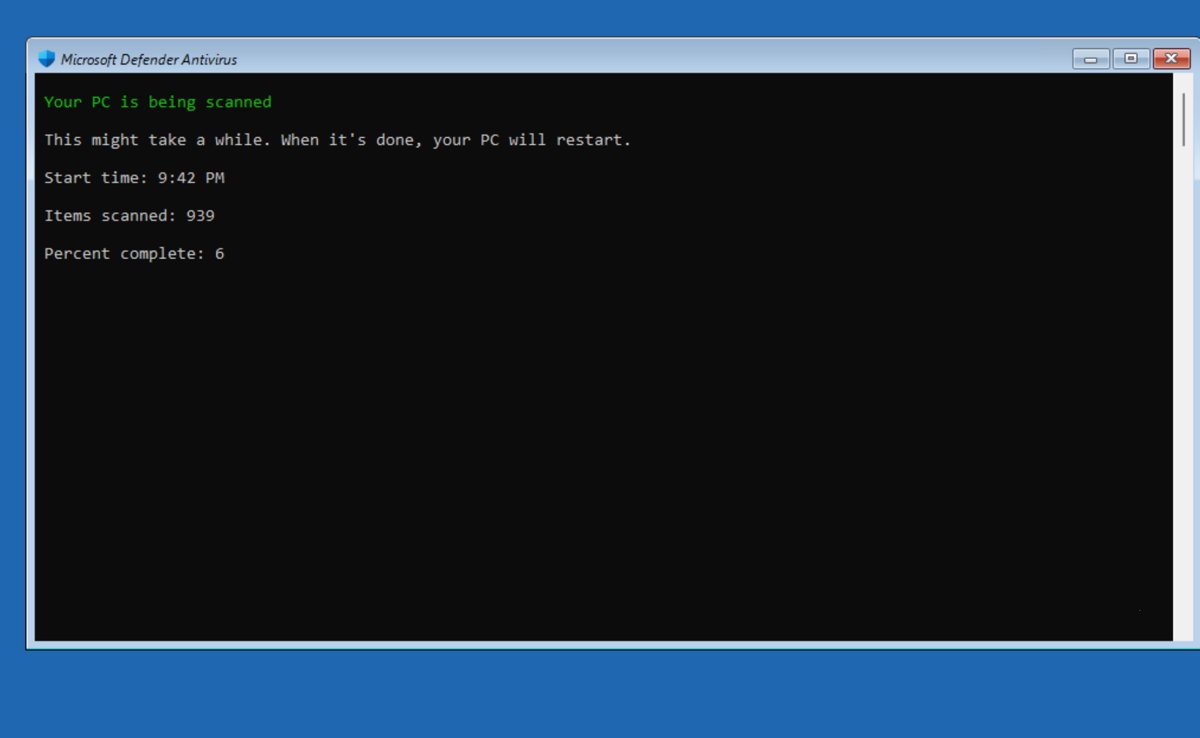
You should see: You are signed out within a minute, the PC restarts into a Microsoft Defender Antivirus (offline scan) screen with a progress bar, and Windows loads normally when it finishes.
Defender Offline scan on Windows 10 after end of support
Windows 10 users are running the same tool on a shorter clock. Windows 10 Home and Pro reached end of support on October 14, 2025, and only PCs on version 22H2 enrolled in Extended Security Updates keep getting Windows security fixes.
| Windows version | Where the offline scan lives | What to keep in mind |
|---|---|---|
| Windows 11 (x64) | Windows Security > Virus & threat protection > Scan options | Fully supported; offline scan is not available on ARM PCs |
| Windows 10 22H2 with ESU | Windows Security > Virus & threat protection > Scan options | Microsoft's end-of-support page says ESU keeps security updates coming until October 12, 2027 |
| Windows 10 22H2 without ESU | Same path | The scan still runs, but the OS no longer gets security fixes, so reinfection through an unpatched flaw is more likely |
| Windows 10 version 1607 | Settings > Update & security > Windows Defender | Unsupported release; update Windows first |
| Windows 7 SP1 or 8.1 | Bootable USB, CD or DVD | Make the media on a clean PC; a USB drive is wiped when the tool writes to it |
Check Defender Offline scan results in Protection history
Protection history is where the scan becomes evidence. It keeps events for two weeks, so read and act on the results soon after the scan.
- Open Windows Security and select Protection history.
- Look for cards dated from the scan. Red cards need action now; yellow cards should be checked soon.
- Select a card to expand it. Threat quarantined means the file is isolated; choose Remove to delete it.
- Safety note: don't select Restore on a quarantined item unless you are sure the file is safe. Restore puts the file back, Defender flags it again as Threat found – action needed, and only Allow on device then lets it run. If you are unsure, keep it quarantined or remove it.
- Treat Remediation incomplete as unfinished: expand the card and follow the extra steps it lists.
- To confirm the scan was scheduled, open Event Viewer and go to Applications and Services Logs > Microsoft > Windows > Windows Defender > Operational.
- Find Event ID 2030, which says Defender configured the offline scan to run on the next reboot.
No new cards after the scan means the offline pass found nothing. Viewing threat details in Protection history needs administrator rights.
To change how long Defender keeps items in its scan history folder, run Set-MpPreference -ScanPurgeItemsAfterDelay 30 in an elevated PowerShell window. The value is in days, the default is 15, and 0 stops Defender from removing them.
Microsoft Defender Offline: the malware tool that reboots you out of Windows
The reboot is the point, not a side effect. Malware that is running can hide its files and defend itself; the offline scan starts before Windows loads, so that code never gets the chance.
| Question | Answer |
|---|---|
| What it scans for | Persistent malware, with a focus on rootkits and threats that infect or overwrite the master boot record |
| Where it runs | From a trusted environment outside the normal Windows kernel, staged from C:\ProgramData\Microsoft\Windows Defender\Offline Scanner |
| How long it takes | About 15 minutes on a typical PC |
| Internet needed during the scan | No; it uses the latest definitions already downloaded |
| What the screen looks like | A plain Microsoft Defender Antivirus (offline scan) window, different from the normal scan UI |
| What happens at the end | The PC restarts and Windows loads normally |
Tamper protection and Defender Offline clean-up
Tamper protection makes clean-up less convenient on purpose. While it is on, other apps cannot switch off real-time protection, change exclusions or edit Defender's registry settings, which is exactly what malware tries to do.
Leave tamper protection on during and after an offline scan. The offline scan does not need any protected setting changed, and an administrator can still change Defender settings in the Windows Security app. Turning tamper protection off only widens the gap that malware uses to disable Defender.
If a third-party removal tool or script says it must disable tamper protection to work, treat that request with suspicion and use the offline scan instead.
Microsoft Defender Offline scan not working or won't start
Defender Offline scan does not run: the PC restarts straight into Windows
WinRE is the hidden dependency users discover only when it fails. With it disabled, the scan does nothing and shows no error.
- Right-click Start and open Terminal (Admin).
- Run
reagentc /infoand read the Windows RE status line. - If it says Disabled, run
reagentc /enable. - Run
reagentc /infoagain to confirm it shows Enabled, then start the offline scan again.
Microsoft Defender Offline scan asks for the BitLocker recovery key
BitLocker protection was active when the PC restarted into the offline environment.
- Enter the 48-digit recovery key from your Microsoft account at aka.ms/myrecoverykey on another device.
- Let the scan finish and Windows load.
- Next time, suspend BitLocker for one restart before you start the scan.
Microsoft Defender Offline scan option is missing or won't start
Defender is in passive mode behind another antivirus, the PC runs Windows on ARM, or the account lacks admin rights.
- Open Windows Security > Virus & threat protection and check whether another antivirus is listed as the active provider.
- Select Manage settings under Virus & threat protection settings and confirm Real-time protection is On. If it was switched off, turn it back on with the toggle; Windows also turns it back on by itself after a short while.
- Sign in with an administrator account and try again.
- On an ARM PC, run a full scan instead; the offline scan is not supported on ARM.
Blue screen stop error during the offline scan
Microsoft does not name a single cause for this.
- Restart the PC.
- Run the Microsoft Defender Offline scan again.
- If the stop error repeats, contact Microsoft Support.
Malware keeps coming back after the offline scan
The threat is re-arriving from a website, email or USB drive, or the infection caused changes the scan cannot reverse.
- Run Check for updates under Virus & threat protection updates, then scan again.
- Make sure Cloud-delivered protection and Automatic sample submission are on under Manage settings.
- Avoid the site, attachment or drive the threat came from.
- If the problem persists, back up your files and use Reset this PC in the Windows recovery options.
After the Defender Offline scan: why offline scanning is not incident response
Offline scanning is not incident response in a box. It removes files it recognises; it does not tell you how the infection arrived or undo changes the malware already made.
- Read every card in Protection history and remove anything still quarantined.
- Run Windows Update so known security holes are patched.
- Update your other apps, since outdated software is a common way malware gets in.
- Restore damaged files from a backup made before the infection, such as OneDrive version history.
- If malware made changes the scan could not reverse, reset or reinstall Windows after backing up your files.
- On a work PC, report the detection to your IT team instead of cleaning it up alone.
Microsoft Defender Offline scan FAQ
What is Microsoft Defender Offline scan?
Microsoft Defender Offline scan is a built-in Windows scan that restarts the PC and checks for malware before Windows loads. Running outside the normal Windows kernel lets it find rootkits and boot-record malware that hide while Windows is running.
How do I run Microsoft Defender Offline scan?
Open Windows Security, select Virus & threat protection, then Scan options. Choose Microsoft Defender Antivirus (offline scan) and select Scan now. Save your work first, because the PC signs out and restarts within a minute.
Why won't Microsoft Defender Offline scan run?
The most common cause is a disabled Windows Recovery Environment, which makes the scan fail with no error. Run reagentc /info in an admin terminal and reagentc /enable if it is disabled. Passive mode, ARM hardware and missing admin rights also block it.
Is Microsoft Defender Offline scan effective?
Yes, for threats that hide while Windows runs. It targets persistent malware, rootkits and master boot record infections. It does not replace real-time protection or patching, and it cannot undo changes the malware already made.
Is Microsoft Defender Offline scan safe?
Yes. It is part of Microsoft Defender Antivirus and restarts into Windows when it finishes. Save open files first, keep the PC powered, and suspend BitLocker or have your recovery key ready so the restart does not stall.
How long does a Microsoft Defender Offline scan take?
Microsoft says the offline scan takes about 15 minutes to run. The PC then restarts and Windows loads normally. Larger drives with many files can take longer.
Where do I find Microsoft Defender Offline scan results?
Open Windows Security and select Protection history. Any threat the offline scan found or removed appears there as a card. Protection history keeps events for two weeks, so check it soon after the scan.
Do I need to download Microsoft Defender Offline on Windows 11?
No. The offline scan is built into Windows 11 and Windows 10 version 1607 and later. Only Windows 7 SP1 and Windows 8.1 need bootable media made with Microsoft's separate Defender Offline tool.
Does Microsoft Defender Offline scan work with BitLocker?
Yes, but Microsoft recommends suspending BitLocker on the system drive first. Otherwise the restart into the offline environment can ask for the BitLocker recovery key.
The Defender Offline playbook is shorter than the panic
Update Defender, run a full scan, and reboot into the offline scan only when the threat survives, Defender asks for it, or you suspect a rootkit. Before that reboot, check WinRE is enabled and BitLocker is suspended or the key is at hand. Afterwards, Protection history shows what was removed, and anything marked Remediation incomplete still needs attention.